NTFS (New Technology File System) is the default file system for Windows. macOS can only read NTFS volumes by default—it cannot write to them without third-party tools. That's why EaseUS NTFS for Mac is here.
EaseUS NTFS for Mac Overview
EaseUS NTFS for Mac, also known as EaseUS NTFS Writer in App Store, is a well-designed file system driver, allowing you to read and write to NTFS drives on Mac. Thus, you can read, write, edit, rename, create, delete, move, and copy files to NTFS drives/partitions on a Mac without formatting drives.
Key Features
- Make NTFS drives read & write on Mac
- Mount/unmount NTFS drives from the Mac status bar
- Format other external disks to NTFS
- Erase NTFS disks to exFAT, FAT, and APFS
Compatibility
- macOS Sequoia 15 - macOS High Sierra 10.13
- ARM-based Apple Silicon M1/M2/M3 chips, Intel-based chip models
Note: Its official product webpage doesn't get timely updates concerning product information. Actually, it supports the latest macOS Tahoe 26, based on my test below.
Pricing
- $14.95 monthly plan, 1 license code for 1 computer
- $49.95 lifetime plan, 1 license code for 1 computer
EaseUS NTFS Writer Pros & Cons
Pros
- Make NTFS volumes readable & writable on Mac
- Intuitive interface, no skill entry barrier for newbies
- Clean & safe
Cons
- Poor compatibility. Apple Silicon M4/M5 chip models are not supported
- 7-day free trial activation is cumbersome
- 37MB/s write, and 11MB/s read speed for USB 3.0 HDD (from the real test below)
- Software crashes sometimes
- Encrypted BitLocker NTFS drive not supported
- BOOTCAMP NTFS partition writing is unsupported
- Poor value for money
Hands-on Test on EaseUS NTFS for Mac
This part includes EaseUS NTFS driver installation, 7-day free trial activation, how to read/write NTFS on Mac, speed test, disk erase, and uninstall. For those in a hurry, you can jump directly to the relevant part.
1. How to Install and Activate EaseUS NTFS Writer?
2. How to Read & Write NTFS Disks on Mac?
3. How Fast is EaseUS NTFS for Mac in Reading & Writing?
4. How to Erase Disks on Mac?
5. How to Uninstall EaseUS NTFS for Mac
1. How to Install EaseUS NTFS for Mac and Activate 7-day Free Trial
Step 1. Download EaseUS NTFS Writer from App Store and follow its instructions to install it on your Mac.
Note:
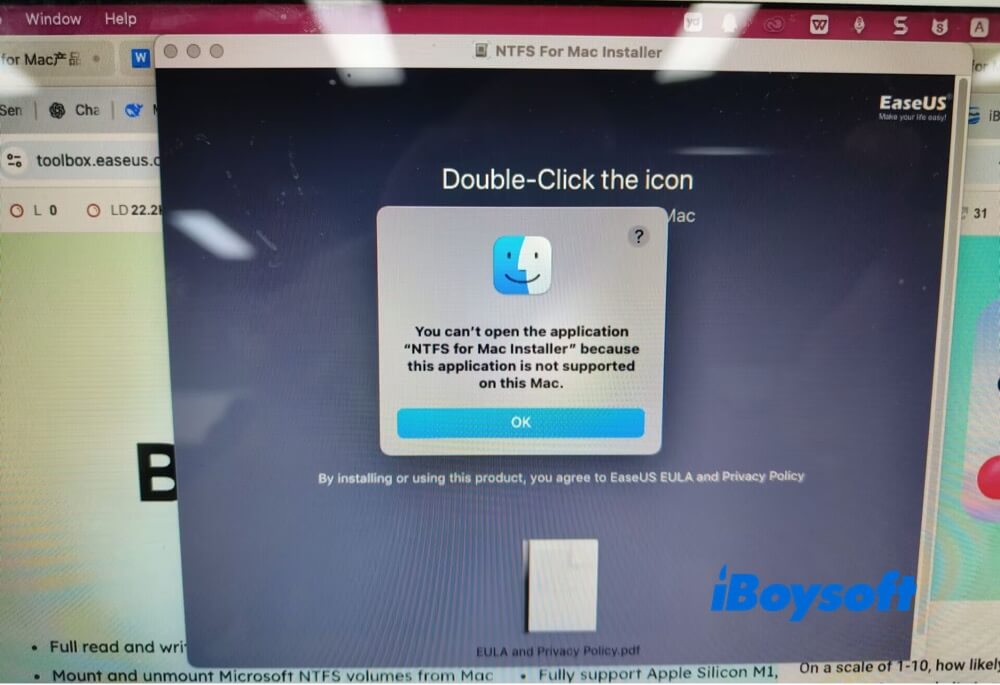
1. The latest version of EaseUS NTFS for Mac on its official website only supports ARM-based Macs; Intel-based Macs are excluded. I downloaded this NTFS file system driver, but was unable to install it on my Intel Core i5 MacBook Air (13-inch, 2017) running macOS Monterey 12.7.6. Then I resorted to App Store to download EaseUS NTFS Writer. They're the same, just a matter of names.
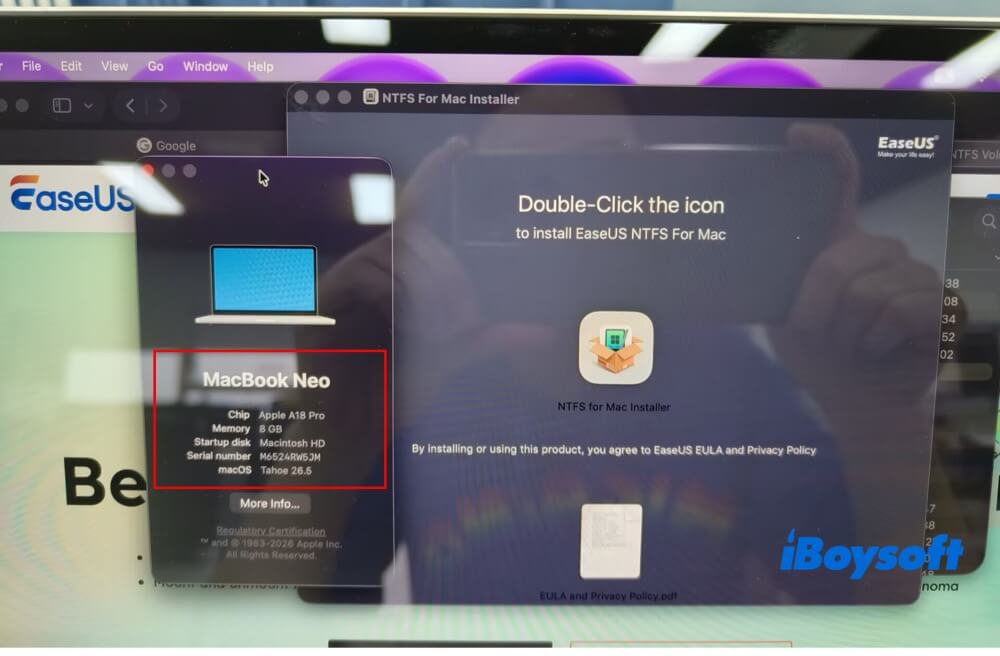
2. Based on my test, this Microsoft NTFS file system driver actually supports the latest macOS Tahoe 26, but its official website doesn't update this info.
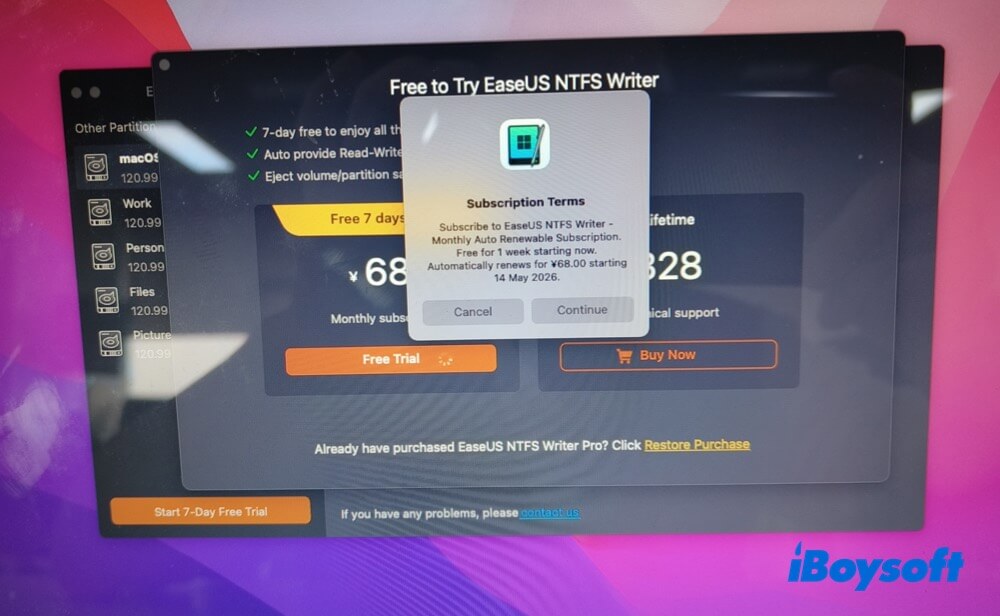
Step 2. Click the "Start 7-day free trial" button > tap "Free Trial" on the pop-up window > I'm asked to log in with my Apple ID for the monthly subscription auto-renewal after 7-day trial expiration.
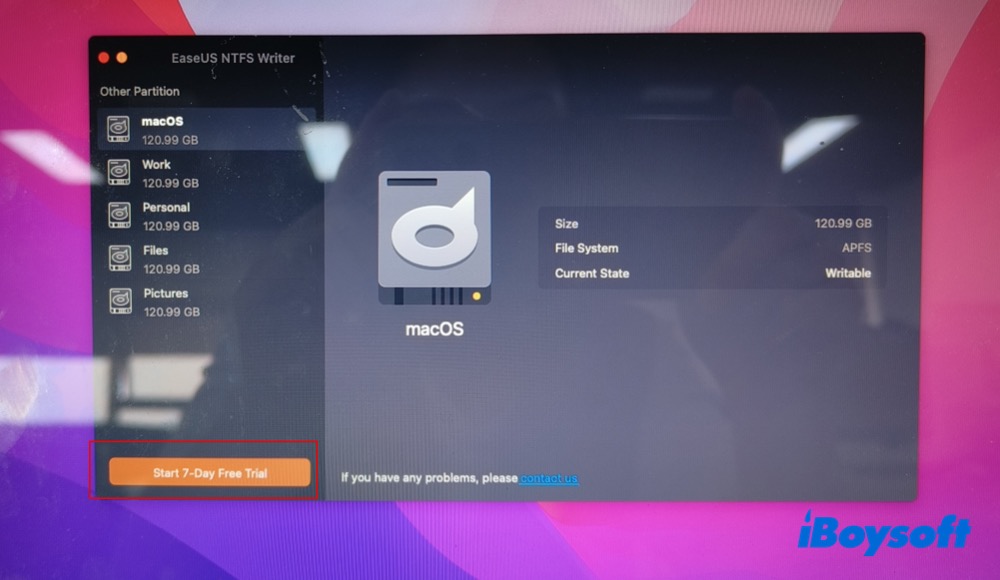
And there is no option to deny. I have to agree with its monthly plan or buy its lifetime version. Or I'm unable to use its free trial version. This is quite off-putting. It is not an unconditional free trial.
Remember to cancel the monthly subscription after the activation. I often forget to unsubscribe from plans, which is a real waste of money.
Step 3. Log in with my Apple ID and tap the Buy button. A payment info verification is followed. Wait for the subscription completion.
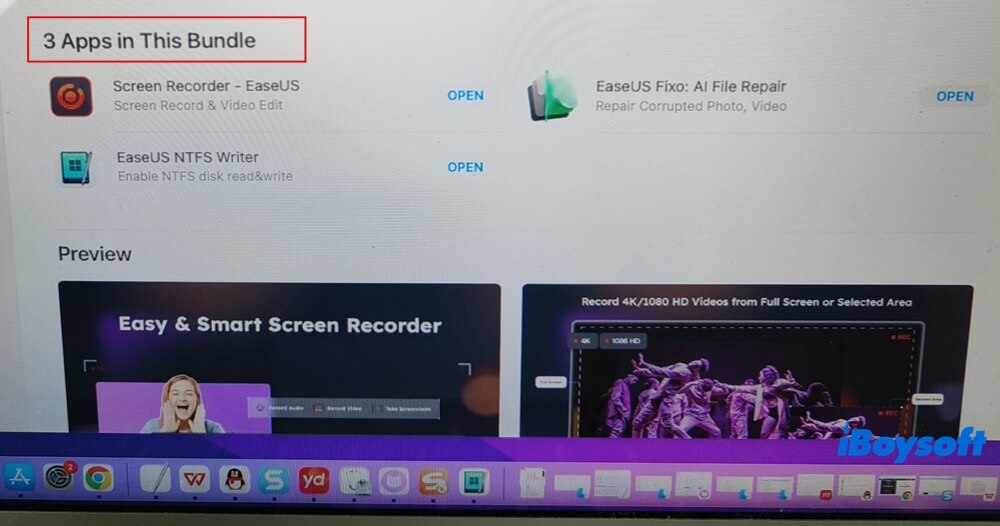
Step 4. A bundle application auto downloads and installs on my Mac. It covers EaseUS NTFS Writer, EaseUS RecExperts, and FixoI. I really don't need the extra 2 apps. A forceful bundle sale is truly annoying.
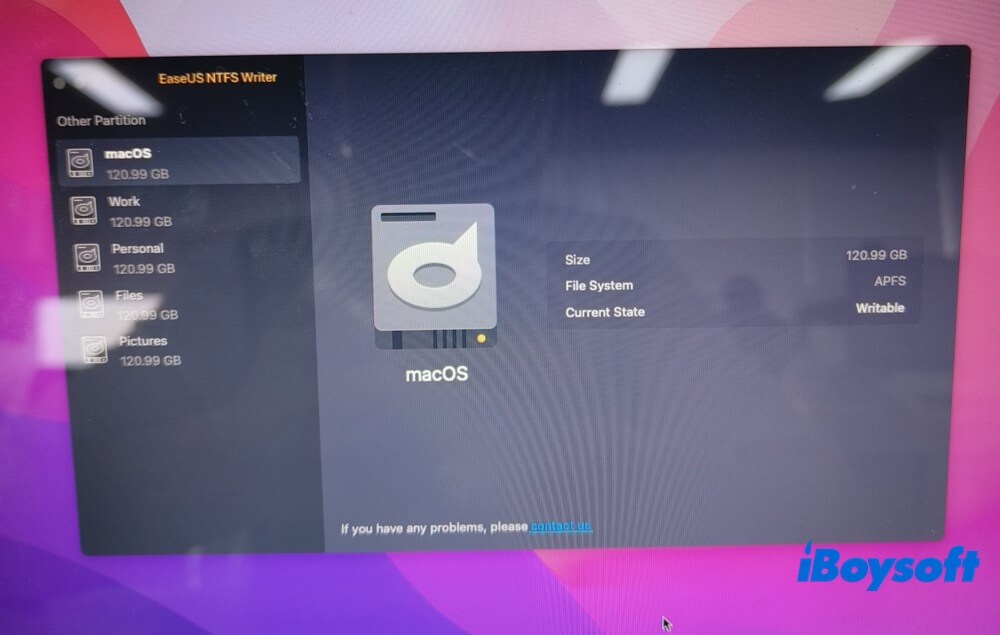
Step 5. Re-open this NTFS for Mac, but nothing shows up. Restart my Mac and re-launch this NTFS writer afterwards.
Step 6. Again, click the "Start 7-day free trial" button > the pop-up window tells me the purchase was successful.
Now, I can eventually enter its free trial version. The whole procedure is really complex and time-consuming.
2. How to Read & Write NTFS Disks on Mac?
Now I proceed to my test key items - read/write NTFS drives on Mac. But the first step really stumps me. My external NTFS hard drive (WD My Passport 2626 Media 1TB) failed to be mounted on my Intel-based MacBook Air.
The reason lies in the 2 NTFS for Mac utilities installed on my Mac. They get conflicted. I have to uninstall my previous Microsoft NTFS for Mac software and just keep EaseUS on Mac. Then, continue reading and writing to my NTFS drive:
Step 1. Download and install "EaseUS Writer Installer" on Mac. Then, re-launch EaseUS NTFS Writer on Mac.
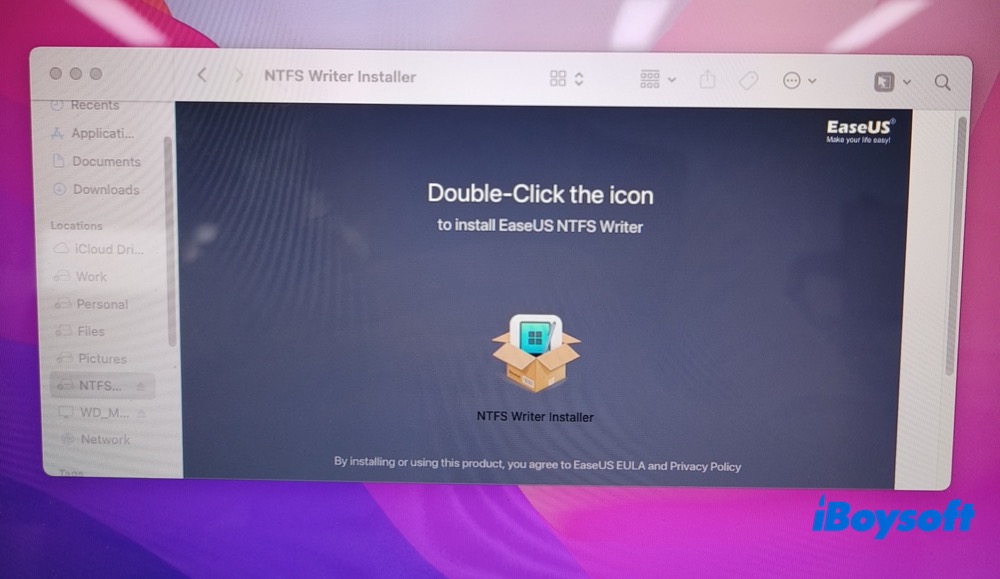
Step 2. Connect my external NTFS hard drive to the Mac. EaseUS automatically mounts my NTFS disk this time.
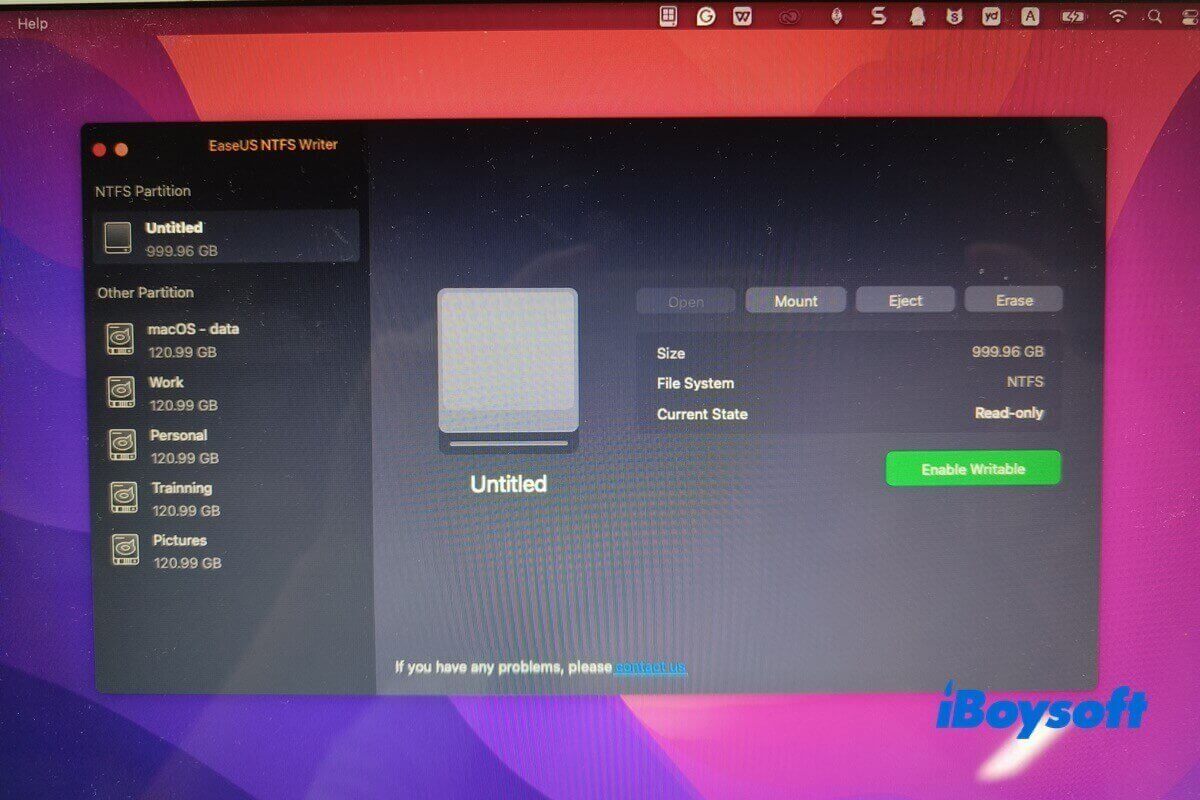
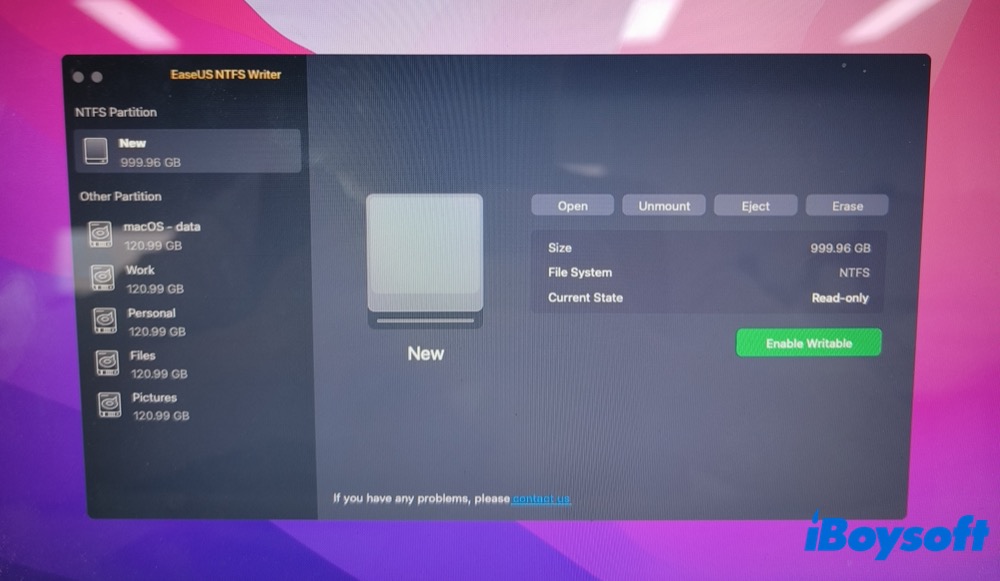
Its interface is simple and clean, with only 4 buttons on its top menu bar: Open, Unmount, Eject, and Erase. All of them are self-explanatory and friendly to green hands.
Step 3. Hit the green button "Enable Writable" at the lower right corner > tap "Open". Now the NTFS drive's "write" feature is activated. I can read or transfer files from Mac to NTFS partitions without any obstacle.
Step 4. Edit, copy, delete, move, and rename files in an NTFS partition on Mac. 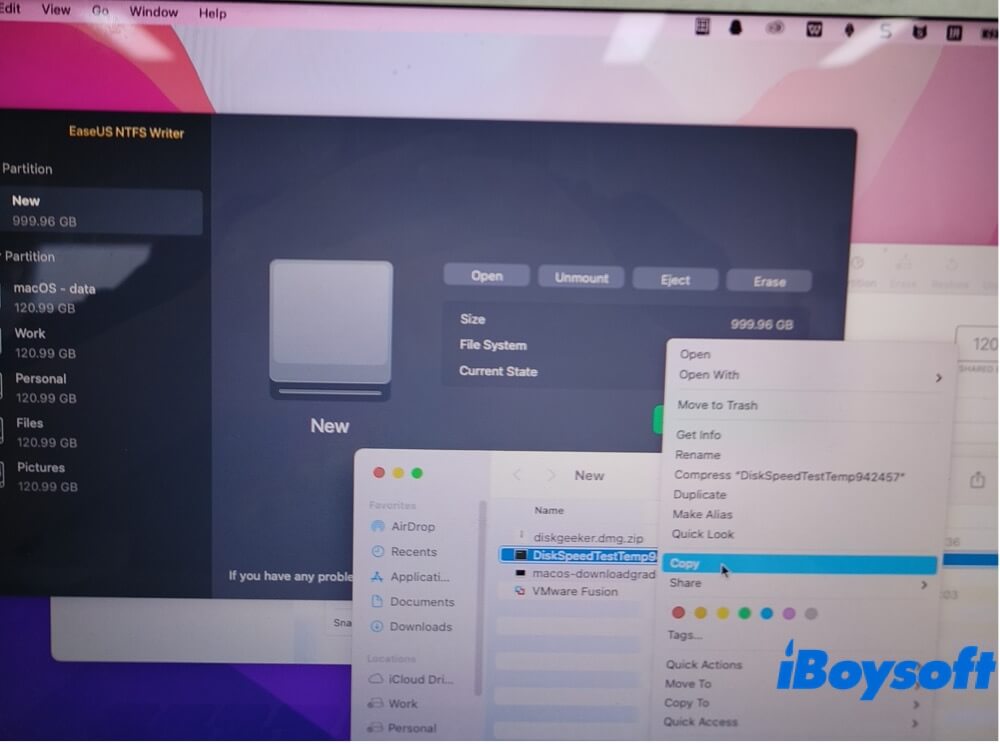
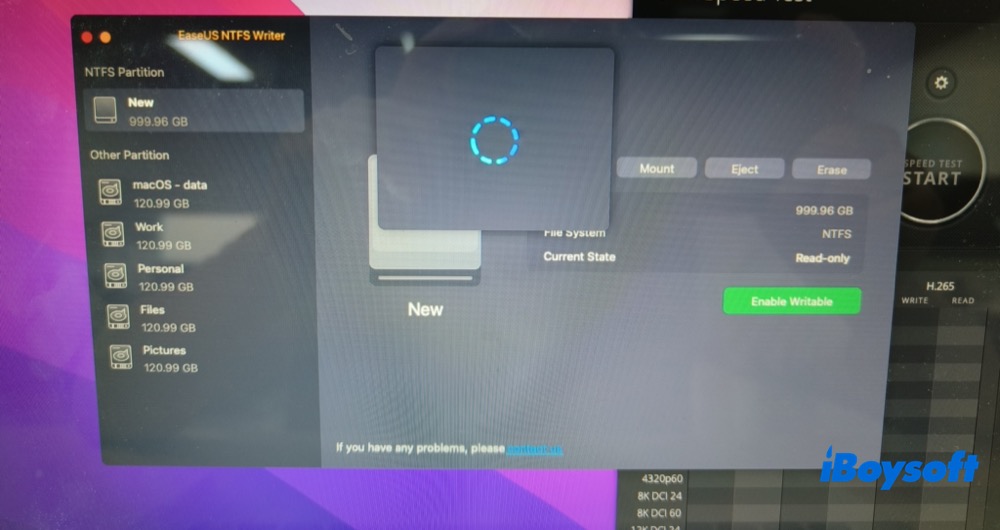
Step 5. Click "Disable Writable" > tap Eject, and unplug my NTFS drive from the Mac.
Sometimes, after I click the Disable Writable button, this NTFS writer keeps looping for roughly 19 minutes. Then, it crashes and auto-quits. It works unstably now and then.
3. How Fast is EaseUS NTFS for Mac in Reading & Writing?
Speed test
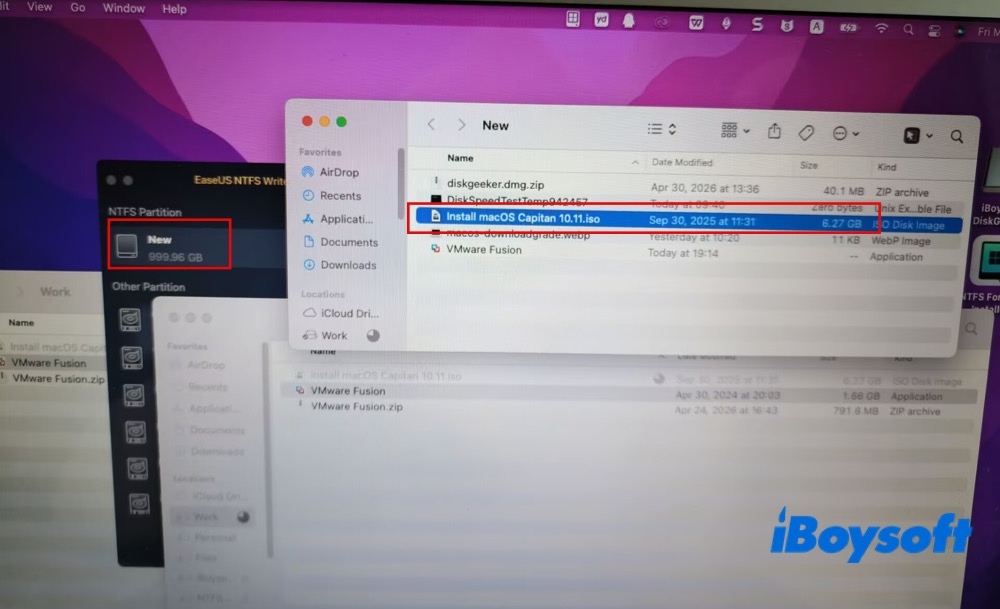
I transfer an ISO image file (6.27GB) between a Mac and an NTFS drive to test EaseUS NTFS for Mac writing and reading speed.
Test Environment:
- [MacBook Air 13-inch 2017
- macOS Monterey Version 12.76
- 1.8GHz Dual-Core Intel Core i5 Processor
- 8GB 1600MHz DDR3 Memory
- Intel HD Graphics 6000 1536MB
- Other applications are running in the background, like chat apps, text files, and web browsers.
NTFS drive info:
- WD My Passport 2626 Media
- HDD disk with 1TB capability
- USB 3.0 interface
- Hard disk read & write speed: 130-150MB/s
Test type:
- an ISO disk image file
- 6.27GB GB file size
EaseUS Test Results:
Write speed: 37 MB/s; write time: 2 mins 52.15secs
Read speed: 11MB/s; read time: 9 mins 23.96secs
Under the same test environment, I also test iBoysoft NTFS for Mac writing and reading NTFS volumes speed. Here is the iBoysoft test data:
Write speed: 130.8 MB/s; write time: 49 secs
Read speed: 141.2 MB/s; read time: 45.5 secs
The original read & write speed of this USB 3.0 HDD disk is 130-150 MB/s, and iBoysoft NTFS for Mac can almost reach the hard disk speed. Obviously, the Microsoft NTFS driver by iBoysoft leaves EaseUS in the dust in writing/reading speed.
4. How to Erase a Disk to NTFS on Mac
Microsoft NTFS for Mac by EaseUS allows users to format other external disks to NTFS as well as erase NTFS disks to APFS, FAT, exFAT. I test the disk with the NTFS erase feature, and it acquits itself well.
Step 1. Select your disk > click "Erase" on its menu bar.
Step 2. Choose the output format under the "Format" option.
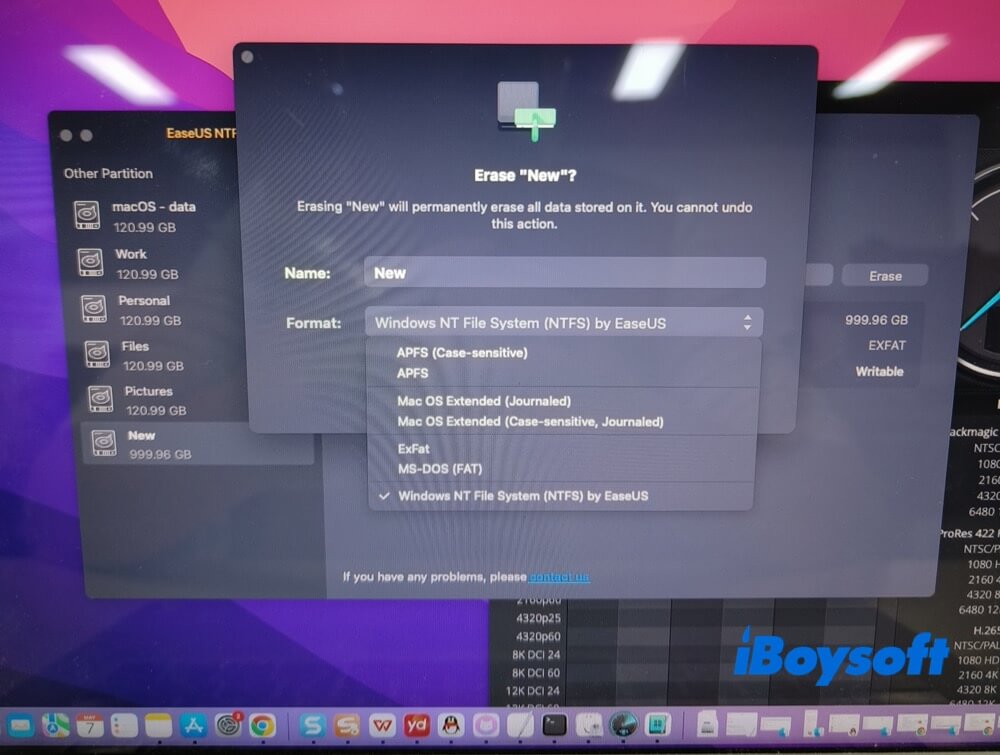
Step 3. Opt for "Windows NT File System (NTFS) by EaseUS" > hit "Erase" to commence formatting the disk to NTFS.
5. How to Uninstall EaseUS NTFS for Mac
To uninstall this Microsoft NTFS driver, the quickest way is to use Finder, and the whole procedure is as easy as taking a candy from a baby.
Step 1. Quit this Microsoft NTFS driver. Right-click its icon in the Dock and select "Quit".
Step 2. Open Finder (a blue, smiling face in the dock).
Step 3. Click "Applications" > find EaseUS NTFS Writer > select "Move to Trash" > enter your Mac's password on the pop-up window to confirm the deletion.
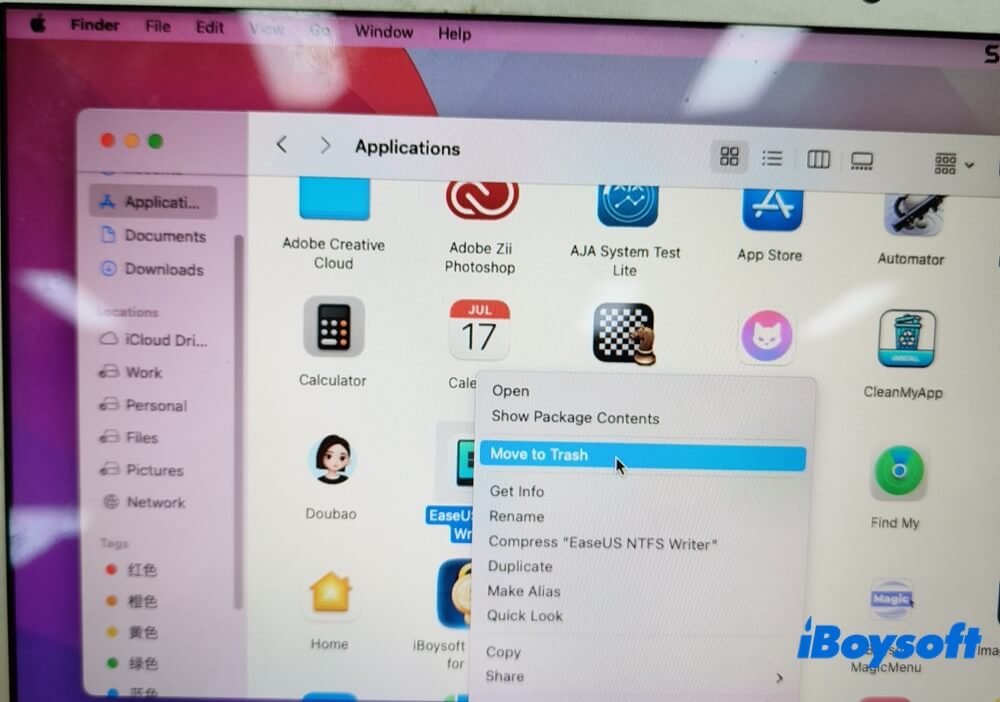
Step 4. To complete the removal, empty the Trash. Right-click the Trash icon in your Dock and select "Empty Trash". Now this NTFS file system driver is uninstalled from your Mac.
Editor's Review on EaseUS NTFS for Mac
Overall, EaseUS NTFS Writer is a safe and reliable choice for you to read and write NTFS disks on Mac, based on my test, but it doesn't perform its basic function in an excellent manner. It fares poorly in terms of stability, simplicity, speed, and compatibility in my real-world test.
If you only need basic NTFS read/write functionality and don't mind its inferior performance, you can give it a whirl.
For the majority of users, you're suggested to try other alternatives to EaseUS NTFS writer.
Alternative to EaseUS NTFS Writer
EaseUS NTFS for Mac gives me an unsatisfactory user experience. Therefore, I try other alternatives and find a better one. That is iBoysoft NTFS for Mac.
This Microsoft NTFS driver by iBoysoft not only allows me to read and write NTFS drives on my Mac, but it also achieves this with impressive performance— simple, stable, fast, and highly compatible. Meanwhile, it covers an expansive library of NTFS features, making it a good fit for both casual users and professionals.
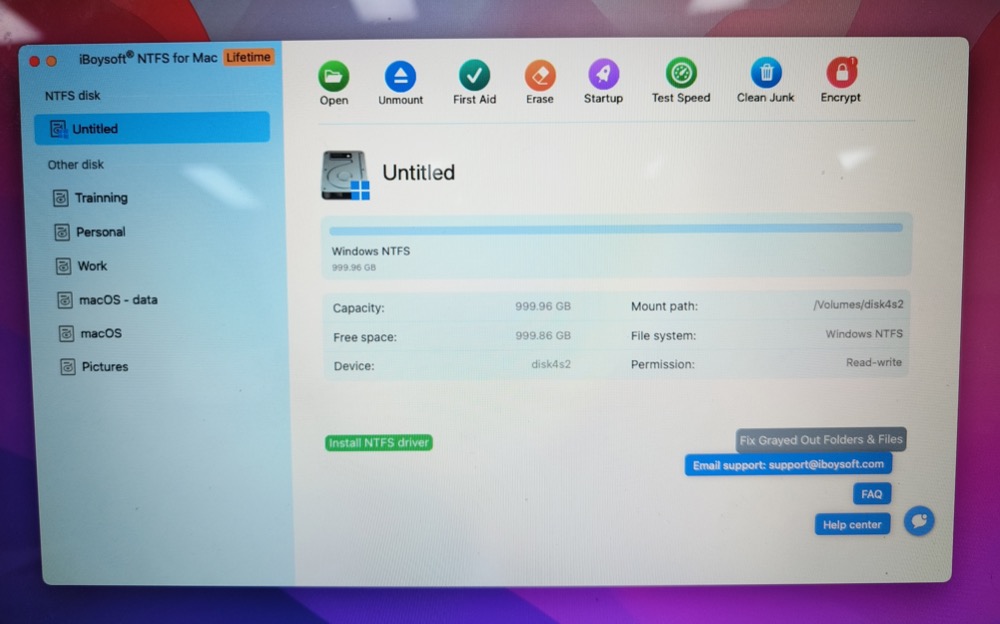
Key Features
- Auto-mount Windows NTFS drives in read-write mode
- Edit, delete, copy, and transfer files on NTFS volumes like native APFS/HFS+ disks
- First Aid to check and repair NTFS disks
- Give full read and write access to the BOOTCAMP partition
- Erase NTFS disks and Format other disks to NTFS
Compatibility
macOS 27 (Golden Gate) - macOS 10.13 (High Sierra)
ARM-based Apple Silicon M5/M4/M3/M2/M1 chips, Intel-based chip models
Subscription Plans
$19.95 yearly plan, 1 license code for 1 computer
$49.95 lifetime plan, 1 license code for 1 computer
Pros
- Simple and advanced modes available, giving users more options
- Provide full read-write support for NTFS drives and BOOTCAMP partitions on Mac
- Easy to use, no complicated activation steps
- Strong compatibility, macOS Golden Gate 27 and Apple Silicon M5-M1 well-supported
- Fast speed, 130.8 MB/s writing & 141.2MB/s reading speed in HDD USB 3.0 test
- Excel in stability, no crash or sudden quit
- High cost performance
- Apple authenticated utility, clean & safe
Cons
- Unable to access BitLocker-encrypted NTFS drives on Mac
Deeply impressed by iBoysoft NTFS for Mac? Download it to try now. And check its official help documents (if needed) to get the hang of installation, reading/writing, disk management, disk formatting, etc.
FAQs about EaseUS NTFS for Mac
- QIs EaseUS NTFS for Mac safe?
-
A
Yes. Though it requires enabling system extension and kernel extension, alongside EaseUS Writer Installer, its kernel extension is signed by an Apple developer. The risk is low; no worries about safety. Please note: do not try the cracked version.
- QIs EaseUS NTFS for Mac free?
-
A
A 7-day free trial is available. But a paid license is required for full NTFS read and write access.
- QDo I need to manually mount NTFS drives and enable the write mode each time?
-
A
In the 7-day free trial version, it requires you to manually mount and to enable the writing feature via the Enable Writable button. In its full paid version, mounting and writing are all auto-enabled.
- QDoes EaseUS NTFS for Mac work with all NTFS drives?
-
A
While EaseUS NTFS for Mac is supposed to work with most NTFS drives, it's possible that some drives may not be compatible. In my personal testing, I encountered the NTFS disk not mounted by EaseUS NTFS for Mac issue. This might be caused by varied factors.