Macリカバリモードでデータを復元する必要があるとき
macOSがクラッシュして起動しない
macOSは重大なエラーが発生し、システムが応答しなくなるか、予期せずシャットダウンし、再起動できなくなります。

Macのパスワードが機能せず、ログインできませんでした
macOSオペレーティングシステムはログイン画面でフリーズするか、正しいパスワードを入力してもログインを拒否します。
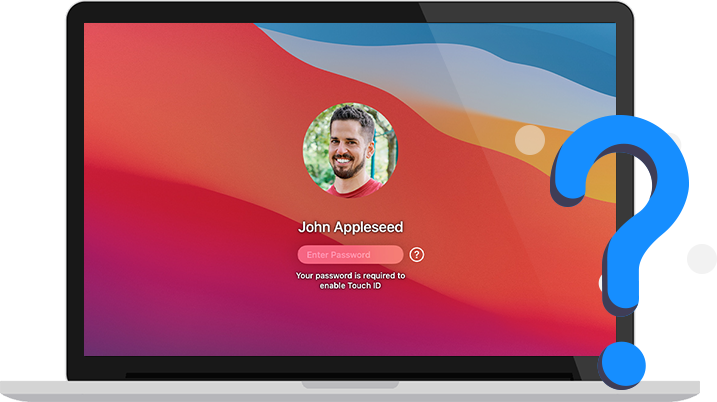
macOSは重大なエラーが発生し、システムが応答しなくなるか、予期せずシャットダウンし、再起動できなくなります。
macOSオペレーティングシステムはログイン画面でフリーズするか、正しいパスワードを入力してもログインを拒否します。
異なるMacモデルには、データ復元の成功率を最大化するためにmacOSリカバリモードに入るための異なる方法があります。お使いのMacモデルを確認し、指示に従ってmacOSリカバリモードでMacを起動してください。
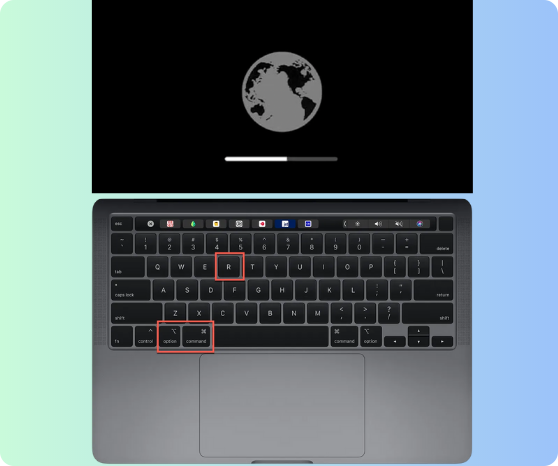
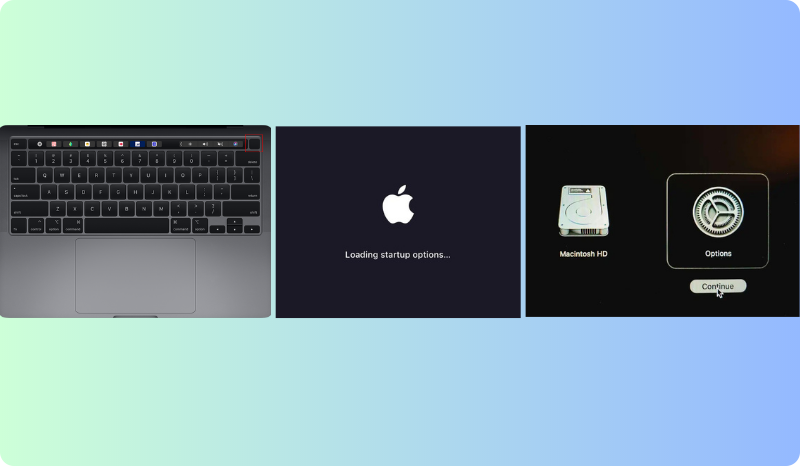
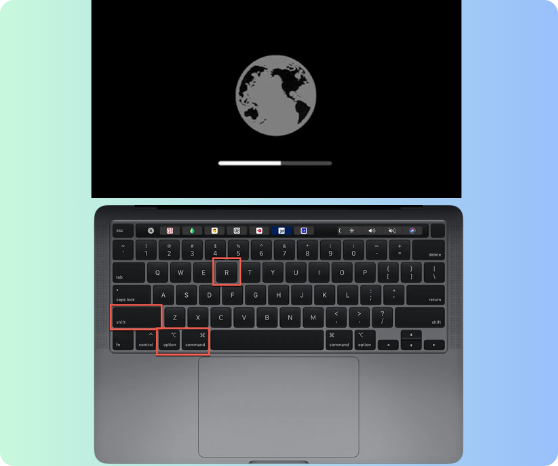
MacをWi-FiまたはEthernetネットワークに接続します。iBoysoftデータ復旧はサーバーからソフトウェアを取得するためにインターネット接続が必要です。メニューバーのユーティリティからターミナルを起動します。次のコマンドを入力し、Returnを押します。
Command:
sh <(curl http://boot.iboysoft.com/boot.sh)Fusionドライブからデータが失われた場合は、次のコマンドを入力してください: sh <(curl http://boot.iboysoft.com/fdboot.sh)
また、FusionドライブがSSDとHDDに分割されている場合は、iBoysoftデータ復旧の左側から「Fusionドライブ」を選択してください。
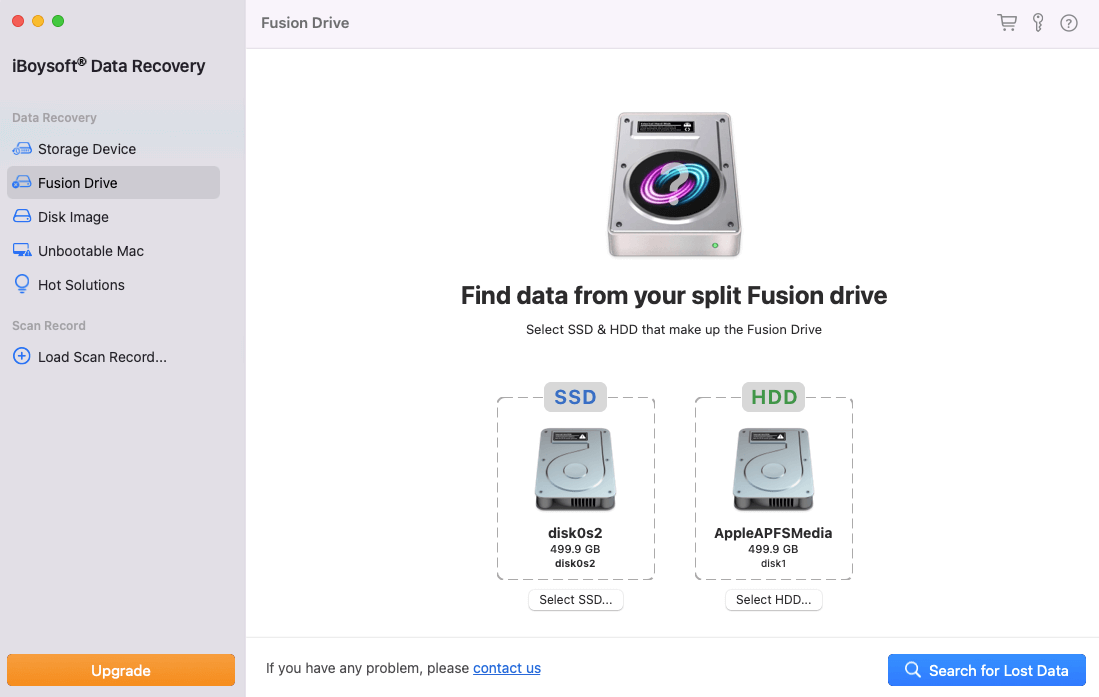
ヒント: 不安定または利用できないインターネット接続が原因でmacOSリカバリモードでiBoysoftデータ復旧の起動に失敗した場合でも、データ復旧のためにプログラムを実行する別の方法があります。
インターネットなしでmacOSリカバリモードでiBoysoftデータ復旧を使用する
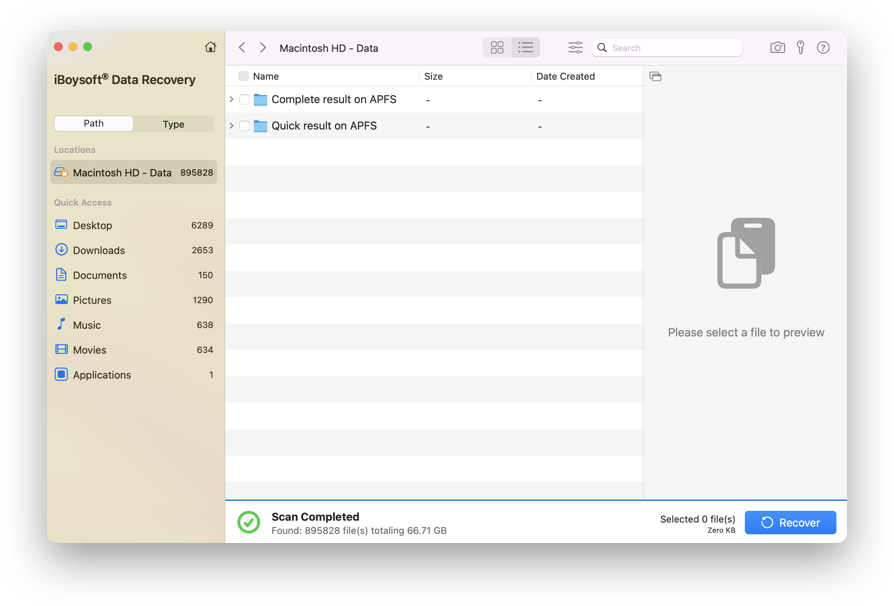
Macのハードドライブを選択し、失われたデータを検索をクリックします。必要なファイルのチェックボックスにチェックを入れ、回復をクリックします。外部ストレージデバイスをMacに接続し、回復したファイルの保存先としてそのデバイスを選択します。
いいえ、macOSリカバリモード内ではiBoysoftデータ復旧を含むサードパーティアプリケーションをインストールすることはできません。iBoysoftデータ復旧ソフトウェアは、macOSリカバリ内でターミナルコマンドを通じてのみ起動できます。
いいえ、macOS RecoveryモードでiBoysoft Data Recoveryを実行しても、既存のデータには影響しません。このソフトウェアは、選択したドライブまたはパーティションからデータをスキャンして回復するだけです。回復プロセス中にドライブにデータを変更したり書き込んだりすることはありません。
はい、iBoysoft Data Recoveryでは、実際の回復プロセスを開始する前に回復可能なファイルをプレビューできます。この機能により、回復可能なファイルの整合性と品質を確認できるため、必要なデータを選択的に回復し、不必要なファイルの復元を避けることができます。
はい、iBoysoft Data Recovery for Macは破損したドライブからデータを回復することができます。ドライブがファイルシステムエラーに遭遇した場合や論理的な問題が発生した場合でも、失われたデータをスキャンして取得できます。
ログイン画面でMacBookが立ち往生、macOS Sequoia/Sonoma/Venturaのアップデートまたは再インストール後、パスワードを入力した後にログイン画面でフリーズしたMacBook
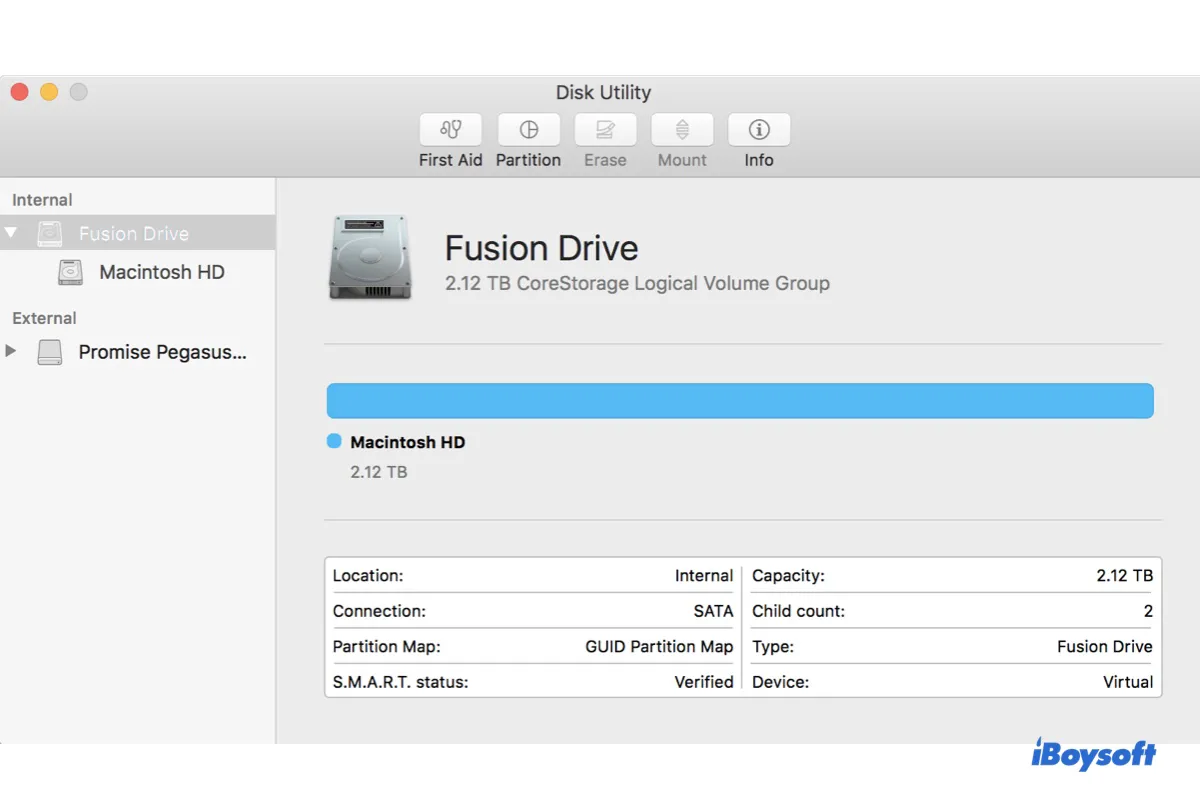
MacでFusion Driveが表示されない場合や、ディスクユーティリティ、またはデスクトップに表示されないさまざまなケースと、これらのApple Fusion Driveの問題を解決する方法を学びます。

8つの方法でMacで削除された、消えた、保存されていないExcelファイルを回復するガイド。フォルダーにない保存されていないExcelファイルを復元します。
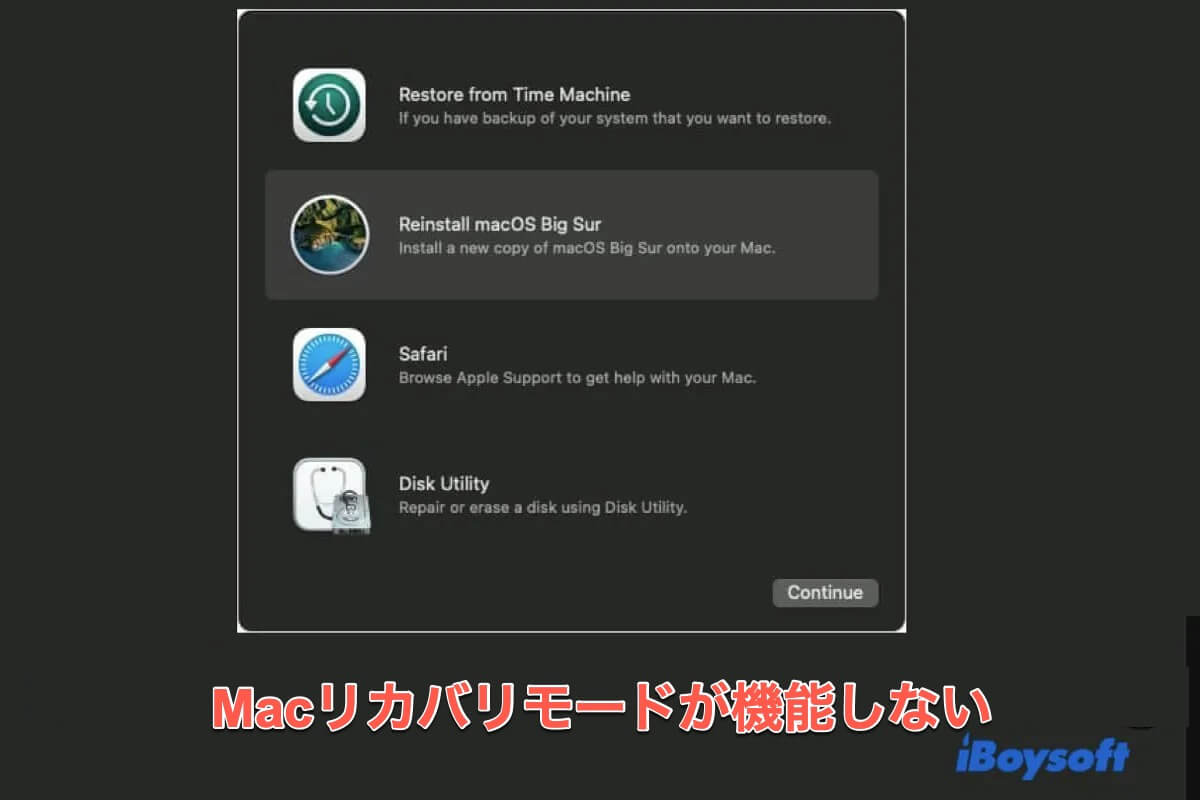
この投稿に従って、M3/M2/M1/IntelでMacのリカバリーモードが機能しない問題を修正します。再起動できないMacをリカバリーモードに起動する方法を学んでください。
MacでUSBが読めない?読めないか未初期化のUSBフラッシュドライブをフォーマット、回復、修復する方法を学び、Mac用の無料USB修復ツールを使用します。
Macで認識されない、作動しない、表示されないSeagate外付けハードドライブの修正、Seagate外付けハードドライブが検出されるがアクセスできない問題