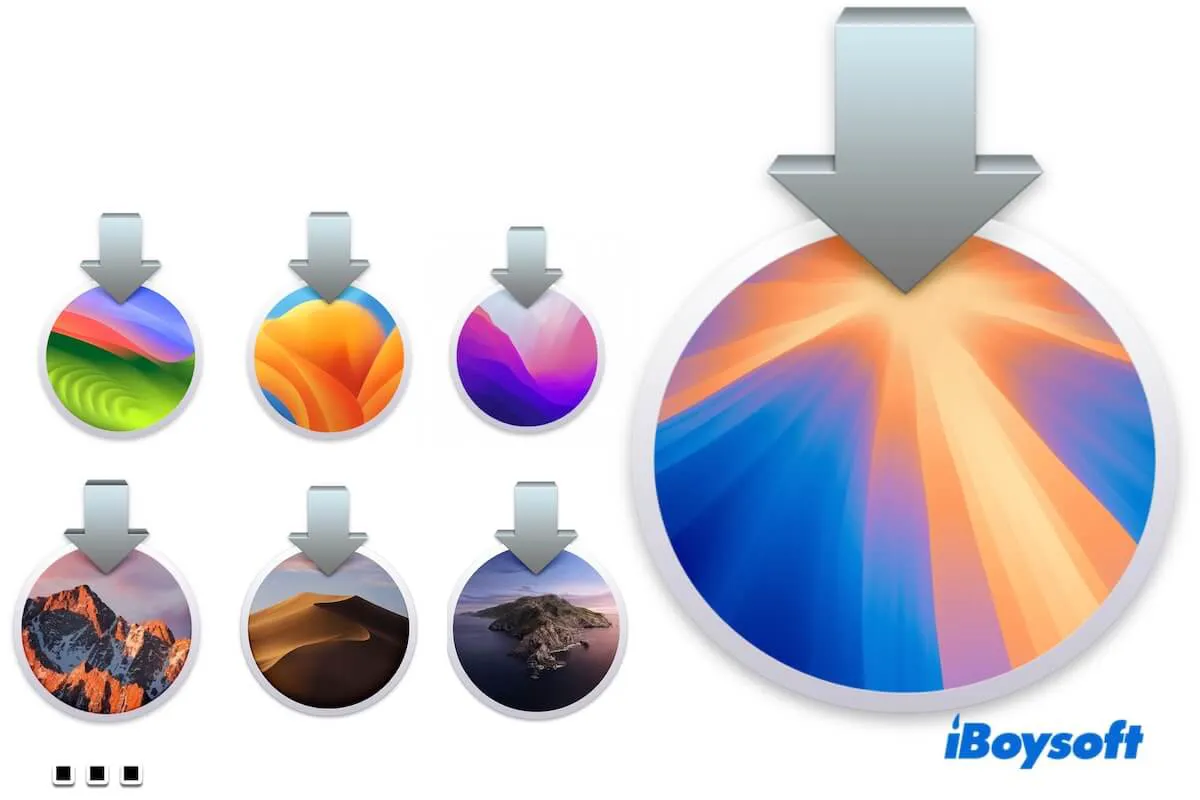
Before downloading a macOS update, check the following:
- Check macOS compatibility: Make sure your Mac model supports the macOS version you want to download and update to.
- Back up your Mac: Use Time Machine or another backup method before a macOS update or upgrade.
- Connect to power and stable internet: macOS installers are large, and interruptions may cause download or installation failure.
- Prepare enough storage space: Keep sufficient free space for both the installer and the installation process.
- Avoid unsupported or beta installations on your main Mac: Installing beta versions or unsupported macOS versions may cause compatibility, stability, or data loss issues.
Need macOS full installer? Read: macOS Full Installer Download Center
Choose the best method to download macOS updates
| Your Need | Best method | Why | Steps |
| Update the Mac you are currently using | Software Update | Automatically shows only macOS versions compatible with your Mac | Apple menu > System Settings > General > Software Update |
| Download a full macOS installer for a compatible Mac | App Store / Apple web links / Terminal | Keeps the installer in the Applications folder for later use | Check the macOS direct download links below |
| Download a specific macOS installer version | Terminal | Allows you to request an exact installer version | Use softwareupdate --fetch-full-installer --full-installer-version [version] |
| Create a bootable macOS installer | iBoysoft DiskGeeker | Simplifies the process, downloading macOS DMG files and creating bootable USB installers with a few clicks | Install iBoysoft DiskGeeker and prepare a clean USB drive |
| Install macOS on an unsupported Mac | Unsupported Mac guide + OpenCore Legacy Patcher | Requires additional compatibility patches and risk handling | Check unsupported Mac installation guides |
macOS Golden Gate 27 Beta download
Apple released the beta version of the next major macOS - macOS Golden Gate 27. If you are a software developer or a tech expert who wants to test the new features on macOS Golden Gate, you can follow these links to get it.
Notably, the beta version may have certain system bugs, unstable performance, or even cause system crashes; back up your Mac before trying it. We suggest you wait for the official public version to be released.
| macOS Golden Gate Updates Download | Size | Release Date |
| macOS 27.0 Public Beta 1 | 15.8 GB | Jul. 13, 2026 |
| macOS 27.0 Developer Beta 4 | 15.8 GB | Jul. 20, 2026 |
| macOS 27.0 Developer Beta 3 | 15.6 GB | Jul.6, 2026 |
| macOS 27.0 Developer Beta 2 | 15.6 GB | Jun. 22, 2026 |
| macOS 27.0 Developer Beta 1 | 15.6 GB | Jun. 8, 2026 |
Detailed ways and more sources to download macOS 27 Beta: Download macOS Golden Gate Beta
macOS updates download (Tahoe - High Sierra)
The tables below include direct installer links from swcdn.apple.com, Apple's software content delivery network. These links are provided for users who need a specific macOS installer version, not as the default update method.
If you are updating the Mac you are currently using, start with Software Update first. Use App Store links, Apple Support links, or Terminal when you need a full installer.
Before using a direct download link:
- Confirm that the macOS version supports your Mac model.
- Verify that the installer comes from an official Apple source whenever possible.
- Avoid modified or unknown macOS images from unofficial websites.
Note: If a direct macOS update link does not work, check your network connection first. Some Apple software download links may also depend on the browser, user agent, referrer, or whether Apple still serves that installer.
Or, you can use Terminal to request a full installer from Apple. This command displays available macOS installers for your Mac.
softwareupdate --list-full-installers
To download a specific available full installer with Terminal:
softwareupdate --fetch-full-installer --full-installer-version [version]
Replace [version] with the version number you need, for example: 26.5.2
Latest macOS versions from Apple (checked July, 2026)
| macOS version | Latest minor update | Best method | Notes |
| macOS Tahoe | 26.5.2 | Software Update or Terminal | Tahoe 26 is the current latest major macOS version. |
| macOS Sequoia | 15.7.7 | App Store, Software Update, or Terminal | No longer the latest major macOS. |
| macOS Sonoma | 14.8.7 | App Store, Software Update, or Terminal | Use only if your Mac or workflow needs Sonoma. |
| macOS Ventura | 13.7.8 | App Store, Software Update, or Terminal | Older branch; check compatibility first. |
| macOS Monterey | 12.7.6 | App Store or Terminal if available | Final update branch. |
| macOS Big Sur | 11.7.11 | App Store or verified Apple link if available | Final update branch. |
macOS Tahoe 26 updates download
| macOS Tahoe Updates Download | Size | Release Date |
| macOS 26.5.2 | 17.0 GB | Jun. 29, 2026 |
| macOS 26.5.1 | 17.0 GB | Jun. 1, 2026 |
| macOS 26.5 | 17.0 GB | May 11, 2026 |
| macOS 26.4.1 | 17.0 GB | Apr. 9, 2026 |
| macOS 26.4 | 17.0 GB | Mar. 24, 2026 |
Need macOS Tahoe full installer? Read: macOS Tahoe Full Installer Download
Failed to download macOS Tahoe? Fix with this guide: Fix "can't download macOS Tahoe".
If you have trouble when updating to macOS 26, refer to these fixes: [Solved] Mac won't update to macOS Tahoe.
macOS Sequoia updates download
| macOS Sequoia Updates Download | Size | Release Date |
| macOS 15.7.7 | 14.6 GB | May 11, 2026 |
| macOS 15.7.6 (Skipped!) | / | / |
| macOS 15.7.5 | 14.6 GB | Mar. 24, 2026 |
| macOS 15.7.4 | 14.6 GB | Feb. 11, 2026 |
| macOS 15.7.3 | 14.6 GB | Dec. 12, 2025 |
| macOS 15.7.2 | 14.6 GB | Nov. 3, 2025 |
Also read: Download macOS Sequoia DMG or ISO full installers
macOS Sonoma updates download
| macOS Sonoma Updates Download | Size | Release Date |
| macOS 14.8.7 | 12.7 GB | May 11, 2026 |
| macOS 14.8.6 (Skipped!) | / | / |
| macOS 14.8.5 | 12.7 GB | Mar. 24, 2026 |
| macOS 14.8.4 | 12.7 GB | Feb. 21, 2026 |
| macOS 14.8.3 | 12.7 GB | Dec. 12, 2025 |
| macOS 14.8.2 | 12.7 GB | Nov. 3, 2025 |
If you need macOS Sonoma full installer, ISO, or DMG, follow: How to download macOS Sonoma full installers.
macOS Ventura updates download
| macOS Ventura Updates Download | Size | Release Date |
| macOS 13.7.8 | 11.4GB | Aug. 28, 2025 |
| macOS 13.7.7 | 11.4GB | Jul. 29, 2025 |
| macOS 13.7.6 | 11.4GB | May 12, 2025 |
| macOS 13.7.5 | 11.4GB | Mar. 31, 2025 |
| macOS 13.7.4 | 11.4GB | Feb. 10, 2025 |
| macOS 13.7.3 | 11.4GB | Jan. 27, 2025 |
Want to get the macOS Ventura full installer, ISO, or DMG? Follow: macOS Ventura installer free download.
macOS Monterey updates download
| macOS Monterey Updates Download | Build | Size | Release Date |
| macOS 12.7.6 | 21H1320 | 12.4 GB | Feb. 9, 2026 |
| macOS 12.7.6 | 21H1317 | 12.4 GB | Jul. 17, 2024 |
If you want the macOS Monterey full installer, DMG, or ISO for free, move to: macOS Monterey download.
macOS Big Sur updates download
| macOS Big Sur Updates Download | Size | Release Date |
| macOS 11.7.11 | 11.6 GB | Feb. 2, 2026 |
| macOS 11.7.10 | 11.6 GB | Aug. 11, 2023 |
To get other macOS Big Sur installers, follow: How to download macOS Big Sur.
macOS Catalina updates download
The most recent macOS Catalina update is macOS 10.15.7, released in September 2020. You can get this macOS update from the App Store.
⬇ Download macOS 10.15.7 Catalina (4.9GB)
If your current system is macOS 10.15.5, you can also update to macOS 10.15.6.
⬇ Download macOS Catalina 10.15.6 update
If you need a macOS Catalina DMG or ISO file, go to: macOS Catalina download
macOS Mojave updates download
The latest update of macOS Mojave is 10.14.6, released on July 22, 2019, and ended its last patch with the updates on July 21, 2021.
⬇ Download macOS 10.14.6 Mojave (6.5 GB)
If your Mac runs macOS Mojave 10.14.5 now, you can update it to the latest 10.14.6 update with this link:
⬇ Download macOS Mojave 10.14.6 update (2.67 GB)
Also follow: Download macOS Mojave Full Installer, ISO, DMG
macOS High Sierra updates download
The latest version of macOS High Sierra is 10.13.6, rolled out on July 9, 2018, with its last patch delivered on November 12, 2020.
⬇ Download macOS 10.13.6 High Sierra update (4.8 GB)
Also read: Download macOS High Sierra Full Installer, ISO, DMG
Older Mac OS and OS X updates download (macOS Sierra - Snow Leopard)
Older systems may no longer be available through the normal Software Update channel, but be in mind that prioritize Apple-provided download sources, such as Apple App Store, Apple Support pages, and Apple's CDN servers, whenever possible.
Third-party archives such as Archive.org may be useful when looking for historical macOS versions that Apple no longer provides directly.
However:
- Verify the download source and file integrity before using the installer.
- Avoid modified, repacked, or unknown macOS images.
- Do not install unverified macOS files on production Macs or systems containing important data.
- Create a backup before attempting installation.
An old macOS installer file may successfully download but still fail to install if it is incompatible with your Mac hardware.
macOS Sierra update download
⬇️ Download macOS Sierra latest update
Version: macOS 10.12.6
Size: 5.01 GB
Also check: macOS Sierra ISO & DMG Download
OS X El Capitan update download
⬇️ Download OS X El Capitan latest update
Version: macOS 10.11.6
⬇️ Download OS X El Capitan DMG file
Version: macOS 10.11.6
Also check: OS X El Capitan ISO & DMG Download
OS X Yosemite update download
⬇️ Download OS X Yosemite latest update
Version: macOS 10.10.5
⬇️ Download OS X Yosemite DMG file
Version: macOS 10.10.4
Also check: OS X Yosemite DMG & ISO Download
OS X Mavericks update download
⬇️ Download OS X Mavericks latest update
Version: macOS 10.9.5
Format: ISO
Size: 5.7 GB
⬇️ Download OS X Mavericks DMG
Version: macOS 10.9.5
Format: DMG
Size: 5.6 GB
Also read: OS X Mavericks DMG & ISO Download
OS X Mountain Lion update download
⬇️ Download OS X Mountain Lion latest update
Version: macOS 10.8.5
Size: 4.2 GB
Also follow: OS X Mountain Lion DMG & ISO Download
Mac OS X Lion update download
⬇️ Download Mac OS X Lion latest update
Version: macOS 10.7.5
Format: ISO
Size: 4.8 GB
Refer to: Mac OS X Lion DMG & ISO Download
Mac OS X Snow Leopard update download
⬇️ Download Mac OS X Snow Leopard latest update
Version: macOS 10.6.3
Format: ISO
Size: 7.5 GB
To get even older versions, read: Download Old macOS Versions.
How to update your MacBook Pro or MacBook Air
There are three ways to download macOS and update your Mac.
Before updating macOS, make sure you:
- Back up your Mac with Time Machine or another backup solution.
- Connect your Mac to power.
- Keep a stable internet connection.
- Confirm that the target macOS version supports your Mac model.
Way 1. Update your Mac with Software Update
Click the Apple menu > System Settings > General > Software Update. Then, you can either upgrade your Mac to the latest macOS that's compatible with your Mac or update to the latest minor update of the current macOS version.
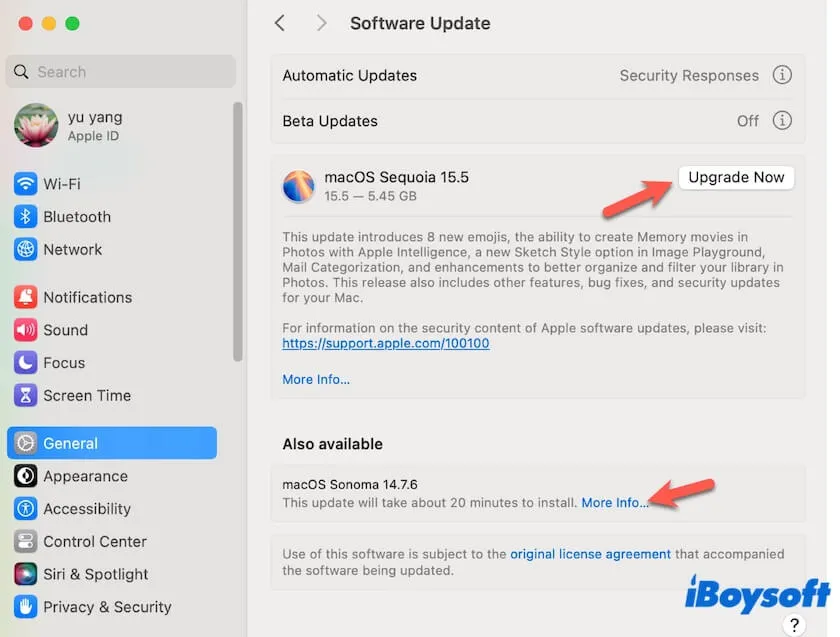
Way 2. Update your Mac with the App Store
If you want to upgrade your Mac to the latest macOS, click the Apple menu > App Store, and then search for the latest macOS update to download it.
Here are direct links to navigate to the corresponding macOS versions in the App Store:
Way 3. Update your Mac with Terminal
If you want to download a specific Mac OS update, you should use Terminal.
- Open Terminal from Launchpad > Other.
- Enter the following command line. Here you should replace [Version] with the real version you want. softwareupdate --fetch-full-installer --full-installer-version [Version]
Share these ways for how to update a Mac with more people.
What to do if your Mac is too old to update
You are wondering, "How to update an old Mac to a new OS?" as your Mac is too old to update. In other words, you need to install a macOS version on your unsupported Mac.
Installing macOS on an unsupported Mac may cause startup failures, hardware or feature incompatibility, failed updates, and potential data loss. Always create a full backup before attempting the installation.
To install macOS on an unsupported Mac, you should first create a bootable USB installer for that macOS version.
However, this job is very complex, as it requires you to run command lines and reformat the drive. Most users spend a lot of time only to get a bootable macOS installer that won't work.
Alternatively, you can use iBoysoft DiskGeeker. This tool can help you quickly create a bootable macOS installer. All you need to do is a few clicks.
Here's how:
- Download, install, and open iBoysoft DiskGeeker on your Mac and connect a clean USB drive to your Mac.
- Select a volume on the USB drive and click Create boot disk > Continue.
- Choose your desired macOS version and click Create boot disk > OK to download the DMG file of macOS.
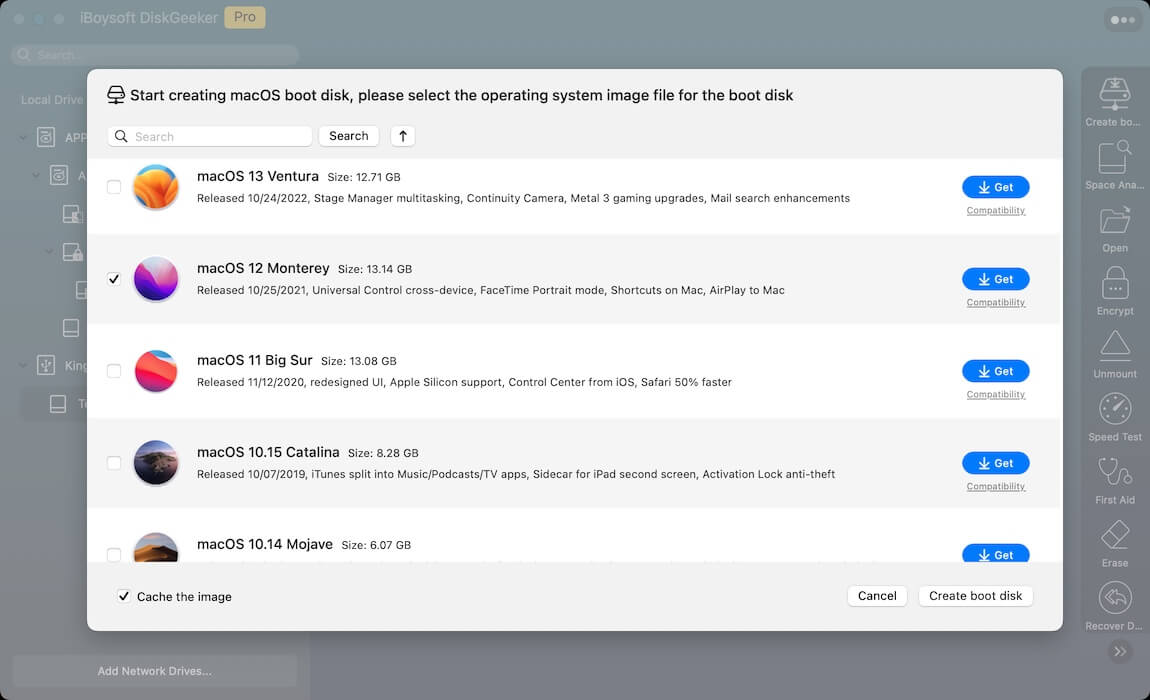
- After downloading, click OK on the prompt to start creating a bootable USB installer for that macOS version.
After getting the bootable USB installer for macOS, you should download and install OpenCore Legacy Patcher. Then, use OpenCore Legacy Patcher to install macOS from the bootable USB installer on your unsupported Mac.
👉 If your Mac isn't compatible with the macOS update you want to download, follow: Download macOS on unsupported Macs.
Share this macOS and Mac OS updates download center with more people.
FAQs about macOS updates download
- QWhere can I download macOS updates?
-
A
You can download macOS updates from Software Update in System Settings (recommended), Apple App Store, Apple-supported web links, or Terminal using the softwareupdate command.
Software Update is the preferred option because it automatically checks compatibility with your Mac.
- QIs Software Update better than a direct macOS download link?
-
A
Yes, Software Update is usually the safest choice for updating the Mac you currently use. It automatically verifies Mac compatibility, available updates, and required system conditions.
Direct installer links are more useful when you need a standalone installer for creating bootable media or installing macOS on another compatible Mac.
- QWhy does Software Update not show the macOS version I want?
-
A
Software Update may not display a macOS version because your Mac does not support that version, Apple no longer offers that upgrade for your hardware, or your Mac is already running the newest compatible version. If you need a specific installer version, check Apple's supported download methods or use Terminal.
- QIs it safe to download macOS from swcdn.apple.com?
-
A
swcdn.apple.com is an Apple content delivery domain used for software distribution. However, when using direct CDN links:
✅ Make sure the link comes from a trusted source
✅ Confirm that the installer version matches your needs
✅ Check Mac compatibility before installation
A valid Apple download does not mean every macOS version can run on every Mac.
- QCan I download an older macOS version from Apple?
-
A
Yes, Apple still provides some older macOS installers through official channels.
For very old macOS versions that are no longer easily available, third-party archives may exist. Before using them:
• Verify the source
• Check file integrity
• Avoid modified installers
• Back up your Mac before installation
- QWhat should I do before installing macOS on an unsupported Mac?
-
A
Before installing macOS on unsupported hardware:
• Create a complete backup
• Confirm your Mac model is supported by the patching method you plan to use
• Prepare a bootable installer
• Understand that some features may not work normally
• Be prepared for additional troubleshooting after updates