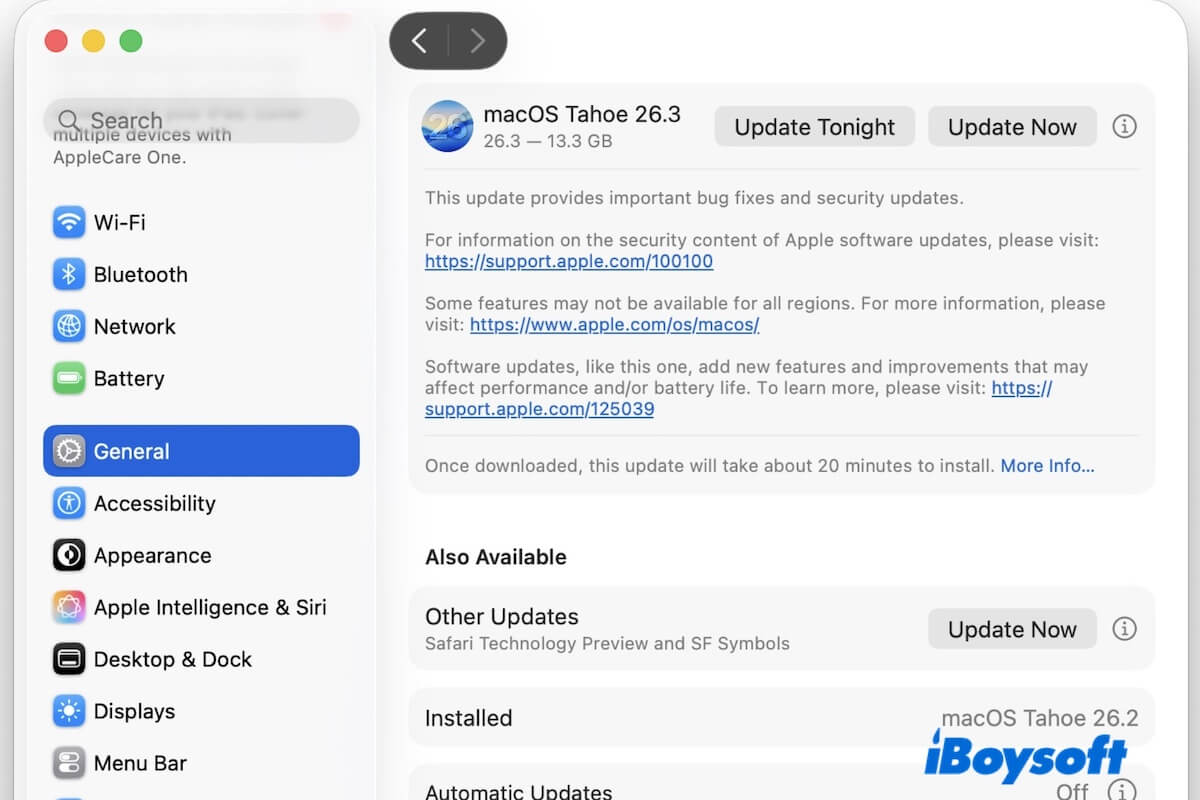
Usually, we can download the macOS installer from the App Store. However, if your Mac doesn't support the macOS version you download, you'll see the following error:
Update not found. The requested version of macOS is not available. Please check if your Mac is compatible with this software.
In this download guide, we cover all the sources to download macOS on an unsupported Mac.
Overview of sources to download macOS on an unsupported Mac
To download macOS on an unsupported Mac, you can follow these methods:
| Source | Key Points | Best for |
| From the Apple server | ❌ Often failed due to an unstable internet connection | Users who want safe and official download options Users who just download the macOS installer but won't install it on the unsupported Macs |
| From iBoysoft DiskGeeker | ✅ A professional tool supports downloading macOS and creating a bootable USB installer with a few clicks ✅ Safe and quick ✅ Cover the latest and old macOS DMG installers | Users who need safe sources Users who download macOS for creating bootable USB installers, distribution, backup, or converting to ISO |
| From archived sources | ❌ Unsafe and unstable | Users who seek free resources but don't care about security |
| From OpenCore Legacy Patcher | ✅ A free tool that lets older, unsupported Macs run newer macOS versions | Users who download macOS on an unsupported Mac for installation |
Download macOS on an unsupported Mac from iBoysoft DiskGeeker
If you want to download a macOS installer on an unsupported Mac, use iBoysoft DiskGeeker.
This tool supports:
- Download macOS DMG files on any Mac model
- Creating a macOS bootable USB installer on any Mac model with clicks only
- Download the latest and older macOS on any Mac, including:
macOS Golden Gate 27 Beta
macOS Tahoe 26
macOS Sequoia 15
macOS Sonoma 14
macOS Ventura 13
macOS Monterey 12
macOS Big Sur 11
macOS Catalina 10.15
macOS Mojave 10.14
macOS High Sierra 10.13
macOS Sierra 10.12
OS X El Capitan 10.11
OS X Yosemite 10.10
OS X Mavericks 10.9
OS X Mountain Lion 10.8
Mac OS X Lion 10.7
Mac OS X Snow Leopard 10.6
Steps:
- Download, install, and launch iBoysoft DiskGeeker.
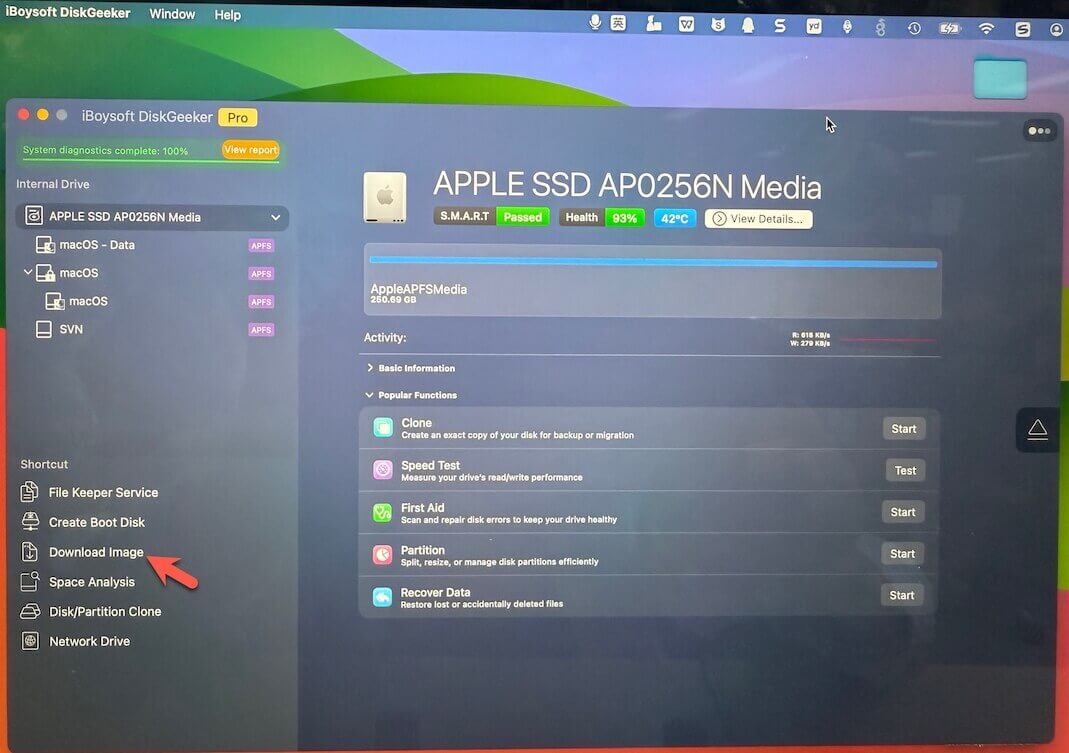
- Click Download Image.
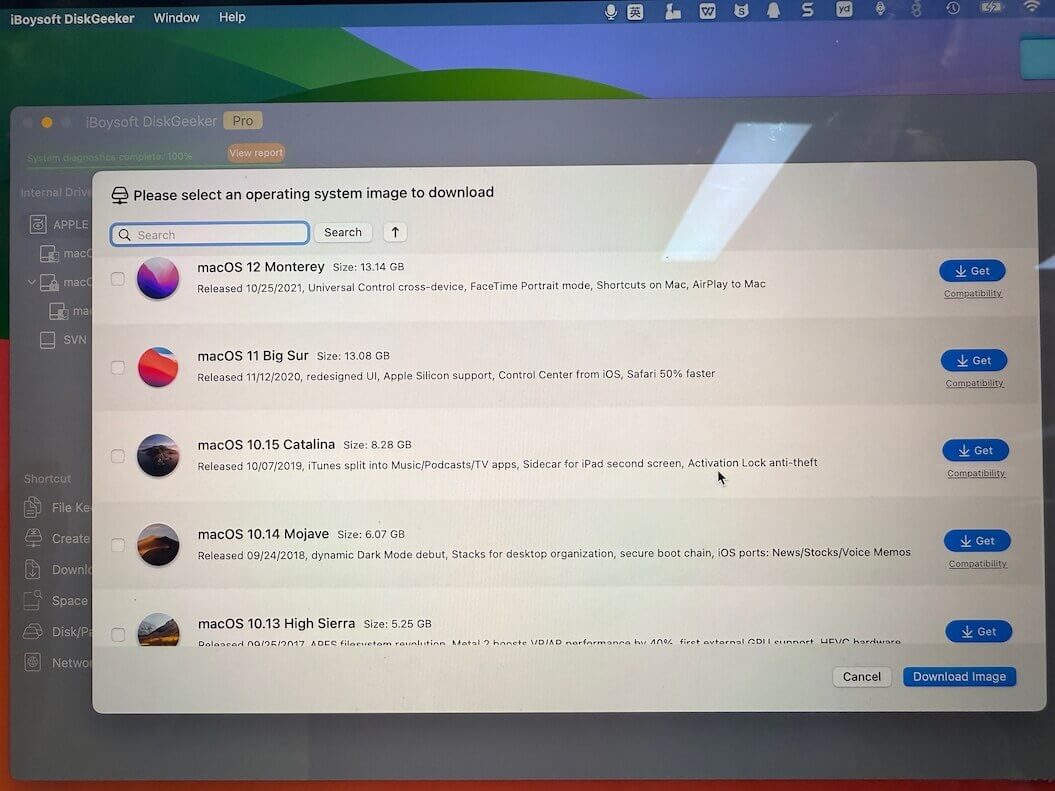
- Click the Get Button next to the macOS version you want to download.
- Select where to store the download.
- Wait for the macOS DMG file to be downloaded.
Note: If you need the .app format of the macOS installer, double-click the DMG file to mount it, and then open it and copy the installer to the Applications folder in Finder.
If you want to create a bootable USB installer, open the software, connect a USB drive, click Create Boot Disk, and follow the on-screen instructions to get it within a few clicks.
Direct links to free download macOS on an unsupported Mac
Below are direct links to download macOS from Apple's server. They are official Apple CDN files (InstallAssistant.pkg) that contain the full macOS installer. If your download fails or is interrupted, check your internet connection.
Note: Even if you download the macOS installer successfully. It does NOT bypass compatibility checks. The installer still checks your Mac model. On unsupported Macs, you'll be alerted: "macOS cannot be installed on this computer."
Download macOS Golden Gate Public on an unsupported Mac
| macOS Golden Gate Public full installer (.pkg) | Build | Size | Release Date |
| Download macOS Golden Gate Public 27.0 | 26A428 | 17.1 GB | Sept. 14, 2026 |
Download macOS Golden Gate Beta on an unsupported Mac
| macOS Golden Gate Beta full installer (.pkg) | Build | Size | Release Date |
| Download macOS Golden Gate Public Beta 8 | 26A5378n | 15.9 GB | Aug. 31, 2026 |
Follow this database to get the macOS Golden Gate Beta installer from different sources:
✅ macOS Golden Gate Public Beta Download Center
Download macOS Tahoe 26 on an unsupported Mac
| macOS Tahoe full installer (.pkg) | Build | Size | Release Date |
| Download macOS Tahoe 26.5 | 25F71 | 17.0 GB | Apr. 11, 2026 |
| Download macOS Tahoe 26.4.1 | 25E253 | 17.0 GB | Apr. 9, 2026 |
Download macOS Sequoia 15 on an unsupported Mac
| macOS Sequoia full installer (.pkg) | Build | Size | Release Date |
| Download macOS Sequoia 15.7.7 | 24G720 | 14.6 GB | May 11, 2026 |
| Download macOS Sequoia 15.7.5 | 24G624 | 14.6 GB | Mar. 24, 2026 |
Download macOS Sonoma 14 on an unsupported Mac
| macOS Sonoma full installer (.pkg) | Build | Size | Release Date |
| Download macOS Sonoma 14.8.7 | 23J520 | 12.7 GB | May 11, 2026 |
| Download macOS Sonoma 14.8.5 | 23J423 | 12.7 GB | Mar. 24, 2026 |
Download macOS Ventura 13 on an unsupported Mac
| macOS Ventura full installer (.pkg) | Build | Size | Release Date |
| Download macOS Ventura 13.7.8 | 22H730 | 11.4 GB | Aug. 20, 2025 |
| Download macOS Ventura 13.7.7 | 22H722 | 11.4 GB | Jul. 29, 2025 |
Download macOS Monterey 12 on an unsupported Mac
| macOS Monterey full installer (.pkg) | Build | Size | Release Date |
| Download macOS Monterey 12.7.6 | 21H1320 | 11.6 GB | Feb. 9, 2026 |
| Download macOS Monterey 12.7.6 | 21H1317 | 11.6 GB | Jul. 17, 2024 |
Download macOS Big Sur 11 on an unsupported Mac
| macOS Big Sur full installer (.pkg) | Build | Size | Release Date |
| Download macOS Big Sur 11.7.11 | 20G1443 | 11.5 GB | Feb. 2, 2026 |
| Download macOS 11.7.10 | 20G1427 | 11.5 GB | Aug. 11, 2023 |
Download macOS Catalina 10.15 on an unsupported Mac
Download macOS Catalina DMG:
Size: 8.28GB
Source: iBoysoft DiskGeeker
⬇ Download macOS Catalina ISO
Size: 16.0GB
Source: Internet Archive
Explore: Download macOS Catalina full installer
Download macOS Mojave 10.14 on an unsupported Mac
Download macOS Mojave DMG:
Size: 6.07GB
Source: iBoysoft DiskGeeker
⬇ Download macOS Mojave ISO
Size: 7.7GB
Source: Internet Archive
Also follow: macOS Mojave Download Center
Download macOS High Sierra 10.13 on an unsupported Mac
Download macOS High Sierra DMG:
Size: 5.25 GB
Source: iBoysoft DiskGeeker
⬇ Download macOS High Sierra ISO
Size: 7.7GB
Source: Internet Archive
Find more: macOS High Sierra Download Center
Download macOS Sierra 10.12 on an unsupported Mac
Download macOS Sierra DMG:
Size: 4.8 GB
Source: iBoysoft DiskGeeker
⬇ Download macOS Sierra App
Size: 4.7GB
Source: Internet Archive
Note: To get older or other macOS versions, you can follow: macOS Download Center
Download macOS on an unsupported Mac with OpenCore Legacy Patcher
OpenCore Legacy Patcher (OCLP) is a free community tool that lets you download the macOS Sequoia 15, macOS Sonoma 14, macOS Ventura 13, macOS Monterey 12, and macOS Big Sur 11 full installers on unsupported Macs.
Here are the steps:
- Download the latest OCLP installer from the official GitHub OpenCore Legacy Patcher (OCLP) download page.
- Install OCLP on the Mac.
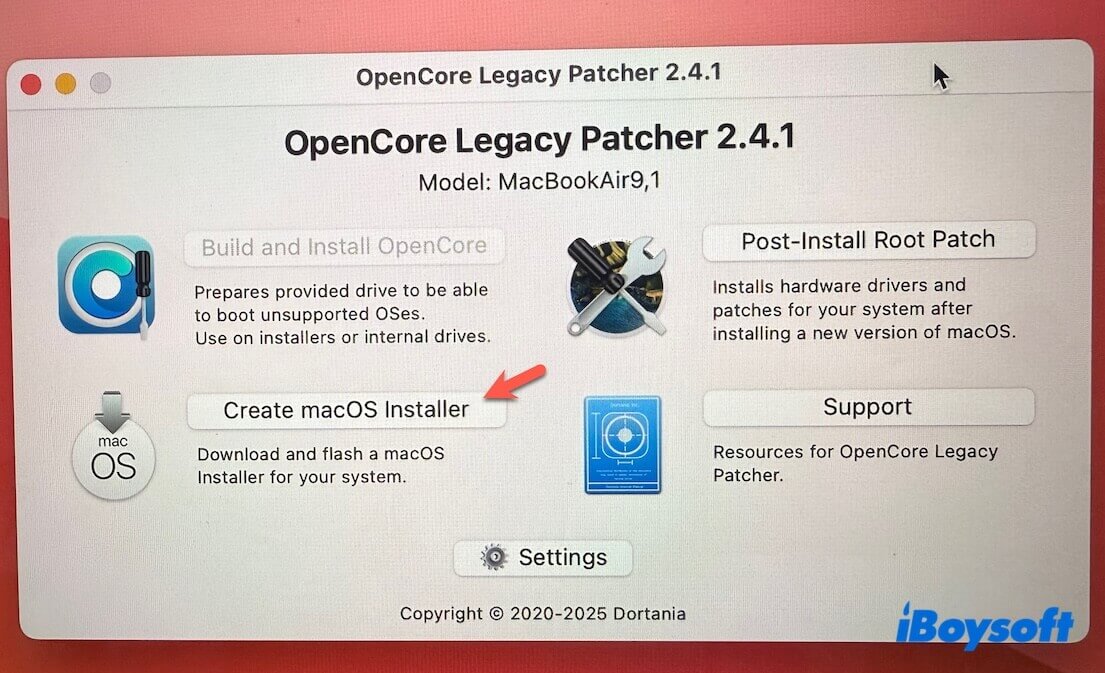
- Open OCLP and click Create macOS Installer.
- Choose Download macOS Installer.
- Select a macOS version and click Download.
Check Show Old/Beta Versions to show the older versions if you need.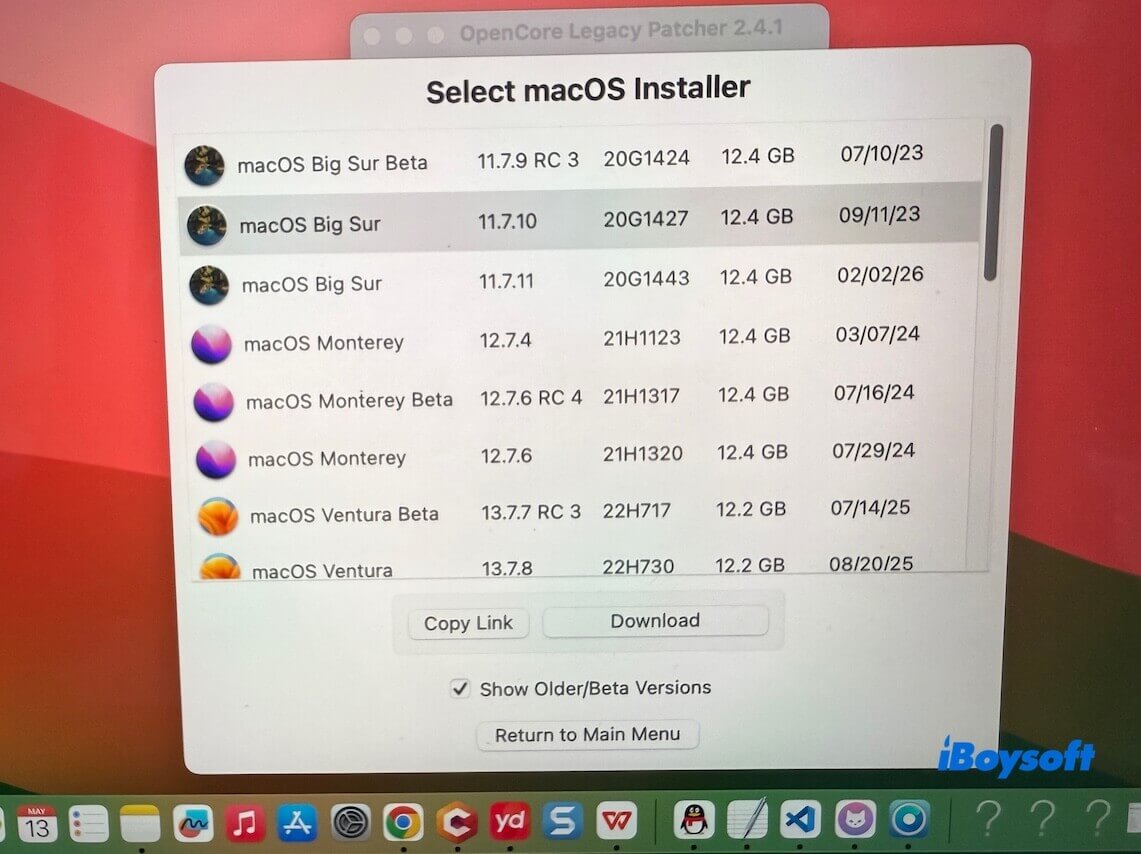
- Wait for the macOS installer to be downloaded.
After getting the macOS installer, follow this guide to install it:
FAQ
- QIs it stable to run macOS on an unsupported Mac?
-
A
Running macOS on an unsupported Mac can be reasonably stable if you use a tool like OpenCore Legacy Patcher and choose a version that matches your hardware, but it's rarely as solid as a natively supported setup.
For everyday tasks, it often works fine, yet you may still run into occasional glitches with graphics acceleration, Wi-Fi, sleep, or system updates, depending on the model.
- QWhat will happen if I force my unsupported Mac to install the latest macOS?
-
A
If you force your unsupported Mac to install the latest macOS, it may install successfully, but the experience can degrade quickly.
Newer systems often drop support for older GPUs and hardware components, which can lead to laggy performance, missing features, broken Wi-Fi or drivers, or even boot issues. In many cases, the newest version is the least stable option for older Macs.