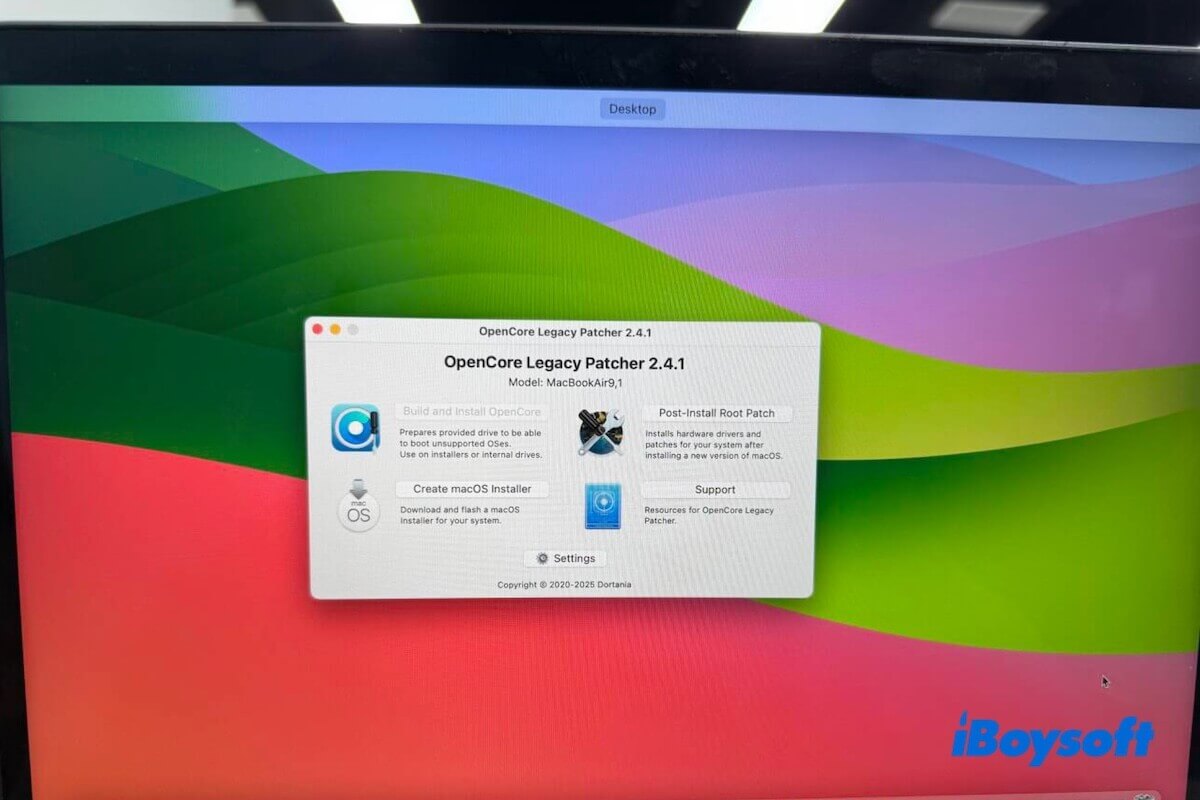
Can you run the latest macOS or an old version on an unsupported Mac?
Yes, it is possible.
To install macOS Golden Gate 27 Beta, Tahoe 26, Sequoia 15, Sonoma 14, Ventura 13, Monterey 12, Big Sur 11, or any earlier version on an unsupported Mac, you should use OpenCore Legacy Patcher.
This open-source utility supports downloading the macOS full installer, creating the bootable USB, and then installing and running macOS on officially unsupported Mac hardware.
The following steps are based on my hands-on experience.
Warning: macOS 27 Golden Gate officially supports only Apple-Silicon Macs. Intel Macs are no longer supported. Up to now, the OpenCore Legacy Patcher (OCLP) developers specifically state that they currently OCLP doesn't support Golden Gate, as macOS Golden Gate removed enough Intel-related components.
If you only have a Windows PC, you can follow the detailed guide to install macOS Golden Gate on Windows with VirtualBox.
What are the risks of installing macOS on an unsupported Mac?
Before you take action, you should learn the potential risks after installing macOS on an unsupported Mac:
- Hardware compatibility issues:
Some hardware, such as Wi-Fi, Bluetooth, graphics acceleration, audio, cameras, trackpads, or external displays, may not work properly. - System instability:
You may encounter crashes, freezes, slow performance, boot failures, or other unexpected issues. - Update problems:
Future macOS updates can break compatibility, requiring you to wait for new patches before upgrading. - Security limitations:
Unsupported Macs may miss firmware updates and hardware-level security enhancements available on officially supported models. - Performance degradation:
Older Macs may struggle with the higher system requirements of newer macOS versions, and hardware-dependent features may not work. - App compatibility issues:
Some apps require newer hardware technologies, such as Metal graphics or Apple Silicon, and may not function correctly. - Data loss risk:
The installation process modifies the boot environment. If something goes wrong, your Mac may become unbootable or require a clean reinstall. - No official support:
Apple does not provide technical support for Macs running unsupported versions of macOS.
How to reduce the risks of installing macOS on unsupported Macs?
If you insist on installing the latest macOS on an old Mac or installing an old macOS on a newer Mac, do the following first:
- Back up your Mac first using Time Machine or another backup solution.
- Keep a recovery method available, like a bootable macOS USB installer.
How to install macOS on an unsupported Mac?
Warning: Running macOS on unsupported Macs may result in reduced and unstable performance, data loss, and updates can sometimes break compatibility. Think twice before you go.
It is better treated as an advanced workaround rather than an official upgrade path.
Step 1: Install OpenCore Legacy Patcher
- Go to the official GitHub OpenCore Legacy Patcher (OCLP) download page.
- Download the latest OCLP installer.
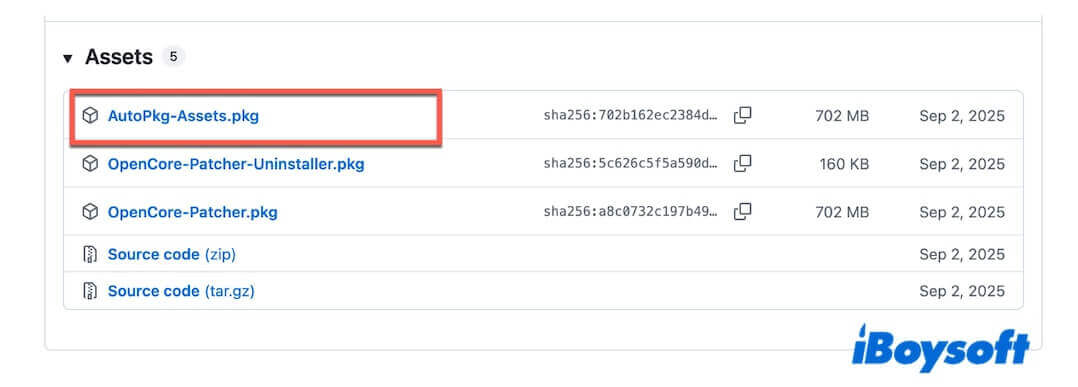
- Install it on the target Mac.
If you're blocked from installing it, go to System Settings > Privacy & Security > Allow.
Step 2: Download the target macOS installer
Follow the steps to download macOS on the unsupported Mac.
Tips: If you have a macOS DMG file, skip this step.
- Open OpenCore Legacy Patcher.
- Click Create macOS Installer.
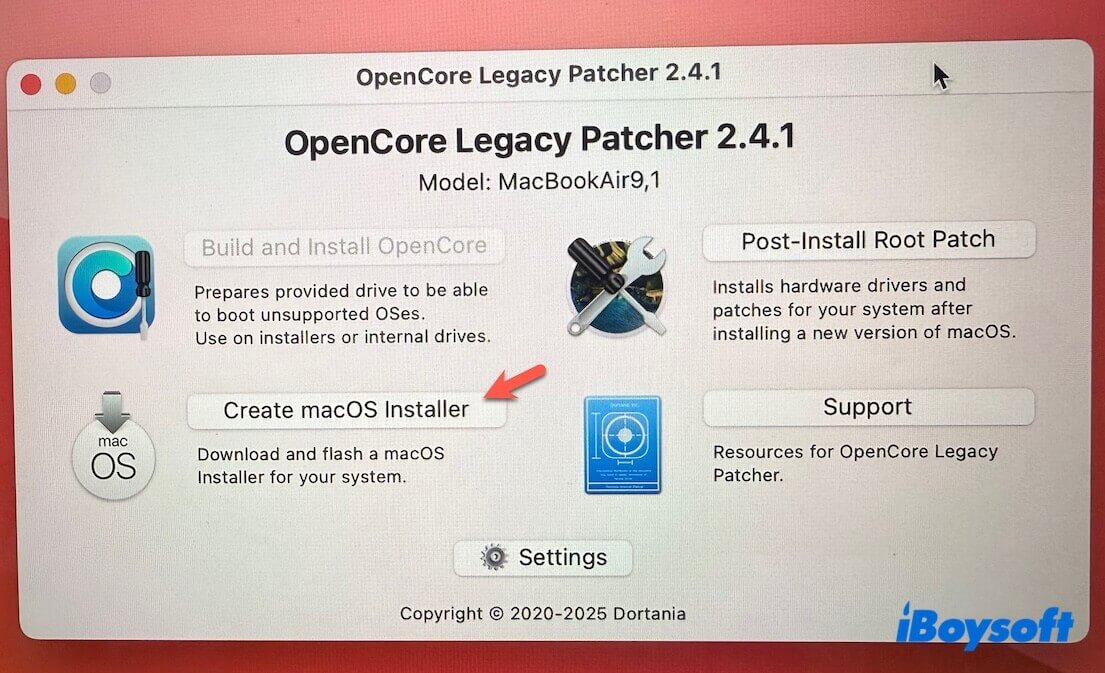
- Select Download macOS Installer.
- Choose a macOS version.
If you don't see the old versions on the list, check Show Old/Beta Versions to expand them.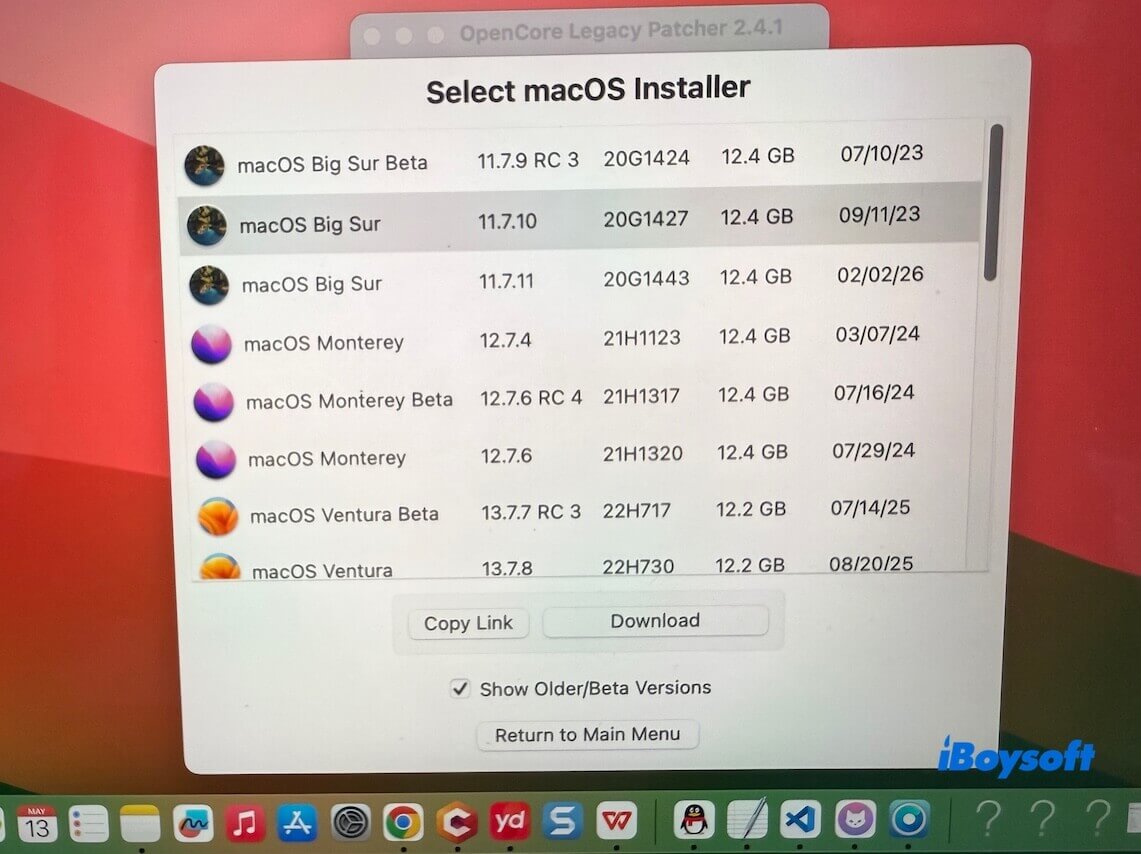
- Click Download and wait for the process to complete.
When the download finished, I encountered the error:
An error occurred while extracting the macOS installer. Could be due to a corrupted installer.
So, I have to try again. From my experience, I suggest that you ensure your internet connection is good, or else you may run into the same issue as me.
OpenCore Legacy Patcher only lists macOS Sequoia to macOS Big Sur. If you need to download macOS Golden Gate Beta, macOS Catalina, or older versions, use iBoysoft DiskGeeker.
This tool can help create a bootable USB installer from macOS Tahoe 26 to Mac OS X Snow Leopard 10.6. macOS download and bootable USB installer creation all in one workflow, and only clicks are involved.
Here's how:
- Download and install iBoysoft DiskGeeker.
- Insert an empty USB drive (better with a large storage space).
- Open iBoysoft DiskGeeker and select Create Boot Disk.
- Choose the USB drive as the destination and click Select.
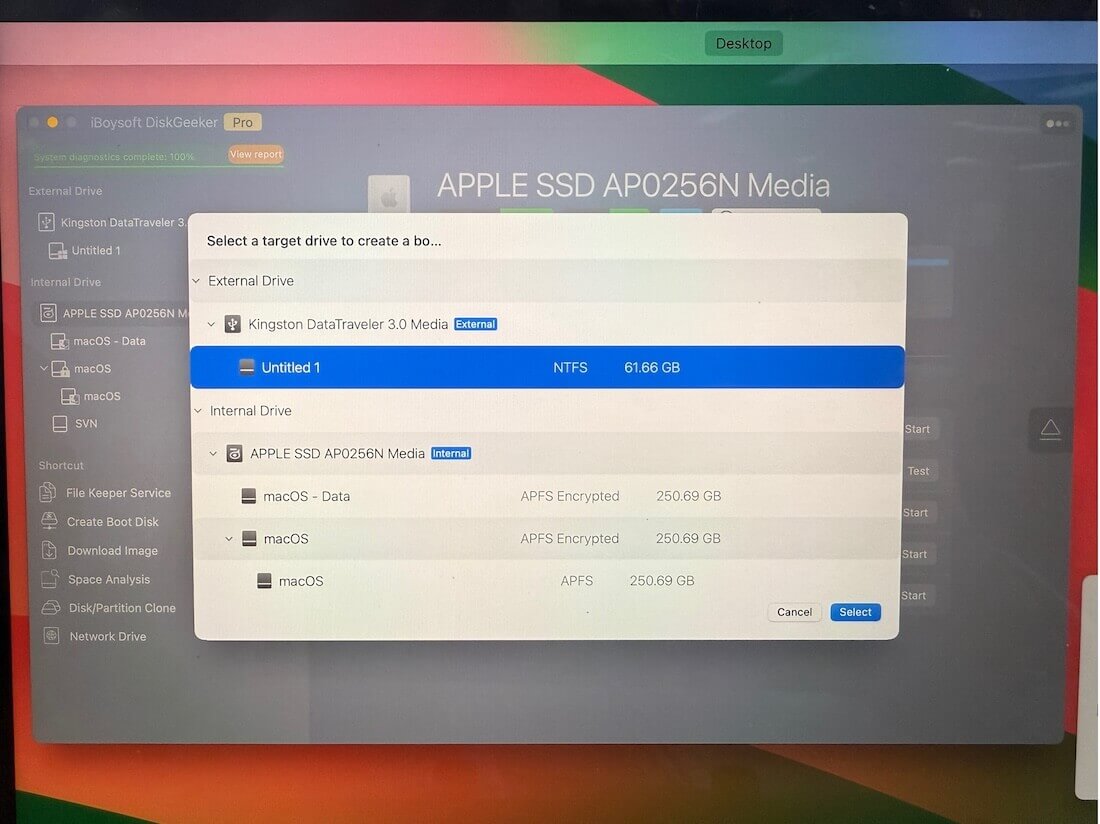
- Click Continue on the prompt warning that the disk will be formatted.
- Select a desired macOS and click Create Boot Disk > OK.
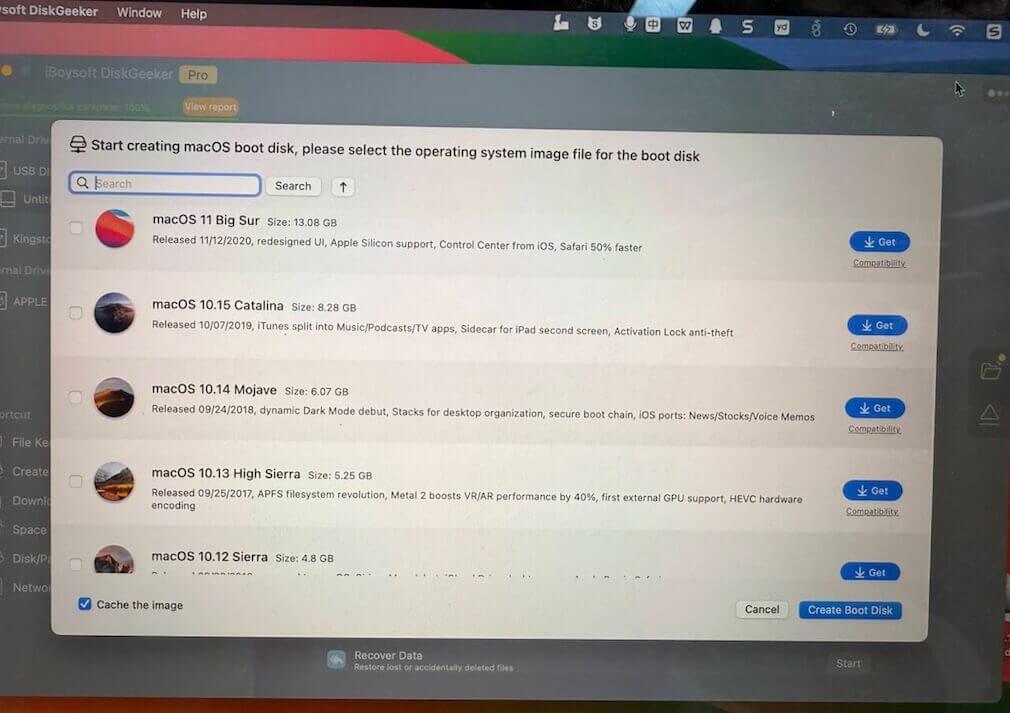
- Wait for the macOS to be downloaded, and after that, this tool will automatically start creating a bootable USB installer.
Step 3: Create a bootable USB
- Connect an empty USB drive to the Mac.
- In OCLP, click "Create macOS Installer">"Use existing macOS installer."
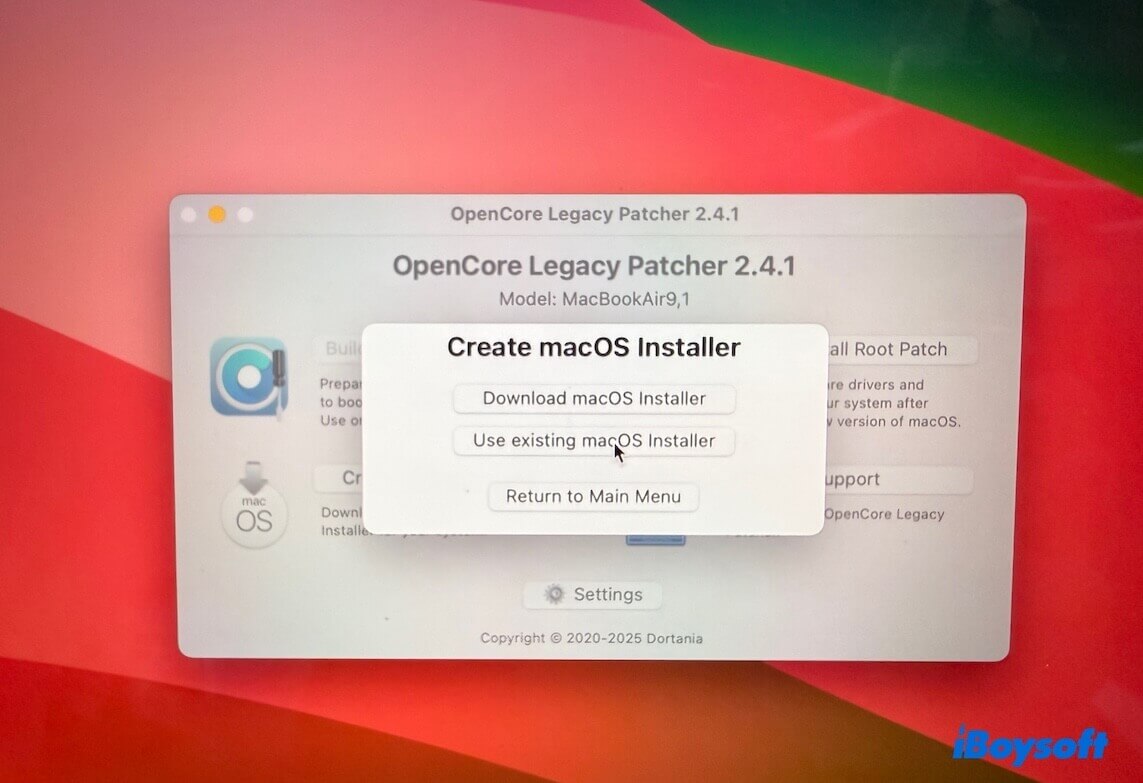
- Click Install macOS XX.
This utility auto-selects your downloaded macOS installer. - Select the USB drive.
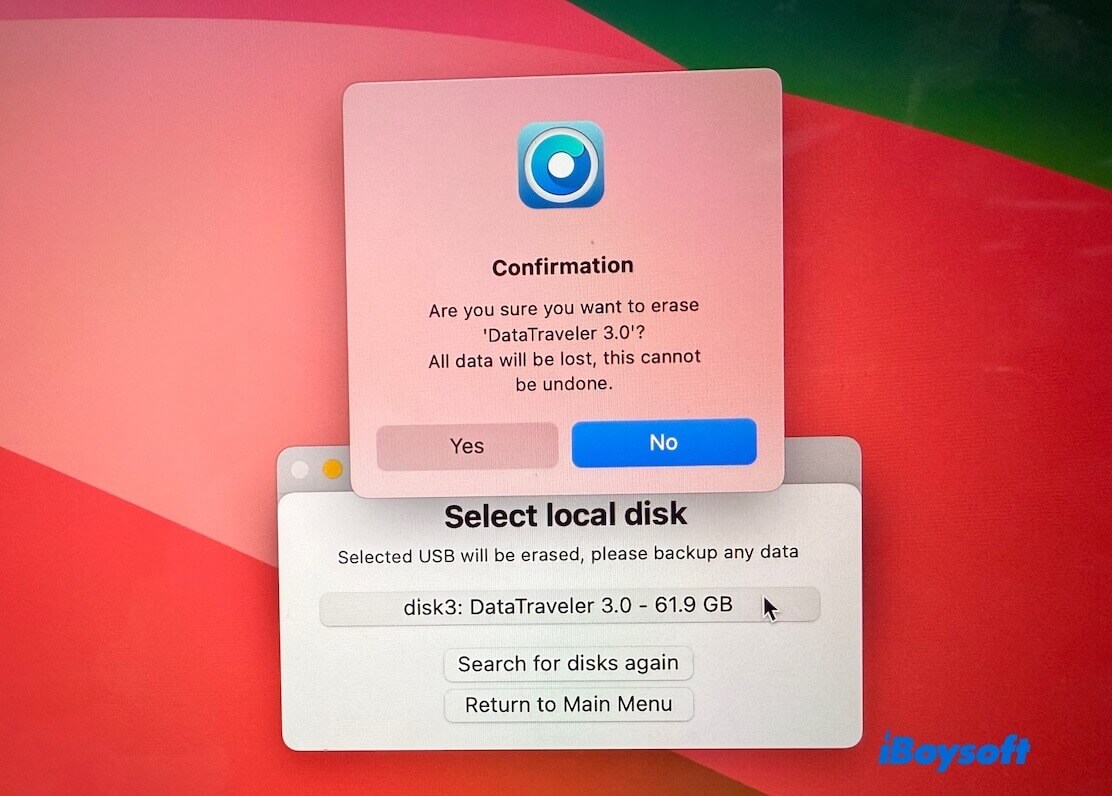
- Confirm on the prompt to erase the USB drive and install macOS on the USB.
- Wait for the USB drive to be made bootable.
In my personal experience, OCLP sends me an error when it starts creating a bootable USB:
Failed to create macOS installer.
Error: /var/folders/ff/y6ypjh3x1hb08jgcgrb1vmkr0000gn/T/tmp6gabh54q/Install macOS Big Sur.app does not appear to be a valid OS installer application.
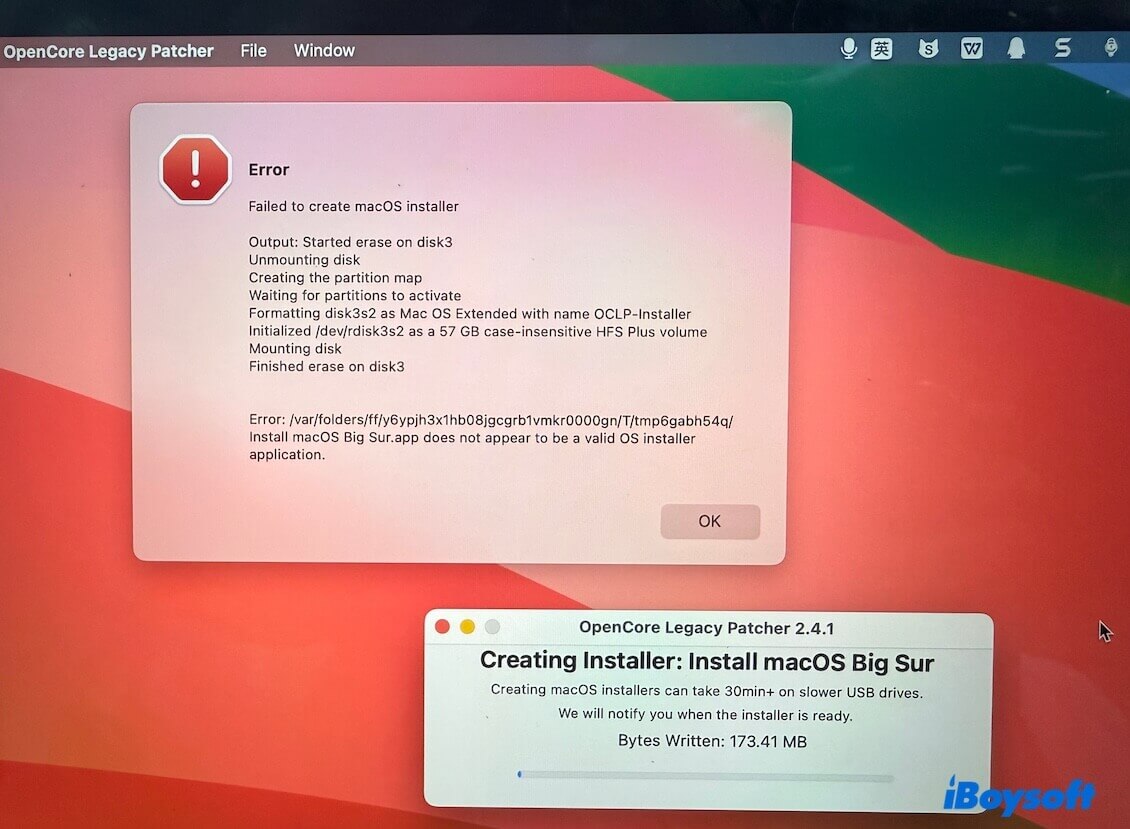
It is due to the corrupted macOS installer. I have to try downloading the installer again under a more stable and powerful Wi-Fi.
Step 4: Build and install OCLP on the USB drive
- Open OCLP.
- Click Build and Install OpenCore.
Note: If your Mac natively supports the macOS version you downloaded, OCLP may disable the OpenCore build because it's not required. - Confirm your Mac model (It will be auto-detected).
- Install OCLP to the USB drive (EFI partition).
Step 5: Boot the Mac from the USB drive and install macOS
- Restart the Mac and simultaneously press and hold the Option key.
- Select EFI Boot (this is your USB OpenCore).
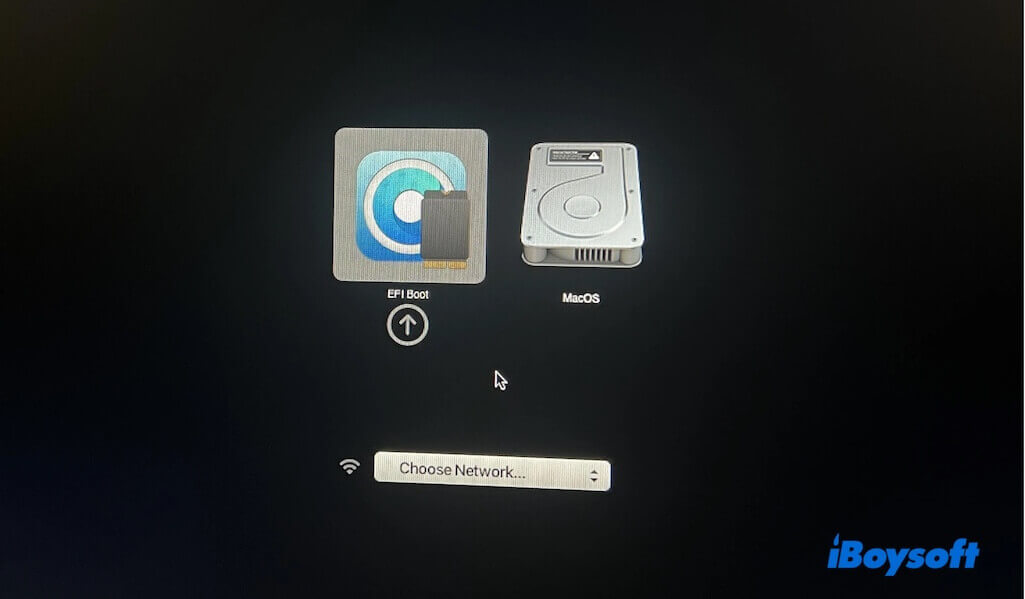
- Select Install macOS.
- Inside OpenCore (from USB), open Disk Utility.
- Erase the internal disk (Format: APFS; scheme: GUID Partition Map).
- Quit Disk Utility.
- Click Install macOS.
- Select your disk.
This process may take 30 - 90 minutes. During the process, your Mac will auto-reboot several times.
Step 6: Start up macOS via the USB
- Restart the Mac while pressing down the Option key.
- Select EFI Boot (USB). This is OpenCore.
- In OpenCore, select the macOS disk.
Step 7: Install OpenCore to the internal disk
- Open OCLP.
- Click Build and Install OpenCore.
- Choose Internal disk (EFI).
- Click Install and enter the admin password.
Now, remove the USB, restart the Mac, and check if it boots successfully.
Step 8: Install Root Patches (Necessary)
- Open OCLP.
- Click Post-Install Root Patch.
- Apply patches and restart the Mac.
This is to fix GPU acceleration, Wi-Fi / Bluetooth, brightness, and USB issues.
Note: If you want to update macOS after installing it on an unsupported Mac, avoid updating immediately after a new macOS release; wait until compatibility patches are stable.
FAQ about installing macOS on an unsupported Mac
- QHow to install macOS Sequoia on unsupported Mac without USB?
-
A
You can install macOS Sequoia on an unsupported Mac without a USB drive by using OpenCore Legacy Patcher (OCLP) with a direct internal disk installation method.
1. Download and install OpenCore Legacy Patcher on Mac.
2. Download the macOS Sequoia installer from OCLP, Apple, or iBoysoft DiskGeeker.
3. In OCLP, choose Build and Install OpenCore, install it to your Mac's internal drive (not USB).
4. Launch Install macOS Sequoia and select your internal disk as the target.
5. Restart and boot using OpenCore entry (auto-selected if installed correctly).
After installation, run OCLP again and apply post-install root patches for graphics, Wi-Fi, etc.
- QCan I install macOS 26 on an unsupported Mac?
-
A
You can sometimes install macOS 26 on unsupported Macs using third-party patchers, but Apple does not officially support it and comes with stability and compatibility risks.