Apple released the first macOS 27 Golden Gate Public Beta 1 on July 13, 2026, and now Public Beta 6 is also available.
Looking to download the macOS Golden Gate Public Beta? This guide will show you how to directly download the official public beta installer, DMG, and ISO images. Moreover, it offers solutions if you fail to download the macOS Golden Gate Beta.
Whether you're installing the macOS 27 Public Beta on your Mac, creating a bootable USB installer, or testing macOS in a virtual machine, you'll find the safest download methods based on our real-world experiences.
⭐ Now, macOS 27 Golden Gate is out. You can download the macOS 27 Golden Gate ISO.
Warning: If this is your primary work Mac, consider waiting until the public beta reaches a later build. Early beta releases often contain bugs affecting battery life, third-party applications, peripherals, and overall system stability.
If you insist on testing macOS Golden Gate Public Beta, install it on a separate volume on the internal disk, or on a virtual machine like VirtualBox or VMware.
Check out the macOS Golden Gate issues and bugs before you download and install it.
macOS Golden Gate full installer (.app) vs. DMG vs. ISO
Although both contain the macOS installer, they serve different purposes.
| Installer Format | Best for | Recommended Users |
| Full Installer (.app) | Installing macOS directly or creating bootable media | Most users |
| DMG | Backups, bootable installer creation, and installer archiving | Most users |
| ISO | Virtual machines | Developers, testers, IT administrators |
Download macOS Golden Gate Public Beta full installer
The full installer is useful for clean installations, testing on multiple Macs, and creating bootable USB installers.
① Download with the direct link from the Apple server
The direct links below to download the macOS Golden Gate Public Beta .pkg file are from swcdn.apple.com, an official Apple Software Content Delivery Network (Software CDN) domain used mainly for macOS software update downloads.
| macOS 27 Public Beta Download Link | Version | Build | Publish Date |
| ⬇️ Download InstallAssistant.pkg | Public Beta 6 | 26A5425a | Aug. 31, 2026 |
| ⬇️ Download InstallAssistant.pkg | Public Beta 5 | 26A5421a | Aug. 24, 2026 |
| ⬇️ Download InstallAssistant.pkg | Public Beta 4 | 26A5416b | Aug. 17, 2026 |
| ⬇️ Download InstallAssistant.pkg | Public Beta 3 | 26A5406e | Aug. 11, 2026 |
| ⬇️ Download InstallAssistant.pkg | Public Beta 2 | 26A5388g | Jul. 22, 2026 |
| ⬇️ Download InstallAssistant.pkg | Public Beta 1 | 26A5378n | Jul. 13, 2026 |
② Download from Apple Beta Software Program
This is Apple's official distribution channel and the safest way to install the public beta.
Before you begin:
- Ensure your Mac supports macOS Golden Gate
- Back up your Mac with Time Machine or another backup solution
- Sign in to your Mac with your Apple Account
- Make sure you have a stable internet connection
- Reserve at least 35–50 GB of available storage
Steps to download macOS Golden Gate Public Beta:
- Visit the Apple Beta Software Program website.
- Sign in with your Apple Account.
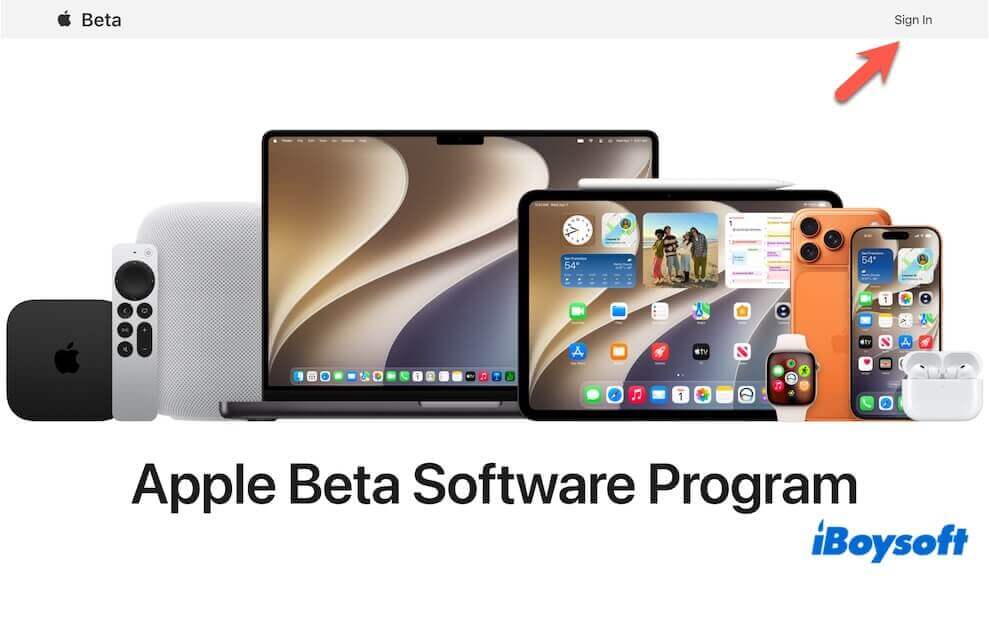
- Enroll your Mac if you haven't already.
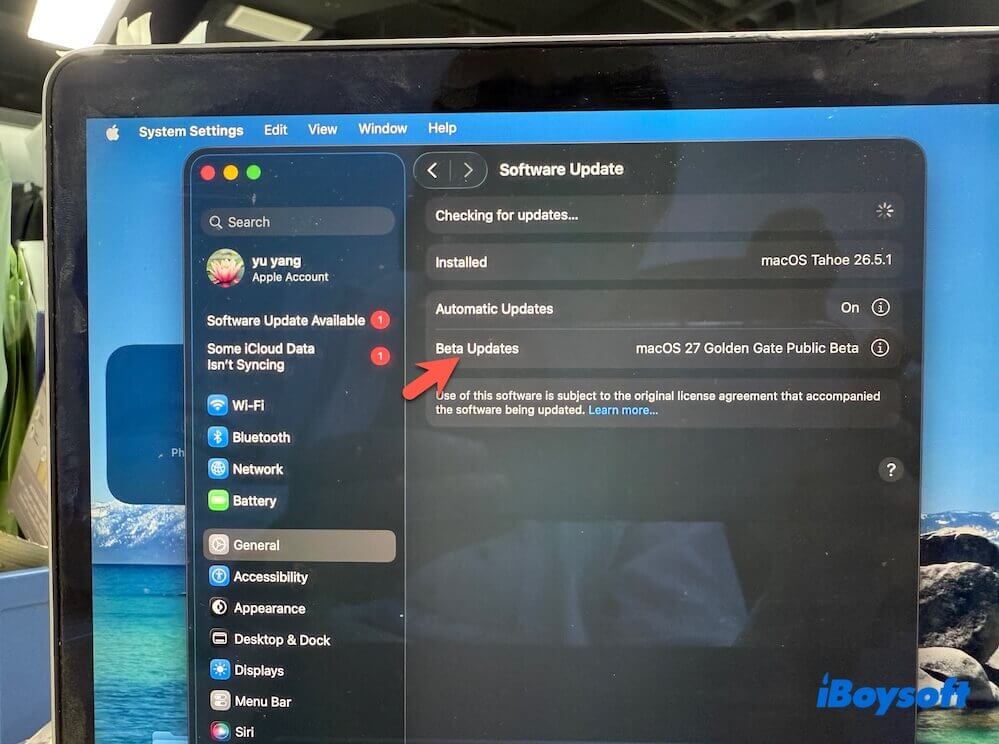
- Open System Settings > General > Software Update.
- Click Beta Updates.
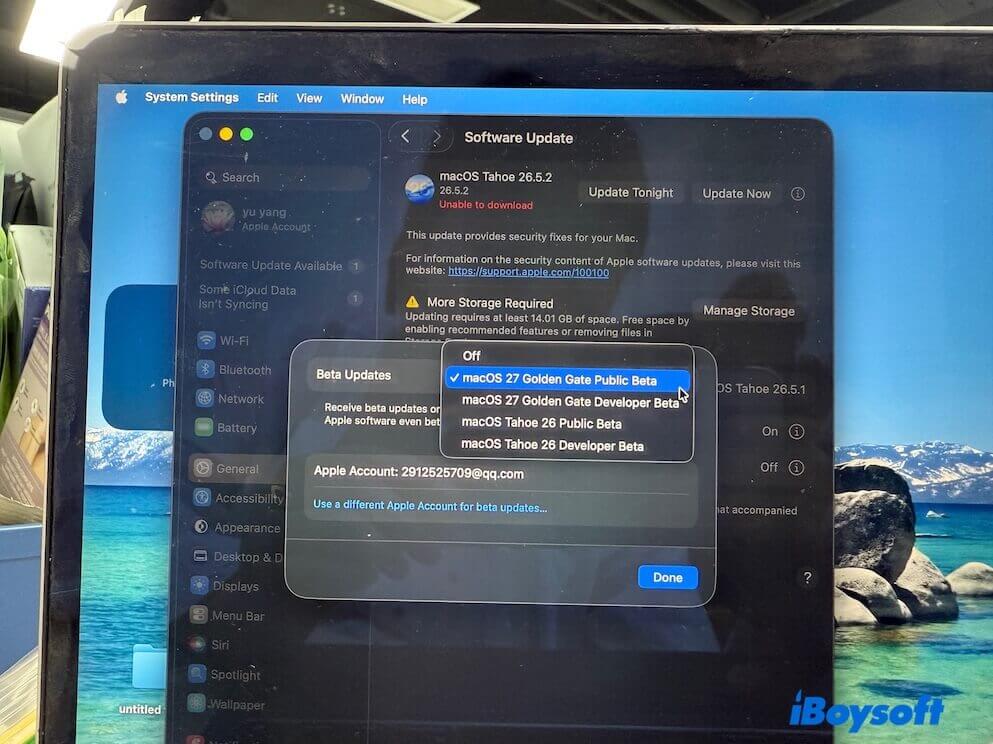
- Select macOS Golden Gate Public Beta.
- Return to Software Update and wait for the beta to appear.
- Click Upgrade Now (or Download and Install, depending on your current macOS version).
The installer will be downloaded automatically. After the download finishes, the installation assistant usually launches automatically. If you want to install later, simply quit the installer. You'll find Install macOS Golden Gate Beta.app inside the Applications folder.
Download macOS Golden Gate Beta DMG
If you can't find macOS Golden Gate Public Beta in Software Update or the App Store, you can download the macOS Golden Gate Beta DMG file instead.
A macOS Golden Gate Beta DMG is a disk image that contains the installer files. It is useful for creating a bootable macOS USB installer, testing the beta on multiple Macs, directly installing macOS Golden Gate Beta on compatible Macs, sharing the installer between devices, and more.
To download macOS Golden Gate Beta DMG, you should use iBoysoft DiskGeeker - a disk manager for Mac. This tool offers a direct source for downloading the macOS Golden Gate Beta DMG file securely.
Here's how:
- Free download, install, and open iBoysoft DiskGeeker.
- Click Download Image on the left sidebar.
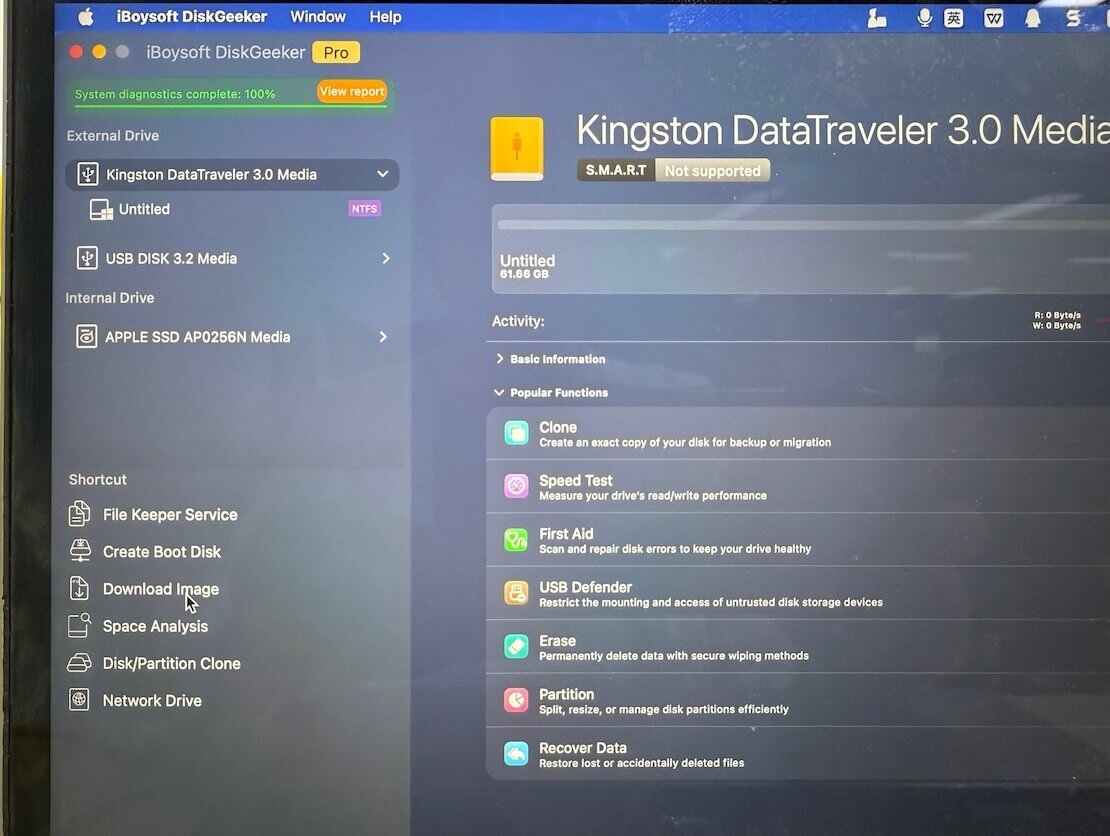
- Click Get next to macOS 27 Golden Gate Beta.
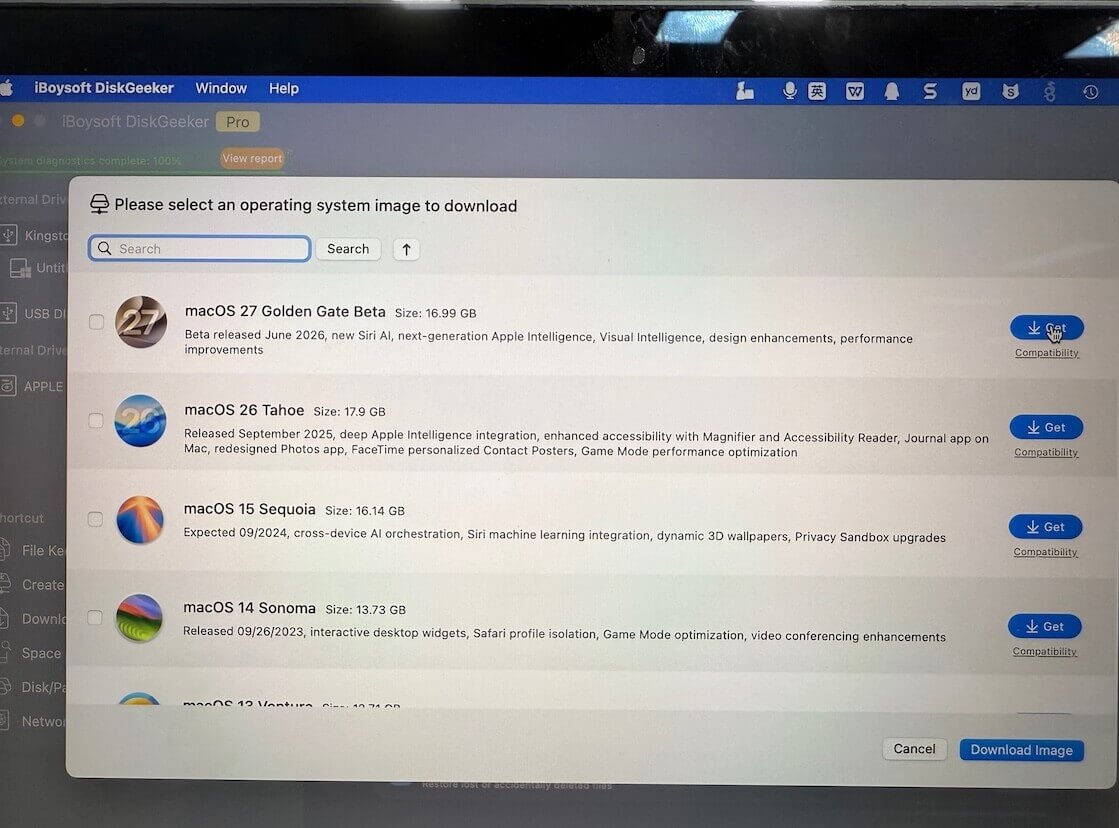
- Choose a destination to save the DMG file and wait for the download process to complete.
Also, download the DMG file with this guide: Download macOS Golden Gate Beta DMG
Notably, iBoysoft DiskGeeker can also help you create a bootable USB installer for macOS Golden Gate Beta with a few clicks. With it, you no longer need to perform complicated operations with Terminal.
If you need, follow:
- Connect an empty external hard drive or USB flash drive.
- Open iBoysoft DiskGeeker.
- Select Create Boot Disk.
- Choose the connected drive as the target disk and click Select > Continue.
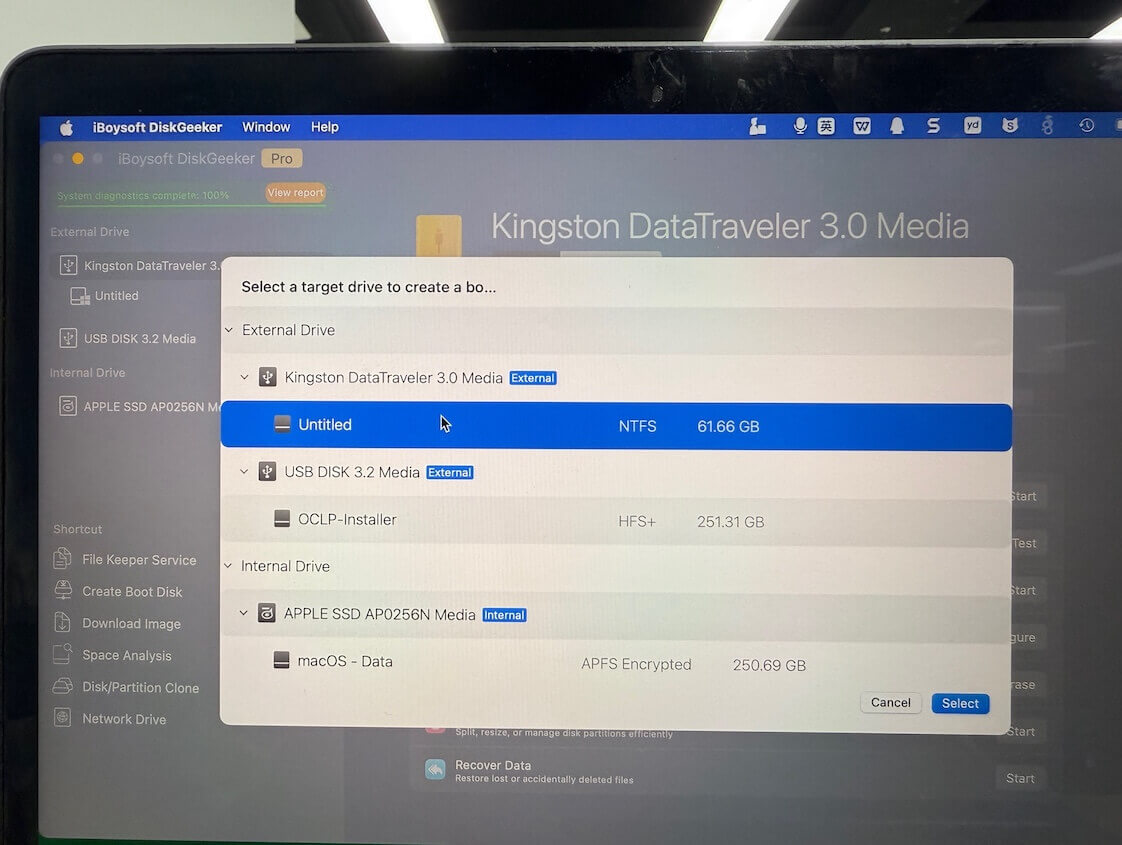
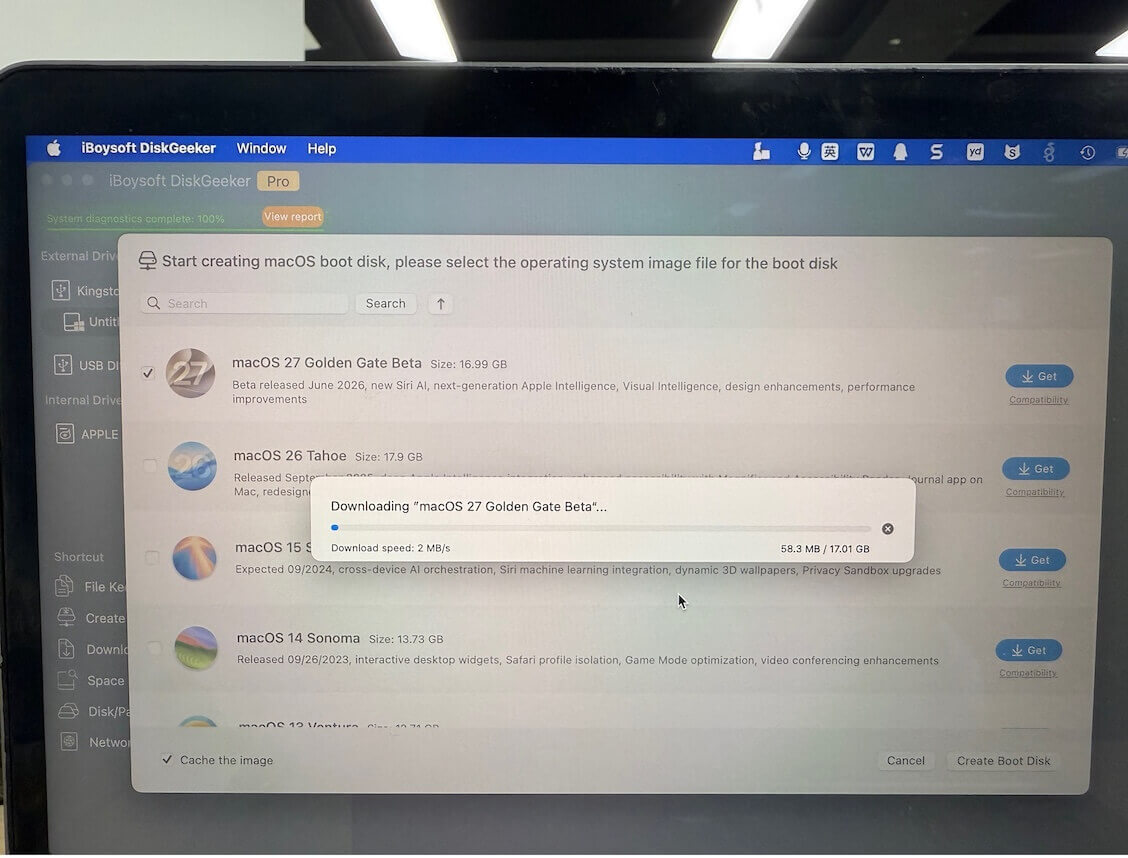
- Select macOS 27 Golden Gate Beta, click Create Boot Disk > OK.
- Wait for the macOS 27 Golden Gate Beta DMG to be downloaded, and then it will automatically create a bootable USB installer.
Note: If you only have a Windows PC, you can use iBoysoft DiskGeeker for Windows to download macOS Golden Gate Beta. You can also use this tool to create a macOS Golden Gate Beta bootable USB installer on Windows.
Download macOS Golden Gate Public Beta ISO
If you plan to test macOS Golden Gate Public Beta on a virtual machine like VMware, VirtualBox, UTM, or Parallels Desktop, an ISO image is usually the easiest format to use.
Testing the Beta version on a VM can reduce the risk of data loss and make it easy to revert to snapshots after testing.
Option 1: Download macOS Golden Gate Beta ISO online
You can search for the archive of macOS Golden Gate Public Beta ISO online for free download. However, this is risky as online files may be modified or contain malware.
Remember to verify the file's checksum before using it.
Option 2: Create macOS Golden Gate Beta ISO manually
Alternatively, it's more secure to create a macOS 27 Golden Gate ISO file by converting the DMG file to an ISO.
- Download macOS Golden Gate Public Beta DMG.
- Open Terminal.
- Enter the following command.
hdiutil convert ~/Downloads/macos_27.dmg -format UDTO -o ~/Downloads/macos_27.isoHere, replace ~/Downloads/macos_27.dmg with the actual location of your downloaded macOS Golden Gate DMG file.
Also, you can replace ~/Downloads/macos_27.iso with the destination where you want the ISO to be stored.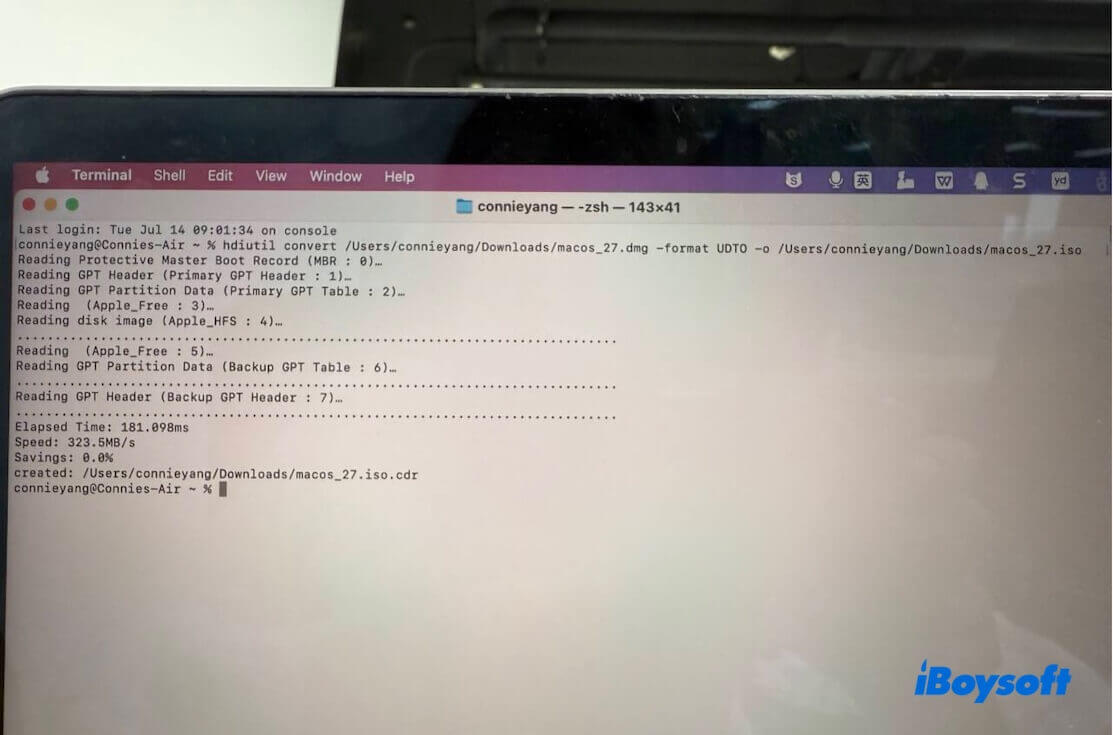
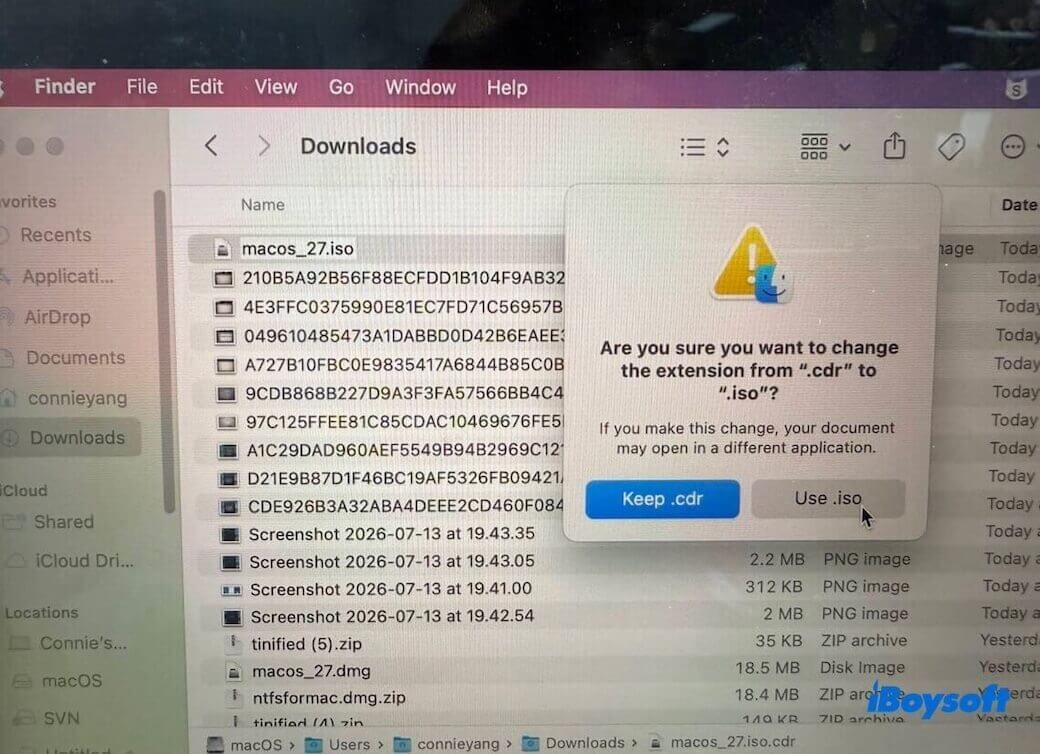
- Rename the file with the extension: .iso.cdr to .iso.
What to do if you can't download macOS Golden Gate Beta?
Based on reports from Apple Discussions, Reddit, and MacRumors users, these issues are usually caused by temporary Apple server load, insufficient storage, unstable network connections, or beta enrollment problems.
You can follow these simple tricks to troubleshoot the macOS Golden Gate Beta download failure:
- Check Apple's System Status. Visit System Status and see if macOS Software Update is in the outage state.
- Confirm you're enrolled in the Public Beta. A common mistake is enrolling in the Developer Beta or not enrolling in the Apple Beta Software Program at all.
- Free up enough storage space on your Mac. The installer itself is roughly 15–18 GB.
- Restart your Mac and try again. This simple step can sometimes refresh the stuck downloading process.
- Try downloading later. Apple's update servers may be under heavy load.
macOS Golden Gate supported devices
Although the installer can usually be downloaded on unsupported models, installation will only proceed on Macs that meet Apple's hardware requirements unless you use third-party patching tools.
macOS Golden Gate supported devices:
- MacBook Air with Apple silicon (2020 and later)
- MacBook Pro with Apple silicon (2020 and later)
- iMac with Apple silicon (2021 and later)
- Mac mini with Apple silicon (2020 and later)
- Mac Studio (2022 and later)
- Mac Pro with Apple silicon (2023 and later)
- MacBook Neo (2026)
How to check whether your Mac supports macOS Golden Gate?
If you're unsure which Mac you own:
- Click the Apple menu > About This Mac.
- Check the model name and release year.
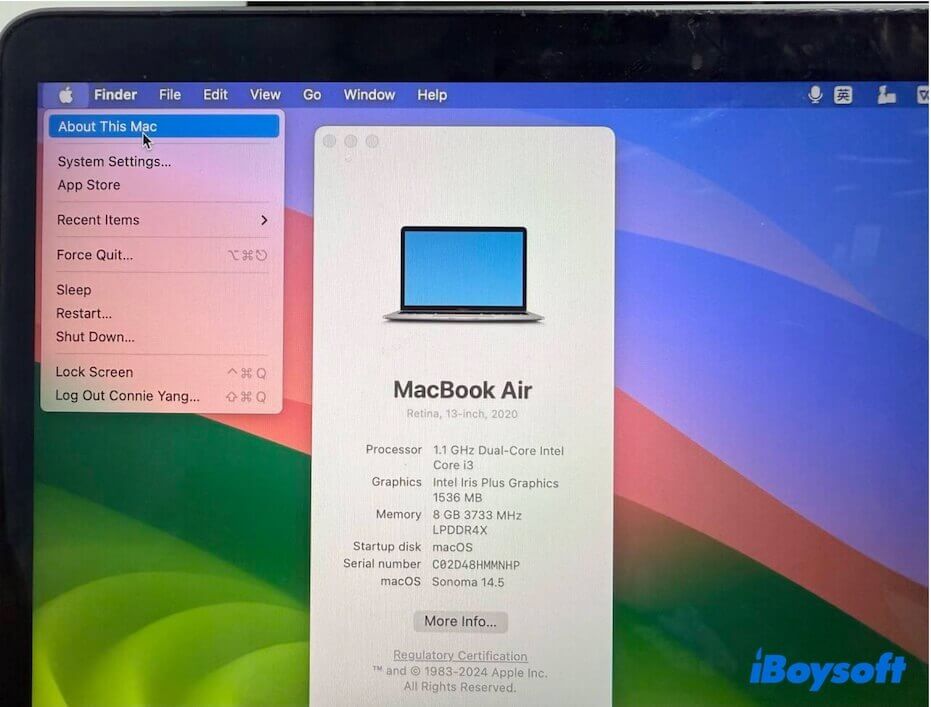
- Compare it with Apple's compatibility list above.
If your Mac isn't officially supported, you still have options. Many Intel Macs can install macOS Golden Gate using OpenCore Legacy Patcher (OCLP), but some features may not work the same as on supported hardware. You can follow this guide to get more details:
FAQs
- QWhat should you prepare before installing the macOS Golden Gate Beta?
-
A
It's worth taking a few precautions before proceeding with the installation. These small preparations can save hours of troubleshooting later.
1. Back up your Mac. A Time Machine backup or a full disk clone lets you roll back if the beta causes unexpected issues.
2. Avoid installing on your primary work Mac. Public betas are generally more stable than developer betas, but bugs, performance regressions, and app incompatibilities are still common.
3. Update essential apps first. Check whether your virtualization tools and creative applications already support the latest beta.
4. Create a bootable installer if possible. Having one available can simplify recovery if the installation fails or you need to reinstall macOS without downloading it again.
- QHow to install macOS Golden Gate Public Beta on a Mac?
-
A
1. Back up your Mac using Time Machine.
2. Open Install macOS Golden Gate Beta.app from the Applications folder.
3. Click Continue.
4. Accept the software license agreement.
5. Select the destination disk.
6. Follow the on-screen instructions.
Allow your Mac to restart several times during installation.
Installation time varies by Mac model and storage type; please be patient and let it run.
- QWhy do I get stuck on downloading macOS Golden Gate Public Beta?
-
A
The most common causes include:
Overloaded Apple's update servers
Insufficient free storage
Insufficient free storage
Beta enrollment issues
System bugs