Apple does not usually provide macOS as a direct .iso file. It distributes macOS .app installers through Software Update and the App Store or the InstallAssistant.pkg installer via a direct connection with Apple's server.
That is why many users either download a converted ISO from a trusted source or create the ISO manually from the official installer.
Before creating or downloading the macOS 27 Golden Gate ISO, check these points first:
| Free space | At least 35 GB of free disk space is recommended for downloading and creating the ISO |
| Target use | Virtual machine, testing, external drive, or offline archive |
| Risk level | macOS system; not recommended for main work on a Windows PC |
| Best method on Windows | Use a trusted macOS ISO downloader |
| Best method on Mac | Create ISO manually or use a verified downloader |
What is a macOS Golden Gate ISO file used for?
A macOS Golden Gate ISO is a disk image file that contains the installation media for macOS 27 Golden Gate.
It is usually used for:
- Installing macOS 27 in VMware, VirtualBox, Parallels Desktop, or UTM
- Testing macOS Golden Gate without upgrading the current system
- Keeping an offline copy of the installer
- Creating a lab environment for app testing, compatibility checks, or recovery practice
How to download macOS Golden Gate ISO on Windows?
You cannot use Apple's Software Update or Terminal commands to fetch the macOS 27 full installer directly on Windows 11, Windows 10, or earlier.
Searching "macOS Golden Gate ISO download" often leads to expired cloud links, modified images, or files with unknown integrity.
A safe and reliable method is to use iBoysoft DiskGeeker for Windows, which provides verified macOS DMG and ISO downloads, including macOS Golden Gate, and can also help create a bootable macOS USB installer on a Windows PC with a few clicks.
Steps to download macOS 27 ISO on Windows:
- Download, install, and open iBoysoft DiskGeeker for Windows.
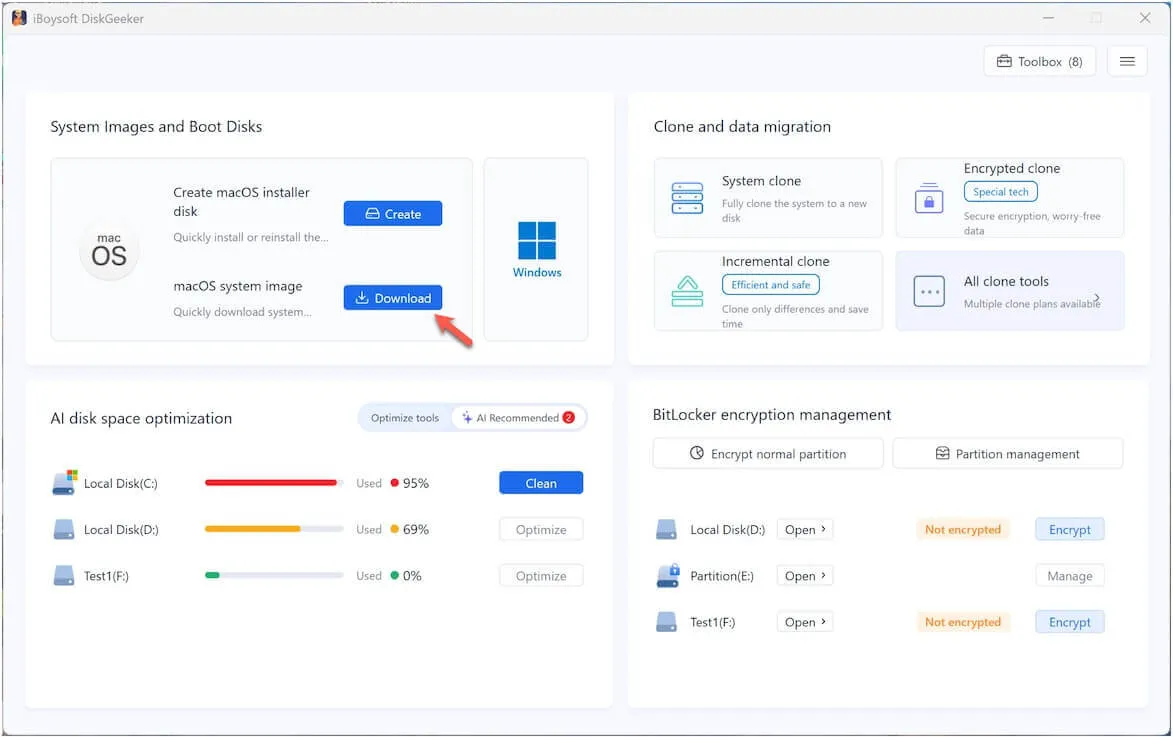
- Navigate to System Images and Boot Disks and click Download next to the macOS system image.
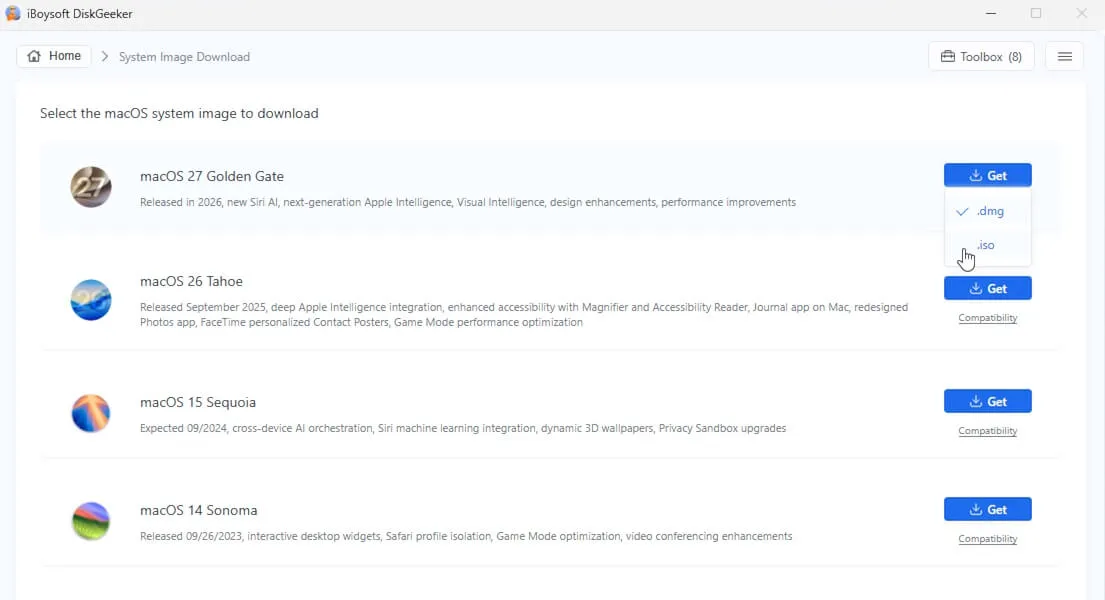
- Move the cursor over Get next to macOS 27 Golden Gate and select .iso from the drop-down menu.
- Select a local folder or external drive to save the ISO file.
- Wait until the file download finishes.
Practical tip: Save the ISO to an exFAT external drive if your Windows system drive is low on space. In my hands-on experience, macOS ISO files can take more working space than the final file size during download and verification.
How to get a macOS Golden Gate ISO on Mac?
On a Mac, you have more options to get the macOS 27 ISO. You can:
- Method 1. Download a macOS Golden Gate ISO with iBoysoft DiskGeeker for Mac (Quickest & easiest)
- Method 2. Convert the macOS Golden Gate DMG to ISO (If you have a macOS 27 DMG)
- Method 3. Download Apple's full installer and then create an ISO with it. (Command-line-reliant complex way)
Method 1. Directly download the macOS 27 ISO with iBoysoft DiskGeeker for Mac
iBoysoft DiskGeeker for Mac offers the DMG and ISO files of macOS 27 Golden Gate - Mac OS X 10.6 Snow Leopard for your quick download.
- Download, install, and open iBoysoft DiskGeeker for Mac.
- Click Download Image on the left sidebar.
- Click Get next to macOS 27 Golden Gate.
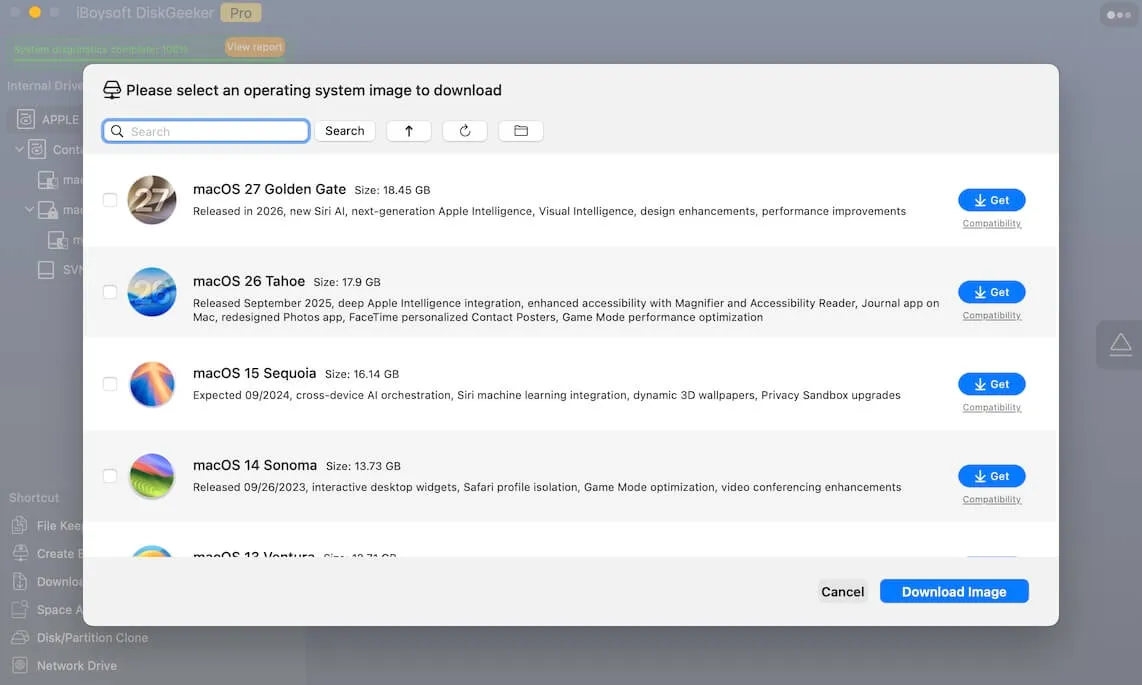
- When prompted, it will automatically select the ISO format and the High-Speed Download option. Just click Start to start downloading.
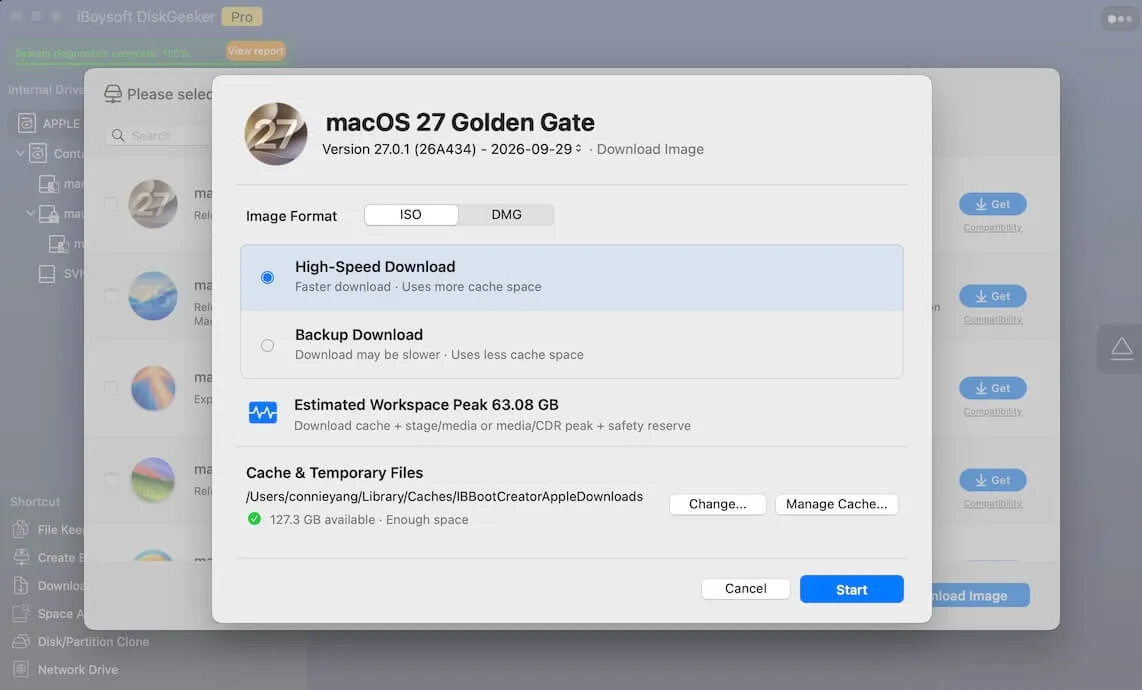
- Wait for the process to complete.
Now, you have the ISO file.
Method 2: Convert a macOS Golden Gate DMG to ISO
This method is suitable for those who already have a macOS Golden Gate DMG file. If you don't have one, I suggest you switch to Method 1 or Method 3.
- Open Terminal.
- Run:
hdiutil convert /Users/connieyang/Desktop/macOS\ 27\ Golden\ Gate.dmg -format UDTO -o /Users/connieyang/Desktop/macOS\ 27\ Golden\ Gate.isoReplace /Users/connieyang/Desktop/macOS\ 27\ Golden\ Gate.dmg with the path to your own DMG file.
/Users/connieyang/Desktop/macOS\ 27\ Golden\ Gate.iso stands for the location where you want to save the converted ISO file. Just keep it in the same destination as the DMG file for convenience.
To reduce the rate of entering the incorrect command line, you can type hdiutil convert and a space, drag and drop your DMG file to the Terminal window to let macOS automatically show the path, type a space and -format UDTO -o with another space, then copy and paste the path of your DMG file and change the extension to .iso.
When using the UDTO format, hdiutil usually creates a file with a .iso.cdr extension. For example, you can see the converted file saved as: macOS 27 Golden Gate.iso.cdr.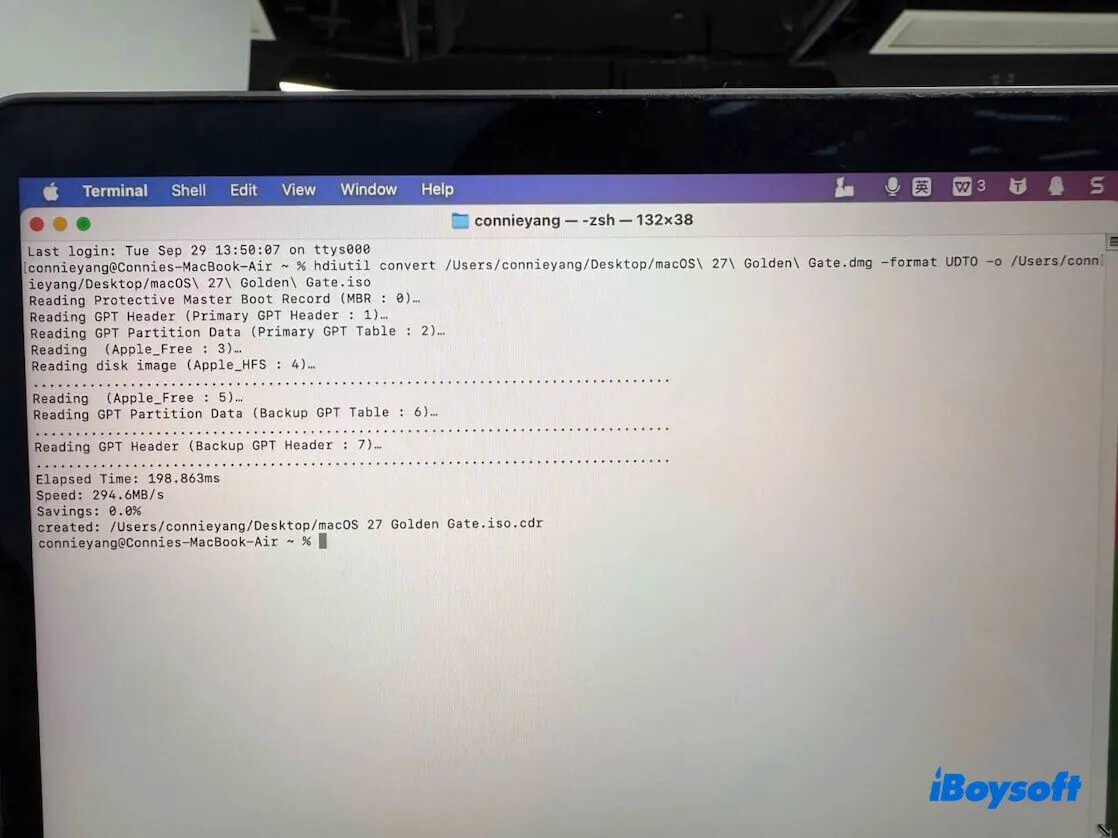
- Rename the extension from .iso.cdr to .iso.
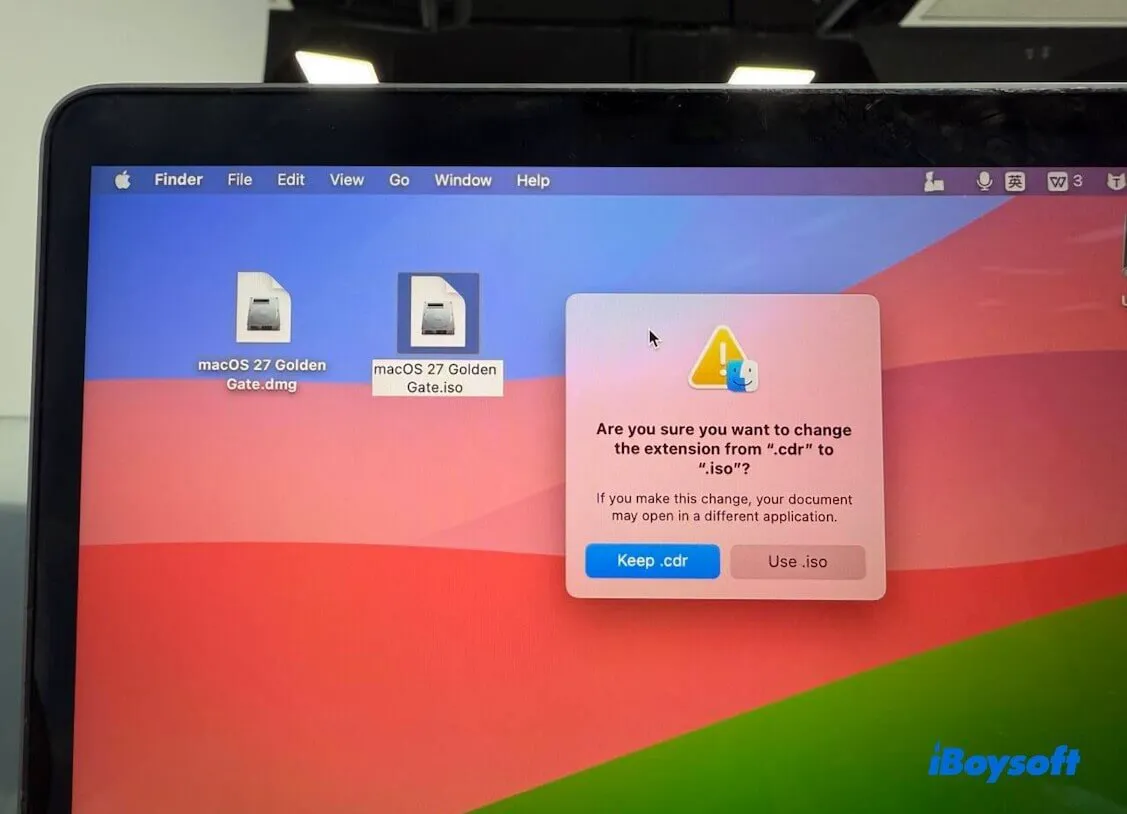
After that, you'll get a macOS 27 Golden Gate.iso file.
What to do if failed to convert to ISO?
Error 1. hdiutil: convert: only a single input file can be specified
Usage: hdiutil convert -format <format> -o <outfile> [options] <image>
hdiutil convert -help
When running the hdiutil convert terminal, remember to use the exact path of your DMG file and the path where the converted ISO file will be located.
When I tested, I missed the quotes when running the command and got this error code.
That's because the file name contains spaces, but the spaces weren't enclosed in quotes or escaped. As a result, Terminal treats my DMG path as multiple separate files.
Error 2. hdiutil: convert failed - No such file or directory
This error means that Terminal can't find the file at the path you specified. Although the file is indeed on your Desktop, the most common reason is that the actual file name or Desktop path doesn't exactly match what you entered.
You need to verify the file's actual path and name. The easiest way is to drag the file into the Terminal window, and Terminal will automatically insert its full path.
Error 3. hdiutil: convert failed - image not recognized
This error means that hdiutil can't recognize the file as a valid macOS disk image. The most likely cause is that the DMG file was not downloaded completely or has become corrupted. You can download it again.
Method 3: Manually create an ISO file using the .app installer
Warning: Do not download ISO files from random forums or file-sharing pages unless you can verify the source and integrity before using it. A macOS installer has system-level privileges during installation, so a tampered image is a real security risk.
Apple allows users to download the macOS 27 full installer from Software Update.
You can download the full .app installer and then manually convert it to an ISO.
The basic process to use an .app installer to create a macOS Golden Gate ISO on Mac is:
.app installer → bootable DMG → mount DMG → run createinstallmedia → convert DMG to ISO
In my own tests, this process is not simple. The most common failures were not caused by the ISO creation command itself, but by interrupted downloads, limited storage, and unexpected system crashes.
Step 1. Download the macOS Golden Gate .app installer
Skip this step if you've done it.
- Go to the Apple menu > System Settings > General > Software Update.
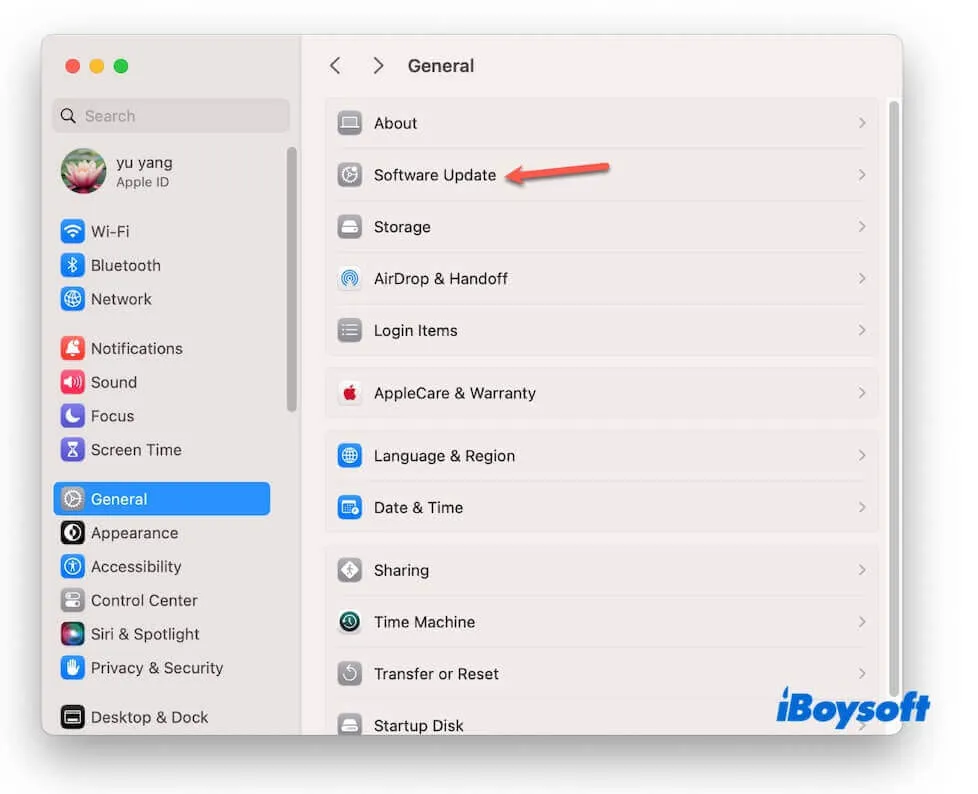
- Click Update Now (or Upgrade Now) to download the macOS Golden Gate .app installer.
- Wait for the download process to complete.
If the installer opens automatically after download, quit it without continuing the installation.
After that, check whether the installer appears in the Applications folder and remember its name. Usually, its name is Install macOS Golden Gate.app.
If the installer name is slightly different, use the exact name shown in your Applications folder in the following commands.
Step 2: Create an empty disk image
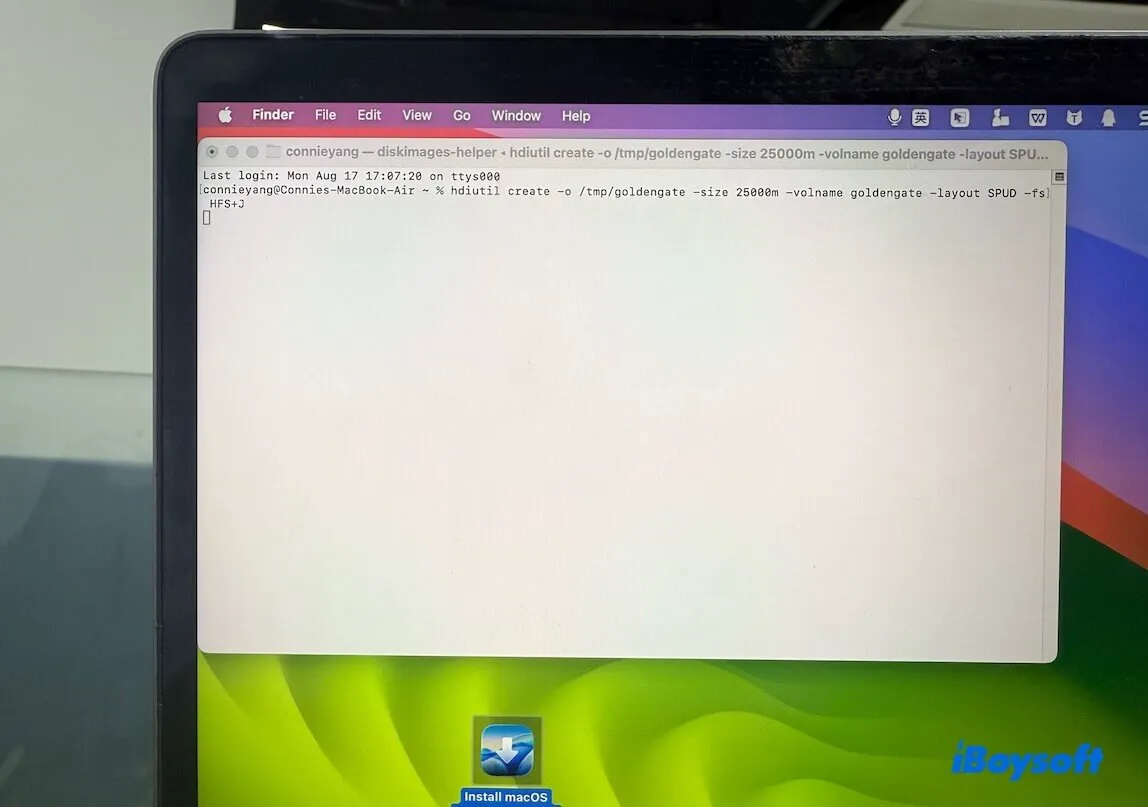
Open Terminal and enter the following command:
hdiutil create -o /tmp/goldengate -size 25000m -volname goldengate -layout SPUD -fs HFS+J
This creates a temporary disk image named goldengate.dmg:
/tmp/goldengate.dmg
Step 3: Mount the disk image
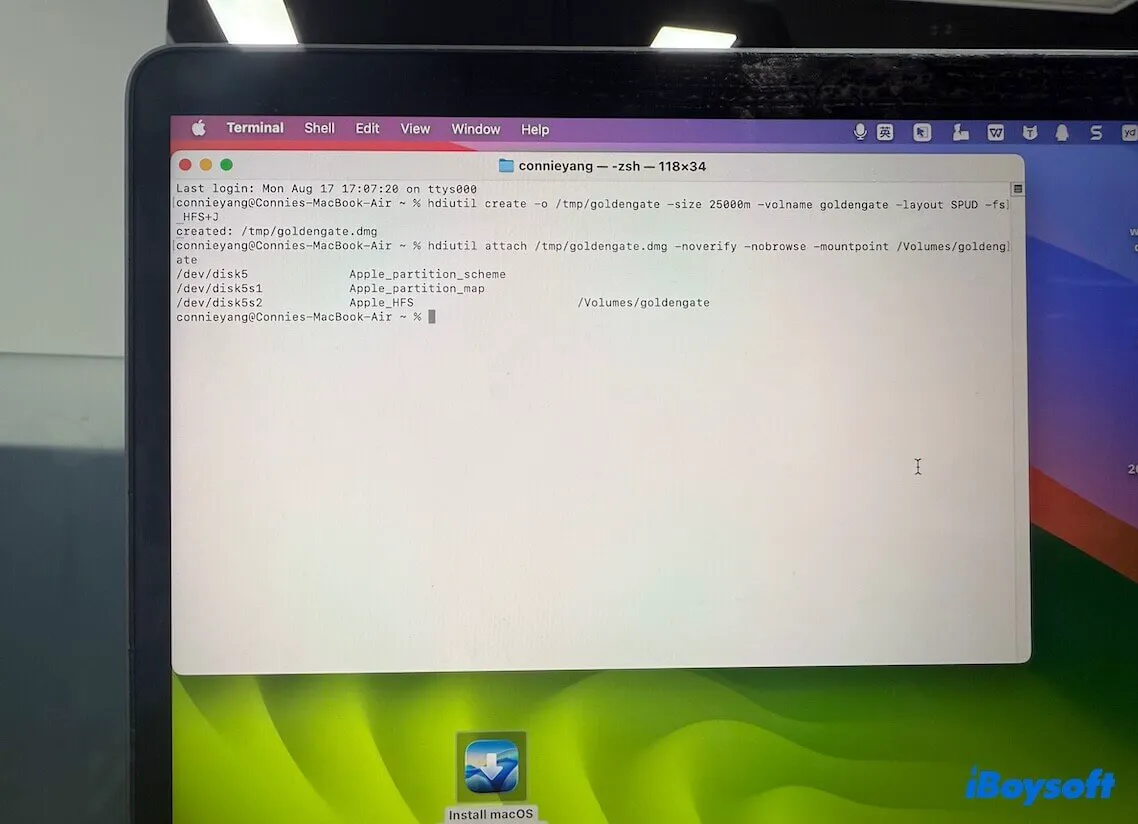
Enter this command in Terminal:
hdiutil attach /tmp/goldengate.dmg -noverify -nobrowse -mountpoint /Volumes/goldengate
Step 4: Create the bootable installer on the disk image
If your installer is named Install macOS Golden Gate.app (Check it in the Applications folder), enter this command in Terminal:
sudo /Applications/Install\ macOS\ Golden\ Gate.app/Contents/Resources/createinstallmedia --volume /Volumes/goldengate --nointeraction
Enter your Mac password when asked. Terminal will not show the password as you type.
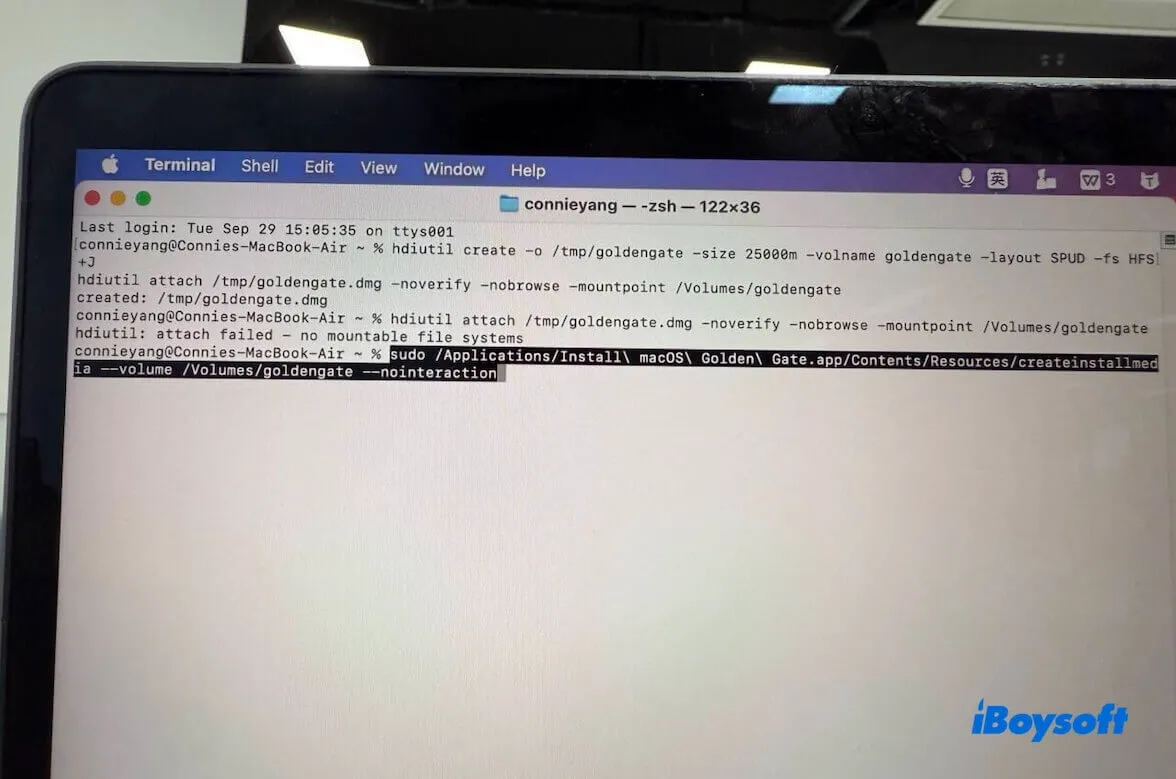
After createinstallmedia runs, it erases and recreates the target volume. Its volume name may change from goldengate to something referring to the macOS installer. So don't assume the volume will still be called /Volumes/goldengate afterward.
If createinstallmedia fails, follow the quick fixes I usually check first:
| Problem | Likely cause | Fix |
| command not found | Wrong installer app name | Confirm the app name in Applications |
| Not enough space | Temporary image too small | Use 24000m or larger |
| Volume cannot be mounted | Old temp image conflict | Delete /tmp/goldengate.dmg and retry |
| Installer is damaged | Incomplete or interrupted download | Delete the installer and download again |
| Mac not supported | Unsupported Mac model | Use an Apple Silicon Mac |
In testing, a 22 GB image was enough for the installer, but I still recommend keeping at least 35 GB of free internal storage. macOS uses temporary space during download, mounting, and conversion.
Step 5: Unmount the disk image
After createinstallmedia finishes, find the disk identifier of the temporary disk image with this command:
diskutil list
Look for the disk corresponding to the temporary macOS installer image, such as /dev/disk4, then unmount it:
hdiutil detach /dev/disk4
Note: Replace /dev/disk4 with the actual identifier shown on your Mac.
Step 6: Convert the DMG to ISO format
Run this in Terminal to create a .cdr file on your desktop:
hdiutil convert /tmp/goldengate.dmg -format UDTO -o ~/Desktop/macOS-Golden-Gate
hdiutil will generally append .cdr, so the resulting file is expected to be: ~/Desktop/macOS-Golden-Gate.cdr
Step 7: Rename CDR to ISO
Run:
mv ~/Desktop/macOS-Golden-Gate.cdr ~/Desktop/macOS-Golden-Gate.iso
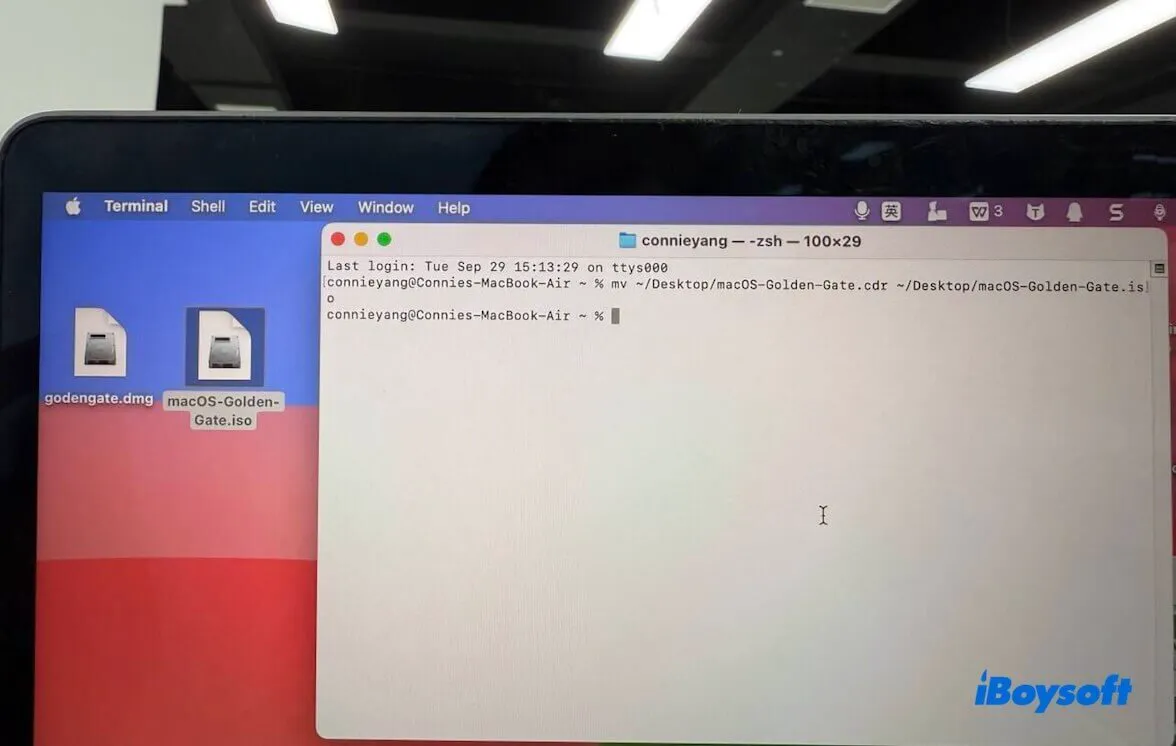
Now you have a macOS Golden Gate ISO file on your desktop.
Should you download the macOS 27 ISO directly using links?
Be careful with direct ISO links online. They may be convenient, but they bring several risks:
- The link may expire.
- The ISO may be incomplete or corrupted.
- The file may be modified.
- The uploader may not provide checksums.
If you need a direct macOS Golden Gate ISO download, use a trusted archive or a verified tool. If you want maximum control, create the ISO yourself from Apple's full installer.
Final thoughts
If you only need a macOS Golden Gate ISO for VMware, VirtualBox, or offline testing, downloading it with a trusted tool is the easiest path, especially on Windows. If you are on a compatible Apple silicon Mac and want a more transparent workflow, creating the ISO manually from Apple's full installer is the better technical option.
Either way, avoid unknown ISO links, keep enough free space, and do not test macOS 27 Golden Gate on your main working system.
FAQs
- QCan I download macOS Golden Gate ISO from Apple?
-
A
No. Apple normally provides macOS .app installers through Software Update and the App Store. Or it allows you to get the .pkg installer via a direct connection to Apple's server. Apple does not usually publish a ready-made macOS ISO file for VMware or VirtualBox.
- QIs macOS Golden Gate ISO safe?
-
A
It depends on where you get it. An ISO created from Apple's official installer or downloaded through a trusted macOS image tool is safer than a random file-sharing link.
- QCan I create macOS 27 ISO on Windows?
-
A
Not manually in the same way as on Mac, because Windows does not include Apple's createinstallmedia and hdiutil tools. On Windows, use a reliable macOS image downloader such as iBoysoft DiskGeeker for Windows.
- QCan I install macOS Golden Gate on an Intel Mac?
-
A
No. macOS 27 Golden Gate requires Apple silicon. Apple's compatibility list does not include Intel Macs for macOS 27.
- QIs macOS Golden Gate ISO good for VirtualBox or VMware?
-
A
A properly created ISO can be used for virtual machines. However, macOS Golden Gate (macOS 27) is Apple Silicon-only, so a Golden Gate ISO is mainly suitable for virtualization on an Apple Silicon Mac. It is not stable for running macOS 27 on a Windows PC with VMware or VirtualBox.
- QWhy is my macOS 27 ISO not booting?
-
A
The most common reasons are an incomplete installer, wrong ISO conversion, unsupported VM settings, insufficient virtual disk space, or using a Mac model/VM profile that macOS 27 does not support.
- QShould I install macOS Golden Gate on my main Mac?
-
A
No, not unless you are prepared for bugs, app compatibility issues, and possible data loss. Use a spare Mac, a separate APFS volume, an external drive, or a virtual machine.