Documents created with Microsoft Office applications such as Word, Excel, Outlook, OneNote, and PowerPoint, as well as commonly used PDF documents, may sometimes disappear or fail to save properly on a Mac.
In many cases, the files are not permanently lost. Office applications may create AutoRecovery copies of open documents, while macOS features like Trash and Time Machine can help restore deleted files. If no backup is available, data recovery software may also help retrieve lost files.
This guide explains common file-loss scenarios and shows which recovery methods may work in each situation, including when built-in recovery features are sufficient and when data recovery software may be required.
Recover Unsaved Office Files on Mac
If a document was closed before saving or an Office application stopped unexpectedly, the file may still be recoverable. Different Office applications store unsaved data in different locations or temporary files.
The table below shows where unsaved content is typically stored in common Office applications.
| Application | Where Unsaved Data May Be Stored |
| Word / Excel / PowerPoint | AutoRecovery files (temporary copies saved automatically while editing) |
| Outlook | Drafts folder (unfinished emails saved automatically) |
| OneNote Notebook | version history or synchronized copies in OneDrive |
Restore Files from the Document Recovery Pane
When Word, Excel, or PowerPoint restarts after an unexpected shutdown, the application may display a Document Recovery pane showing automatically saved versions of previously opened documents.
Although they are different applications, the stored type is common, so the way to recover is the same to
To restore a document:
- Reopen Microsoft Word, Excel, or PowerPoint and click Recover unsaved documents in Home.
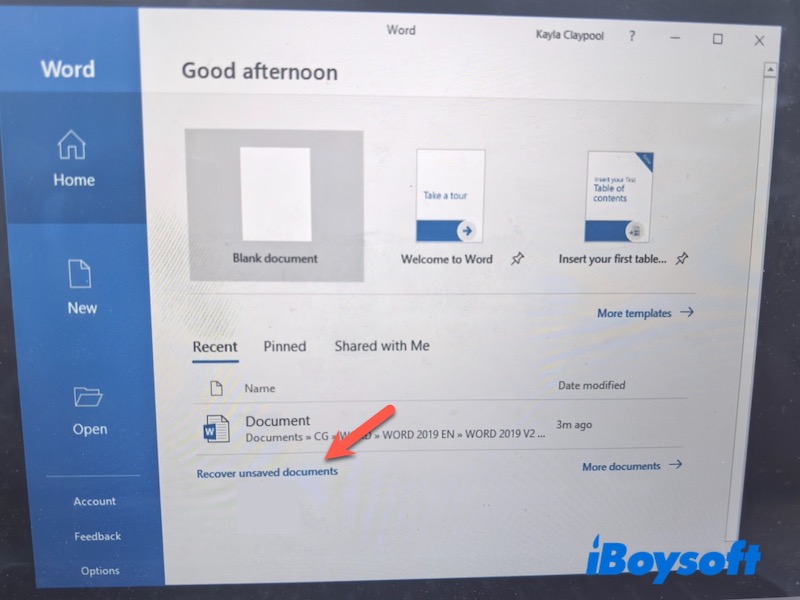
- The Document Recovery pane appears on the left side of the window.
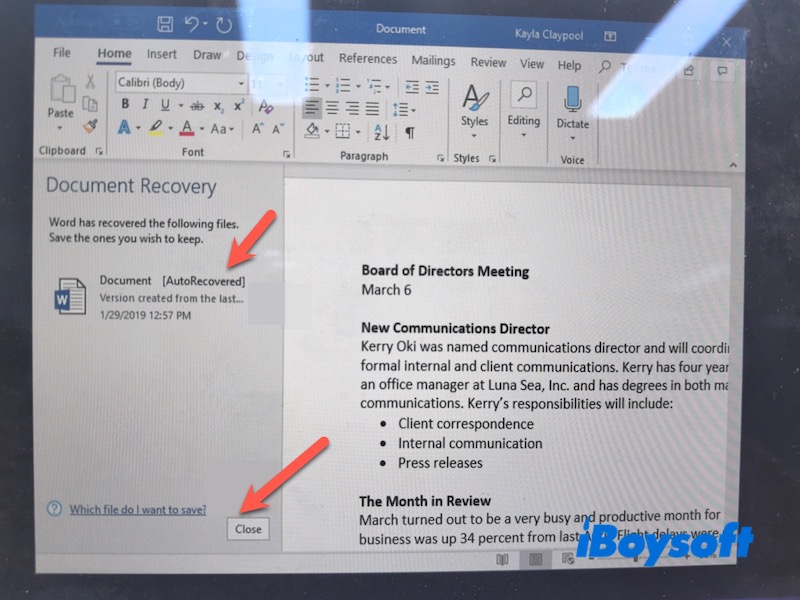
- Review the list of recovered document versions.
- Open the version you want to restore.
- Click File → Save As to save the file.
Recover Unsaved Files from the AutoRecovery Folder
If the Document Recovery pane does not appear, AutoRecovery files may still exist in the system folder.
To check the AutoRecovery folder:
- Open Finder.
- Click Go in the menu bar and select Go to Folder.
- Enter the following path:
~/Library/Containers/com.microsoft.Word/Data/Library/Preferences/AutoRecovery For other Office applications, you may also check:
~/Library/Containers/com.microsoft.Excel/Data/Library/Preferences/AutoRecovery~/Library/Containers/com.microsoft.Powerpoint/Data/Library/Preferences/AutoRecovery - Look for files named “AutoRecovery save of …”.
- Open the file and save it as a new document.
Check Drafts or Version History in Other Office Apps
Some Office applications use different mechanisms to protect unsaved work.
- Outlook may automatically save unfinished emails in the Drafts folder while you are composing a message.
- OneNote notebooks are often stored in OneDrive, where previous edits can sometimes be restored through version history.
If the missing content is not found in these locations, restoring files from Time Machine backups may still be possible.
Recover Deleted Office Files on Mac
If a document was previously saved but later deleted, recovery depends on how the file was removed. Files removed through Finder are typically moved to the Mac Trash, where they can be restored.
Similarly, deleted Outlook emails may still exist in the Deleted Items folder, and OneNote notebooks stored in OneDrive may be recoverable from the OneDrive Recycle Bin. At the same time, permanently deleted files may still exist in backups or unallocated disk space. Even though the places where they store are different, you can check the methods below to:
Restore Deleted Office Files from the Mac Trash
If the file was recently deleted, it may still be in the Trash.
To restore it:
- Open Trash from the Dock.
- Locate the deleted document.
- Right-click the file and select Put Back.
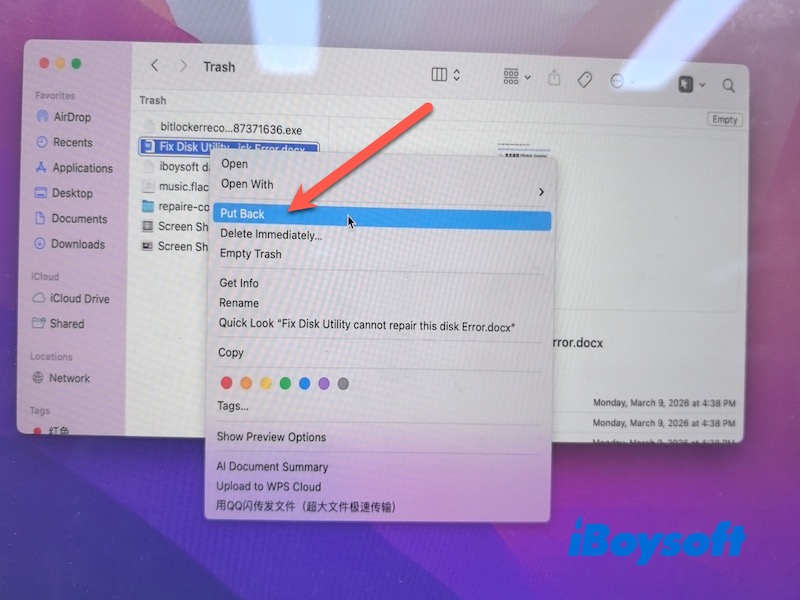
The file will return to its original location.
Restore Permanently Deleted Files Using Time Machine
If the file is no longer in Trash, you may still recover it by using the Time Machine device, Apple's built-in backup system.
This method works only if:
- Time Machine was enabled before the file was deleted
- A Backup containing the file exists
To restore a file with Time Machine:
- Open the folder where the file was originally stored.
- Click the Time Machine icon in the menu bar.
- Select Enter Time Machine.
- Use the timeline to browse backups created before the file was deleted.
- Select the file and click Restore.
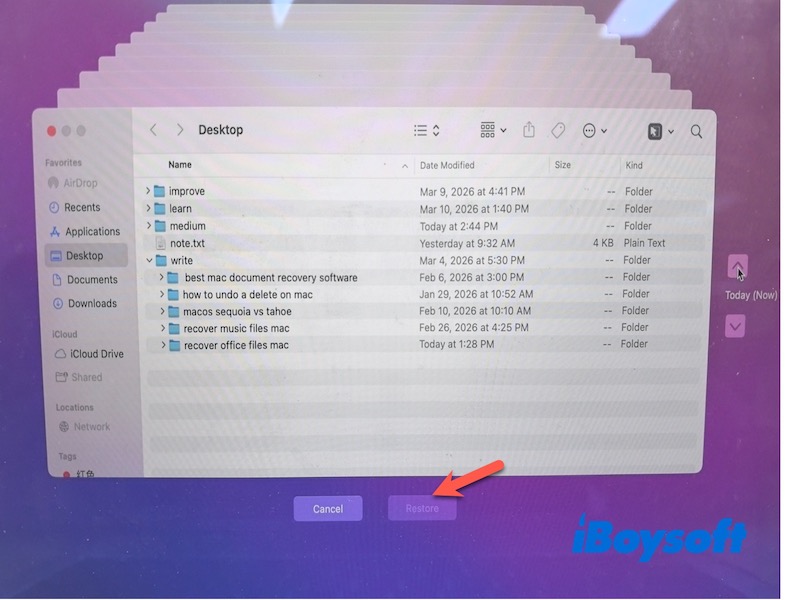
The restored file will appear in its original folder.
Recover Permanently Deleted Office Files From iCloud
If your Office documents were stored in iCloud Drive, deleted files may still be recoverable from iCloud within 30s days.
To restore files from iCloud:
- Go to iCloud.com and sign in with your Apple ID.
- Open Recently Deleted.
- Select the file you want to recover.
- Click Restore.
Recover Permanently Deleted Office Files Using Data Recovery Software
If no backup is available, data recovery software may help retrieve deleted files by scanning the storage device for recoverable data.
However, recovery may not be possible on TRIM-enabled SSDs, which are used in most modern Macs. TRIM automatically clears deleted storage blocks to maintain SSD performance. Once those blocks are erased, the original data cannot be recovered.
Recovery is more likely if the files were stored on traditional HDDs or SSDs, where the deleted data has local snapshots or hidden copies.
Tools such as iBoysoft Data Recovery for Mac can scan disks and recover many document formats, including:
- .doc / .docx
- .xls / .xlsx / .csv
- .ppt / .pptx
Basic recovery steps:
- Download, install, and launch iBoysoft Data Recovery for Mac.
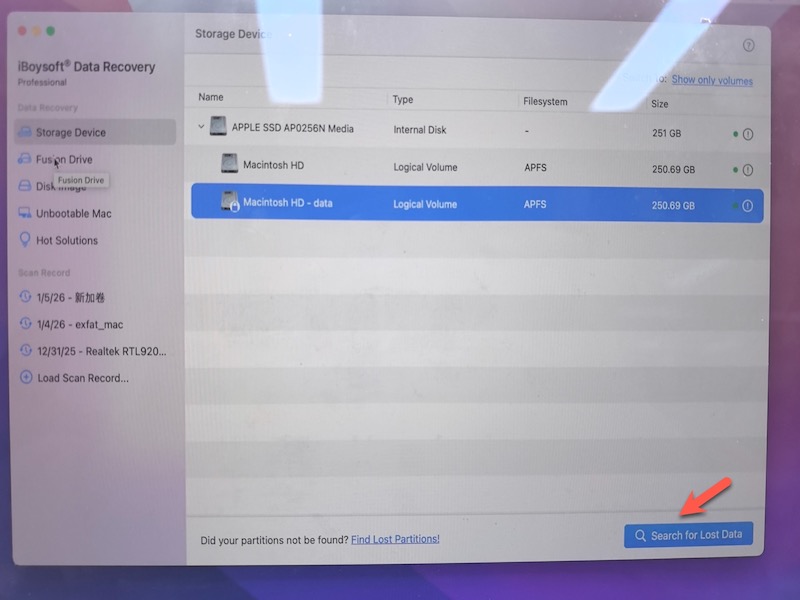
- Select the drive where the files were deleted.
If the files were removed from your Mac's internal storage, select Macintosh HD-Data, which usually contains user documents and desktop files. You can also scan the entire internal disk to search for recoverable files. - Click Search for Lost Data to scan the disk.
- Preview the found files after scanning.
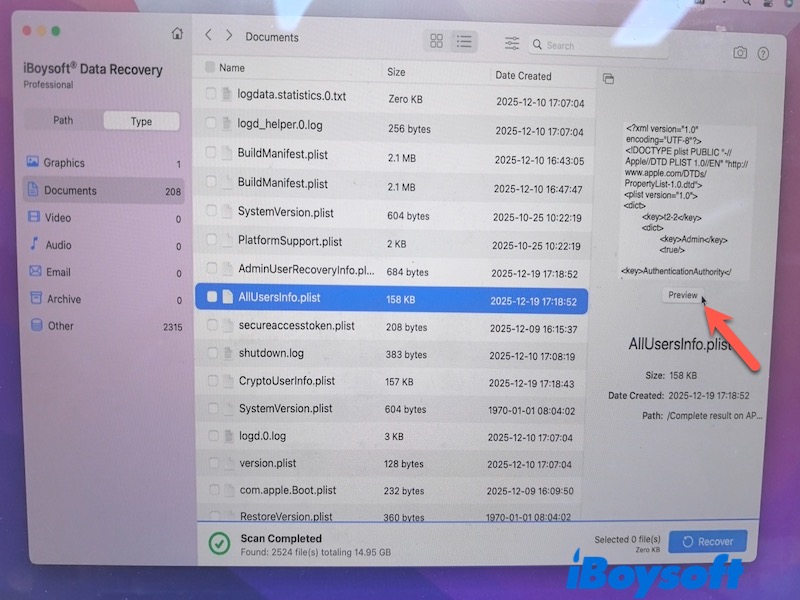
- Select the documents you want and click Recover, then save them to another location.
Saving recovered files to a different drive helps avoid overwriting remaining recoverable data.
Recover a Previous Version of an Office File on Mac
Sometimes a file is not deleted but replaced by a newer version. In this case, earlier versions may still exist in version history or system backups. You can follow the method below to recover the replaced files.
Restore Earlier Versions of Microsoft Office
Some Office applications support version history, particularly when files are stored in OneDrive or SharePoint.
To check version history:
- Open the document in Word, Excel, or PowerPoint.
- Click the file name at the top of the window.
- Select Browse Version History.
- Review the available versions.
- Open or restore the version you need.
Why Office Files May Be Lost on Mac
Office-related files may disappear for several common reasons:
- Application crashes or unexpected shutdowns
- Documents closed before saving
- Accidental deletion in Finder
- Files overwritten by newer versions
Understanding what caused the file loss can help determine the most effective recovery method.
FAQs
- Q1.How do I recover a File I accidentally deleted on Mac?
-
A
First check the Trash, because files deleted through Finder are usually moved there instead of being permanently removed.If the file is not in Trash, you can try Time Machine (if backups were enabled) or use data recovery software to scan the disk for recoverable files.
- Q2.How to recover word documents on Mac?
-
A
There are several ways to recover a Word document on Mac depending on how it was lost:
1. Document Recovery pane – When Word restarts after a crash, it may display recovered versions of unsaved documents.
2. AutoRecovery folder – Word periodically saves temporary files that can be opened and saved manually.
3. Trash – If the document was deleted, check the Mac Trash and restore it.
4. Time Machine – Restore a previous version if a backup exists.
5. iCloud – Restore files from the iCloud website.
The appropriate method depends on whether the document was unsaved, deleted, or overwritten.