Losing files from a USB drive on a Mac can happen due to accidental deletion, system errors, or drive corruption. In most cases, deleted USB files are often still recoverable because macOS does not immediately erase the data. However, recovery success largely depends on whether the storage space has been overwritten.
Quick Guide: Choose the Right USB Data Recovery Method
| Situation | What It Means | Recommended Method |
| Files accidentally deleted | Data likely still exists if not overwritten | Check Trash...→ Use recovery software |
| USB not mounting | File system issue, not physical damage | Use recovery software before any repair |
| USB shows errors or unreadable files | Possible corruption | Recover data first → Then repair |
| USB not detected at all | Possible hardware failure | Seek professional recovery service |
What to Do Immediately After Losing Data on a USB Drive
Taking the right actions immediately after data loss can significantly improve recovery success. When files are deleted or a USB becomes inaccessible, the data is not instantly erased but remains on the drive until it is overwritten or altered.
- Stop using the USB drive immediately
Any new data written to the USB may overwrite lost files and make recovery impossible. - Do not format or repair the USB yet
Tools like First Aid or formatting can modify the file system and permanently erase recoverable data.
Recover Deleted Files from USB on Mac
When files are deleted from a USB drive on a Mac, they are usually not erased immediately. Instead, the system marks the storage space as available for new data. As long as the deleted files haven't been overwritten, there is a high chance they can be recovered using the right method.
The recovery approach depends on how the files were deleted—whether they were moved to Trash, backed up, or permanently removed from the drive.
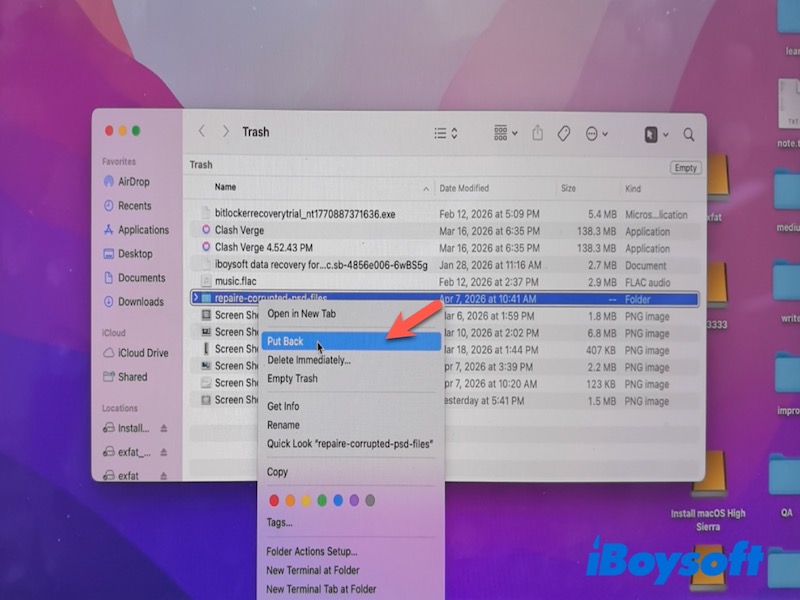
Restore from Trash
This method only works if the files were deleted through Finder and moved to the Trash. Files deleted using Command + Delete or third-party tools may bypass the Trash entirely.
- Open Trash from the Dock.
- Look for the deleted USB files.
- Right-click the file and choose Put Back, and the file will be back on the USB where you stored it before.
Restore from Time Machine or Backup
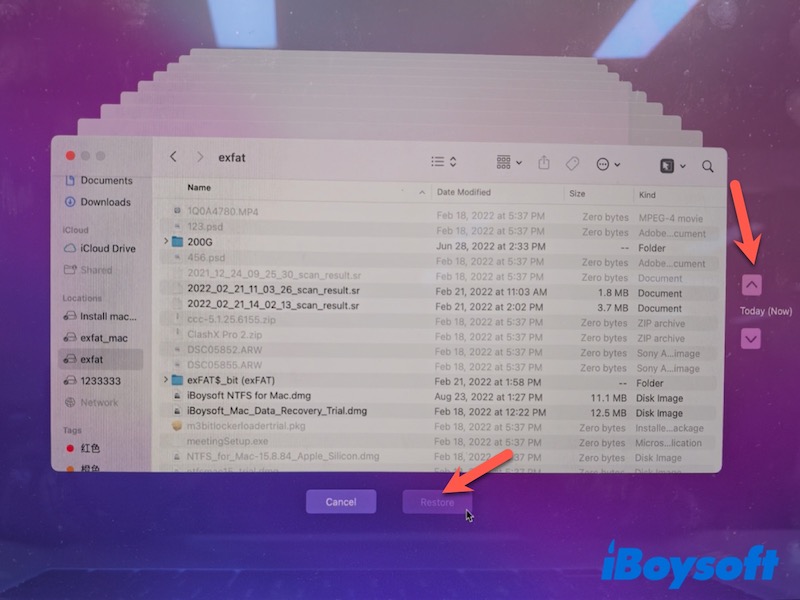
You can use this method only if the USB files were previously backed up, either through Time Machine or another backup tool, before the data loss occurred.
- Connect your backup drive (if needed).
- Open the folder where the USB files were stored.
- Enter Time Machine from the menu bar.
- Browse previous snapshots and select the files.
- Click Restore.
Restore from iCloud
This method applies only if the files stored on the USB had been copied or synced to iCloud Drive before they were deleted. Files that were never uploaded to iCloud cannot be recovered this way; iCloud only stores deleted files for 30 days.
- Go to iCloud.com and sign in with your Apple ID.
- Open iCloud Drive or Recently Deleted.
- Locate the files you want to recover.
- Select them and click Restore or download them.
Restore from Data Recovery Software
Professional data recovery software is suitable when files are permanently deleted, and no backup is available. It requires that the USB drive is still detectable by macOS (as it appears in Disk Utility), even if it cannot be accessed normally. If the drive is physically damaged or not recognized at all, software recovery may not work.
Professional data recovery tools such as iBoysoft Data Recovery for Mac and similar utilities typically offer the following capabilities:
- Scan drives that are not accessible in Finder but are detectable by macOS
- Supports common file systems (APFS, HFS+, exFAT, FAT32…)
- Performs read-only scans to avoid overwriting existing data
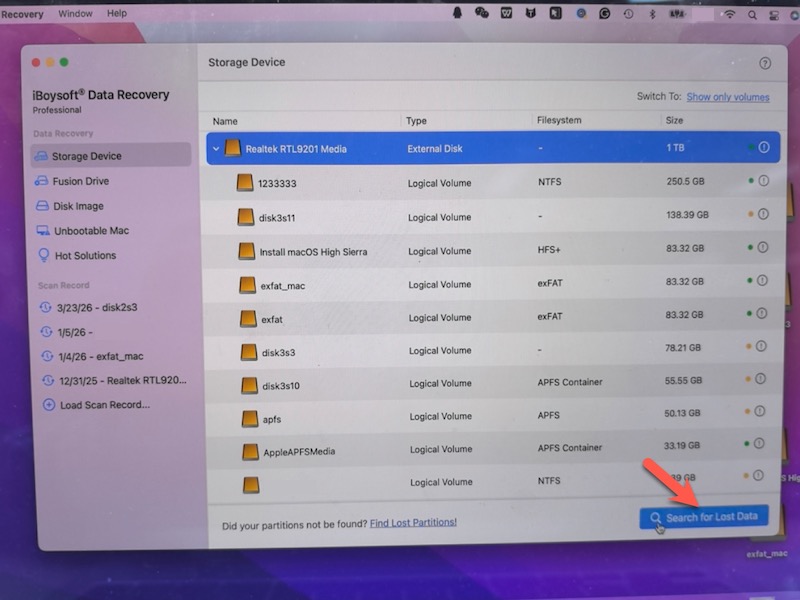
- Download, install, and launch iBoysoft Data Recovery for Mac.
- Select your USB drive.
- Click Search for Lost Data to start scanning.
- Preview the found files after scanning.
- Select the files you need and click Recover to save them to a different location.
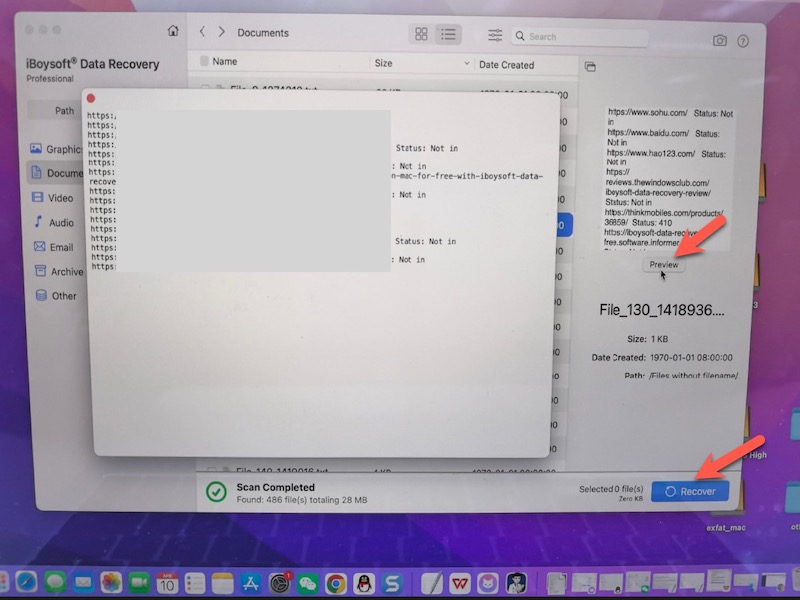
Note: Always save recovered files to another drive to avoid overwriting the original data.
Recover Data from an Unreadable USB Drive
When a USB drive doesn't open in Finder or fails to mount, it doesn't necessarily mean the data is lost. Common symptoms include the drive not appearing in Finder, prompting you to initialize or format it, or showing up as unmounted in Disk Utility. In many cases, the files are still physically present on the drive and can be recovered if you act carefully before attempting any repairs.
Check If the USB Appears in Disk Utility
Open Disk Utility to see if the USB drive is listed. Even if it is not mounted, recovery software can often access the raw storage and retrieve lost files. This step helps confirm that the drive is detectable before scanning.
Recover Data
Unmounted drives usually indicate file system issues rather than data loss. Recovery tools can bypass the file system and scan raw storage directly.
Follow the standard recovery process described earlier.
Fix the USB Not Mounting Issue
Once data is safely recovered, you can try the following methods to repair the USB that is unreadable on a Mac:
- Run First Aid in Disk Utility to repair minor file system errors. However, it cannot recover deleted files and may fail if the corruption is severe.
- Manually mount the USB in Disk Utility if it's listed but unmounted.
Use Terminal commands only if you are experienced; incorrect commands may cause more damage.
Recover Data from a Corrupted or RAW USB
The USB drive may appear uninitialized, unmounted, or show an unsupported file system in Disk Utility (commonly referred to as RAW on Windows).
Recover Files from a Corrupted USB
Standard macOS tools rely on a functional file system. Recovery tools instead scan storage sectors directly, allowing file reconstruction even when the structure is broken.
Follow the standard recovery process described earlier.
Repair or Reformat the USB
After recovery, you can try the following methods to repair the corrupted USB flash drive on Mac:
- Run First Aid for logical repair
- Reformat only if the drive remains unusable (this erases all data)
When to Seek Professional Help
Data recovery may fail in the following situations:
- The USB drive has physical damage (e.g., chip failure, water damage)
- Data has been overwritten by new files
- The drive is not detected at all in Disk Utility or System Information
In these cases, professional hardware-based recovery services may be required.
How to Prevent USB Data Loss on Mac
- Regular Backup Strategies
- Properly Eject USB Drives
- Avoid Interruptions During File Transfers
Conclusion
USB data loss on Mac is often recoverable in cases of deletion, inaccessibility, or corruption. The key is to stop using the drive immediately, recover data first, and only then attempt repairs. Acting quickly significantly increases the chances of successful recovery.
FAQs
- Q1.How to recover files from USB on Mac?
-
A
You can recover USB files on Mac by checking Trash, restoring from Time Machine or iCloud backups, or using data recovery software if the files were permanently deleted or the USB is inaccessible.
- Q2.Free Usb data recovery on Mac.
-
A
Free recovery options include restoring files from Trash, Time Machine, or iCloud. If no backup is available, some data recovery tools offer free scanning and limited file recovery.