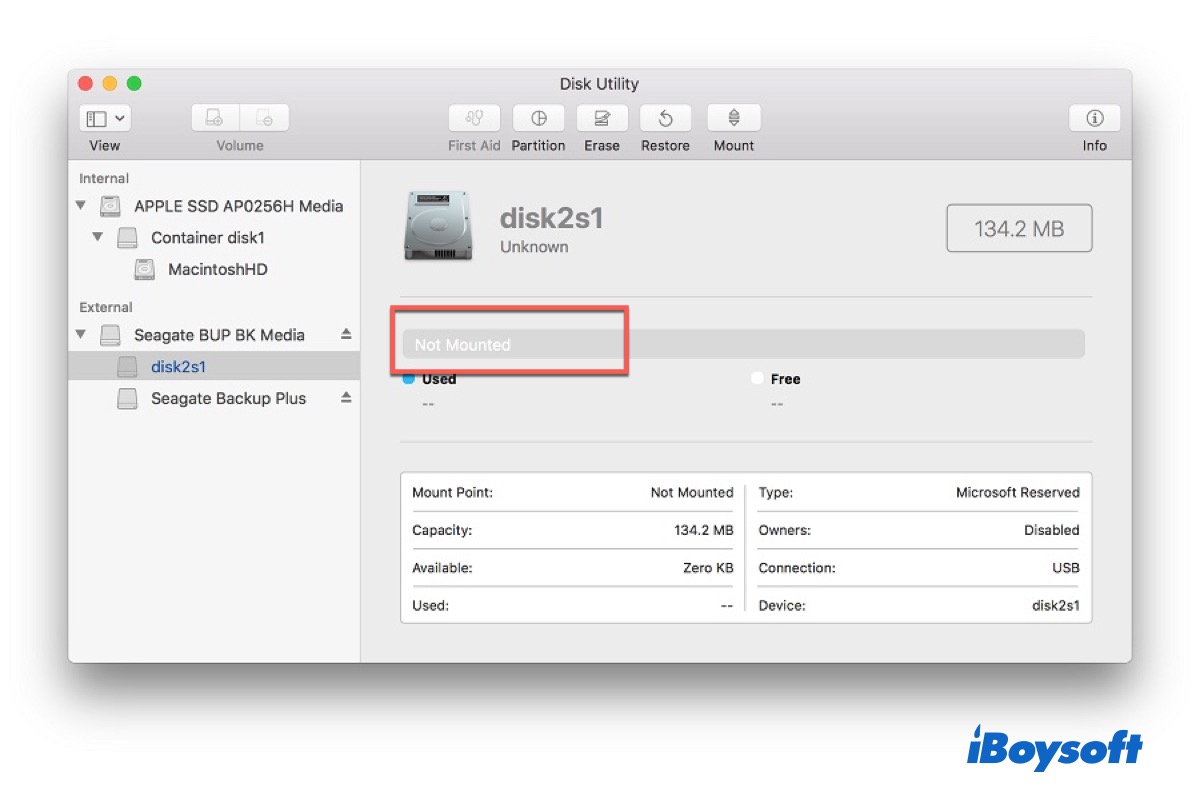
An unmountable hard drive on a Mac refers to a storage device that is recognized by the system but cannot be accessed because macOS fails to mount its file system.
- The drive is physically detected
- But the file system cannot be read or verified
At this stage, the data is often still present on the disk, but macOS cannot display or access it through Finder.
An unmountable drive is different from an external hard drive not showing up on Mac, a drive that is completely not recognized, or a physically damaged drive. In many cases, software recovery tools can only help if the drive is still detected by macOS, Disk Utility, or System Information.
Quick Diagnosis: What State Is the Drive In?
| Drive status | What it usually means | Recommended action |
|---|---|---|
| Detected in Disk Utility but not mounted | Possible file system corruption or logical issue | Data recovery software may help recover files before repair |
| Only the physical device appears, but no volume is mounted | Partition or file system structure may be damaged | Recover important data first before using First Aid or repair tools |
| Not detected in Disk Utility or System Information | Possible connection issue, firmware problem, or hardware failure | Check cables, ports, and power supply first; if still not detected, seek professional help |
| Clicking, buzzing, repeated disconnects, or abnormal noises | Possible physical damage | Stop using the drive and contact a professional recovery service |
Why the Drive Won't Mount
When an external hard drive won't mount on Mac, it usually means macOS cannot properly read the file system. This usually happens for a few common reasons:
- File system corruption
Often caused by improper ejection, power loss, or system crash. The drive may still appear in Disk Utility but cannot be opened. - Software or driver conflicts
Third-party disk tools (such as Tuxera NTFS for Mac extensions) can interfere with mounting and make the drive temporarily inaccessible. - macOS or Disk Utility issues
System bugs or failed disk operations after updates can prevent a healthy drive from mounting. - Connection or hardware problems
Loose cables, faulty USB ports, or unstable power supply can stop the drive from being detected or mounted properly.
Recover Data from the Unmountable Drive Before Repair
Before running First Aid, force-mounting the drive in Terminal, repairing the file system, or formatting the disk, recover or back up important data first whenever possible. Some repair operations may modify the file system structure and reduce recovery chances.
Professional Mac data recovery solutions may help when the drive is still detected by macOS or Disk Utility but cannot be mounted normally due to file system corruption, partition issues, or inaccessible volumes.
However, software recovery usually cannot help if the drive is completely undetected, repeatedly disconnects, has severe physical damage, or makes abnormal noises.
iBoysoft Data Recovery for Mac supports recovering data from unmountable drives across a wide range of macOS versions and Apple Silicon / Intel Macs, including:
- Supports the newest macOS Tahoe 26 and earlier systems
- Compatible with Apple Silicon Macs, including M5 - M1.
- Recovers multiple file types such as documents, photos, videos, emails, and music
- Works with various storage devices, including external hard drives, USB drives,SD cards, and memory cards
- Supports recovery from unmountable, inaccessible, deleted, or corrupted volumes, including scenarios where users need to recover deleted files on Mac that are still detectable by the system
Recovery chances may decrease significantly on SSDs after TRIM cleanup, especially on modern APFS-formatted Macs. See this guide on APFS data recovery for more details. In some cases, deleted data may become unrecoverable after blocks are cleared or overwritten.
Video tutorial to get files off the unmounted drive on Mac:
Safe recovery workflow for an unmountable drive:
- Stop writing new data to the affected drive.
- Download, install, and launch iBoysoft Data Recovery for Mac.
- Select the unmountable drive on the left side of the software.
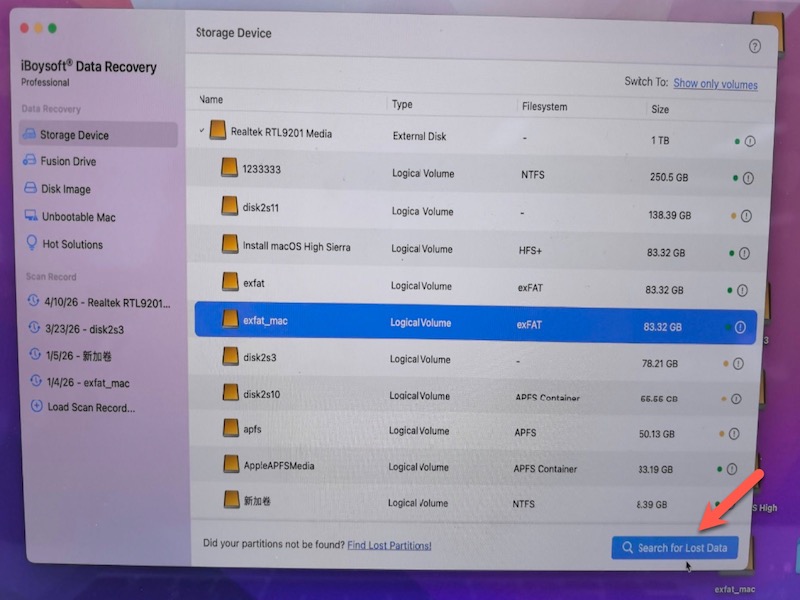
- Click Scan for Lost Data.
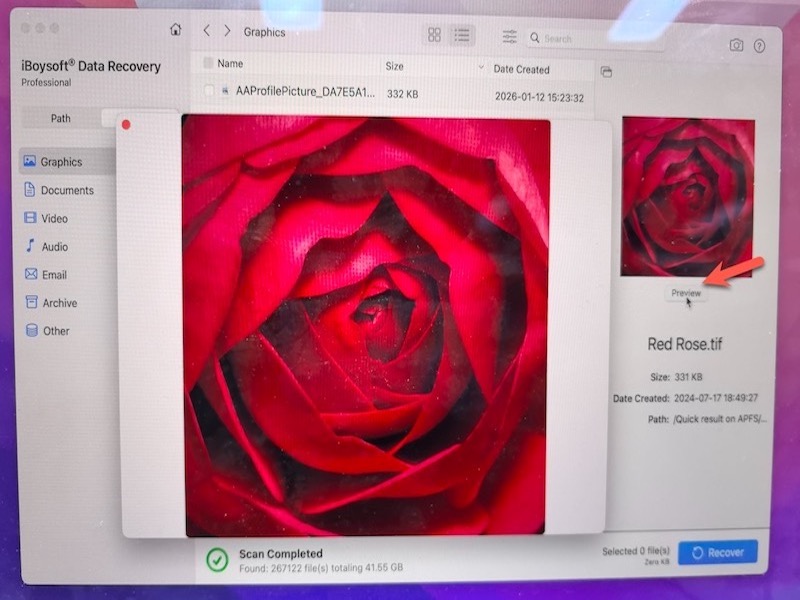
- Preview found files and recover them to another healthy drive or storage device.
- After securing your important files, consider using First Aid, remounting, or reformatting if needed.
Before Using First Aid or Force Mount Commands
If your files are important, avoid running Disk Utility First Aid, Terminal force mount commands, erase operations, or reformatting before attempting data recovery or backup.
Although First Aid can sometimes repair file system errors, there are cases where disk Utility First Aid fails on an external hard drive, especially when the file system is severely damaged. It may also change directory structures or metadata during repair. This is why recovery should usually come first when valuable data is involved.
When to Seek Professional Help
Consider professional data recovery services if:
- The drive is not detected at all in Disk Utility or System Information
- The drive makes clicking, buzzing, grinding, or abnormal noises
- The drive repeatedly disconnects or fails during scanning
- The drive was physically damaged (dropped, water exposure, electrical damage)
- The data is business-critical or highly important
In these cases, continued attempts may worsen data loss. It is safer to stop powering on the drive and seek professional assistance.
How to Prevent a Drive from Becoming Unmountable
- Always eject external drives safely before unplugging
- Avoid disconnecting drives during file transfers
- Maintain regular backups using Time Machine or similar tools
- Monitor disk health and replace aging drives when errors increase
- Avoid unstable or incompatible third-party disk tools
- Avoid force-unplugging drives between Windows and macOS systems
- Stop using the drive after file system errors appear to reduce overwrite risks
- Keep macOS updated to reduce system-level disk errors
FAQs
- Q1. How to recover external hard disk data when it is not detected?
-
A
If an external hard drive is not detected, first try checking cables, ports, and Disk Utility. If the drive still does not appear, use data recovery software that can scan the disk at a lower level to retrieve files. If the drive is physically damaged or not recognized at all, professional data recovery may be required.
- Q2.How to force an external drive to mount on a Mac?
-
A
You can try forcing a mount by using Disk Utility (click Mount) or Terminal. If it fails, run First Aid in Disk Utility or reconnect the drive using a different cable or port. If the file system is corrupted, the drive may not mount until repaired or data is recovered.
- QCan I recover data if the drive is not detected?
-
A
If the drive does not appear in Disk Utility or System Information, recovery software usually cannot scan it. First, check the cable, adapter, USB port, and power supply.
If the drive is still not recognized or makes abnormal noises, professional recovery service is recommended.
- QShould I run First Aid before recovery?
-
A
If the data is important, recover or back up files first whenever possible. First Aid may modify the file system structure and could affect later recovery attempts.
- QWhere should I save recovered files?
-
A
Save recovered files to another healthy drive or storage device. Do not save recovered data back to the unmountable drive.
- QCan I recover files from an unmountable APFS drive?
-
A
Yes, recovery may still be possible if the APFS drive is detectable by macOS and the underlying storage hardware is still functioning.
However, if TRIM cleanup has already removed the deleted data blocks on an SSD, recovery chances may be significantly reduced.