You open your Photos app or a folder on your Mac, only to realize some important pictures are gone. Maybe you deleted them while cleaning up storage, emptied the Trash without checking, or formatted an SD card after transferring files.
When those photos aren't backed up or seem to have disappeared completely, naturally, questions come up: where did they go, and are they still on your Mac somewhere?
This guide walks through practical, proven ways to recover deleted photos on Mac, covering both internal storage (Photos Library, Trash) and external devices like SD cards.
Can Deleted Photos on Mac Be Recovered?
Yes, deleted photos on Mac are often recoverable, but success depends on several technical conditions:
- If a backup exists (Time Machine or iCloud), recovery is highly reliable
- If no backup exists, recovery depends on whether the deleted data has been overwritten
- The less the Mac is used after deletion, the higher the recovery success rate
- On SSD-based Macs with TRIM enabled, recovery becomes more difficult after deletion and Trash emptying because TRIM will clear deleted storage blocks, making it impossible to find photos back
In general, recovery is still possible unless the data has been overwritten or permanently removed by system-level optimization.
Quick Ways to Recover Deleted Photos on Mac
If you are looking for the most effective ways to recover deleted photos on Mac and your Trash has been enpty, start with the following options.
Restore Photos with Time Machine
Time Machine is the most reliable way to recover permanently deleted photos on Mac, but it only works if you have set up backups before the deletion happened.
In other words, Time Machine must have been enabled and a backup drive connected in advance; otherwise, there will be no snapshots available to restore from. If you have a backup, you can follow the steps below.
- Connect your Time Machine backup drive.
- Open the folder where the photos were stored.
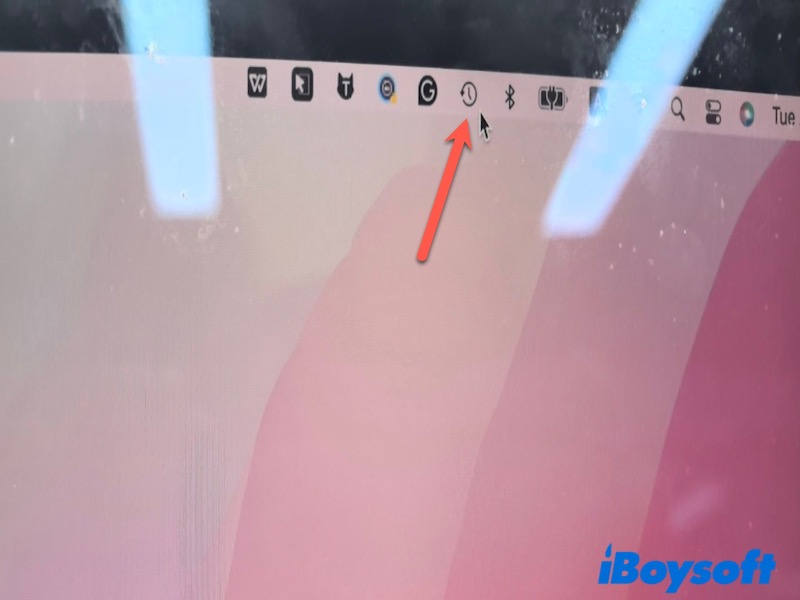
- Click the Time Machine icon in the menu bar → Enter Time Machine.
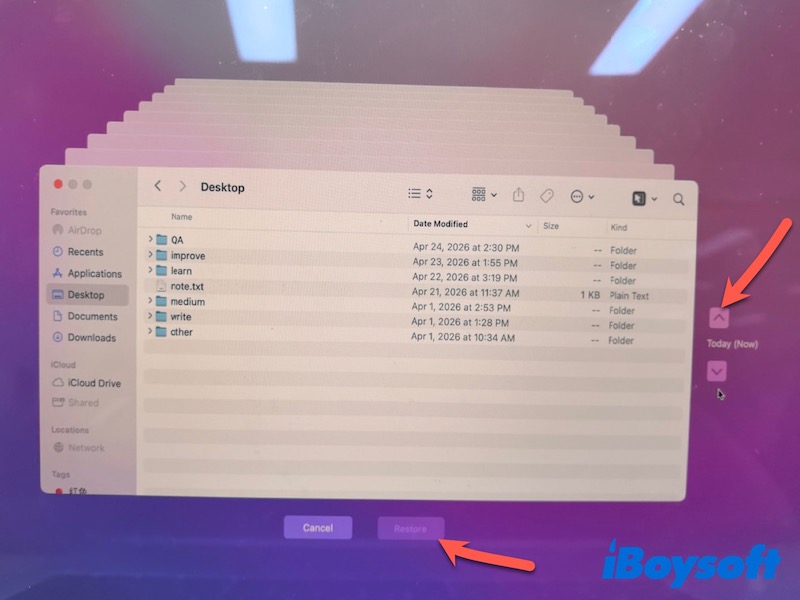
- Browse previous snapshots by date.
- Select the deleted photos and click Restore.
Recover Photos from iCloud
This method works only if iCloud Photos was enabled before deletion and the photos were successfully synced.
iCloud also stores deleted photos in Recently Deleted for up to 30 days. After 30 days, items are permanently removed from iCloud servers
- Open a browser and go to iCloud.com.
- Sign in with your Apple ID.
- Go to Data recovery.
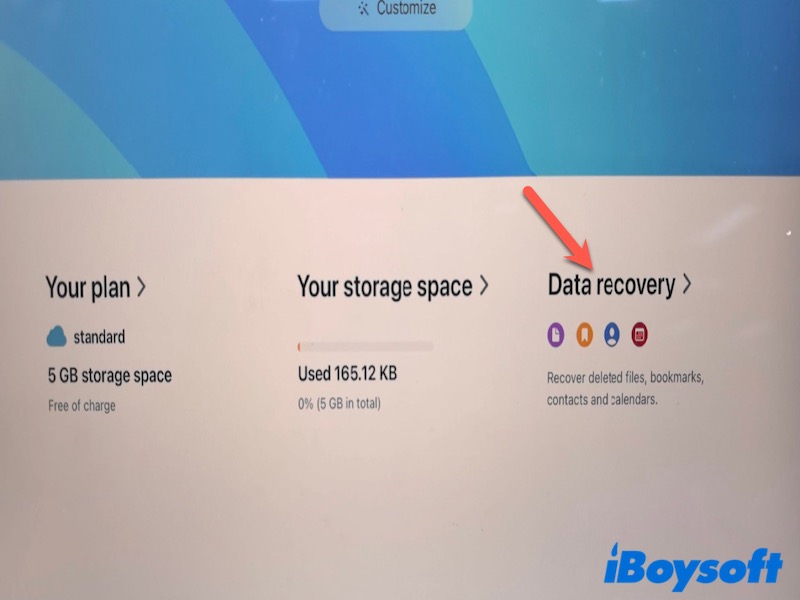
- Select the photos and restore them to your library.
Recover Photos with Data Recovery Software
If no backup exists and photos are not in iCloud, recovery software is the most effective option to recover deleted files after emptying Trash.
Tools like iBoysoft Data Recovery for Mac are designed for these situations. It can perform a deep scan on both Mac internal drives and external storage devices such as SD cards, USB drives, and cameras, helping locate deleted photo data even after emptying Trash or accidental deletion.
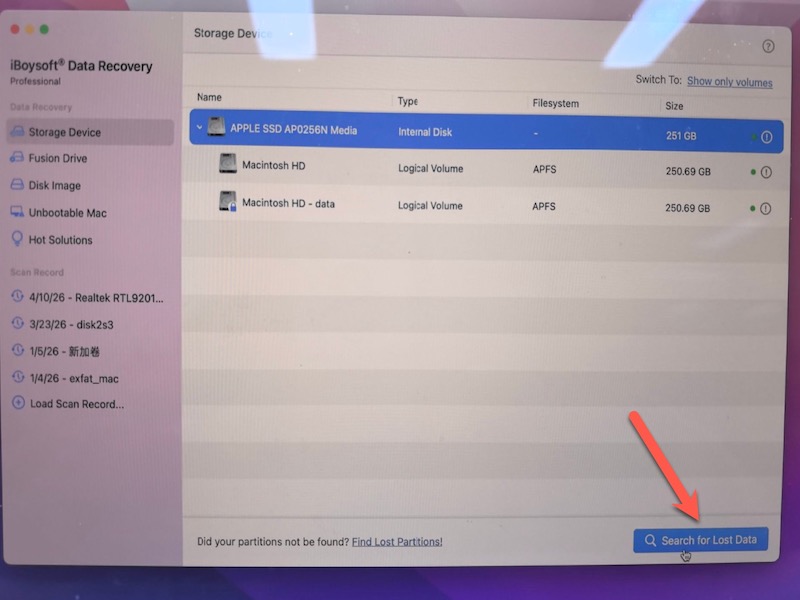
- Download, install, and launch iBoysoft Data Recovery for Mac.
- Select the disk. If your file is stored on a Mac, select Macintosh HD-data (users' data is usually stored on this volume), if it is stored on an external storage device, connect the drive and select it for scanning.
- Click Scan to search for Lost Data.
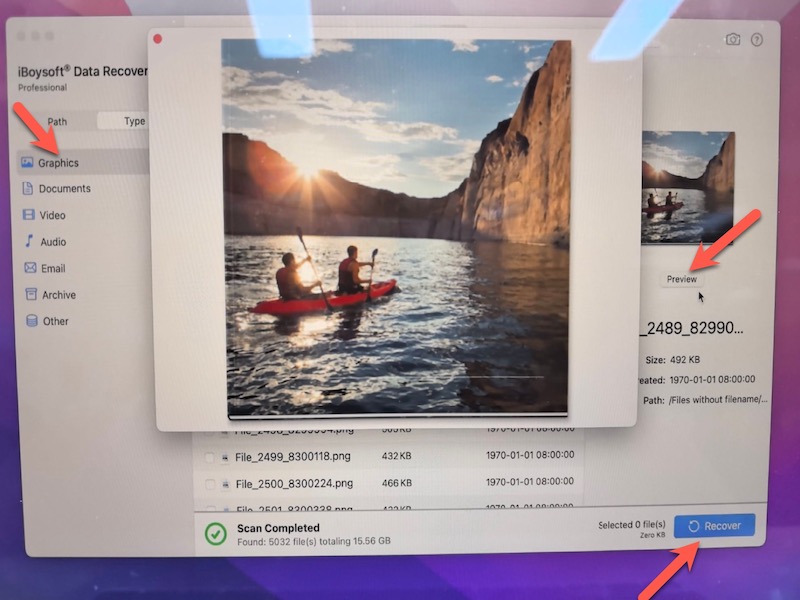
- After scanning, go to the Graphics to preview the result.
- Select the needed photos and click Recover (save to a different location).
Recover Deleted Photos from Mac from Internal Storage ( Photo Library &Trash)
Photos on Mac are usually stored in a few specific locations, including the Photos library and Trash, depending on how they were deleted. Checking these locations first can help you recover files quickly.
From Photos Library
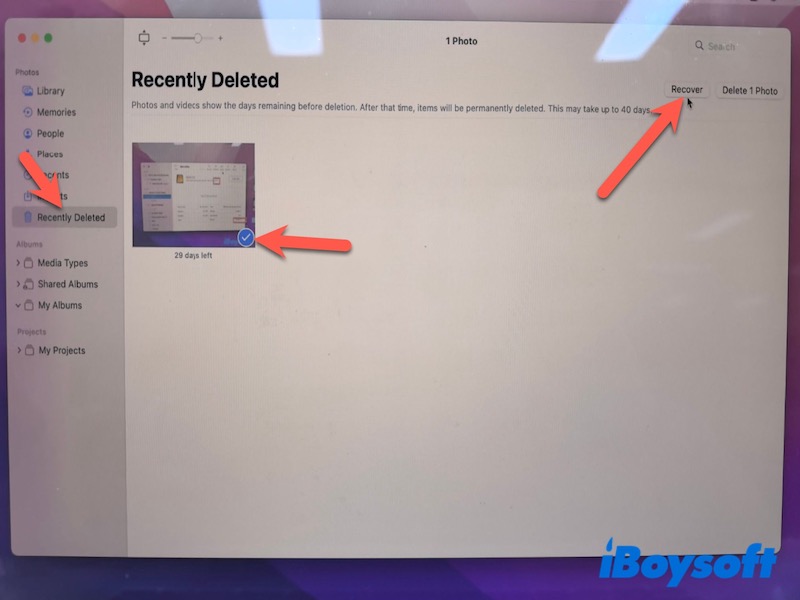
If the deleted photo was stored in Photo Library before, the Photos app can keep deleted images in the Recently Deleted album for 30 days, so checking the Recently Deleted is a fast way to recover photos from the Photos Library.
- Open Photos.
- Click Recently Deleted in the sidebar.
- Select photos → Click Recover.
From Trash
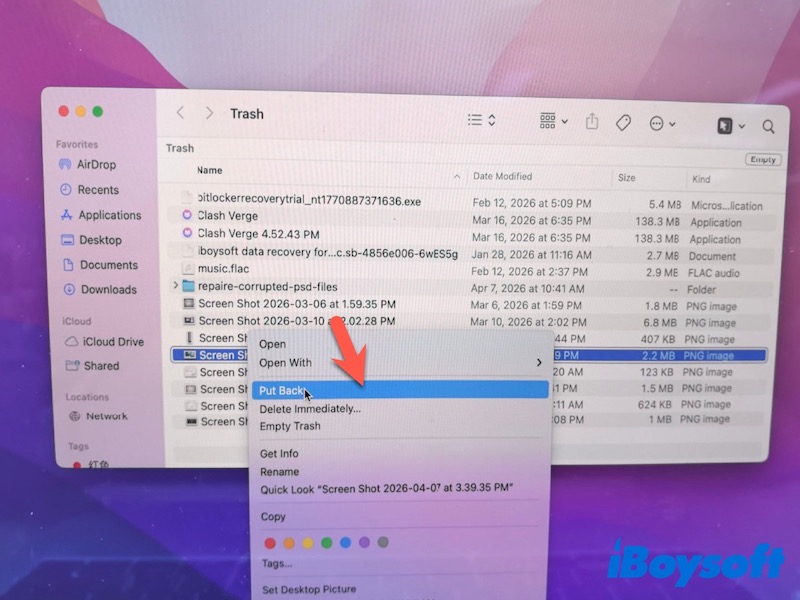
If photos were deleted from Finder, they go to Trash instead of Photos.
- Open Trash from the Dock.
- Locate deleted images.
- Right-click → Put Back.
If Trash is emptied, move to backup or recovery software methods.
Recover Photos from External Devices (SD Cards)
Photos deleted from SD cards or external drives are not saved in Mac's Trash or Photos app, because these devices are treated as separate storage media. Once deletion happens on the device itself, macOS does not keep a copy locally.
In this case, recovering deleted files on SD cards on Mac usually relies on scanning the storage device directly to find recoverable photo data.
- Stop using the SD card immediately.
- Connect it to your Mac via a card reader.
- Run data recovery software like iBoysoft Data Recovery for Mac.
How to Prevent Photo Loss on Mac
Preventing data loss is easier than recovering it. A few simple habits can protect your photos long-term:
- Enable iCloud Photos for automatic syncing
- Use Time Machine for regular backups
- Avoid emptying the Trash without checking its contents
- Keep multiple copies of important photos (external + cloud)
- Safely eject SD cards to prevent corruption
Conclusion
Deleted photos on Mac can often still be recovered. Check Recently Deleted, Trash, and iCloud first, then use Time Machine or recovery tools if needed. The key is to act quickly before the data is overwritten.
FAQs
- Q1. Can I recover permanently deleted photos on Mac without backup?
-
A
Yes, it’s sometimes possible. If the photos have not been overwritten, data recovery software can scan your Mac or external device to find recoverable photo files. However, success depends on factors like disk usage and whether TRIM is enabled on SSDs.
- Q2. Where do deleted photos go on a Mac?
-
A
Deleted photos usually go to different locations depending on how they were removed. Photos deleted in the Photos app go to the Recently Deleted album, while files deleted from Finder go to the Trash. Both locations keep files temporarily before permanent deletion.