Data loss on a MacBook can result from deletion, system crashes, disk errors, or failed updates. Acting quickly and choosing the right method is key. This guide helps you identify your situation and recover data safely.
Identify Your Data Loss Scenario First
Before recovery, identify how the data was lost and whether your Mac is accessible—this determines which methods will work.
What You Should Do Immediately
- Stop using the Mac to avoid overwriting deleted data
- Do not install new software on the affected disk
Recoverable Scenarios
- Files deleted recently and still in Trash
- Data backed up via Time Machine or iCloud
- Formatted or corrupted drives not yet overwritten
Nearly Impossible Cases
- Data overwritten by new files
- SSD TRIM has erased or deleted data (in most cases, recovery is not possible)
- Severe physical damage to the storage device
- Repeated write operations after data loss
How to Recover Data from a MacBook That Can Start Up
If your Mac can start up and the disk is accessible, you can use built-in features or recovery software to restore lost data.
Recover from Trash
This method works when files were deleted recently and are still in the Trash. It's the quickest option if the Trash hasn't been emptied and no backup or additional tools are needed.
- Click the Trash icon in the Dock.
- Find the deleted file or folder.
- Right-click it and choose Put Back.
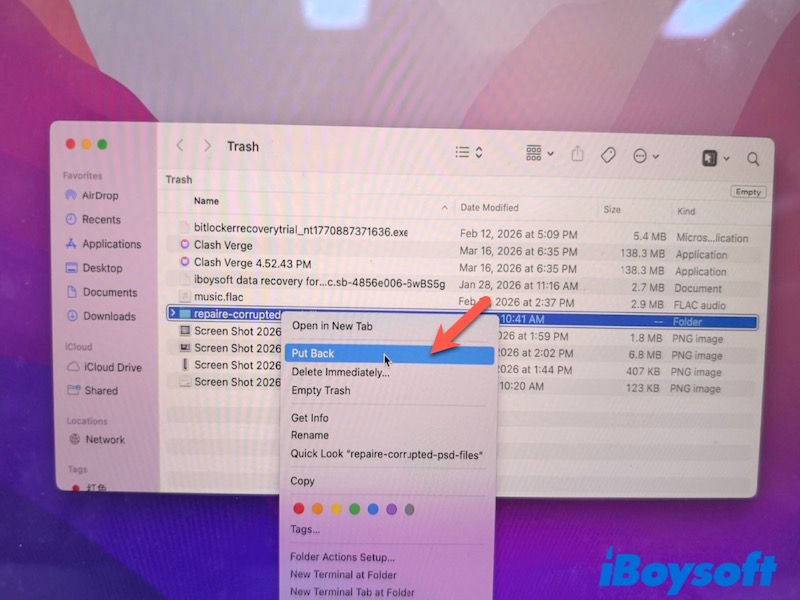
- The file will return to its original location.
Recover from Time Machine Backup
This is ideal if Time Machine was enabled before data loss. It allows you to recover files deleted or changed days or weeks ago and restore them to an earlier version.
- Connect your Time Machine backup drive.
- Open the folder where the file was stored.
- Click the Time Machine icon in the menu bar → choose Enter Time Machine.
- Use the timeline on the right to browse previous versions.
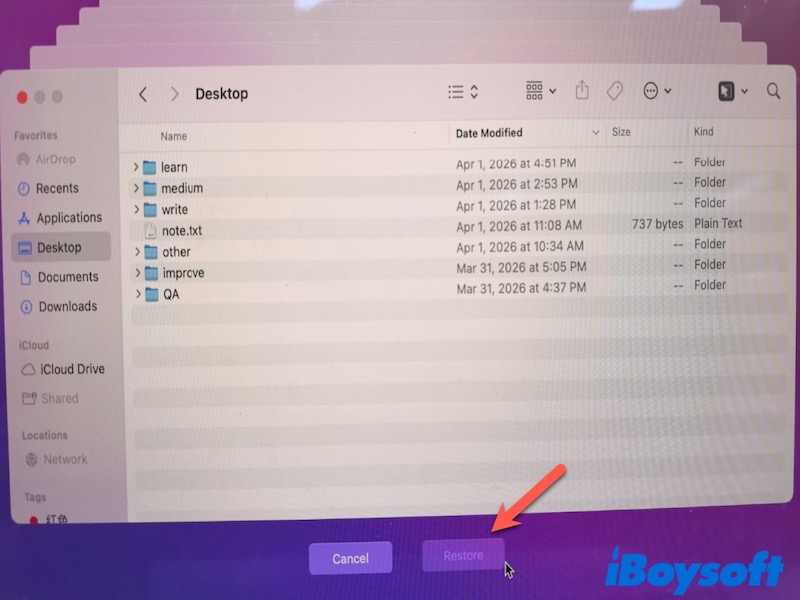
- Select the file and click Restore.
Use iCloud
Use this method if your files were synced with iCloud. It works well for recently deleted data that is still within the retention period, typically up to 30 days.
- Go to iCloud.com and sign in with your Apple ID.
- Click Drive or the relevant app.
- Open Recently Deleted.
- Select the file and click Recover.
Use MacBook Data Recovery Software
This option is suitable when files are no longer in Trash, and no backups are available. It can recover data from deleted, formatted, or corrupted drives, as long as the data hasn't been overwritten. However, on SSDs with TRIM enabled (common on modern MacBooks), permanently deleted data is usually unrecoverable—even with professional software.
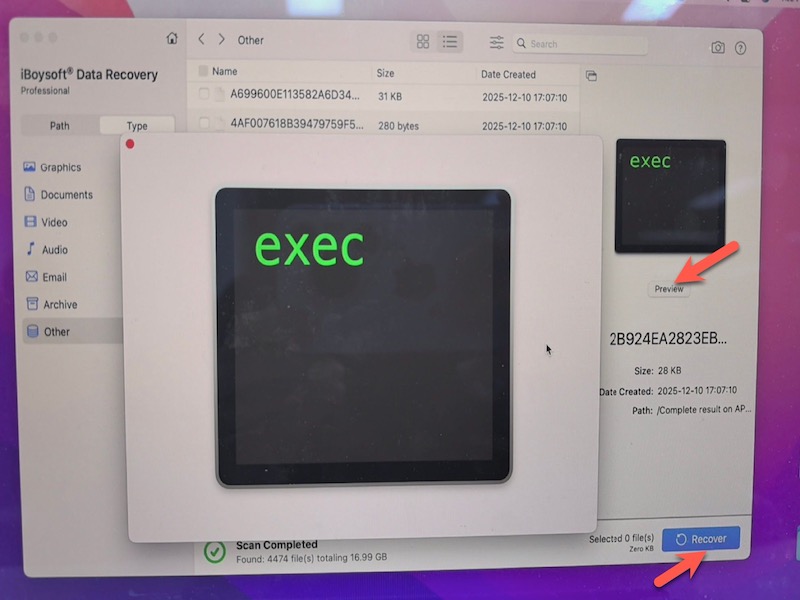
iBoysoft Data Recovery for Mac fits this scenario because it supports Mac file systems like APFS and HFS+, and works when disks are inaccessible or won't mount. It also allows you to preview files before recovery, which helps ensure the data is actually recoverable before restoring.
- Download, install, and open iBoysoft Data Recovery for Mac.
- Select the affected disk.
- Click 'Scan for Lost Data'.
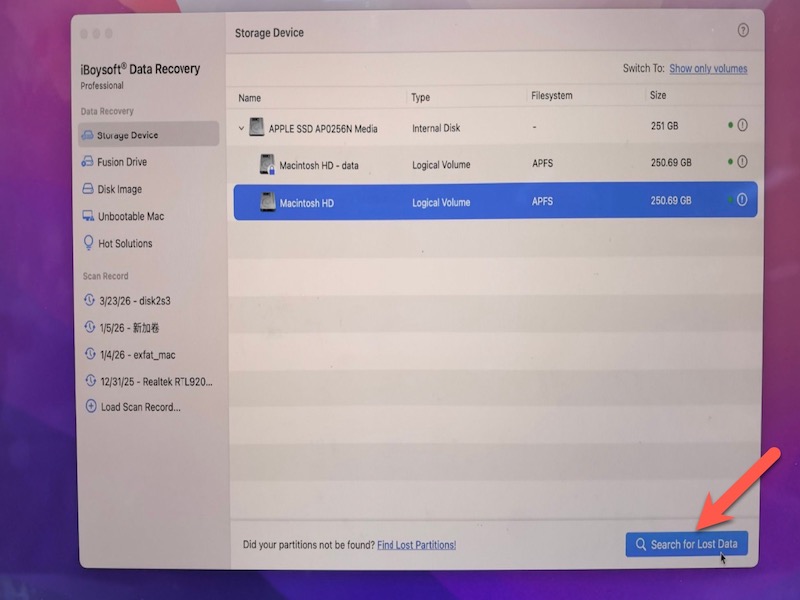
- Preview the recoverable files.
- Select the files you need and click Recover.
- Save them to a different drive to avoid overwriting.
How to Recover Data from a MacBook That Won't Turn On
If your Mac won't turn on or boot into macOS, standard recovery methods won't work because you can't access the disk directly. In this case, recovery depends on whether the internal drive can still be detected and accessed externally.
Check If the Mac Is Actually Dead or Just Not Booting
- Check power: Connect the charger and see if the battery or charging indicator responds.
- Check screen: Listen for fan noise or startup sound; try increasing brightness or connecting an external display.
- Force restart: Hold the power button for about 10 seconds, then turn it on again.
- Try macOS Recovery: Press and hold Command + R (Intel) or hold the power button (Apple silicon) to see if recovery options appear.
If the Mac shows signs of power but won't load macOS, the drive is likely still working → iBoysoft Mac Recovery Mode can recover the data when the Mac can't boot, or proceed to Target Disk Mode or External Disk for recovery.
If there is no power or no response at all, it may be a hardware issue → consider a professional data recovery service.
Access the Mac Disk Using Another Mac (Target Disk Mode / Share Disk)
This method is used when the Mac won't boot, but the internal drive is still functional. It allows you to access the disk from another Mac and then apply recovery methods, especially when the system itself is the problem rather than the storage device.
- Connect the Mac to another Mac using a Thunderbolt or USB cable.
- Enter disk sharing mode:
Intel Mac: Restart and hold T (Target Disk Mode)
Apple Silicon Mac: Hold the power button → go to Options → select Share Disk. - On the working Mac, locate the affected Mac's disk in Finder.
- Once the disk is accessible, proceed with data recovery (see Use MacBook Data Recovery Software).
Intel-based Macs with removable drives (mainly pre-2016 models):
- Remove the internal drive from the Mac.
- Place it into an external enclosure or adapter.
- Connect it to another Mac and access it as an external disk.
When to Use a Professional Data Recovery Service
- The MacBook won't power on at all
- The drive is not detected
- There are unusual noises or physical damage
- Recovery attempts have failed
Professional services use specialized tools and cleanroom environments, offering higher success rates for complex cases.
Conclusion
MacBook data recovery depends largely on how the data was lost and how quickly you act. Start by identifying your situation, avoid further data writes, and choose the least invasive recovery method first. If the data is critical and standard methods fail, professional recovery services may be the safest option.
FAQs
- Q1.Is it possible to recover data in Macbook?
-
A
Yes, in many cases. Data can be recovered if it hasn’t been overwritten, especially when files are recently deleted or backups are available. However, recovery is unlikely on SSDs with TRIM once the data is permanently erased.
- Q2.How to retrieve data from a MacBook that won't turn on?
-
A
You can connect it to another Mac using Target Disk Mode (Intel) or Share Disk (Apple silicon) to access the internal drive and recover files. If the drive isn’t detectable, professional data recovery may be required.