When you delete downloads on a Mac, you might lose individual files or the entire Downloads folder. Whether you can retrieve the deleted downloads is based on your situation.
You should identify your circumstances first. Here are the three common situations:
- You've accidentally deleted the downloaded files recently by dragging and dropping them into the Trash, selecting them and clicking Move to Trash, or selecting them and pressing Command + Delete. - 100% Recoverable
- You've emptied the Trash after moving the downloads to the Trash. - Recovery is not guaranteed
- You've mistakenly removed the Downloads folder from the Finder sidebar or the Dock. - 100% Recoverable
If you fall into the second situation, stop using your Mac, or else your data recovery rate will be reduced.
This guide shows you step-by-step methods, from the highest success rate to advanced solutions, so you can recover deleted downloads on your Mac safely and efficiently.
Note: If you can find the sources from which you get the downloads, re-downloading them is the quickest way. If you can't, follow the recovery steps in this guide.
Step 1: Undo the deletion with Command - Z (Only works right after the deletion)
If you've just deleted the downloaded files, you have the chance to undo this deletion on the Mac. Press Command + Z to undo the latest deletion.
If you have performed other operations on your Mac, such as moving a file, you should continue pressing Command + Z until the deleted downloads are restored.
Warning: If the Finder has been relaunched or your Mac has been restarted, this method doesn't work.
If undo changes nothing, follow the next step.
Step 2: Check the Trash (Simple trick with the highest success rate)
Usually, your deleted files are moved to the Trash on your Mac. So, go to the Trash to check if your removed downloads are there.
- Open the Trash from the Dock.
- Browse the Trash folder and find your deleted download file or the Downloads folder.
- Right-click the target item and select "Put Back" to restore it to its original location.
If you deleted the entire Downloads folder, restoring it will also restore the contained files.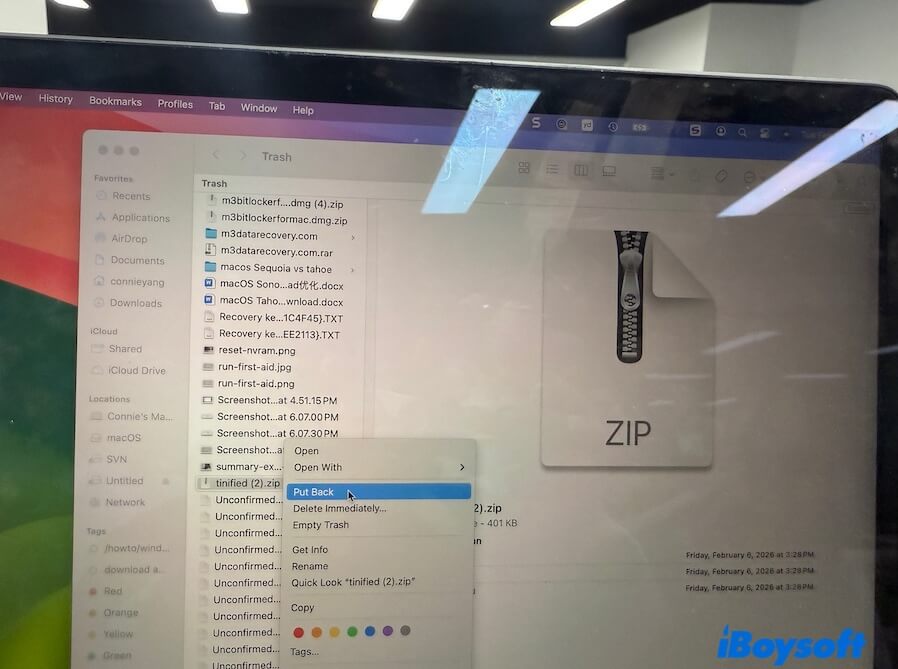
If you've already emptied the Trash, follow the advanced solutions below.
Step 3: Restore the deleted downloads from the backup (If you have one)
This recovery method is only suitable if you have enabled Time Machine backup or signed into iCloud on your Mac.
Option 1: Recover the deleted downloads with Time Machine
- Click the Time Machine button on the top menu bar.
- Click "Browse Time Machine Backups" from the drop-down menu.
- Navigate to the Downloads folder.
- Select the deleted files and click "Restore."
⚠️ Tip: Check the date to restore the correct version; avoid overwriting existing files.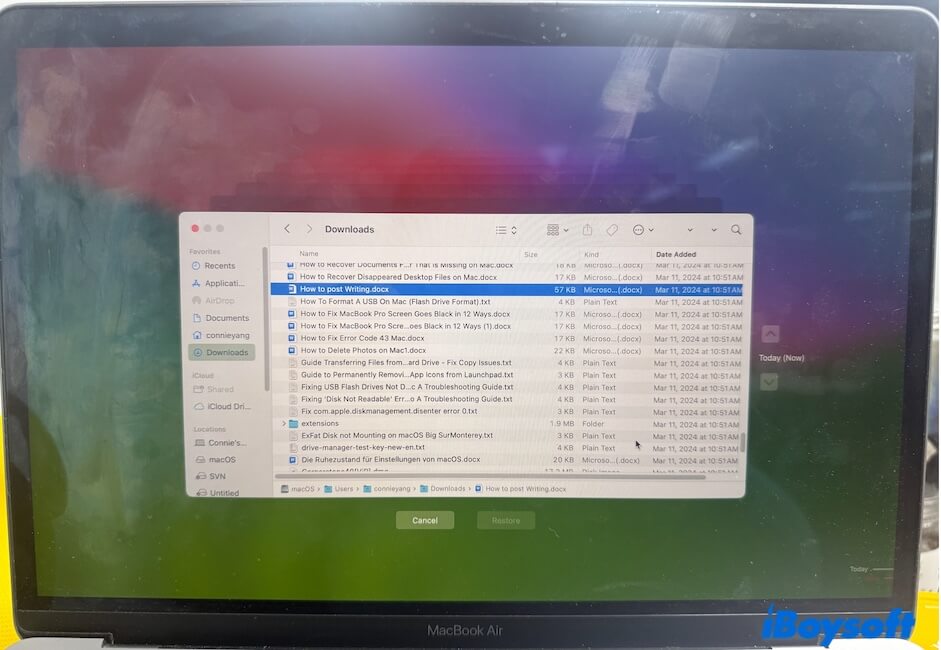
Option 2: Recover the deleted downloads with iCloud
- Log in to icloud.com.
- Click your profile photo (labeled with your user name).
- Click on "Data Recovery" > "Restore Files."
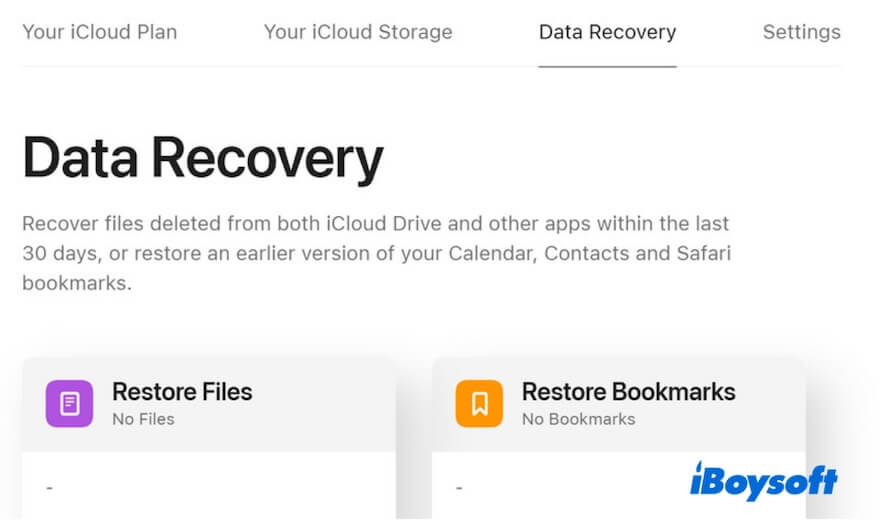
- Check if your deleted downloads are listed there and restore them.
Step 4: Recover the permanently deleted downloads on Mac (without backup)
If none of the methods above work, the last resort is to recover deleted files on Mac through a data recovery tool. This usually means the downloads were permanently deleted—that is, the Trash was emptied.
That said, there's a common misunderstanding worth clearing up: data recovery software can only support recovering permanently deleted files with prerequisites.
The situations where data recovery software can't help
- ❌ The deleted downloads were overwritten. New data has been written to the same disk space where the files were stored.
- ❌ Your Mac uses an SSD. On modern Macs, the SSD's TRIM feature quickly marks deleted file blocks as reusable, making the data unrecoverable.
When can data recovery software work
- ✅ Your Mac covers duplicates of your deleted downloads, which are often hidden in the system, and you're not aware of.
- ✅ Local snapshots contain the deleted downloads.
If you're not sure whether your Mac has hidden duplicates or local snapshots, it's worth running a scan. A data recovery tool can check your disk and attempt to retrieve whatever is still recoverable.
My experience
As for me, I used iBoysoft Data Recovery for Mac to scan my Mac and recovered my deleted software installers in my downloads folder. This tool is straightforward to use and lets me filter scan results by file type or storage location, making finding deleted downloads much faster.
How to recover deleted downloads with iBoysoft Data Recovery for Mac:
- Download, install, and open iBoysoft Data Recovery for Mac.
- Select the Macintosh HD - Data or macOS - Data volume (this is your user data volume, where the downloads are usually stored), then click "Search for Lost Data."
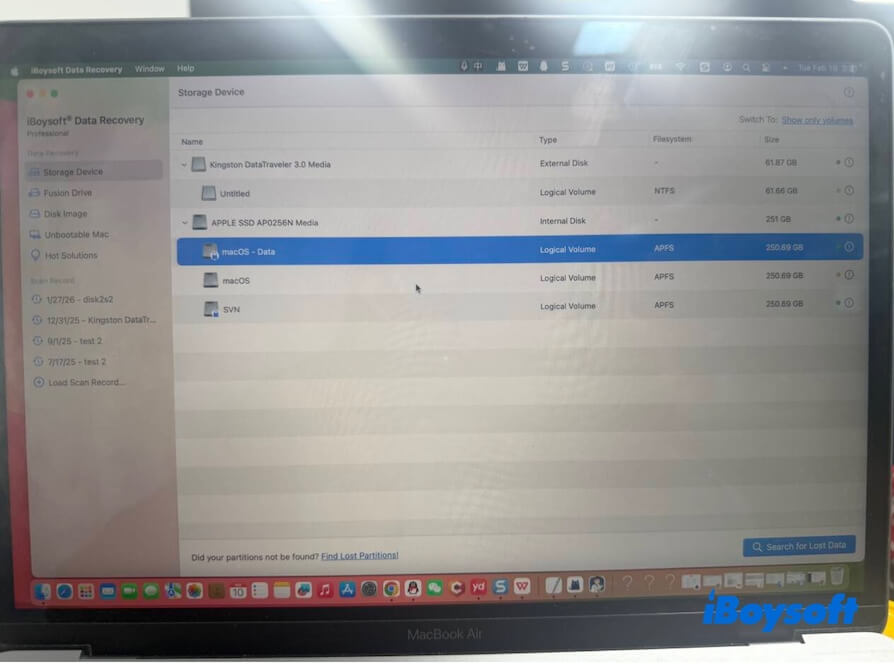
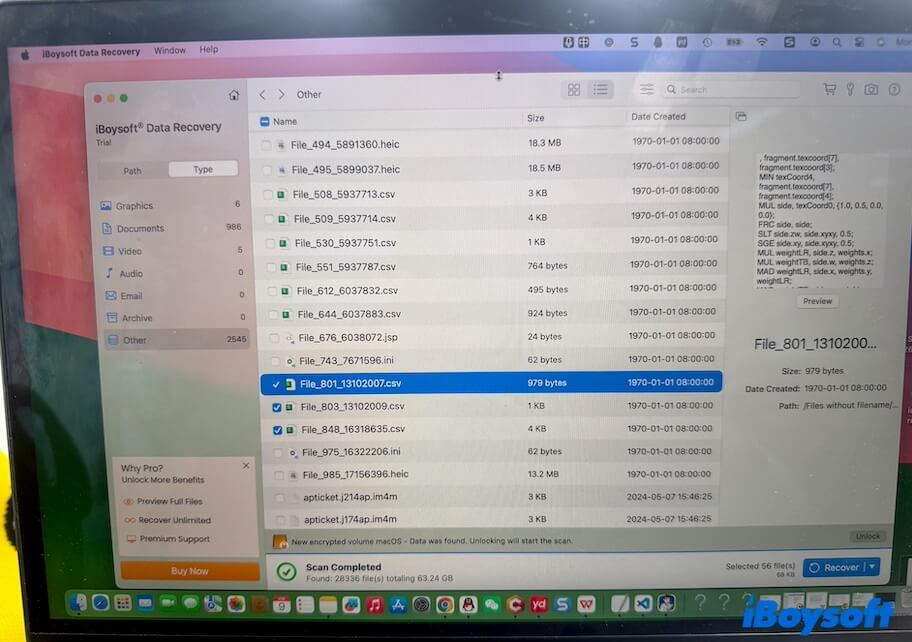
- Wait for the scanning process to complete and check the results.
Browse by file type or file path to narrow down the list. - Preview your desired downloads and select them.
- Click "Recover" to save the downloads to a different destination. This is to avoid overwriting data.
Step 5: Retrieve the missing or deleted Downloads folder from Finder or Dock
If you accidentally removed the Downloads folder from your Finder sidebar or Dock, or find it suddenly missing from these two locations, don't worry about the loss of your downloaded files. They are still on your Mac.
This issue is not about data recovery, but restoring the Finder or Dock display. Simply retrieve the Downloads folder to the Finder sidebar and Dock. Then, you can access all the files in the Downloads folder again.
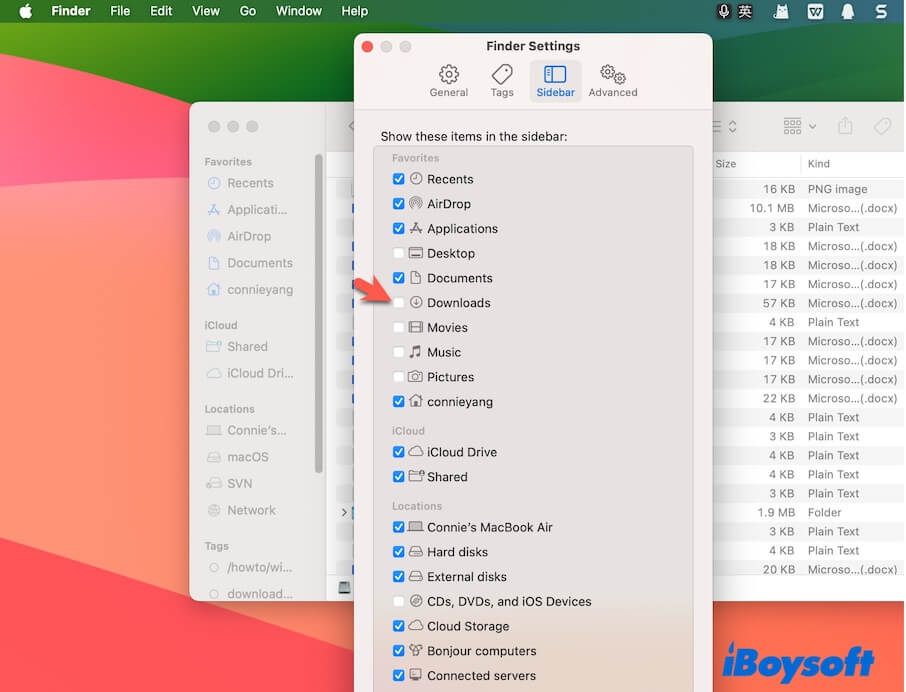
Restore the Downloads folder In Finder Sidebar
- Launch Finder.
- Move to the top Finder menu bar.
- Focus on the Sidebar section.
- Check "Downloads."
Restore the Downloads folder in the Dock
- Open Finder.
- Drag the Downloads folder from the sidebar to the location next to the Trash on the Dock.
Tips to prevent losing downloads in the future
Preventing data loss is always more reliable than attempting recovery after the fact. If your Downloads folder contains important files, the following macOS best practices can significantly reduce the risk of permanent loss.
Enable Time Machine backups
Time Machine creates automatic backups of your Downloads folder, allowing you to restore deleted files even after the Trash has been emptied.
Sync the Downloads folder to iCloud Drive
Files synced to iCloud can be recovered from Recently Deleted for up to 30 days, providing an extra layer of protection beyond local storage.
Disable automatic Trash emptying
Turning off "Remove items from the Trash after 30 days" prevents macOS from permanently deleting files without manual confirmation.
FAQs
- QCan I recover downloads after emptying the Trash?
-
A
Yes, but only if you have a Time Machine or iCloud backup. If you haven't, you should try using a data recovery tool. Notably, data recovery software only supports recovering deleted downloads after emptying the Trash in one of these situations:
Your Mac uses an HDD as the internal disk, and the deleted data hasn't been overwritten yet.
Your Mac has hidden copies or local snapshots of the deleted downloads.
- QWhere do deleted downloads go on Mac?
-
A
Deleted downloads are moved to the Trash first, then permanently removed from your Mac's hard disk when the Trash is emptied.
- QAre Downloads automatically backed up on Mac?
-
A
No, only if Time Machine or iCloud Drive is enabled.