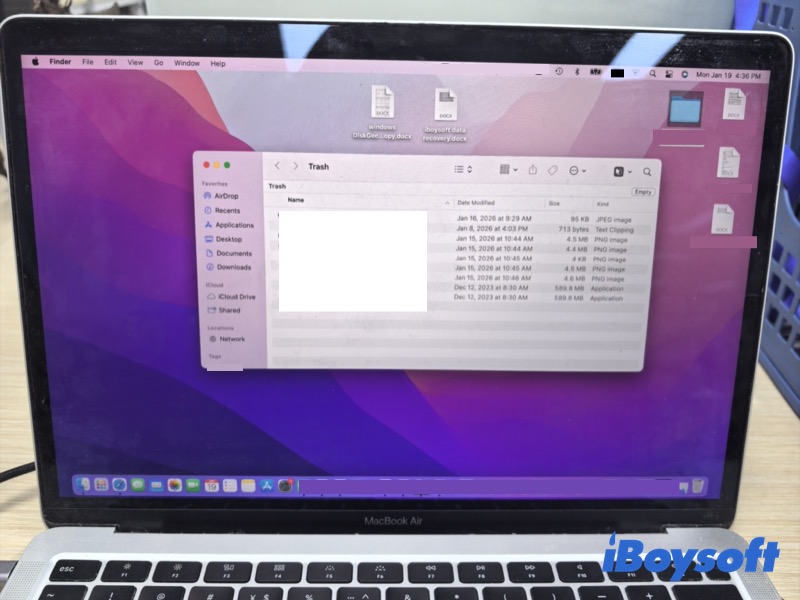
When using a Mac, deletion is an unavoidable operation. If you accidentally delete something, you'll likely want to get it back right away. Maybe you are in this situation, but don't know what to do. This article is here to help. It introduces several simple and effective methods and guides you to cancel a deletion.
However, if files are permanently deleted or the Trash has been emptied, finding them back becomes much more difficult without the help of professional recovery tools.
In this guide, you'll learn how to undo a deletion on Mac in different situations on Mac, and what recovery methods to choose when the undo operation can't work.
Can you undo a delete on a Mac
Before attempting to reverse a deletion on your Mac, it's important to first identify what kind of deletion you're dealing with.
Situation 1: The file was just deleted (a recent deletion, not permanently removed)
Method of deletion: Press the Delete key or Command + Delete keys; move or drag the file to the Trash without emptying
Possible to undo?: Yes
Situation 2: The Trash has been emptied (permanently deleted)
Method of deletion: Press the Command + Option + Delete shortcuts; Emptying the Trash
Possible to undo?: No
Once the Trash is emptied, the files are permanently deleted, and undoing is no longer possible. However, this does not always mean the data is unrecoverable. Data recovery methods may still retrieve the files.
How to undo a recent delete for deleted files on a Mac
If you deleted a file by mistake on your Mac, there are several effective ways to revert it while the deletion is recent. You can undo the action immediately with Command + Z or check the Trash to recover deleted files on Mac.
Use Command + Z
If you have just deleted a file on your Mac and didn't do any other action, the quickest way to revert the deletion is to press Command + Z. This shortcut reverses your most recent action, including file deletion.
Note: If you delete a file by using Command + Option + Delete or emptying the Trash, the file is permanently deleted, and simple undo methods no longer work. You should perform a data recovery; the detailed steps are outlined in the next part.
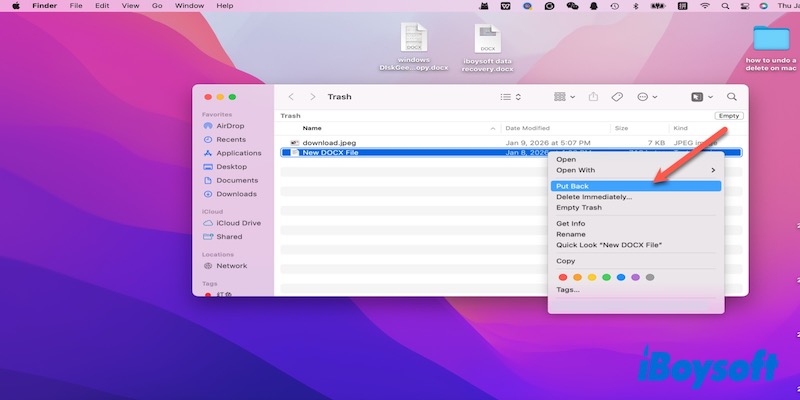
Restore from Trash
Trash stores deleted files, allowing you to restore them before they are permanently removed.
- Open the Trash.
- Check the files in the Trash.
- Find the deleted files, right-click the file and select "Put Back", or just drag it out of the Trash to any folder.
How to restore a permanent delete on a Mac
Permanent delete happens when a file is removed in a way that empties the Trash, or Command + Option + Delete.
In this case, files are permanently removed from the Mac hard drive and are no longer recoverable by normal undo. You can go to iCloud.com, Time Machine, or search for recovery tools to retrieve your files.
Go to iCloud.com to find data
iCloud can keep the recently deleted folder for up to 30 days before being permanently removed. So, you can go to iCloud.com to check your files.
- Open iCloud.com and sign in.
- Move to the bottom and open Data recovery.
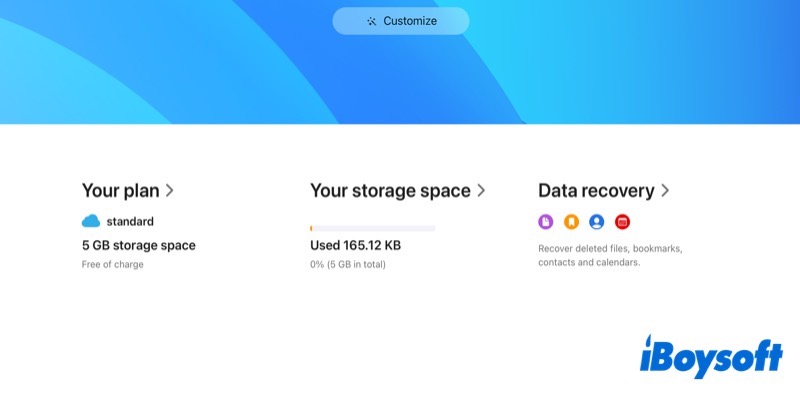
- Check the files and retrieve them.
Try professional data recovery tools (recommend iBoysoft Data Recovery for Mac)
If you can't find your permanently deleted data in iCloud, a data recovery tool may be worth trying.
❌Notably, permanently deleted files (emptied Trash) cannot be recovered in the following situations, even with data recovery tools:
- Your Mac uses an internal SSD (mainly 2016 models and later), where the TRIM feature permanently erases deleted data.
- Your data has been overwritten.
✅ The data recovery tools only support recovering data that meets these cases:
- Your Mac has a hidden copy of your permanently deleted files (most users are unaware of this).
- Your Mac has local snapshots that cover your permanently deleted files.
- The permanent deletion action on these files is interrupted, making the files actually haven't been permanently removed at all.
I once ran into a similar situation after accidentally deleting some important files, and couldn't restore them through regular methods.
Eventually, I used iBoysoft Data Recovery for Mac, which helped me locate and recover the lost data. Based on my experience, it's a useful option for retrieving mistakenly deleted files when other solutions no longer work.
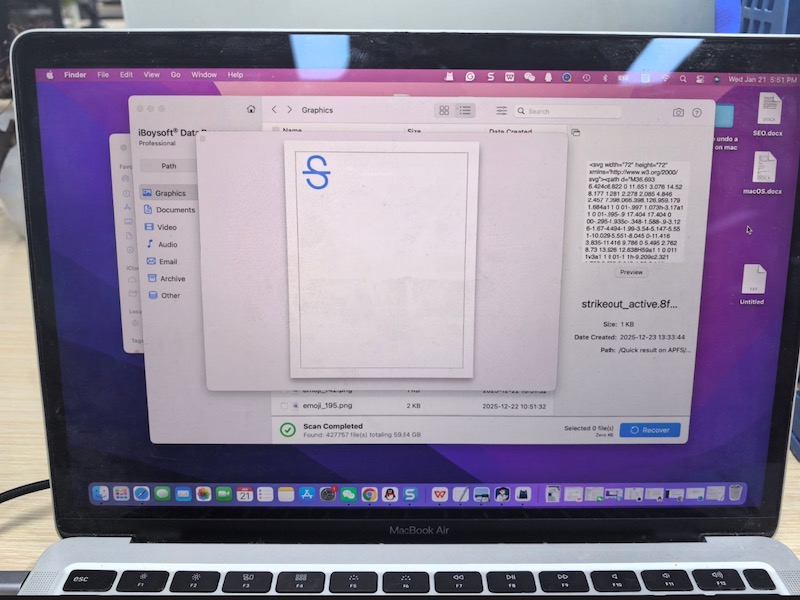
- Download and install iBoysoft Data Recovery for Mac.
- Launch the data recovery software and choose "Macintosh HD - data." (macOS - Data) Your personal files and app data are usually stored in "Macintosh HD -data."
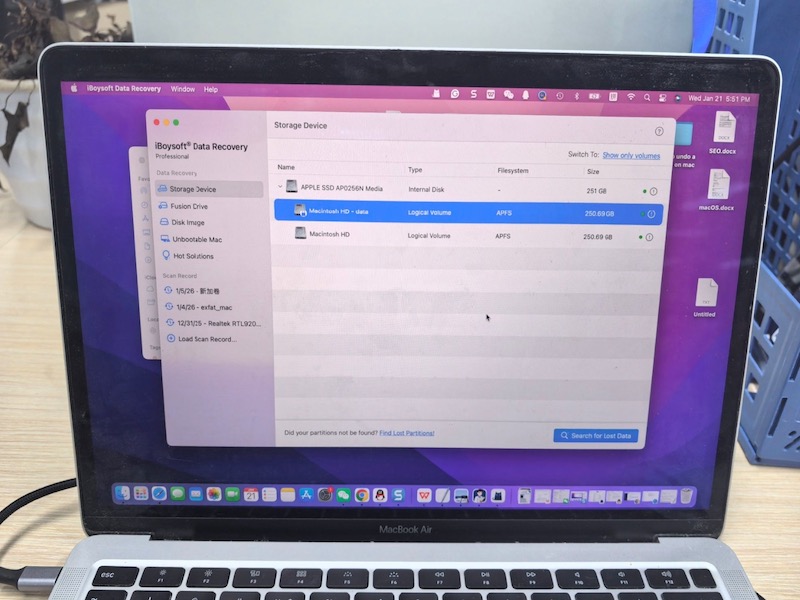
- Click the Search for Lost Data button to start scanning.
- After scanning, filter and preview the scanned results. Select the files you want and click Recover to save them to a different location.
Check Time Machine
If you have turned on Time Machine before, you can retrieve deleted files from it.
Note: If you haven't enabled Time Machine backup, you have to let a professional data recovery tool help you.
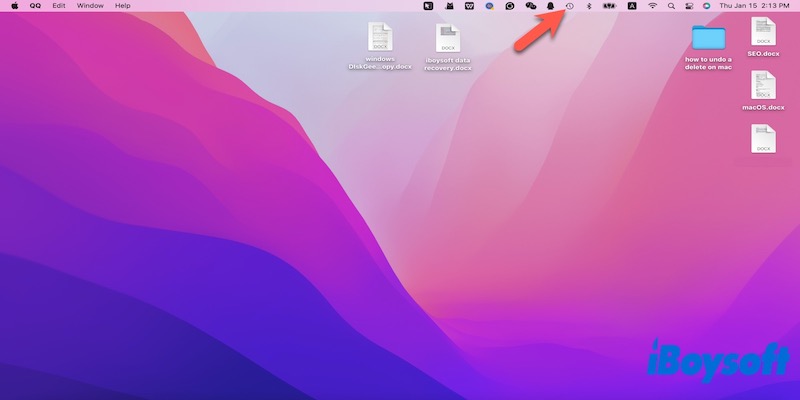
- Open the Time Machine and click Browse Time Machine Backups or Enter the Time Machine to Restore.
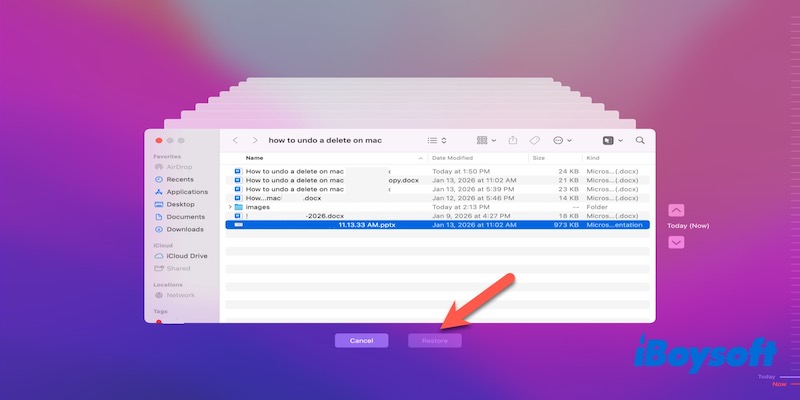
- Use the arrows and the timeline to browse Time Machine backups and select the file you want to restore, then click Restore.
How to undo a delete in specific situations on Mac
Not only files, but information, text, windows, and even applications can sometimes be deleted by mistake. These deletions can be undone easily using Mac's built-in features or the tools provided by the software itself.
Undo a text delete in editing apps on Mac
When typing on a Mac, accidentally deleting text is common. MacOS provides several ways to cancel this action, depending on the application you are using.
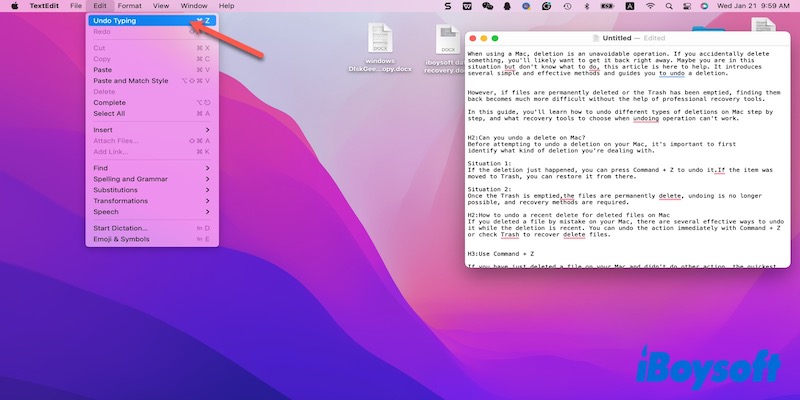
- Press Command + Z: The fastest way to undo a text deletion. This works in most apps, including TextEdit, Pages, Word, Notes, Mail, and web browsers.
- Click Edit in the menu bar > Undo Typing.
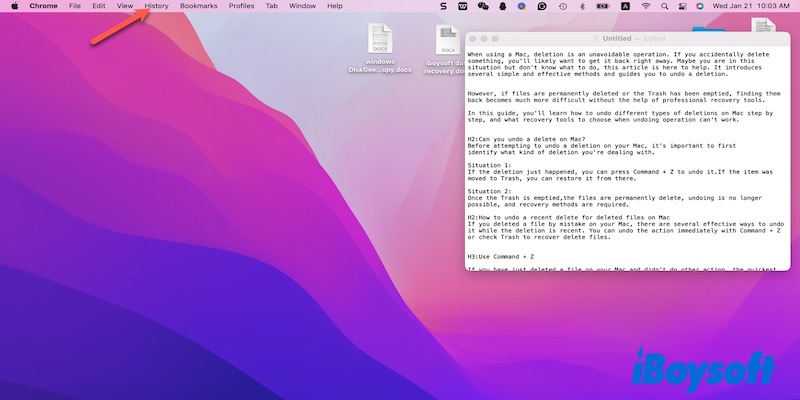
Undo a closed browser tab on a Mac
If you accidentally close a tab on a browser on your Mac, you can easily reopen it using built-in shortcuts and browser features.
- Command + Shift + T to reopen the most recently closed tab.
- Click History in the menu bar and select reopen last closed tab.
Undo a deleted message on Mac
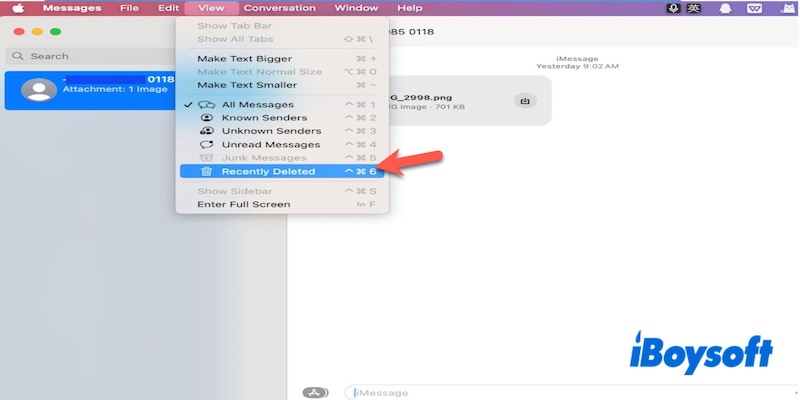
If you delete a message in the Messages app by accident on your Mac, you can find it back through the easy operation built into this app
- Open the Messages app.
- Navigate to the menu bar and select View > Recently Deleted.
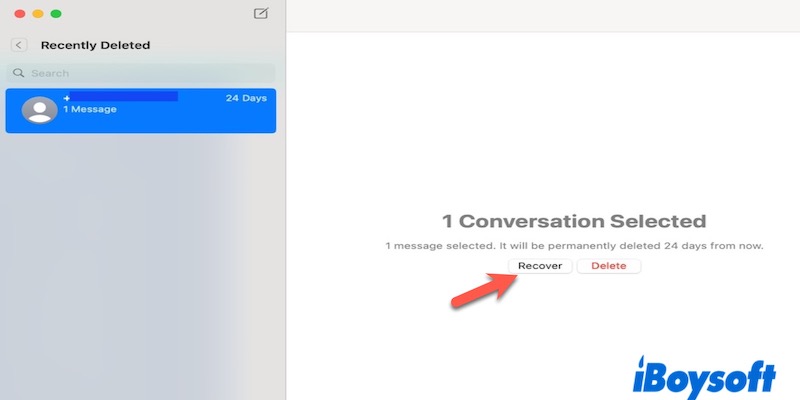
- Rstore deleted messages.
Undo a deleted app on a Mac
If an application is accidentally deleted on your Mac, you can check the Trash and put it back or reinstall the app from the App Store.
If you've emptied the Trash or used a professional app uninstaller, the remaining options are to look for the app in the Downloads folder or any other folder where it was previously stored, or to re-download it from its original download source.
Also Read:
FAQ: How to undo a deletion on Mac
- QHow to recover permanently deleted files on Mac?
-
A
If a file has been permanently deleted on your Mac, it is no longer in the Trash and cannot be restored with simple undo commands.
However, you can still try to recover it using several methods. First, check if you have a Time Machine backup, which allows you to restore the file from an earlier version. You can also look in iCloud, if the file was synced there, as deleted items may still be recoverable.
If these options are not available, using a reliable third-party recovery tool, such as iBoysoft Data Recovery for Mac, can help scan your drive and recover permanently deleted files. Always act quickly, as continued use of the drive may overwrite the deleted data and reduce recovery chances.
- QHow to recover permanently deleted files on Mac Terminal?
-
A
You can't directly restore permanently deleted files using Terminal alone, but it can help you access backups or recovery tools.
For example, you can navigate to your Time Machine backup folder in Terminal and copy deleted files back to your Mac. Alternatively, data recovery tools like iBoysoft Data Recovery for Mac can scan your drive for recoverable data. Act quickly, because new files written to the disk may overwrite deleted data and make recovery more difficult or even impossible.