You might delete a paragraph by accident, overwrite text while pasting, or format something the wrong way. In many cases, Undo can fix the problem instantly, but only if you act in time.
This guide explains how to undo in Notes on a Mac, what its limits are, why undo sometimes doesn't work, and what to do when undo is no longer available. It focuses on real-world behavior in macOS, not assumptions or shortcuts that don't actually work.
The key thing to understand upfront: Undo helps with recent edits, not long-term recovery. Recovering a deleted note is a different process, and we'll cover that separately.
This post is written for everyday Mac users, not developers, and focuses on what actually works in real situations.
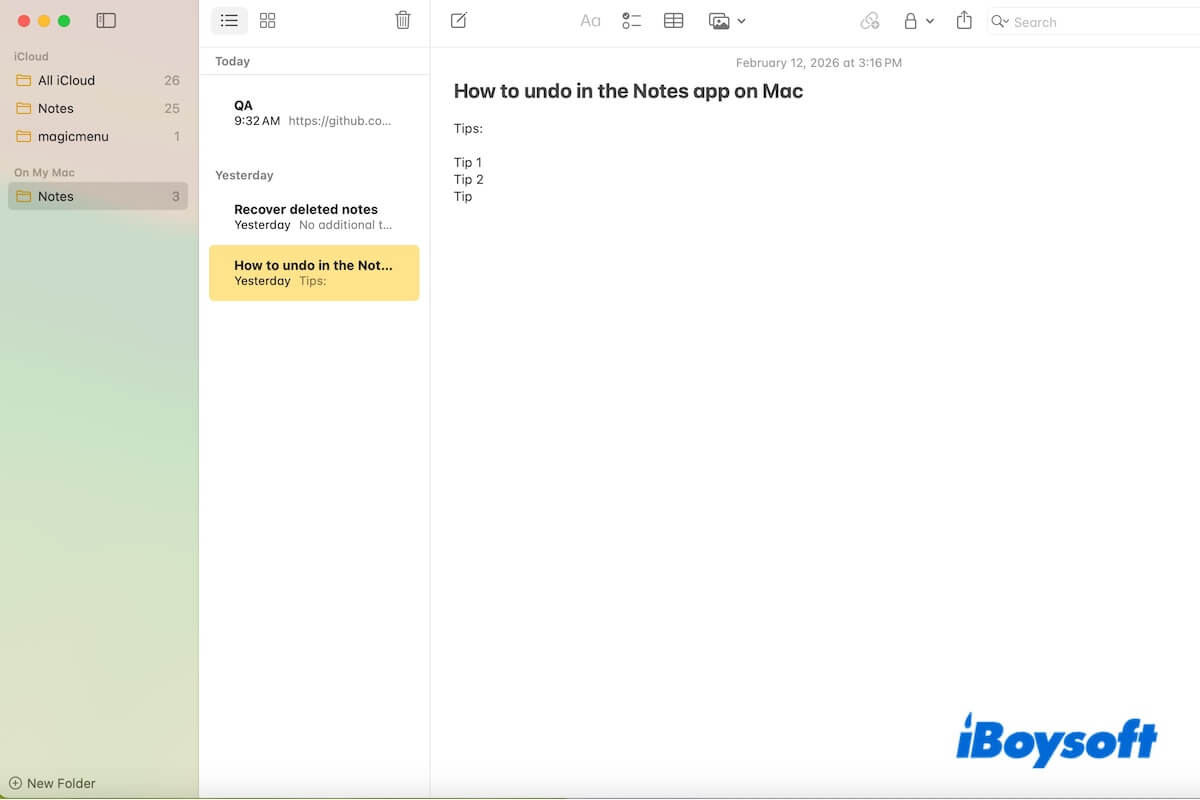
Can you undo text in Notes on a Mac?
Yes. The Apple Notes app supports undo for most common editing actions, including typing or deleting text, pasting content over existing text, formatting changes (bold, lists, headings), and moving text within the same note.
However, undo in Notes has clear limitations:
- Undo only works for recent actions in the current session.
- Undo history is usually cleared when you close the note or quit the Notes app.
- Undo does not restore notes that were deleted entirely.
In practice, undo works best when you notice a mistaken operation immediately and correct it right away. Older changes to Notes usually cannot be undone.
How to undo in Notes on a Mac
Method 1: Use the Command-Z shortcuts (Most reliable)
The fastest way to undo in Notes is the standard macOS shortcut.
Undo: Command (⌘) + Z
This method works for most text edits as long as:
- The current note is still open.
- You haven't quit the Notes app.
If undo works, the change is reversed instantly. By the way, if you regret undoing the changes, you can use the redo shortcuts: Shift + Command (⌘) + Z to restore.
Method 2: Use the Edit menu on the menu bar
If the keyboard shortcut doesn't respond, switch to using the Notes' Edit menu:
- Open the note you're editing.
- Click "Edit" in the macOS menu bar.
- Select "Undo Typing" or "Redo Typing."
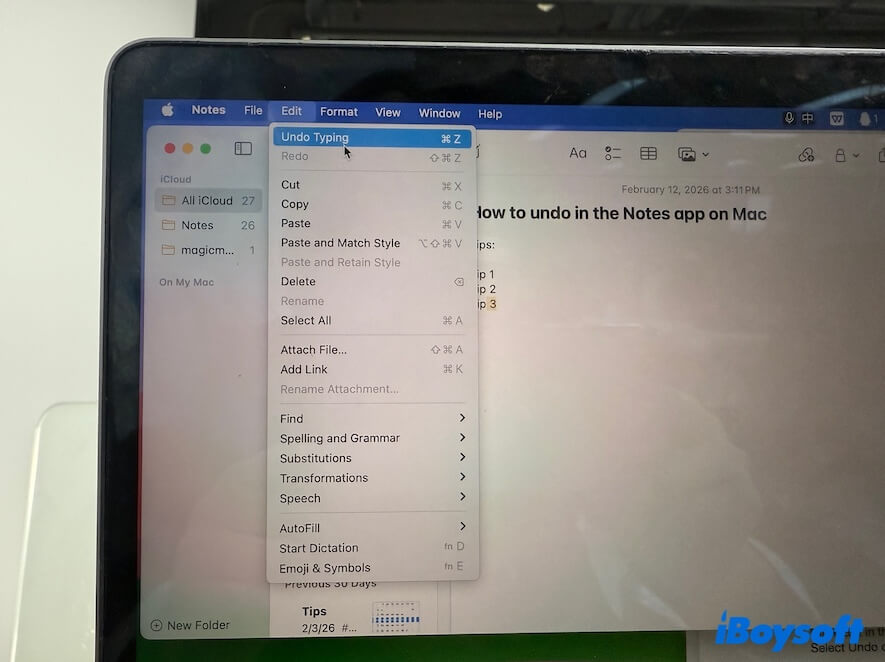
If the Undo Typing is greyed out, it indicates that this note no longer has undo history for the latest action.
Method 3: Shake to undo (Trackpad only)
On MacBook Pro and MacBook Air models with a Force Touch trackpad, lightly shaking your fingers on the trackpad can trigger an undo prompt.
This depends on system settings and hardware support, and it's less consistent than using Command + Z.
For reliability, the keyboard shortcut is always the better option.
How to undo deleted notes on Mac (Identify recovery vs. undo)
Undoing text edits and recovering deleted notes are not the same thing in Apple Notes.
Restoring deleted notes is to put the entire disappeared note back, rather than a text or format in a note.
How to undo deleted notes on a Mac depends on your specific situation.
Case 1: The note was recently deleted
When you delete a note entirely, it is moved to the Recently Deleted folder.
Steps to restore the deleted note:
- Open the Notes app.
- Select "Recently Deleted" in the sidebar.
- Right-click the note.
- Click "Move to."
- Select "iCloud" or "On My Mac" > "Notes" to put it back.
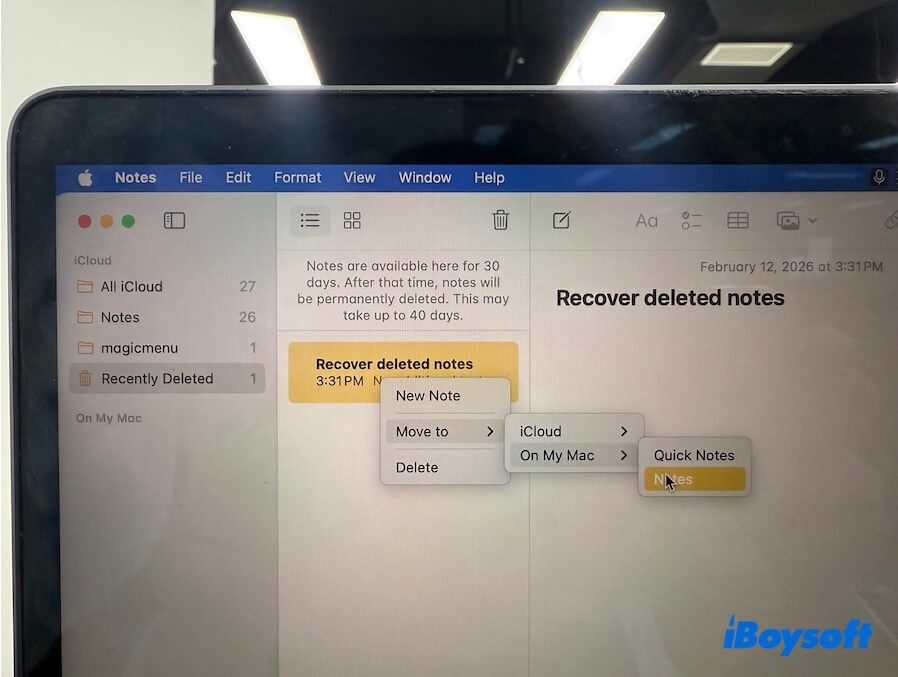
❌ When this method is useless: You deleted the note over 30 days ago. Deleted notes typically remain in Recently Deleted for up to 30 days. Once the 30-day retention period expires, the note is automatically removed from the Notes database and is no longer visible in the app.
Case 2: The note is permanently deleted
If the note is no longer in Recently Deleted:
- It can't be restored to the original location.
- Command + Z will not restore it either.
- Apple Notes does not provide version history for deleted notes.
At this point, recovery depends on whether you have enabled iCloud sync and automatic Time Machine backup.
Way 1. iCloud sync: Log in to icloud.com, go to "Data Recovery" > "Restore Files."
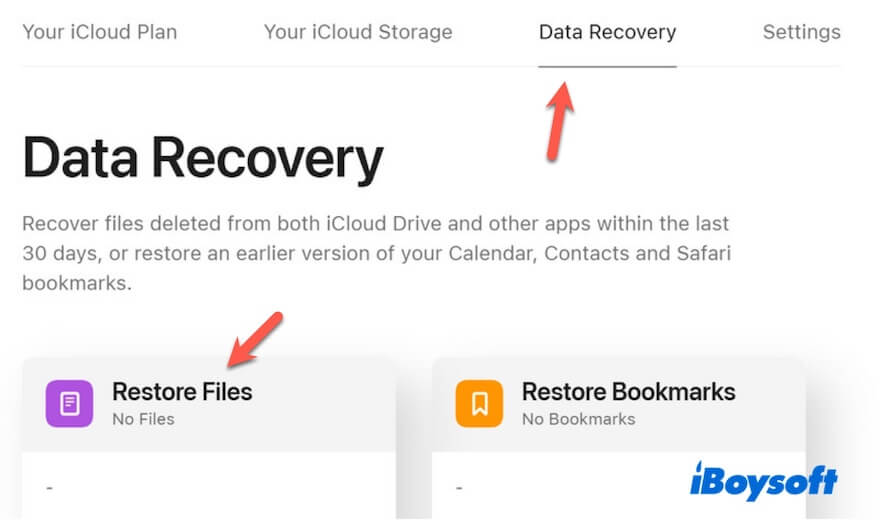
Prerequisites: The deleted notes are deleted within 30 days, as iCloud only retains them in Restore Files for up to 30 days.
You can also check other devices where the note may still exist.
Way 2. Time Machine backups: restore an earlier system state. Follow: A Time Machine Guide to Back Up and Restore a Mac
Without a backup, permanently deleted notes are usually unrecoverable.
❌ Data recovery tools are not effective for permanently deleted Notes on modern Macs, as Notes are stored in a database of the Notes utility rather than as individual files.
Why doesn't Command + Z undo actions in Notes on Mac?
Command Z only works for undoing the actions happen on the current open note, and the Notes app still hasn't been closed.
So, the common reasons include:
- The note was closed, or the app was quit.
- The action happened too long ago.
- The note was deleted instead of edited.
- Notes no longer have undo history for that action.
Undo is designed for immediate corrections, not long-term recovery.
FAQs
- QHow to Undo Notes on iPhone?
-
A
On iPhone, you can undo recent actions in Notes by:
1. Shaking the iPhone and tapping Undo.
2. Using a three-finger swipe left to undo.
3. Tapping the Undo arrow in the editing toolbar (available in recent iOS versions).
Undo only applies to recent edits in the current session.
- QHow to Undo in Notes on iPad?
-
A
On iPad, undo works in these ways:
1. Three-finger swipe left to undo.
2. Shake the iPad to trigger undo.
3. Use Command + Z with a connected keyboard.
The same limitations apply as on Mac.