After reinstalling macOS, you may find some files missing. Whether those files can still be recovered largely depends on how macOS was reinstalled.
If macOS was reinstalled without erasing the startup disk, your files may still remain on the Mac and could potentially be recovered.
If the Mac was factory reset or the disk was erased before reinstalling macOS, recovery may be difficult or even impossible on modern Macs with SSD storage, especially those using APFS encryption and Apple's T2 or Apple silicon security architecture.
This guide explains the differences between macOS reinstall methods, what recovery options are available in each scenario, and which recovery approach is most appropriate for your situation.
What Happens to Your Data When You Reinstall macOS?
Different macOS reinstall methods affect your data differently. Some only reinstall system files, while others erase the startup disk and remove personal data entirely.
Reinstall macOS Without Erasing the Disk
If you reinstalled macOS without erasing the startup disk, your personal files are usually still on the Mac. Missing files are often caused by using a different account, incomplete iCloud sync, or files being moved during the reinstall process. This type of reinstall usually has the highest recovery success rate.
Before attempting data recovery, check the Users folder, iCloud Drive, Recently Deleted, and connected external drives first.
Erase the Disk or Factory Reset Before Reinstalling macOS
If the startup disk was erased before reinstalling macOS, some or all files may have been removed from the drive. Recovery may still be possible if the deleted data has not been overwritten by new system files.
On Apple silicon Macs, a factory reset usually makes recovery more difficult because SSD encryption and TRIM technology can permanently remove deleted data. In addition, if iCloud syncing was disabled or the Mac was signed out of Apple ID before the reset, iCloud-based recovery may no longer be available.
To improve recovery chances, stop using the Mac as soon as possible after discovering the data loss. Continuing to use the Mac may overwrite recoverable files.
How to Recover Data After a Mac Reinstall
The appropriate recovery method depends on how macOS was reinstalled and whether a backup is available.
If you reinstalled macOS without erasing the startup disk, missing files are often still stored on the Mac. In many cases, the issue is related to iCloud sync, Spotlight indexing, or files being moved to a different location after the reinstall. Before using recovery software, you can first check iCloud Drive and search for the files on the Mac.
If you erased the startup disk or factory reset the Mac before reinstalling macOS, recovery becomes more dependent on backups. In this situation, it is recommended to first check Time Machine, iCloud Drive, or other external backups. If no backup is available, data recovery software may still help recover files that have not been overwritten.
The following methods explain each recovery option in detail.
Recover Files from Time Machine
Time Machine is the most reliable recovery method because it restores previous system snapshots instead of scanning overwritten storage. It is effective as long as it was enabled before reinstalling macOS and the backup drive is still accessible.
To restore files:
- Connect the Time Machine backup drive to your Mac.
- Open the folder where the missing files were originally stored.
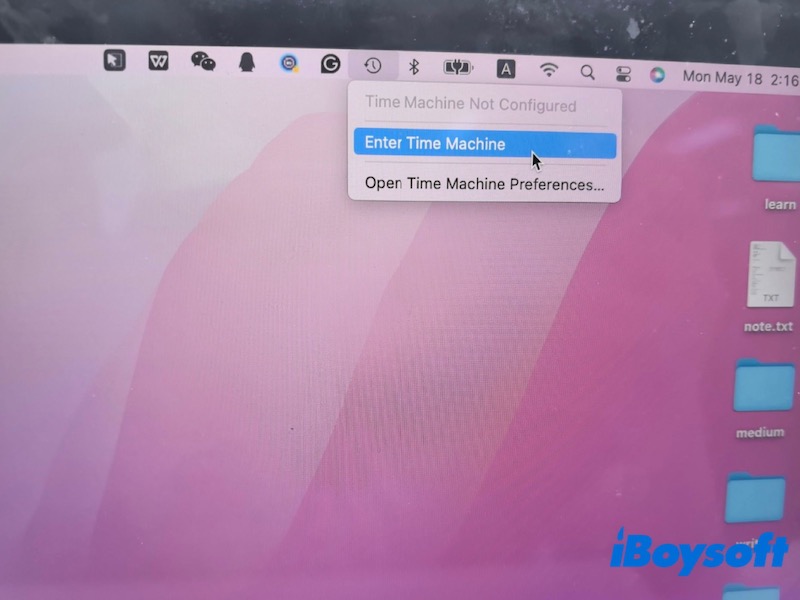
- Click the Time Machine icon in the menu bar and enter Time Machine.
- Use the timeline to locate an earlier version of the folder.
- Select the files you need and click Restore.
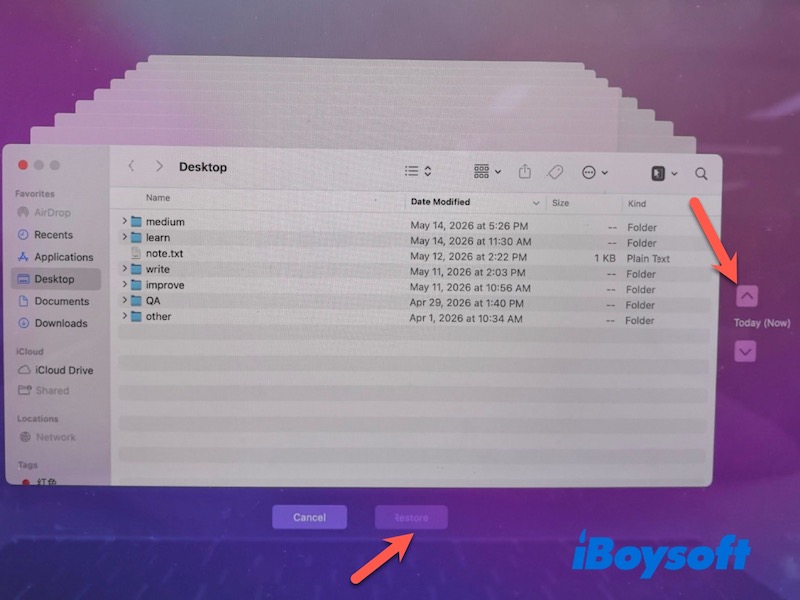
Time Machine can also restore an entire system during macOS setup if the Mac was fully erased.
Recover Files from iCloud Drive
If iCloud Drive sync was enabled before reinstalling macOS, files stored in Desktop, Documents, or other synced folders may still be available online.
To check iCloud Drive:
- Open System Settings/Preferences> Apple ID > iCloud.
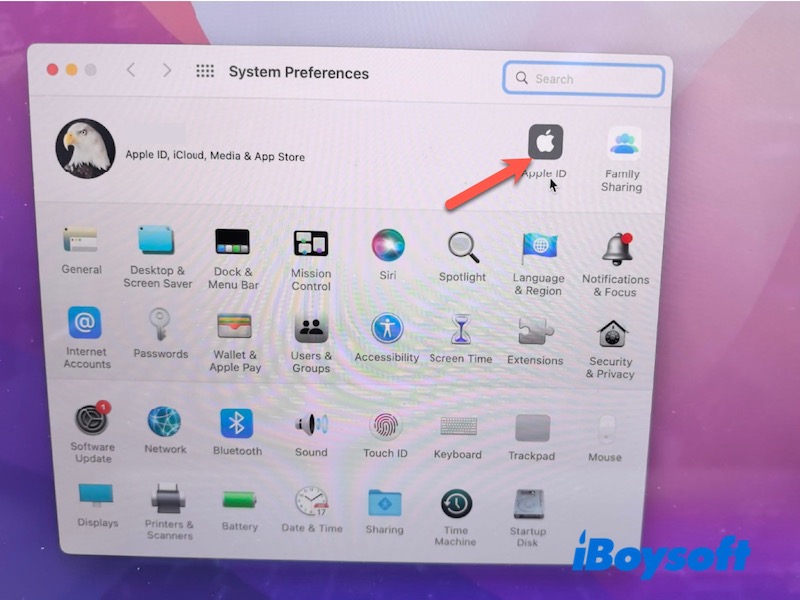
- Make sure iCloud Drive is enabled.
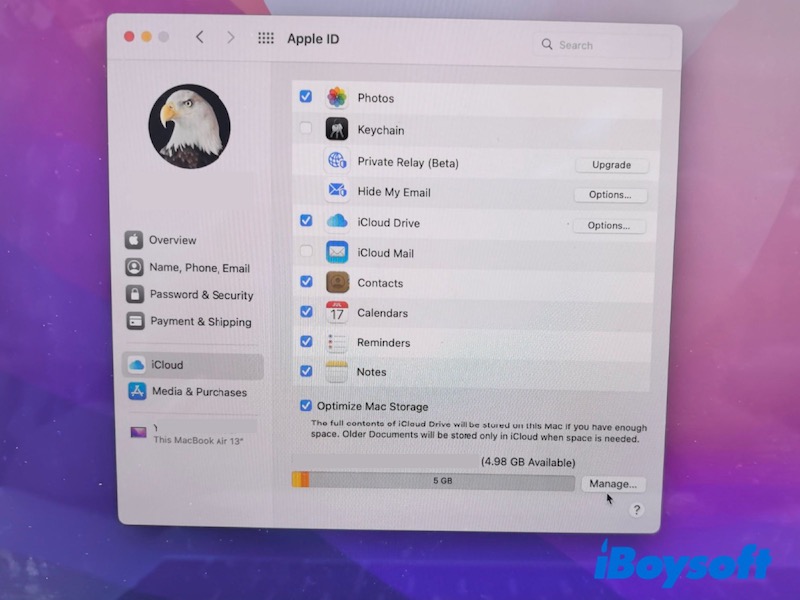
- Open Finder and select iCloud Drive in the sidebar.
- Check Desktop, Documents, and other synced folders.
- Visit iCloud.com and check the Recently Deleted section if files are missing.
This method works best for documents, photos, and synced app data stored in Apple's cloud services.
Note: If the Mac was offline during reinstalling or signed into another Apple ID afterward, syncing issues may temporarily hide files.
Recover Data from an External Backup
If you previously copied files to an external SSD, USB drive, NAS, or cloud storage service, recovery is usually straightforward.
- Connect the external storage device.
- Browse backup folders manually in Finder.
- Copy the required files back to your Mac.
- Verify file integrity before deleting or modifying backups.
External backups are often the only reliable option after a factory reset on Apple silicon Macs.
Warning: Avoid saving recovered files back to the original system drive.
Use Data Recovery software to Recover Data
If no backup is available, data recovery software may still help retrieve lost files if the disk has not been heavily overwritten after reinstalling macOS. Data recovery software works by scanning storage devices for recoverable file records or remaining data blocks.
However, software cannot recover files that have already been overwritten or cryptographically erased. Besides, on SSD-based Macs, deleted data is permanently removed due to TRIM.
If you want to try data recovery software, iBoysoft Data Recovery for Mac is a suitable option. It supports APFS volumes used by modern Macs, can scan deleted or inaccessible startup disks after a macOS reinstall, and works on both Intel and Apple silicon Macs.
- Stop using the Mac immediately to avoid overwriting data.
- Download and install iBoysoft Data Recovery for Mac on an external drive if possible.
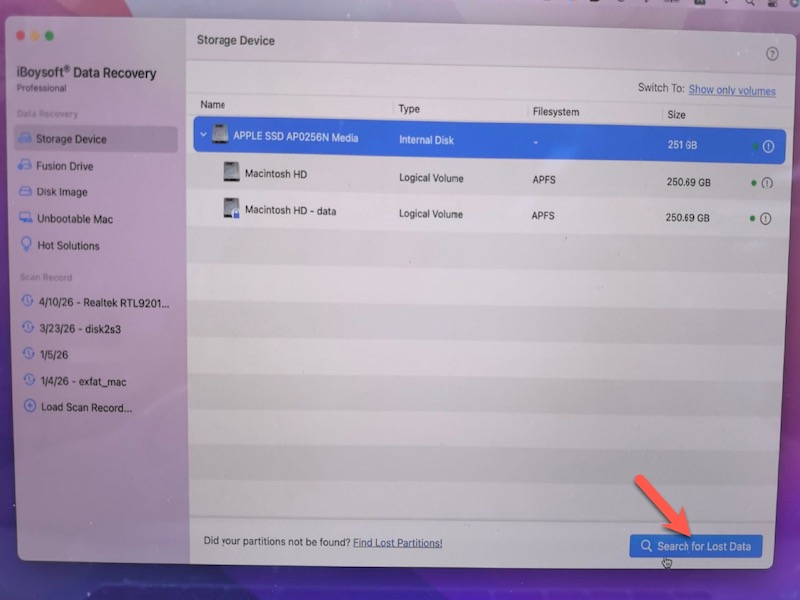
- Launch the software and select the system disk.
- Click Scan for Lost Data to search for lost data.
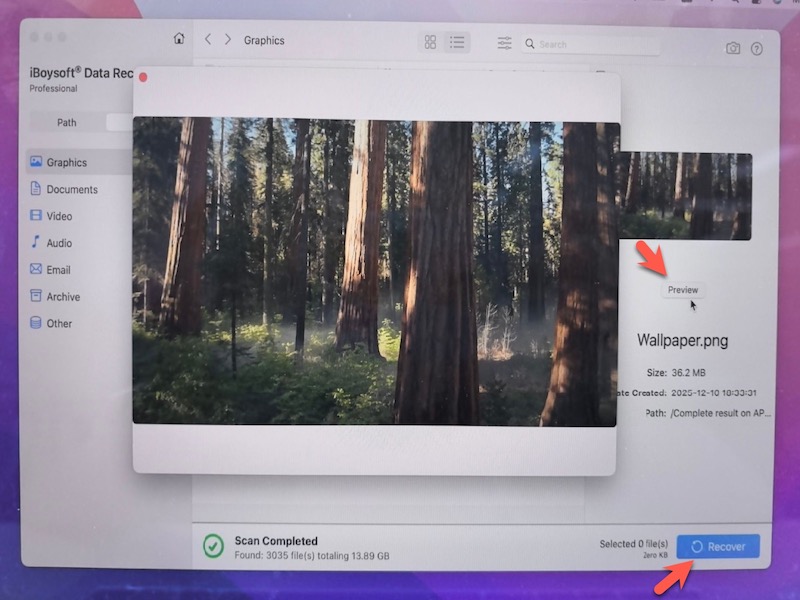
- Preview found files.
- Recover files to a separate storage device.
When All Recovery Methods Fail
If data recovery software cannot find your files and no backup is available, the remaining recovery options are very limited. This commonly happens after SSD data has been overwritten or when APFS encryption blocks access to the original data.
In these situations, professional data recovery services may still help, although success rates are generally low on modern Apple silicon Macs with encrypted SSD storage.
Conclusion
Recovering data after reinstalling macOS is sometimes straightforward and sometimes nearly impossible, depending on how the reinstall was performed. A normal reinstall without erasing the disk usually leaves personal files intact, while factory resets and erased SSDs significantly reduce recovery chances, especially on Apple silicon Macs.
Before using recovery software, always check Time Machine, iCloud Drive, and external backups first. If recovery software is necessary, stop using the Mac immediately to avoid overwriting recoverable data.
FAQ
- Q1.Can files be recovered after erasing a Mac?
-
A
It depends on whether the data has been overwritten after the erase. Recovery is sometimes possible on Intel Macs or external hard drives, but much harder on Apple silicon Macs because SSD storage, TRIM, and APFS encryption can permanently remove access to deleted data.
- Q2.Does Time Machine work after reinstalling macOS?
-
A
Yes. If a Time Machine backup was created before reinstalling macOS, you can restore individual files or recover the entire system from the backup after the reinstall is complete.