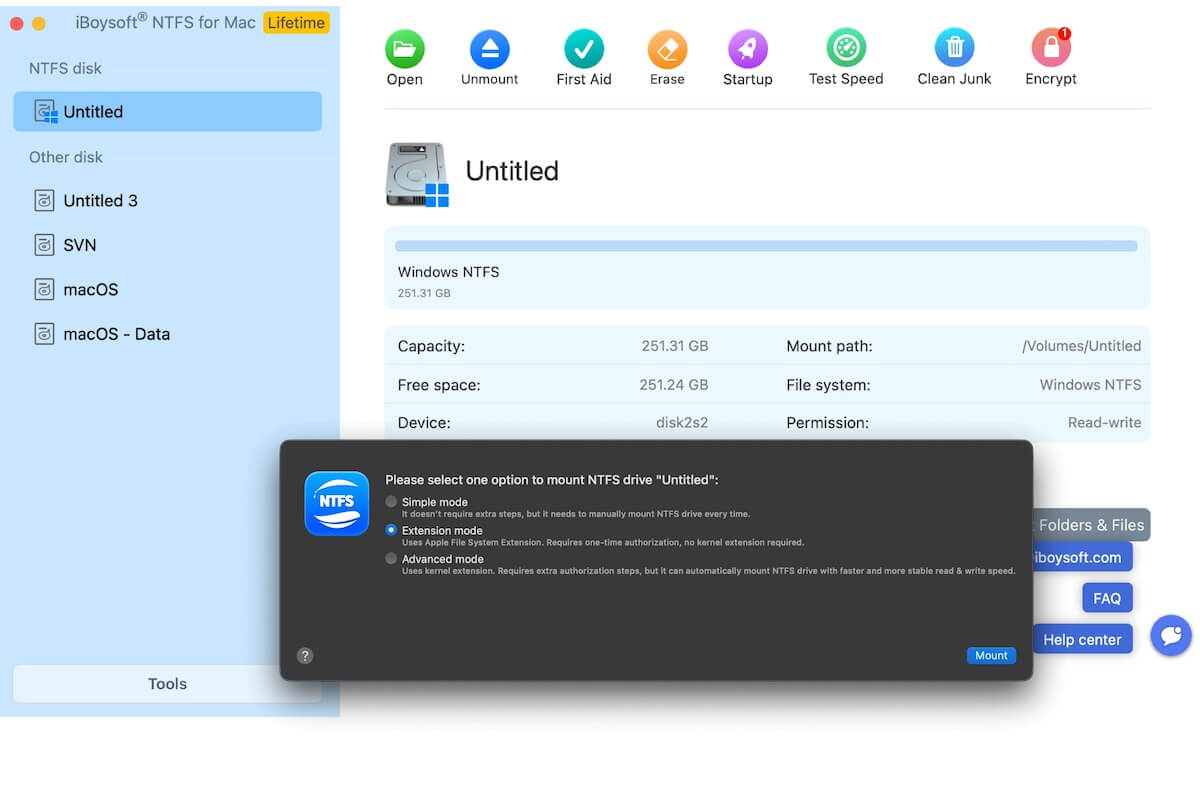
macOS can read NTFS drives but doesn't support writing to them natively. You can open and copy files from an NTFS drive on a Mac, but you can't add, delete, or modify files without a third-party tool.
iBoysoft NTFS for Mac is among the first NTFS for Mac solutions to adopt Apple's FSKit framework, introduced in macOS 15 Sequoia. Unlike traditional NTFS drivers that run in the macOS kernel, its new FSKit-based driver runs in user space. Up to now, Paragon and Tuxera have yet to adopt this technology.
I installed iBoysoft NTFS for Mac to examine:
- What problems the FSKit user-space driver actually solves
- How iBoysoft NTFS for Mac performs in real-world read/write tasks
- Some pitfalls and recommendations I encountered during testing
If you're looking for a way to write to NTFS drives on your Mac or considering switching tools, this review offers a practical reference.
The evolution of approaches to read/write NTFS on macOS
| Approach to read/write NTFS | Representatives | |
| Phrase 1 | Unofficial workarounds, including modifying /etc/fstab or command-line open-source tools | Mounty for NTFS NTFS-3G + macFUSE |
| Phrase 2 | Commercial tools relying on self-designed kernel-level drivers | Paragon NTFS for Mac Tuxera NTFS for Mac |
| Phrase 3 | Commercial software using self-designed user-space drivers implemented via FSKit | iBoysoft NTFS for Mac |
First, some background for the NTFS driver tech evolution. NTFS is Microsoft's journaling file system, used since the Windows NT era. It supports large files, detailed permissions, encryption, and compression. However, its specifications are not fully open. Apple has neither obtained the necessary licensing nor had much incentive to add native write support. As a result, macOS's built-in NTFS support has remained at the "read" level, while write support has long been hidden and disabled.
In the past, Mac users tried unofficial workarounds, such as modifying /etc/fstab to force-enable native NTFS write access or using free NTFS for Mac tools relying on the command line to bypass restrictions. I tried these methods myself. I cannot say that they were completely unusable, but they carry significant risks. macOS updates may break them, and improper write operations, unexpected power loss, or forced disconnection can corrupt NTFS file system metadata and cause significant data loss.
Over time, two main approaches emerged: commercial tools like Tuxera NTFS and Paragon NTFS, which use kernel-level drivers, and open-source tools like Mounty, which rely on macOS's hidden write capabilities and tend to be less reliable.
iBoysoft NTFS for Mac is also commercial software. Earlier versions used kernel drivers, but its latest V9.0 has switched to the user-space driver implemented via FSKit. It follows Apple's framework instead of fighting the system, which I think is the right and safer approach.
Why Earlier Third-Party Solutions Are Not Easy to Operate
I used a kernel-driver-based NTFS for Mac tool for years. While its read/write speeds were good, I faced three persistent issues.
1. macOS updates often caused compatibility problems
After a major update, the driver might stop working, leaving external drives unmountable until the vendor released a patch. Once, I needed to copy project files off a media drive, but the system had been updated the day before and the tool stopped working. That was genuinely frustrating.
2. Kernel-driver failures can affect the entire system
Kernel-mode drivers run with extensive privileges at the core of the OS. When handling drives with bad sectors or file system errors, they can cause system instability or even a restart. Despite built-in safeguards, the risk of a kernel-driver crash remains concerning.
3. Managing permissions became increasingly complicated
Since macOS Catalina, Apple's stricter System Integrity Protection (SIP) has made loading third-party kernel extensions (kexts) more complicated. Users often need to lower startup security settings manually in Recovery mode, involving multiple steps and restarts. This is particularly challenging on Apple Silicon Macs.
That's why FSKit caught my attention. It offers an Apple-supported framework for running third-party file systems in user space under system-managed controls, without requiring users to weaken SIP or change startup security settings.
iBoysoft NTFS for Mac - Apple's FSKit Support
The key change in iBoysoft NTFS for Mac is its switch to Apple's FSKit framework. According to Apple's developer documentation, FSKit is a modern framework for implementing file systems, supporting user-space extensions and certain kernel components. For third-party file systems like NTFS, a User-Space Driver (USD) is the most suitable option.
A user-space driver runs in user space rather than being embedded in the kernel. Its access to storage devices and its handling of file system logic are subject to the operating system's security model. This can help contain crashes to the app or affected mount point rather than the entire system. It also avoids the need to disable SIP or change startup security settings, while making debugging and updates easier.
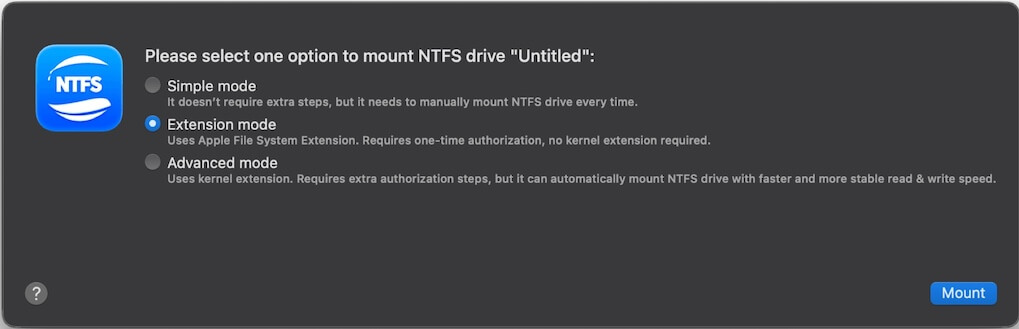
After installing iBoysoft NTFS for Mac, I found the setup much simpler. There was no need to enter macOS Recovery mode or change security policies. I only had to follow the authorization prompts and restart the external-drive management service. Everything then worked smoothly—a welcome improvement for non-technical users.
How Good Is the FSKit User-Space Driver Technology?
Like many users, I initially cared less about terms like "FSKit" and "user-space driver" than simply being able to read and write NTFS drives. However, these underlying technical differences can affect a tool's limitations and risks over time, so it's worth understanding how they work.
Traditional Kernel-Based NTFS Driver vs. FSKit-Based User Space Driver
| Traditional kernel-based NTFS driver | FSKit-based user-space NTFS driver | |
| Implementation | Uses a kernel extension (kext) | Uses Apple's FSKit framework |
| Runtime environment | Kernel space | User space |
| System integration | Integrates directly with the macOS kernel | Communicates with macOS through FSKit |
| Failure isolation | Driver failures may affect kernel stability and the entire operating system | Better isolation from the kernel; limits the impact to the app and the mount point rather than the entire system |
| Security model | Requires kernel-level privileges | The user-space security model |
| macOS compatibility | May require adjustments after macOS updates | Reduces compatibility issues associated with kernel extensions |
| Installation requirements | Requires kernel extension approval, security configuration, and a Mac restart | Depending on the NTFS for Mac software. For iBoysoft NTFS for Mac, no kernel extension or a Mac restart is required |
The Drawbacks of the Traditional Kernel-Based NTFS Drivers
- Potential security risks
- macOS update compatibility issues
- Growing limitations on Apple Silicon Macs
Before FSKit, third-party file system drivers generally relied on kernel extensions (kexts). With extensive privileges, kexts can access low-level system resources, interact directly with hardware, and operate beyond many security restrictions. Although macOS allows third-party kexts, loading them requires users to reduce or disable SIP and explicitly approve the extensions during startup.
This creates a security concern because SIP protects system directories and processes from unauthorized changes. Weakening it just to use an NTFS driver is like leaving a small gap in your front door: it may cause no immediate problems, but could provide malware with another entry point if your Mac is compromised.
Kext compatibility is another major issue. macOS kernel interfaces change frequently, and annual system releases often leave developers little time to update their drivers. I experienced the recurring cycle of a new macOS release breaking driver compatibility, followed by an urgent vendor update, even during the Intel era. Apple Silicon has made the situation more challenging, and Apple has indicated that it plans to phase out kexts over time.
How FSKit User-Space Drivers Work
FSKit user-space drivers follow a different approach. In short, file system logic runs in a separate user-space process, which communicates with the system kernel through interfaces provided by FSKit. Instead of the kernel directly loading third-party file system code, the FSKit framework handles the dispatching of file system requests.
Think of it this way: the traditional kext is like a plumber working inside your house, where a mistake could affect the entire building. With FSKit, the plumber works from a management office and remotely controls the equipment. If something goes wrong, it is more likely to affect only the individual house's water supply rather than the whole building.
This design helps contain driver crashes and gives macOS centralized control over permissions. For example, access to specific storage devices and mount points is restricted, preventing third-party drivers from exceeding those boundaries. It also allows developers to debug drivers using tools similar to those for ordinary apps, potentially speeding up bug diagnosis and fixes.
What Does the FSKit User-Space Driver Mean for Ordinary Users
From an ordinary user's perspective, there are three main benefits:
Easier installation
No need to understand SIP or enter macOS Recovery mode and change settings. The iBoysoft NTFS for Mac installation process is much simpler. I tested it on an M4 Mac mini running macOS 15 without changing any low-level settings, and the process was smooth.
Fewer macOS update concerns
Since the driver runs in user space, it can be updated alongside app-level components, reducing compatibility risks compared with kexts. Issues may still arise with new macOS releases, but users should be less likely to choose between updating macOS and keeping NTFS read-write access.
Unchanged security settings
SIP remains enabled, and startup security policies remain. This preserves the Mac's security protections, which is especially important for work computers and users handling sensitive files. After all, you shouldn't have to weaken your entire system's security just to write to an NTFS drive.
My Real-World Experience on iBoysoft NTFS for Mac's Speed and Stability
Real-world performance matters more than technical explanation. I tested iBoysoft NTFS for Mac through multiple rounds of routine read/write operations, large-file and small-file transfers, and extended mounting sessions. Here are the test procedures and results.
My Test Environment and Methodology
| Computer Device | Hardware | Operating System |
| Mac mini M4 | 16 GB RAM | macOS 15.2 |
| MacBook Pro (2019) | Intel | macOS 14.5 |
| Custom-built desktop | - | Windows 11 |
| Storage Device | Capacity | Type | File System |
| Samsung T7 | 500 GB | Portable SSD | NTFS |
| Seagate | 1 TB | 2.5-inch portable HDD | NTFS |
| USB flash drive | 32 GB | USB flash drive | NTFS (converted from FAT32) |
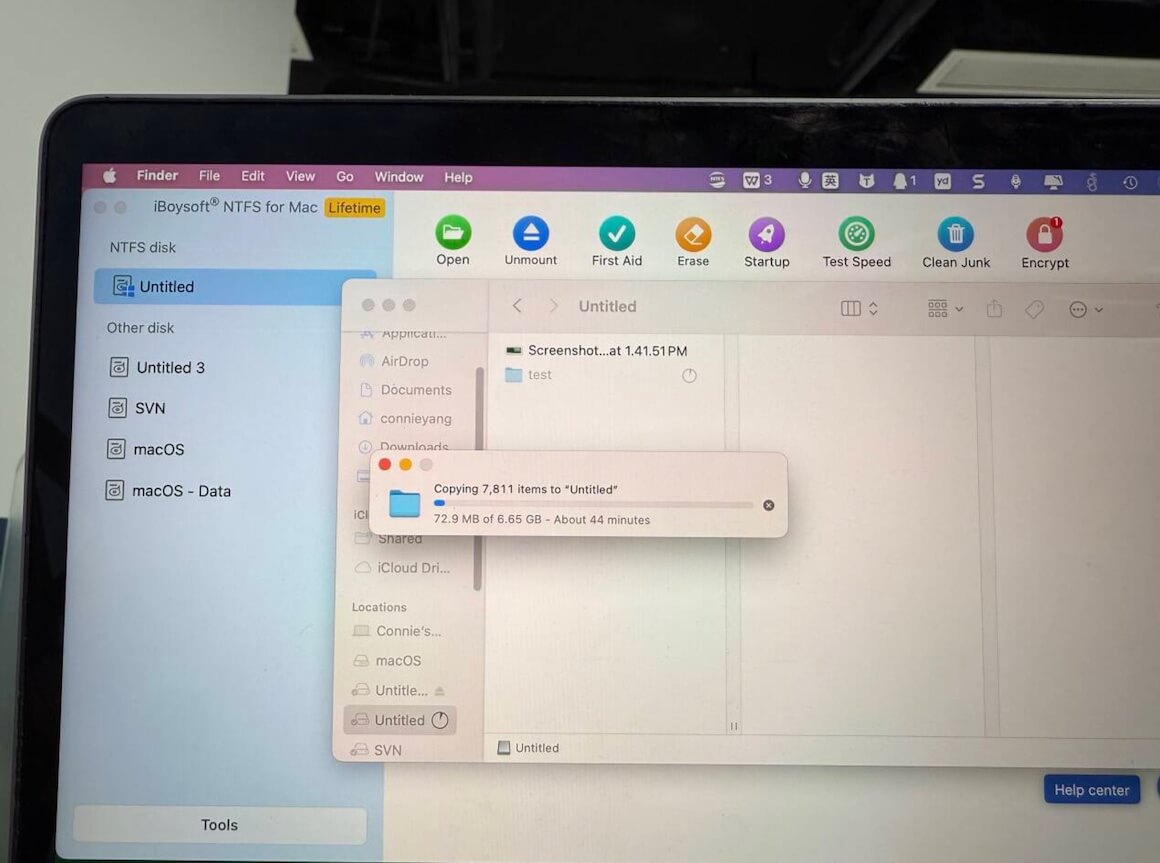
I focused on everyday usage scenarios rather than strict experimental controls. The tests included copying files from the Mac to an NTFS drive, copying files from an NTFS drive to the Mac, and performing copy operations within the same NTFS drive.
The test files included a single 40 GB movie file, a 10 GB photo folder containing approximately 8,000 small files, and a mixture of files from software development projects.
Test Results in Reading, Writing, and Mixed Read/Write Operations
Here is the main takeaway: iBoysoft NTFS for Mac's read/write speeds were broadly comparable to those of the kernel-driver solution I had previously used, with no obvious performance loss. The specific results were as follows.
On the Samsung T7 portable SSD
Write speeds remained between 250 MB/s and 300 MB/s, while read speeds were around 350 MB/s. These figures are lower than the T7's peak performance in Windows, but considering that NTFS is not natively supported for writing on macOS and that the file system translation layer introduces overhead, the results are quite respectable.
On the Seagate 2.5-inch portable HDD
The physical limitations of a mechanical drive are unavoidable, and even in Windows, its NTFS write speed was only slightly above 100 MB/s. With iBoysoft NTFS for Mac on the Mac, write speeds remained around 90 MB/s, while read speeds were approximately 110 MB/s. There was no particularly dramatic speed drop-off, and performance did not drop during large-file transfers.
On the USB flash drive
The USB flash drive was the most interesting case, as it had been converted from FAT32 to NTFS. Small-file transfers were already slow on this type of storage, and results were average: large-file writes reached 30 MB/s, while small-file speeds fell to single digits. The flash memory itself was the bottleneck, not the software. Overall, I noticed no significant additional slowdown from the driver.
What interested me most:
Writing a 40 GB file to the Samsung T7 took about 3.5 minutes, with a steady transfer rate. Unlike the older driver, which sometimes caused several-second freezes with no progress, iBoysoft NTFS for Mac completed the transfer without interruption.
Test Results in Large File and Fragmented Storage Performance and Mounting Check
Large file performance
Many people use NTFS because they need to store individual files larger than 4 GB, which FAT32 cannot accommodate. I specifically tested individual 40 GB and 60 GB video files, exporting them from the Mac's internal drive to the Samsung SSD and the Seagate HDD, then copying them back to the Mac. All transfers completed successfully.
Fragmented storage performance
Fragmentation is another scenario that can expose driver problems. NTFS volumes can become fragmented over time, especially my HDD, which has held several years' worth of media files scattered across the disk. iBoysoft NTFS for Mac responded reasonably well when reading files from this drive. Opening folders and previewing thumbnails did not involve any noticeable delays.
Mounting verification
I also discovered that iBoysoft NTFS for Mac has its own mount-checking logic for NTFS volumes following an unexpected power loss. I deliberately simulated a forced disconnection, and after reconnecting the drive, the software detected a file system inconsistency, alerted me, and initiated repair.
Although Windows chkdsk was still required for a thorough fix, it detected the issue promptly and blocked further writes to help prevent secondary damage. This is a useful safeguard, as kernel-based NTFS tools often mounted such drives without warning users of their abnormal state.
Test Results in Stability Issues Encountered Over a Month
I have been using iBoysoft NTFS for Mac for around a month, reading from and writing to external NTFS drives almost every day. During that period, I encountered two minor issues.
Case 1. After upgrading to iBoysoft NTFS for Mac on an older Intel MacBook Pro
A newly mounted drive showed an incorrect capacity, but restarting the app fixed it. I suspect the mount service may have malfunctioned after system sleep, though I never experienced this on my M4 Mac.
Case 2. After the Samsung T7 SSD woke from extended sleep
An occasional "Reauthorize connection" prompt required me to reconnect the data cable. This appeared more related to the T7's power management and sleep behavior than the iBoysoft driver, as similar wake-up issues can also occur on Windows.
Overall, my experience over the past month suggests that iBoysoft NTFS for Mac delivers the level of stability expected of a production release. At least in my testing, I did not encounter serious problems such as data loss, file corruption caused by writing, or a crash of the mount point.
Common Pitfalls in iBoysoft NTFS for Mac Installation, Upgrades, and Permission Settings
Even with iBoysoft NTFS for Mac's simpler installation, macOS may still block the software until you grant the required permissions. Here are some potential pitfalls and precautions based on my experience.
Authorize the Software on Apple Silicon and T2 Macs
Although FSKit does not require changing SIP, Apple's startup security policies still require authorization. On Apple Silicon Macs (M1–M5) and Intel Macs with a T2 chip, you may see a "System Extension Blocked" message. To resolve it, go to System Settings → Privacy & Security, scroll down, click Allow next to the system extension option, and restart your Mac.
However, clicking Allow may not be enough. On my Intel MacBook Pro, the driver still failed to load until I used Startup Security Utility to permit third-party system extensions. This extra step on T2-equipped Macs can be confusing, so follow the official instructions carefully.
I did not encounter this issue when installing iBoysoft NTFS for Mac on my M4 Mac mini, possibly because the authorization process is smoother on newer systems.
Adjust Privacy Permissions in System Settings
"Full disk access" permission for external storage
iBoysoft NTFS for Mac requires macOS privacy permissions to access external storage. After installation, grant iBoysoft NTFS for Mac access to removable volumes under System Settings → Privacy & Security → Files and Folders or Full Disk Access. Without Full Disk Access, drives may mount successfully but certain operations—especially those involving protected folders—may fail with "Permission denied."
Upgrading can reset permissions
macOS may treat the software's upgrade as a new app, so permissions granted to previous versions may not carry over. I experienced this after upgrading: external drives remained accessible, but access to Desktop and Documents files failed until I granted the permissions again.
Finder integration also requires authorization
Under System Settings → Privacy & Security → File Providers, make sure the extension is enabled. If necessary, enable it and relaunch Finder by holding Option, right-clicking its icon, and selecting Relaunch.
Removing Leftover Drivers from Older Versions
If you're upgrading from an older version that used kernel drivers, check for leftover components. Although iBoysoft NTFS for Mac V9.0 no longer loads the old kernel extensions, they may still slow startup or trigger compatibility warnings after system updates.
Before installing the latest V9.0, open the old app, disable its login and startup items, and use its official uninstaller to remove the kernel extensions. If startup becomes slower afterward, check System Settings → General → Login Items & Extensions for remaining components and remove any associated entries if needed.
Don't simply delete the old app's folder. Kernel extensions may be stored outside the app bundle, such as in /Library/Extensions or an Extensions directory on the system volume. Manual deletion can cause problems, so always use the software's uninstaller.
My Recommendations
- Back up before switching: Different drivers may handle volume mounting differently. If iBoysoft NTFS for Mac detects file system inconsistencies, run chkdsk on Windows before attempting repairs, especially if you previously used tools like Mounty.
- Optimize settings for your workload: Enable Write Cache for frequent media-drive transfers, especially on portable SSDs. Keep at least 10% free space on NTFS volumes used for large disk images or virtual machine files.
- Choose the right USB file system: Use iBoysoft NTFS for Mac to access existing NTFS Windows installation drives, but create bootable NTFS media in Windows with UltraISO rather than on Mac. For ordinary cross-platform transfers, exFAT may be more suitable than NTFS; FAT32 has a 4 GB per-file limit.
Verdict
For users who regularly work with large NTFS drives across Windows and Mac, iBoysoft NTFS for Mac's FSKit-based approach is currently my preferred solution. After more than a month of testing, it has met my expectations for a production release in terms of installation, reliability, speed, and system stability.
Don't store all important files exclusively on NTFS drives, even if they work reliably on Mac. Maintain cross-platform backups, preferably on exFAT for broad compatibility. APFS and NTFS are both options for archival storage, depending on your workflow. Always keep multiple copies of important data.