In view of our survey and practice, "free Mac data recovery software" does NOT always mean fully free recovery. It refers to tools that can scan lost data and recover a limited amount of data for free, or those that are completely free, command-line-based utilities.
Before choosing any one among them, focus on our review to learn whether you need Mac data recovery software and, if you need, how to select the best one based on their details and our tested results.
Who this review is for (and who is not)
Before trying any of the tools listed in this review, it's crucial to first determine whether free Mac data recovery software actually fits your specific data loss situation.
✅ This review is for these data loss circumstances:
- You accidentally deleted files (documents, photos, videos, archives, etc.) on a Mac.
- Your files are missing or inaccessible, and the Mac still boots normally.
- You don't have a recent backup (such as Time Machine or iCloud) for data recovery.
- You want to try a free data recovery solution first before paying.
- You prefer to preview files before restoring them.
❌ This review is not for these data loss situations:
- The hard drive has physical damage (clicking sounds, not detected by Mac in Disk Utility at all).
- The SSD has a chip-level failure or encrypted controller damage.
- You have logic board–level data recovery needs.
- These cases usually require professional offline data recovery services, not software.
📌 Suggestion:
If this review is suitable for your data loss case, move on to learn about each of the free Mac data recovery programs to analyze below. If it doesn't focus on your situation, you can make an appointment at the Genius Bar.
Try these free Mac recovery methods first
Before trying any Mac data recovery tool, there are some general checks and tricks you can do to get back the lost files.
Check the Trash folder
Prerequisites:
- Recently deleted files
- Drag and drop files to the Trash
- Right-click the file and select Move to Trash
- Files suddenly missing
Success rate:
- Very high if the Trash is not emptied
- Impossible if the files in the Trash are over 30 days, and you've enabled the Trashed to be emptied after 30 days
How to recover:
- Open the Trash from the Dock.
- Browse the files there.
- Right-click the target files and click "Put Back."
Restore files using Time Machine backup
Prerequisites:
Your Time Machine was enabled before data loss
Success rate:
High if you have recent Time Machine backups
How to recover:
- Open the folder where the file was originally located.
- Click the Time Machine icon in the menu bar.
- Use the timeline on the right or arrows to browse older backups.
- Select the file or folder you want to recover and click "Restore."
Recover files from iCloud
Prerequisites:
- You've signed in to your Mac with your Apple ID
- You've enabled iCloud Drive and Desktop & Documents Folders in iCloud
Success rate:
Low as the condition of the deleted or missing files is synced to iCloud
How to recover:
- Visit iCloud.com.
- Sign in with your Apple ID.
- Click your profile photo > "Account Settings."
- Scroll to click "Advanced" > "Restore Files."
- Select files and click "Restore."
Notes: If these ways can't help you restore the lost data, you should use data recovery software. Move on to check the free software we summarized for you.
Quick look & compare: the tools we picked
Here are the typical free data recovery software for Mac. We compare them with their limits, supported file systems, and best use cases based on our tests.
| Mac Data Recovery Software | Free Recovery Limit | File System Support | Best Use Case |
| iBoysoft Data Recovery for Mac (Free Edition) | 1 GB data recovery (Any type of files) Unlimited preview scanning results | Encrypted APFS, APFS, HFS+, exFAT, FAT32 | 1. Fast Data recovery for all data loss scenarios 2. User-friendly data recovery (even for tech-newbies) |
| PhotoRec | Unlimited data recovery | FAT, exFAT, HFS+ | Photos & videos recovery (with no filenames) |
| UFS Explorer (Free Edition) | 256 KB data recovery Preview results | APFS, HFS+, NTFS | Ordinary data recovery |
| Wondershare Recoverit (Free Tier) | 100 MB data recovery Preview results | APFS, HFS+, exFAT | Quick small file recovery |
| Disk Drill (Free Version) | 500MB data recovery Preview scanning results | APFS, HFS+, exFAT | User-friendly data recovery |
How we tested the software
To ensure fairness, credibility, and accuracy, all tools were tested under the same conditions.
Here are the details of our tests:
| Test environment | Mac models: MacBook Pro (2020, Intel, 14-inch & MacBook Pro (2025, M5, 14-inch) macOS versions: macOS Tahoe, macOS Catalina Storage devices: Internal SSD (APFS), external USB drive (HFS+) |
| Test file types | Documents (PDF, DOCX, XLSX) Photos (JPG, PNG, HEIC) Videos (MP4, MOV) Compressed files (ZIP) |
| Data loss situations | Delete files and empty the Trash Files missing from Mac suddenly External drive becomes inaccessible, unreadable (corrupted) |
| Evaluation scope | Free recovery limit Scan capability (quick scan vs deep scan) File preview support Recovery success rate Data recovery time-cost Operability |
⚠️ Special notes:
Although some of the recommendations have both free and paid editions, our review always focuses on what each tool lets you do for free, with warnings on paid features for context. We don't push paid upgrades or try to mislead you into buying anything.
We've also highlighted the differences between the free editions of these software and their paid versions below, so you don't accidentally fall into an upgrade paywall.
Free editions:
- Free scanning
- Free preview
- Limited size of data recovery
Paid editions:
- Removes the file-size restrictions so you can actually recover all files
- Full support for complex recovery tasks
- Software updates
- Technical support
Detailed reviews of our top picks
Here's a detailed overview of the 5 best data recovery software for Mac for free based on our tests and experience.
We mainly focus on their free limitations, along with key features, supported file systems, pros and cons, and suitable cases, helping you identify which one is best for you.
iBoysoft Data Recovery for Mac (Free Edition) - best overall free Mac data recovery
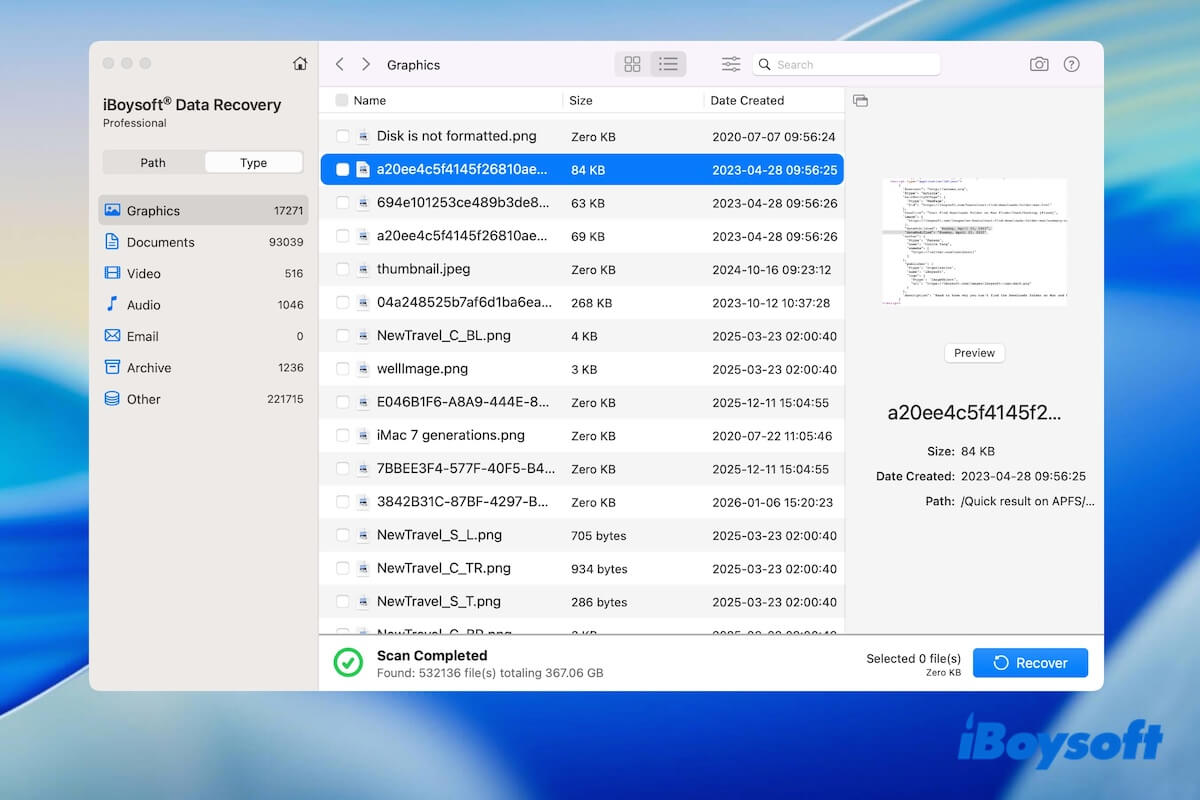
iBoysoft Data Recovery for Mac is a powerful tool that can recover lost data from almost any scenario, such as deleted or missing files, corrupted or unreadable drives, crashed or unbootable Macs, and more.
Download this free tool to recover your files now!
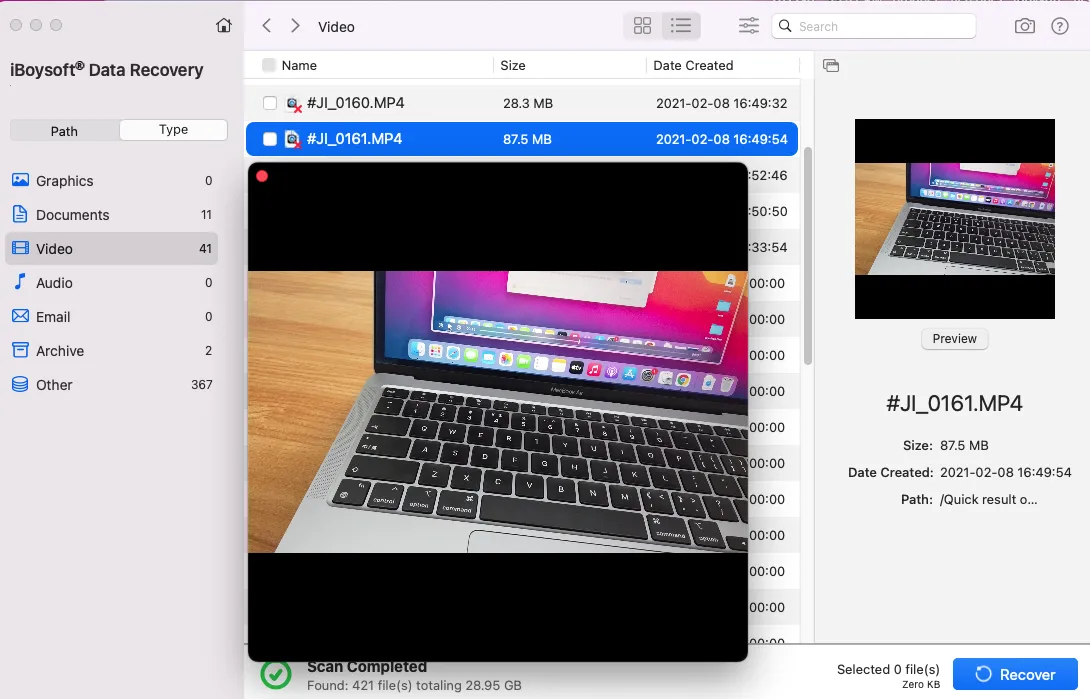
It also allows you to perform a Word document recovery on Mac.
Free edition limits
- Recover up to 1GB of data for free
- Unlimited full file preview before recovery
Supported file systems
APFS, APFS (encrypted), HFS+, exFAT, FAT32
✅ Pros
- Clean, easy-to-use, and macOS-native interface
- High data recovery rate
- Fast data recovery speed
- Supports 1000+ file formats
- Has quick and deep scans
- Scan progress can be resumed after interruption
- Support macOS 26 Tahoe - High Sierra
- Support both Intel-based (including T2) and Apple Silicon Mac
- Supports diverse types of files, such as office files, images, videos, audios, archives, emails, and more
❌ Cons
- Pay to unlock unlimited data recovery
- Pay to recover data from (encrypted) APFS drives
- Pay to recover files from an unbootable Mac in macOS Recovery Mode
⭐ Best for
- Beginners who need a visual, beginner-friendly recovery tool
- Mac users who only need to recover a few files for free
- Mac users who want to preview files before recovery
- Mac users who need to recover data on T2-secured or Apple Silicon Macs (M1- M5)
- Mac users who want to try a professional data recovery tool before paying
Want to share this tool with your followers? Just click.
PhotoRec – best for unlimited photo & video recovery
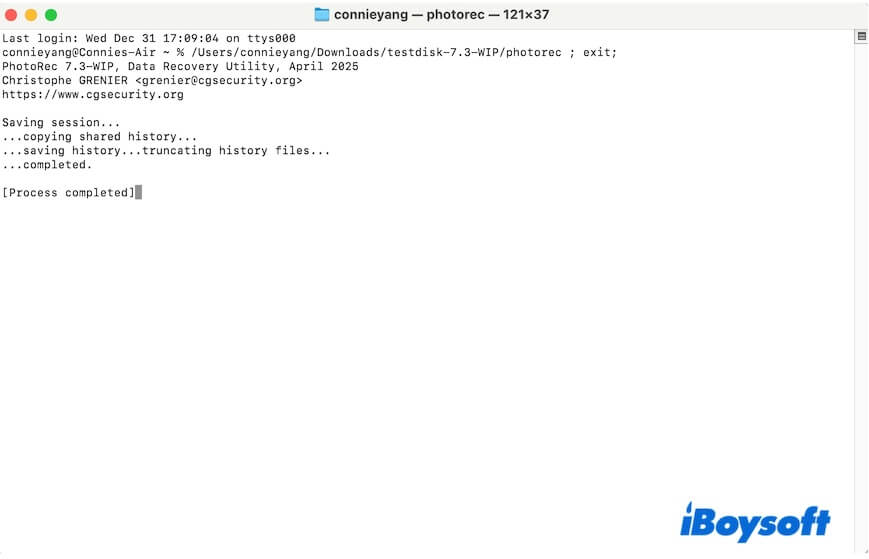
PhotoRec is an open-source recovery software known for its unlimited free file recovery from corrupted or reformatted hard disks, but it sacrifices usability as it is a command-line-based tool without a graphical interface.
Free edition limits
- 100% free data recovery software for Mac
- No recovery size limit
- No file preview
✅ Pros
- Completely free to use
- Video, documents, pictures, and archives recovery(if you need a professional document recovery software, please follow: Best Mac Document Recovery Software)
- Data recovery from corrupted or reformatted drives and memory cards
❌ Cons
- Must run it via Terminal
- Not user-friendly
- Recovered files without original names and directory structure
- Can't preview files before recovery
- Time-consuming recovery process
- Limited usability on modern Macs, especially T2 or Apple Silicon Macs
⭐ Best for
- Users who are familiar with command-line operation
- Users who don't want to pay for a data recovery tool
- Users focused on photo or video recovery
- Tech-savvy users
UFS Explorer Standard Recovery (Free Edition) - suitable for common data recovery
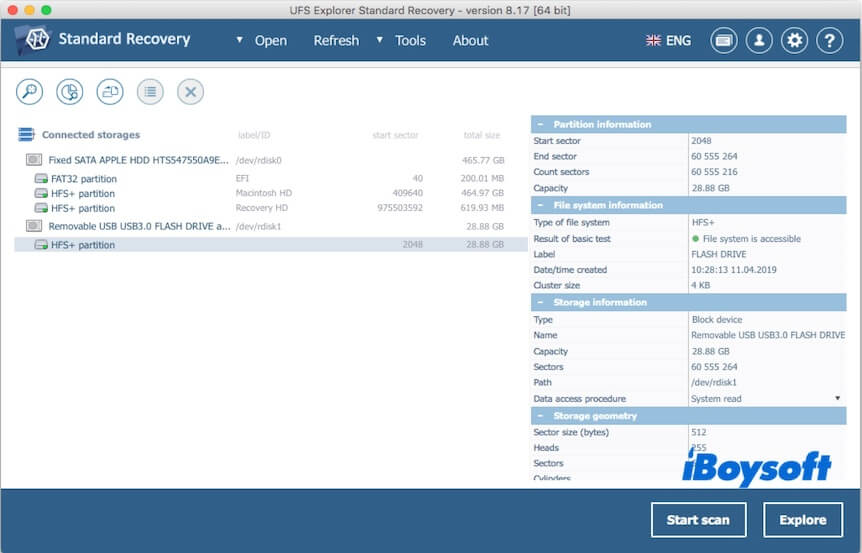
UFS Explorer Standard Recovery is a cross-platform recovery solution with a simple interface. It combines wide compatibility, flexible scanning options, and advanced imaging tools to recover lost data from a variety of storage types and file systems.
Free edition limits
- Only up to 256 KB data recovery for free
- Free preview before recovery
✅ Pros
- Simple interface
- File preview supported
- Repair logical file system damage
- Supports macOS 11 Big Sur and later (but has a separate build available for OS X 10.9 Mavericks through macOS 10.15 Catalina)
❌ Cons
- Confusing scan results
- Need to pay to unlock advanced features
- The recovery process is relatively slow
- Can't continue the scan from where it left off
⭐ Best for
- Users for general data recovery on Mac
- Users need to recover data from complex storage layouts
Wondershare Recoverit (Free Tier) - ideal for general data recovery
Wondershare Recoverit is a popular consumer tool with a polished UI but a very small free quota. It can help you retrieve lost, deleted, or inaccessible files from a wide range of storage devices and data loss scenarios.
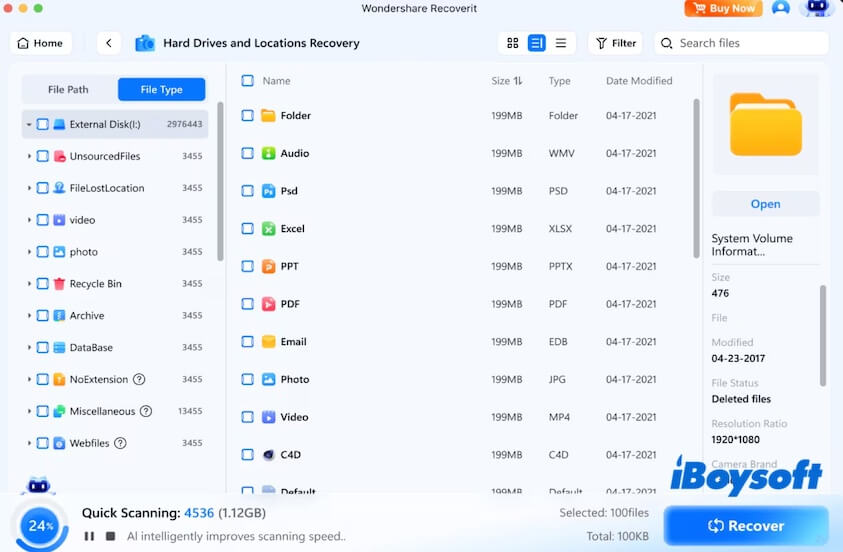
Free version limits
- 100 MB data recovery
- Free preview scanning results
✅ Pros
- Relatively quick data recovery
- High small data recovery rate
- Supports various storage devices
- Ease-to-use
❌ Cons
- The free limit is extremely restrictive
- Inconsistent preview and recovered results
- Pay for advanced features
- Pay for data recovery from a crashed Mac
⭐ Best for
- General data recovery on Mac
- Users who need to recover a few small files quickly
Disk Drill Data Recovery for Mac (Free Version) - best for general data recovery
Disk Drill Data Recovery for Mac is a popular data recovery tool for macOS that helps users restore lost, deleted, or inaccessible files from a wide range of storage devices. It's known for its intuitive interface and powerful scanning capabilities.
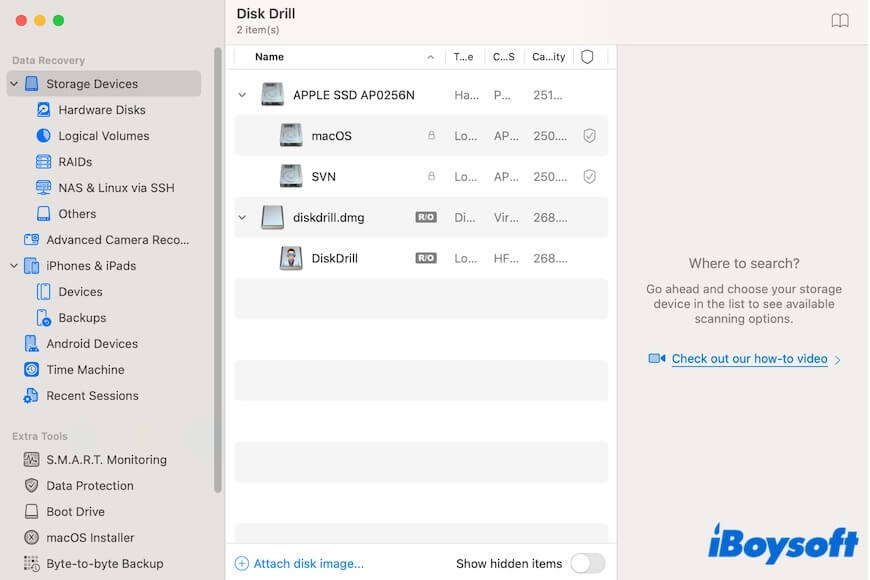
Free version limits
- 500MB free recovery
- Preview scanned results
- Free to use additional disk management tools
✅ Pros
- Free to preview recoverable files
- Supported all common storage devices
- Support APFS, HFS+, exFAT
❌ Cons
- Very small amounts of data are allowed free recovery
- Bundled with many inessential functionalities
- Pay for unlimited data recovery
- Pay for lost partition search
⭐ Best for
- Users who not only need general data recovery but also disk management
- Users who value ease of use over data recovery speed
Which free Mac data recovery tool should you choose
Which free data recovery software for Mac caters to you depends on your scenario and the field in which the tool is good.
Scenario-based recommendations:
| Data loss situation | Best free data recovery tool for Mac |
| - File are deleted and the Trash is emptied - Lost huge amount of files on corrupted, inaccessible, reformatted external drives - Mac is unbootable or crashed and you don't want to rely on a bootable USB drive - Lost files from T2-secured or Apple Silicon Mac | iBoysoft Data Recovery for Mac |
| - Photos and videos are deleted or missing - External drive is corrupted | PhotoRec |
| - Just lost small files - Files are deleted or missing - Mac is crashed and you have a bootable disk - The external drive is corrupted | Wondershare Recoverit |
| - Some partitions on the drive are lost - Files are deleted or missing - The external drive is corrupted | Disk Drill Data Recovery for Mac |
Share this review to help more people find what is best for them.
Free methods vs free software - what's the difference
In general, compared with free methods, free Mac data recovery software gives us a higher data recovery success rate, shortens the recovery time, and simplifies the operation.
| Free methods | Free Mac data recovery software | |
| Data recovery success rate | Low (or High but requires prerequisites) | High (as long as the data isn't overwritten) |
| Data recovery speed | Relatively slow | Quick |
| Ease of operation | Relatively hard, as cumbersome steps required | Easy, as automatically search for lost data and recover with simple clicks |
Final verdict
The best free way to recover deleted files on a Mac depends on whether you have a backup and whether the files are permanently deleted.
If the files were recently deleted, checking the Trash or restoring from Time Machine is the safest and fastest option.
If it fails, free data recovery software is your best choice. It can scan the disk and recover limited amounts of data. However, free tools often have file size or feature restrictions, so success is not guaranteed.
To maximize recovery chances, stop using the affected drive and try to upgrade the free versions of data recovery to explore more advanced data recovery functions.
FAQs about free data recovery software for Mac
- QWhat does free Mac data recovery software really mean?
-
A
Free Mac data recovery tools usually let you scan your drive and preview recoverable files for free, but they often limit the amount of data you can recover and lock key features behind a paid upgrade.
- QCan free Mac recovery tools recover all my lost files?
-
A
It depends on the tool you use.
Open-source tools like PhotoRec and TestDisk have no recovery limits and can restore files as long as the data hasn’t been overwritten.
In contrast, most free versions of commercial data recovery tools let you scan and preview recoverable files but limit how much data you can recover unless you upgrade to a paid plan.