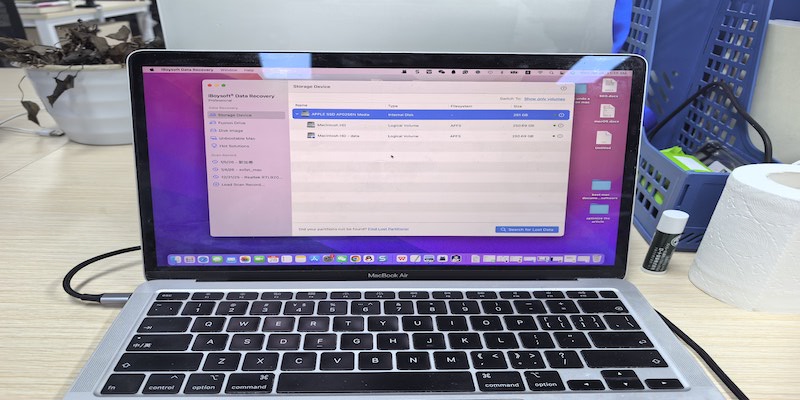
Losing important documents on a Mac can happen to anyone, whether due to accidental deletion, emptied Trash, unexpected missing, system crashes, or other reasons. With many recovery tools available, choosing the right one can be overwhelming.
This article picks up the 5 best Mac document recovery software based on our tests, including iBoysoft Data Recovery for Mac, R-Studio for Mac, Disk Drill for Mac, Stellar Data Recovery for Mac, and EaseUS Data Recovery Wizard for Mac. Browse and compare them to identify the most suitable option for you.
Important warnings before recovering documents on Mac
Before choosing or using any Mac document recovery software, it is important to understand its practical limitations.
Even the best recovery tools are not guaranteed to work in every situation, and certain actions taken after data loss can significantly reduce the chance of successful document recovery.
❌ SSD + TRIM may permanently erase documents
Most Macs released since 2016 use SSD storage. When documents are permanently deleted, such as after emptying the Trash, macOS automatically issues TRIM commands in the background.
TRIM tells the SSD which blocks are no longer in use, allowing them to be erased by the drive. As a result, recovering deleted files from a TRIM-enabled SSD on a Mac is usually impossible.
⚠️ Stop using the affected disk immediately
On non-SSD drives, if TRIM has not occurred, a deleted document may still exist on the disk, but it can be overwritten at any time by normal disk activity, such as saving files, installing apps, or downloading updates.
Once the data is overwritten, recovery is no longer possible, which is why stopping disk usage immediately is critical.
⚠️ Never install recovery software on the same drive
Installing recovery software on the affected disk can overwrite recoverable data, even with a small installation footprint.
To reduce the risk of permanent data loss, install recovery software on a separate volume of the startup disk.
❌ Physically damaged disks are not supported
Document recovery software relies on the disk being detectable by the system. If the disk has physical issues—such as hardware failure or unreadable sectors—the data cannot be accessed, making software-based recovery ineffective. You should take your damaged drive to a recovery lab.
⚠️ Document recovery software can recover files, not repair corrupted documents
Recovery software can restore deleted documents, but it cannot fix corrupted content. A file that was damaged before deletion will remain unusable after recovery—for example, a Word document that couldn't open will still not be accessible.
Quick comparison table: top Mac document recovery tools
The table below compares leading Mac document recovery tools by ideal use cases, key features, limitations, recovery performance, system compatibility, and free options to help you choose the right solution.
| Software | Best for | Document recovery strengths | Free recovery | Notes |
| iBoysoft Data Recovery for Mac | fast recovery for all document loss cases | Strong recovery for Word, Excel, PDF and other documents with stable structure | 1GB free | Supports latest macOS (including macOS 26 Tahoe) |
| R-Studio Data Recovery for Mac | Advanced users & complex cases | Best at preserving file names, paths, and timestamps | 256KB free | Steep learning curve |
| Stellar Data Recovery for Mac | Entry-level recovery | Simple document recovery after system crashes | 1GB free | Does not support latest macOS versions |
| Disk Drill for Mac | General-purpose recovery | Reliable document preview and broad format support | 500MB free | Rich free tools, but no free data recovery |
| EaseUS Data Recovery Wizard for Mac | Common office documents | Documents clearly categorized; good for recent deletions | 500MB free | Deep scan is slow on large drives |
How I picked up the best Mac document recovery software
To identify the best tools, I focused on factors that directly affect document recovery on a Mac, including real-world performance and usability with common file types such as Word, PDF, Excel, etc.
All tests were conducted on macOS 13–26 using a range of Intel and Apple Silicon Macs, including MacBook Pro (16-inch, 2019, Intel with T2 chip), MacBook Air (Retina, 13-inch, 2020, Intel), and MacBook Air (15-inch, 2025, Apple Silicon). Files were intentionally deleted to simulate real data loss scenarios, and recovery rates were measured across multiple trials to ensure accuracy.
Document Recovery Success Rate
High recovery success rates are a key reason these five tools are considered the best Mac document recovery software. Based on testing:
- iBoysoft Data Recovery for Mac: ~98% recovery for Word, PDF, Excel files, etc., leading overall performance.
- R-Studio Data Recovery for Mac: 95–97%, strong on complex or formatted volumes.
- Stellar for Mac: 91–93%, reliable for typical documents and casual users.
- Disk Drill for Mac: 96–97%, performs well on APFS and HFS+ drives.
- EaseUS Data Recovery Wizard for Mac: 90–94%, dependable for everyday documents but slightly lower on large or fragmented files.
All five consistently deliver high recovery rates, outperforming most other Mac software, which often struggles with data recovery from emptied Trash, formatted drives, or SSDs with APFS.
Supported Document Loss Scenarios (deleted, formatted, emptied Trash)
All five tools support common document loss scenarios, including accidental deletion, emptied Trash, disk formatting, and system crashes. Their broad scenario coverage is a key reason they rank among the best Mac document recovery software.
File Integrity After Recovery
Recovered documents should open correctly and preserve their original content. Based on testing, all five tools consistently maintained file integrity, successfully restoring Word, PDF, Excel, and other common document types without content loss or formatting issues.
This helps explain why they are considered the best Mac document recovery software.
Compatibility (APFS, SSD, Apple Silicon Macs)
Compatibility with modern Mac systems is essential for document recovery.
All five tools fully support APFS (the default file system used by modern macOS versions), SSD storage (the standard drive type in most recent Macs), and Apple Silicon Macs, such as M1 and M2 models, ensuring stable performance on both older Intel-based Macs and newer devices.
This broad compatibility is a key reason these tools outperform many older or less-updated recovery software and qualify as the best Mac document recovery software.
Preview Before Recovery
Previewing documents before recovery allows users to review file content in advance and confirm whether a document is complete and worth restoring.
Across the five best Mac document recovery software reviewed in this article, I was able to preview documents after the scan was completed but before initiating the actual recovery, which helped me verify file content and avoid restoring incomplete or unnecessary files.
Usability
A clear interface, logical layout, and straightforward workflow are key when choosing the best Mac document recovery software, especially for non-technical users.
iBoysoft Data Recovery for Mac: presents devices and file systems in a simple, grouped layout. The interface focuses on essential information and allows users to start document recovery with minimal steps. 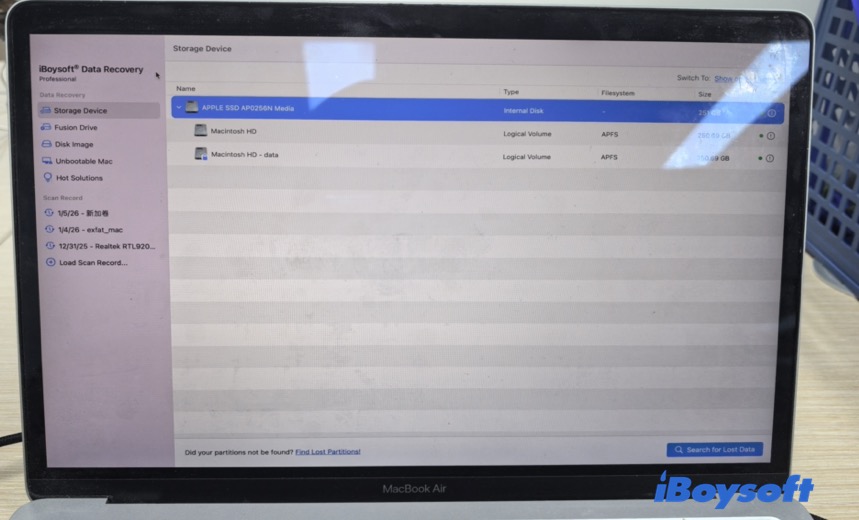
R - Studio for Mac: dense, technical interface with tables and tabs; strong control for advanced users but complex for beginners.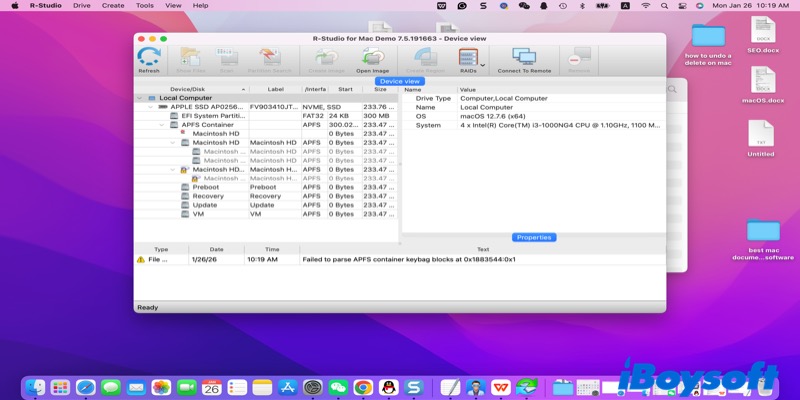
Stellar Data Recovery for Mac: clean, checkbox-based workflow with clearly marked steps for quick recovery.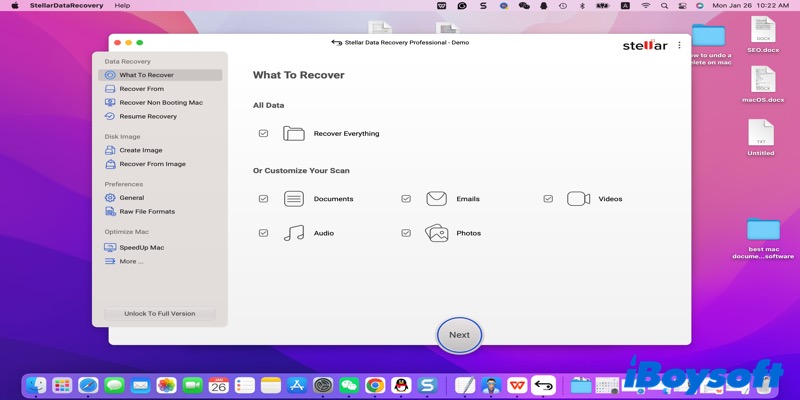
Disk Drill for Mac: clean list view showing device type, file system, and capacity; some advanced features are less visible.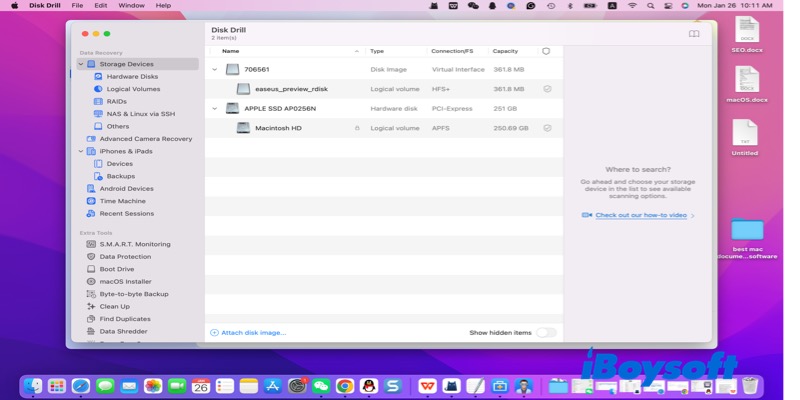
EaseUS Data Recovery Wizard for Mac: well-structured interface with clear sections, progress indicators, and step-by-step guidance, ideal for non-technical users.
i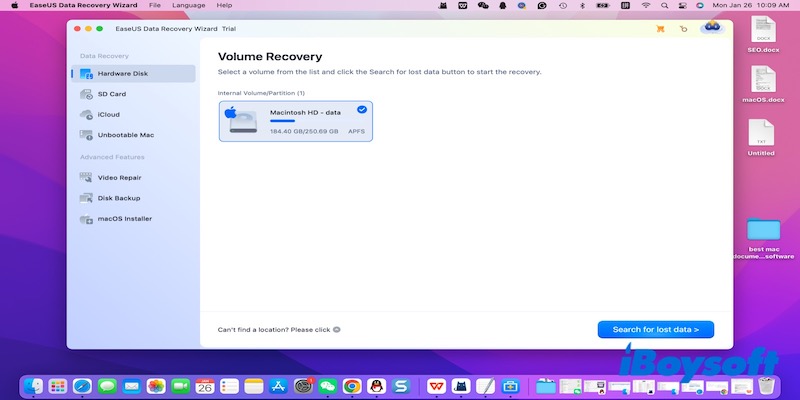
These intuitive interfaces help make the recovery process faster and easier, adding to why these tools are considered the best Mac document recovery software.
Best Mac Document Recovery Software – detailed reviews on each software
While the comparison table provides a quick overview, it doesn't show how each tool performs in real document recovery scenarios. Below is a closer look at each Mac document recovery software, focusing on its document recovery experience, strengths, and limitations to help you decide which one suits your needs best.
iBoysoft Data Recovery for Mac
Overview
iBoysoft Data Recovery for Mac is a professional, document-focused recovery tool designed for modern macOS systems. It specializes in recovering deleted documents from emptied Trash and retrieving lost or inaccessible files from corrupted, unmountable, or formatted internal and external drives.
The software supports a wide range of file systems, making it a reliable solution for restoring critical Word, Excel, PDF, TXT, and other document types quickly and safely.
- Pros:
- Strong document recovery support for APFS, HFS+, FAT32, and exFAT file systems
- High recovery success for Word, PDF, Excel, and other common document types
- Real-time preview of the result of scanning to verify document content before recovery
- Supports document recovery from unbootable Macs via macOS Recovery Mode
- Works with internal disks, external drives, USB devices, and disk image (DMG) files
- Clean interface with a straightforward, document-oriented recovery workflow
- Cons:
- The free version allows recovery of up to 1GB only
Best for
Users who want an easy-to-use and reliable solution to recover Word, PDF, Excel, and other documents on modern Macs.
Pricing
The free edition offers free scanning and up to 1GB of free recovery. Paid plans include a $89.95 monthly license and a $99.95 yearly license.
User Experience
While testing iBoysoft Data Recovery for Mac, I accidentally deleted a TXT file I had been working on two weeks ago. I ran a quick scan, and within less than a minute, the file appeared in the results.
I could preview the content directly in the software and immediately saw it was the exact text I needed. Restoring it was straightforward—just a couple of clicks—and the whole process took less than five minutes.
I also noticed the interface was very clean, which made navigating between drives and scan results much easier than I expected.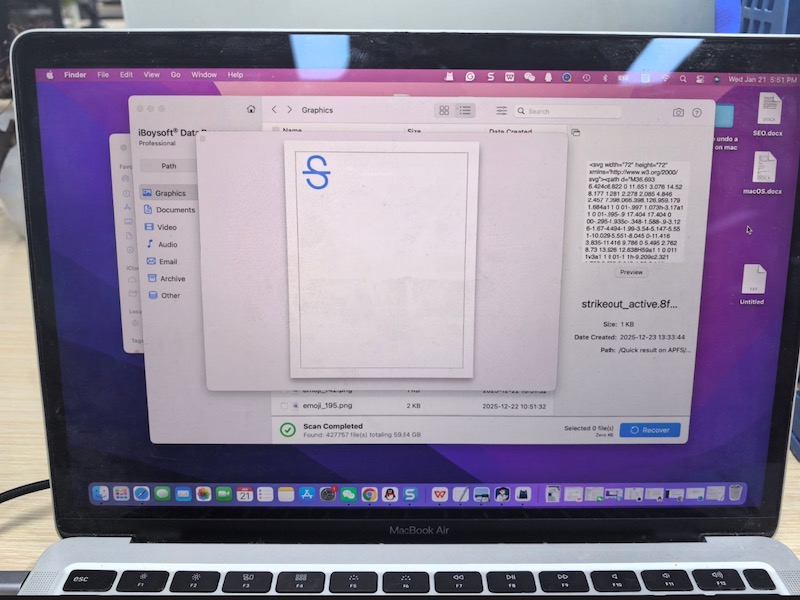
R-Studio for Mac
Overview
R-Studio is a professional-level data recovery tool designed for complex document loss scenarios, such as partition damage or file system corruption.
- Pros:
- Strong file system analysis that preserves original file names, folder structures, and timestamps
- High document integrity when recovering structured files like DOC and PDF
- Cons:
- Interface and settings are highly technical, with a steep learning curve
- Document preview is functional, but not very intuitive for quick checks
Best for
Advanced users, IT professionals, or users dealing with severe data loss, rather than simple accidental deletion.
Pricing
No free recovery version available. A free edition allows scanning and preview only; a paid license is required for file recovery.
User Experience
For R-Studio, I attempted to recover a PDF report deleted from a fragmented drive last month. The software offered multiple scan modes and detailed file system analysis, which gave me confidence that I could locate the file.
However, I had to manually select the partition and file types, which took extra time and felt a little technical. Eventually, the PDF appeared in the results, fully intact.
This level of control is powerful for complex cases, but beginners might find it overwhelming at first.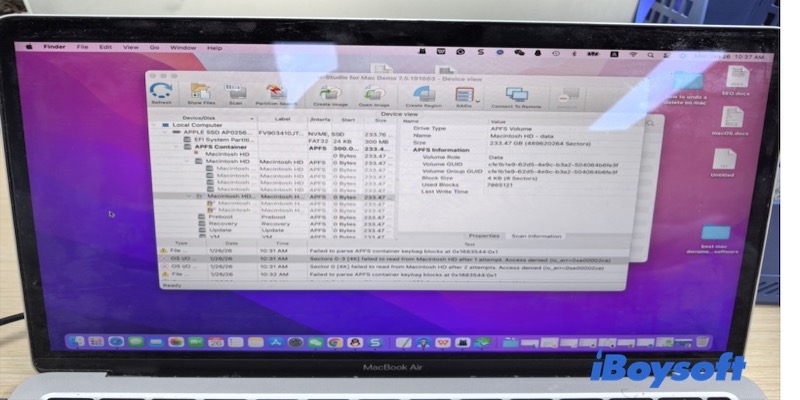
Stellar Data Recovery for Mac
Overview
Stellar Data Recovery for Mac is a beginner-oriented recovery tool that focuses on simple document recovery with minimal configuration.
- Pros:
- Very simple workflow with clear step-by-step guidance
- Quick to start a scan without technical setup
- Cons:
- Fewer advanced scan options limit performance in complex loss scenarios
- Document recovery accuracy is less consistent compared to higher-tier tools
Best for
Users who only need to recover recently deleted documents and prefer a straightforward, no-frills recovery process.
Pricing
No free recovery version available. Scanning and preview are supported, but file recovery requires a paid license.
User Experience
I tried Stellar to recover a PowerPoint presentation that had been deleted from an external drive last week.
The checkbox interface made it very quick to select document types and start scanning.
Within minutes, the presentation appeared in the results, and I could preview most slides.
However, some older slides from the formatted drive weren't fully recoverable, showing that Stellar works best for simple, recent deletions but may struggle with more complex scenarios.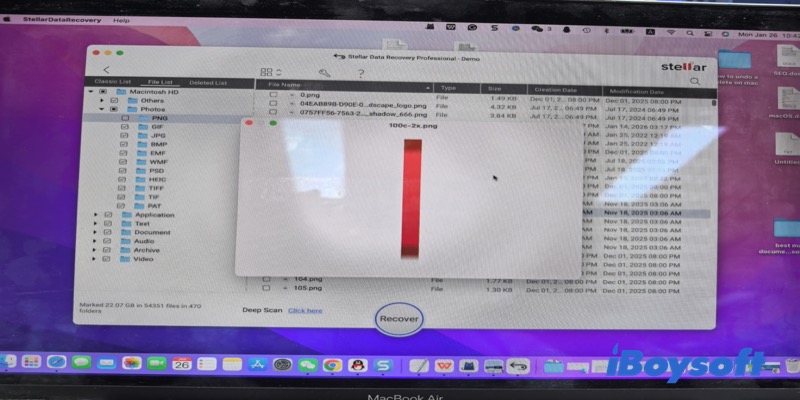
Disk Drill for Mac
Overview
Disk Drill is a well-known data recovery tool that combines document recovery with a wide range of disk management utilities. It supports common Mac file systems and works on both Intel-based and Apple Silicon Macs.
- Pros:
- Clean and modern interface
- Strong scanning capabilities with detailed file previews
- Includes extra tools such as Recovery Vault and disk management features
- Cons:
- The free version only allows data recovery for 1GB
- Paid version required to restore files
Best for
Users who want an all-in-one solution that includes document recovery along with additional disk and storage management tools.
Pricing
Offers free scanning and file preview, but no free recovery. The Pro version costs $89, while the Enterprise version is priced at $499.
User Experience
I tested Disk Drill by trying to recover a Word document I had deleted a few days ago. The software quickly listed the deleted files during the scan, and I could preview the document directly to ensure it was the right one.
Recovery required upgrading to the Pro version, but the process itself was intuitive. I especially liked how Disk Drill displayed storage devices and file systems in a clear list, which made it easy to navigate and choose the files I wanted to restore.
Overall, it felt smooth even for a first-time user.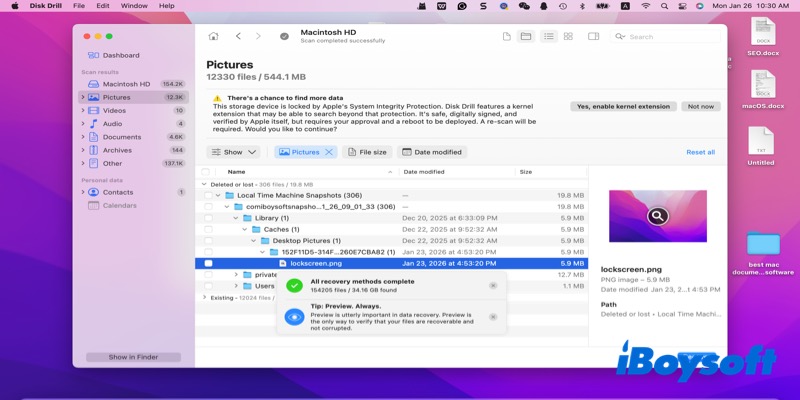
EaseUS Data Recovery Wizard for Mac
Overview
EaseUS is a well-established recovery tool that performs well across a wide range of document loss scenarios, such as accidental deletion or recent data loss.
- Pros:
- Documents are clearly categorized in scan results, making Word, Excel, and PDF files easy to locate
- Stable recovery performance for common office documents
- Cons:
- Deep scans can be noticeably slow on large-capacity disks
- Some recovered text files may have minor formatting or content issues
Best for
Users who need flexible recovery options and are dealing with common document loss situations, rather than complex system damage.
Pricing
Provides free scanning and preview, but file recovery requires a paid plan. Pricing options include monthly, yearly, and lifetime licenses.
User Experience
While using EaseUS, I tried recovering an Excel spreadsheet I had accidentally deleted about ten days ago. The software guided me step by step, and its document category made the file easy to locate.
I noticed that the deep scan took slightly longer than I expected on my 1TB external drive, but I could preview the spreadsheet and verify all the formulas were intact before restoring it.
The workflow was clear, though a bit slower compared to some other tools, but it got the job done reliably.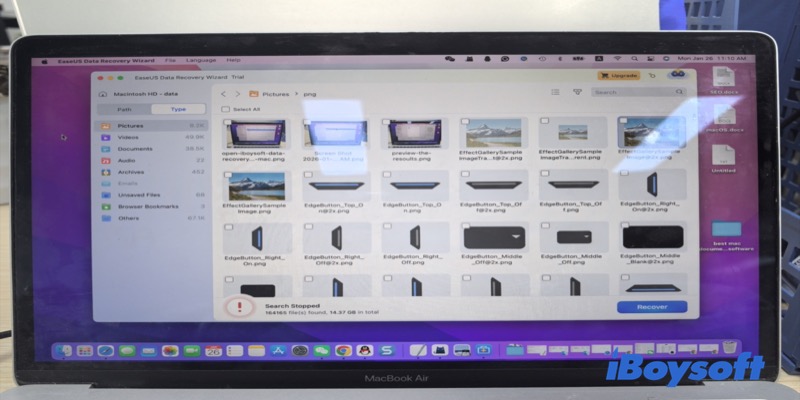
Final verdict
If you are looking for the best Mac document recovery software, iBoysoft Data Recovery for Mac offers the most balanced combination of recovery success rate, modern Mac compatibility, and ease of use.
Disk Drill and EaseUS are solid alternatives for broader recovery needs, while R-Studio is better suited for advanced users. Stellar remains an option for basic document recovery but falls behind in overall performance.
Choosing the right tool ultimately depends on your Mac environment, document loss scenario, and technical experience—but for most users, iBoysoft provides the most reliable and efficient solution.
FAQ Best Document Recovery Software
- QWhat is the best software to recover files?
-
A
If you need to recover lost files on a Mac, start by checking the Trash—many deleted files can be restored directly from there.
If the files aren’t there, using recovery software is the next step. Popular options include iBoysoft Data Recovery for Mac (fast, intuitive interface for documents, photos, and videos), Disk Drill (offers extra disk monitoring and broad file support), and EaseUS Data Recovery Wizard (good for formatted or corrupted drives). Each tool has strengths, so choose one based on your file types and recovery needs.
- QWhat is the free recovery software for deleted files?
-
A
Before using software, always check the Trash on your Mac—deleted files often remain there.
If they’re not in the Trash, free recovery tools can help, though open-source options may not support the latest macOS or Apple Silicon Macs. A convenient choice is iBoysoft Data Recovery for Mac, which offers a free version that allows up to 1GB of files to be scanned and recovered. You can run a quick or deep scan, preview files, and restore small amounts of important data without paying.