Losing files on an APFS drive can be stressful, and the first question most people ask is simple: Can the APFS data still be recovered?
The answer is rarely a straightforward yes or no. With APFS (Apple File System), whether the lost or deleted data can be recovered depends on several technical factors related to how modern Macs manage storage.
This guide walks through the diagnostic process we used during testing so you can quickly determine whether your APFS data is still recoverable—and what to do next.
Check your APFS recovery chances first
To discover the recovery chances for APFS drives on Mac, we tested the recovery success in different situations.
🔬 Our controlled testing environment:
Mac Model: MacBook Air Retina, 13-inch, 2020
macOS Version: macOS Sequoia 15.7.3
Storage Mediums: Internal Apple SSD (APFS) vs. External Seagate SSD (APFS)
| Data Loss Situation | Testing Methodology (Type, Size, Deletion, Trash, TRIM, Version, Date) | Is APFS Recovery Possible? | Best Initial Action (No Blind Downloads) |
| Deleted APFS Data | • Files: DOCX, PDF, JPEG, MP4 • Size: 2 MB to 1.5 GB • Method: Cmd+Delete & Cmd+Shift+Delete • Trash: Emptied completely • TRIM: Active (Internal) / Inactive (Seagate) • Tool Ver: iBoysoft Data Recovery for Mac V5.2.4 • Date: May 2026 | Highly Conditional. High success on external Seagate SSD where TRIM was absent. 0% recovery on Internal Mac SSD due to instant TRIM block wiping. | Check Mac Trash first. Stop using the drive immediately to prevent data overwriting. Deploy Time Machine or reliable recovery software if TRIM hasn't run. |
| Formatted APFS Drive | • Files: Complete user folder structure • Size: 45 GB total data volume • Method: Disk Utility "Erase" operation • Trash: N/A (Drive-level wipe) • TRIM: Active (Internal) / Inactive (Seagate) • Tool Ver: iBoysoft Data Recovery for Mac V5.2.4 • Date: May 2026 | Low on SSDs / High on HDDs. Internal Mac SSD was permanently unrecoverable due to structural cryptographic erase. External drive yielded ~88% file recovery. | Do not write new files to the drive. Check cloud backups (iCloud/OneDrive) or use Time Machine. Professional software only works if data blocks remain intact. |
| Lost APFS Partition | • Files: Mixed partition files tables • Size: 120 GB secondary volume • Method: Accidental Terminal diskutil partition purge • Trash: N/A (Partition level) • TRIM: Active (System baseline) • Tool Ver: iBoysoft Data Recovery for Mac V5.2.4 • Date: May 2026 | Yes, High Success. Software successfully reconstructed the missing APFS container map structures, restoring the original directory intact. | Do not attempt to re-partition or create new volumes. Use specialized partition recovery software designed to scan and rebuild missing APFS map structures. |
| Unmountable APFS Drive | • Files: Interrupted system transfer logs • Size: 250 GB drive catalog • Method: Dirty unmount during bulk transfer (Forced pull) • Trash: N/A (Volume catalog damage) • TRIM: Active (System baseline) • Tool Ver: macOS Native Disk Utility API/iBoysoft Data Recovery for Mac V5.2.4 • Date: May 2026 | Yes, Highly Likely. Raw data blocks remain fully intact. The failure is strictly isolated to software-level mounting catalog corrupted pointers. | Run First Aid in Disk Utility first. If First Aid fails, use terminal command repair tools (FSCK) or use data recovery software to extract files before reformatting. |
| Physically Damaged Drive | • Files: External structural media • Size: 1 TB External Seagate Assembly • Method: Physical 4-foot drop test while operating • Trash: N/A (Hardware damage) • TRIM: Inactive (Controller dead) • Tool Ver: Software bypass (Hardware layer fault) • Date: May 2026 | No via Software. Storage drive produces clicking hardware faults. DIY software tools freeze indefinitely trying to hook into unreadable sectors. | Do not download or run software. Unplug the drive immediately to avoid grinding the internal disks or burning the chips. Send it to a professional data recovery lab. |
Stop using the disk immediately
Before attempting any recovery method, the most important action is to stop using the disk immediately.
Modern file systems, such as APFS (Apple File System), use a mechanism called copy-on-write. When files are deleted, the system does not immediately erase the data blocks. Instead, it simply marks those blocks as available for reuse.
The problem is that any new write operation may reuse those same blocks. As a result, continuing to use the disk can overwrite the deleted or lost APFS data, eventually rendering the data unrecoverable.
APFS data loss scenarios & recovery possibility
Not all APFS data loss scenarios are the same. Before choosing a recovery method, you should determine which category your problem falls into.
Most cases fall into one of the following four situations:
- Did you delete files on an APFS drive?
- Yes → Files deleted or Trash emptied → Case A: Recently Deleted Files
- Did you accidentally format the disk?
- Yes → Drive formatted → Case B: Disk Formatting
- Is your disk visible, but the volume is missing?
- Yes → Lost APFS partition → Case C: Partition / Volume Loss
- Can your disk not mount, or is it unreadable?
- Yes → Disk corruption/damage → Case D: Disk Damage or File System Corruption
A. Files were recently deleted
Common scenarios include:
- Files deleted accidentally
- Trash emptied
- Files removed by mistake during cleanup
In this case, the data may still exist on the disk until it is overwritten or the TRIM command is executed.
Based on our testing, the possibility of recovering deleted APFS data mainly depends on three variables:
- Files deleted within about 10 minutes → Recovery success rate was high
- Heavy disk activity for ~48 hours after deletion → Recovery became nearly impossible
- If TRIM had already executed → The deleted data could not be recovered
Variable 1. Whether TRIM is executed (For Internal Apple SSD)
APFS is a file system optimized for and mainly used on SSDs. Unlike HDDs, most modern SSDs support TRIM, a storage command that allows an operating system to inform an SSD which data blocks are no longer in use, so they can be wiped clean.
When TRIM is enabled, the OS will send a TRIM command to an SSD after its file is deleted and emptied from the Trash. Once receiving the command, the SSD will identify the blocks where the deleted file was and erase the marked blocks. After the process is complete, the deleted file becomes permanently lost.
Internal Apple SSDs and some third-party internal SSDs usually have TRIM enabled. To check if TRIM is enabled on your Mac, press Command-Space, type in "system information," launch the app, and check NVMExpress. Select your Apple SSD physical drive, and you'll typically see: TRIM Support: Yes on the displayed information.
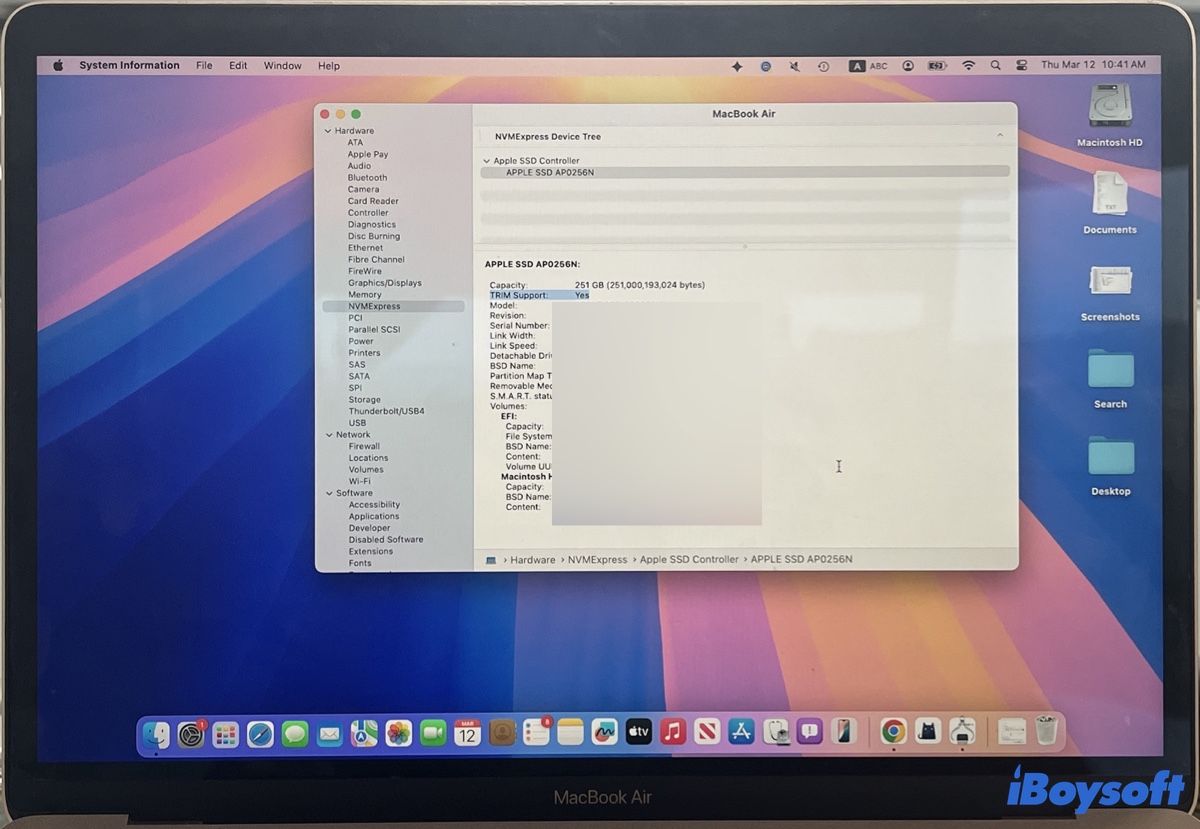
This means macOS automatically sends TRIM commands to the SSD drive. Here's a table summarizing TRIM bahavior on different SSDs:
| Storage Type | TRIM Behavior | Recovery Impact |
|---|---|---|
| Apple internal SSD | TRIM enabled by default | Recovery probability is low after deletion |
| Third-party internal SSD | TRIM supported but optional | Depends on whether TRIM has been enabled |
| External SSD (USB) | Usually disabled | Higher chance of recovery |
Variable 2. Whether new data has overwritten the deleted files (For HDDs & external SSDs)
When a file is deleted (on an HDD, an external SSD, or an internal SSD with TRIM disabled), it stops showing in Finder but still remains on the disk. Thus, recovery is possible during this window.
However, once new data is written to the disk, the system may reuse those same blocks that the deleted file occupied. When that happens, the original data is overwritten by new data, and the deleted file becomes unrecoverable.
Any of the following actions may overwrite the deleted files:
- Installing new software
- Copying or downloading large files
- Moving or editing many files
- System updates or background disk activity
It is also important to understand that overwriting is not always immediate. In many cases, the system writes new data to different free blocks first, meaning the deleted file's data may remain intact for some time. This is why recently deleted files are often recoverable if the disk has not been heavily used.
Variable 3. Whether FileVault encryption is enabled
If your APFS disk is encrypted with FileVault, you must unlock it with the correct password or recovery key before a recovery tool can access the decrypted file system and attempt to recover deleted files as usual. If you can't unlock the drive or the drive is broken, scanning is not possible - the data remains encrypted and inaccessible.
B. The disk is formatted
Recovering files from a formatted APFS drive may still be possible, but the chances depend heavily on whether those blocks have been reused or cleared.
On HDDs and TRIM-disabled SSDs, recovery after formatting is often more feasible because deleted data remains on the disk until it is overwritten by new data. If the drive has not been heavily used after formatting, many files may still be recoverable.
On TRIM-enabled SSDs, data recovery is unlikely unless you started recovery before TRIM is executed.
| Situation | Recovery Probability |
|---|---|
| Formatted but Mac immediately powered off | Possible |
| Formatted and lightly used afterward | Low |
| Formatted and heavily used | Very low |
| TRIM executed on the SSD | Extremely difficult |
C. The APFS partition is missing
You might notice:
- The drive appears in Disk Utility, but the volume is missing
- The disk structure appears corrupted after repartitioning
This usually indicates partition table or volume metadata damage, rather than direct file deletion.
Once you find the lost partition and rebuild access to it, all the files will be back.
Related reading: Recover Data from Deleted APFS Partition
D. The disk is damaged or cannot be mounted
Typical symptoms include:
- The drive appears greyed out in Disk Utility
- macOS reports "The disk you inserted was not readable by this computer"
- The disk fails to mount
This situation may involve file system corruption, hardware issues, or severe metadata damage.
Data recovery is possible unless hindered by hardware problems.
Related reading: Recover Data from Unmounted Hard Drive
How to recover files from an APFS hard drive on Mac
Different data loss scenarios require different recovery strategies. Instead of immediately relying on a recovery application, you should first determine the condition of the disk and then choose the appropriate approach.
1️⃣ If the APFS disk can still be mounted
If the disk appears in Finder and can still be accessed normally, you should start with the safest recovery methods first, before using third-party tools.
Recommended priority:
Time Machine backup
Time Machine is a backup and system restoration utility natively built into Apple computer machines. It can copy everything on your system in addition to taking local "snapshots" that offer you access to prior timelines of your machine.
If you have a habit of using an external hard drive to back up your Mac with Time Machine software, it will be very straightforward to restore your lost files with Time Machine backups.
Follow this guide to restore your Mac system or lost data:
A Time Machine Guide to Back Up and Restore Your Mac
iCloud recovery
If the files were synced to iCloud, you may be able to restore them from Recently Deleted or previous versions.
- Open iCloud.com in a browser.
- Sign in with your Apple ID.
- Go to Data Recovery or iCloud Drive → Recently Deleted.
- Select the file and restore it.
Professional data recovery software
If no backup is available, you can try professional recovery software to scan the disk and locate deleted files.
2️⃣ If the APFS disk cannot be mounted
If the disk appears in Disk Utility but fails to mount, the issue may be related to file system corruption or metadata damage. In this case, try to repair it after recovering the important files if they matter.
Run Disk Utility First Aid
First Aid is the built-in macOS disk repair tool. It checks the integrity of the file system structure and attempts to repair common issues.
- Open Disk Utility.
- Click View > Show All Devices.
- Select the bottom volume of your APFS drive and click "First Aid."
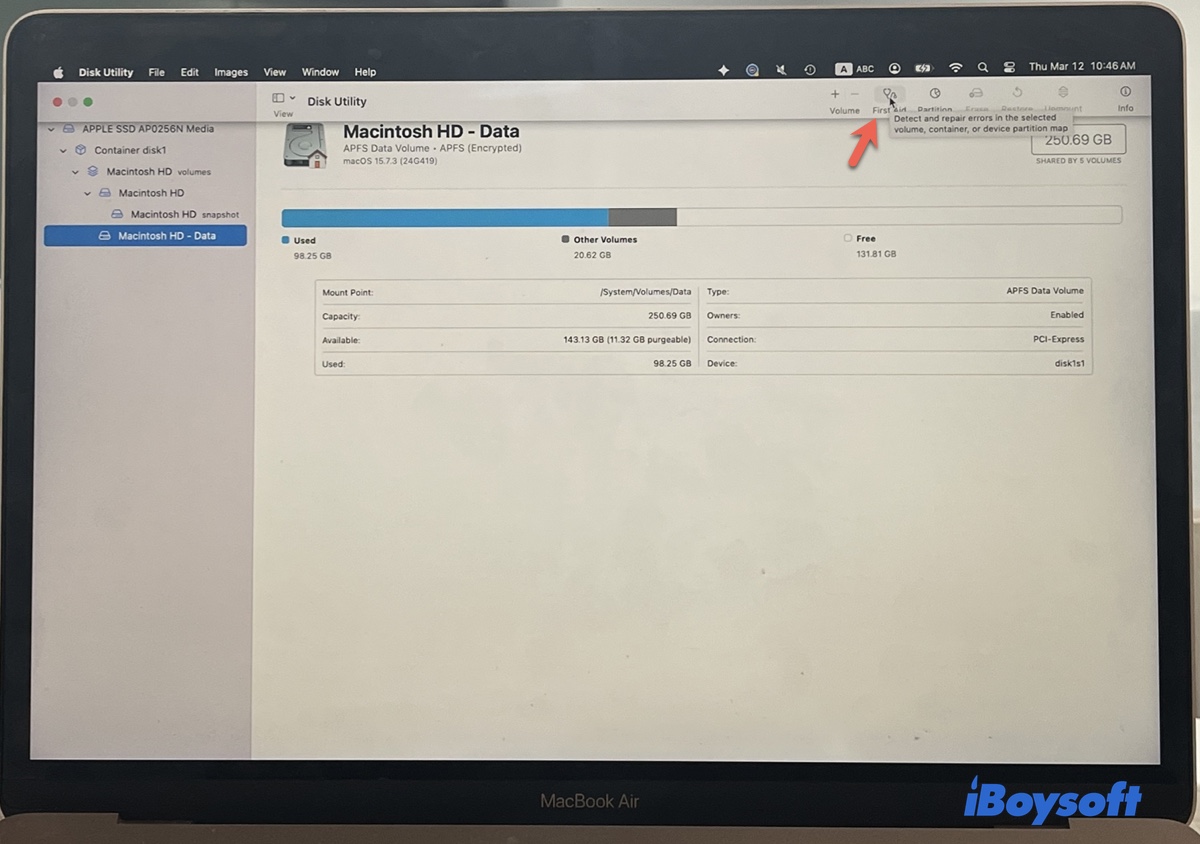
- Once it's repaired, move on to the one above until the physical disk is scanned. (Disk Utility First Aid failed?)
Repair with Terminal command: fsck_apfs - advanced only
Advanced users can attempt to repair the APFS structure using Terminal. It performs deeper checks than the graphical First Aid tool.
- Boot into macOS Recovery mode.
- When the macOS Utilities screen appears, choose Utilities → Terminal from the menu bar.
- Run the command below to find the identifier of the APFS container (e.g., disk3) or volume(e.g., disk3s1).diskutil list
- Run the file system check. (e.g., fsck_apfs -y /dev/disk3s1)fsck_apfs -y /dev/diskXsY
- Reboot your Mac.
Warning: Double-check your disk identifier before executing the command, as incorrect usage can lead to data loss.
Professional recovery software
If the file system cannot be repaired, specialized recovery tools may still be able to scan the corrupted disk and extract data.
APFS Container Won't Mount, How to Fix?
3️⃣ If the APFS disk has physical damage
If the drive shows signs of hardware failure, the situation is different.
Typical symptoms include:
- The disk is not detected at all
- The drive makes unusual noises (for HDDs)
- The connection repeatedly disconnects
- The system cannot read the device
In these cases, stop using the disk immediately and contact a professional data recovery service.
Is data recovery software worth trying?
When backups are unavailable, and the disk cannot be repaired through built-in tools, data recovery software may still be worth trying. However, not all tools perform equally well with APFS, and success depends heavily on the software's technical capabilities.
Instead of focusing on marketing claims, it is more useful to evaluate recovery tools based on several practical criteria.
1. Scanning Speed: How quickly the software can analyze the disk and locate recoverable files, especially during deep scans on large drives.
2. File Preview Capability: Whether the software allows you to preview files before recovery. A successful preview usually indicates the file can be recovered intact.
3. APFS Compatibility: How well the tool supports APFS structures, including containers, volumes, and snapshots.
4. Encrypted Volume Support: Whether the software can scan FileVault-encrypted APFS volumes after the correct password is entered.
5. Lost Partition Detection: Whether the tool can detect and reconstruct missing or deleted APFS volumes or partitions.
I compared three well-known Mac recovery tools:
| Evaluation Criteria | iBoysoft Data Recovery for Mac (Tested Ver: 5.2.4) | Disk Drill for Mac (Tested Ver: 6.2) | Stellar Data Recovery for Mac (Tested Ver: 12.7) | Testing Methodology & Verification Conditions |
| Scanning Speed | Fast. 4.5 mins for Quick Scan / 42 mins for Deep Scan. Consistent read rates. | Fast to Moderate. 5 mins for Quick Scan / 51 mins for Deep Scan. Slower on complex metadata. | Moderate to Slow. 8 mins for Quick Scan / 1 hr 15 mins for Deep Scan. High CPU throttling observed. | Measured against a 250 GB external Seagate SSD containing 45 GB of mixed media files (DOCX, PDF, JPEG, MP4). Testing Date: May 2026. |
| File Preview Capability | Strong. Seamless built-in hex and native text/image preview without stability lag. | Strong. Excellent visual preview pane for multimedia; handles large 4K video streams smoothly. | Standard. Supports common formats (JPEG, PDF) but struggled or threw errors on raw nested folders. | Verified by executing previews on partially corrupted/deleted files *before* hitting the actual recovery phase. |
| APFS Compatibility | Full. Successfully parsed top-level containers and reconstructed child volumes. | Full. Deeply integrates into native APFS block architecture; accurately maps snapshot trees. | Full. Recognizes APFS structures but occasionally mislabeled nested folder directory hierarchies. | Evaluated using standard, unencrypted APFS external container formats configured via macOS Sequoia Disk Utility. |
| Encrypted Volume Support | Excellent. Prompts instantly for password and decrypts the FileVault metadata container. | Excellent. Flawless handling of password-protected APFS volumes with zero decryption crashes. | Good. Successfully unlocked encrypted volumes, though manual passphrase loading took longer. | Tested on an external APFS drive locked with native Mac FileVault encryption. Valid admin password supplied during test. |
| Lost Partition Detection | Highly Precise. Rebuilt the directory map tree for missing APFS containers within 10 minutes. | Excellent. Reconstructed lost partition boundaries and recovered localized volumes successfully. | Standard. Found the missing space partition, but required a secondary deep scan to index files. | Tested by intentionally executing a Terminal diskutil partition format drop to wipe the partition map headers. |
iBoysoft Data Recovery for Mac is a versatile and powerful APFS data recovery software that enables you to recover deleted data on Mac, including deleted or lost files from the startup disk under macOS 10.13 - 26, and data on an external storage device with an APFS file system. You can rely on this data recovery program to restore documents, videos, audio files, archives, and many more from an APFS hard drive.
How to recover files from an APFS hard drive on Mac:
- Download, install, and open iBoysoft Data Recovery for Mac.
- Select the APFS volume/disk to scan on the left, and click "Search for Lost Data".
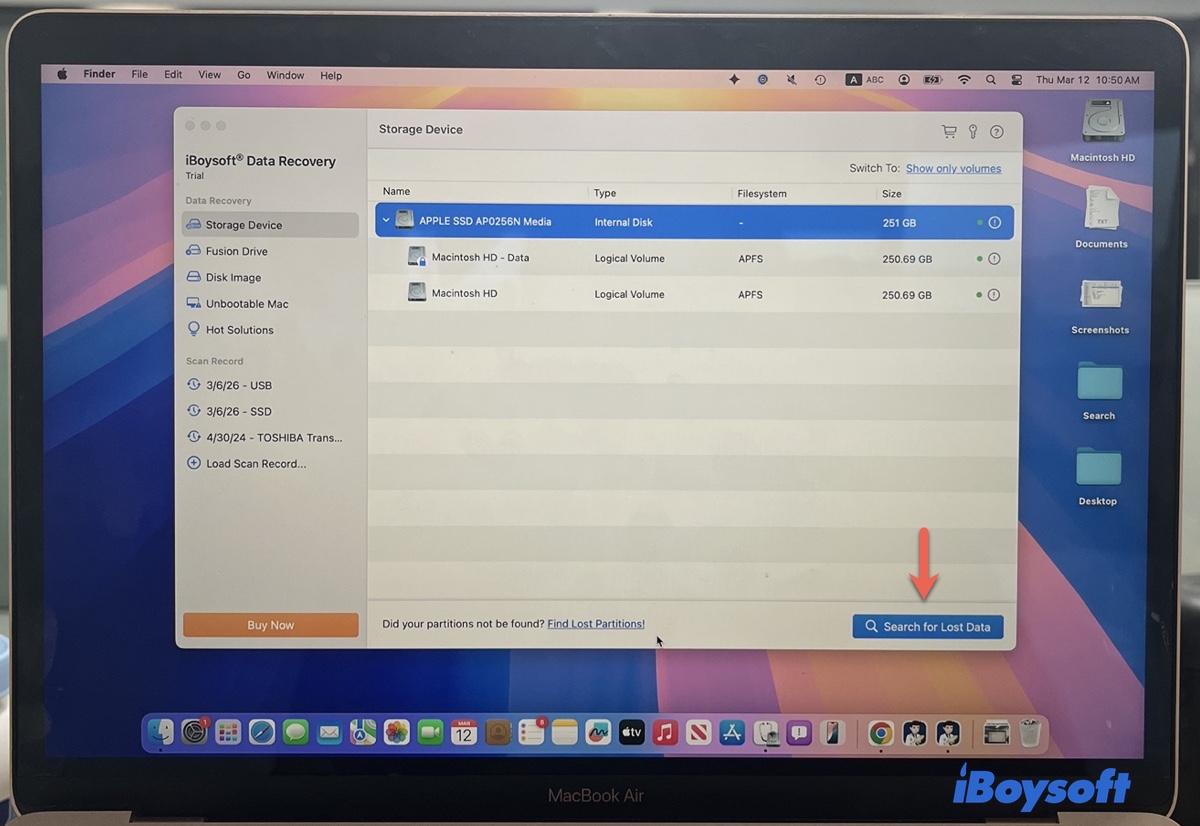
- Filter and preview lost APFS files.
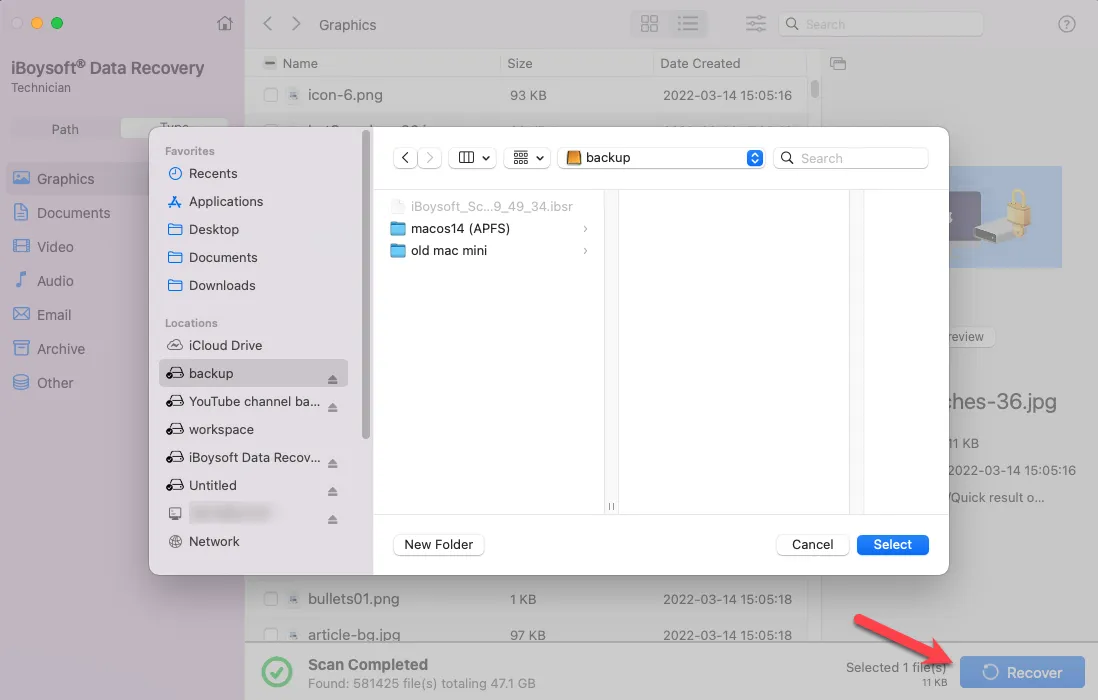
(After it completes the scan, it will list all found data through the "Type" and "Path" categories.) - Choose the wanted ones and click "Recover" to save them to another place.
How to find lost APFS partitions on Mac:
- Open iBoysoft Data Recovery for Mac.
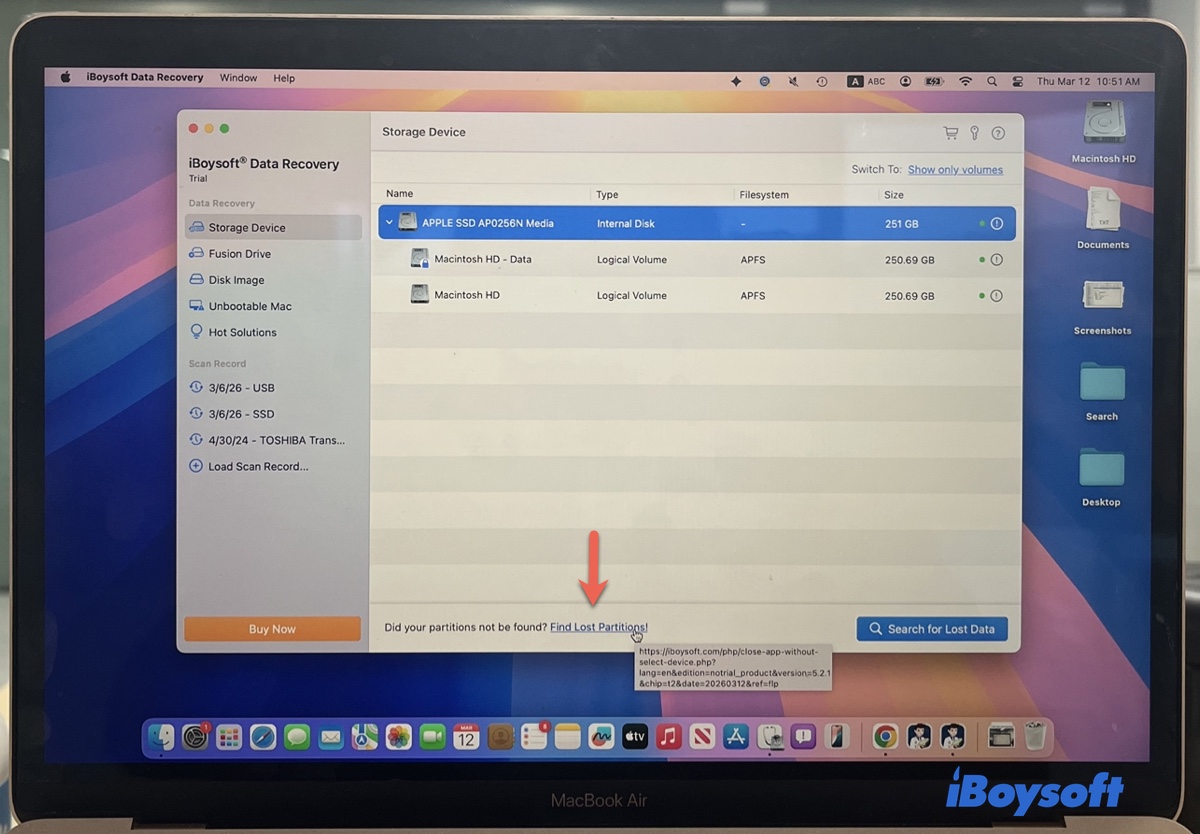
- Click Find Lost Partitions.
- Click ok.
- Once it finds your lost APFS partition, you can access the data.
Why APFS is harder to recover than HFS+
APFS is a modern file system designed for speed, efficiency, and reliability, but these improvements make data recovery more challenging compared to the older HFS+.
Copy-on-Write (CoW)
Instead of modifying files in place, APFS writes changes to new locations on the disk. This means deleted or modified data may leave very little trace in its original location, making it harder to reconstruct.
Snapshot Mechanism
APFS can create snapshots of the file system at a given moment. While snapshots are great for backups, they also add complexity for recovery tools because the software must navigate both current data and previous snapshots.
SSD + TRIM
Most Macs use SSDs, and APFS works hand-in-hand with the TRIM command. When blocks are freed after a file deletion, TRIM may immediately erase the data at the hardware level, leaving no recoverable remnants.
Container Structure
APFS stores multiple volumes within a single container. Unlike HFS+, where each volume is largely independent, APFS volumes share space dynamically. This makes it harder to isolate and recover lost files from a single volume without affecting others.
Conclusion
Recovering data from an APFS drive on a Mac can be tricky because of how APFS handles storage for speed and security. General advice is to start data recovery as soon as possible and avoid writing new data on the disk. If you act faster, the recovery success rate is higher.
But bear in mind that if your SSD has TRIM enabled and the deleted data has already been cleared, recovery is usually impossible.
If you want a free tool, check from: The Best Free Data Recovery Software for Mac.
FAQs about APFS data recovery
- QHow do I recover data from an encrypted Apple APFS volume?
-
A
If your Apple APFS volume is encrypted by a third-party encryption solution, you need to use the same software to decrypt it to unlock the content first and then use iBoysoft Data Recovery for Mac to scan and recover data.
- QCan data be recovered after a factory reset Mac?
-
A
If you use Time Machine to back up your Mac, you can recover your files from Time Machine backup after you factory reset a Mac. You must first reinstall macOS on your Mac before file restoration. If no backup is available, you can still run iBoysoft Data Recovery for Mac in macOS Recovery Mode to scan and recover files.
- QCan data be recovered after formatting an APFS drive?
-
A
Yes, sometimes. Quick formatting doesn’t immediately erase the underlying data blocks, so recovery may be possible if the disk hasn’t been heavily used or if TRIM hasn’t cleared the SSD. Success is much higher on HDDs than on SSDs with TRIM.
- QDoes the M-series chip affect data recovery?
-
A
Not directly. Recovery depends on the file system, TRIM status, and whether the data blocks remain intact. The M-series architecture doesn’t prevent recovery, though it may influence the way APFS interacts with the storage.
- QWhat if recovered files are corrupted or unreadable?
-
A
Corruption can happen if some of the original data blocks were overwritten or partially erased. In these cases, partial recovery may still be possible, but some files may be damaged. Always try to preview files before restoring them.