There are a few occasions when you need to download macOS on Windows.
For example, if your Mac won't boot up or is wiped clean, you'll need to get macOS on Windows to create a bootable USB installer to reinstall macOS. Or, if you wish to install macOS on a Windows PC, you'll want to download the Mac operating system on Windows. Besides, downloading Mac OS on a PC is also helpful if your Mac has horribly slow WiFi, but the Windows computer has a fast network.
However, when you look for macOS downloads for Windows, you might find them all from the Mac App Store. Is it possible to download macOS on Windows? The short answer is yes.
This article shows you how to directly download full macOS versions on Windows, from the latest macOS Golden Gate, macOS Tahoe, to Mac OS X Panther. (If you need even older Mac OS X downloads for Windows, check out: How to Download Old Mac OS without App Store?)
Note: There are four typical formats of a macOS installer.
- PKG: Downloading the full installer from Apple's server, you'll get the .pkg format. It's used to install or update macOS directly on a Mac and is not supported on Windows.
- App: Available in the Mac App Store, the .app macOS installer is only usable on a Mac that's compatible with it.
- DMG: DMG is a macOS format, but it can be used to make a macOS bootable installer on a Windows PC.
- ISO: ISO works on a Windows PC. It's primarily used when installing macOS on Windows through a virtual machine.
We'll provide the DMG and ISO formats of macOS installers since they are the most useful to you.
Want to download the Windows operating system for Mac? 👉 Free Download Windows ISO for Mac ⬇️
Mac OS download for Windows via iBoysoft DiskGeeker
If you want to download macOS for your Windows PC, we recommend using iBoysoft DiskGeeker for Windows.
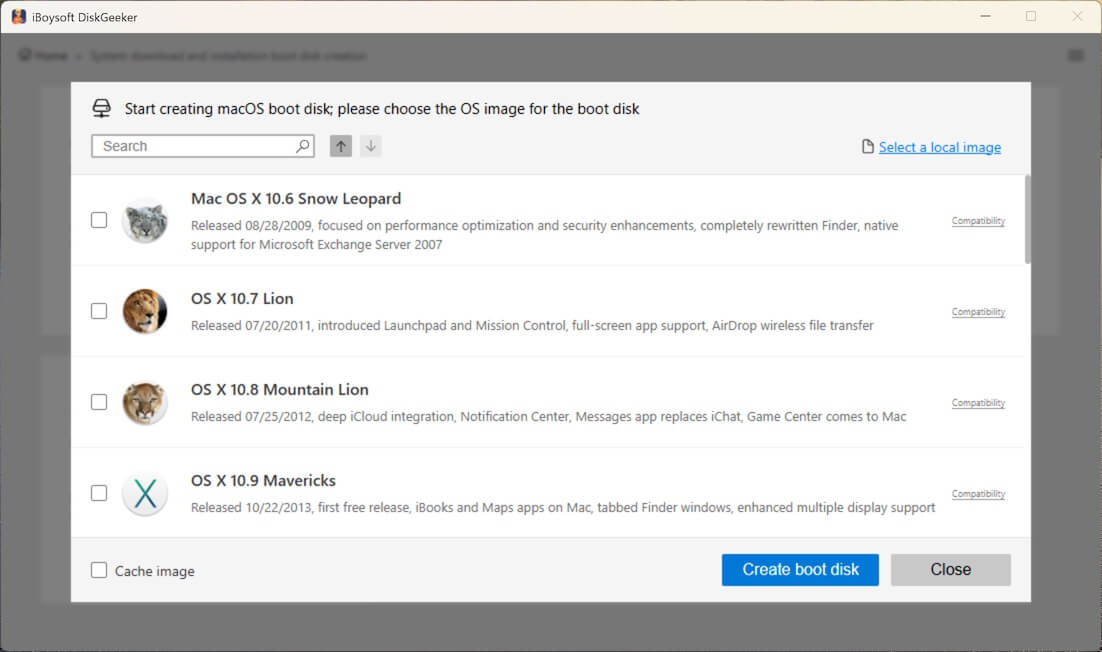
It has a big collection of macOS ISO files and DMG images, including the latest macOS Golden Gate, macOS Tahoe, macOS Sequoia, macOS Sonoma, macOS Ventura, macOS Monterey, macOS Big Sur, macOS Catalina, macOS Mojave, macOS High Sierra, macOS Sierra, OS X El Capitan, OS X Yosemite, OS X Mavericks, OS X Mountain Lion, OS X Lion, and Mac OS X 10.6 Snow Leopard.
These files are based on official macOS installers from Apple, ensuring a reliable and secure foundation for creating bootable media, performing clean installations, or setting up virtual machine environments without compromising system integrity.
Here, we'll show you how to download the Mac operating system for Windows:
How to download Mac OS for Windows:
- Free download and install iBoysoft DiskGeeker for Windows.
- Navigate to Download and create boot disk > Download macOS system image.
- Find the macOS installer you need and click Get.
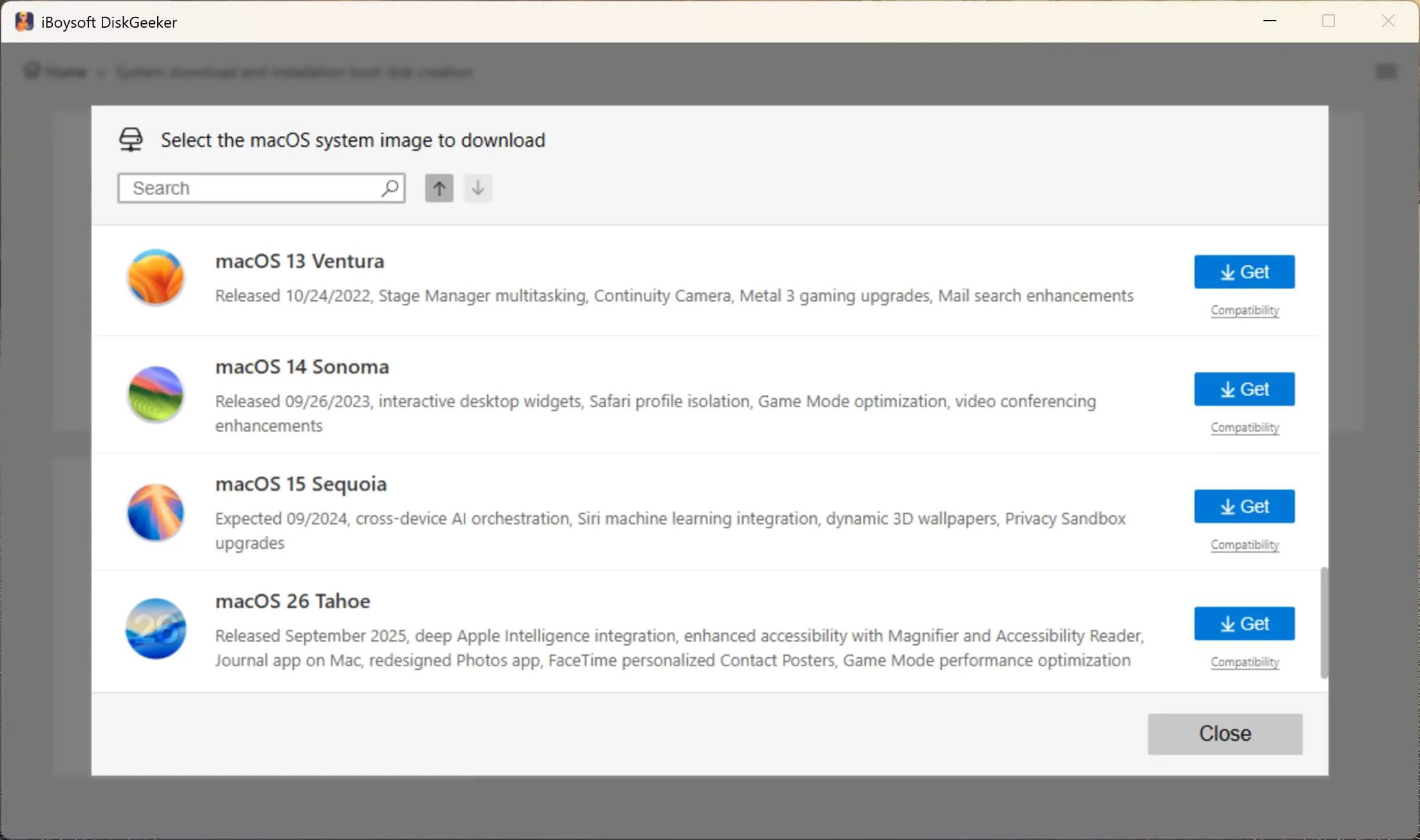
- Choose to download the DMG or ISO file.
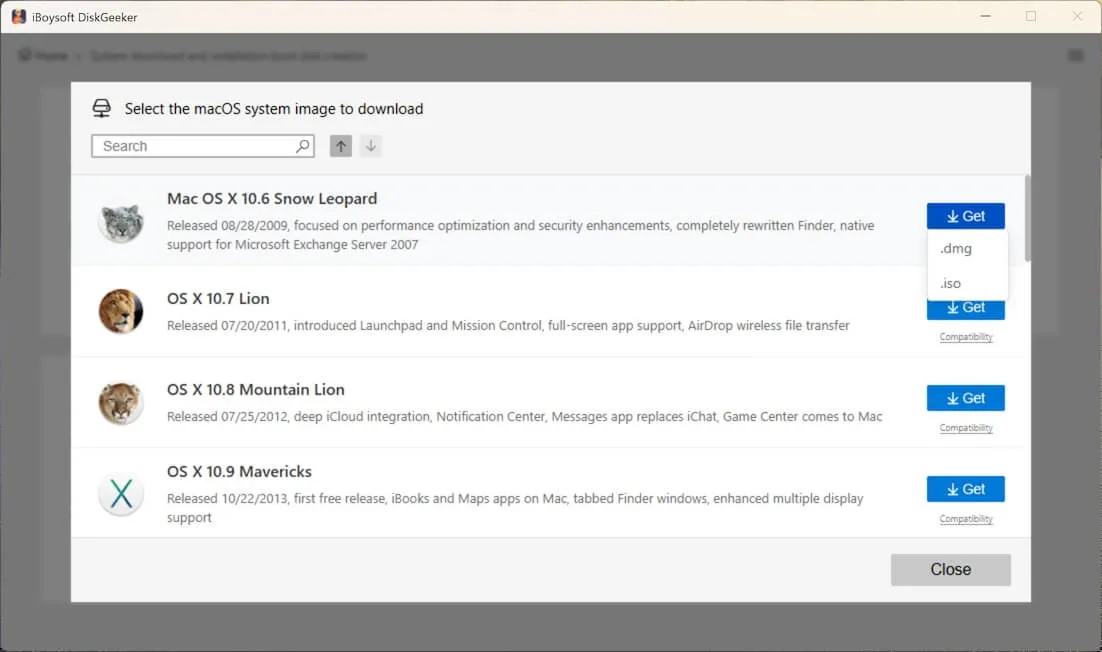
- Choose the location to save the macOS image.

- Wait for the Mac operating system to be downloaded.
Create a macOS bootable USB installer on Windows
If you are trying to create a macOS bootable USB installer on Windows, iBoysoft DiskGeeker makes it fast and simple. You don't even need to download the macOS installer separately, as it automates the process.
How to create a macOS bootable USB installer on Windows:
- Free download and install iBoysoft DiskGeeker for Windows.
- Navigate to Download and create boot disk > Create macOS USB Installer.
- Connect an external drive with 20 GB or more storage space to your PC. (Make sure data on the external drive is backed up.)
- Choose the external drive and click Select.
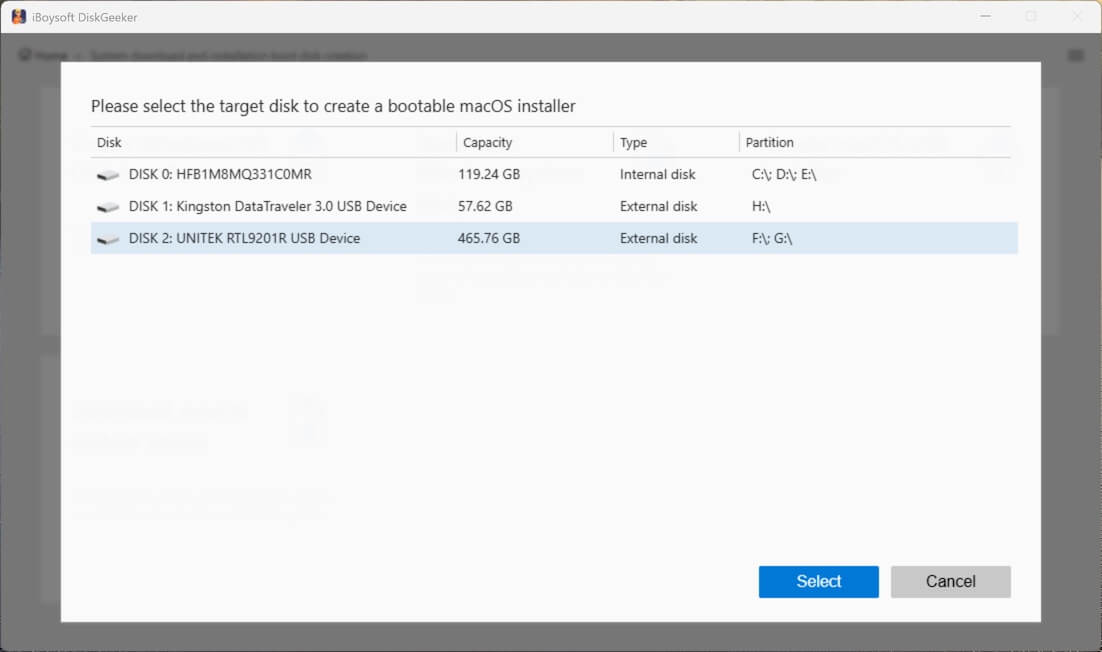
- Select a macOS version and click Create boot disk.
Share this tool if you're satisfied with it!
macOS download for Windows 11/10/8/7
This section will list the links to directly download macOS on a Windows PC, ranging from the latest macOS 27 Golden Gate, macOS Tahoe, to macOS Sierra.
Warning: The following links are a collection of online resources. It's recommended to test them on a virtual machine or scan them with a reputable antivirus before using them.
Tips: If you want to create a macOS Tahoe Hackintosh, follow: How to Install macOS Tahoe on Hackintosh?
If you want to run macOS Tahoe on a virtual machine, read: How to Install macOS Tahoe on VMware?
If you're interested in more versions of DMG and ISO files or how to manually create them, here are some good resources to read:
Mac OS DMG Download Full Installer: Latest Golden Gate, Tahoe, Sequoia
Mac OS Download ISO 64-bit for macOS or Mac OS X
If you're trying to install the latest, stable Mac operating system, macOS Tahoe, on your Windows PC, follow the step-by-step instructions in this guide to install it via VMware, which provides better performance and more security: How to Install macOS Tahoe on VMware on Windows?
Spread the resources to help others get macOS downloads for Windows 11, 10, 8, and 7!
OS X download on a Windows PC
Here, we'll get you all the old OS X downloads for Windows, covering OS X El Capitan ~ OS X Lion.
Share to help others download Macintosh OS for Windows!
Mac OS X download for Windows
If you have a PowerPC or early Intel Mac, you can acquire the following Mac OS X downloads for Windows.
Share these links to download Mac operating system for PC!
Can't download Macintosh OS for Windows
Sometimes, you may fail to download the Mac operating system on Windows, and it's usually due to insufficient free space. If it happens, you can clean your Windows PC with iBoysoft DiskGeeker for Windows, which can analyze your hard drive and remove the large, unnecessary files. Here's how to use it:
- Download and install iBoysoft DiskGeeker for Windows.
- Launch it and choose the Space analyzer module.
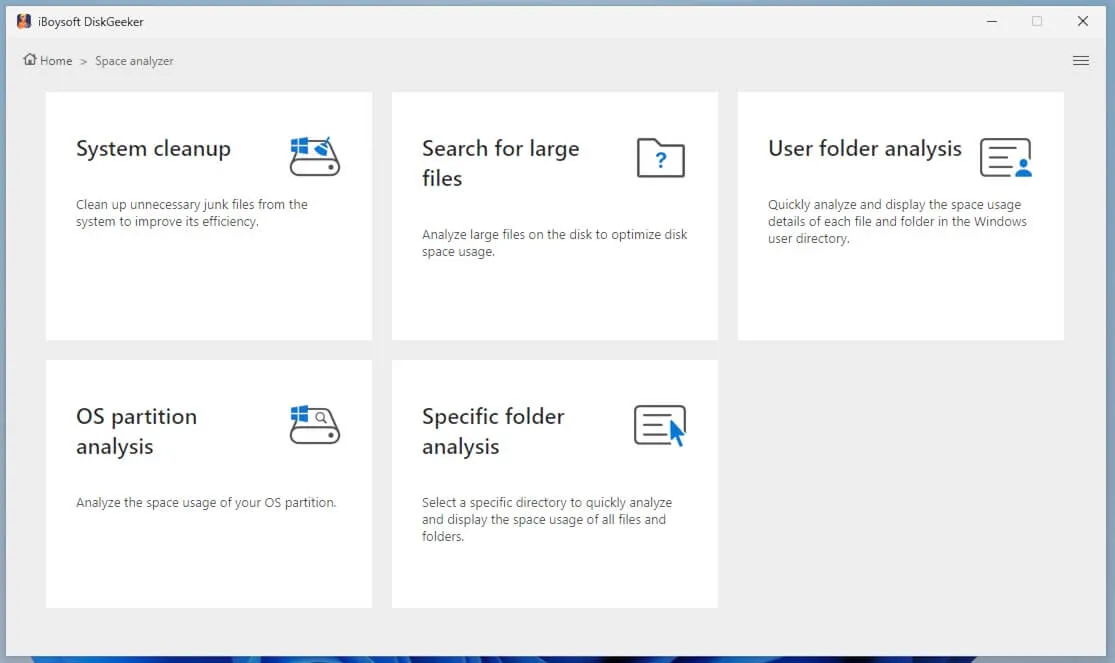
- Select the OS partition analysis.
- After the scan is complete, check the files you no longer need.
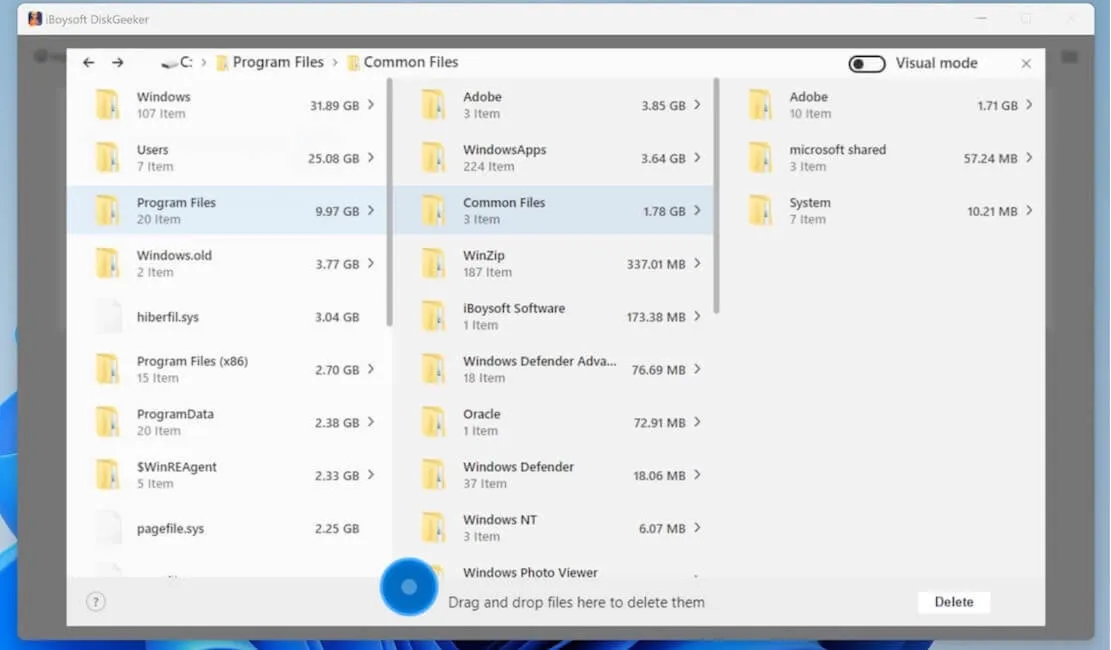
- Drag and drop them to the deletion area and click Delete.
Were you able to get the macOS download for Windows? Share this article if you find it helpful!
If you also need the Windows operating system, download it from the following links:
Windows 11 Download | Windows 10 Download Pro, Enterprise, Home & Education | Windows 7 Ultimate | Windows 7 Home Premium | Windows 11 LTSC
Share this tool to help your friends create macOS bootable USB installers on Windows!
FAQs
- QWhat are the main ways to run macOS on Windows?
-
A
There are two primary methods:
- Virtual Machine (VM): Runs macOS inside an app (like VMware Workstation or VirtualBox) while Windows stays running. Safe, easy to set up, but offers slower performance.
- Hackintosh: Installs macOS directly onto your PC's physical drive alongside or instead of Windows. Fast and native-feeling, but complex to set up and hardware-dependent.
- QCan I emulate Apple Silicon (M1/M2/M3/M4) chips on Windows?
-
A
No. There is currently no way to emulate or virtualize Apple Silicon chips on PC hardware. You can only install older x86 (Intel-based) versions of macOS.
- QCan I install macOS on any PC hardware?
-
A
No. macOS only includes drivers for hardware Apple has used in its own computers.
-Supported: Older Intel processors (up to 10th Gen) and select AMD Radeon graphics cards.
- Not Supported: Nvidia graphics cards (in modern macOS versions), modern Intel integrated graphics (11th Gen and newer), and AMD CPUs without custom kernel patches.
- QCan I download macOS on Windows as a .app or .pkg?
-
A
No, the extensions .app and .pkg are only available on a Mac. You need to use the .iso or .dmg format on Windows.
- QISO or DMG: which should I choose?
-
A
Choose ISO for virtual machines and DMG for macOS bootable USB creation on a Windows PC.
- QIs a third-party direct link safe?
-
A
A third-party link poses higher risks. If you still want to try, scan the downloaded image for malware before using it. Prefer a maintained guided downloader when possible.
- QWhy did my download fail?
-
A
You may fail to download macOS on a Windows PC due to insufficient free space or network issues.