| Windows 11 Version | Release Status (2026) | Primary Install Method | Official Download Link | Best Use Case |
|---|---|---|---|---|
| Windows 11 25H2 | Latest (Stable) | Windows Update / Update Assistant | Download 25H2 from Microsoft | Current hardware & security |
| Windows 11 24H2 | Supported | Clean Install (ISO) | Free Download 24H2 from Internet Archive | High-performance & AI PCs |
| Windows 11 23H2 | Legacy (End of Life) | Clean Install (ISO) | Free Download 23H2 from Internet Archive | Broad hardware compatibility |
| Windows 11 22H2 | Legacy (End of Life) | Clean Install (ISO) | Free Download 22H2 from Internet Archive | Virtual Machines & Testing |
| Windows 11 21H2 | Legacy (End of Life) | Clean Install (ISO) | Free Download 21H2 from Internet Archive | Legacy system compatibility |
| Windows 11 ARM64 | Active | VHDX / ISO | Download Windows 11 ARM from Microsoft | Snapdragon PCs / Apple Silicon |
Whether you want to install the latest Windows 11 update, downgrade to an earlier Windows 11 version, or fresh install Windows 11, you'll need to download the Windows 11 ISO file of 64-bit. While you can open Settings > Windows Update to install available updates, it doesn't provide the full offline installer, which is needed for manual updates or creating a bootable USB installer.
In this article, we'll show you how to free download Windows 11 updates manually, including Windows 11 25H2, 24H2, 23H2, 22H2, and 21H2 ISO downloads for 64-bit and ARM64. You can download Windows 11 to a USB or your Windows PC, whichever suits your needs.
Tips: If you want to get the Windows 11 downloads for 24H2 or older versions safely, use iBoysoft DiskGeeker for Windows.
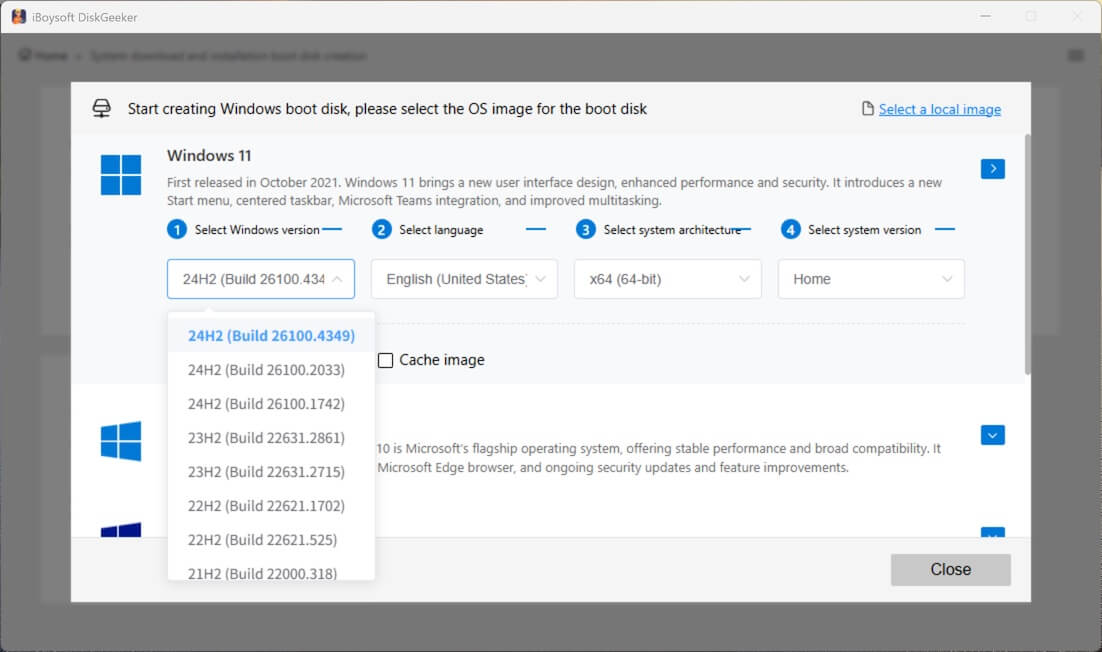
This Windows 11 ISO downloader provides updates of each major Windows 11 feature update, starting from 21H2 (Build 22000.318), for both x64 (64-bit) and ARM64 versions. Since these ISO images are directly pulled from Microsoft's servers, you don't need to worry about their authenticity or integrity.
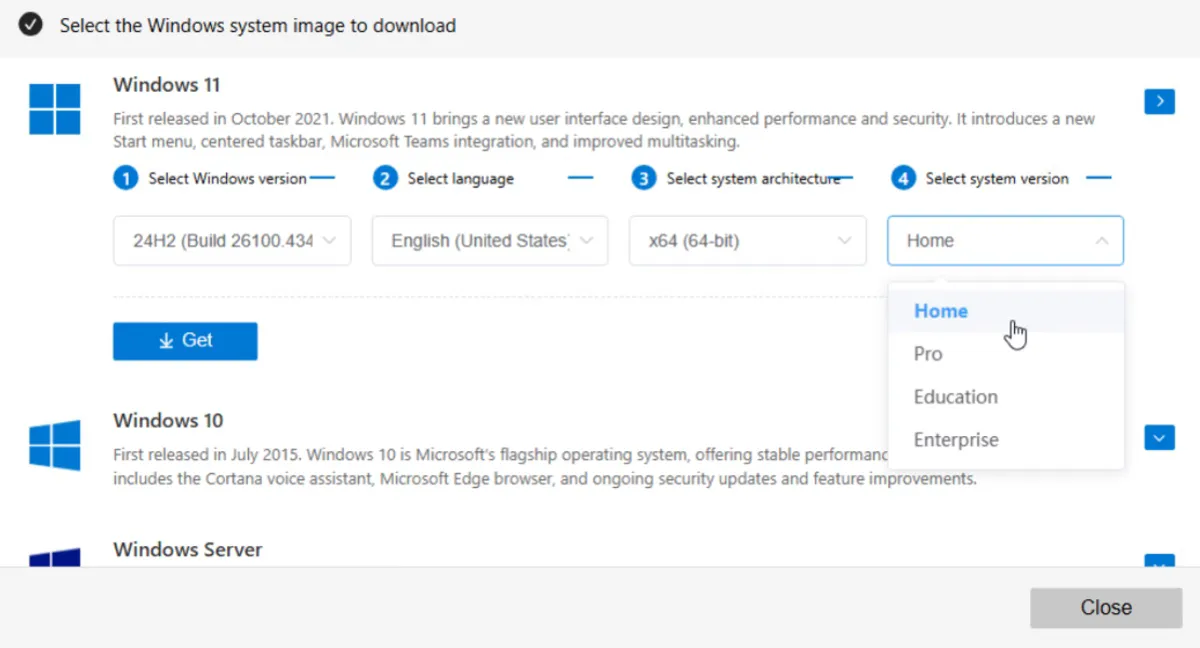
This tool also allows you to choose a specific edition, such as Home, Pro, Education, or Enterprise.
#Windows 11 23H2 ISO download 64-bit
#Windows 11 24H2 ISO download 64-bit
#Windows 11 22H2 ISO download 64-bit
Follow the steps below to download Windows 11 disk image (iso) for 24H2 or older:
Step 1: Free download, install, and launch iBoysoft DiskGeeker for Windows.
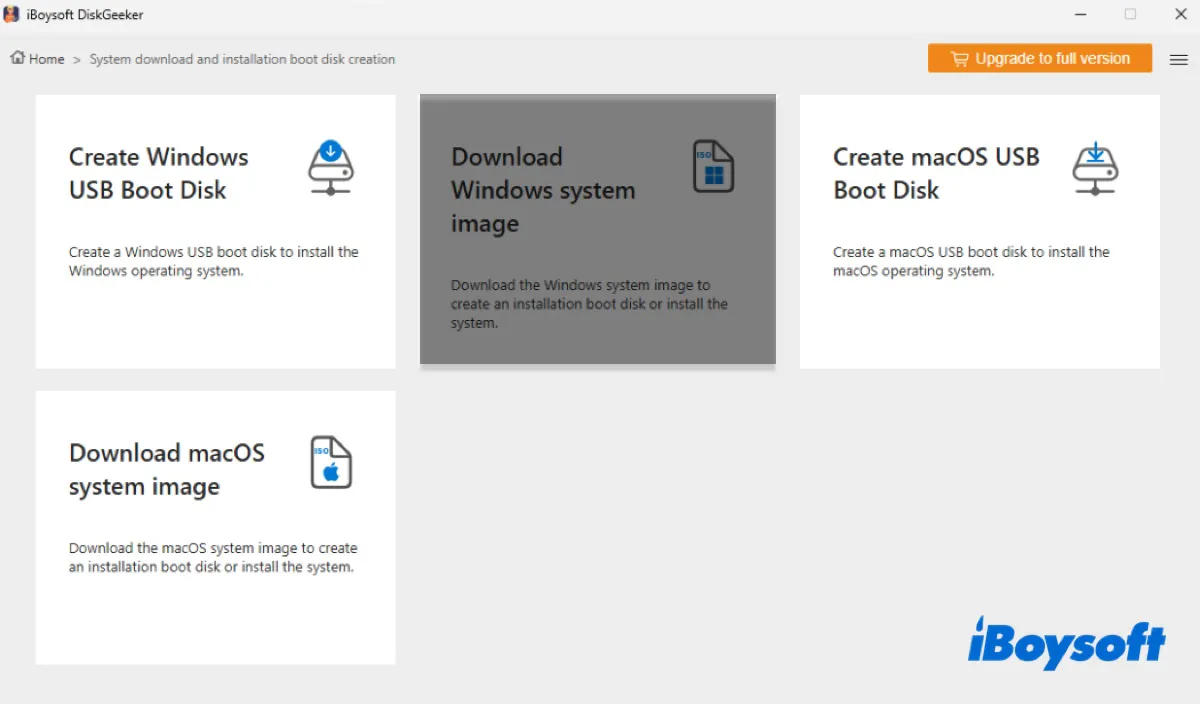
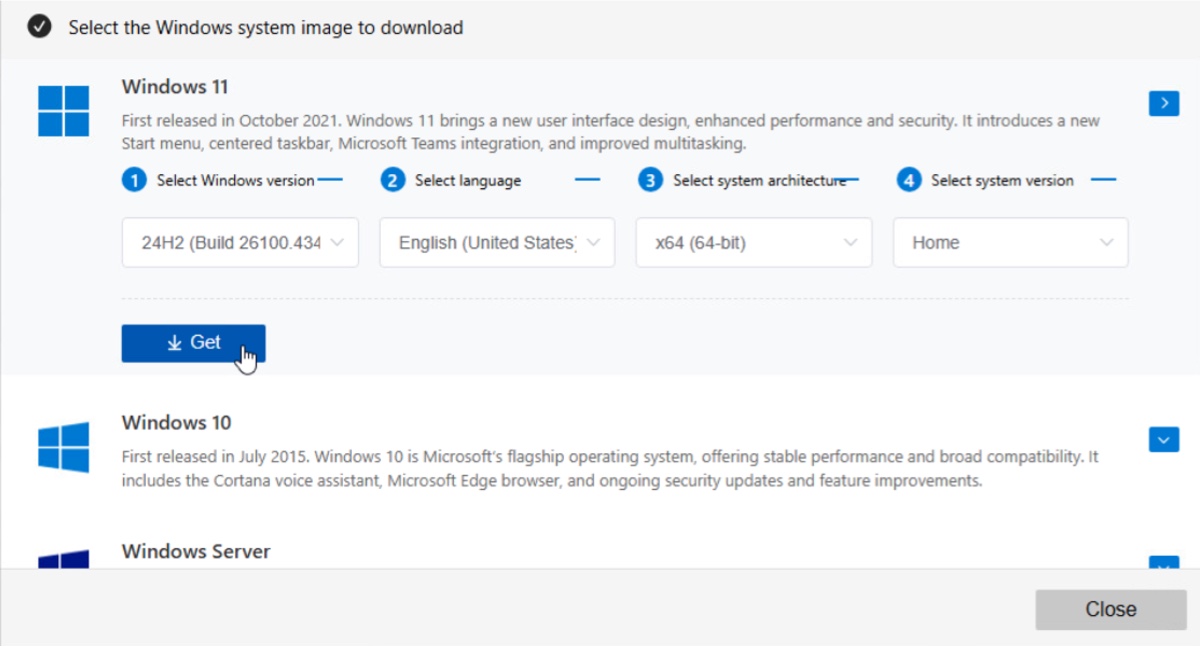
Step 2: Open Download and create boot disk > Download Windows system image.
Step 3: Tap on Windows 11.
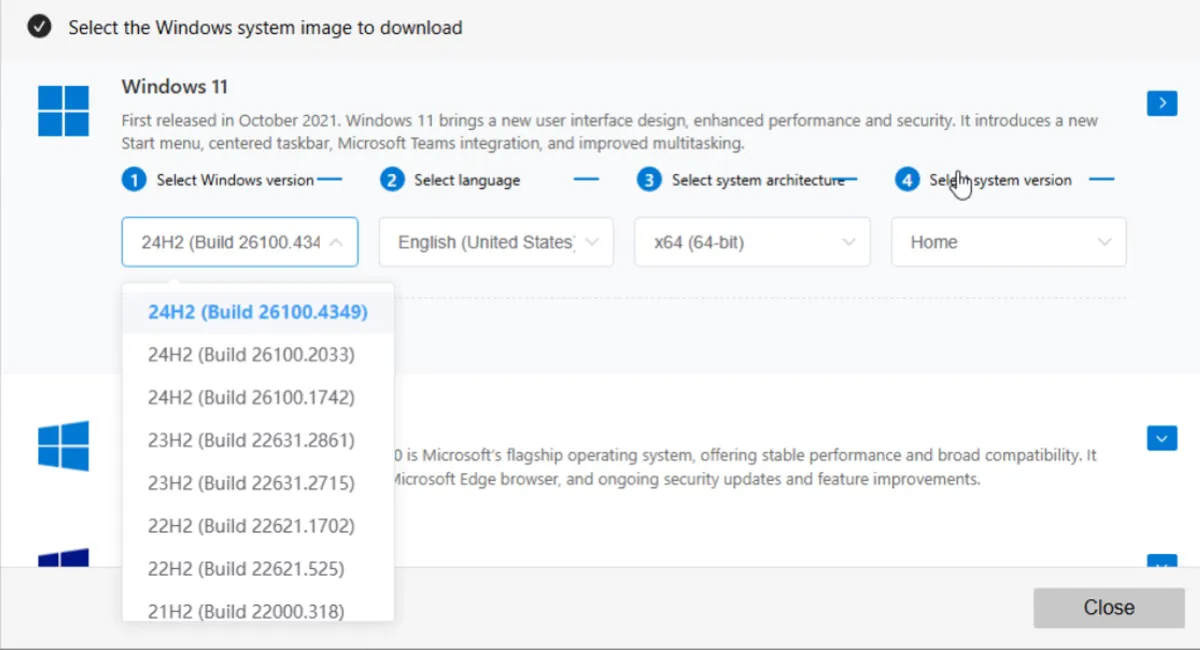
Step 4: Choose the update you need (e.g., 24H2 (Build 26100.4349)).
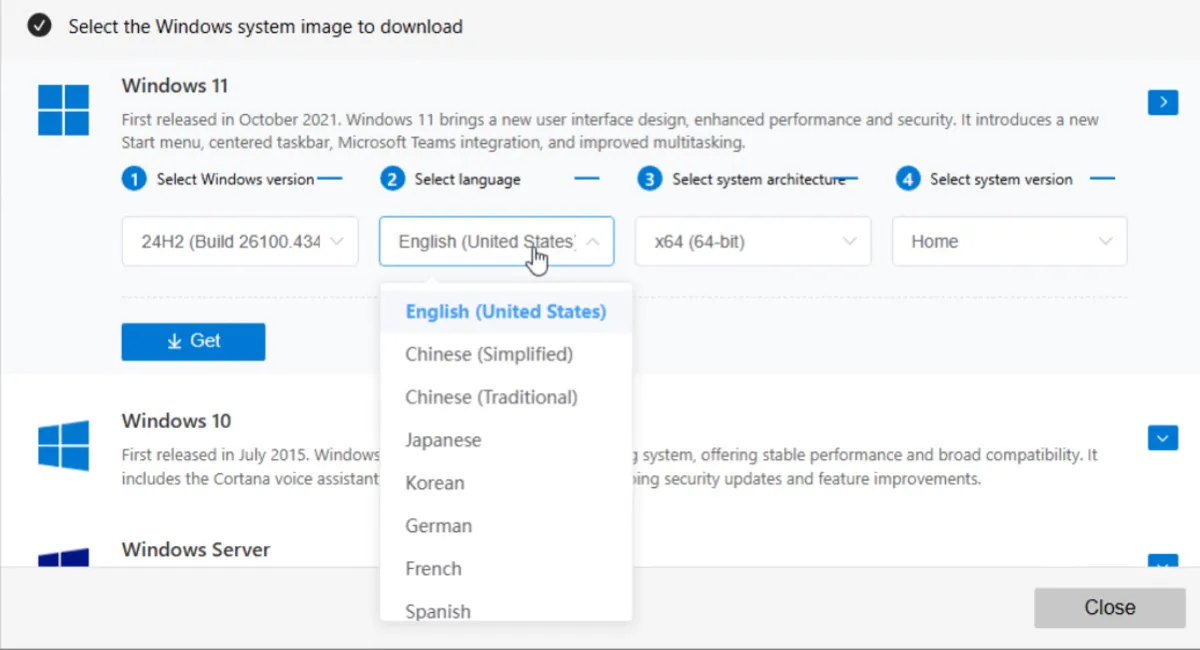
Step 5: Select a preferred language.
Step 6: Choose the system architecture (x64 (64-bit) or ARM64).

Step 7: Select a Windows 11 edition (e.g., Pro).
Step 8: Click the Get button to download the Windows 11 update.
Step 9: Choose the location where you want to save the Windows 11 ISO 64-bit file. If you're planning to download Windows 11 to a USB, choose your USB drive.
This tool also allows you to create a bootable USB installer for Windows 11 with your chosen update (e.g., 24H2), language (e.g., English), architecture (e.g., x64), and edition (e.g., Home).
Before downloading the Windows 11 ISO file, make sure the Windows PC where it's being installed meets the following minimum system requirements:
| Current Windows version | Windows 10 version 2004 or later |
| Processor | An Internet 64-bit processor with a clock speed of 1 GHz or faster, at least two cores, and a compatible architecture or system on a chip (SoC) |
| RAM | 4 GB |
| Storage | 64 GB or larger |
| System firmware | UEFI with Secure Boot capability |
| TPM | Version 2.0 |
| Graphics card | Compatible with DirectX 12 or later, with a WDDM 2.0 driver |
| Display | Minimum 720p resolution, greater than 9 inches diagonally |
Note: Windows 11 follows an annual feature update cycle, releasing updates in the second half of the calendar year (H2). As of December 2, 2025, there have been four updates since Windows 11 was first released on October 4, 2021, as version 21H2.
If you want a lightweight version of Windows 11, download Ghost Spectre Windows 11 or Windows 11 LTSC.
Windows 11 25H2 ISO download 64-bit free
Released on September 30, 2025, Windows 11 version 25H2, also known as the Windows 11 2025 Update, is the most current public release. It brought further refinements to the AI ecosystem, improved security features, enhanced connectivity options, and introduced new capabilities within the Windows Shell experience.
Since it's the latest Windows 11 update, it's available for download on Microsoft's official download page. Here's how to download Windows 11 ISO file 64-bit from Microsoft:
- Tap the official download link for Windows 11 25H2 ISO files. (Download Windows 11 25H2 64-bit; Download Windows 11 25H2 ARM64)
- Scroll down to the Download Windows 11 Disk Image (ISO) for x64 devices or Download Windows 11 Disk Image (ISO) for Arm64 devices section.
- Click the Select Download drop-down menu and choose Windows 11 (multi-edition ISO for x64 devices) or Windows 11 (multi-edition ISO for Arm64 devices).
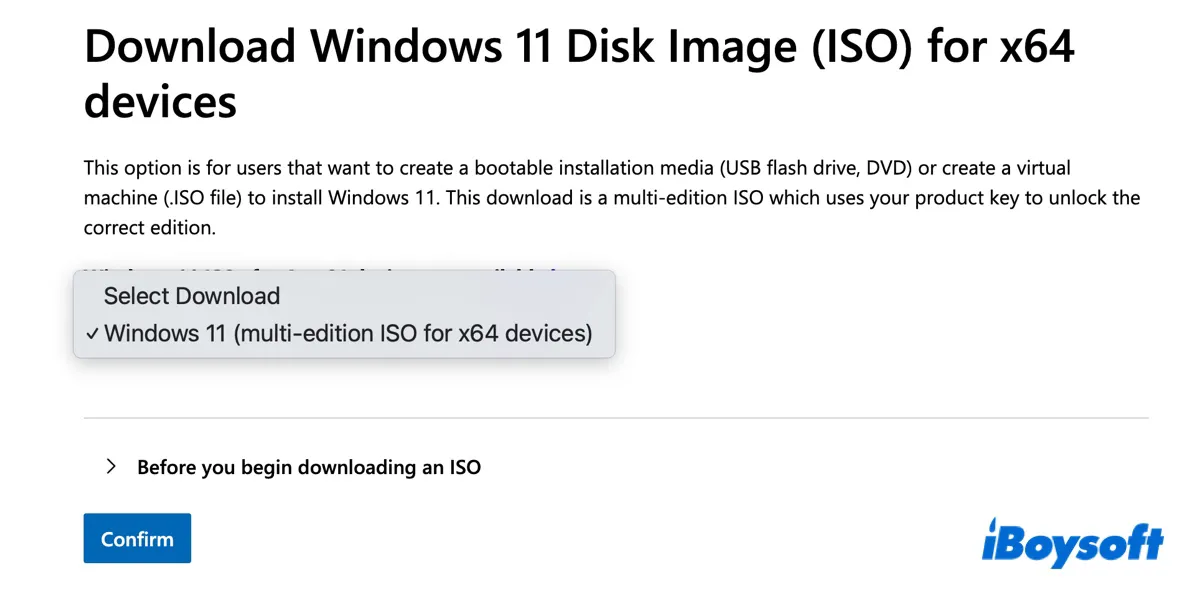
- Scroll down and click Confirm.
- Choose the language and click Confirm.
- Click on 64-bit Download.
- Save the Windows 11 25H2 ISO file.
Once the download is complete, you'll have the Windows 11 25H2 ISO offline installer.
Microsoft's public download page only provides the latest version of Windows. If you need an older version of Windows 11, you'll need to get it from a third-party archive. The download links provided below are selected from archive.org.
If you don't fully trust online resources, download the Windows 11 feature update from iBoysoft DiskGeeker for Windows.
Windows 11 24H2 ISO download 64-bit free
Windows 11 version 24H2, also referred to as the Windows 11 2024 Update, was available on October 1, 2024. It's a substantial update focused on AI integration, introducing powerful "AI capabilities" such as the new Recall feature (an AI-powered search for everything you do on your PC) and major performance enhancements.
If you want to download the Windows 11 24H2 ISO 64-bit offline installer, try the links below.
⬇️ Official Windows 11 24H2 ISO 64-bit Download (5.4 G)
⬇️ Official Windows 11 24H2 ISO ARM64 Download (5.1 G)
Windows 11 23H2 ISO download 64-bit free
Windows 11 23H2, also called Windows 11 2023 Update, was released to the public on October 31, 2023. This update fully integrated the new AI-powered Copilot into the OS (making it available in the taskbar), consolidated app management within Settings, and improved system components like File Explorer.
Here's how to download the Windows 11 23H2 ISO file:
⬇️ Official Windows 11 23H2 ISO 64-bit Download (6.2G)
⬇️ Official Windows 11 23H2 ISO ARM64 Download (5.5G)
Get the Microsoft Windows 11 download? Spread the news!
Windows 11 22H2 ISO download 64-bit free
Windows 11 22H2, also named Windows 11 2022 Update, was released to the public on September 20, 2022. Compared to 21H2, it brought some key changes, including drag-and-drop support on the taskbar, the introduction of tabs in File Explorer, an updated Task Manager, and new gesture support for touch screens.
Here's how to download the Windows 11 22H2 update ISO file offline installer:
⬇️ Official Windows 11 22H2 ISO 64-bit Download (4.5 G)
⬇️ Official Windows 11 22H2 ISO ARM64 Download (4.6 G)
Windows 11 21H2 ISO download 64-bit free
Windows 11 21H2, also known as the original release, came out on October 4, 2021. It introduced the centered Start menu and taskbar, new Snap layouts, redesigned settings, the updated Microsoft Store, and rounded corners for windows.
Here's how to download the Windows 11 21H2 update ISO file offline installer:
⬇️ Genuine Windows 11 21H2 ISO 64-bit Download (5.5 G)
⬇️ Genuine Windows 11 21H2 ISO ARM64 Download (5.5 G)
Share the links to download the Windows 11 24H2 update offline installer!
How to download cumulative update for Windows 11?
In addition to the core updates like 24H2, there are also monthly patches released to add new features to the existing core version. They can be cumulative updates, driver updates, security updates, or critical updates. These updates will appear in Windows Update when you check for updates, provided that your PC is compatible with Windows 11.
They don't change the core version number but only increment the OS build number. For instance, 2025-11 Cumulative Update for Windows 11, version 25H2 for x64-based Systems (KB5068861) (26200.7171) is a cumulative update for Windows 11 25H2.
If you fail to download the cumulative update from Windows Settings, get it from the Microsoft Update Catalog manually. It's an official site where you can find and download any Windows update and install it on your PC.
Note that these are not full installers but individual update packages. Here's how to download a cumulative update for Windows 11 manually:
- Open Microsoft Update Catalog.
- Search for the Windows 11 update you need. (For instance, if the cumulative update KB5070311 is an available update shown in the Settings > Windows Update page but can't be installed through the usual means, you can search for KB5070311 to download it.)
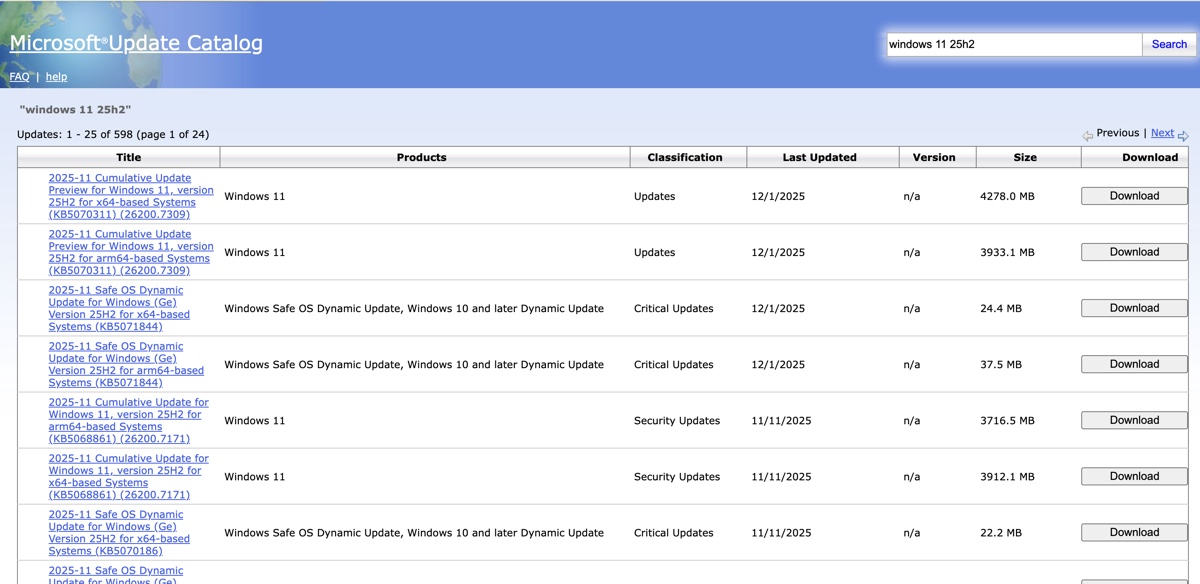
- Click the Download button next to the desired update.
- In the open window, click the update name to begin downloading.
What to do if Windows 11 update won't download?
If you can't download the Windows 11 ISO file or install the Windows 11 update due to errors, clean up your Windows PC with iBoysoft DiskGeeker for Windows and try again. By removing the unnecessary files, you can improve your PC's performance and make sure it has enough space to download and install the Windows 11 update.
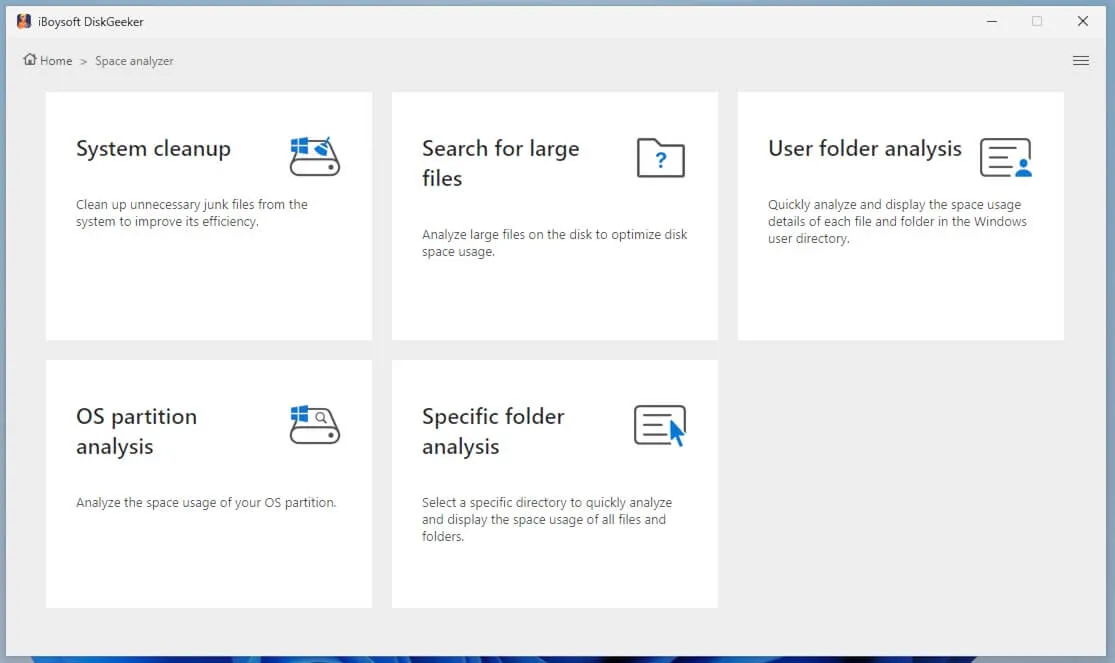
Simply download the tool and then choose a section of the Space Analyzer to analyze your PC's storage usage and remove unwanted files.
Create bootable USB installers for older Windows 11 versions
Note: If you're trying to create a Windows 11 installation media for the latest Windows 11 25H2, use Microsoft's official utility: Media Creation Tool. Visit the official Windows 11 download page, then click "Download Now" beneath the section "Create Windows 11 Installation Media."
If you want to create a Windows 11 bootable USB installer for 24H2 or older versions, use iBoysoft DiskGeeker for Windows. It not only lets you download the Windows 11 disk image (ISO) for x64 devices and ARM devices, but also easily makes a bootable USB installer for any version of Windows 11, 10, 8.1, and 7.
Here's how to create a bootable USB installer for Windows 11 24H2, 23H2, 22H2, or 21H2:
- Launch iBoysoft DiskGeeker for Windows.
- Open Download and create boot disk > Create Windows USB boot disk.
- Plug in the external drive that you want to make a bootable USB for Windows 11 with.
- Choose it and click Select.
- Select the Windows 11 ISO file you need, such as Windows 11 24H2 64-bit Home. (Click Cache Image to add your Windows 11 ISO file if you've already downloaded it.)
- Click Start creating boot disk.
- Wait while it downloads the Windows 11 ISO file and makes a bootable USB with it.
How to update Windows 11?
There are three ways to update Windows 11:
1. Update Windows 11 via Windows Update
The default option for updating or upgrading to Windows 11 is to use the Windows Update setting.
- Click Start > Settings.
- Open Windows Update.
- Select Check for updates.
- When it shows the latest Windows 11 updates.
- Click Download and install Windows 11.
2. Update Windows 11 with Windows 11 Update Assistant
If you can't update through the Windows Update settings, Windows 11 Update Assistant is an official alternative.
- Open the Microsoft Windows 11 Download page.
- Download the Windows 11 Update Assistant.
- Run the tool and follow its instructions to update or upgrade to Windows 11.
3. Create a Windows 11 installation media
If you need to upgrade several PCs to Windows 11 or prefer a clean install, make a Windows 11 bootable USB installer with iBoysoft DiskGeeker for Windows. Once complete, you can run the installation file from the USB drive within your current Windows version to perform an in-place upgrade or boot your computer from the USB installation media to do a clean install of Windows 11.
Interested in Windows 10? 👉 Windows 10 Update Download: 22H2, 21H2, 21H1, 20H2 & Earlier
Need Windows 7? 👉 Windows 7 Home Premium Download; Windows 7 Ultimate Download
Share to help others update Windows 11!
FAQs about Windows 11 ISO download 64-bit
- QHow to stop Windows 11 update after download?
-
A
To stop a Windows 11 update after downloading it, go to Settings > Windows Update, then choose a time period you want to postpone for the update under 'pause updates.'
- QHow do I upgrade from Windows 10 to Windows 11?
-
A
If your PC is compatible with Windows 11, you can update it from Windows 10 to Windows 11 through Windows Update:
1. Go to Settings > Update & Security > Windows Update.
2. Select Check for updates.
3. If your PC is eligible and ready, you will see a Feature update to Windows 11 notification.
4. Click Download and install.
5. Follow the on-screen prompts and accept the license terms. Your PC will restart several times during the process.
- QHow do I update Windows 11?
-
A
You can update Windows 11 via the built-in Windows Update feature. If Windows 11 won't update, you can download the specific patches from Microsoft Update Catalog and run the installer manually.
- QHow do I download and install Windows 11?
-
A
If you're trying to upgrade to Windows 11, use the Windows 11 Installation Assistant to download and install Windows 11.
If you want to clean install Windows 11, create a Windows 11 bootable USB installer and then boot from it.