The Windows 10 full version ISO files of different updates are useful in many ways.
When attempting to upgrade to the latest version of Windows 10 22H2 with automatic updates but encountering an error, it allows you to install the update manually. In addition, when attempting to clean install Windows 10 or downgrade Windows 10 to an earlier version, it helps you make installation media.
But where can you download Windows 10 ISO files safely and legally when Microsoft doesn't host a public download hub for all Windows 10 updates?
The answer is a reliable and maintained third-party Windows ISO downloader, or to download them directly from the internet if you consent to the risks.
Tips: iBoysoft DiskGeeker for Windows is a trustworthy Windows ISO downloader that's able to download Windows 10 disc image files (ISO files) directly pulled from Microsoft.
Currently, it provides Windows 10 ISO downloads for 64-bit and 32-bit computers, hosting full versions of Windows 10 22H2, 21H2, 21H1, 20H2, 2004, 1909, 1903, 1809, 1803, 1709, and 1703 ISO files in Home, Pro, Education, and Enterprise editions.
In addition, it streamlines the process of creating a Windows bootable USB installer, helping you create a Windows 10 bootable USB that works for both UEFI and BIOS systems easily.
Here's how to download Windows 10 ISO files for 64-bit & 32-bit systems:
Step 1: Free download, install, and open iBoysoft DiskGeeker for Windows.
Step 2: Go to Download and create boot disk > Download Windows system image.
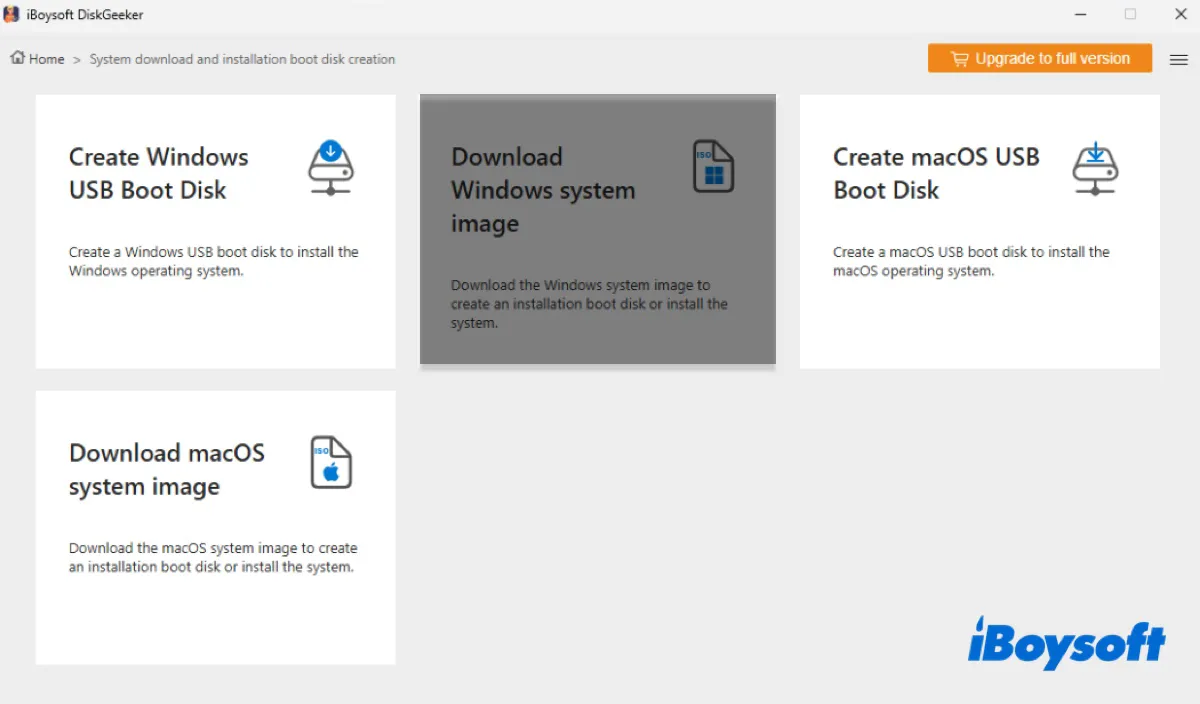
Step 3: Click on Windows 10.
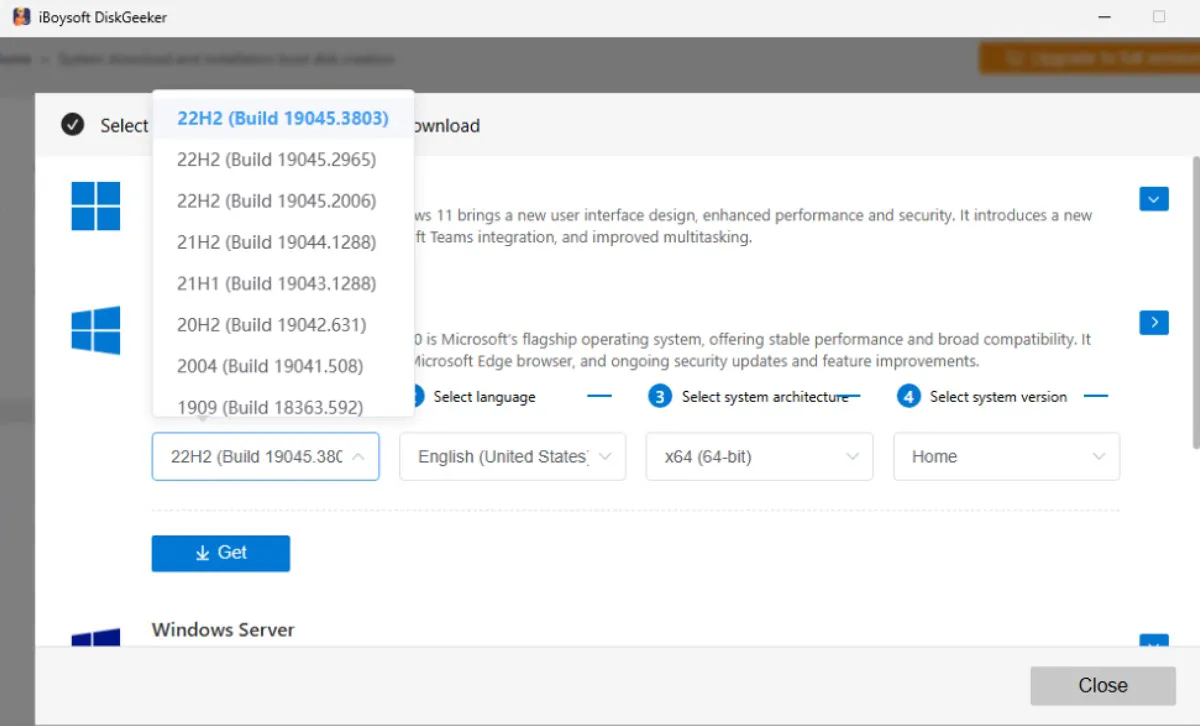
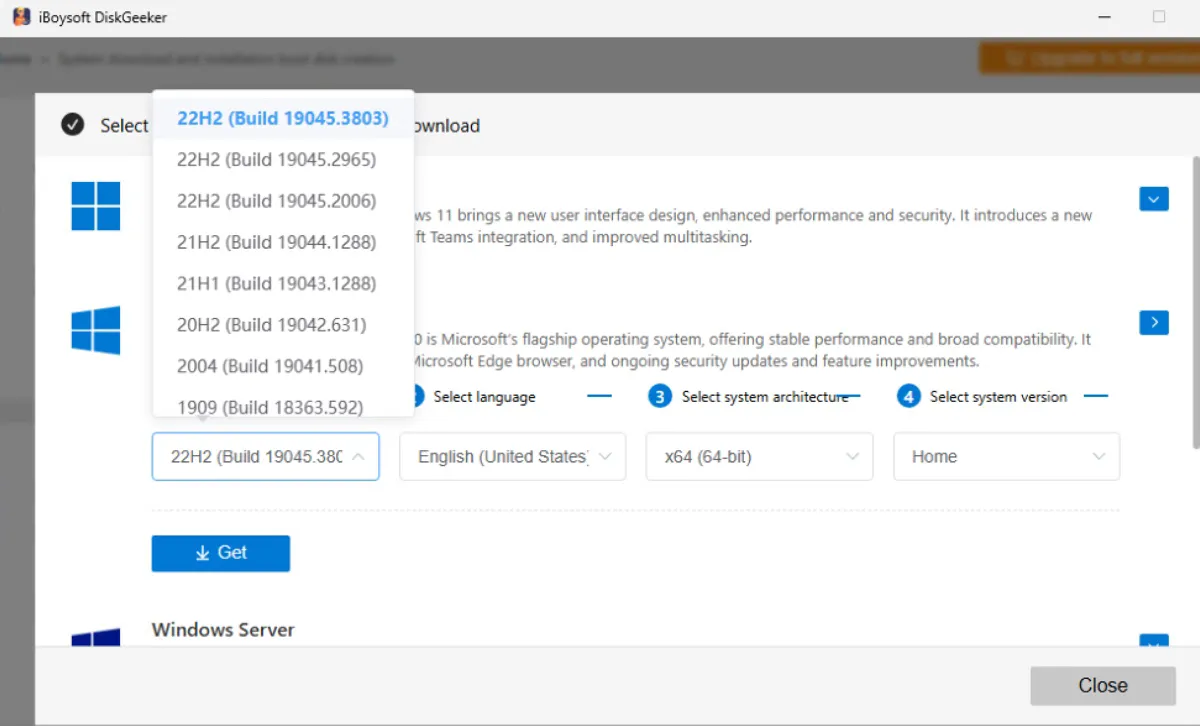
Step 4: Choose a Windows 10 update (e.g., Windows 10 update 22H2 (Build 19045.3803).
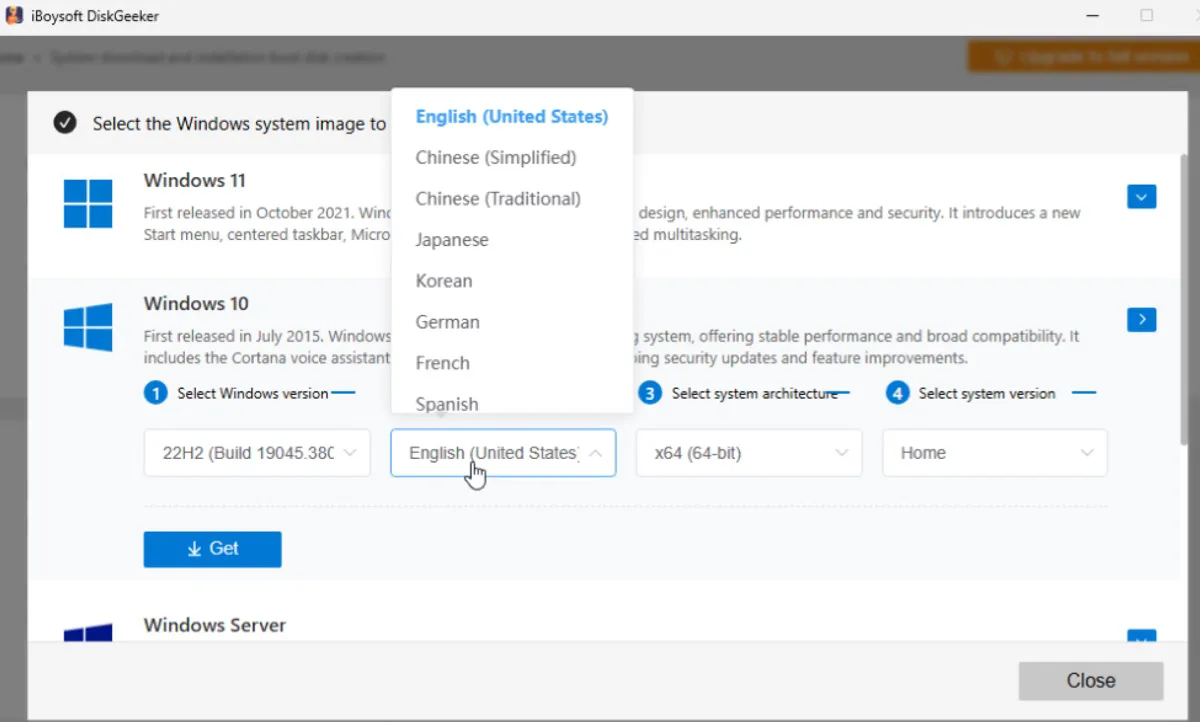
Step 5: Select a language.
Step 6: Choose a system architecture [x86 (32-bit) or x64 (64-bit)] that's compatible with the PC where Windows 10 is installed.
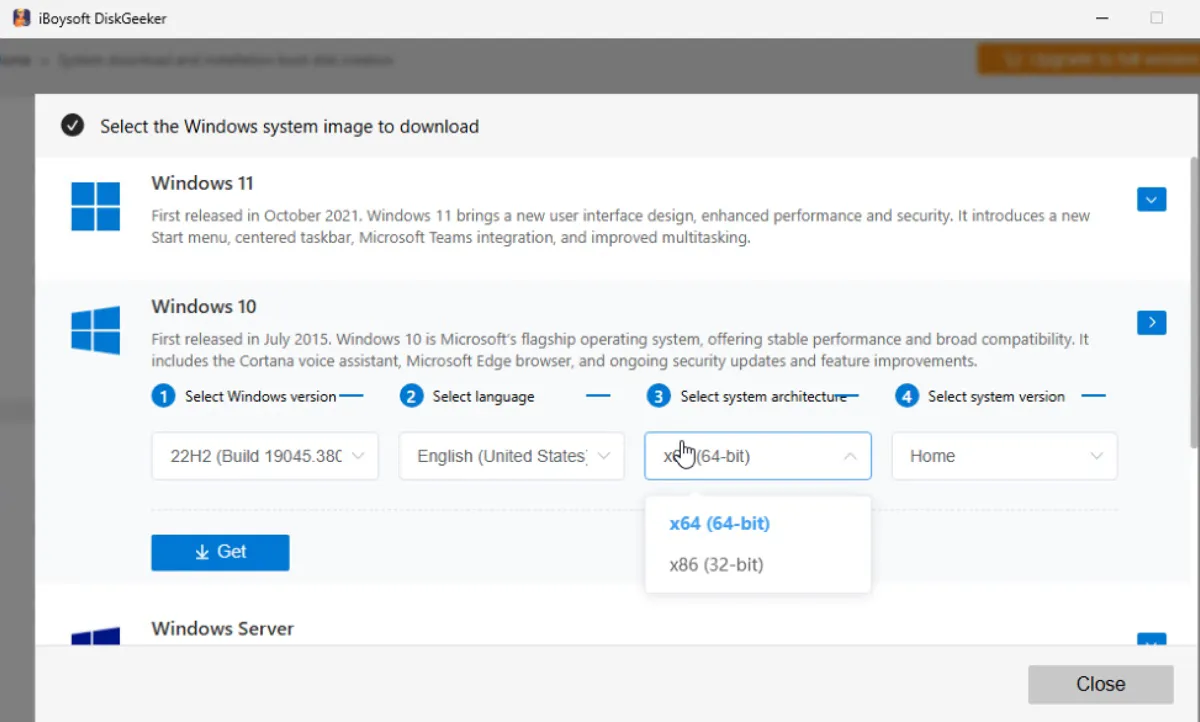
Step 7: Select a Windows 10 edition (Home, Pro, Education, or Enterprise.)
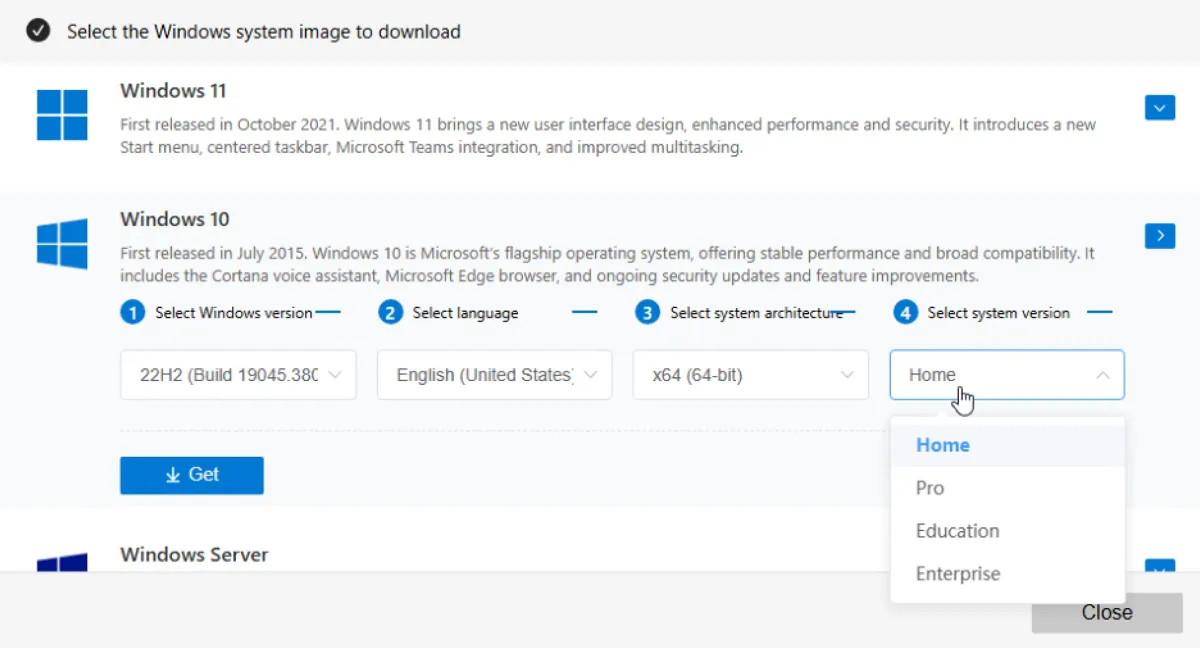
Step 8: Tap the Get button to download the Windows 10 ISO image.
💡 If you intend to create a Windows 10 bootable USB installer, choose "Create Windows USB Boot Disk" in Step 2 and follow the instructions to make the installation media.
Before downloading and installing Windows 10, ensure the Windows PC used for Windows 10 meets the minimum requirements below:
| Requirements | Minimum (32-bit/64-bit OS) | Recommended for Better Performance |
| Current Windows Version | At least the latest version of Windows 7 SP1 or Windows 8.1 | |
| Processor | 1 GHz or faster compatible processor or SoC (System on a Chip) | |
| RAM | 1 gigabyte (GB) for 32-bit or 2 GB for 64-bit | 4 GB or more is highly recommended |
| Hard Disk Space | 16 GB for 32-bit OS or 20 GB for 64-bit OS | 32 GB or more is required for new installations |
| Graphics Card | DirectX 9 or later with WDDM 1.0 driver | |
| Display | 800x600 resolution | |
| Connectivity | Internet access is needed for updates and some features |
To download different Windows 10 editions: Windows 10 Pro, Enterprise, LTSC, Home & Education ISO Download
Windows 10 latest version ISO Download
Microsoft has ended the services for Windows 10 (Home, Pro, Education, and Enterprise editions) on October 14, 2025. If you need the latest version of Windows 10, Windows 10 22H2, you can download it manually from Microsoft.
* When downloading Windows 10 22H2 ISO on a Windows PC, you won't see a direct ISO download button. Instead, it provides an "Update now" button to help you update to the latest version of Windows 10 with the Update Assistant and a "Download Now" button that downloads the Media Creation Tool.
To get Windows 10 22H2 ISO download 64-bit/32-bit from Microsoft:
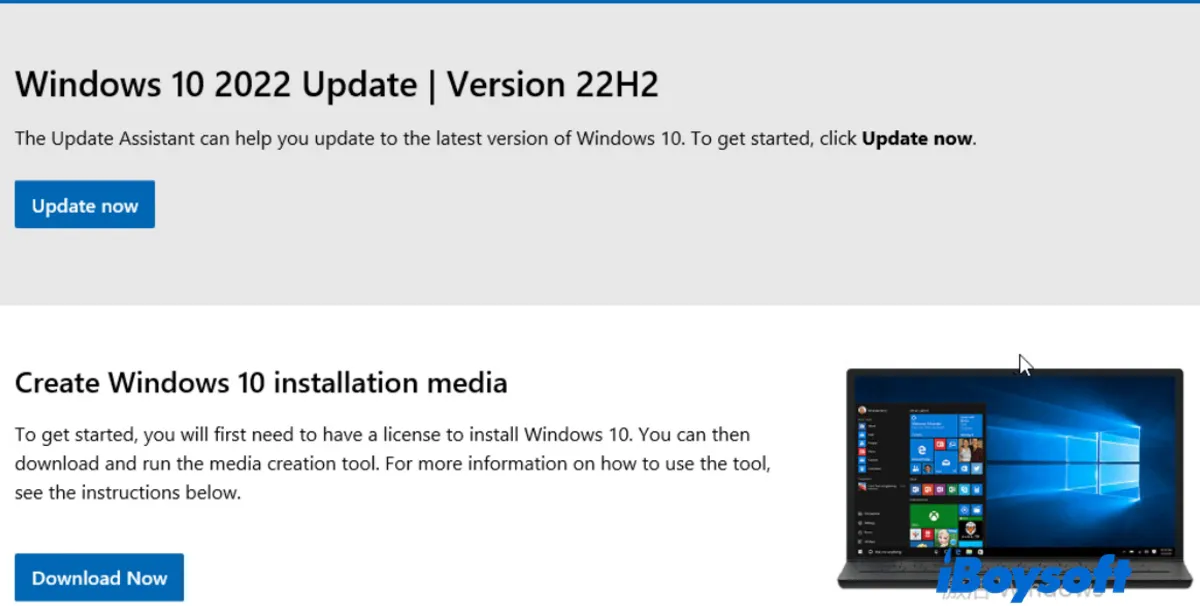
If you want to download Windows 10 ISO without downloading the Media Creation Tool, learn how to change the browser agent in this guide: How to Download Windows 10 without Media Creation Tool.*
Then take the steps below to get the Windows 10 update 22H2 ISO file:
- Open the Windows 10 Disc Image (ISO File) download page.
- Beneath "Windows 10 2023 Update | Version 22H2," choose Windows 10 (multi-edition ISO).
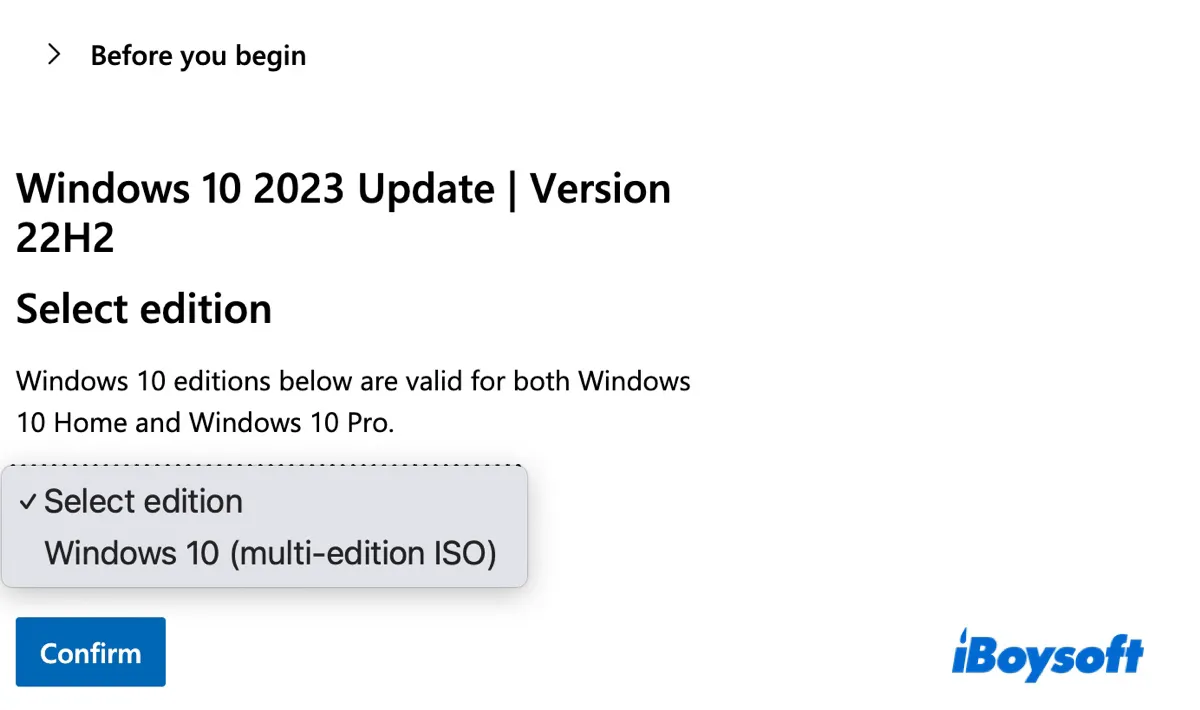
- Click Confirm.
- Choose the product language and click Confirm.
- Click on 64-bit Download or 32-bit Download to download the full version for free.
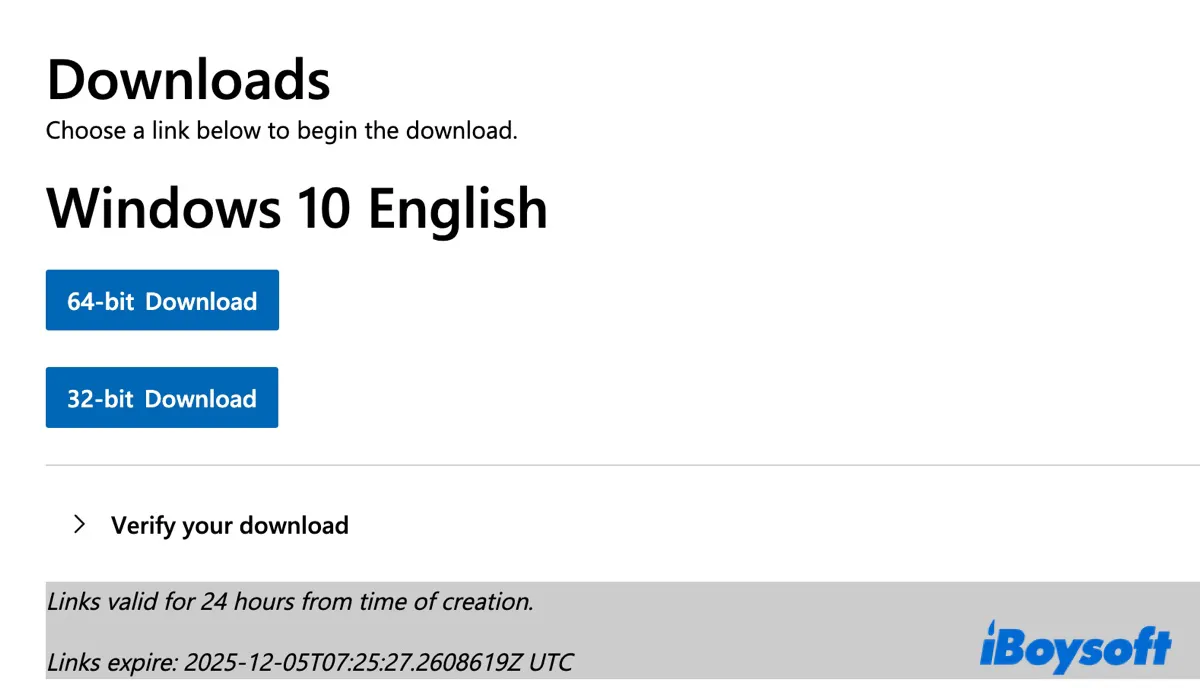
Now that you have the Windows 10 22H2 offline installer, you can run the installer to update Windows 10.
Share the steps to help others download Windows 10 update 22H2!
Windows 10 ISO file download 64-bit from free archives (22H2 ~ 1507)
If you can't download the Windows 10 64-bit full version directly from Microsoft, try the links in the following table. It offers free downloads for Windows 10 ISO files in 64-bit architectures. Note that the download links are from the free online archive: archive.org.
How to download Windows 10 64-bit full version for free:
| Windows 10 ISO Download | Common Names | Download Windows 10 64-bit Full Version Free (x64) | Release Dates |
| 22H2 (Windows 10 Latest Version) | Windows 10 2022 Update | Windows 10 22H2 ISO download 64-bit | October 18, 2022 |
| 21H2 | November 2021 Update | Windows 10 21H2 ISO download 64-bit | November 16, 2021 |
| 21H1 | May 2021 Update | Windows 10 21H1 ISO download 64-bit | May 18, 2021 |
| 20H2 | October 2020 Update | Windows 10 20H2 ISO download 64-bit | October 20, 2020 |
| 2004 | May 2020 Update | Windows 10 2004 ISO download 64-bit | May 27, 2020 |
| 1909 | November 2019 Update | Windows 10 1909 ISO download 64-bit | November 12, 2019 |
| 1903 | May 2019 Update | Windows 10 1903 ISO download 64-bit | May 21, 2019 |
| 1809 | October 2018 Update | Windows 10 1809 ISO download 64-bit | November 13, 2018 |
| 1803 | April 2018 Update | Windows 10 1803 ISO download 64-bit | April 30, 2018 |
| 1709 | Fall Creators Update | Windows 10 1709 ISO download 64-bit | October 17, 2017 |
| 1703 | Creators Update | Windows 10 1703 ISO download 64-bit | April 11, 2017 |
| 1607 | Anniversary Update | Windows 10 1607 ISO download 64-bit | August 2, 2016 |
| 1511 | November Update | Windows 10 1511 ISO download 64-bit | November 10, 2015 |
| Enterprise 2015 LTSB | First LTSC release | Windows 10 2015 LTSB update download 64-bit | July 29, 2015 |
| 1507 | Original Release | Windows 10 1507 ISO download 64-bit | July 29, 2015 |
To download an older Windows version, refer to the Old Windows Download Center.
Don't fully trust online resources? Download official Windows 10 ISO files from iBoysoft DiskGeeker for Windows!
Share the links for the Windows 10 ISO file download 64-bit!
Windows 10 32-bit ISO download from free archives (22H2 ~ 1507)
If your computer is 32-bit, download the Windows 10 32-bit ISO files from the following free archives.
| Windows 10 ISO Download | Common Names | Download Windows 10 32-bit ISO Full Version Free (x86) | Release Dates |
| 22H2 (Windows 10 Latest Version) | Windows 10 2022 Update | Windows 10 22H2 ISO download 32-bit | October 18, 2022 |
| 21H2 | November 2021 Update | Windows 10 21H2 ISO download 32-bit | November 16, 2021 |
| 21H1 | May 2021 Update | Windows 10 21H1 ISO download 32-bit | May 18, 2021 |
| 20H2 | October 2020 Update | Windows 10 20H2 ISO download 32-bit | October 20, 2020 |
| 2004 | May 2020 Update | Windows 10 2004 ISO download 32-bit | May 27, 2020 |
| 1909 | November 2019 Update | Windows 10 1909 ISO download 32-bit | November 12, 2019 |
| 1903 | May 2019 Update | Windows 10 1903 ISO download 32-bit | May 21, 2019 |
| 1809 | October 2018 Update | Windows 10 1809 ISO download 32-bit | November 13, 2018 |
| 1803 | April 2018 Update | Windows 10 1803 ISO download 32-bit | April 30, 2018 |
| 1709 | Fall Creators Update | Windows 10 1709 ISO download 32-bit | October 17, 2017 |
| 1703 | Creators Update | Windows 10 1703 ISO download 32-bit | April 11, 2017 |
| 1607 | Anniversary Update | Windows 10 1607 ISO download 32-bit | August 2, 2016 |
| 1511 | November Update | Windows 10 1511 ISO download 32-bit | November 10, 2015 |
| Enterprise 2015 LTSB | First LTSC release | Windows 10 2015 LTSB ISO download 32-bit | July 29, 2015 |
| 1507 | Original Release | Windows 10 1507 ISO download 32-bit | July 29, 2015 |
Share the links for Windows 10 ISO downloads in 32-bit!
Windows 10 cumulative updates download (KB5066791 & Earlier)
Apart from feature updates like Windows 10 22H2, there are also the regular, cumulative updates, also called patches, released monthly to keep your current version secure and stable.
If automatic updates fail to install a cumulative update of Windows 10, download the patch from the Microsoft Update Catalog and then double-click to run the installer package.
Note that these are patches rather than standalone installers. That said, if you're currently running Windows 10 21H1, you must install the Windows 10 22H2 feature update first before jumping to the latest cumulative update of 22H2: KB5066791.
To download cumulative updates or patches for Windows 10:
- Open the Microsoft Update Catalog.
- Search for a cumulative update, such as KB5066791.
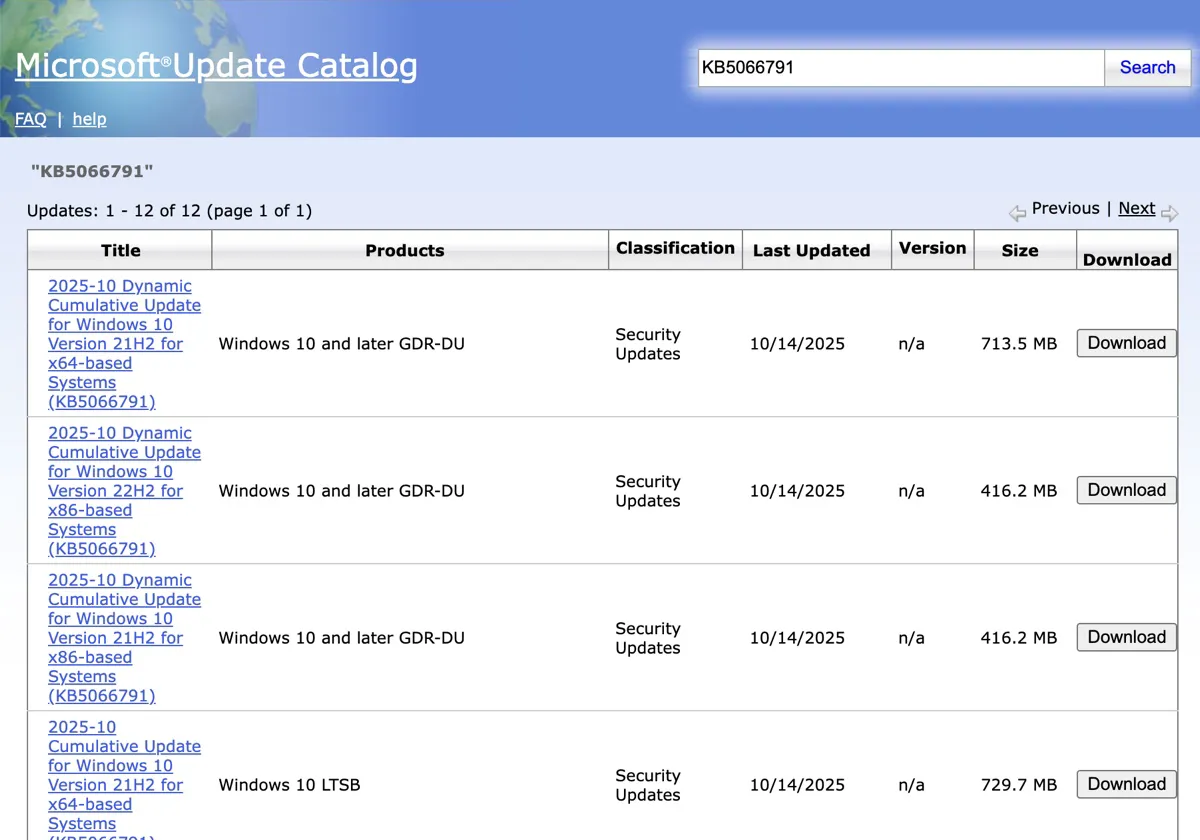
- Find the version suitable for your PC and click the Download button.
Windows 10 Update Assistant download
If you want to install the latest Windows 10 update, you can also use Windows 10 Update Assistant instead of downloading the full installer. According to Microsoft, "The Windows 10 Update Assistant downloads and installs feature updates on a Windows PC." They recommend it for users who want to manually update Windows 10 or check for quality updates.
Here's how to download Windows 10 Update Assistant and update Windows 10:
- Open the Windows 10 Disc Image (ISO File) download page.
- Click Update now under "Windows 10 2022 Update | Version 22H2."
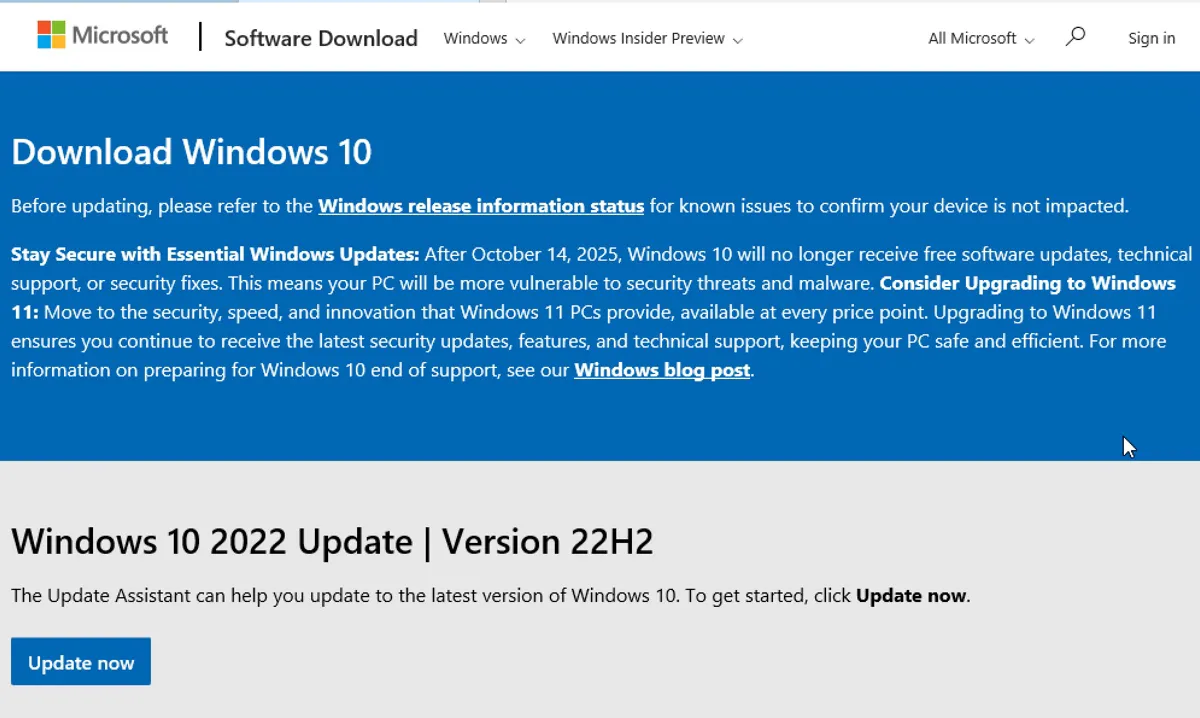
- Click Save to download Windows 10 Update Assistant. The program is named Windows10Upgrade9252.exe.
- Then open the folder where the Windows 10 Update Assistant is saved.
- Right-click on Windows10Upgrade9252.exe and choose "Run as administrator."
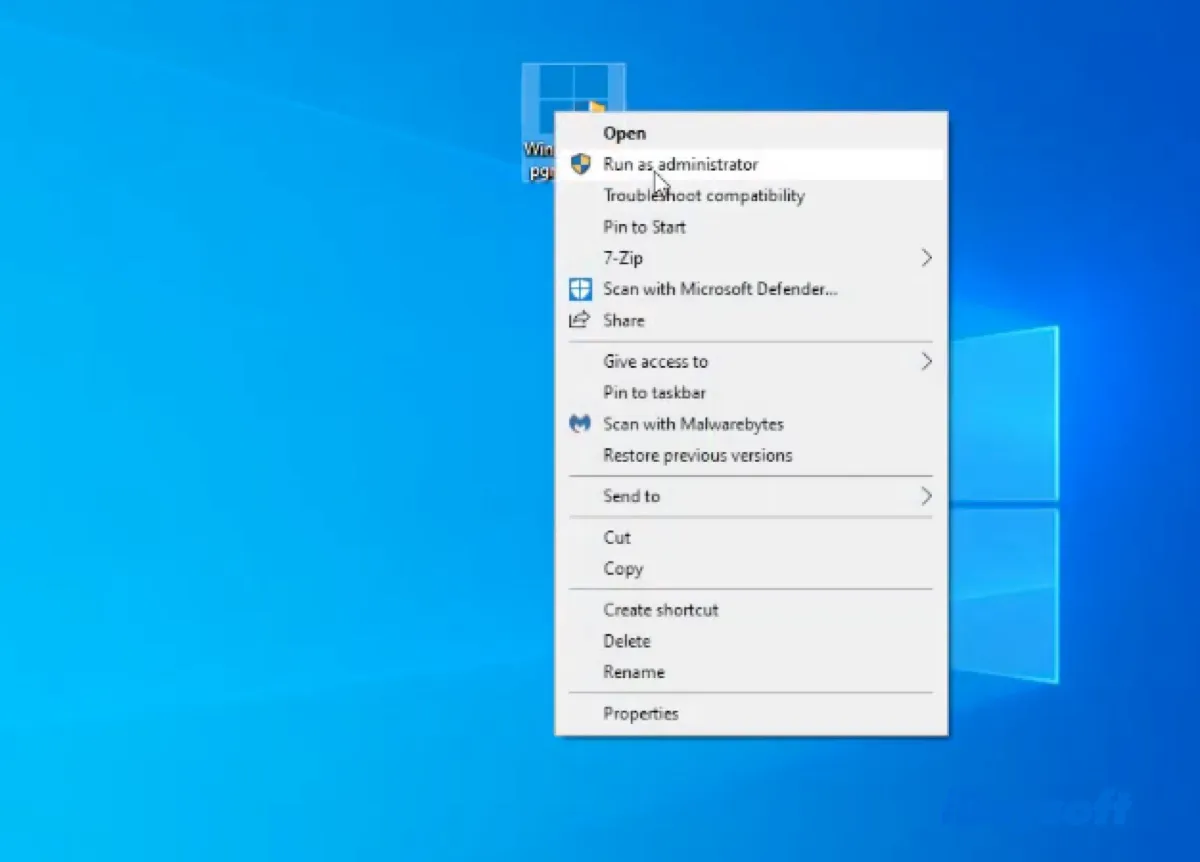
- Click Yes.
- Wait while the assistant is checking for updates.
- When it finds the latest version of Windows 10, click Update Now.
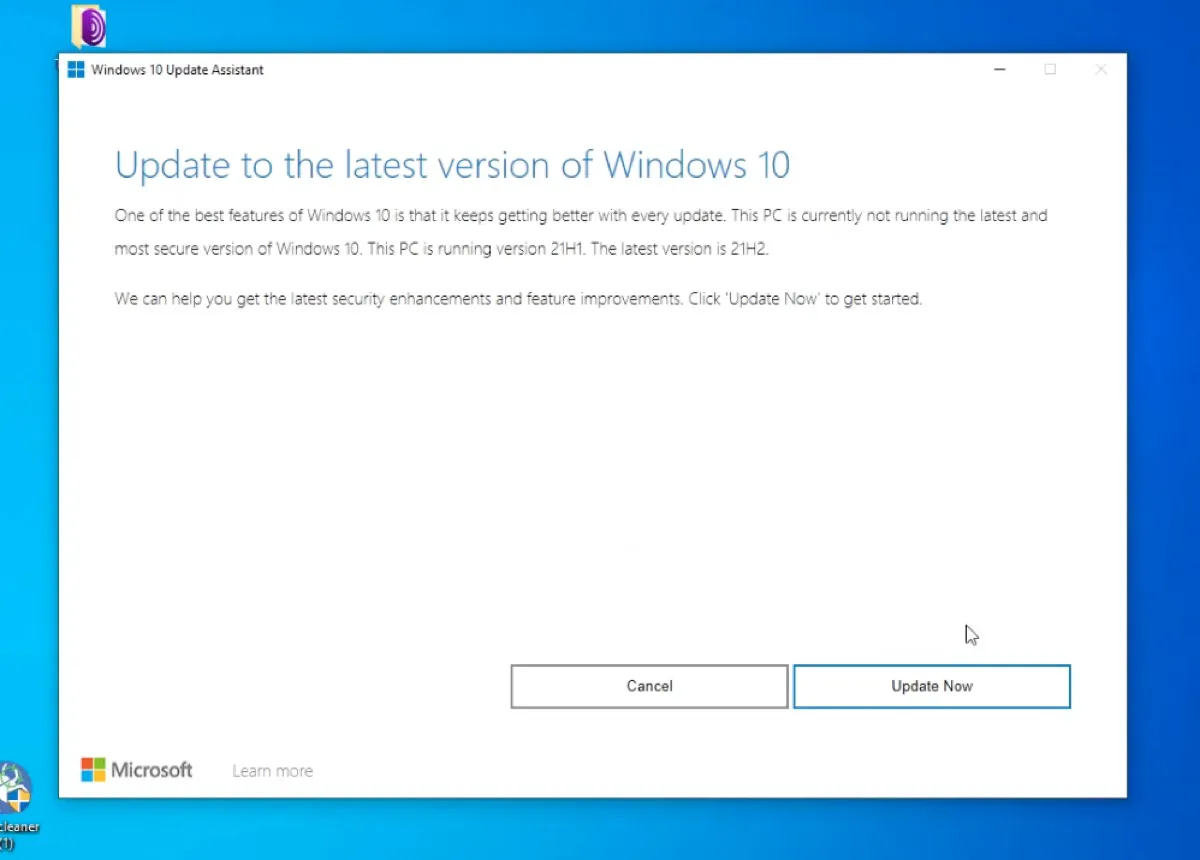
- Follow the on-screen instructions to install the Windows 10 update.
If you're interested in Windows 11 updates, read: Windows 11 Update Download: 25H2, 24H2, 23H2, 22H2, 21H2, or download a lite version of Windows 11: Ghost Spectre Windows 11.
Need other Windows versions? Check the resources below:
Windows 7 Home Premium ISO Download
Windows 7 Ultimate Download
Old Windows Version Download Center
Windows 98 & Windows 98 SE ISO Download
Help others download Windows 10 Update Assistant by sharing these steps!
FAQs about Windows 10 ISO file download
- QHow to fix the Windows 10 update download error?
-
A
If the Windows 10 update won't download, clean your PC and try again. Suppose it still doesn't work; download Windows 10 from this article.
- QHow do I update Windows 10?
-
A
There are several ways to update Windows 10:
1. Download the Windows 10 update and run the installer.
2. Use the automatic update feature in Windows Update.
3. Utilize the Windows 10 Update Assistant.
- QHow to download and install Windows 10 update?
-
A
If you download the Windows 10 update manually from iBoysoft DiskGeeker for Windows or archive.org, double-click the program to install it.
If you rely on the Windows Update setting or Windows 10 Update Assistant to download and install Windows 10, simple follow its instruction.
- QWhat to do if the Windows 10 update download is stuck at 0%?
-
A
If the Windows 10 update download is stuck at 0%, try downloading it from iBoysoft DiskGeeker for Windows or the links provided in this post.