NTFS drives are read-only on macOS by default. To enable full read-write access for cross-platform file transfers, users typically choose between two primary solutions: Mounty for NTFS (a free utility relying on external filesystem components) and iBoysoft NTFS for Mac (a dedicated commercial driver with advanced disk management).
Below is a comparison of their features, installation requirements, pricing, compatibility, writing & reading speed, stability, simplicity, and more.
Quick Selector Table
The practical difference between Mounty for NTFS and iBoysoft NTFS for Mac is not simply whether either application can write to NTFS. Both aim to solve that problem. The more important questions are how simple their procedures are, how reliably the drive mounts, and whether the solution fits your regular workflow.
| Scenario | What matters most | Which one to choose |
| Occasional file transfers | Whether the tool enables write access without excessive setup | iBoysoft NTFS for Mac (simple mode without extra setup) |
| Frequent large-file transfers | Consistent write speed and successful completion | Mounty or iBoysoft |
| Daily external drive use | Automatic mounting and reconnection behavior | iBoysoft NTFS for Mac (Auto-mounting supported) |
| Multiple external drives | Compatibility across different NTFS storage devices | Mounty or iBoysoft |
| Newer macOS versions | Driver compatibility and installation requirements | Mounty or iBoysoft (Both support macOS 27) |
| Important business files | Reliable operation, backups, and recovery precautions | iBoysoft NTFS for Mac (no additional macFUSE, NTFS-3G needed) |
To sum up:
| Mounty is worth considering if: | iBoysoft NTFS for Mac is worth considering if: |
|
|
Quick Comparison between Mounty for NTFS and iBoysoft NTFS for Mac
Before looking at individual features, here's the practical difference between the two tools.
| Item | Mounty NTFS for Mac | iBoysoft NTFS for Mac |
| Best for | Users who want a free NTFS solution and can handle technical setup | Users who regularly transfer files between Mac and Windows |
| Setup | Complex, requires Homebrew and Terminal commands | A simple drag-and-drop |
| Dependencies | macFUSE + NTFS-3G combination | Integrated NTFS driver |
| Test write & read speed | Write speed: 102.71 MB/s Read speed: 116 MB/s | Write speed: 121.12 MB/s Read speed: 139.7 MB/s |
| Price | Free | Paid; trial availability should be checked on the download page |
| NTFS read/write | Yes, through its underlying driver or remount mechanism | Yes, through its NTFS implementation |
| macOS | macOS Golden Gate 27 and earlier | macOS Golden Gate 27 - macOS High Sierra 10.13 |
| Apple Silicon | Depends on compatible driver components and configuration | Supports Apple Silicon |
| Automatic mounting | Limited compared with a dedicated NTFS utility | Automatic mounting available |
| Disk management | Primarily remounting NTFS volumes | Mount, unmount, eject, repair, and format options |
| Stability | Potential risks for data corruption or drive errors | Complete 99.9% of test cases without errors |
| Technical knowledge | More useful for technically comfortable users | More suitable for ordinary Mac users |
Mounty for NTFS: A Free Solution with macFUSE + NTFS-3G Combination
Mounty is designed to read and write NTFS on macOS without requiring users to reformat their external storage.
Its appeal is straightforward: it is free, lightweight, uses a menu bar interface, and works well on modern Macs running even the latest macOS Golden Gate 27.
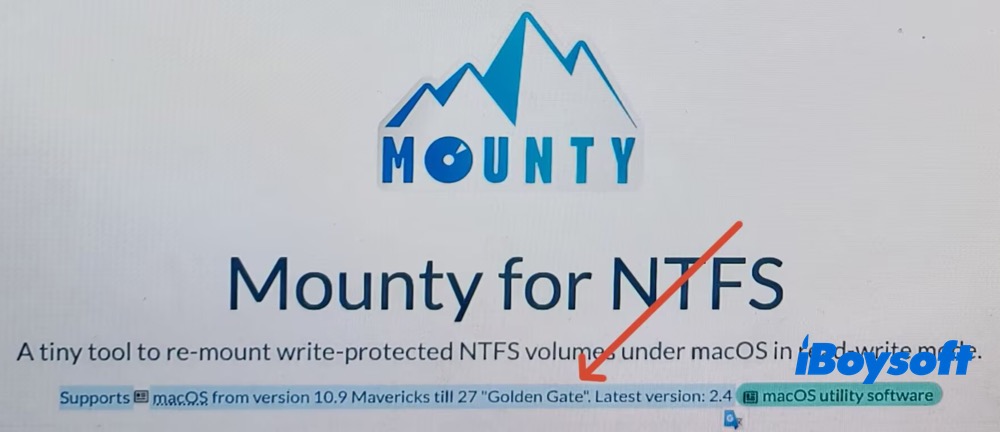
According to the official Mounty website, the newer version acts as a graphical interface for NTFS-3G, an open-source NTFS driver, and uses macFUSE to support the filesystem operations. This means Mounty is not a standalone NTFS driver. Its functionality depends on additional software components.
What I would consider its advantages
- Free to use: There is no software license fee.
- Simple interface: Its menu bar design makes the remount operation relatively straightforward once installation is complete.
- Open-source components: NTFS-3G and macFUSE provide the underlying filesystem functionality.
- Useful for occasional transfers: It can be an option for users who only occasionally need to copy files to NTFS drives on Mac.
Where Mounty becomes less convenient
- The biggest drawback is the additional setup required on newer macOS versions.
- For macOS Ventura and later (macOS 27 incl.), users need to install macFUSE and NTFS-3G alongside Mounty. They may also need to approve security settings and restart their Mac.
- This introduces more installation steps and more components to troubleshoot.
- There are also filesystem conditions that can prevent successful mounting. For example, Mounty's developer documents problems with NTFS volumes that were not properly ejected from Windows.
Windows Fast Startup and hibernation can also leave a Windows system partition locked against mounting.
My assessment: Mounty makes sense if avoiding software costs is your priority and you are comfortable managing dependencies. I would be more cautious about relying on it as the default solution for frequent, important file transfers.
iBoysoft NTFS for Mac: A More Integrated NTFS Solution
iBoysoft NTFS for Mac takes a more integrated approach. Instead of relying on Mounty's combination of external components, it provides its own NTFS implementation and several mounting options.
Its main purpose is to let you read, write, edit, delete, copy, and move files on NTFS-formatted drives on Mac without reformatting the storage device.
And it offers three mounting modes for you to choose from:
- Extension mode (macOS 26 and later) uses Apple's SKit framework to run iBoysoft's NTFS file system in user space, with no kernel extension and no restart.
- Advanced mode uses iBoysoft's kernel driver for automatic mounting, and on Apple Silicon it needs the system extension enabled, like Paragon and Tuxera.
- Simple mode works without a driver but asks you to mount NTFS drives manually each time.
This flexibility is useful because you can choose a mounting approach based on your macOS version and requirements. For example, someone using macOS 27/26 can consider Extension Mode to avoid enabling a kernel extension. Someone who wants automatic mounting can consider Advanced Mode instead.
What I consider its advantages
- Multiple mounting options: Users can choose between Simple, Extension, and Advanced modes.
- Automatic mounting: NTFS drives can be enabled with write access automatically.
- Broader disk management: It offers mounting, unmounting, ejecting, repairing, and formatting functions.
- No reformatting required: Existing NTFS drives can be used without erasing their contents.
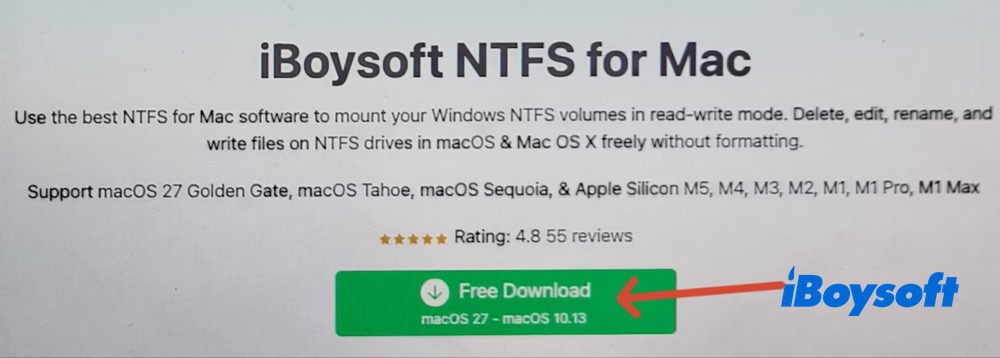
- Wide compatibility: It supports both Intel and Apple Silicon Macs, and macOS 27 - macOS 10.13.
Where iBoysoft NTFS for Mac has limitations
- Paid NTFS for Mac software
- iBoysoft NTFS for Mac is not a data recovery tool. If a drive is physically damaged, unreadable, or not mounting properly, installing an NTFS driver will not necessarily resolve the underlying problem.
My assessment: iBoysoft NTFS for Mac is the more convenient option for people who regularly work with Windows-formatted external drives and prefer a more safe and integrated workflow using iBoysoft's FSkit based user spacer driver.
Hands-on Test on Mounty for NTFS and iBoysoft NTFS for Mac
Feature lists alone cannot establish which NTFS tool performs better in everyday use. For a meaningful comparison, I would test both products on the same Mac and the same NTFS-formatted external drive. The following procedure is designed to make the results reproducible rather than relying on subjective impressions.
Test environment:
| Test component | Configuration |
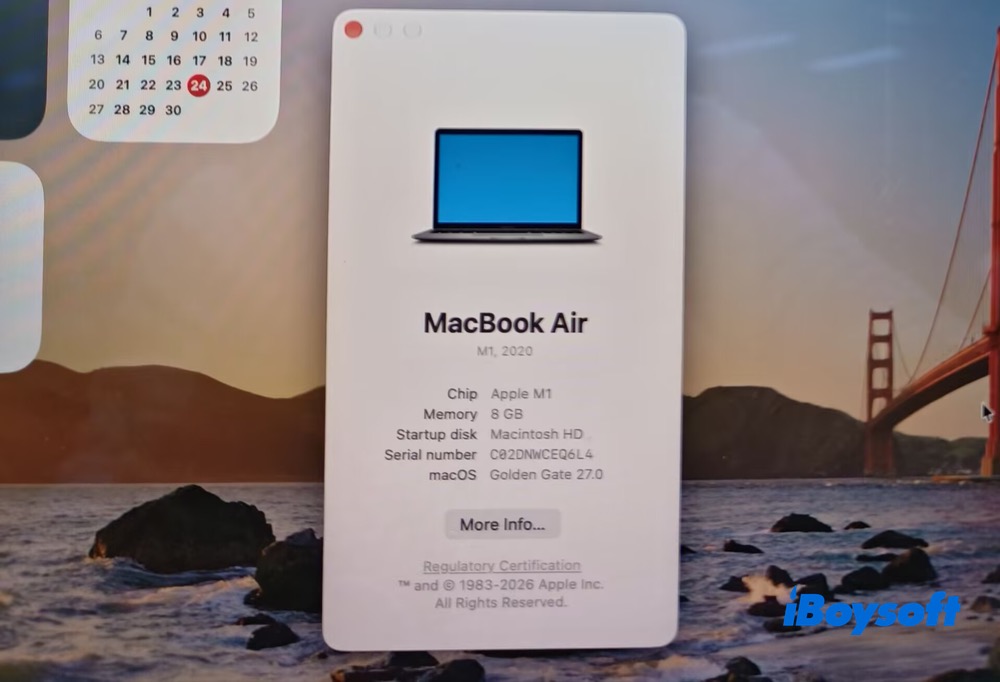
| macOS | macOS 27 Golden Gate 27.0 |
| Mac | Apple Silicon M1 MacBook Air (2020) |
| External drive | One NTFS-formatted USB drive |
| Connection | Same USB port and cable |
| Test files | 7.8 GB ISO image file |
| Safety | Back up the external drive before testing |
Test A. Install macFUSE + NTFS-3G + Mounty Combination and Transfer Files
Here I'd like to share with you my personal experience with Mounty for NTFS for your reference. The installation is now a bit more complex. For those who are running on macOS Golden Gate - Ventura, enable NTFS read and write access with macFUSE + NTFS-3G + Mounty!
| macOS | Compatibility | Mechanisms |
| macOS Ventura and newer (Golden Gate incl.) | Yes | Requires additional setup - macFUSE and NTFS-3G |
| macOS Monterey and earlier | Yes | Utilize macOS's native, hidden NTFS capabilities |
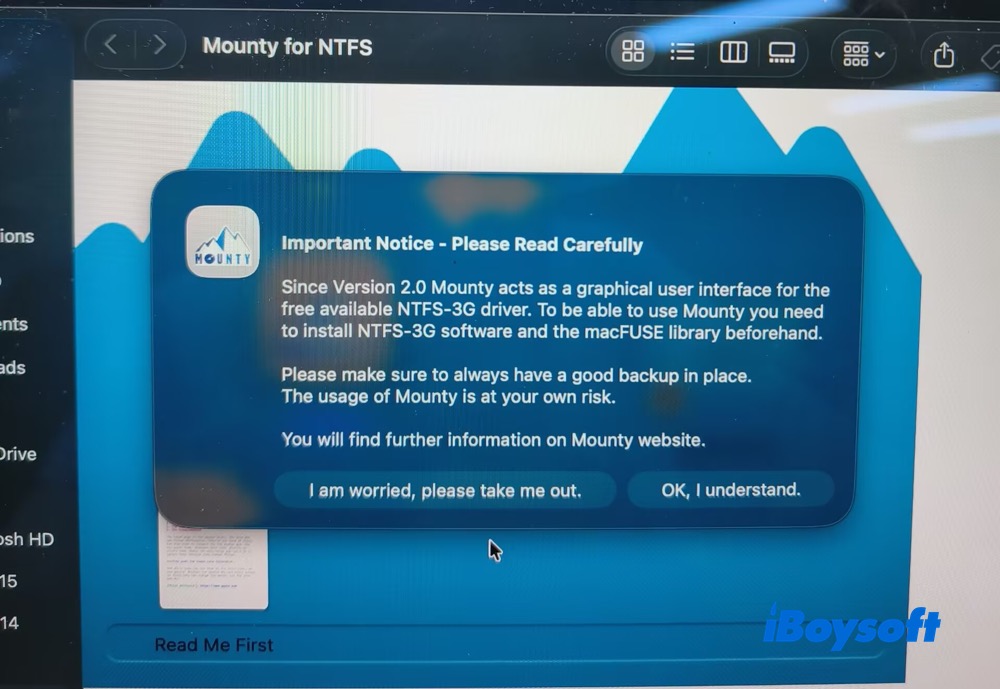
1. I accessed to Mounty for NTFS official website and planned to directly download Mounty latest version 2.4. Yes, it was successfully downloaded on my M1 MacBook Air. It gave me a notice (macFUSE and NTFS-3G needed beforehand).
- 2. Download the Mounty combination via Terminal. The installation command lines are all included on this webpage. I tried downloading Homebrew via Terminal first. Open Terminal > insert the command below:
- /bin/bash -c "$(curl -fsSL https://raw.githubusercontent.com/Homebrew/install/HEAD/install.sh)"
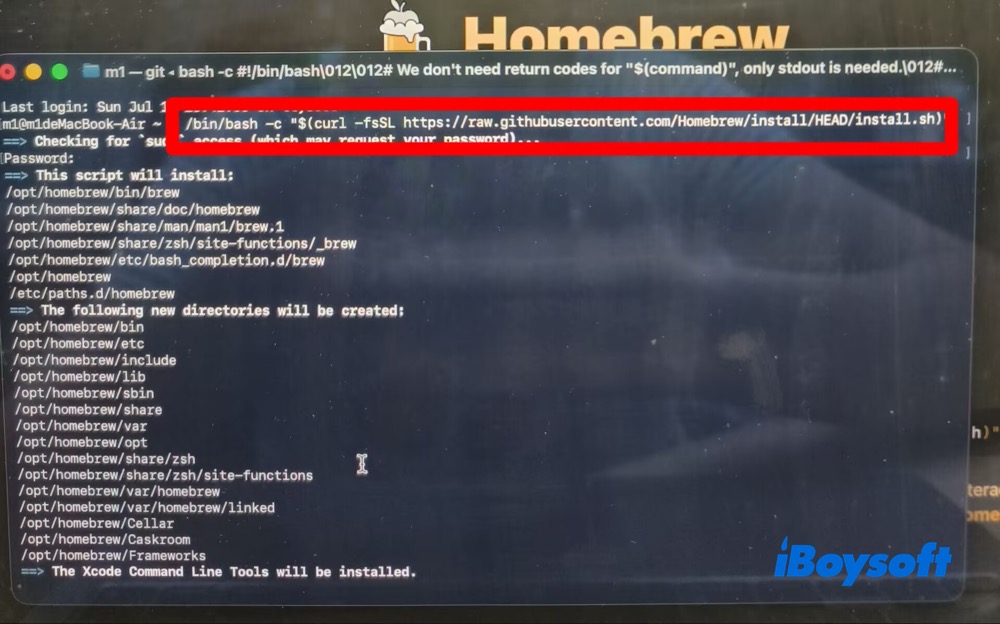
3. After Homebrew.pkg download and installation are completed, I go ahead to Terminal again and enter the following command line to install macFUSE:
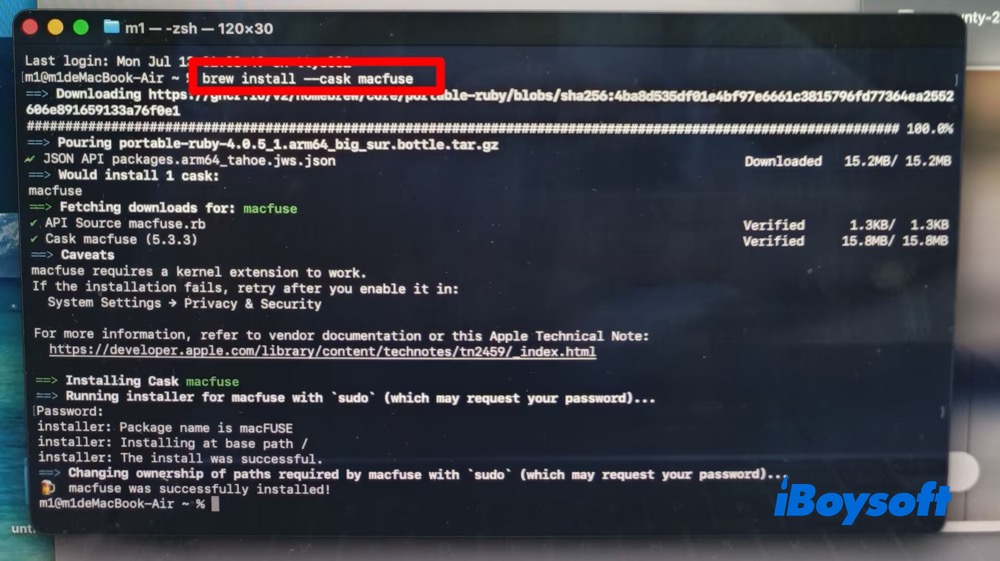
Enter my password, press Enter, and wait a moment for macFUSE to complete the installation.
4. Go back to mounty.app webpage and copy the following command line to Terminal to install NTFS-3G:
brew install gromgit/fuse/ntfs-3g-mac
5. After installing NTFS-3G, launch Mounty for NTFS. When prompted on first startup, grant Mounty full disk access, trust the macFUSE library (signed by "Benjamin Fleischer") in Settings > Privacy & Security, and trust the NTFS-3G kernel driver. Then, restart my MacBook Air.
6. Connect my NTFS drive to my Mac > re-launched Mounty for NTFS. Found the Mounty icon in the menu bar of the screen > tapped its icon > clicked “Show Untitled in Finder”.
My NTFS drive was open in Finder, and I could successfully copy my 7.8 GB ISO image file from the Mac to my NTFS drive. There was no background activity and the writing speed is around 102.71 MB/s.
The NTFS drive was in read-write mode. I also tested its reading speed by opening my NTFS drive mp4 video on the M1 MacBook Air, the reading speed up to 116 MB/s.
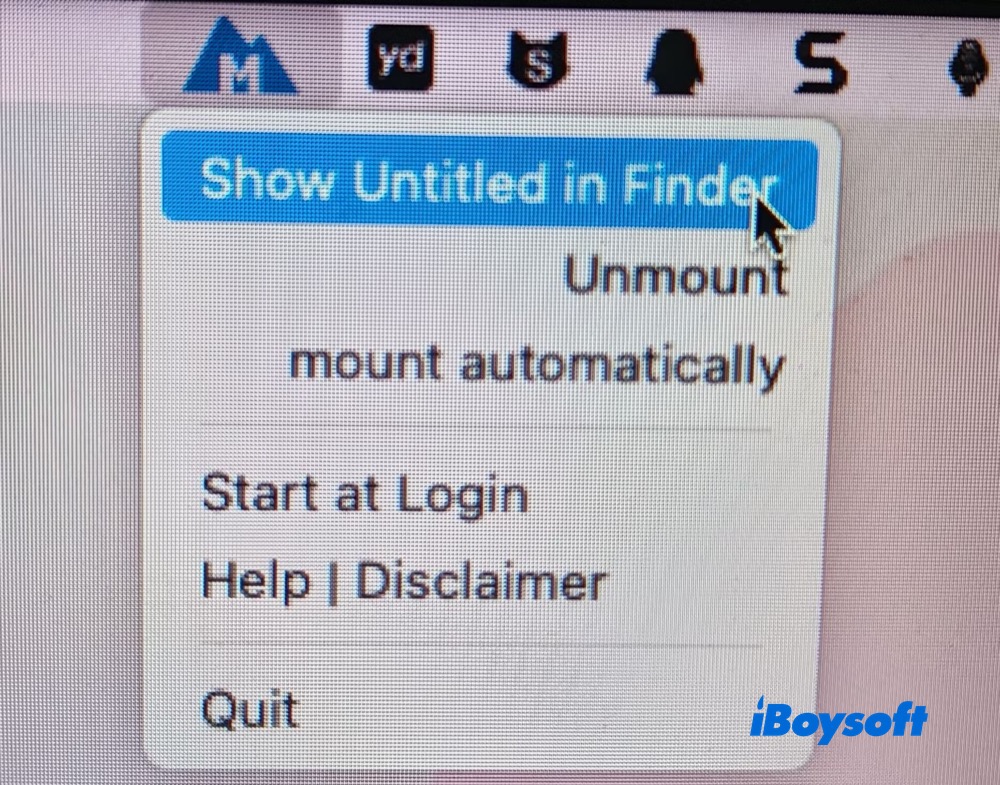
The colour of the Mounty icon represents different states. Take a glance at your Mounty icon color to judge its status.
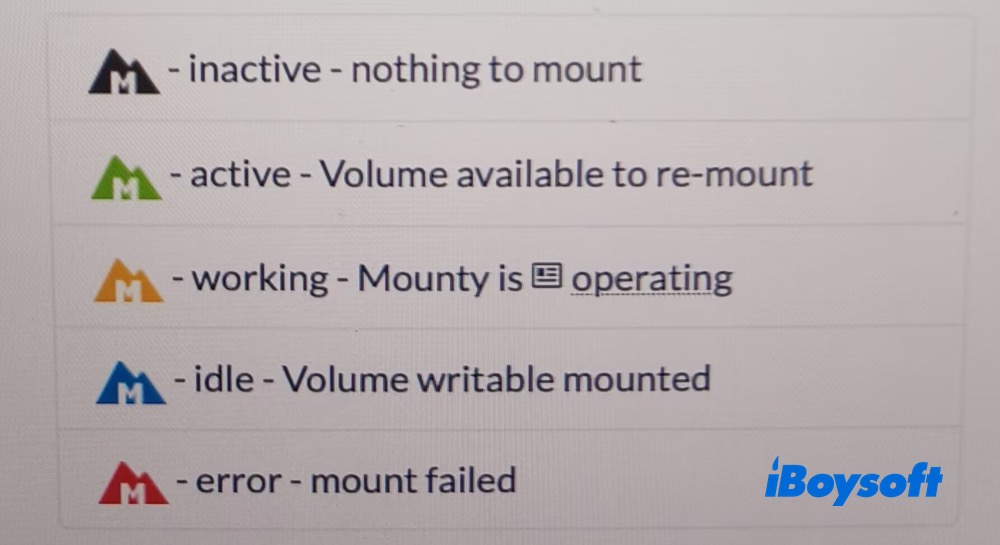
I was able to get my NTFS drive working in read-write mode with Mounty on my macOS 27.0, but the setup experience was frustrating. For users who need dependable NTFS read/write support on modern macOS, the more integrated solution - iBoysoft NTFS for Mac is likely a better choice than the Mounty + macFUSE + NTFS-3G approach.
Test B. Install and Use iBoysoft NTFS for Mac to Read & Write NTFS Drive
Unlike Mounty, iBoysoft NTFS for Mac operates independently without needing Homebrew, macFUSE, or NTFS-3G terminal commands. Setup is fast and hassle-free via simple drag-and-drop.
Step 1: I downloaded iBoysoft NTFS for Mac version 9.0 on my M1 MacBook Air running macOS 27.0. Simply follow the setup wizard—no Terminal commands required.
Step 2. Connect my external NTFS hard drive to my Mac. Launch this NTFS for Mac software, and it auto-mounts my NTFS drive in read-only state.
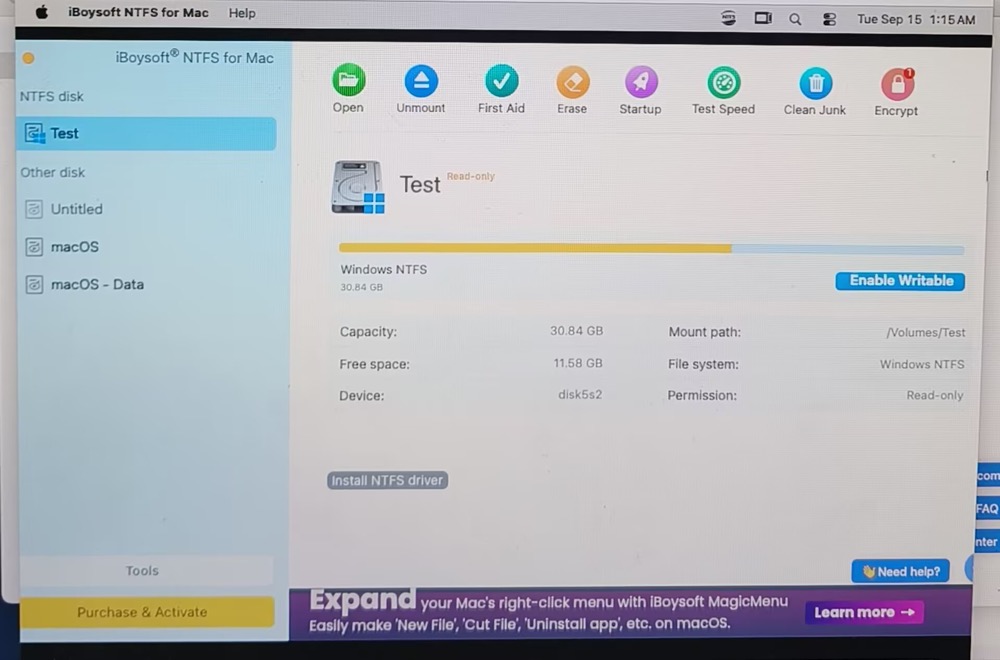
Step 3. Click Settings > Advanced. This Windows NTFS for Mac auto-selected Extension mode (FSKit) in "Default mount mode" option.
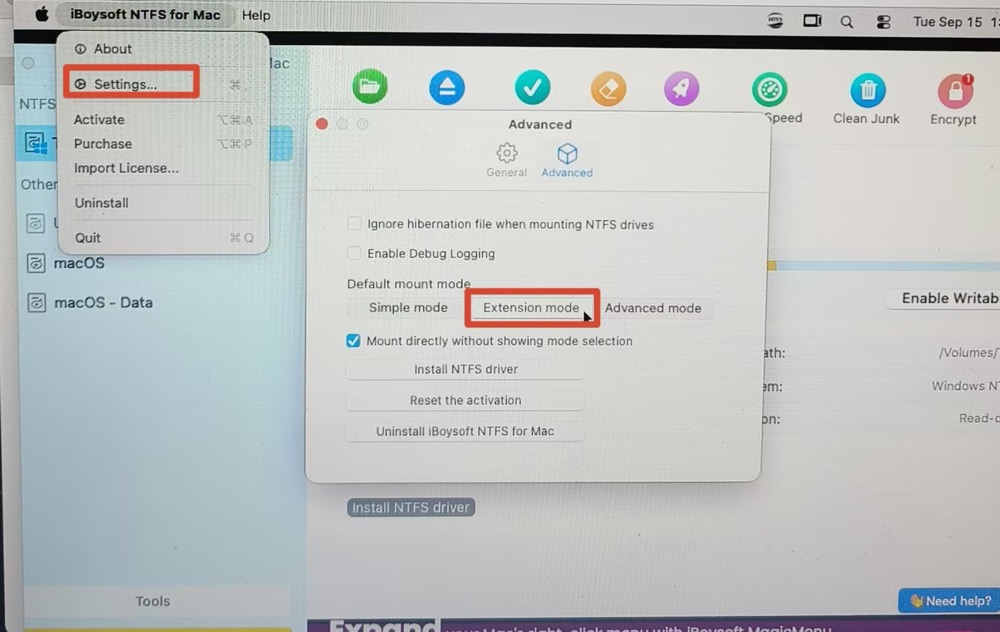
On macOS Tahoe 26 and later, iBoysoft NTFS for Mac automatically selects Extension mode for reading from and writing to NTFS drives. On macOS 15 and earlier, Advanced mode is selected by default.
Step 4. Enter my activation code to activate the software. Once activated, the NTFS drive is successfully mounted in read/write mode and appears in the Permissions section.
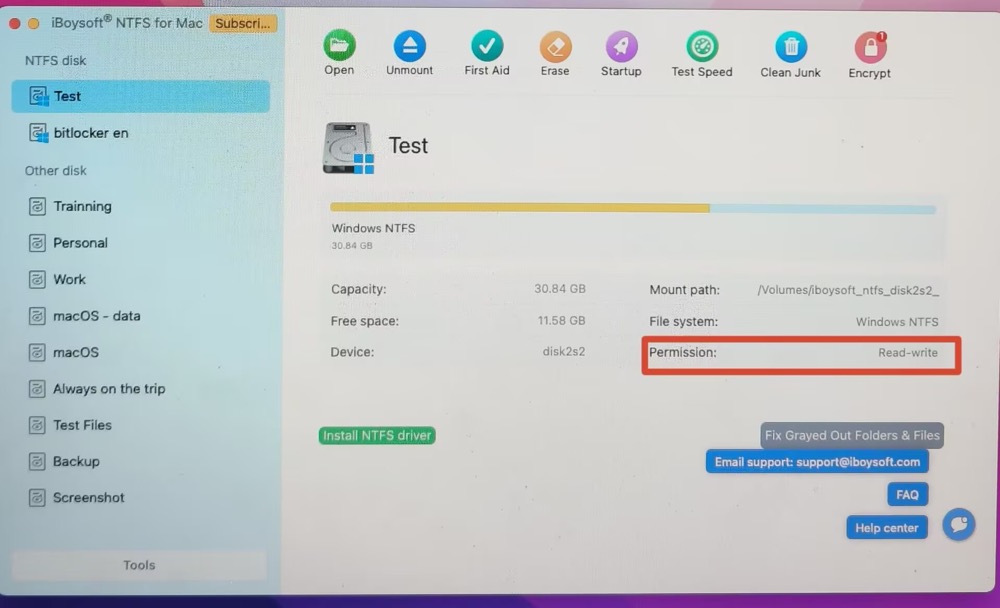
Note: In Advanced mode, the green Install NTFS Driver option appears on the home screen. You must install the NTFS driver component and enable System Extensions. In the new FSKit mode, no additional configuration is required—the NTFS drive is automatically mounted in read/write mode after installation.
Step 5. I transfer the same ISO image file (7.8GB) from MacBook Air to my NTFS drive. The writing speed goes to 121.12 MB/s. Also use the same video to test reading speed, it runs up to 139.7 MB/s.
Note: Actual NTFS read and write speeds depend on your drive type, connection interface, and system workload. iBoysoft NTFS for Mac is optimized to minimize performance loss and maintain near-native transfer speeds.
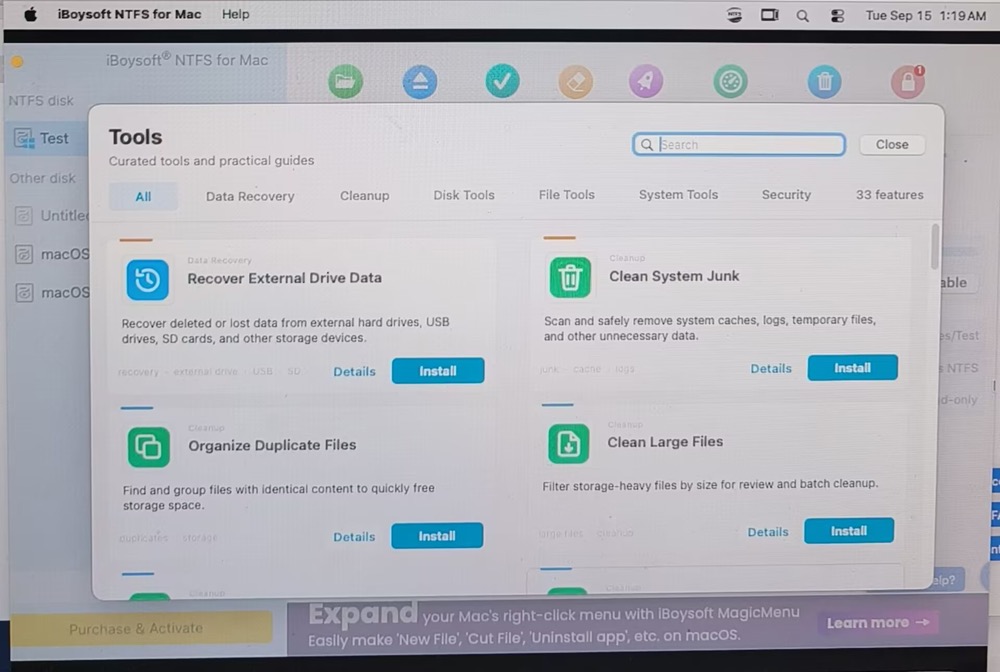
The latest version 9.0 also adds a Tools section in the lower-left corner, providing quick access to iBoysoft utilities for external-drive data recovery, macOS junk cleanup, large-file management, and BitLocker drive read/write access.
Conclusion
Mounty for NTFS is a free option for Mac users who occasionally need NTFS write access and don't mind installing additional components such as macFUSE and NTFS-3G.
In contrast, iBoysoft NTFS for Mac offers a more integrated solution with automatic mounting and additional disk-management features. Choose Mounty to avoid software costs, or iBoysoft NTFS for Mac for greater convenience and regular NTFS drive management.
FAQs
- QIs Mounty for NTFS completely free?
-
A
Yes. Mounty for NTFS is free to download and use. However, users running macOS Ventura or later also need macFUSE and NTFS-3G, which require additional installation and configuration.
- QIs iBoysoft NTFS for Mac better than Mounty?
-
A
It depends on your needs. iBoysoft NTFS for Mac is more suitable for users who prioritize convenient installation, automatic mounting, and additional disk-management features. Mounty is a reasonable choice for users who prefer a free solution and are comfortable managing its dependencies.
- QCan Mounty and iBoysoft NTFS for Mac write to NTFS drives without formatting them?
-
A
Yes. Both tools are designed to enable read/write access to existing NTFS-formatted drives without requiring users to reformat or erase the storage device.
- QDoes Mounty for NTFS support automatic mounting?
-
A
Mounty primarily provides a menu bar interface for identifying and remounting NTFS volumes. Its automatic mounting behavior and configuration differ from iBoysoft's dedicated automatic read/write mounting functionality.
- QIs it safe to use Mounty or iBoysoft NTFS for Mac?
-
A
Both tools are designed to enable NTFS write access, but no NTFS driver can guarantee protection against data loss or filesystem corruption. Always eject external drives properly, avoid disconnecting them during transfers, and maintain a separate backup of important files.
- QIs Mounty or iBoysoft NTFS for Mac better for transferring files between Windows and Mac?
-
A
Both can help transfer files through an NTFS-formatted external drive. Mounty is suitable for users seeking a free solution, while iBoysoft NTFS for Mac offers a more integrated workflow with automatic mounting and additional disk-management functions.