If you are searching for an EaseUS Data Recovery Wizard for Mac alternative, you have several options, but not every tool is suitable for every data-loss situation.
I would narrow the choices down to three: iBoysoft Data Recovery for Mac, Disk Drill for Mac, and PhotoRec. They offer different approaches to recovering deleted files, formatted drives, and lost partitions.
In this guide, I compare their features, limitations, and practical testing procedures to help you decide which one is worth trying before purchasing a recovery license.
Quick Selector Table
There is no single best replacement for every situation. These three options address different recovery needs:
| Alternative | Best for | Main Advantage |
| iBoysoft Data Recovery for Mac | Everyday Mac data recovery with a simple workflow | Mac-focused recovery and file preview |
| Disk Drill for Mac | General recovery on macOS 26 or older macOS | Accessible interface and additional disk utilities |
| PhotoRec | Free file recovery with Terminal commands | Open source, signature-based recovery |
Before purchasing anything, check whether the application can locate and preview your specific files.
Quick Comparison Table
| Item | iBoysoft Data Recovery for Mac | Disk Drill for Mac | PhotoRec |
| Version | Version 5.2.4 | Version 6 | Version 7.2 |
| Intel & Apple Silicon Mac compatibility | Yes | Yes | Yes |
| macOS compatibility (from official product webpage) | macOS Golden Gate 27 - Mac OS X El Capitan 10.11 | macOS Tahoe 26 or earlier | macOS Golden Gate 27 - macOS Catalina 10.15 |
| Ease of Use | Easy | Easy | Moderate to hard (Terminal commands) |
| Price | Trial Edition (limited features) $89.95 1-month $99.95 1-year | Trial Edition (limited features) $89 1-year $149 lifetime | Free (you can donate for future development if you're willing to) |
| Test scanning time | 4.43 seconds | 6.28 seconds | 12.39 seconds |
| Recovery speed | Fast | Fast | Fast |
| Recover data from Mac SSD & external drives | Yes | Yes | No. Only supports external drives |
| Fusion Drive supported | Yes | Yes | No |
| Unbootable Mac & Disk Image | Yes | Yes | Yes |
Test environment:
- Mac model: MacBook Air (13-inch, 2017), Intel processor
- macOS: macOS Monterey 12.7.6
- External drive: WD My Passport 2626 Media (USB external drive) with 4 partitions; 1 TB in total
Why Look for an EaseUS Data Recovery Wizard for Mac Alternative?
EaseUS Data Recovery Wizard for Mac offers scanning and recovery functions for deleted or lost files on Mac storage devices and external drives.
However, recovery results depend on more than the application itself. The file system, storage device condition, overwritten data, and SSD TRIM can all affect whether deleted files remain recoverable.
You may want to consider another application for several reasons:
- Unsatisfactory scan results: EaseUS cannot locate the files you need, or its detected files cannot be opened.
- Pricing concerns: You want to compare trial restrictions and paid licenses before spending money.
- Different recovery requirements: You need to investigate a formatted drive or inaccessible external storage device.
- Workflow preferences: You prefer another application's scanning, filtering, previewing, or recovery process.
One important point: Switching recovery applications does not guarantee better results. If the original data has been overwritten or erased through SSD TRIM, another application may not be able to retrieve it either.
iBoysoft Data Recovery for Mac – Best for Everyday Mac Recovery
iBoysoft Data Recovery for Mac is a Mac-focused recovery application designed to retrieve deleted or lost files from both internal and external storage, featuring a modern, user-friendly interface that requires no technical skills.
It supports APFS, encrypted APFS, HFS, HFS+, HFSX, exFAT, and FAT32. Supported storage devices include internal drives, external hard drives, USB flash drives, Fusion Drive, disk images, memory cards, etc.
One feature I would pay particular attention to is file preview. Instead of relying only on the number of files displayed in scan results, you can inspect selected files to determine whether their contents are recognizable before purchasing a recovery license.
The application also provides scan-record functionality, which can be useful when you need to revisit results from a lengthy scanning process.
Limitations:
- Its published file-system compatibility information does not include NTFS.
- The trial does not provide unrestricted free recovery.
- A successful preview does not guarantee that every file can be recovered completely.
- Results depend on the condition of the original storage device.
Choose it if: You primarily work with APFS, HFS+, exFAT, or FAT32 storage and want a straightforward Mac recovery workflow on modern Macs with macOS 27 supported.
Hands-on Experience Using iBoysoft Data Recovery for Mac to Recover Files
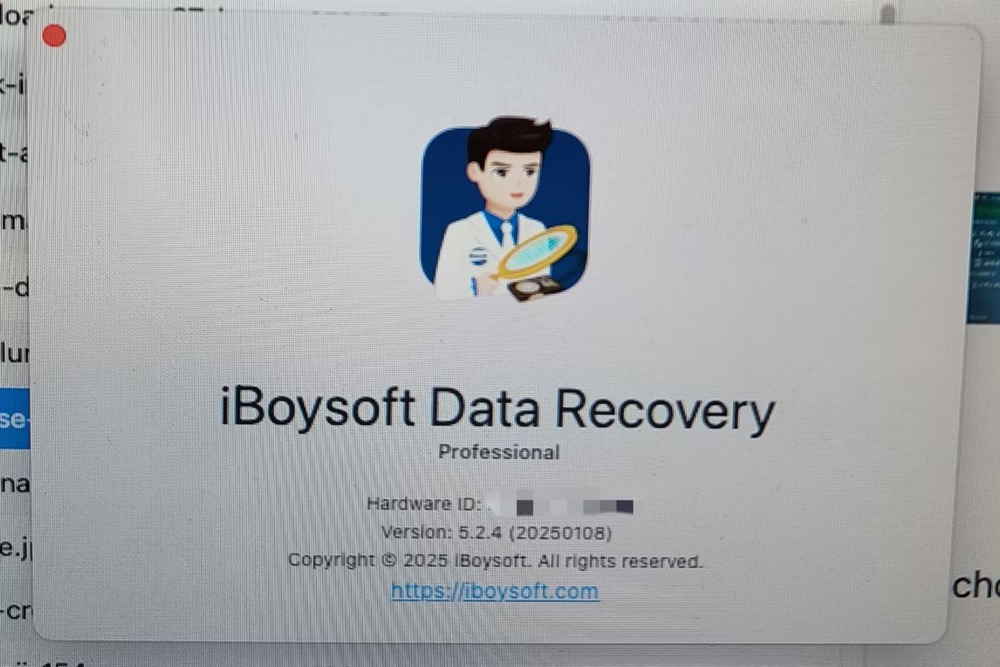
- Download, install, and open iBoysoft Data Recovery for Mac (version 5.2.4).
- Select the disk (Internal or external disk) or volume.
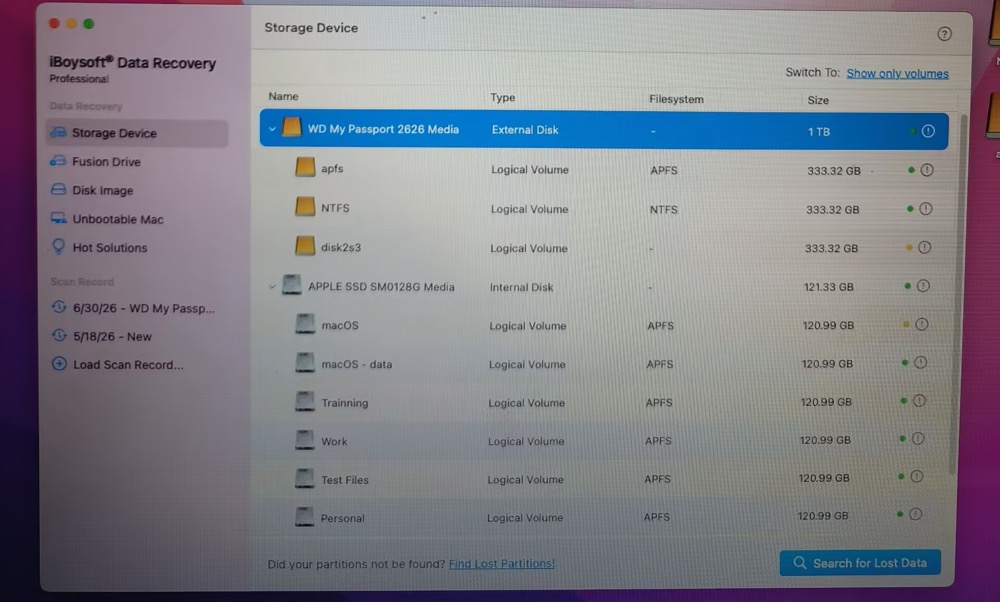
- Click the Search for Lost Data button to begin scanning all lost data. The whole scan only takes 4.43 seconds.
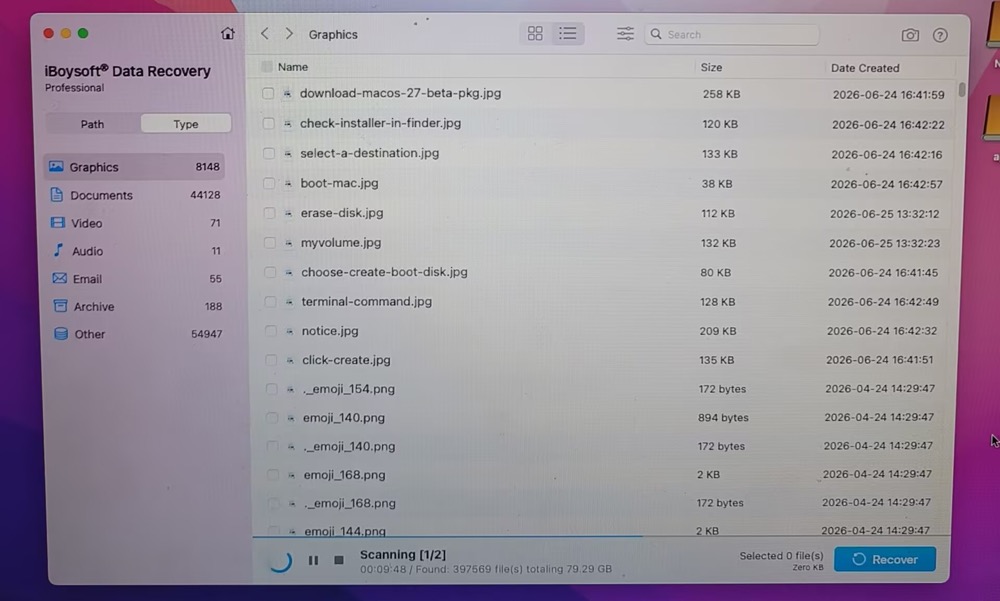
- Preview the files you want to restore.
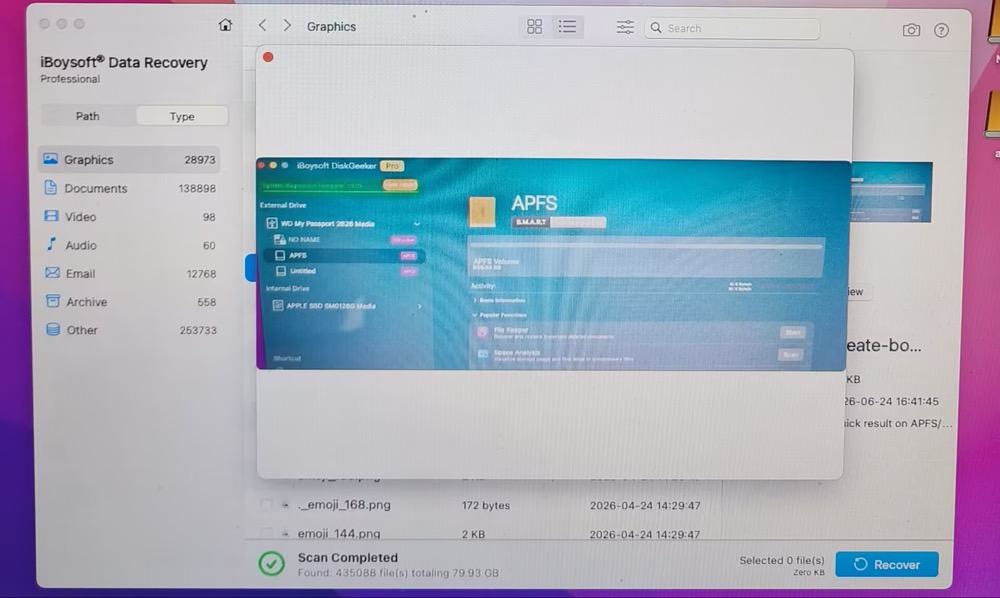
- Select the files you need and click Recover to restore them instantly—no waiting required.
(Remember to recover files to another drive.)
Disk Drill for Mac – Best for General Recovery on macOS 26 or Earlier
Disk Drill is another option for Mac users who want a graphical recovery application with additional disk utilities.
Its features include different scanning methods, file previews, lost-partition scanning, and byte-to-byte disk backup. The latter is particularly useful when you want to create a disk image before attempting recovery.
I noticed that it can't work for my M1 MacBook with the latest macOS Golden Gate 27, cuz it hasn't updated itself to work with the latest macOS.
All in all, I would consider Disk Drill when ease of navigation and additional storage-related tools are important.
Limitations:
- Advanced recovery features require a paid license.
- Scanning large storage devices can take considerable time.
- Its additional utilities may be unnecessary if you only need to recover one recently deleted file.
- Not compatible with macOS Golden Gate 27.
- A detected file is not necessarily a fully recoverable file.
Choose it if: You want an accessible recovery interface, file previews, and additional tools for managing and protecting storage devices.
Hands-on Experience Using Disk Drill 6 for Mac Data Recovery
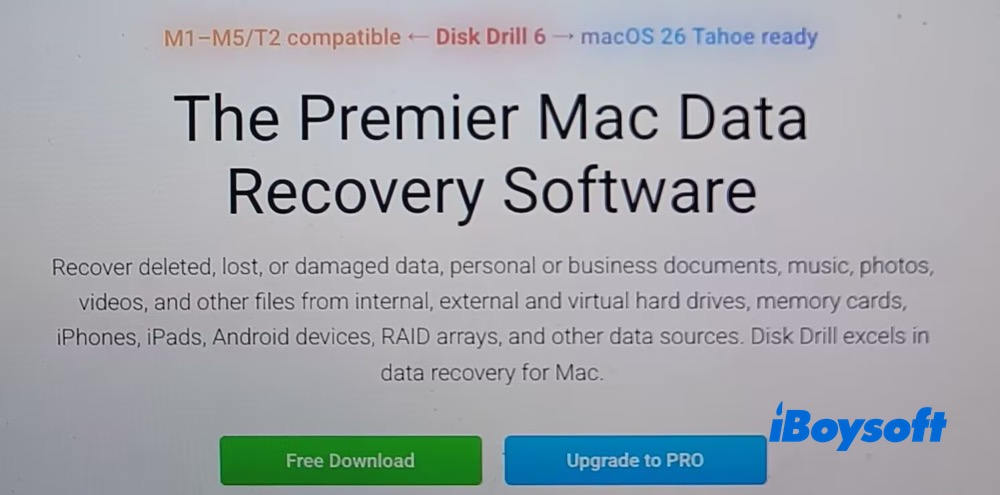
- 1. Go to Disk Drill 6 official product webpage and click “Free Download" to download this EaseUS Data Recovery Wizard for Mac alternative on Mac. Please note that this alternative is compatible with macOS Tahoe 26 or earlier versions. As for macOS Golden Gate 27, go back to iBoysoft Data Recovery for Mac or PhotoRec.
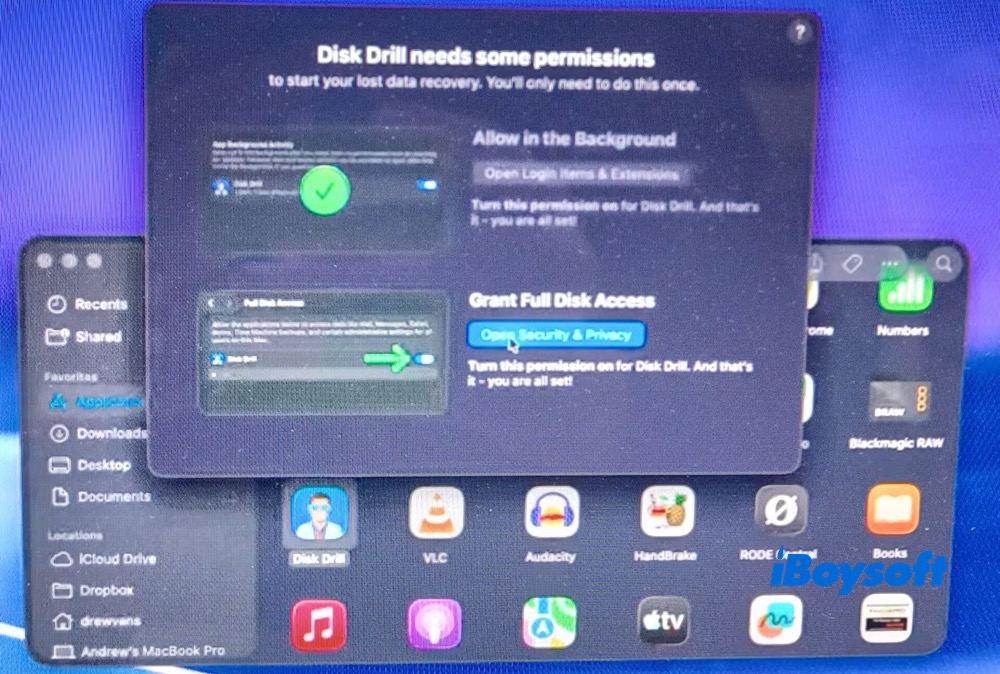
2. Follow its instruction wizard for installation. Grant Full Disk Access.
3. Connect external drive to my MacBook.
4. Choose the source drive (internal or external drive both supported).
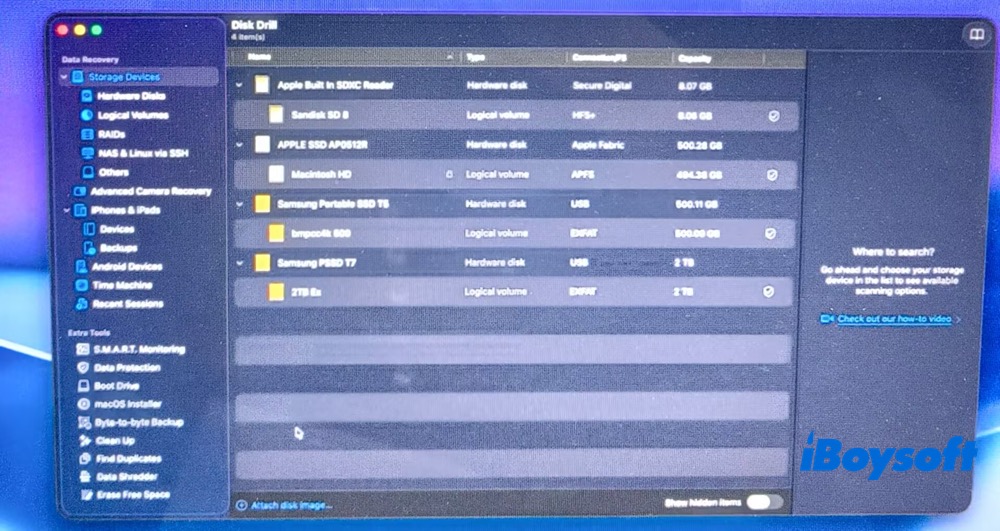
Optional: if you didn't make a backup of your source drive, you can directly use this Mac data recovery software to back up first. Select the drive, tap "Create backup", and wait for the completion.
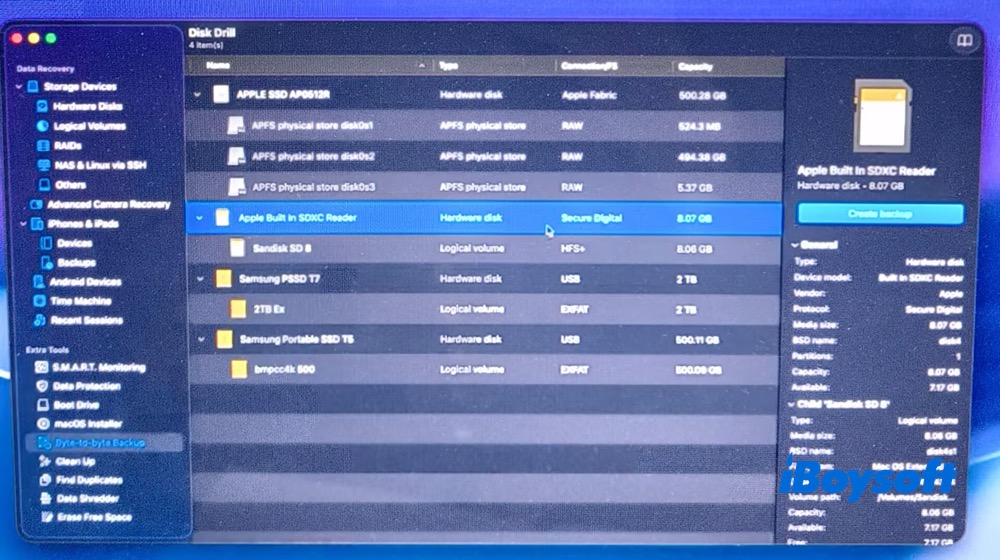
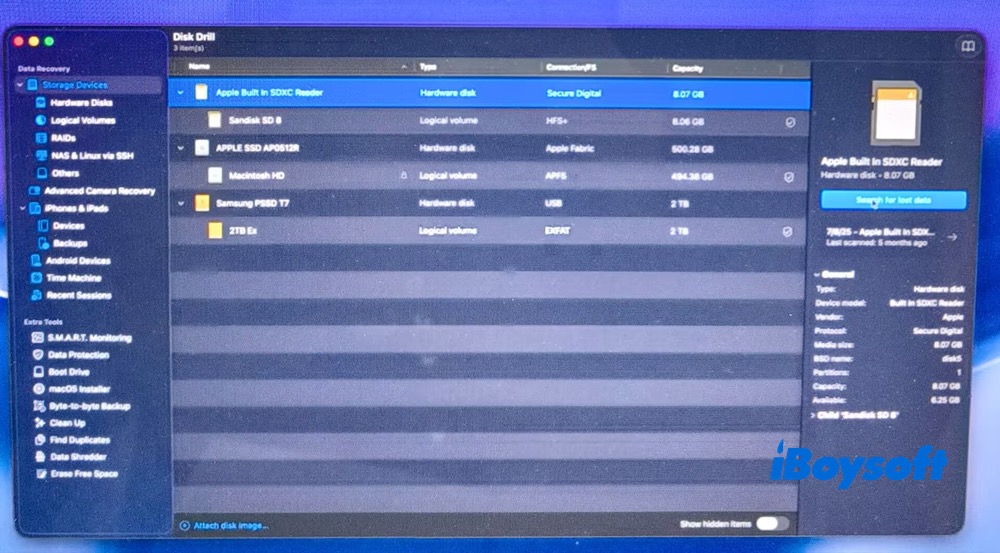
5. Hit "Search for lost data" in the upper right corner of the home screen.
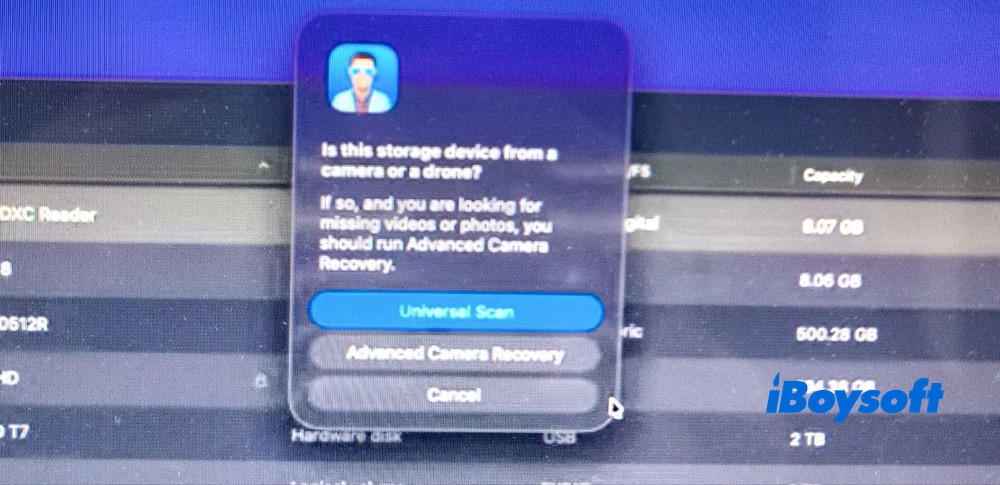
6. Opt for "Universal Scan" for most hard drives. To restore photos on Mac, run Advanced Camera Recovery.
7. Scanning complete: 500 files (5.24 GB) found in 6.28 seconds.
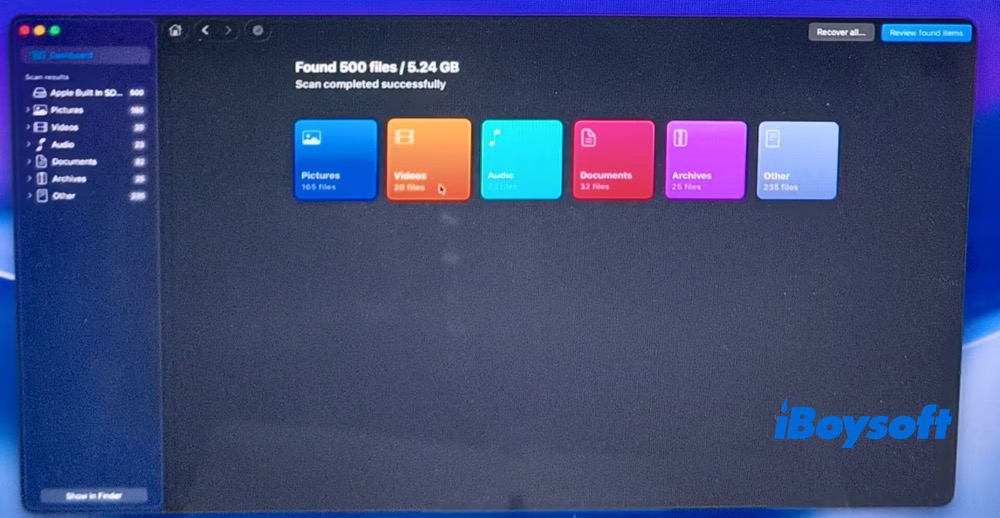
8. Preview the files you wanna recover.
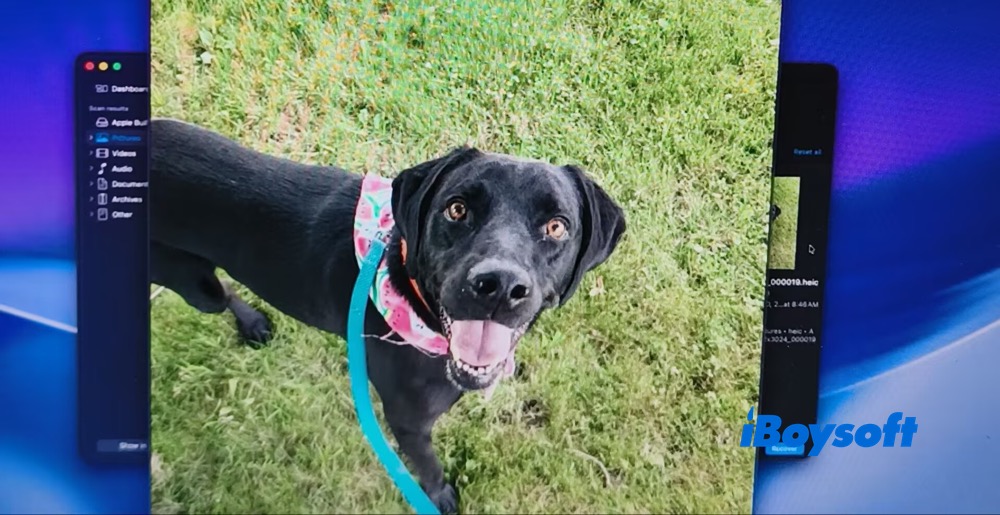
9. Tap Recover in the bottom-right corner to complete the process instantly, then check your destination folder for the restored files.
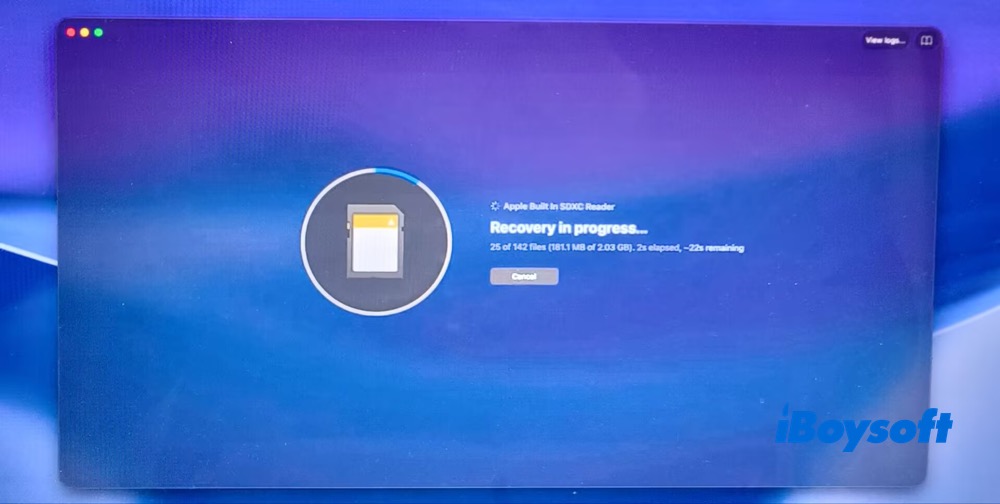
PhotoRec – Best Free Open-Source File Recovery for Advanced Users
If you prefer not to pay for commercial recovery software, PhotoRec is worth considering.
PhotoRec is an open-source, free data recovery software for Mac developed by CGSecurity. Unlike many graphical recovery applications, it uses file-signature-based recovery, also called file carving.
Rather than relying entirely on file-system directory information, it searches storage for recognizable file signatures. This approach can be useful when the file system is damaged or a drive has been reformatted.
While PhotoRec as a software runs fine on newer Macs (with T2 security chips or M1–M5 Apple Silicon), Apple's strict hardware and software security layers make PhotosRec's data recovery from the internal system drive nearly impossible.
Limitations:
- Recovering data on a Mac using Homebrew and Terminal commands requires an advanced technical skill level.
- Nearly impossible to recover data from Mac's internal system disk.
- Recovered files generally do not retain their original filenames or folder structures.
- You may need to sort through many recovered files manually.
- It cannot recover data that has already been overwritten or erased.
Choose it if: You want a free, open-source recovery solution to recover external drive data and are comfortable following a more Terminal-based technical workflow.
Hands-on Experience Using PhotoRec to Restore Data from External Drives
Note: It's nearly impossible for PhotoRec to recover data from Mac internal system disk due to the modern Macs' restrict security layers. Thus, it's only applied to recover deleted or lost data from external drives.
1. Go to cgsecurity.org and download PhotoRec v7.2 for your Mac. It is compatible with macOS 10.15 and later. If you encounter PhotoRec and external hard drive not working on M1 Mac issue, re-select the correct version for your processor (Intel or Apple Silicon M1–M5) as shown below:
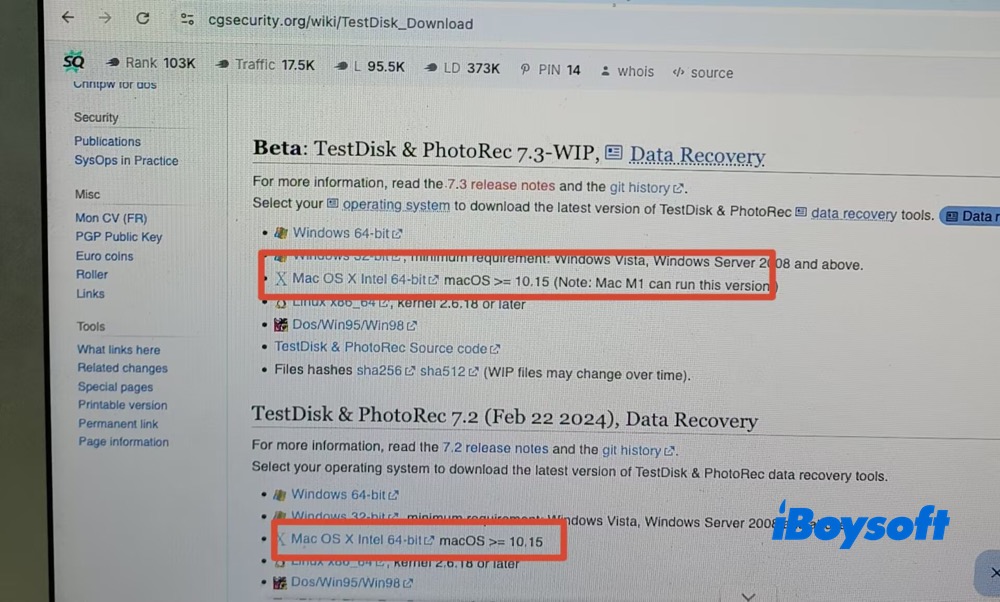
2. Install it via Homebrew and run the program. Because this method requires several Terminal commands, it may not be ideal for beginners. If you prefer to avoid the command line, consider these two alternative Mac recovery tools instead.
- Open your Terminal app.
- If you have Homebrew installed, run: brew install testdisk
- This will automaticlly install TestDisk and PhotoRec 7.2 on Mac.
- Launch PhotoRec with administrator privileges:sudo photorec
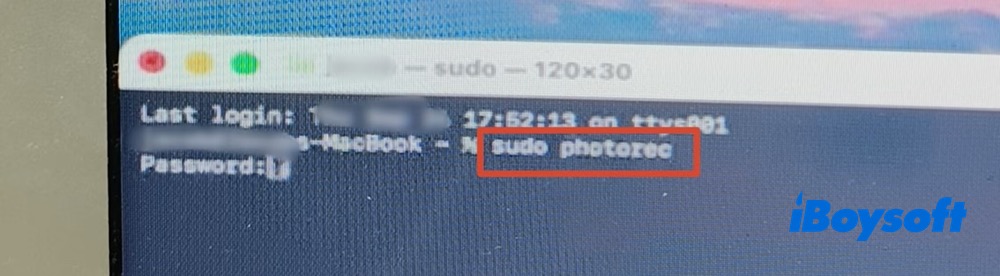
- Enter Mac user password.
- PhotoRec has launched successfully.
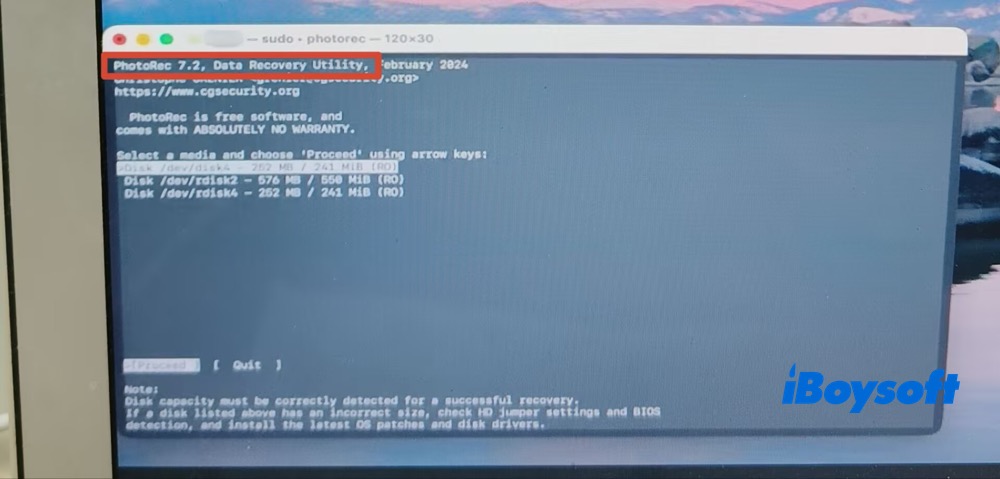
3. Connect the external drive to your Mac to automatically start a full scan. The process is remarkably fast, taking just 12.39 seconds.
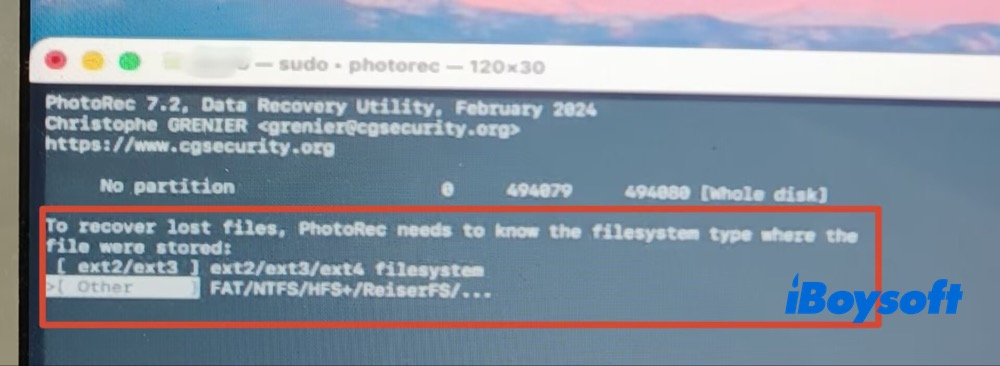
4. Select the "Other" file system, which covers the most common formats, including FAT, NTFS, HFS+, and exFAT.
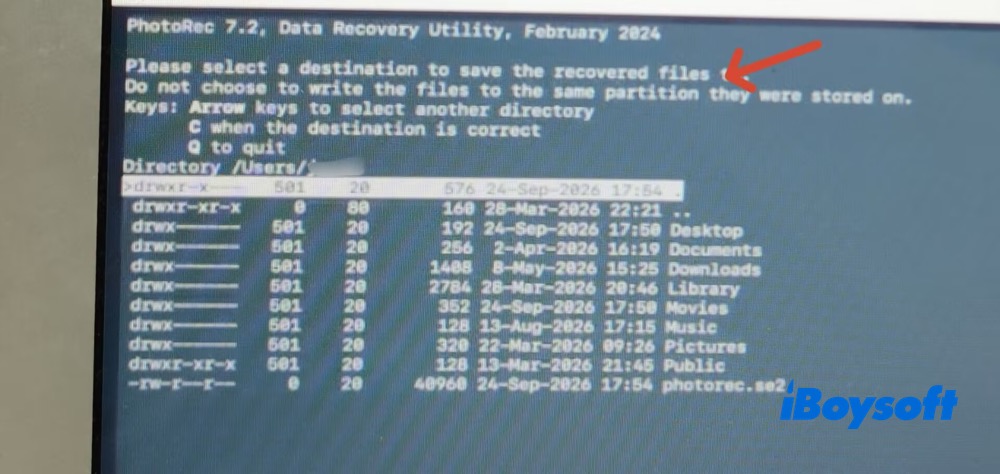
5. Select a destination to save the recovered files, which should be different from your source drive.
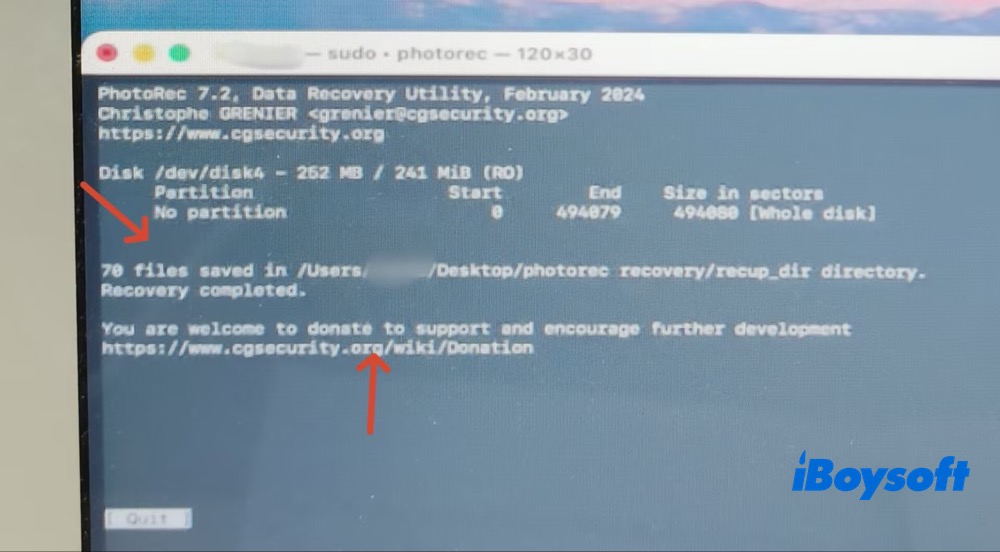
6. Files recovery result will show up and meanwhile it's glad to see your donation for the program future development.
Final Words
Three alternatives to EaseUS Data Recovery Wizard for Mac offer different recovery approaches. iBoysoft Data Recovery for Mac supports common Mac file systems, including APFS, HFS+, exFAT, FAT32, and provides file previews to help users assess recoverability before purchasing with a simple workflow.
Disk Drill for Mac combines file recovery, multiple scanning methods, and disk-imaging capabilities in a graphical interface, making it suitable for users who are running on macOS Tahoe or earlier.
PhotoRec is a free, open-source option that uses file-signature scanning to recover various file types from external drives. Certainly, it's suitable for those who have some experience with Terminal commands. The right choice depends on your file system, data-loss situation, budget, and technical experience.
FAQs
- QWhat is the best alternative to EaseUS Data Recovery Wizard for Mac?
-
A
It depends on your recovery needs. iBoysoft Data Recovery for Mac is an option for users who want a Mac-focused recovery tool with file previews. Disk Drill for Mac offers a graphical interface and additional disk utilities. PhotoRec is a free, open-source alternative for users comfortable with a more technical recovery process.
- QWhy can't data recovery software find my deleted files?
-
A
Possible reasons include overwritten data, SSD TRIM, file-system damage, device connection problems, or physical drive failure. If the drive is physically damaged or behaving abnormally, stop using it and consider professional data recovery.
- QShould I install data recovery software on the drive where I lost my files?
-
A
No. Installing software or saving recovered files to the affected drive may overwrite data that could otherwise be recoverable. Install the recovery tool on another drive and save recovered files to a separate storage device.
- QCan data recovery software restore the original filenames and folder structure?
-
A
It depends on the tool and recovery method. Some tools may retain original filenames and folder structures when file-system metadata is available. File-carving tools such as PhotoRec generally identify files by their signatures, so original names and folder organization may not be preserved.