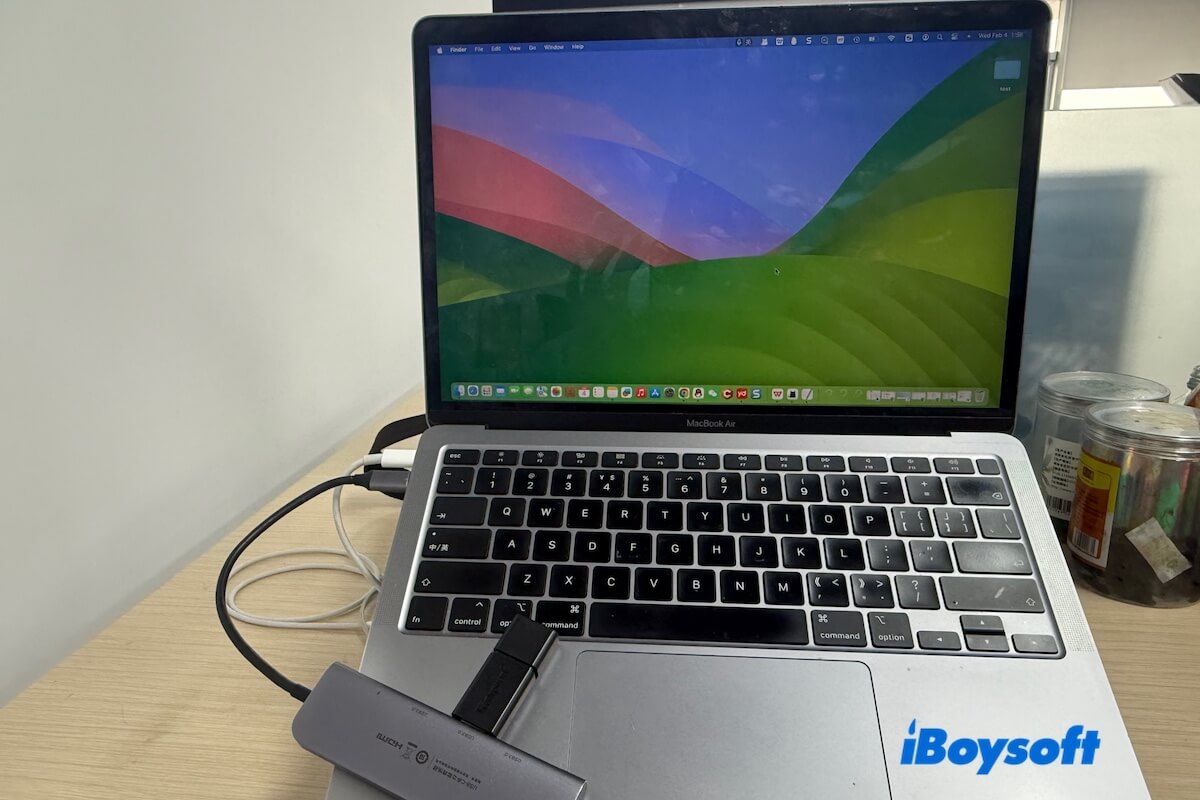
If your external hard drive isn't showing up on your Mac, it can be frustrating, especially when important files are at stake. Whether it's a USB, external SSD, or HDD, the issue could stem from a variety of causes:
- Connection problems
- Hidden settings
- File system corruption
- Physical damage
Rather than overwhelming you with endless troubleshooting steps, this guide focuses on a situation-based approach to help you quickly identify your case and decide what to do next.
I'll break down the process into 3 fixing paths based on the common situations, with a Stop-Loss Rule to protect your data from further risk. Follow these steps to know when to act, when to stop, and how to recover your files safely.
Identify your situation first
This step helps you avoid trying any improper solutions that cause further corruption on the external drive or reduce the rate of rescuing your important files from it.
| Your situation | Issue | What to do |
| The external hard drive doesn't show in Finder or on the Desktop >> | Finder visibility issue | Enable external disks in Finder settings |
| The external drive shows in Disk Utility but is not mounted (greyed out) >> | File system issue or mounting failure | Recover data first if files matter, then try First Aid, or reformat the drive |
| The external drive shows only in System Information >> | USB bridge, power, cable, or low-level enumeration issue | Check the cable, port, and power, and avoid excessive reconnecting |
| The external drive shows nowhere >> | Connection failure or hardware damage | Stop testing if the drive overheats, clicks, or is physically damaged If the data matters, contact a local repair service |
After checking, you'll know exactly what's going on with your external drive on your Mac. From there, you can follow the right fixing path below for your situation.
Case 1. The external hard drive doesn't show in Finder or on the Desktop
If your Kingston, Maxtor, WD Element, Seagate, or LaCie external hard drive isn't showing up on your Mac desktop or in Finder, but appears mounted in Disk Utility, it's due to your Finder settings - the external disks are set to be hidden. Just modify them to make the drive visible again.
Adjust Finder settings
- Open Finder, click "Finder" on the menu bar, and select "Settings."
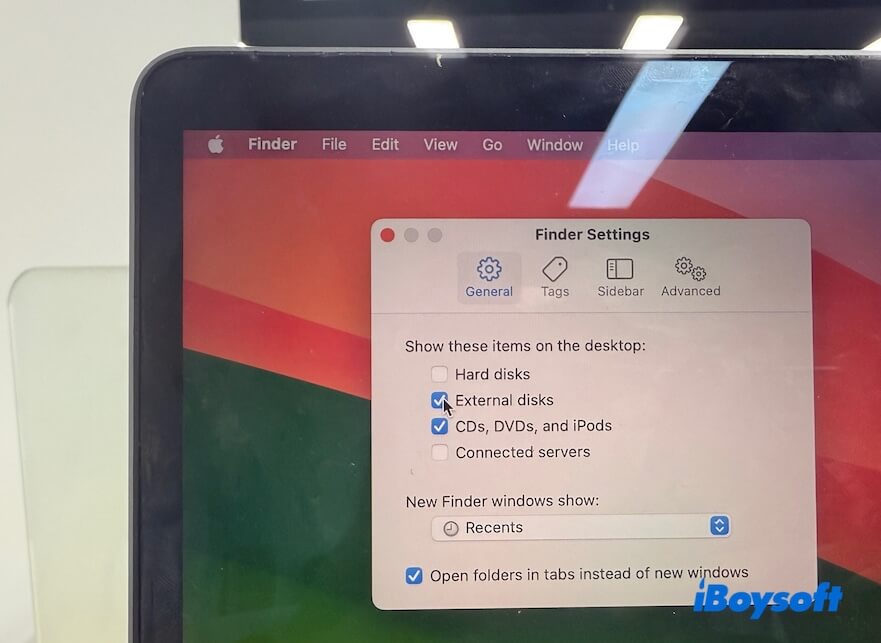
- Click "General" and select "External disks" to enable external hard drives to show on the desktop.
- Click "Sidebar" and tick the "External disks" option under "Locations" to let external disks appear on the Finder sidebar.
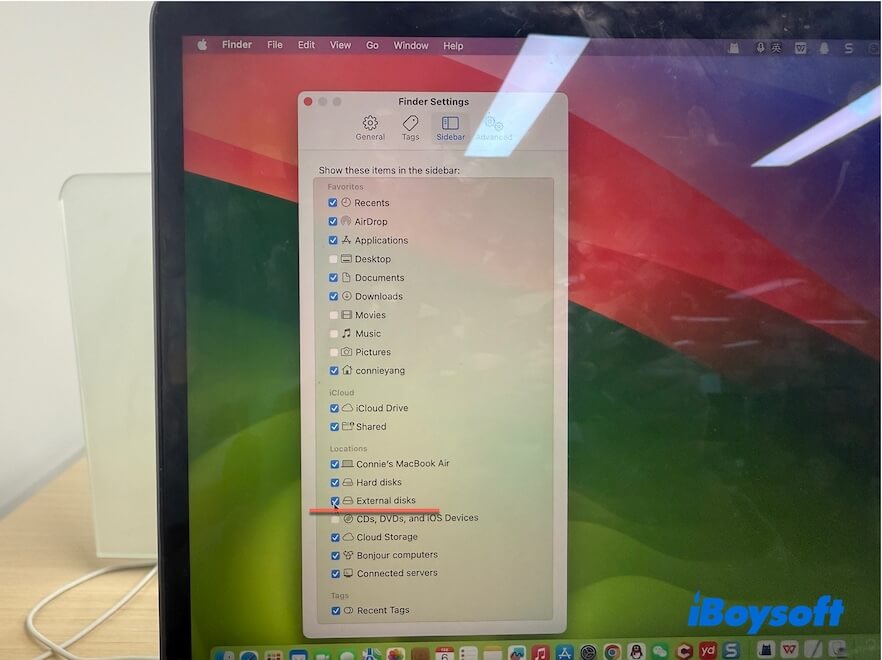
After that, go to the desktop or Finder sidebar and check if your external hard drive appears.
Case 2. The external drive shows in Disk Utility but is not mounted (greyed out)
Disk Utility is a built-in tool to help us check whether a hard disk is detected and recognized by macOS. If a drive shows in Disk Utility but is not mounted, it means that either the mounting process fails or the file system of the drive is corrupted.
Manually mount the external drive
Perhaps you've set a password for the external drive, but ignore the unlocking box when you connect the drive to your Mac. Or there are temporary macOS or disk file system errors, making the external drive fail to be automatically mounted.
Hence, the external hard drive in Mac Disk Utility is labeled "Not Mounted" or greyed out and won't show up on the desktop or Finder.
To resolve it, use the Mount option in Disk Utility to mount the external drive manually:
- Go to Disk Utility (from Launchpad > Other).
- Click the View option on the Disk Utility toolbar and choose "Show All Devices."
- Select the partition on the external drive and click the Mount button.
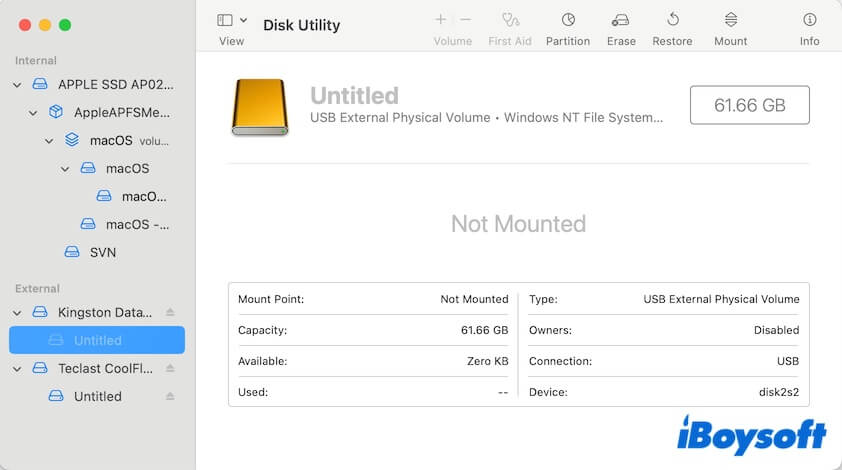
- Enter your password if asked.
Run First Aid in Disk Utility
If the external hard drive can't be manually mounted, it may have file system corruption or directory structure errors.
In this situation, try to run First Aid in Disk Utility to see if it can repair the corrupted external hard drive.
Before running repairs, remember:
- If the files are important, recover or back up data first whenever possible.
- If the drive becomes slower, disconnects repeatedly, or produces unusual sounds, stop using it immediately.
Steps to run First Aid correctly:
- Open Disk Utility.
- Click View > Show All Devices.
- In the sidebar, select the volume first, then the container (if available), and finally the physical storage device.
- Select First Aid on each level in this order:
Volume
Container
Storage device - Click Run to begin checking the selected item.
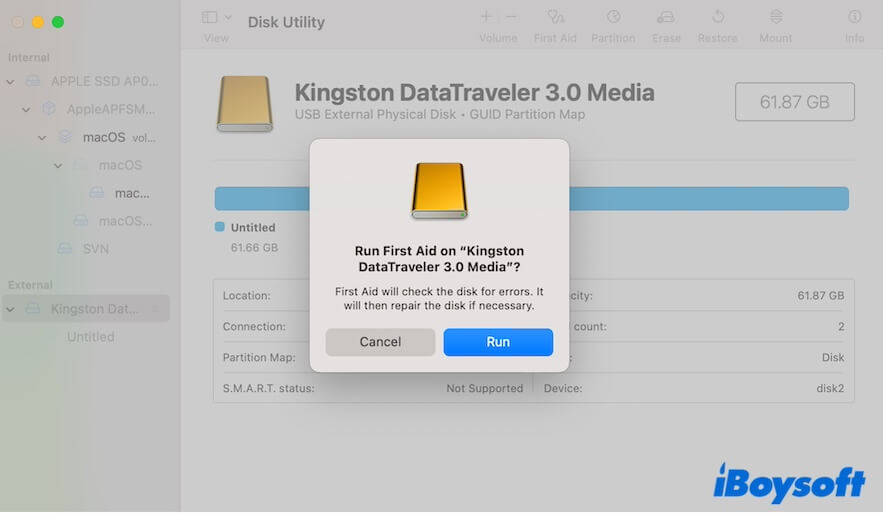
If First Aid fails to repair the external hard drive, avoid repeated repair attempts. The drive may be failing or severely corrupted.
You probably receive error reports after running First Aid, such as:
⚠️ file system check exit code is 8
Now, you have to reformat the drive to make it usable.
Recover data and then reformat the external drive
If First Aid fails, you can reformat the external hard drive. Remember to recover your data first because reformatting a drive will wipe all data from it!
Recover data first
iBoysoft Data Recovery for Mac is a professional Mac data recovery software. It supports recovering files from detectable but unreadable, unmountable, corrupted, or formatted external drives.
Here's how:
- Download, install, and open iBoysoft Data Recovery for Mac.
- Select the detectable but unmountable or corrupted external drive and click Search for Lost Data to search for files on it.
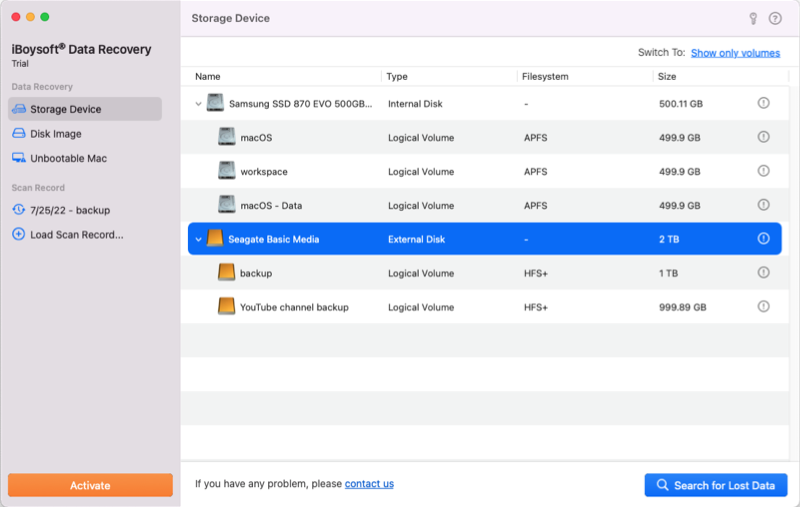
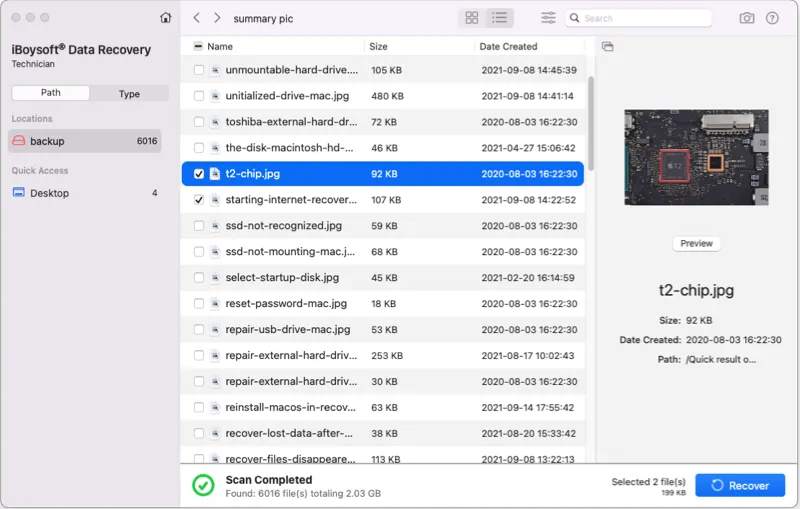
- After scanning, sort the scanned files by different parameters, and preview the search results.
- Choose the files you need, and click Recover to save them to a different destination.
Reformat the external drive
After recovery:
- Open Disk Utility.
- Select the external disk and click the Erase button.
- Type a name for the drive, choose a format, and set the GUID Partition Map as the scheme.
Note: If you want your drive to be compatible with Windows and macOS, exFAT is usually the best option. - Click Erase to finish reformatting.
More details about the external drive greyed out in Disk Utility: External Hard Drive Greyed Out in Disk Utility on Mac.
Case 3: The external drive shows only in System Information
If the external hard drive doesn't show in Disk Utility, go to System Information.
System Information is a built-in utility that shows low-level hardware details and confirms which devices macOS can detect at the port level.
How to check in System Information:
- Open "System Information" from Spotlight Search.
- In the Hardware section, click on "USB," "Thunderbolt," or "SATA" (selecting by your hardware connection interface) to see if the Mac sees the external drive.
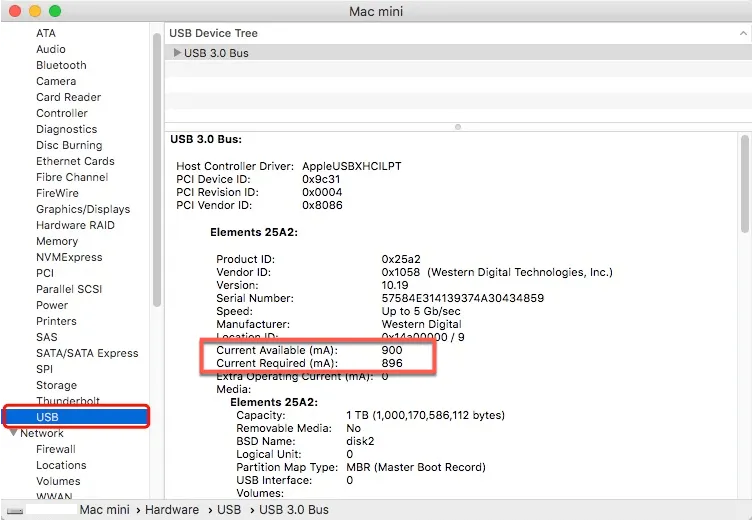
If the external hard drive appears only in System Information, it usually means:
- ✅ The USB/Thunderbolt interface is detected
- ❌ The storage device is not fully initialized as a readable disk
This is commonly related to:
- USB bridge failure
- Insufficient power
- Unstable cable connection
- Low-level enumeration issues
It does not necessarily mean the file system itself is recoverable.
If the drive contains important files, avoid excessive unplugging, reconnecting, or repeated power cycling, as unstable hardware can worsen damage.
In this case, follow these practical ways to troubleshoot and fix it
Rule out Disk Utility UI issues (rarely but not never)
- Open Disk Utility.
- Click "View" → "Show All Devices."
- Quit Disk Utility and reopen it.
Power-cycle the drive properly (not just unplugging)
macOS sometimes detects the USB bridge but fails disk initialization.
Do this exactly:
- Shut down your Mac.
- Disconnect the external drive.
If the drive has its own power:
Turn it off
Wait 30–60 seconds - Start the Mac
- Plug the drive back in after login
This forces a fresh device enumeration instead of a hot-plug retry.
Check the connections (this fixes many cases)
Even if the external drive shows in System Information, a weak or failing connection can block disk registration and make the external hard drive not show up on the Mac desktop, Finder, and Disk Utility.
Try reconnecting the external drive:
- A different cable (especially USB-C ↔ USB-A)
- A different port
- Directly connect to the port on the Mac if possible, no hubs or adapters
- Change to a different USB hub or adapter
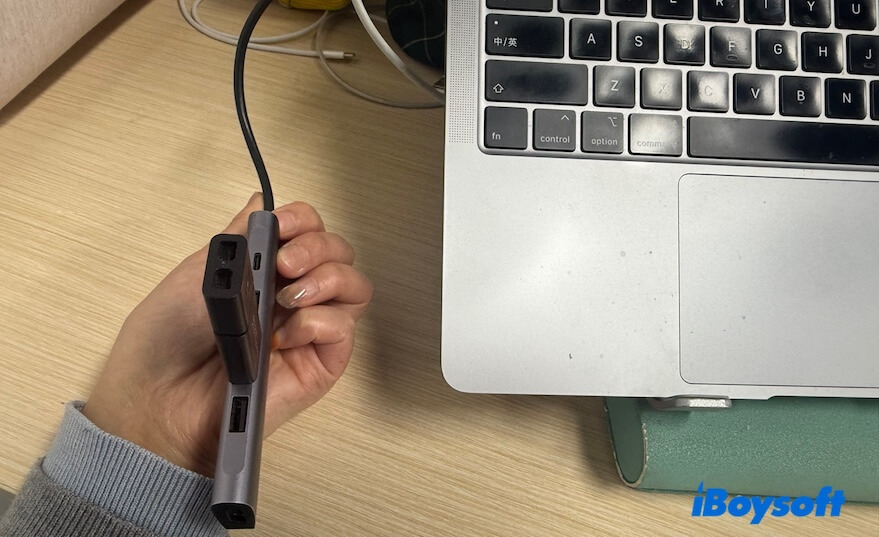
Case 4: The external hard drive doesn't show up anywhere on the Mac
If the external hard drive does not appear in either Disk Utility or System Information, it usually indicates:
- ⚠️ Connection failure
- ⚠️ Hardware damage
- ⚠️ Power delivery problems
- ⚠️ Enclosure or USB bridge failure
In this situation:
Data recovery software usually cannot scan a drive that is not detected by macOS at all.
If the drive clicks, overheats, is dropped, exposed to water, or disconnects constantly, stop powering it on repeatedly.
You can still try:
checking your disk connections
- Unplug the external drive, reconnect it to another port.
- If you use a USB hub, try directly connecting the drive to the port on the Mac with a capable cable.
- Try a different cable.
Send the external drive for repair
If your external drive is still not showing up anywhere on your Mac, connect a different external hard drive to your Mac. Or, connect the drive to another Mac.
This is to confirm if this unrecognizable external hard drive has hardware issues. When it does, a professional repair or data recovery service may be required.
Why is my external hard drive not showing up on the Mac
For a disk to appear on a Mac, it must be:
- Properly connected
- Detected by macOS
- Recognized as a storage device
- Mounted successfully
If any stage fails, the external hard drive may not show up on the Mac.
I've compiled a list of potential causes here.
- You accidentally hide the external drive on your Mac.
- The USB cable is broken.
- The USB port malfunctioned.
- The USB hub or adapter is unstable.
- The drive uses an unsupported or encrypted file system.
- The drive file system is corrupted.
- The drive is under repair by macOS.
- Third-party software interferes with mounting.
- The external drive has hardware issues.
Tips:
Unsupported or encrypted file systems:
- BitLocker-encrypted drives must be unlocked before access.
- Linux file systems, such as ext4, XFS, ZFS, ect, may not mount natively on macOS.
Physical failure vs. file system corruption:
- File system corruption usually still allows the drive to appear in Disk Utility.
- Physical hardware failure may prevent the drive from appearing anywhere on the Mac.
My final thoughts
When the external hard drive is not showing up on your Mac desktop or the Finder sidebar, I suggest you go directly to Disk Utility and System Information for further diagnosis, rather than directly doing risky operations like restarting your Mac or reconnecting the drive.
The built-in Disk Utility program lists all the connected external drives that are recognized by macOS, while System Information shows the disks that have been detected by the system at the port level. They can help you judge whether the drive has a connection or a hardware issue first, avoiding you do futile fixes.
Related article:
The external hard drive is not showing up after the force ejection from the Mac
FAQs
- QShould I run First Aid before recovering data?
-
A
If the drive contains important files and is behaving abnormally - such as becoming slow, disconnecting repeatedly, or failing to mount - recovering data first is usually safer. Repeated repair attempts may worsen corruption on a failing drive.
- QCan software recover a drive that does not appear in Disk Utility?
-
A
Usually not. Most recovery software requires the drive to at least appear in Disk Utility or be partially detected by macOS. If the drive does not appear in Disk Utility or System Information, the issue is often hardware-related.
- QWhy does my drive show in System Information but not Disk Utility?
-
A
This usually means the Mac detects the USB or Thunderbolt interface, but the storage device itself cannot fully initialize. Common causes include:
failing USB bridge
unstable power
damaged cable
low-level hardware issues
It does not always indicate recoverable file system corruption.
- QHow do I force my Mac to recognize an external hard drive?
-
A
If your Mac doesn’t detect the external hard drive or show it up, you can try these tricks:
1. Check the connections. Reconnect the external hard drive to another USB port on your Mac or change the USB cable.
2. Restart your Mac to exclude temporary errors blocking your external drive's recognition.
3. Check if your external hard drive appears in Disk Utility ( Launchpad > Other). If it is not mounted, manually mount it. You can also run First Aid to check and repair errors on it.
4. Send to repair if the external hard drive is not showing up in Disk Utility after checking connections.