Flash drives are commonly used to store documents, photos, videos, installers, and backup files, but they can quickly become filled with unnecessary or outdated data. Many Windows users want to clear a flash drive to free up storage space, prepare the USB flash drive for reuse, or remove personal files before giving the device to someone else.
Depending on your needs, clearing a flash drive may involve deleting files, removing everything from the drive, formatting the USB device, or securely wiping the data so it cannot be recovered later. This guide explains the different methods and when each one is most useful.
Things to Know Before You Clear a Flash Drive
Before clearing a flash drive, it helps to understand how different removal methods work. Some only remove visible files, while others permanently destroy the stored data.
Back Up Important Files First
Before deleting or formatting the flash drive, copy important files to another safe location. Once files are removed or the drive is formatted, recovering the data may become difficult or impossible.
You can back up files to:
- Your computer's internal drive
- Another external storage device
- Cloud storage services such as OneDrive or Google Drive
If the flash drive is already showing errors or disconnecting unexpectedly, avoid continuing to write new data to it before backing up important files.
If you've ever deleted files from the flash drive and want to restore them before erasing, use Mac file recovery software.
Understand the Difference Between Deleting, Formatting, and Wiping
Deleting files usually removes them from File Explorer, but the actual data may still remain recoverable until it is overwritten.
Formatting clears the entire flash drive and rebuilds the file system, making the USB drive appear empty again. This is commonly used when preparing the drive for reuse.
Wiping is the most secure option. It overwrites the stored data itself, making recovery significantly more difficult. This method is often recommended before selling, donating, or disposing of a flash drive.
Delete Files From the Flash Drive
If you only need to delete files completely or free up space quickly, deleting files manually is usually the easiest method.
Delete Individual Files
To remove selected files from a flash drive on Windows:
- Connect the flash drive to your computer.
- Open File Explorer and select the USB drive.
- Locate the files or folders you want to delete.
- Right-click the item and choose Delete, or press the Delete key.
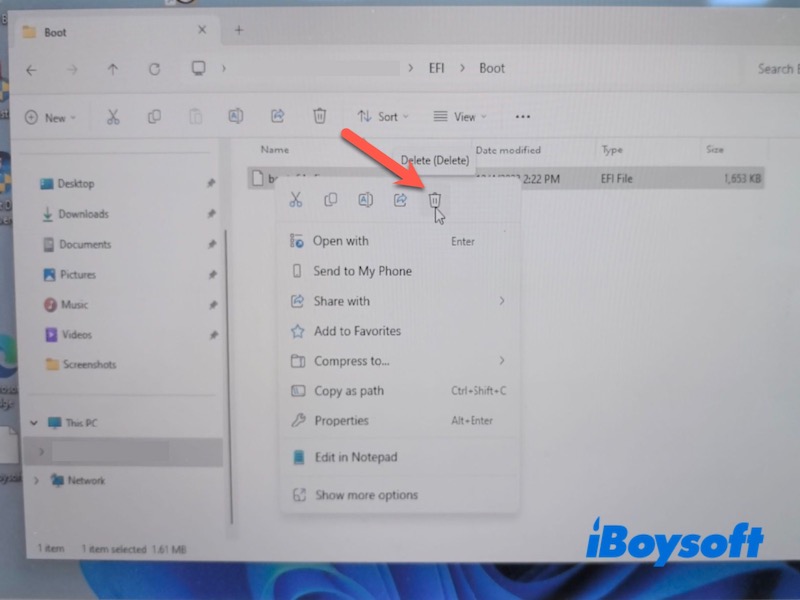
- Empty the Recycle Bin if needed.
This method is useful when you only want to remove certain files while keeping the rest of the data intact.
Remove All Files at Once
If you want to clear the entire flash drive without formatting it:
- Open the USB drive in File Explorer.
- Press Ctrl + A to select all files and folders.
- Right-click and choose Delete.
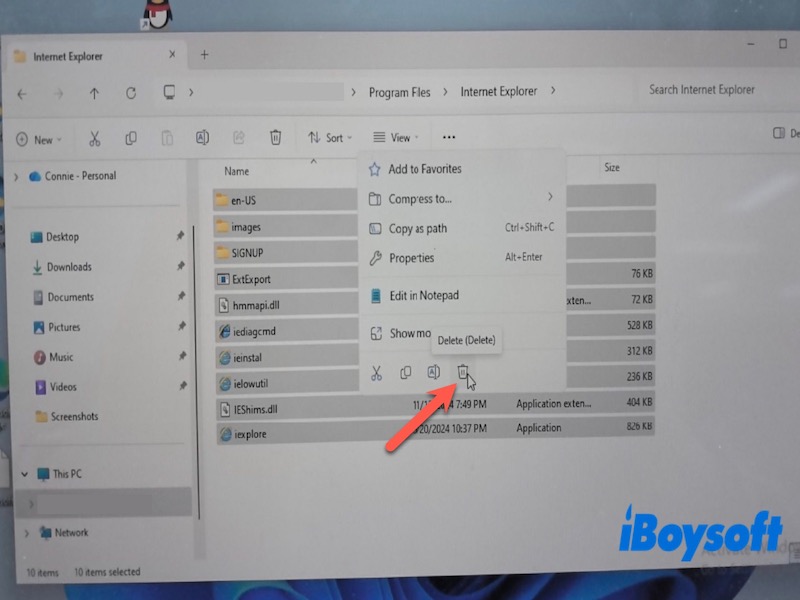
- Empty the Recycle Bin to fully remove the deleted files.
Although the files disappear from the drive, some deleted data may still be recoverable with recovery software.
Format the Flash Drive to Clear Everything
Formatting is a faster and more complete way to clear a flash drive, especially when you want to reuse the device or fix file system issues.
Format the USB Drive in File Explorer
To format a flash drive on Windows:
- Connect the USB drive to your computer.
- Open File Explorer.
- Right-click the flash drive and select Format.
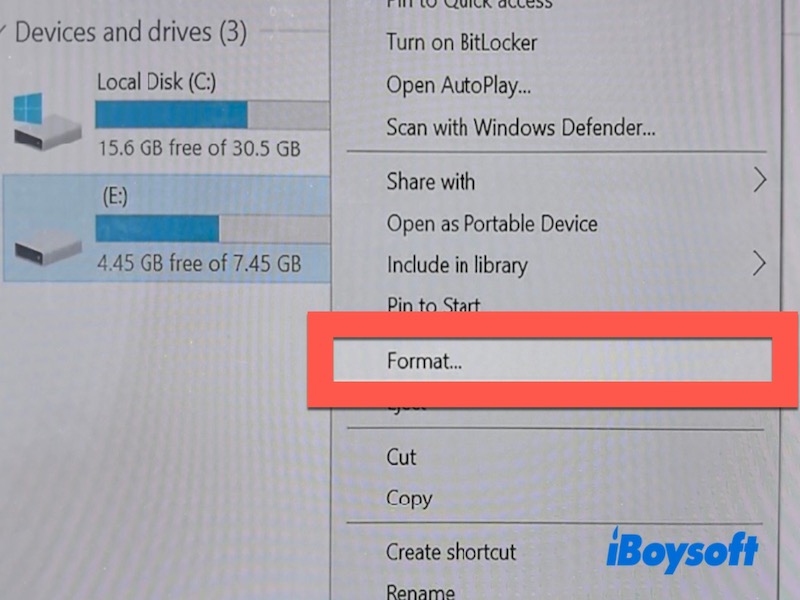
- Choose a file system.
- Leave Quick Format selected unless you want a slower full format.
- Click Start to begin formatting.
After the process finishes, all files on the flash drive will be removed.
Choose the Right File System
The file system affects compatibility and storage limits.
Common options include:
- exFAT — Best for both Windows and macOS compatibility
- NTFS — Best for Windows-only usage and large files
- FAT32 — Compatible with many devices but limited to 4GB file sizes
For most modern flash drives used across multiple devices, exFAT is usually the best choice.
Securely Wipe the Flash Drive to Prevent Data Recovery
Deleting or formatting a flash drive does not always permanently destroy the stored data. In many cases, deleted files can still be recovered using data recovery software.
If the flash drive contains sensitive documents, financial records, work files, or personal information, securely wiping the drive is a safer option before reusing or disposing of it.
iBoysoft DiskGeeker for Windows provides secure data wiping features designed for permanent data removal. It can securely and irreversibly wipe USB drive data from an entire disk or partition, helping prevent deleted files from being recovered later.
The software also supports securely shredding specific files and folders instead of wiping the entire flash drive. This is useful when you only need to permanently destroy confidential data while keeping the remaining files untouched.
- Download, install, and open iBoysoft DiskGeeker for Windows.
- Connect the Flash Drive.
- Then click the Toolbox.
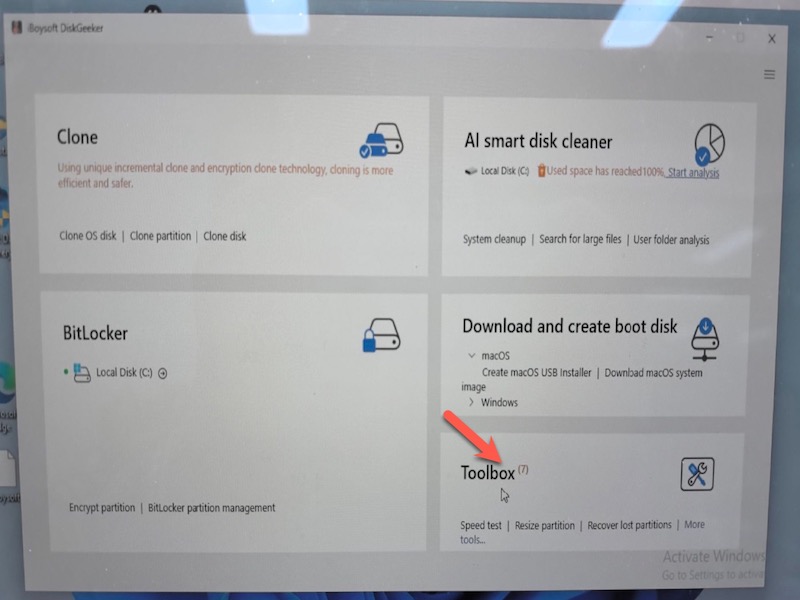
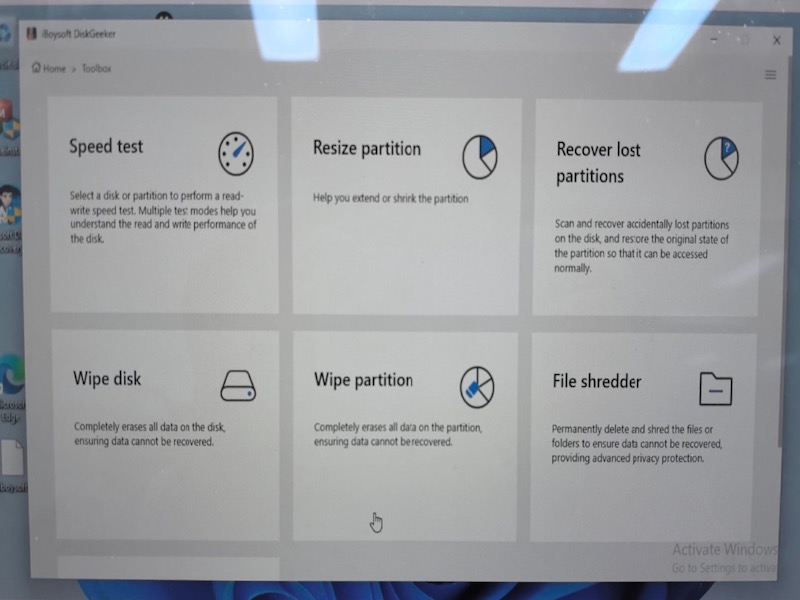
- Choose the Wipe disk if you need to delete all the files on the USB drive. If you only want to clear some files, please click File shredder.
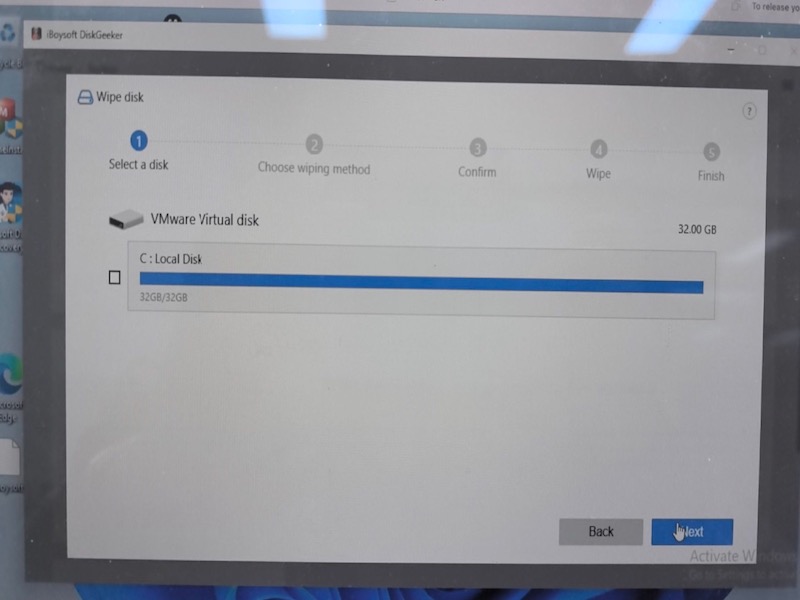
- Select the flash drive and follow the guide at the top to wipe the disk.
Conclusion
There are several ways to clear a flash drive on Windows, and the best method depends on your situation. Deleting files manually works well for basic cleanup, while formatting is more effective for completely resetting the USB drive.
If the flash drive contains sensitive information, securely wiping the data provides stronger protection by making recovery much more difficult. Understanding the difference between deleting, formatting, and wiping can help you choose the safest and most effective way to clear your flash drive.
FAQs
- Q1.How do I completely clear a flash drive on Windows?
-
A
You can completely clear a flash drive on Windows in several different ways, depending on how thoroughly you want to remove the data. If you only want to free up space quickly, you can manually delete files from the USB drive in File Explorer. If you want to remove everything and reset the drive for reuse, formatting the flash drive is usually faster and more effective.
However, standard deletion and formatting do not always permanently destroy the stored data. In some cases, deleted files can still be recovered with recovery software. If the flash drive contains sensitive documents, personal information, or confidential files, securely wiping the drive is the safest option because it overwrites the data and makes recovery much more difficult or impossible.
- Q2.Does formatting a flash drive remove everything?
-
A
Formatting removes all visible files and resets the file system. However, deleted data may still be recoverable unless the drive is securely wiped.