If your Apple Magic Mouse 2 is not scrolling, you're not alone—this is a common issue many Mac users run into.
In most cases, the problem is caused by simple factors like connection glitches, incorrect settings, or temporary system bugs—not hardware failure.
The good news: you can usually fix it in minutes. Start by reconnecting your Magic Mouse. If that doesn't work, follow the proven methods below to restore scrolling quickly and safely.
Note: If your Apple mouse doesn't work, follow this guide: What to do if the Apple mouse is not working
Replace or recharge the batteries
First things first, check the power source of your Apple Magic Mouse to see if it has a faulty or depleted battery.
If you're using the original Mac mouse ( Apple Magic Mouse 1), try to check it by replacing the old batteries with fresh batteries and to see if it scrolls normally now.
If you're using the Apple Magic Mouse 2, you can easily check your Magic Mouse battery level by selecting the Bluetooth icon from the top menu and selecting your mouse from the list when your Apple mouse not working.

Unlike the older Magic Mouse, the Apple Magic Mouse 2 comes with a built-in battery. So if you found your Magic Mouse 2 has run out of power, you can charge your mouse by connecting the USB-C cable to a USB-C port on your Mac.
Waiting for at least 15 minutes until the mouse power source is sufficient and checking if the Magic Mouse scroll not working issue has been resolved.
Restart Bluetooth Service
The Bluetooth connection failure can also lead to this issue.
To fix it, you can turn the Bluetooth service on and off by clicking on the Bluetooth status menu from the menu bar on your Mac computer.
Or click the Apple logo, select System Preferences > Bluetooth. In the Bluetooth settings window, toggle the Turn On & Off button.
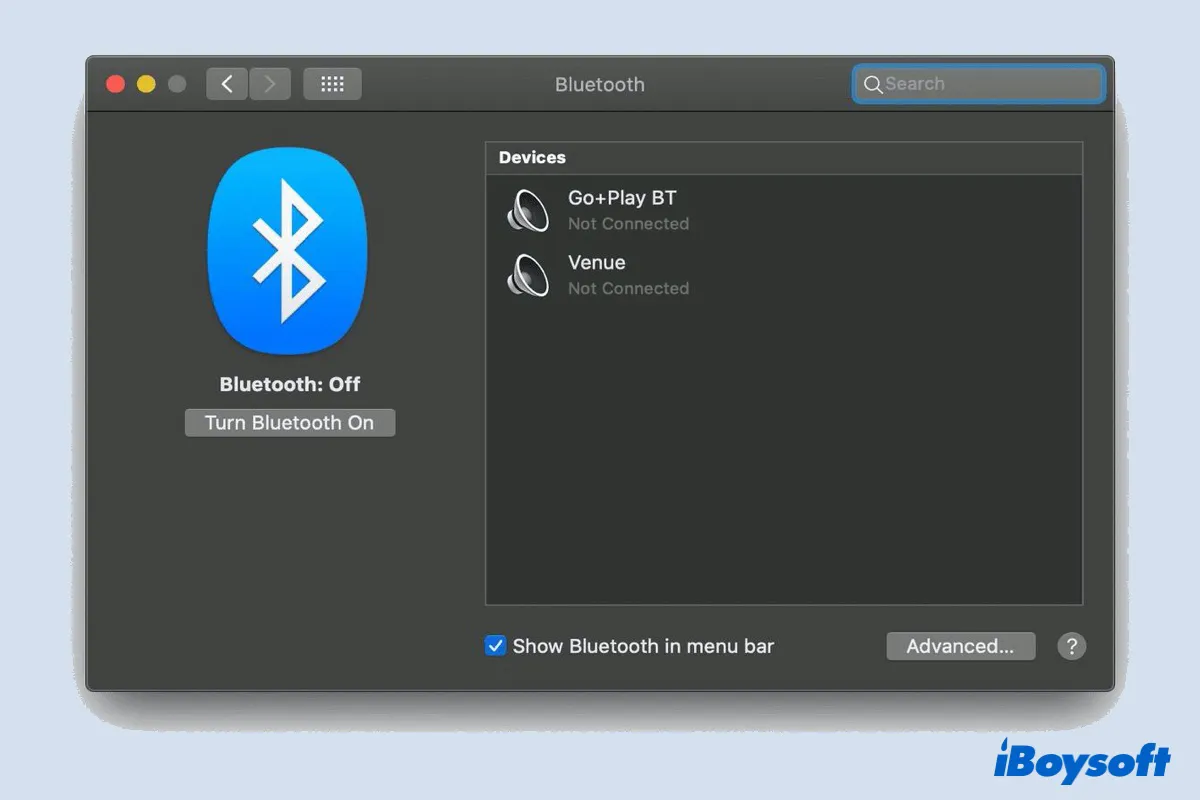
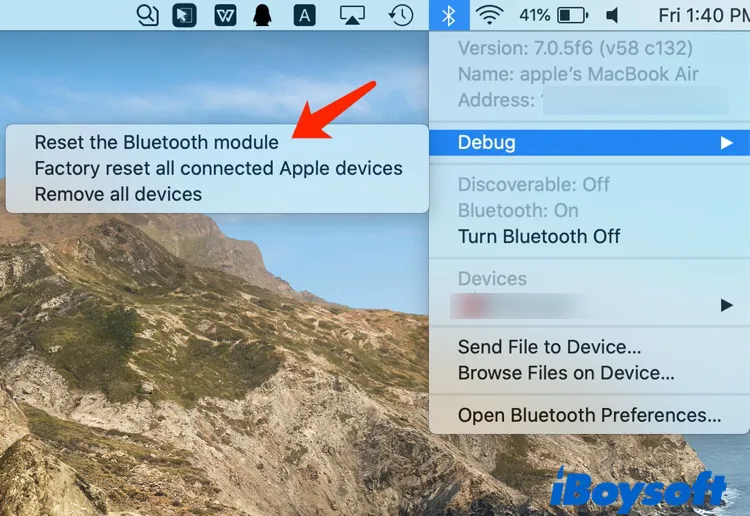
If this is useless to solve the Mac mouse scroll not working issue, try resetting the Bluetooth module.
- Hold down the Shift and Option keys while clicking on the Bluetooth icon in the upper right corner of your screen to demonstrate the Bluetooth settings menu.
- Reset the module by selecting Debug > Reset the Bluetooth module and pressing OK.
Reconnect your Mac Mouse
If refreshing the Bluetooth service or resetting the Bluetooth module does not help fix Magic Mouse not scrolling issue, then it's worth trying re-pairing the Magic Mouse with your Mac. Here's how:
- Click on the Apple logo, go to System Preferences, then click Bluetooth.
- Click the button that appears next to your Magic Mouse. Then press Remove when the confirmation window appears.
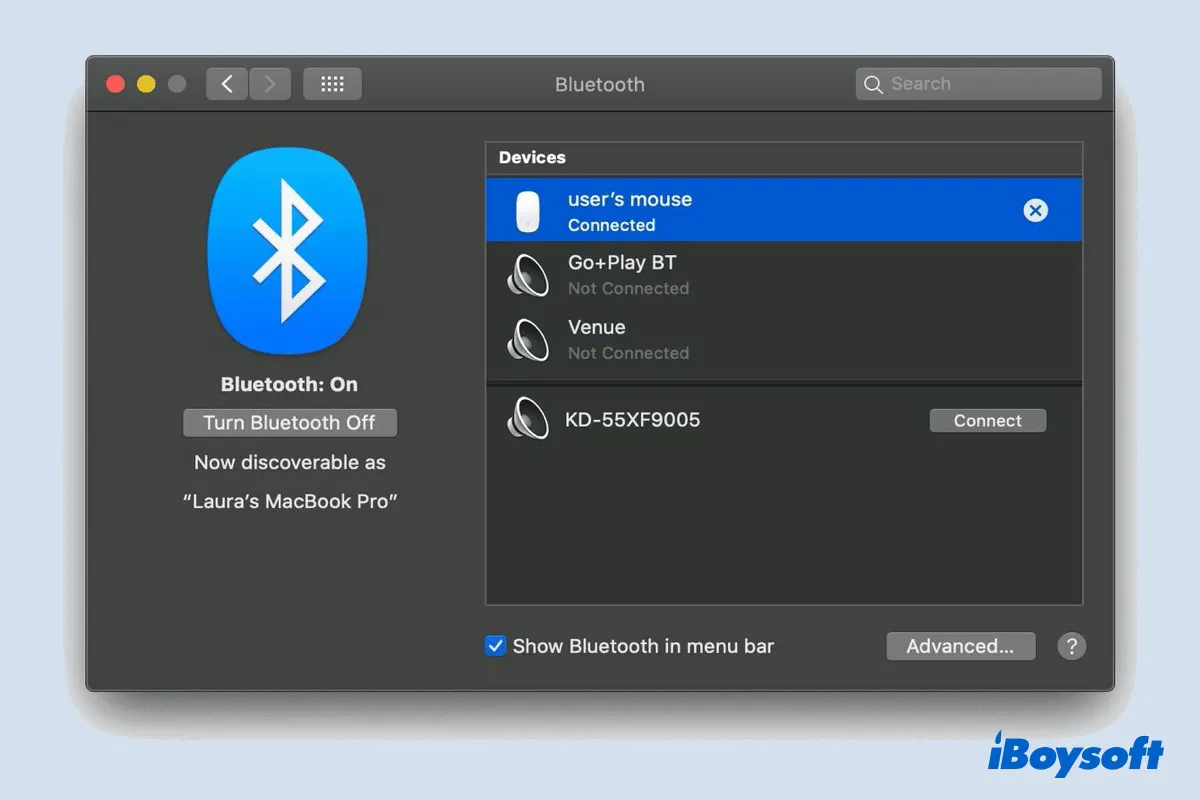
- To re-pair your Apple wireless mouse, turn your Bluetooth mouse off and back on again, then wait for the Magic Mouse to show in the devices list, and then press Connect.
Reset the Apple Mouse Settings
Most Mac users are aware that incorrect mouse settings could lead to being unable to perform right-click on Mac. Besides that, incorrect mouse preferences can cause the Apple Mouse not scrolling issue as well.
Perhaps you can try the following steps to reset the mouse settings in Mac Accessibility to fix it:
- Open the Apple Menu and Select System Preferences.
- Select Accessibility and click on Pointer Control. If you are on an older version of macOS, click Mouse & Trackpad.
- Click Mouse Options and enable the Scrolling checkbox and select the without inertia option on the drop-down menu.
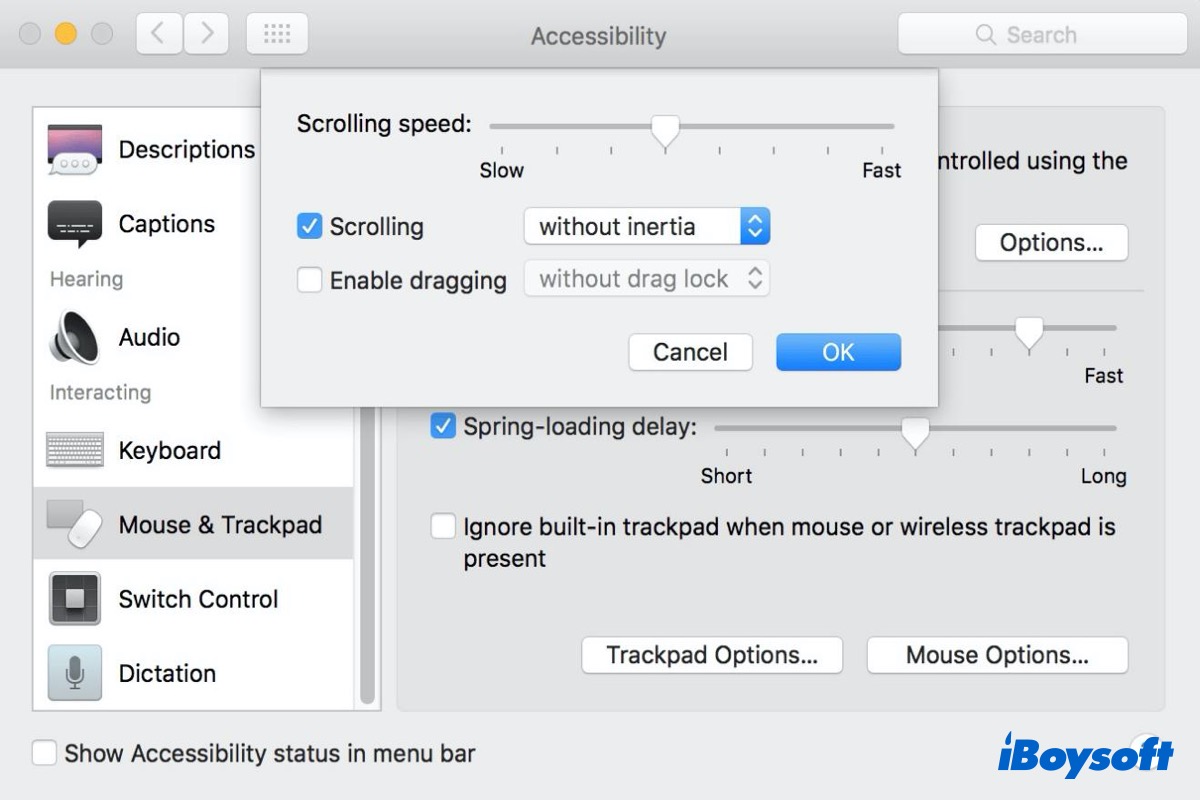
Now that you have corrected the Mac mouse preferences, check if the scrolling feature is working fine on your Magic wireless mouse.
Restart your Mac
If your Magic Mouse scroll is still not working, maybe it's time to give your Mac a reboot. Sometimes, restarting Mac always helps fix various Mac problems and problems related to Mac accessories, including the Apple Wireless Mouse, Magic Trackpad, or keyboard.
Simply click the Apple logo, then select Restart. When your Mac boots again, see if the Apple Mouse scroll not working issue has been fixed.
Update macOS
If none of the aforementioned methods fix the problem of scroll not working on Apple Mouse, maybe you should check if your macOS is the latest version. Some earlier macOS versions contain bugs or are not even compatible with your Apple mice.
So to fix this problem, you may have to download and update macOS since macOS updates improve the stability, compatibility, and security of your Mac, and updating the Mac might also resolve the Magic Mouse scroll not working issue.

Why is the Apple Mouse scroll not working
Just like what is mentioned above, many reasons could lead to Magic Mouse not scrolling issue. The common causes include:
- A faulty or depleted battery
- Poor connection with Mac
- Wrong Mac Mouse settings
- macOS bugs or incompatibility
Bonus part: How to boost your Apple Mouse performance
If you're frustrated by the limited right-click options, too, using an Apple Mouse right-click enhancer can help improve its functionality and overall performance.
An Apple Magic Mouse right-click enhancer is a small tool to help customize and enhance the right-click menu on your Mac computer.
Within this software, right-clicking on your Mac with your Apple Mouse will bring more useful features. There are many right-click enhancers on the market. Here, we recommend iBoysoft MagicMenu due to its powerful functions:
iBoysoft MagicMenu can:
- Create a new file on your Mac desktop just by right-clicking on your empty area on your desktop and then selecting New File from the context menu.
- Copy or move a file to the target path with a single right-click.
- Quick access to applications, folders, disks, browsers, and webpage links without opening Finder or Launchpad.
i
Besides, iBoysoft MagicMenu adds many more useful features in Function Library, such as screen recording, screen capture, hide/unhide files, copy file path, and cut file to the right-click options on Mac, which means you can fully utilize your Apple Magic Mouse with this intuitive app.
My final thoughts
To increase the success rate of fixing the Magic Mouse not scrolling problems, it's recommended to follow any of the steps or procedures accordingly and try the solutions one after the other when one doesn't work.
If unfortunately, none of the 6 solutions works, you may have to send your Mac to a local Apple store for repair. By the way, if you encounter other mouse-related issues, for example, the Apple mouse moving on its own on a Windows PC, you can refer to 'Fixed: Mouse Moving on Its Own on Windows 10, 8, 7' for full solutions.
FAQs: the Apple Mouse not scrolling
- QWhy is Apple Magic Mouse scrolling so slow?
-
A
To fix this issue, press the Command + Spacebar keys to launch Spotlight, and type in 'Accessibility'. When Accessibility is highlighted, click it to its main menu, and select Point & Click > Mouse Options.
If the Tracking speed slider is set to an extremely slow speed, adjust it to a relatively fast speed that suits you better.
- QWhy is Magic Mouse not scrolling on Windows?
-
A
The main reason for Magic Mouse not scrolling on Windows is you may not reinstall the recommended driver - AppleWirelessMouse64 from bootcamp5.1.5769.
But if you have reinstalled one and Magic Mouse scrolling still not working on Windows, basically you need a newer version of the driver.