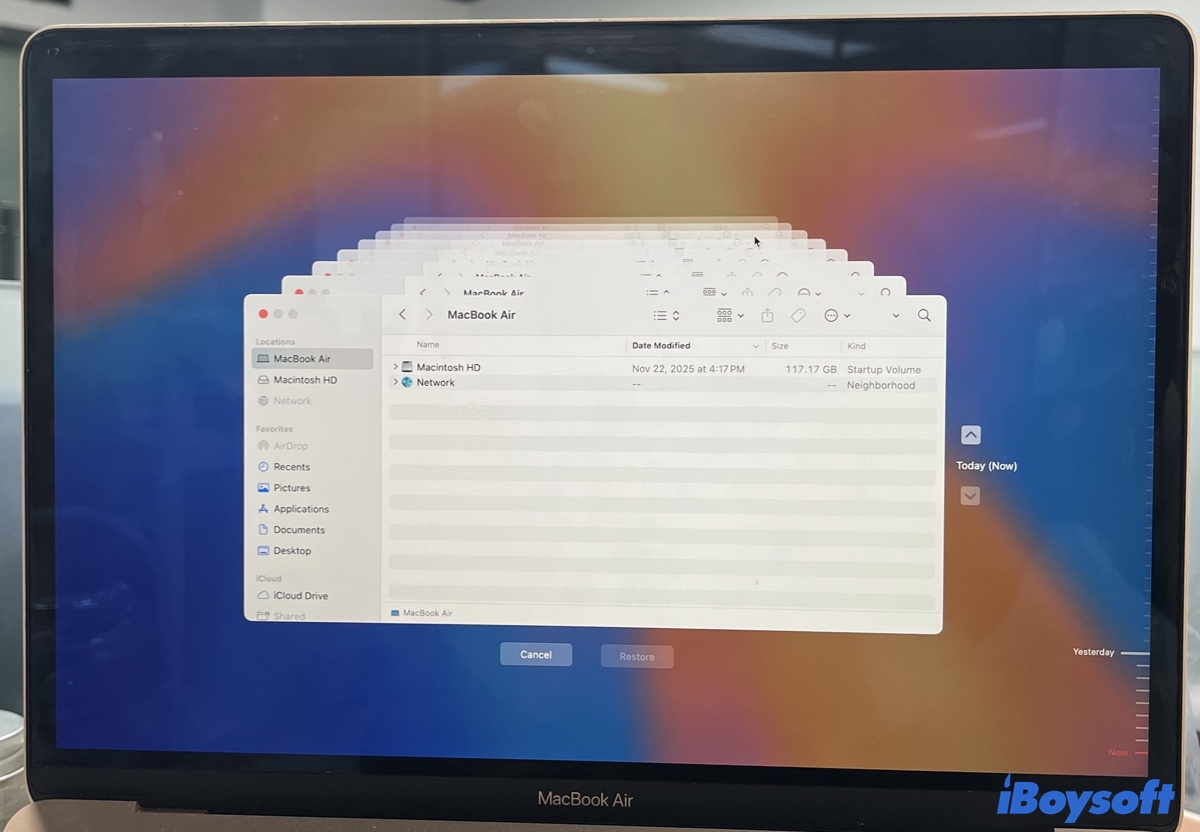
- To restore specific files from Time Machine, open the folder where the file was stored, click the Time Machine icon on the right side of the menu bar, and click "Browse Time Machine Backups." Then use the timeline on the right to find the needed file, select it, and click Restore.
While restoring files from Time Machine is not complicated, there are specific nuances depending on whether you want individual files or all files on the backup disk, or if you're restoring to the same Mac or another computer.
For instance, if you want to restore everything (apps, settings, and files) from Time Machine after a clean install or when setting up a new Mac, you'll need the Migration Assistant. In another case, if you just need a few important files (photos, documents, etc.), Time Machine alone is sufficient.
This guide provides the exact steps for these scenarios to ensure a successful Time Machine restore.
Restore individual files from Time Machine
If you only need some files from the Time Machine backups, don't use Migration Assistant. Instead, follow the proper steps below to restore files from Time Machine selectively.
Restore specific files from Time Machine to the same Mac
- On your Mac, plug in the Time Machine backup disk.
- Open Finder and navigate to the directory where the file you want to restore exists.
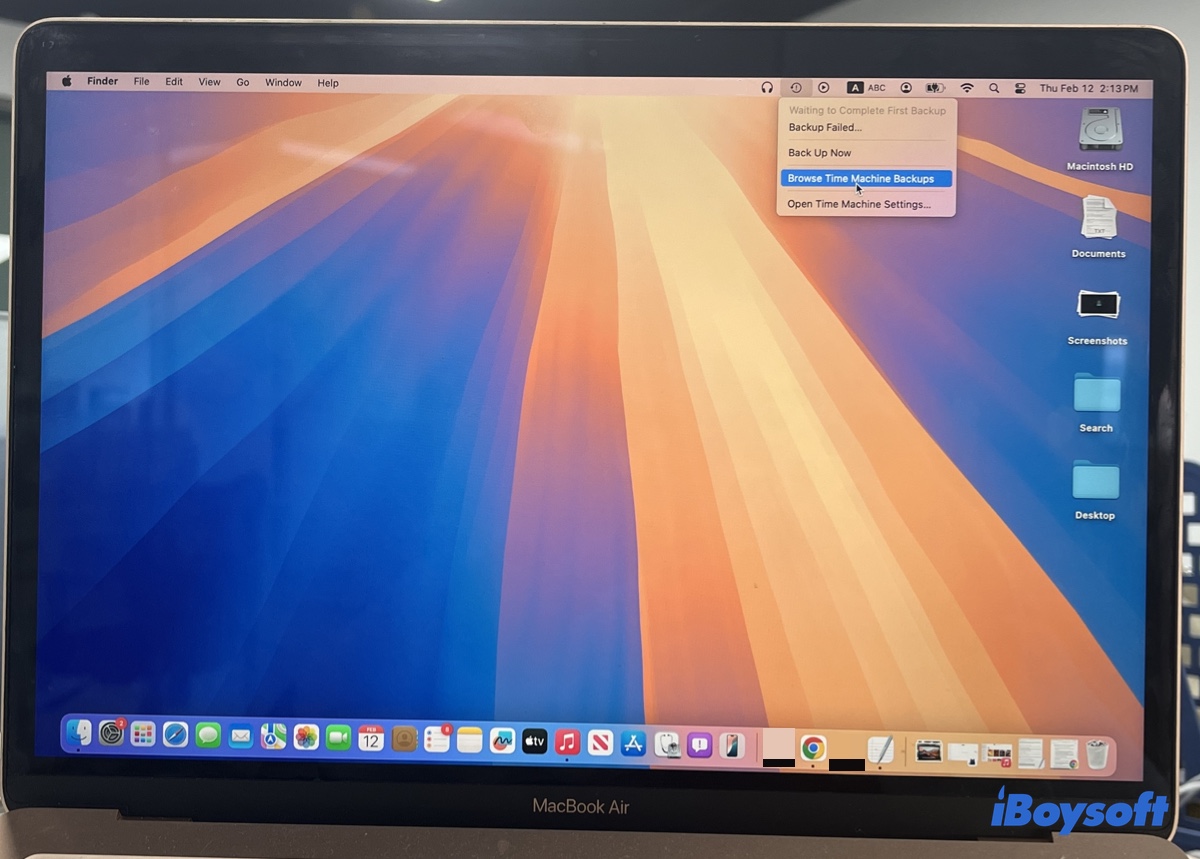
- Click the Time Machine icon (a clock icon) in the menu bar.
➤ If Time Machine is not in the menu bar, press Command-Space and type in "Time Machine" to launch the app.
➤ If this doesn't open the snapshots, enable "Show Time Machine in menu bar" in Time Machine settings, then click the icon in the menu bar to access them. - Choose Browse Time Machine Backups.
- Use the arrows and timeline on the right to browse available Time Machine backups.
- Select the file version you need and click Restore.
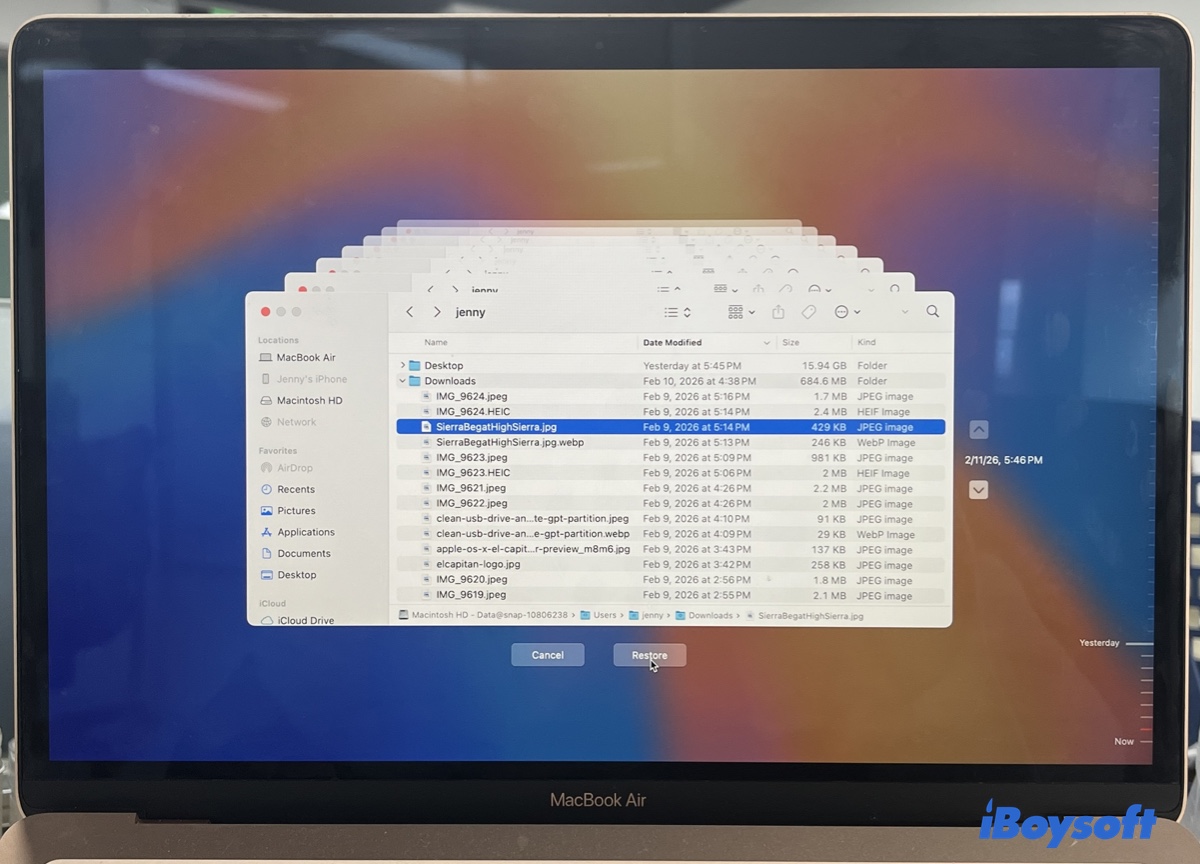
- Then the restored file will appear in its original location. For instance, if the file was deleted from the Documents folder, it'll now show up in the same folder.
Restore individual files from Time Machine to a new Mac
macOS won't automatically merge backup histories from different machines. When connecting the Time Machine backup disk to another Mac, you must first manually point the system to the data on your external drive. Here's how:
- On the new Mac, insert the Time Machine backup disk.
- Hold down the Option key on your keyboard.
- Click the Time Machine icon in the menu bar. (If it's not there, open Time Machine and enable the setting.)
- Select Browse Other Backup Disk...
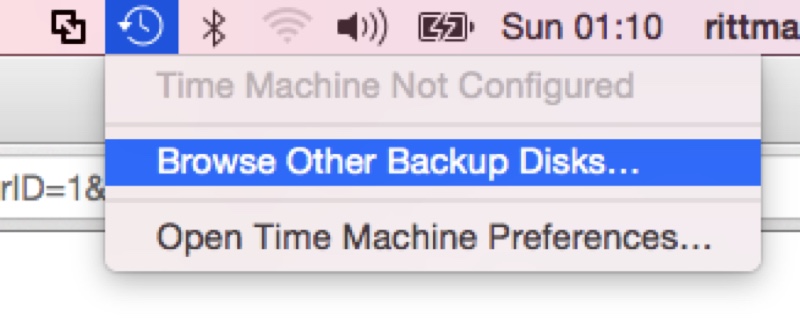
- When a window pops up showing all available backup sets on that drive, select the one from your old Mac.
- Browse all the historical snapshots from the original Mac.
- Choose the files you want to restore.
- Click Restore.
Tips: If you plan to use this new Mac to continue that old backup history (rather than just viewing it once), macOS might ask if you want to "Inherit Backup History."
☞ Choose Inherit if this new Mac is a permanent replacement for the old one.
☞ Choose Create New Backup if you want to keep the old Mac's history frozen and start a fresh history for the new Mac on the same drive.
If this Time Machine backup disk is encrypted, you must unlock it first. Typically, you'll be prompted to enter the original backup password after the drive is connected. If you don't see a prompt, try mounting the drive manually in Disk Utility first.
Restore specific files from Time Machine network drives
Restoring Time Machine files from a network drive, such as a NAS or an old Time Capsule, needs more steps because the backup is usually hidden inside a disk image file.
- Ensure your Mac is connected to the network drive. (Open Finder, click Go > Connect to Server, then enter the address of your network drive and log in.
- Open the network drive folder.
- Look for a file ending in .backupbundle (or .sparsebundle on older systems). It will usually be named after your Mac.
- Double-click that file to mount the backup.
- Click the Time Machine icon in the menu bar.
- Select Browse Time Machine Backups.
- Choose the files you want to restore and click Restore.
Share the steps to selectively restore files from Time Machine with others!
Restore all files from Time Machine
# Applicable when restoring files from Time Machine on the same Mac where the backup was created or a different one.
Restoring all files is different than restoring individual files. If your system is running, you can restore from Time Machine with Migration Assistant. If your Mac won't boot into the desktop, or you want to revert the OS to a previous state, use Migration Assistant in macOS Recovery.
Note: If you're restoring from a backup made on an older macOS version, be reminded that some apps may not work on the newer version until they are updated.
Restore files from Time Machine through Migration Assistant
- Connect your backup disk.
- Open Finder and go to the Applications > Utilities folder.
- Launch Migration Assistant.
- Click Continue.
- Choose "From a Mac, Time Machine backup, or Startup disk."
- Select your Time Machine disk.
- Choose a backup.
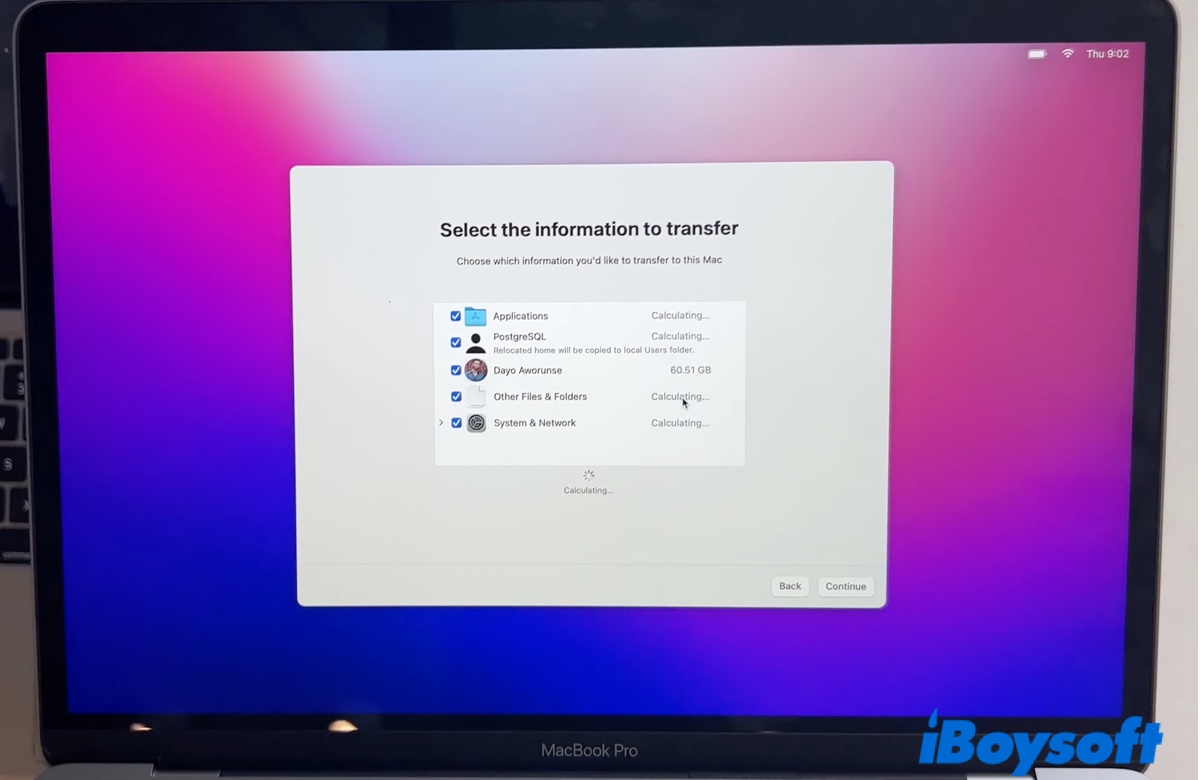
- Choose what to transfer. (You can toggle Applications, User Accounts, and System Settings.)
- Enter your Mac password.
- Click Continue and wait for the transfer to complete.
Tips: If you are moving from an Intel Mac to an Apple Silicon Mac, you might want to uncheck "System & Network" settings to avoid legacy driver conflicts.
Restore files from Time Machine in Recovery Mode
- Enter macOS Recovery Mode.
On an Intel Mac: Turn on the Mac and immediately press and hold Command + R until the Apple logo appears
On an Apple Silicon Mac: Press and hold the power button until you see the message "Loading startup options," then click Options > Continue. - Choose Restore from Time Machine and click Continue.
- Select the disk that contains the Time Machine backup you want to restore.
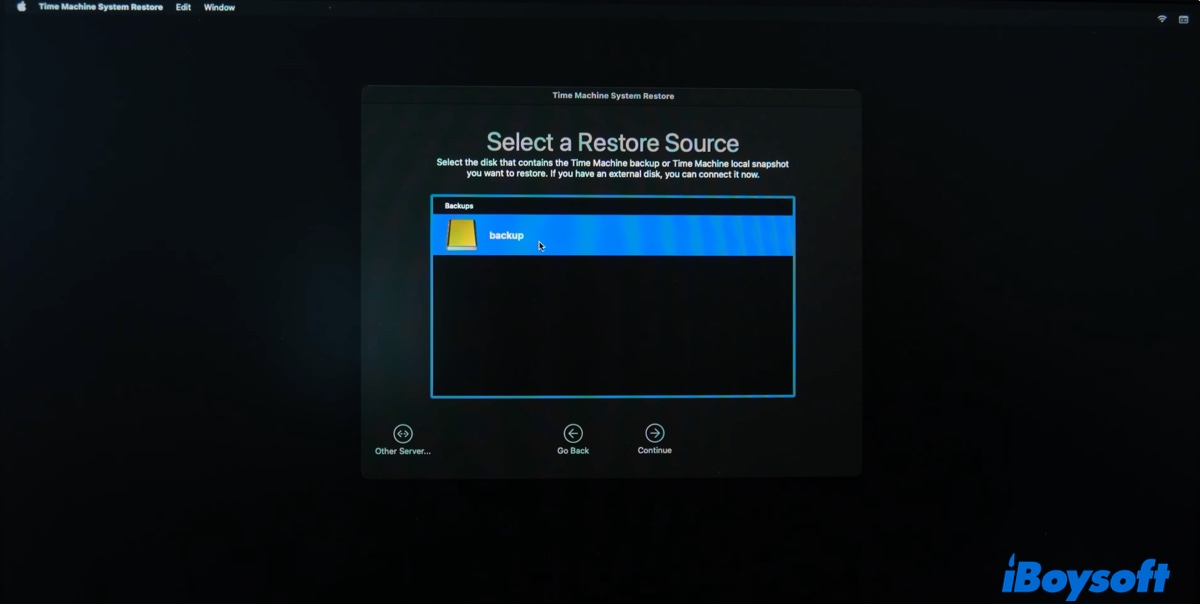
- Click Continue.
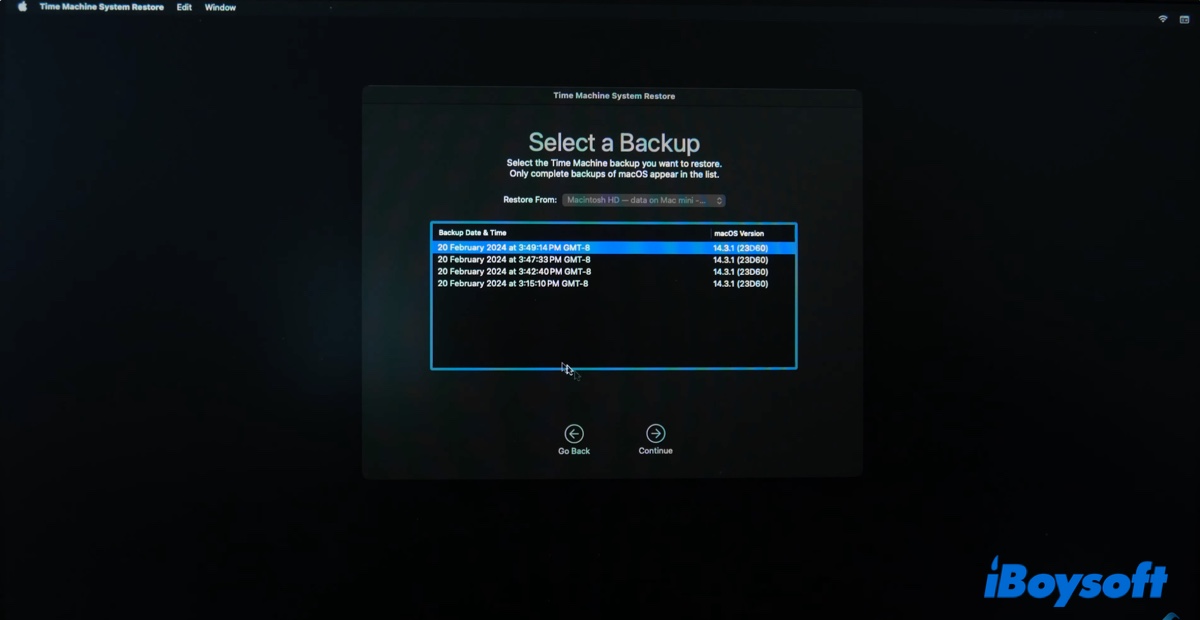
- Choose the backup you need and click Continue.
- Choose the information you want to transfer.
- Choose the destination disk and click Restore.
Tips: When doing a full restore, you might need to reinstall macOS before restoring from Time Machine.
| Scenario | Reinstall macOS First? | Explanation |
|---|---|---|
| Newer Backup to Older OS | Yes | A newer backup (e.g., Sequoia) cannot be restored to an older OS. You must upgrade the system first. |
| Older Backup to Newer OS | No | Use Migration Assistant. The newer OS stays intact and simply "imports" your old data. |
| Backups made on Catalina or earlier | No | These backups contain a "bootable" OS. A full restore from Recovery Mode will wipe the drive and install the OS + Data in one step. |
| Backups made on Big Sur or later | Yes* | The OS is no longer part of the backup. If the drive is empty, you must reinstall macOS before pulling in your data. |
| Intel Mac to Apple Silicon | No | The new Mac comes with its own OS. You just migrate the user accounts and files across. |
| Exact Version Match | No | If the backup and the Mac are on the same version, a direct restore is often possible (unless it's a modern M-series Mac). |
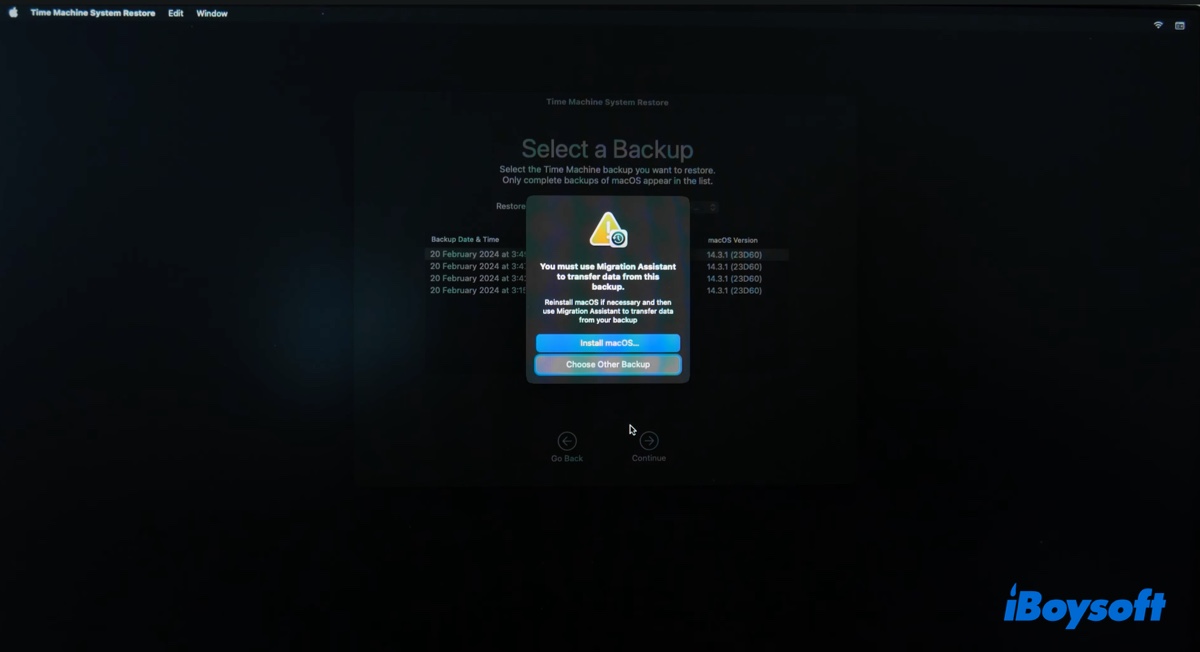
If you're trying to downgrade macOS to an earlier version, I recommend erasing the startup disk before reinstalling the system to avoid the error message "The volume can not be downgraded." Download the specific macOS installer, create a bootable USB installer, and then restore from Time Machine.
Share the steps on how to restore files from a Time Machine backup!
Restore files from Time Machine onto a PC
Since Windows doesn't support native macOS file systems (APFS or HFS+), you can't restore files from Time Machine backups directly on a PC. However, you can access the backup drive on a Mac, copy the needed files to another external drive in the exFAT or FAT32 format, and then connect the second drive to a Windows PC to transfer the files.
Can't restore files from Time Machine
Time Machine restore greyed out
One common issue you may encounter when restoring files from Time Machine is the Restore button being grayed out. In most cases, there's nothing wrong with the backup because it's supposed to be grayed out when no file is selected.
When you open Time Machine and see different snapshots, you can only restore selected files from it rather than the whole backup. Only if you select one file will the Restore button be highlighted. If you're trying to restore the whole backup, use Migration Assistant instead.
Time Machine backups not found
If Migration Assistant can't find your backup, there's likely a compatibility issue. For example, the backup was made on macOS Monterey, but you're viewing it on an older system like macOS Mojave. To access your files, you can plug the backup disk into another Mac that runs a newer system, such as macOS Big Sur, then copy the files over.
FAQs
- QDoes restore from Time Machine delete existing files?
-
A
Restoring from Time Machine usually won't delete existing files unless you're doing a full restore.
Restoring Individual Files: Time Machine copies the old file from the backup and places it next to your current files. Nothing is deleted.
Migration Assistant: If you're restoring from a new user account, it adds a new one and keeps the current one untouched. If you're restoring from the same user account, it will ask if you want to replace the current one or keep both.
- QDoes restore from Time Machine restore all files?
-
A
If you're doing a full system restore, it restore all files. Otherwise, it only restore the files you choose to restore.
- QCan Time Machine recover deleted files?
-
A
Yes, Time Machine can recover deleted files provided that it has a backup that contains the deleted file.
- QHow do I restore my Mac to an earlier date?
-
A
To restore your Mac to an earlier date, boot into macOS Recovery Mode, then click 'Restore from Time Machine' and follow its instructions to reinstall the earlier macOS version and restore data to it.
- QCan you restore just files from a Time Machine backup?
-
A
Yes, you can restore just files from a Time Machine backup. Simple open Time Machine, then choose the files you want to recover and click the Restore button.
- QDoes Time Machine restore OS?
-
A
Time Machine can no longer restore the OS on macOS Big Sur and later. Since macOS 11 Big Sur, Apple has kept the operating system on a completely separate, read-only, cryptographically sealed volume. When performing a backup, Time Machine will ignore the OS and only back up the data volume.
But restoring the OS is possible on older Intel Macs running macOS 10.15 Catalina or earlier.