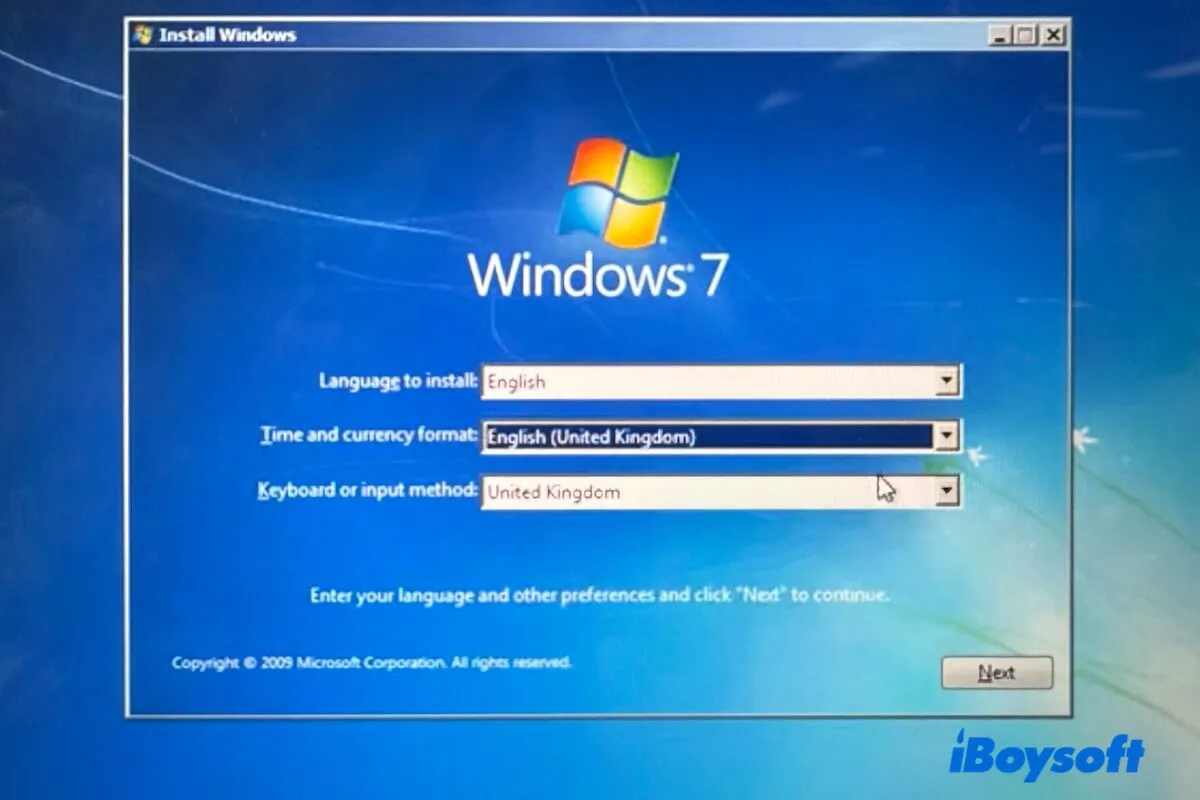
A Windows 7 ISO is a complete digital copy of the original Windows 7 installation disc, saved in the .iso image format. You can use it to install Windows 7 on a PC, run it in VirtualBox or another virtual machine, or create a bootable USB installer.
However, Windows 7 reached its end of support in January 2020, and Microsoft no longer offers public downloads. As a result, most users can't obtain the installation files directly from the official Microsoft website. While Windows 7 ISOs can still be downloaded online.
In this post, I'll provide direct links to download official Windows 7 ISO files in 64-bit, 32-bit, and all-in-one versions. I'll also show you how to create a bootable Windows 7 USB, how to install Windows 7, and share important legal and security tips you should know before getting started.
Note: 🔔 Need Windows 7 Pro ISO? Get it directly from: Windows 7 Pro ISO Download | Windows 7 Home ISO Download
Or, you can get any other Windows ISO files from this database: Windows ISO Download.
Is there official access to download Windows 7 ISO
Microsoft no longer provides public downloads for Windows 7, but official access may still exist in a few limited cases:
- Volume Licensing / Enterprise portals: Organizations with Microsoft volume licenses may still download Windows 7 ISOs through enterprise licensing portals.
- Developer subscriptions: Some Microsoft Visual Studio or former MSDN subscribers can access legacy operating system downloads.
- OEM recovery media: If your computer originally shipped with Windows 7, manufacturers like Dell, HP, or Lenovo may still offer recovery images for that specific model.
For most users today, the typical option is to download archived Windows 7 ISOs and verify their authenticity by checking the SHA-1 checksum against the original Microsoft releases.
Note: An archived Windows 7 ISO can still be a genuine copy of the official Microsoft release if it is unmodified and its SHA-1 checksum matches the official hash. However, installing and using Windows 7 still requires a valid product key.
Is it still legal to download Windows 7 online
Yes. Downloading a Windows 7 ISO file is generally legal. The ISO file itself is only the installation media; it does not grant a license.
Not recommended: Downloading modified or pirated Windows 7 ISOs from untrusted websites, as they may contain malware or unauthorized changes.
Windows 7 ISO Editions Explained
| Edition | Best For |
| Home Premium | Home users, basic tasks |
| Professional | Business users, domain join |
| Ultimate | Advanced users, BitLocker |
Choose the edition that matches your product key- otherwise, activation will fail.
Download Windows 7 ISO 64-bit
A 64-bit version of Windows 7 is designed to run on 64-bit CPUs of modern PCs.
You can use iBoysoft DiskGeeker for Windows to safely download the frequently used 64-bit versions of Windows 7 Home Premium, Windows 7 Pro (Professional), and Windows 7 Ultimate, all in English.
Note: The downloaded Windows 7 ISO is not activated. When you install Windows 7, you can either enter a valid product key to activate it or try its 30-day free trial.
Steps to download Windows 7 ISO 64-bit:
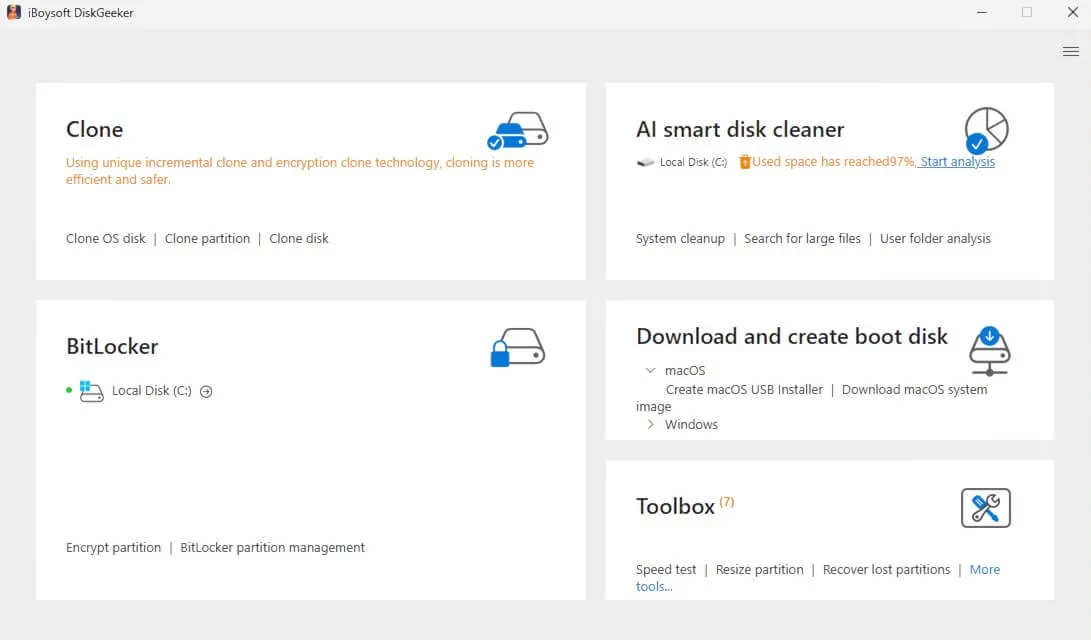
- Install and open iBoysoft DiskGeeker for Windows.
- In the Download and create boot disk field, click "Windows" > "Download Windows system image."
- Click on Windows 7 and select the Windows version, language, system architecture (X64 by default), and system version.
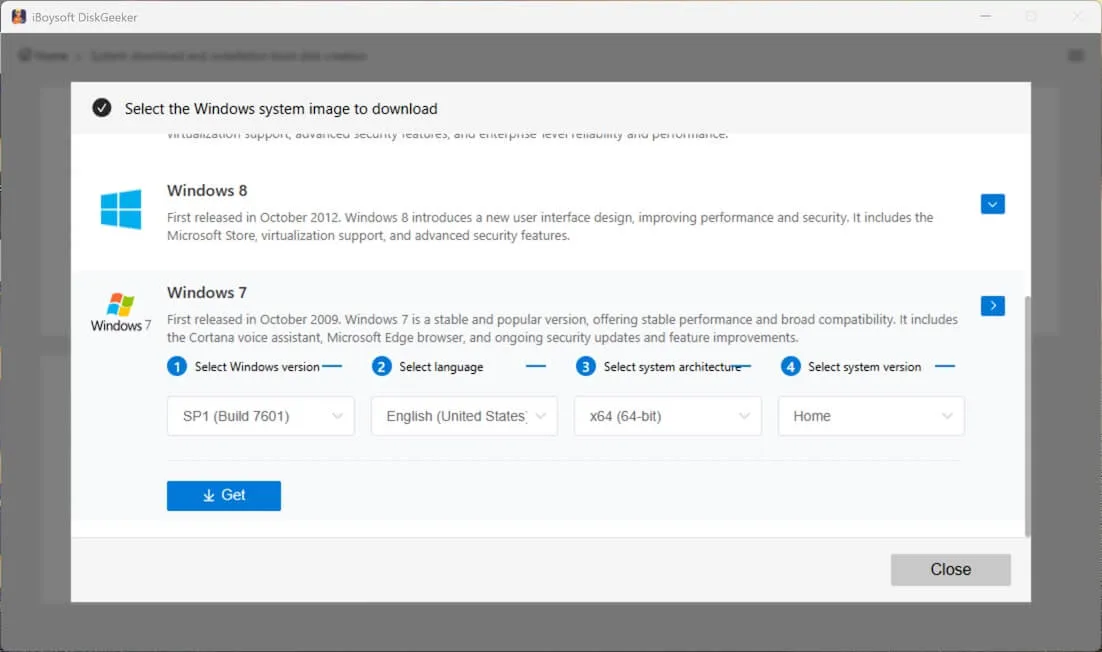
- Click "Get," choose a location, and wait for the process to complete.
After obtaining the Windows 7 ISO file, check its system requirements before installing it or using it to create a bootable USB drive.
System Requirements for Windows 7 ISO 64-bit
| Processor (CPU) | 1 GHz or faster, 64-bit (x64) |
| RAM (range) | Home Premium edition: 2 GB - 16 GB Professional & Ultimate editions: 2 GB - 192 GB |
| Application Compatibility | Runs 32-bit & 64-bit apps |
| Minimum installation storage | 20 GB |
| Graphics Requirements | Base: DirectX 9-capable GPU with WDDM 1.0 driver Aero Glass: 128 MB graphics memory, Pixel Shader 2.0, Windows Experience Index ≥ 3.0 |
| Minimum display resolution | 800 × 600 pixels |
| Firmware Support | BIOS or UEFI (Secure Boot supported but not required) |
Share the direct Windows 7 ISO 64-bit download links and system requirement details with others.
Verify Windows 7 ISO integrity before using
After downloading the Windows 7 ISO file, remember to verify it before installation. This ensures the ISO file hasn't been corrupted or tampered with.
- Use SHA-1 checksum tools on Windows.
- Compare the hash with Microsoft's original checksum values.
I've checked my downloaded Windows 7 ISO integrity using certutil in Command Prompt, and here are my steps:
Step 1: Open Command Prompt as administrator
- Click Start.
- Type cmd.
- Right-click Command Prompt.
- Select Run as administrator.
Running CMD with elevated privileges ensures the command executes without permission issues.
Step 2: Generate the MD5 checksum
In the Command Prompt window, enter:
certutil -hashfile "C:\path\to\your\windows7.iso" MD5
Replace C:\path\to\your\windows7.iso with the actual file location of your downloaded Windows ISO.
After a few seconds, Windows will display a long string - this is the MD5 hash of the ISO file.
Step 3: Compare the MD5 value
Compare the generated MD5 hash with the official MD5 checksum provided by the download source.
✅ Match → The ISO file is intact.
❌ Mismatch → The file may be corrupted or altered and should be re-downloaded.
Step 4: Generate the SHA-1 checksum (Recommended)
For additional confirmation, run:
certutil -hashfile "C:\path\to\your\windows8.iso" SHA1
This command calculates the SHA-1 hash, providing an additional layer of integrity verification.
Step 5: Verify the SHA-1 value
Compare the output SHA-1 string with the official SHA-1 checksum.
If both MD5 and SHA-1 values match the official data, the Windows 7 ISO file is verified and safe to use.
Create a Windows 7 bootable USB for installation
To install Windows 7, you need a Windows 7 bootable USB.
Microsoft once offered the USB/DVD Download Tool for creating Windows 7 bootable USBs, but it's no longer available. Today, many users employ Rufus, but its open-source nature raises security concerns, and the setup process can be tricky.
A simpler choice is iBoysoft DiskGeeker for Windows. This multi-functional disk manager for Windows can help you create a Windows 7 bootable USB installer with just a few clicks, making it quick, easy, and smooth.
Steps for creating a Windows 7 bootable USB installer
- Download iBoysoft DiskGeeker for Windows, install and open it on your computer.
- Connect an erased USB drive with at least 32 GB of free space to the PC.
- In the Download and create boot disk module, click "Windows" > "Create Windows OS USB Installer."
- Select your USB drive as the target disk and click Select.
- Choose Windows 7 and click "Start creating boot disk" > "Yes."
Then, this tool will quickly download Windows 7 ISO. Once the download is complete, it will automatically start creating the Windows 7 bootable USB installer.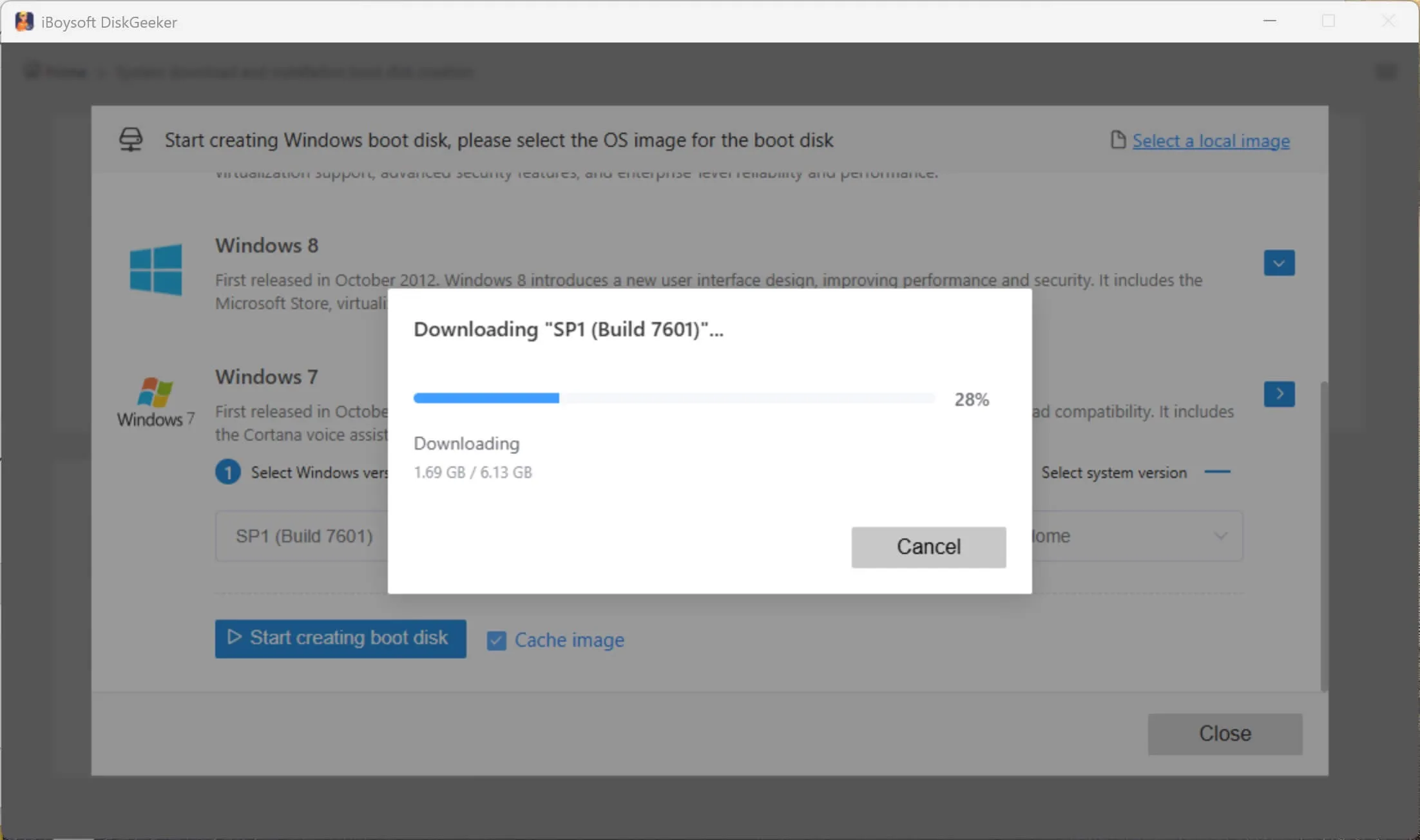
Clone Windows 7 PC to make a bootable copy of Windows 7
Notably, this Windows disk manager also lets you quickly get a bootable copy of Windows 7 by cloning the system partition of a Windows 7 PC.
Unlike the Windows 7 bootable USB installer, the bootable copy of Windows 7 lets you directly run Windows 7 from the external drive without installation or setup.
It is suitable for starting up a computer that won't turn on and testing Windows 7 with the same configurations on different PCs.
- Free download, install, and open iBoysoft DiskGeeker for Windows.
- Connect a USB drive to the Windows 7 computer.
Note: The storage capacity of the USB should be larger than the system partition of the PC. Otherwise, the OS disk cloning task will fail. - In the Source OS disk section, you'll see the automatically-detected system partition there. Just check it.
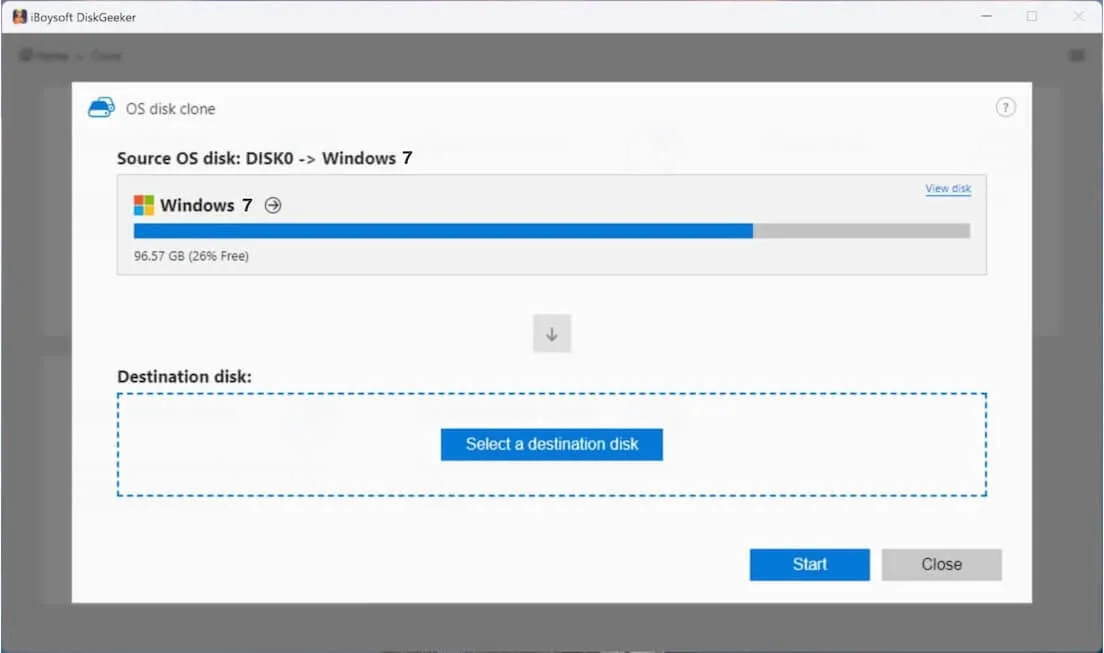
- Click "Select a destination disk" and choose the USB drive as the target.
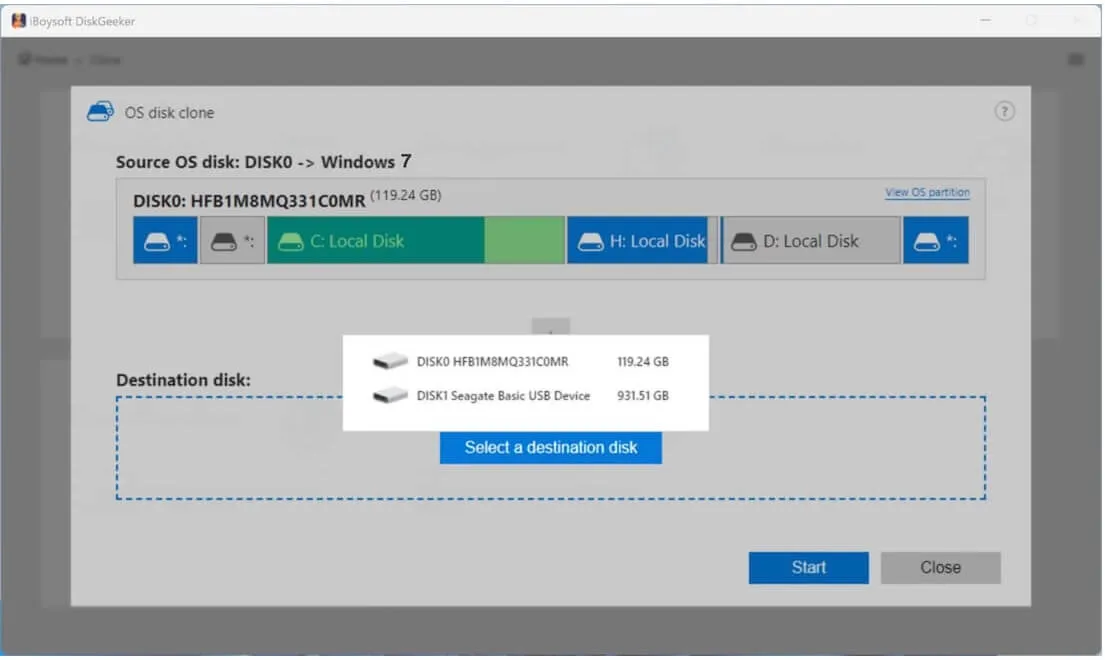
- Click "Start" > "Confirm" to let the Windows 7 system partition clone process start.
Now, you can use this copy of Windows 7 to directly boot up a PC from it, no configuration required.
Share the direct links for downloading Windows 7 ISO to help more people.
Install Windows 7 (Step-by-step)
You can use the Windows 7 bootable USB to boot a PC and install Windows 7.
Follow these steps:
- Connect this Windows 7 bootable USB drive to the target PC.
- Restart the PC, and meanwhile, press and hold the specific Boot Menu key (as below) to enter the Boot Menu or BIOS/UEFI.
HP: F9 or Esc
Dell: F12
Lenovo: F12
Acer: F12
ASUS: Esc or F8
MSI: F11 - Select the Windows 7 bootable USB as the boot device in the Boot Menu.
If you can't access the Boot Menu, enter BIOS/UEFI. In the boot priority list, set the USB drive to be the first. - Wait for your computer to start up from the bootable USB.
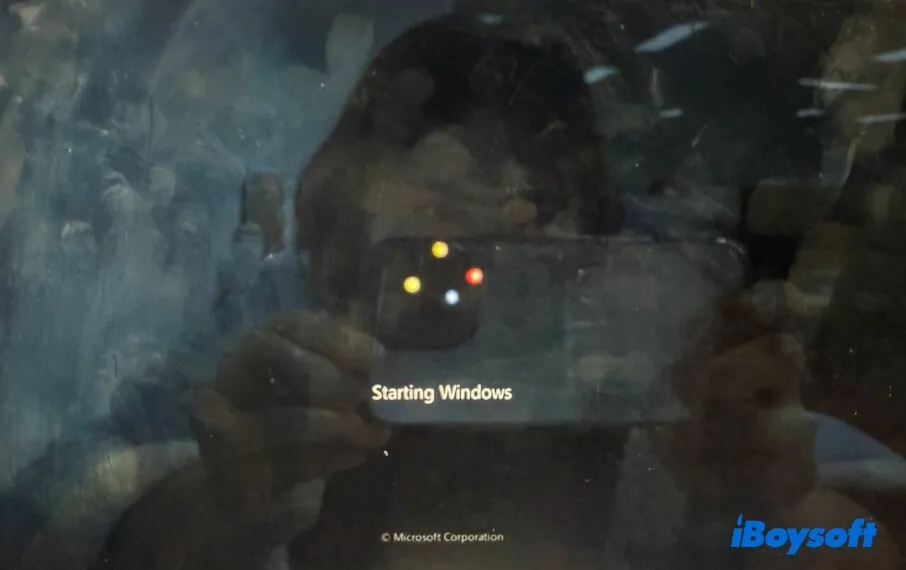
- Follow the on-screen instructions to install Windows 7.
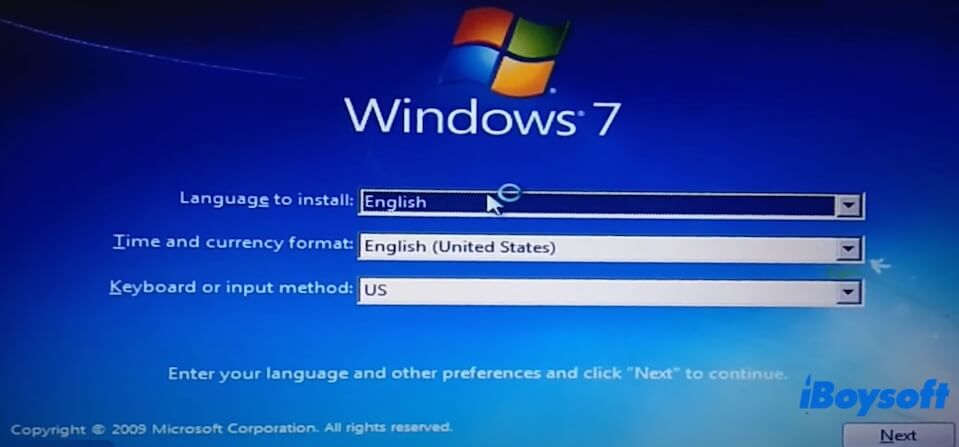
Note: If you have a valid product key, just enter it. If you don't, you can skip this step, select a Windows 7 edition, and try the 30-day free trial of it.
Windows 7 security risks & best practices
Because Windows 7 no longer receives security updates:
- Do not use it for online banking or sensitive data
- Install reputable antivirus software
- Keep the system offline if possible
- Use Windows 7 mainly for legacy apps or testing
Need newer Windows 8.1/8/Vista? Download from:
Download Windows 8.1 ISO
Download Windows 8 ISO
Download Windows Vista ISO
Need Windows Server? Get from:
Download Windows Server 2025 ISO
Download Windows Server 2022 ISO
Download Windows Server 2016 ISO
FAQs about Windows 7 ISO download
- QCan I download Windows 7 ISO without product key?
-
A
You can download Windows 7 for free, no product key required, from third-party online sources, but installing and running it requires a valid license for legal activation.
- QCan I still activate Windows 7?
-
A
Activation may still work with genuine keys, but it is not guaranteed.
- QIs Windows 7 ISO available in formats other than ISO?
-
A
No. ISO is the only official format.
- QHow to download Windows 7 Ultimate 64-bit ISO file?
-
A
If you have a genuine Windows 7 Ultimate product key, you can get the Windows 7 Ultimate 64-bit ISO file from the official Microsoft page. Otherwise, you can only download the Windows 7 Ultimate 64-bit ISO file from third-party resources.