Windows Server 2016, built on the Windows 10 core and released on October 12, 2016, offers a secure, scalable, and flexible platform for enterprise apps, network management, and modern datacenter or cloud workloads.
If you're going to use this system, you can follow this free Windows Server 2016 download hub. It covers the direct links for downloading the Windows Server 2016 ISO 64-bit file for VirtualBox, VMware, or creating a bootable USB installer.
Need to compare and download other versions of Windows Server? Follow:
Windows Server 2025 ISO Download
Windows Server 2022 ISO Download
Windows Server 2016 download for VMware, VirtualBox
Here, we've gathered the free Windows Server 2016 archives. Click one of them to quickly download Windows Server 2016 for VMware, VirtualBox, or USB.
In other words, these ISO files can be used to install Windows Server 2016 inside VMware and VirtualBox on Windows 11/10 PCs. And they can also be used to create a bootable USB installer.
✅ Download Windows Server 2016 64-bit (Standard & Datacenter)
File size: 5.3 GB
Language: English
#Original MSDN ISO image of Windows Server 2016#Windows Server 2016 RTM#Build 14393.0
✅ Download Windows Server 2016 64-bit (Standard & Datacenter)
File size: 5.3 GB
Language: English
#Original MSDN ISO image of Windows Server 2016
✅ Download Windows Server 2016 64-bit (Standard & Datacenter Evaluation)
File size: 6.5 GB
Language: English
MD5: 70721288bbcdfe3239d8f8c0fae55f1f
SHA1:772700802951b36c8cb26a61c040b9a8dc3816a3
#Untouched Windows Server 2016
✅ Download Windows Server 2016 64-bit (Essentials)
File Size: 4.5 GB
Language: English
#Original ISO of Windows Server 2016 Essentials
✅ Download Windows Server 2016 64-bit (Essentials Evaluation)
File Size: 4.5 GB
Language: English
SHA256: 968222F3EF41F7390BC2825A721C97C653B627023EBD051EC1CEBCE1F9B2D250
#Untouched Windows Server 2016 Essentials Evaluation
Note: Some of the above Windows Server 2016 ISO files include multiple editions. In that case, the edition you'll install depends on your product key or the one you select during the installation.
System Requirements for Windows Server 2016
Before installing Windows Server 2016, it is necessary for you to learn its minimum system requirements.
| Componens | Minimum Requirements |
| Processor (CPU) | 1.4 GHz 64-bit processor (x64 instruction set compatible) |
| RAM (Memory) | 512 MB (2 GB for Server with Desktop Experience) |
| Installation Storage | 32 GB (more recommended for installation with GUI or updates) |
| Network Adapter | Ethernet adapter capable of at least 1 Gbps, compliant with PCI Express architecture |
| Display | Super VGA (800 x 600) or higher-resolution monitor |
| Others | UEFI 2.3.1c-based system or BIOS; TPM (optional, required for certain features) |
Share the direct links for Windows Server 2016 ISO download with others.
Windows Server 2016 download with iBoysoft DiskGeeker for Windows
iBoysoft DiskGeeker for Windows is an all-inclusive disk management tool that offers direct options for downloading ISO images of Windows Server 2016, 2025, 2022, 2019, 2012 R2, and 2008 R2, and other Windows versions.
This tool can also help you create a Windows Server bootable USB installer with just a few clicks.
- Download, install, and open iBoysoft DiskGeeker for Windows on your PC or physical server.
- In the Download and create boot disk section, click "Windows" > "Download Windows system image."
- Click on "Windows Server," select "2016," and finish the other selections.
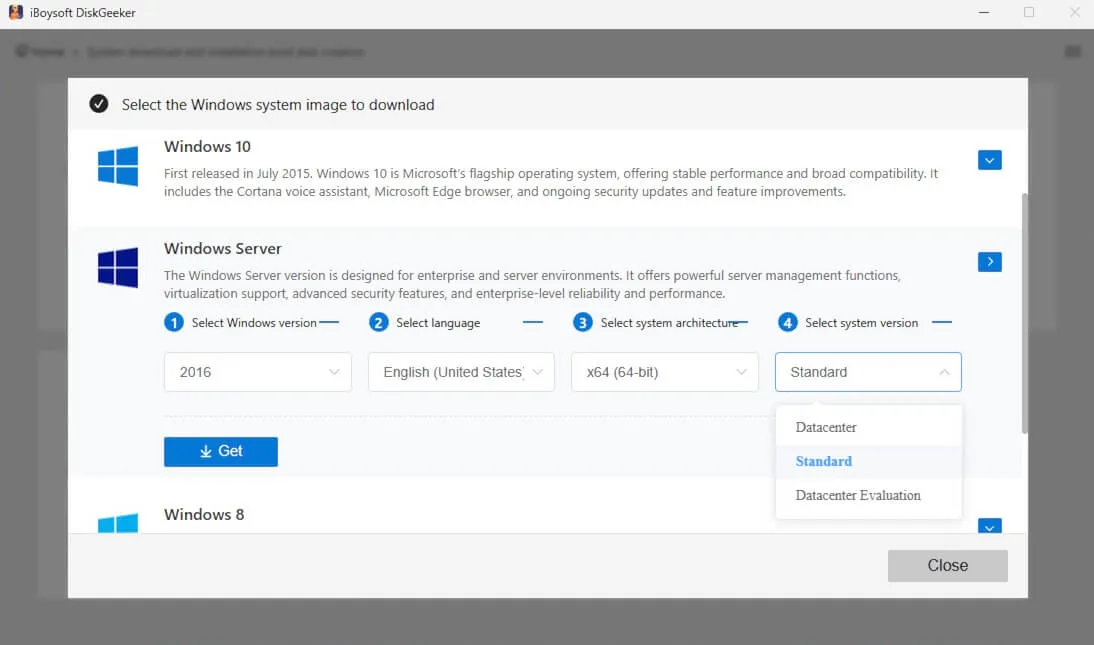
- Click "Get" to download Windows Server 2016 quickly.
Tell others about this reliable tool for downloading Windows Server 2016 ISO.
Windows Server 2016 download from Microsoft
The Microsoft Evaluation Center is the common place to download Windows Server 2016. If you would like to get Windows Server 2016 from the official website, follow:
- Access the Microsoft Evaluation Center for Windows Server 2016 ISO download
- Click "64-bit edition" next to your desired language.
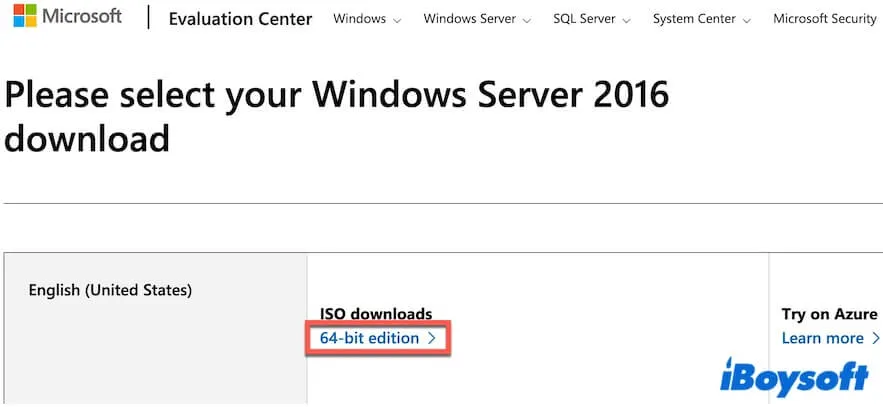
- Wait for Windows Server 2016 to be downloaded.
Create a Windows Server 2016 bootable USB installer
A bootable Windows Server 2016 USB installer can be used to deploy Windows Server 2016 on physical servers or PCs, reinstall or clean install Windows Server 2016, upgrade from Windows Server 2012/R2 to 2016, start up or repair an unbootable physical server or PC, etc.
Using Rufus is a popular method to create a Windows Server 2016 bootable USB installer. This way looks simple, but it involves a lot. You must first download a Windows Server 2016 ISO file and then configure several settings in Rufus before the USB can be created.
However, things become far easier when you switch to iBoysoft DiskGeeker for Windows. This disk manager lets you create a bootable Windows Server 2016 USB installer in just a few clicks. The whole process is simple and fast.
Here's how:
- Free download, install, and launch iBoysoft DiskGeeker for Windows on a physical server or computer.
- Connect an empty USB drive with at least 64 GB of available space to the physical server or computer.
- On the app's main interface, click "Windows" > "Create Windows OS USB Installer" in the Download and create boot disk field.
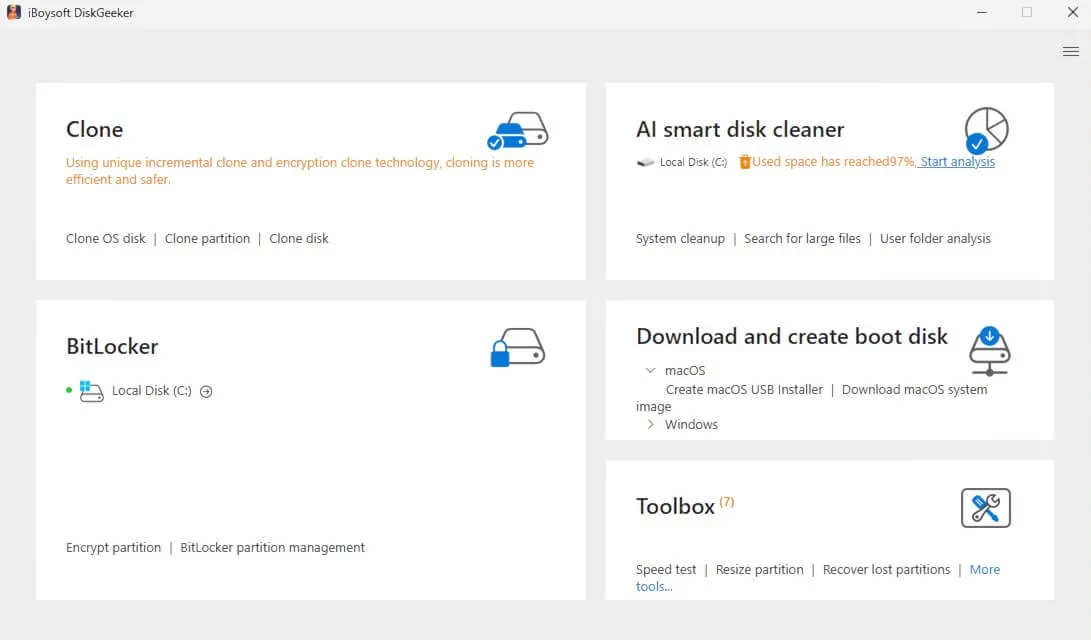
- Select the USB drive as the target disk.
- Click on "Windows Server," and then choose "2016" in the Windows version section and other desired options.
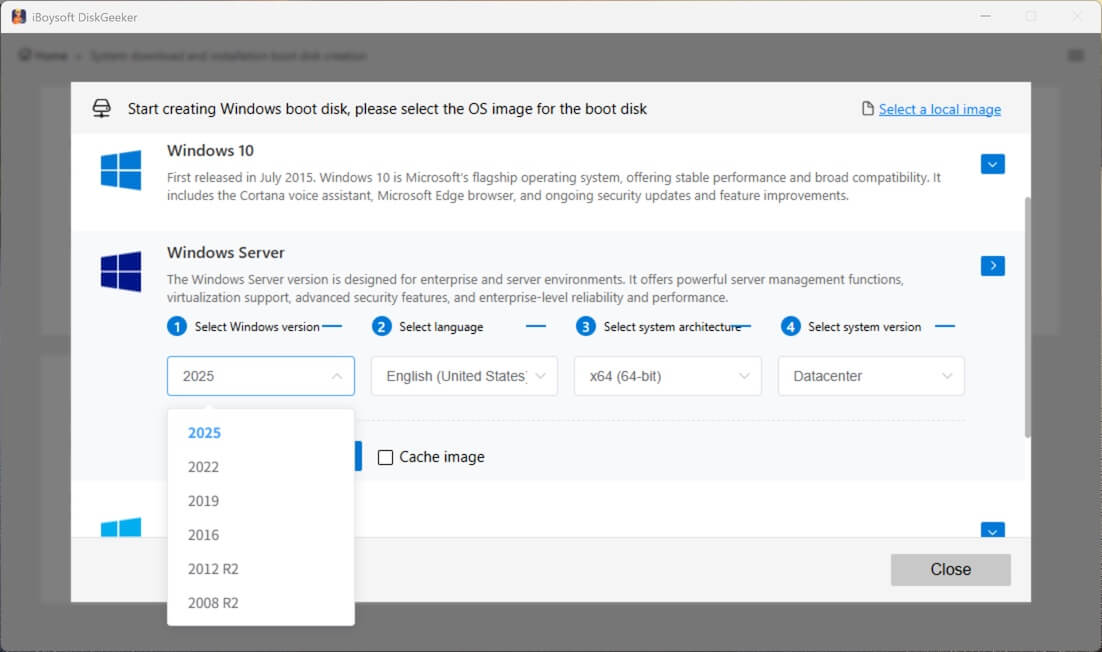
- Click "Start creating boot disk."
Wait for the Windows Server 2016 ISO to be downloaded quickly, and then, this tool will automatically create a bootable USB installer. Then, you can use this bootable USB installer to install Windows Server 2016 on a physical server or PC.
Recommend this one-stop tool for Windows Server 2016 download and bootable USB installer creation to more people.
FAQs about Windows Server 2016 download
- QHow to install Windows Server 2016?
-
A
If the machine is currently running Windows Server 2012 or 2012 R2, you can perform an in-place upgrade. However, if it's running Windows Server 2019 or later, you must either wipe the drive and do a clean installation or install Windows Server 2016 inside a virtual machine such as VMware, Hyper-V, or VirtualBox.
For PCs or systems not intended to replace their current OS, installing Windows Server 2016 in a VM is the safest method.
- QWhere can I download Windows Server 2016?
-
A
You can download Windows Server 2016 from Microsoft Evaluation Center, Internet Archive, or iBoysoft DiskGeeker for Windows.
- QIs Windows Server 2016 still available?
-
A
Yes. Although its mainstream support ended on January 11, 2022, Windows Server 2016 is currently in extended support, which continues until January 12, 2027.