Windows 7 Home is a consumer-focused edition of Microsoft's Windows 7 operating system, containing the Windows 7 Home Premium and Windows 7 Home Basic editions. It is designed primarily for home users who need a simple, fast, and user-friendly computing experience.
If you need it, focus on this Windows 7 Home edition download center to get Windows 7 Home Premium and Basic 64-bit and 32-bit ISO files for free.
Windows 7 Home system requirements
Before downloading Windows 7 Home, check the minimum system requirements for the right version selection, for a smoother installation and performance.
| Component | Windows 7 Home Premium (64-bit) | Windows 7 Home Premium (32-bit) | Windows 7 Home Basic (64-bit) | Windows 7 Home Basic (32-bit) |
| Processor | 1 GHz or faster | 1 GHz or faster | 1 GHz or faster | 1 GHz or faster |
| RAM | 2 GB | 1 GB | 2 GB | 1 GB |
| Installation Storage | 20 GB | 16 GB | 20 GB | 16 GB |
| Graphics | DirectX 9 graphics device with WDDM 1.0 driver | DirectX 9 graphics device with WDDM 1.0 driver | DirectX 9 graphics device with WDDM 1.0 driver | DirectX 9 graphics device with WDDM 1.0 driver |
| Display | 800×600 minimum | 800×600 minimum | 800×600 minimum | 800×600 minimum |
Need other editions of Windows 7? Get them from: Windows 7 ISO Download
Need Windows 7 Pro? Here it is: Windows 7 Pro ISO Download
Windows 7 Home Premium ISO download (64-bit & 32-bit)
Windows 7 Home Premium is the full-featured home edition for most home users. It has Aero visual effects, Windows Media Center, and better multimedia and networking support.
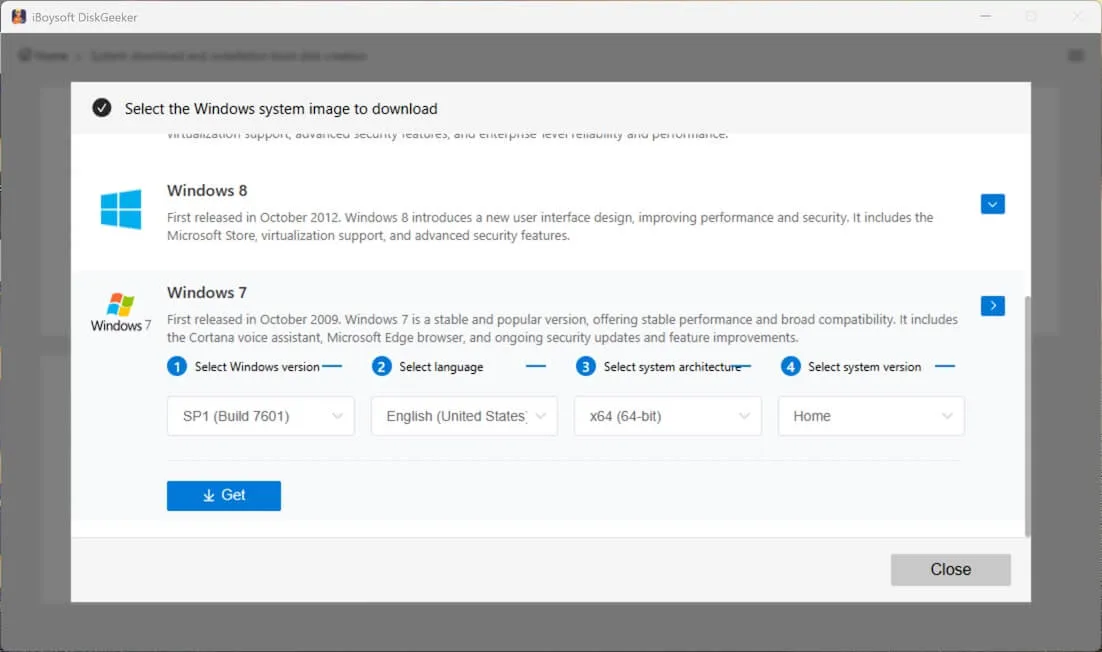
Since Microsoft no longer provides official Windows 7 Home Premium ISO download options for us, you can use the professional Windows downloader - iBoysoft DiskGeeker for Windows to download the full installer of Windows 7 Home Premium ISO safely.
After installing and opening this app, move to the Download and create boot disk module, just click "Windows" > "Download Windows system image", and click on "Windows 7," and select the Home edition to quickly get Windows 7 Home Premium.
Also, you can follow these free archives to get Windows 7 SP1 Home Premium. After downloading, be sure to check the integrity of the downloaded ISO.
✅ Windows 7 Home Premium 64-bit ISO download
Size: 3.1 GB
Language: English
Checksums (SHA256): C10A9DA74A34E3AB57446CDDD7A0F825D526DA78D9796D442DB5022C33E3CB7F
✅ Windows 7 Home Premium 64-bit ISO download
Size: 3.0 GB
Language: English
✅ Windows 7 Home Premium 32-bit ISO download
Size: 2.4 GB
Language: English
Checksums (SHA256): FE504356AC617BAA572826A6FBF9ECBA07CC498B3B79FCC6294A487F81FDD8E7
✅ Windows 7 Home Premium 32-bit ISO download
Size: 2.3 GB
Language: English
Note: You might want to download Windows 7 Home Premium with a product key, but Microsoft actually lets you install it without one. You get a 30-day free trial, and you can extend it up to three times using slmgr -rearm for a total of 90 extra days.
After the trial ends, you'll need a valid product key to unlock all features, which you can purchase from a retailer. Alternatively, you can continue using it without activation, though some personalization options and features will be limited. This is fine if you just need Windows 7 Home Premium for testing.
Share the links for free Windows 7 Home Premium ISO download with your friends.
Windows 7 Home Basic ISO download (64-bit & 32-bit)
Windows 7 Home Basic is a lite edition of Windows 7 Home designed for users in specific regions with lower hardware requirements. It has only essential functions and lacks the visual and multimedia enhancements of Home Premium.
If you are a user from the specific region or just want to try this edition, follow these direct links to download Windows 7 Home Basic ISO.
✅ Windows 7 Home Basic 64-bit ISO download
Size: 3.1 GB
Language: English
Checksum (SHA 256): E2764CF9C06FC51E4F556BB6675A840D0E8E6BD507C938CAAC4EBCCDF0AD771B
✅ Windows 7 Home Basic 32-bit ISO download
Size: 2.4 GB
Language: English
Checksum (SHA 256): E63637B39CAF187EE3F7DD68C51CC0509157D58C498002933735992760FA4DFB
Note: Since Home Basic was only sold in certain emerging-market regions, most global or retail Windows 7 installation media use Home Premium. When installing, which edition (Home Basic or Home Premium) you see depends on how the ISO is configured, not strictly your geographic location.
Share the archives for a free Windows 7 Home edition ISO download with others.
Create a Windows 7 Home bootable USB installer
Windows 7 is an old Windows operating system. If you are going to install it on a modern PC running Windows 11, 10, or a clean installation of Windows 7 Home, or troubleshoot an unbootable Windows, you need a Windows 7 Home bootable USB installer.
To quickly and effortlessly create a Windows 7 Home bootable USB installer, you can use iBoysoft DiskGeeker for Windows. This tool lets you get a Windows 7 Home bootable USB installer within a few clicks, no complicated steps involved.
Here's how:
- Free download, install, and open iBoysoft DiskGeeker for Windows on your computer.
- Connect an empty USB drive or external disk with at least 32 GB of storage space to your computer.
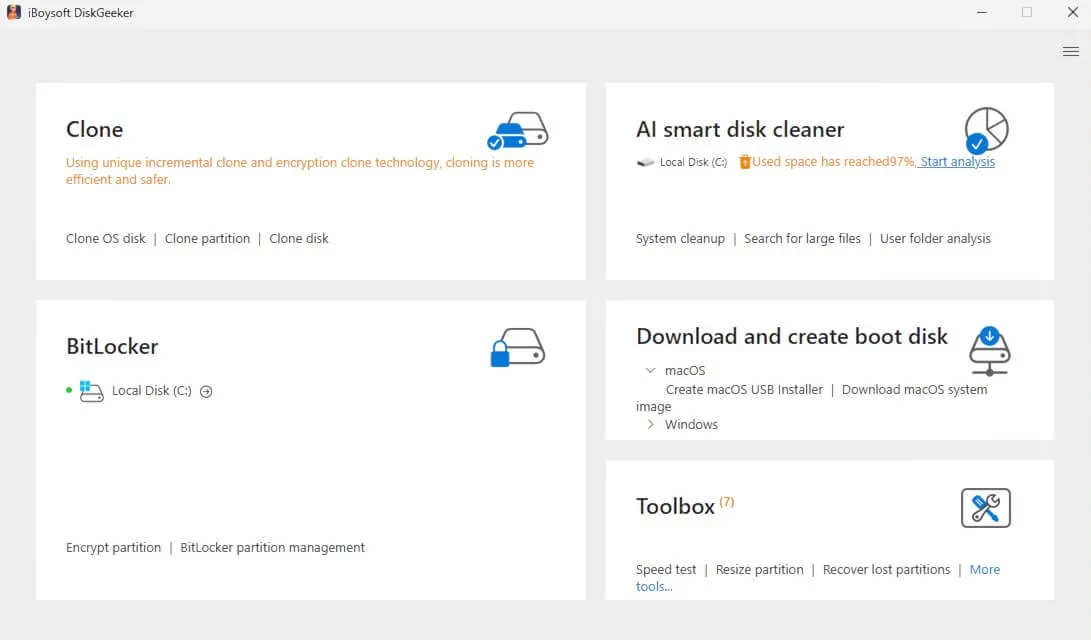
- Click "Windows" > "Create Windows OS USB Installer" from the Download and create boot disk module.
- Select your USB drive or external disk as the target disk.
- Click on "Windows 7," select "Home," and click "Start creating boot disk."
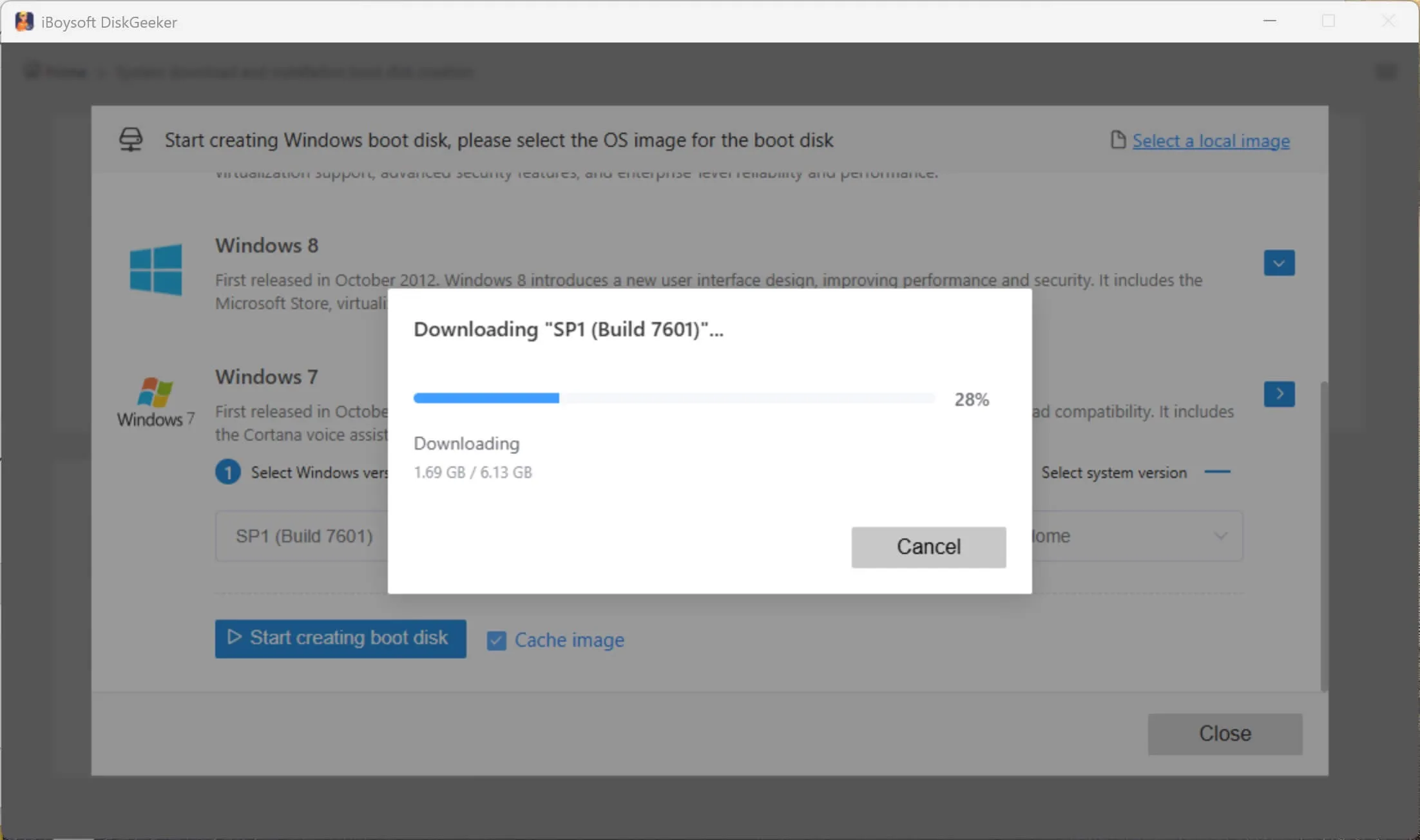
Now, just wait for a moment to let the tool download Windows 7 Home ISO, and then it will automatically create a Windows 7 Home bootable USB installer.
FAQs about Windows 7 Home Edition download
- QWhere can I download a Windows 7 ISO file?
-
A
You can search and download a Windows ISO file from online archives. If you need a more secure way to download the Windows 7 ISO file, you can also use iBoysoft DiskGeeker for Windows. This disk management tool offers options for downloading Windows 7 and other editions and can help you create a Windows 7 bootable USB installer.
- QCan I still download Windows 7 ISO from Microsoft?
-
A
No. Microsoft removed the official Windows 7 ISO download page after ending support for Windows 7 on January 14, 2020. Now, you can download Windows 7 ISO from Internet Archive or iBoysoft DiskGeeker for Windows.