iMessage syncing keeps conversations updated across your iPhone, Mac, and other Apple devices. If messages appear on your iPhone but not on your Mac, syncing stops unexpectedly, or older conversations fail to download, the issue is usually related to iCloud settings, Apple ID mismatches, network connectivity, or software problems.
Below, this guide will explain the common causes of iMessage syncing issues and walk through the most effective ways to restore syncing between your Apple devices.
Why is iMessage Not Syncing on Mac?
iMessage syncing issues are usually related to iCloud settings, Apple ID mismatches, internet connection problems, or temporary software bugs. For example, Messages in iCloud may be disabled on one device, your Mac and iPhone may use different Apple IDs, or syncing may pause because of unstable Wi-Fi or full iCloud storage.
In some cases, syncing problems also appear after a macOS or iOS update. If only green SMS messages are missing on your Mac, Text Message Forwarding may not be enabled on your iPhone.
How to Fix iMessage Not Syncing on Mac
The fixes below address the most common reasons iMessage stops syncing between Mac and iPhone, including incorrect Apple ID settings, disabled iCloud syncing, network issues, and software-related problems.
Check Whether Your Apple IDs Match
iMessage syncing depends on your Apple ID. If your Mac and iPhone are connected to different accounts, conversations cannot stay synced across devices. This often happens after switching Apple IDs, setting up a new Mac, or signing back into iCloud.
Start by checking the Apple ID currently used for iMessage on both devices.
On your Mac:
- Open the Messages app.
- Click Messages in the Apple menu bar and choose Settings or Preferences.
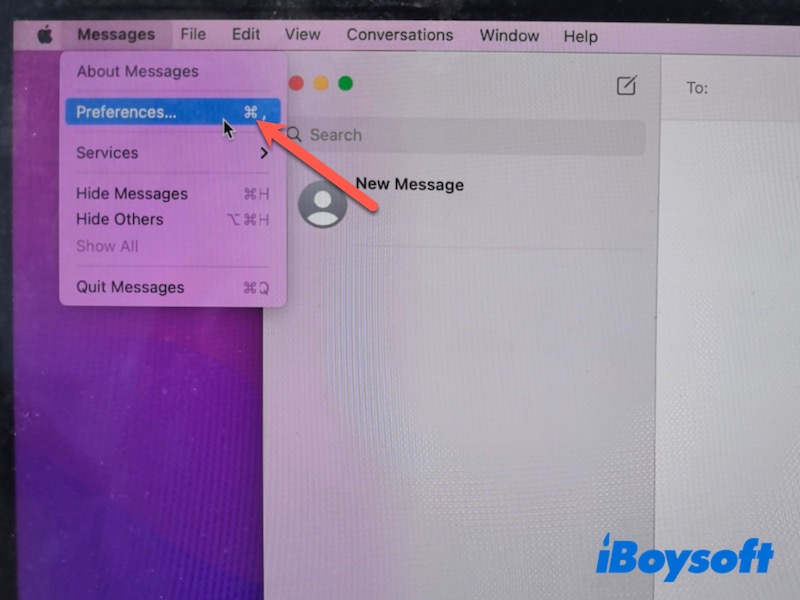
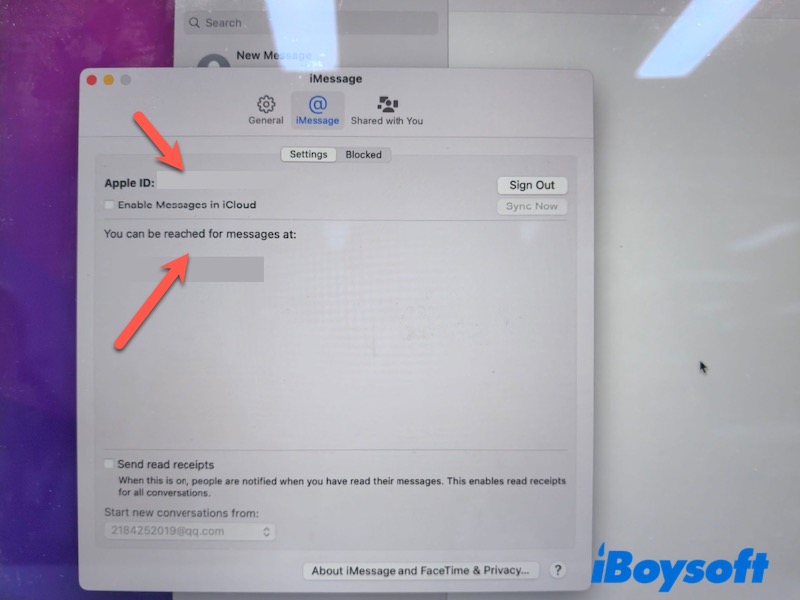
- Select the iMessage tab.
- Check the Apple ID shown at the top.
On your iPhone:
- Open Settings.
- Tap your name at the top.
- Verify that the Apple ID matches the one used on your Mac.
If the accounts are different, sign in with the same Apple ID on both devices. After reconnecting to the correct account, iMessage usually starts syncing again automatically within a few minutes.
Turn On Messages in iCloud
iMessage syncing relies on iCloud to keep conversations updated across your Apple devices. If Messages in iCloud is disabled on either your Mac or iPhone, new messages, older conversations, or attachments may fail to appear properly.
Check that Messages in iCloud is enabled on both devices.
On your Mac:
- Open Messages.
- Click Messages in the menu bar > Settings/Preferences.
- Select iMessage.
- Enable Messages in iCloud.
On your iPhone:
- Open Settings.
- Tap Apps > Messages.
- Make sure iMessage is turned on.
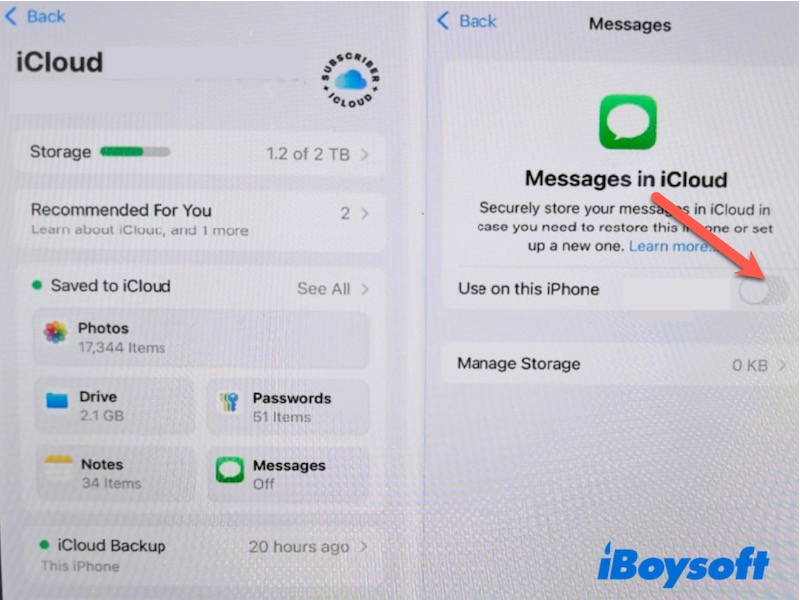
- Tap Send & Receive and verify your Apple ID and phone number.
After enabling the setting, keep both devices connected to Wi-Fi and give iCloud a few minutes to update your conversations. If you have a large message history, syncing may take longer.
Force iMessage to Sync Again
iMessage syncing can occasionally pause even when all settings are correctly configured. This usually happens when iCloud needs to re-establish a connection or refresh message data in the background. Manually triggering a sync helps push your Mac to reconnect and download the latest conversations.
On your Mac:
- Open Messages.
- Click Messages > Settings/Preferences.
- Select the iMessage tab.
- Click Sync Now.
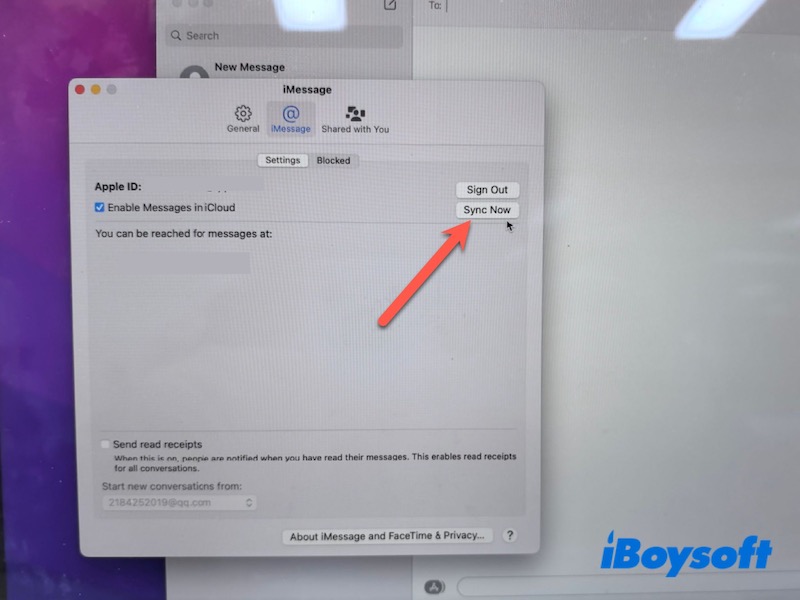
After triggering the sync, leave the Messages app open and keep your Mac connected to Wi-Fi. Depending on how many messages need to be updated, it may take a few minutes for conversations to fully reappear and align with your iPhone.
Check Your Network Connection
A weak or unstable internet connection can interrupt iMessage syncing or delay new messages from appearing on your Mac.
Before moving to more complex fixes, make sure your network is stable and iCloud can connect properly. Turn Wi-Fi off and back on.
- Turn Wi-Fi off and back on.
- Restart your router.
- Move closer to your Wi-Fi router if the signal is weak.
- Temporarily disable VPN services if you use one.
- Try switching to another Wi-Fi network.
After reconnecting to the internet, reopen Messages and check whether syncing resumes.
Restart the Messages App and Reboot Devices
Temporary system glitches may prevent Messages from syncing correctly. Restarting the app and rebooting your devices can refresh syncing services.
On your Mac:
- Quit the Messages app completely.
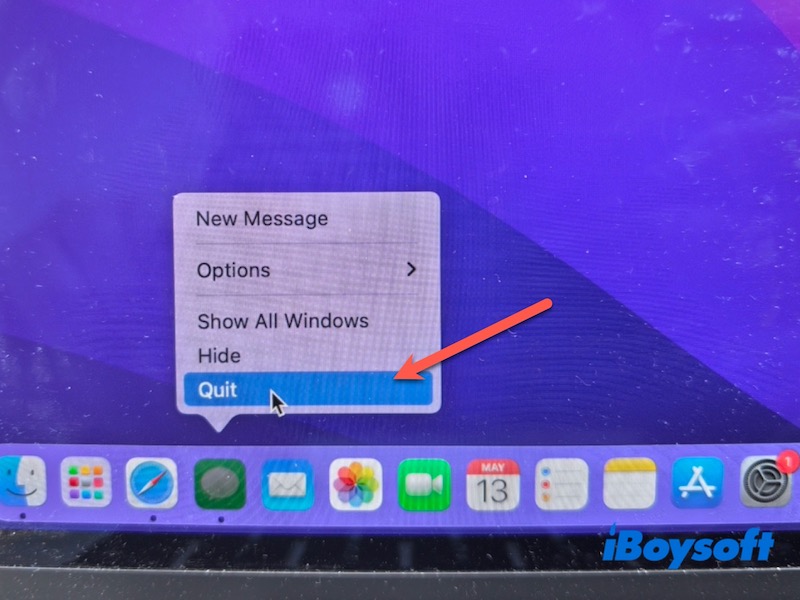
- Reopen the app.
- Restart your Mac from the Apple menu.
On your iPhone:
- Turn your iPhone off.
- Wait several seconds.
- Turn it back on again.
After both devices restart, open Messages and allow syncing to continue.
Enable Text Message Forwarding on iPhone
If iMessages sync normally but SMS messages do not appear on your Mac, the issue is usually related to Text Message Forwarding.
This feature allows your iPhone to pass SMS messages to your Mac.
On your iPhone:
- Open Settings.
- Tap Apps > Messages.
- Select Text Message Forwarding.
- Enable your Mac from the device list.
After enabling it, SMS messages should start appearing in the Messages app on your Mac within a short time.
Update macOS and iOS to the Latest Version
Outdated software can lead to syncing issues, especially after major system updates.
Keeping both devices up to date ensures iMessage works with the latest iCloud and messaging improvements.
On your Mac:
- Open System Settings/Preferences.
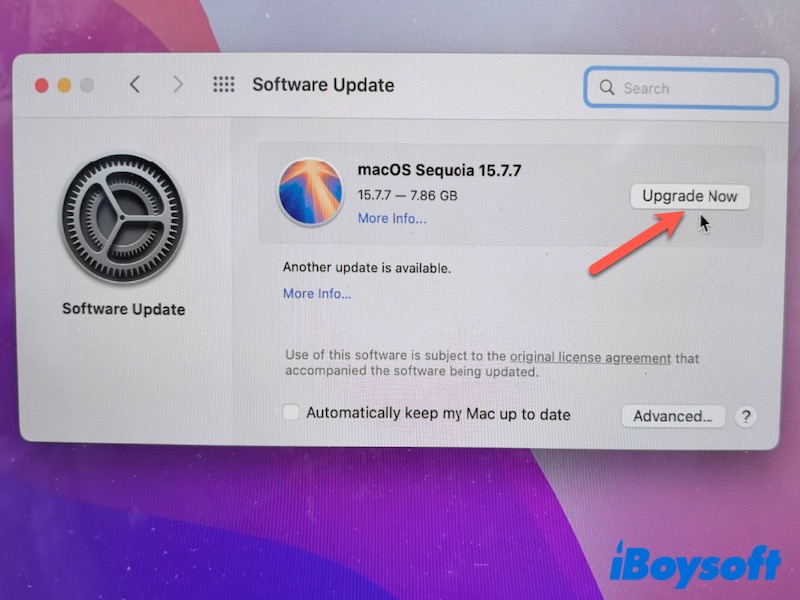
- Go to General > Software Update.
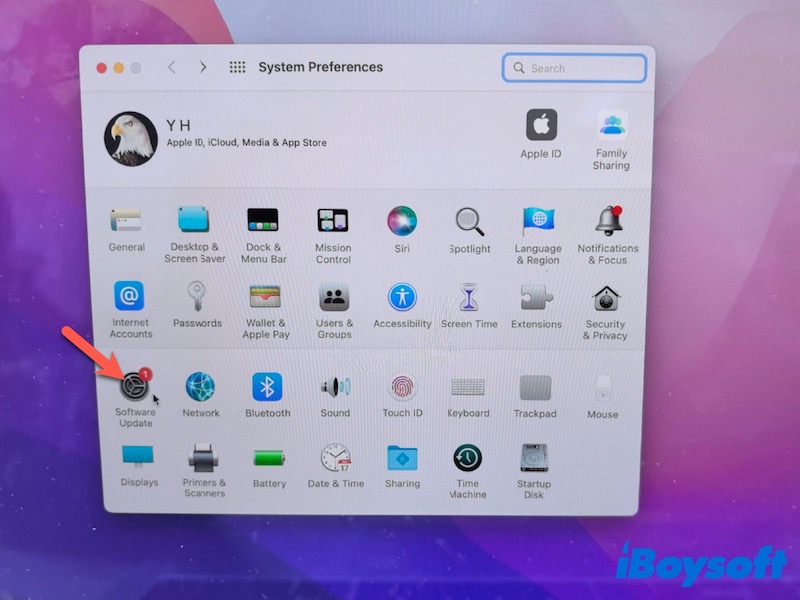
- Install any available updates.
On your iPhone:
- Open Settings.
- Tap General > Software Update.
- Download and install available updates.
After updating both devices, check whether iMessage syncing works normally again.
Sign Out of iMessage and Sign Back In
If syncing remains stuck, signing out of iMessage and signing back in can refresh your account connection with Apple's servers.
On your Mac:
- Open Messages.
- Go to Messages > Settings/Preferences > iMessage.
- Click Sign Out.
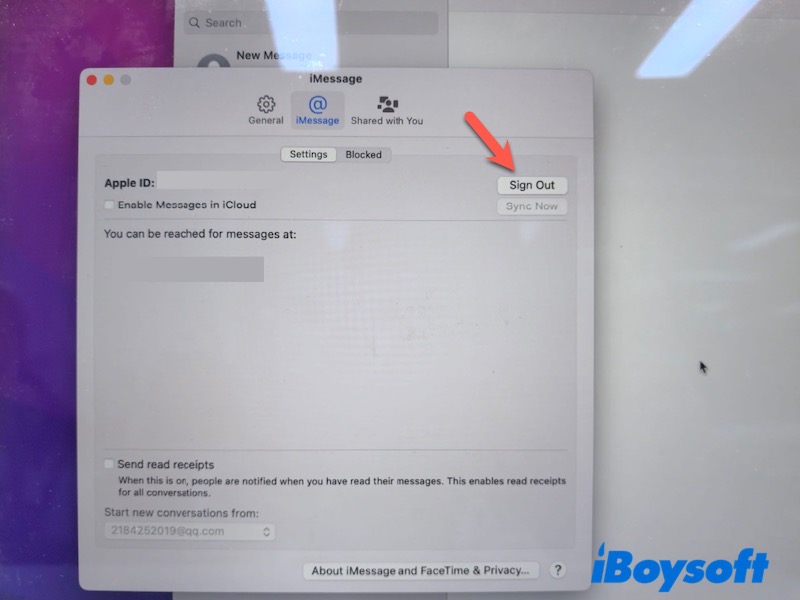
- Restart your Mac.
- Sign back in again.
On your iPhone:
- Open Settings > Apps > Messages.
- Turn iMessage off.
- Restart your iPhone.
- Turn iMessage back on.
Your conversations may take some time to fully sync again after signing in.
Clear the Messages Sync Cache on Mac
If iMessage syncing problems persist, the local Messages cache on your Mac may be corrupted. Clearing cache files can help rebuild syncing data.
Before continuing, back up your Mac to avoid accidental data loss.
To clear the Messages cache:
- Open Finder.
- Click Go > Go to Folder.
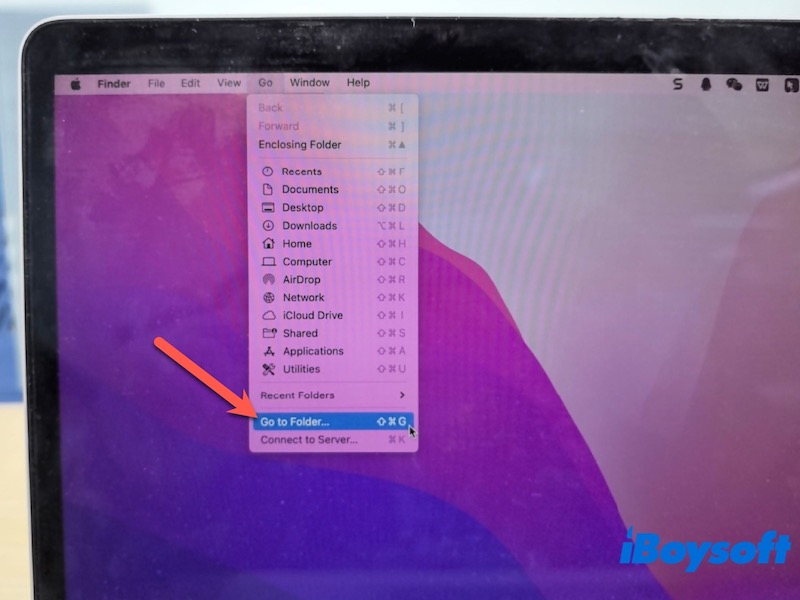
- Enter:
~/Library/Messages/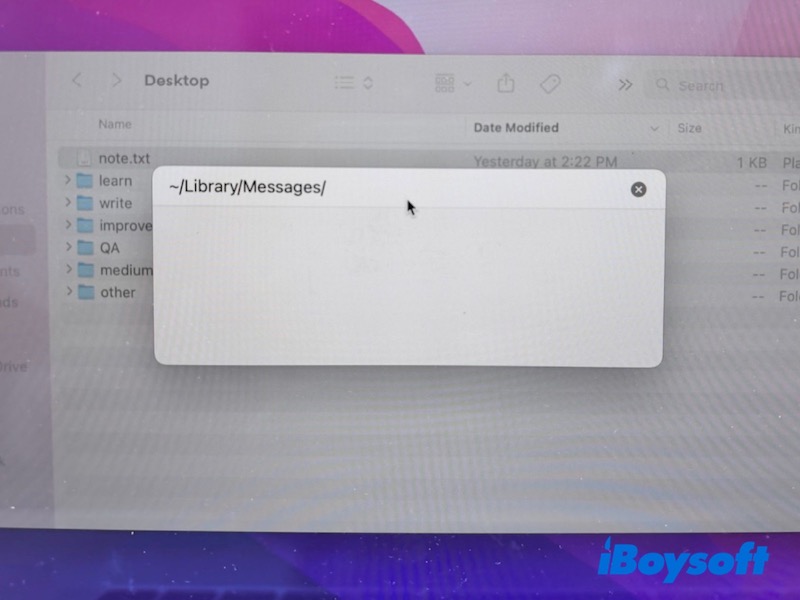
- Locate cache-related files and move them to Trash.
- Restart your Mac.
After restarting, Messages may take time to re-download conversations from iCloud.
Optional: Recover Missing Messages from Mac or iPhone
If iMessages were not syncing for an extended period, some conversations may appear missing or incomplete. In this case, you can consider using a data recovery tool such as iBoysoft Data Recovery for Mac to help retrieve lost or inaccessible message data from your Mac.
iBoysoft Data Recovery for Mac can scan your Mac storage and recover deleted or missing files, including message-related data in certain cases. This is especially useful when messages are lost due to system errors, failed updates, or accidental deletion during troubleshooting.
What to Do If iMessages Still Won't Sync
If iMessage still does not sync after trying all the fixes above, the issue is likely related to Apple's services or your account configuration rather than local settings on your device.
Check Apple System Status
Visit Apple's System Status page to confirm whether iMessage or iCloud services are experiencing outages.
If there is a service disruption, syncing will resume automatically once Apple resolves it.
Contact Apple Support
If Apple services are operating normally but the issue persists, contact Apple Support for further assistance. Some syncing problems require account-level troubleshooting that cannot be resolved manually.
Conclusion
iMessage not syncing on Mac is usually caused by Apple ID mismatches, disabled iCloud settings, network interruptions, or temporary software glitches. In most cases, enabling Messages in iCloud, forcing a sync, or refreshing your iMessage settings can restore syncing quickly.
Start with the simpler fixes first, then move on to advanced troubleshooting methods if the issue continues.
FAQs
- Q1.Why did iMessage stop syncing after a macOS update?
-
A
System updates can sometimes reset iCloud or Messages settings, causing syncing to pause temporarily. Checking Messages in iCloud, restarting your devices, and updating both Mac and iPhone usually helps restore syncing.
- Q2.How long does iMessage syncing take on Mac?
-
A
iMessage syncing usually finishes within a few minutes, but it can take longer if you have a large message history, slow internet, or recently enabled Messages in iCloud on a new device.