A hard drive with bad sectors may become unusually slow, freeze during file transfers, disconnect randomly, or show errors such as “CRC error” or “The file or directory is corrupted and unreadable.” In more serious cases, Windows may stop responding when opening certain folders or scanning the drive.
Many users try to repair the disk immediately with CHKDSK or formatting tools. However, if important files are still on the drive, repairing the file system too early may reduce the chance of successful recovery.
This guide explains how to identify a bad-sector drive, what to avoid before recovery, and how to recover files safely in Windows 11 and Windows 10.
Identify the Situation
A drive with bad sectors often becomes unstable before it fails completely. You may notice CRC errors, very slow file transfers, Windows freezing while opening folders, or repeated prompts asking to scan and repair the disk. Some drives may also disconnect randomly
during use.
Data recovery is usually still possible if the drive continues appearing normally in File Explorer or Disk Management and some files remain accessible.
The situation becomes more serious when the drive disappears repeatedly, freezes constantly during scanning, overheats quickly, or makes repeated clicking and grinding noises. These symptoms often indicate physical hardware damage rather than temporary file system problems.
If the drive starts making abnormal mechanical noises, avoid repeatedly powering it on. Continuous retries may worsen the hardware condition.
What to Do Before Recovering Data from a Drive with Bad Sectors
Before starting recovery, avoid operations that may place additional stress on the damaged drive.
Do Not Continue Using the Drive
Avoid saving new files, installing software, or transferring large amounts of data to the drive. Additional writes may overwrite recoverable data.
Do Not Run CHKDSK Before Recovery
CHKDSK can repair file system errors, but on a drive with unreadable sectors, it may also modify damaged file records before recovery is completed.
Do Not Format the Drive
If Windows asks to format the disk, cancel the operation until important files are recovered.
Prepare Another Healthy Storage Device
Recovered files should always be saved to a different healthy drive with enough available space.
Keep the Connection Stable
If using an external hard drive, connect it directly to the computer instead of using unstable USB hubs or adapters.
Recover Data from the Damaged Drive
If the drive is still detectable, recover important files as early as possible before fixing the bad sector.
Bad-sector drives often scan much more slowly than healthy disks because the drive repeatedly retries unreadable areas. In some cases, scanning may pause temporarily or appear stuck at a certain percentage.
A recovery tool designed for unstable or partially readable drives is usually safer than manually copying files through File Explorer. One option commonly used for this type of recovery is iBoysoft Data Recovery for Windows.
- Connect the damaged hard drive to the computer.
- Download, install, and open iBoysoft Data Recovery for Windows.
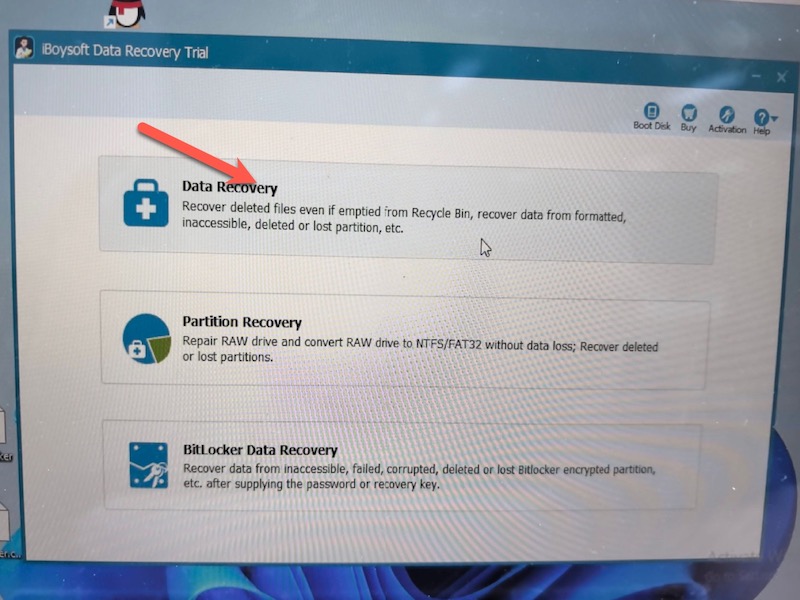
- Click Data Recovery.
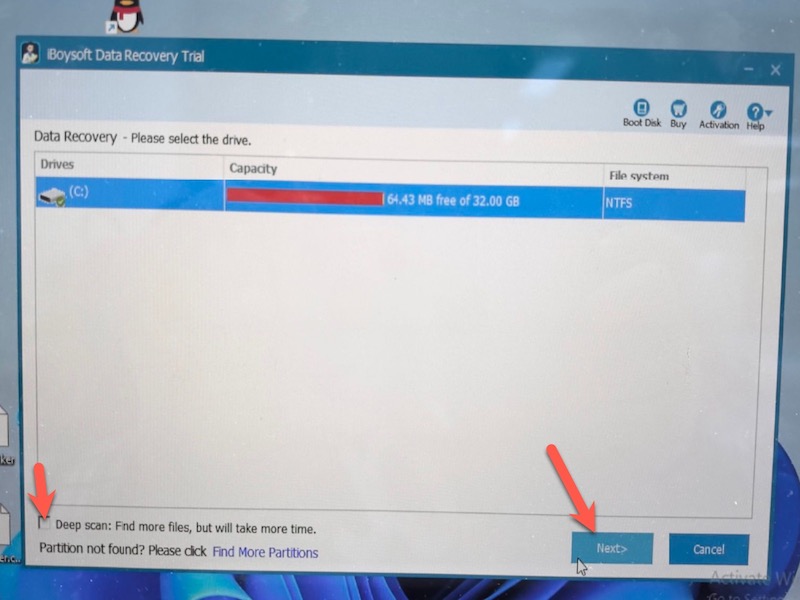
- Select the hard drive with bad sector and click deep scan in the bottom left, then click next.
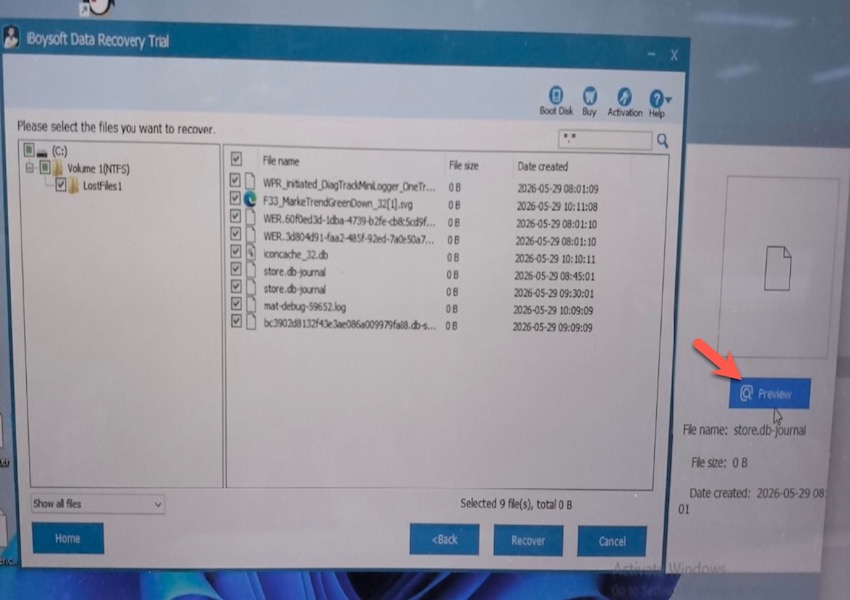
- Preview the result and recover important files to another healthy storage device.
After recovery, monitor the drive carefully. If new bad sectors continue appearing, the drive should be replaced instead of reused for important storage.
When Professional Recovery May Be Necessary
Software recovery is not always safe or effective when the drive has severe hardware damage.
Consider professional recovery if:
- The drive makes repeated clicking, grinding, or buzzing noises
- The computer cannot detect the drive consistently
- The drive disconnects repeatedly during scanning
- Recovery software cannot complete the scan
- The drive contains critical business or personal data
Professional recovery services may use specialized imaging hardware or clean-room repair environments to recover data from physically damaged drives.
Why Bad Sectors Happen
Bad sectors can develop because of aging hardware, physical shocks or drops, overheating, sudden power loss, improper shutdowns, manufacturing defects, or long-term wear on HDDs and SSDs.
The term “bad sectors” is more commonly associated with traditional hard drives, but SSDs can also develop unreadable blocks because of flash memory wear or controller failure.
If the number of bad sectors continues increasing over time, the drive is usually experiencing hardware deterioration rather than a temporary file system issue.
How to Reduce the Risk of Bad Sectors
To reduce the risk of drive failure and future data loss:
- Back up important files regularly
- Avoid sudden shutdowns
- Use surge protection
- Keep the drive cool during heavy use
- Do not move external drives while they are operating
- Replace aging drives before failure symptoms become severe
For important data, maintaining multiple backups is still the safest protection against hardware failure.
Conclusion
A hard drive with bad sectors does not always mean the data is permanently lost. If the drive is still detectable and partially readable, recovering important files early often provides the best chance of success.
After recovery, monitor the drive condition carefully. A drive that continues developing bad sectors is no longer reliable for long-term storage and should be replaced.
FAQs
- Q1.Can data be recovered from a hard drive with physical bad sectors?
-
A
Yes, partial or full recovery may still be possible if the drive remains readable. However, physical bad sectors can worsen over time, so recovery should be performed as soon as possible.
- Q2.Can I still use a hard drive with bad sectors?
-
A
A drive with a few logical bad sectors may still work temporarily, but increasing bad sectors usually indicate hardware deterioration. Important data should not be stored on such a drive long term.