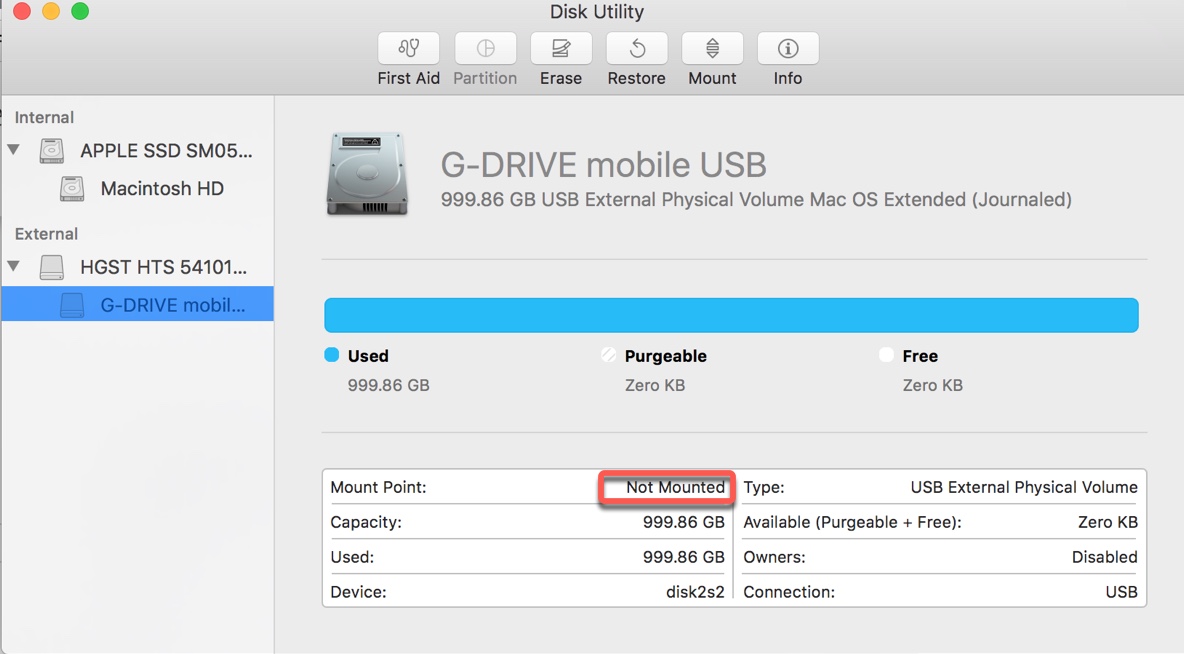
Normally, when you connect a G-Drive external hard drive to your Mac, it appears on the desktop, in Finder's sidebar, and in Disk Utility. If you can't find the disk, it's likely not mounted or even not recognized by the operating system.
Does that mean your data is lost? Not necessarily. As long as your G-drive doesn't have hardware damage, you should still be able to retrieve the data.
Before Anything Else: 30 Seconds to Check Whether Your G-Drive Is in Danger
Instead of troubleshooting the issue by going through a list of solutions, understand your disk status and follow the corresponding solutions effectively.
Q1: Does the G-Drive show up in System Information?
To see if your G-drive is detected on Mac, press Command-Space, type in "System Information", and launch the app. Select USB from the left and check if your G-drive is listed.
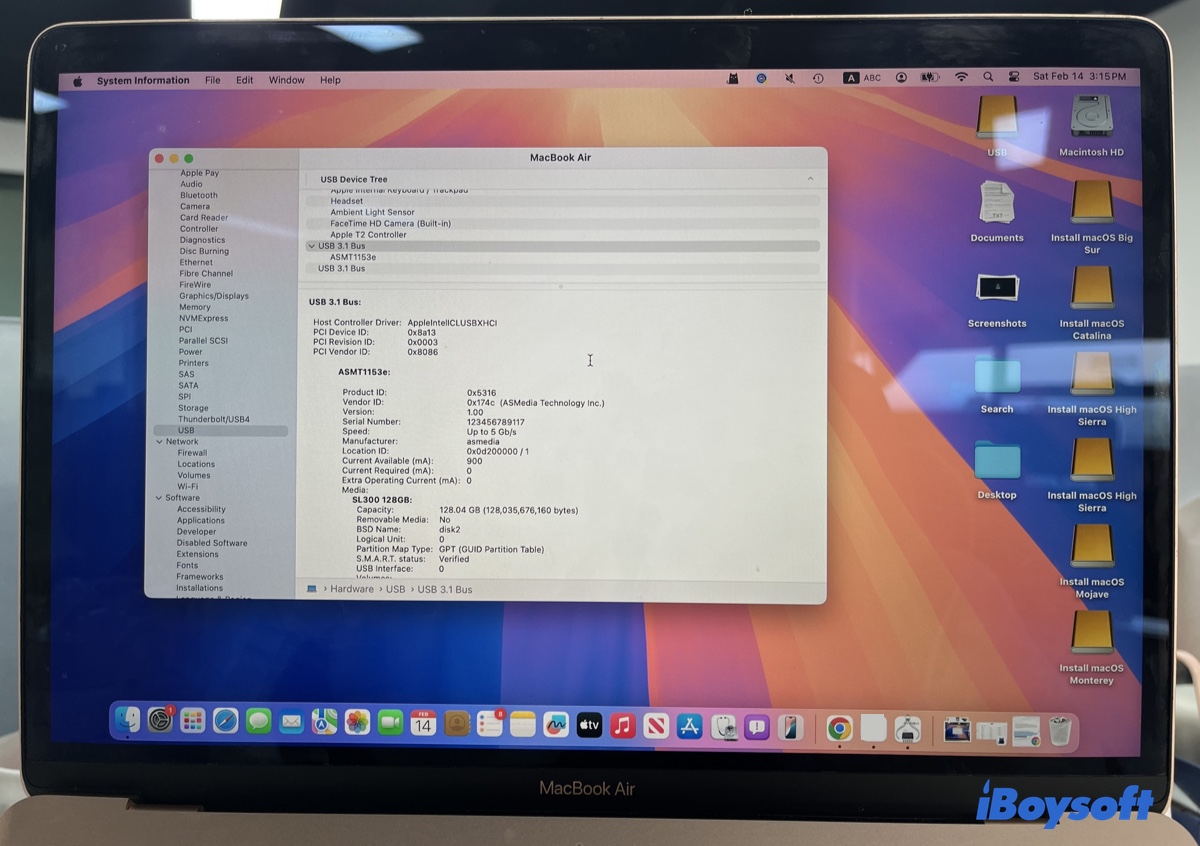
If your G-Drive appears in System Information, it's detected. Open Disk Utility to check whether it's mounted.
If your G-Drive doesn't appear in System Information, it's not detected, likely due to hardware or power issues. Continuing could cause permanent data loss, so the correct action is to stop immediately.
Q2: Does the G-Drive show up in Disk Utility?
To decide what situation you're in, check your drive status in Disk Utility:
- Launch Disk Utility.
- Ensure the G-Drive is connected to your Mac.
- Look at its drive status.
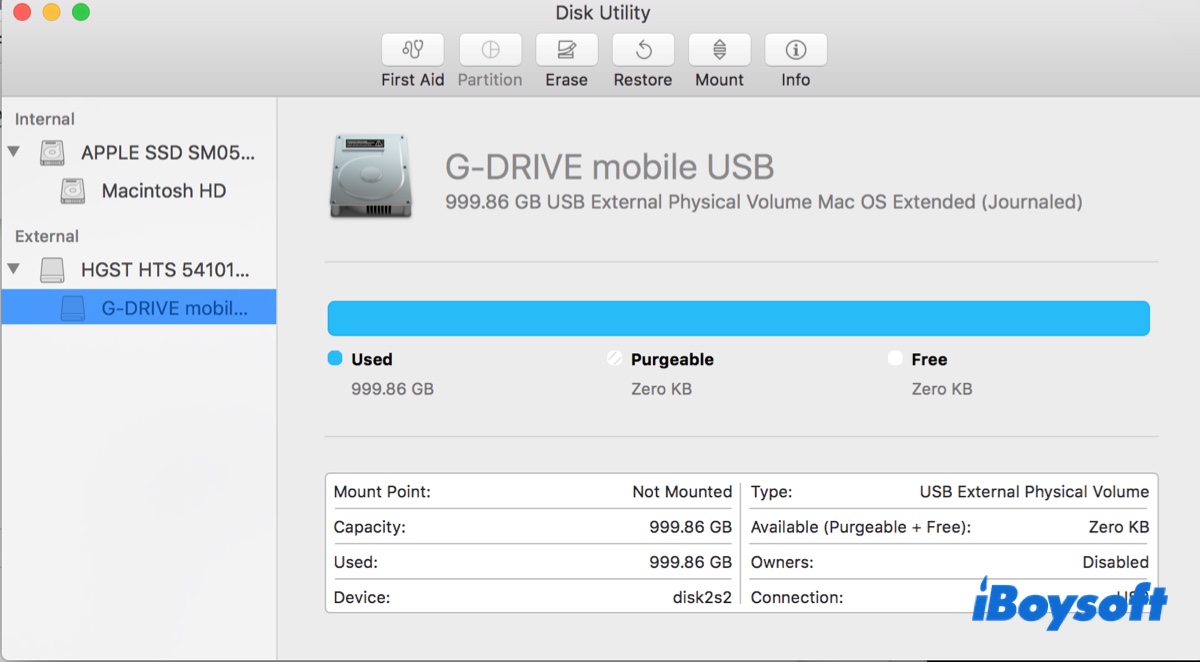
Check the current status of the G-Drive's partition:
▸ If your G-Drive appears in Disk Utility properly, it's mounted, and your data is intact. The next course of action is to modify the Finder settings to ensure it shows external disks on the desktop or in Finder.
▸ If your G-Drive appears in Disk Utility but is grayed out, it's not mounted either due to disk issues or encryption. In this case, your focus will be on mounting the drive on the Mac. Once the G-drive is mounted, you'll regain access to your data.
▸ If your G-Drive isn't showing up in Disk Utility but appears in System Information, the most likely causes are enclosure or bridge-chip failure, severe disk corruption, insufficient power, or an unsupported file system or partition map.
Besides, you can take a look at the drive's file system.
▸ If it says NTFS, the drive is read-only on Mac. You'll need an NTFS for Mac driver to write to it
▸ If it reads FAT32, exFAT, APFS, or Mac OS Extended (Journaled), the drive has read/write access on Mac.
What "Not Showing Up" Actually Means on macOS
Before assuming your external drive is broken, it's important to correct a common misunderstanding:
- "Not showing up" does NOT automatically mean the drive is damaged.
- On macOS, storage devices can be invisible at three different visibility layers, and each layer indicates a different level of risk.
Understanding which layer your G-Drive stops at helps determine how serious the problem really is and whether your data is still safe.
The 3 Visibility Levels on Mac
1. Desktop / Finder Level
This is the display layer. The drive is connected and readable, but macOS simply isn't displaying it in Finder or on the Desktop. Causes are usually settings, mounting issues, or minor system glitches.
Worst-case outcome: Your data is still intact. The issue is almost always fixable without recovery.
2. Disk Utility – Volume Level
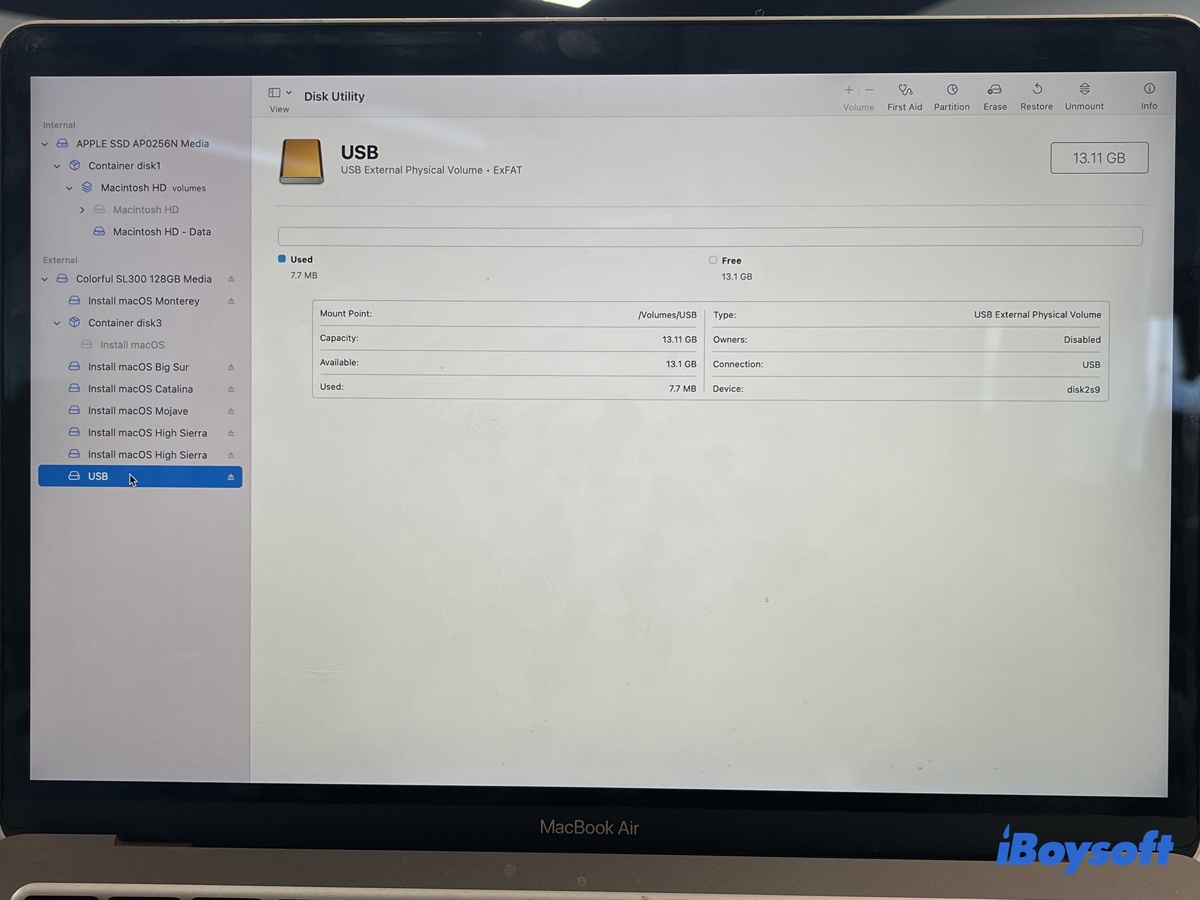
Here, the physical device is detected, but the volume cannot be mounted or read properly. This often points to file system corruption, improper ejection, or compatibility problems after a system update.
Worst-case outcome: Your data is at risk but usually recoverable with the correct repair or recovery steps.
3. Disk Utility – Physical Device Level
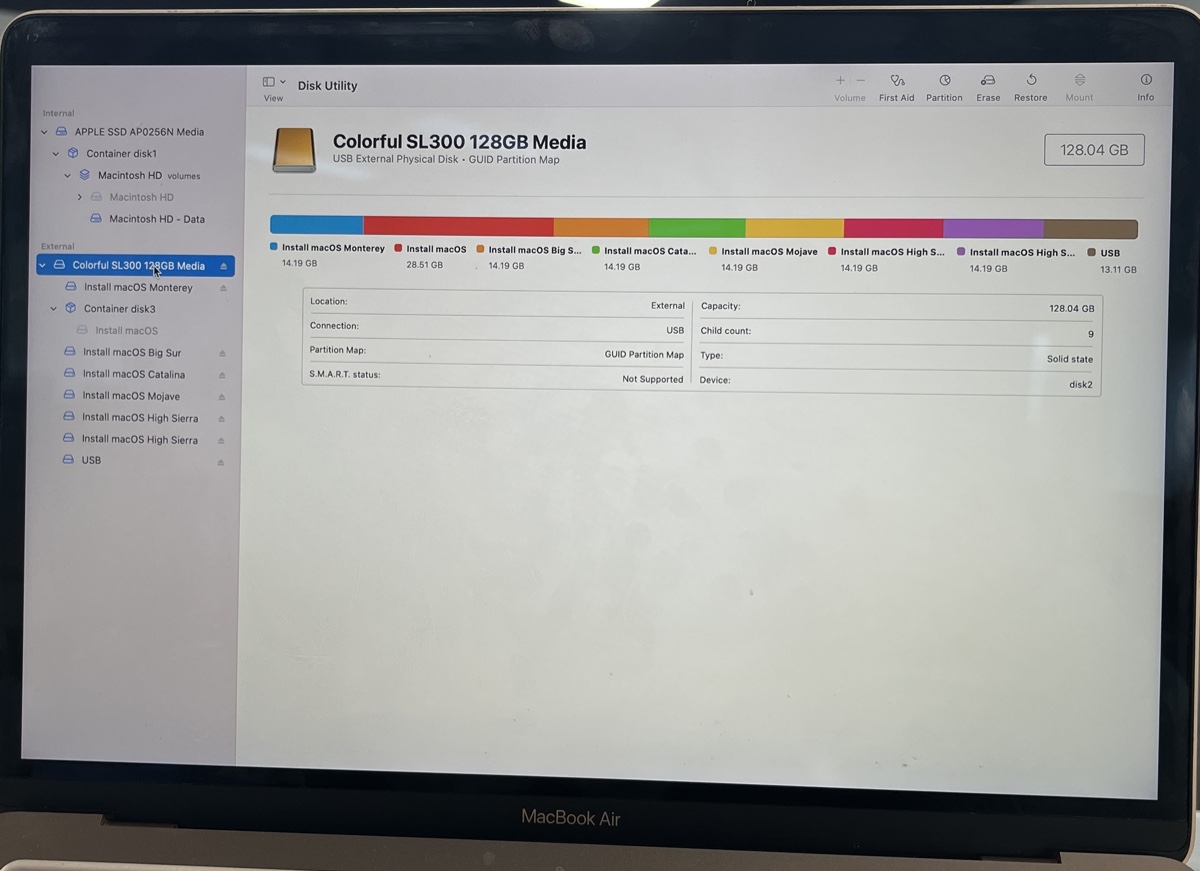
At this deepest layer, the drive itself does not appear as a hardware device. This suggests power failure, cable issues, controller damage, or mechanical failure rather than a simple software problem.
Worst-case outcome: There is a serious risk of permanent data loss, and continuing DIY troubleshooting could make recovery harder or impossible.
Identify Your Situation (Decision Tree)
Here's a decision tree helping you understand your situation quickly:
START — G-Drive external hard drive not showing up on macOS
│
├─ Step 1: Does the drive appear in System Information?
│ │
│ ├─ NO
│ │ → Likely power, cable, port, or complete hardware failure
│ │ → Software troubleshooting will NOT help
│ │ → Stop and check physical connections or hardware
│ │
│ └─ YES
│ → macOS detects the hardware connection
│ → Go to Step 2
│
├─ Step 2: Does the physical disk appear in Disk Utility?
│ │
│ ├─ NO
│ │ → Communication failure between the enclosure and the disk
│ │ → Possible causes:
│ │ • Enclosure / bridge-chip failure (most common)
│ │ • Severe media or partition corruption
│ │ • Unsupported or unreadable partition scheme
│ │ • Power instability
│ │ → HIGH data risk — avoid blind repair attempts
│ │
│ └─ YES
│ → Hardware is accessible
│ → Go to Step 3
│
└─ Step 3: Is the volume mounted in Disk Utility?
│
├─ YES
│ → Finder / Desktop display issue only
│ → Data is very likely SAFE
│
└─ NO
→ File system corruption or encryption problem
→ Data usually still recoverable
→ Avoid risky repair or reformat actions
Situation A – Disk Is Mounted but Invisible in Finder
If your G-Drive appears as mounted in Disk Utility but doesn't show up in Finder or on the desktop, this is the lowest-risk state among all "not showing up" scenarios. In this case, your data is almost certainly still intact.
What's missing isn't the drive—it's macOS choosing not to display it. This usually happens after a system update resets Finder preferences, causing a perfectly healthy disk to suddenly stop appearing in Finder. We've seen this happen most often after macOS Tahoe / Sequoia updates.
To modify the settings, take the following steps:
- Open Finder.
- Click on Finder > Settings/Preferences in the top-left menu bar.
- In the General tab, tick External disks beneath "Show these items on the desktop."
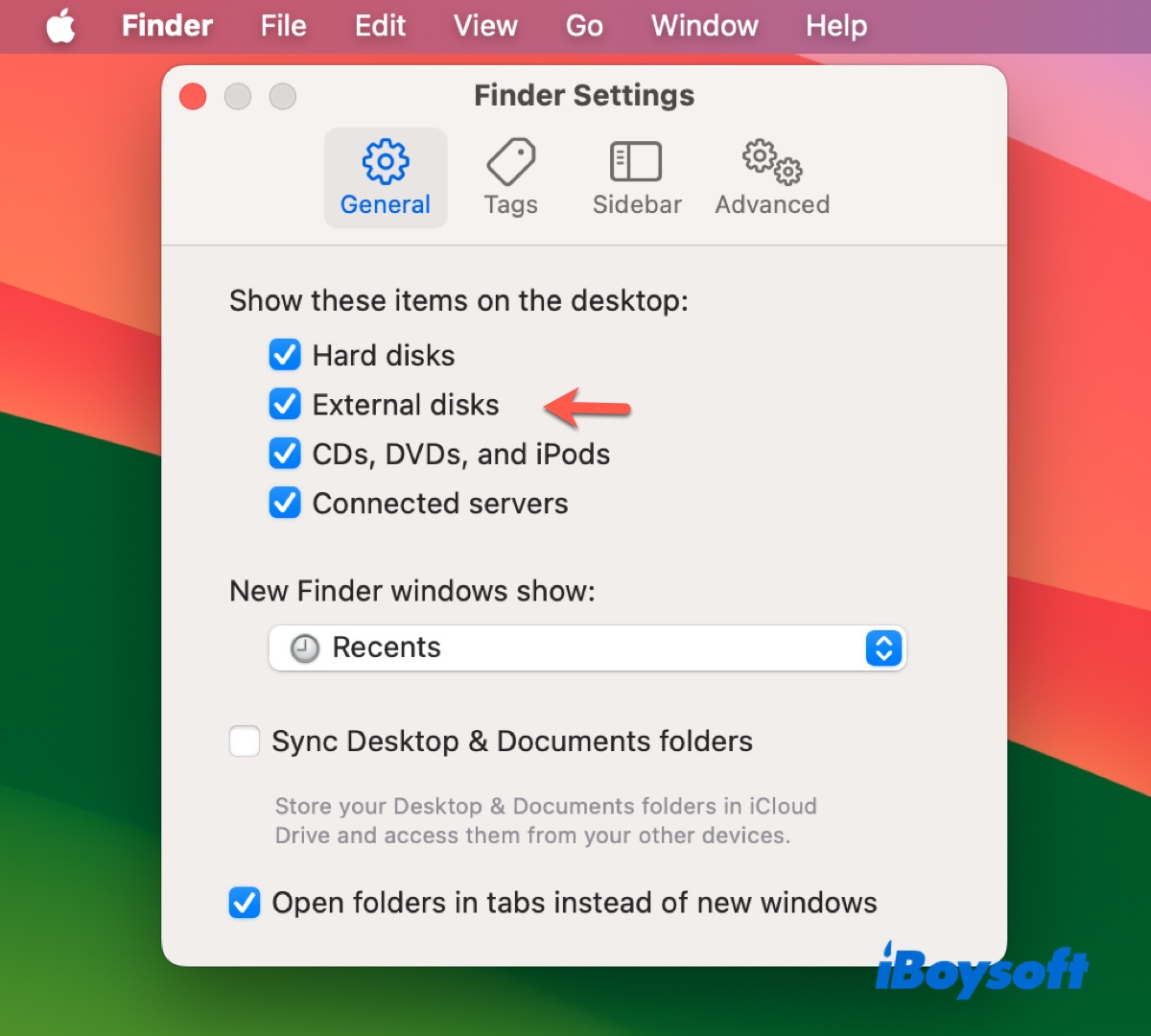
- In the Sidebar tab, tick External disks beneath Locations.
Now check if your SanDisk or G-Technology external hard drive appears on the desktop.
Situation B – Disk Detected but Not Mounting (Grayed Out)
If your G-Drive is grayed out in Disk Utility, it's detected by your system but not mounted. To mount the G-Drive on Mac, try the solutions below.
What Usually Causes a G-Drive to Stay Grayed Out
APFS Encryption:
- macOS cannot mount a volume that is still encrypted without the correct password or key.
- The disk shows up but stays grayed out until authentication.
BitLocker (Windows-Used G-Drive):
- Drives formatted or encrypted with BitLocker on Windows are invisible to macOS by default.
- They appear in Disk Utility but cannot be mounted without a third-party tool.
NTFS + Incompatible Driver:
- macOS can read but not write NTFS by default.
- If a driver is missing or incompatible, the volume may show as grayed out.
Improper Ejection → File System Flag:
- If the drive wasn't safely ejected, macOS may detect a "dirty" file system.
- The volume is visible but grayed out to prevent potential corruption.
Tips: Data recovery is only necessary when the disk is visible in Disk Utility, but the volume is unmounted. If your G-Drive holds irreplaceable data and doesn't mount, stop experimenting. Recover the files first, then decide whether the drive is still worth trusting.
Fix 1: Force Mount G-Drive in Disk Utility (low risk)
There's a Mount button in Disk Utility allowing you to manually mount a drive on Mac. If you haven't tried it, open Disk Utility, select the G-Drive, then click Mount. This may enable access to the drive if your drive has a minor mounting problem. If not, it can fail with an error like com.apple.DiskManagement.disenter error 49153. Or, if it's APFS-encrypted, you'll be asked to enter a password to unlock the disk.
Fix 2: Repair the drive with First Aid (medium risk)
First Aid is also a common way to fix unmountable drives on Mac. It can check the file system structure for errors or inconsistencies and automatically repair them. Here's how to repair the G-Drive on Mac:
- Open Disk Utility.
- Click View > Show All Devices.
- Select the last partition of your G-Drive, and click First Aid > Run.
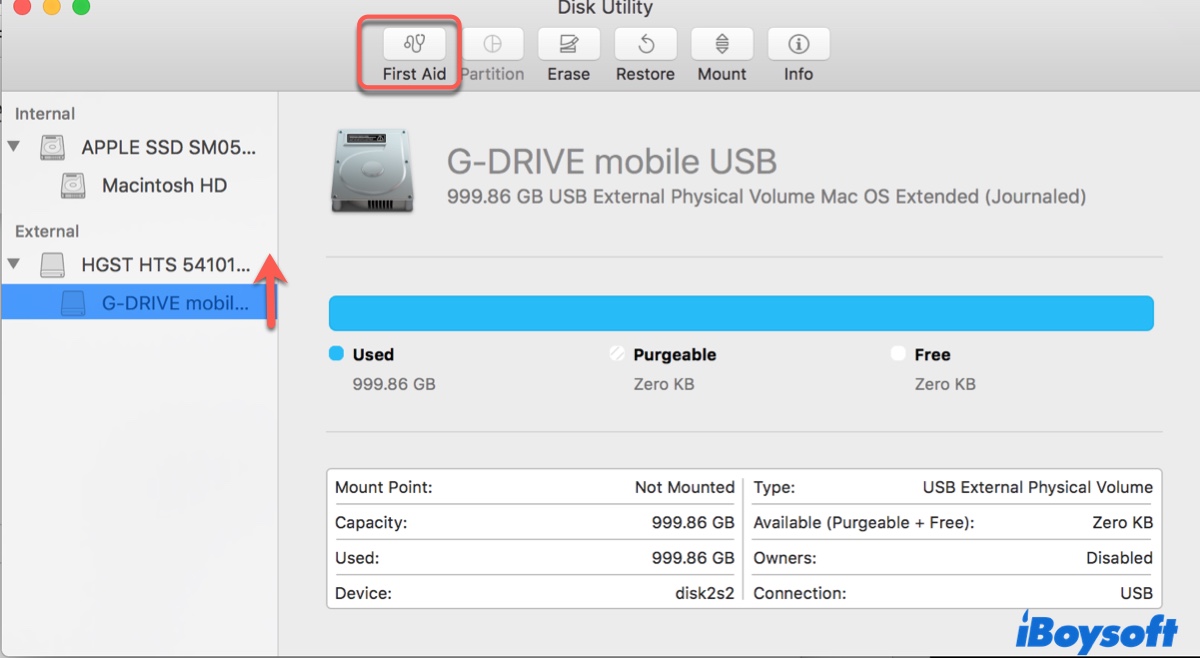
- After this partition is repaired, continue with the one above it until the physical disk is finished.
⚠️ When NOT to run First Aid:
- Disk is not showing at all in Disk Utility
- Disk appears in System Information but not recognized by Disk Utility
- Disk is physically failing (clicking noises, intermittent detection)
Fix 3: Unlock the G-Drive if encrypted
When a drive is encrypted, it won't mount on a Mac unless it's unlocked. Do you recall your G-Drive being encrypted? If it was used on a Windows computer, it may be encrypted with BitLocker, which isn't compatible with Mac. To access a BitLocker-encrypted disk on Mac, use iBoysoft BitLocker for Mac. It specializes in managing drives with BitLocker encryption on Mac.
If the G-Drive is encrypted using another method, find a way to unlock or decrypt it. Nevertheless, if you don't remember using any encryption, try another solution.
Fix 4: Mount NTFS drives on Mac
Is your G-Drive NTFS formatted? If it is, an incompatible NTFS for Mac driver may be the culprit that's causing the G-Drive to not display on Mac.
To fix the unmountable NTFS G-Drive, you can uninstall the incompatible NTFS for Mac tool and use a reliable NTFS driver for Mac like iBoysoft NTFS for Mac. This NTFS mounter can mount your G-Drive with full read/write access while keeping all your data intact.
However, if you don't need data on the drive, you can reformat it with a Mac-compatible format.
Fix 5: Recover data and reformat G-Drive (last resort)
The last straw is to format the grayed-out G-Drive with a clean, new file system. This will remove all files on the drive, so you should recover the essential data before starting the process.
iBoysoft Data Recovery for Mac is highly recommended for restoring data from unmountable G-Drives. It's a professional data recovery tool that can recover your videos, documents, audio, photos, and other files from a G-Drive that's not showing up on Mac.
Follow these steps to recover data from the G-Drive external hard drive on Mac:
Step 1: Download and install iBoysoft Data Recovery for Mac.
Step 2: Select your G-Drive and click Search for Lost Data.
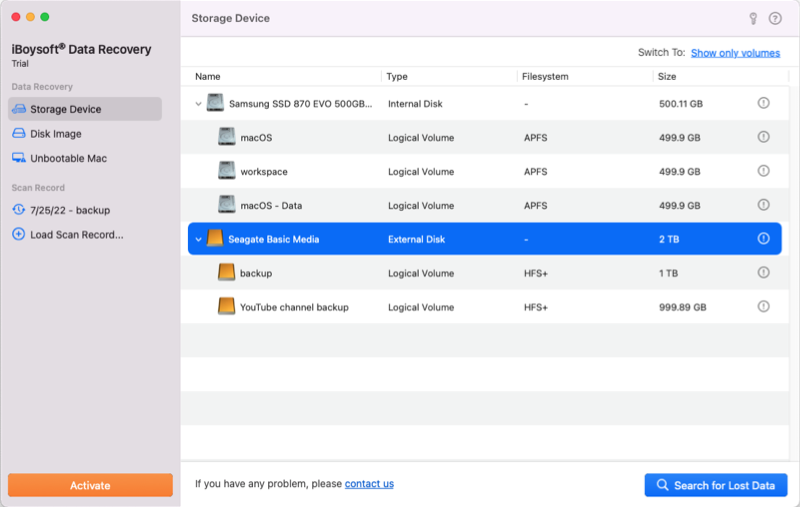
Step 3: Preview files from the external drive for free.
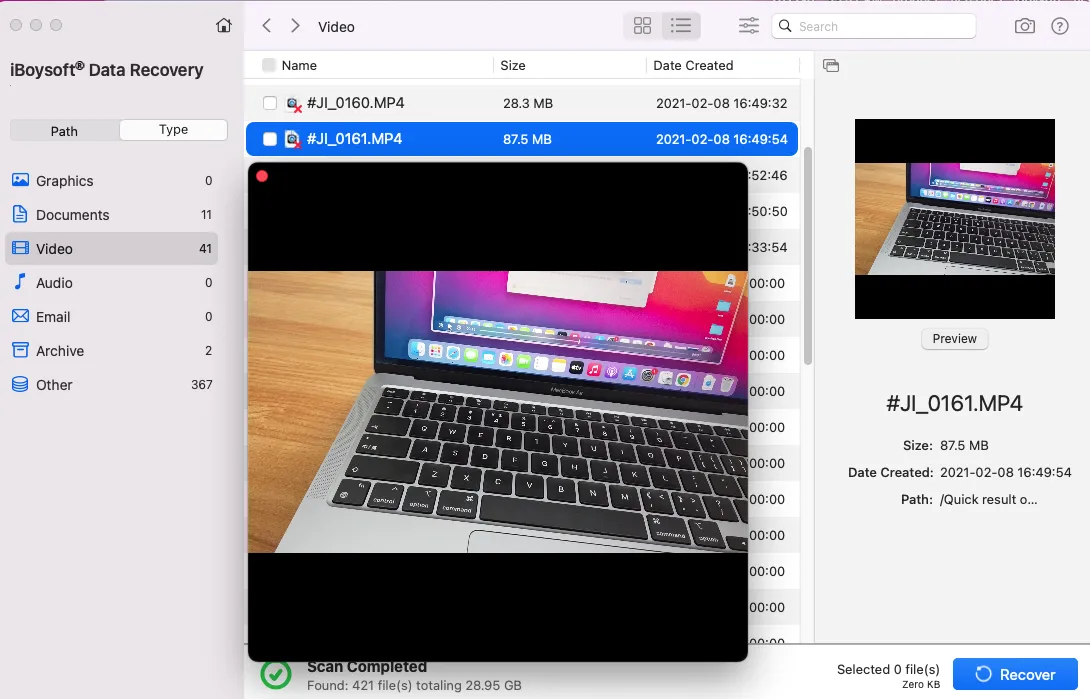
Step 4: Select files you'd like to recover and click Recover.
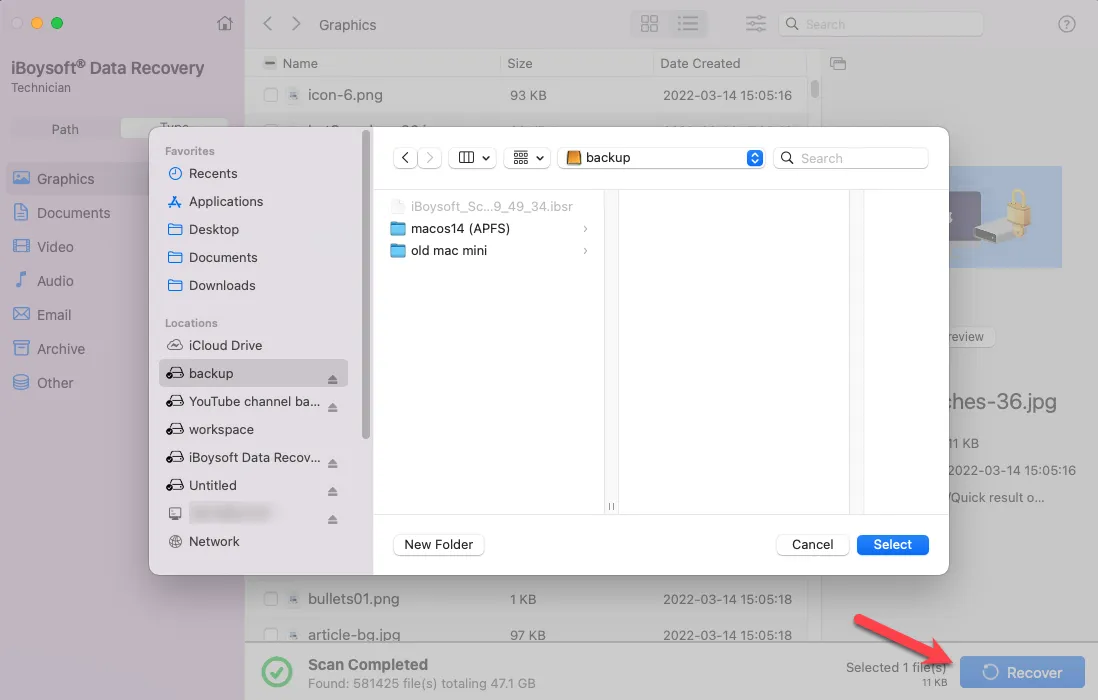
Step 5: Choose a location other than the G-Drive to save the recovered files.
After your data is secured, you can reformat the external drive on Mac.
Tips: Reformatting is likely the most efficient way to fix a missing G-Drive used for Time Machine backups or one that's formatted in exFAT on a Windows PC. Read more about the exFAT drive not mounting on Mac.
Situation C: G-Drive Appears in System Information but Not in Disk Utility
If the G-Drive is detected in System Information but not in Disk Utility, software fixes will not help. You should first try to make it appear there. Once it does, you can proceed with the corresponding solutions.
Fix 1: Check the USB cable
The USB cable or port is the first thing you need to look at. For the cable, it's best to use the one that came with your drive. If unavailable, make sure the replacement is high-quality and in good condition. Try different cables if you can.
Fix 2: Check the USB port
USB devices draw power from the USB port they are plugged into. If the port cannot supply enough power, the device may not function properly or may disconnect intermittently. You can check if your G-Drive is receiving enough power:
- Press Command + Space and search for "System Information."
- Open the app and select USB from the left.
- Select your G-Drive.
- Check if the "Current Available" power for your drive is equal to or larger than "Current Required."
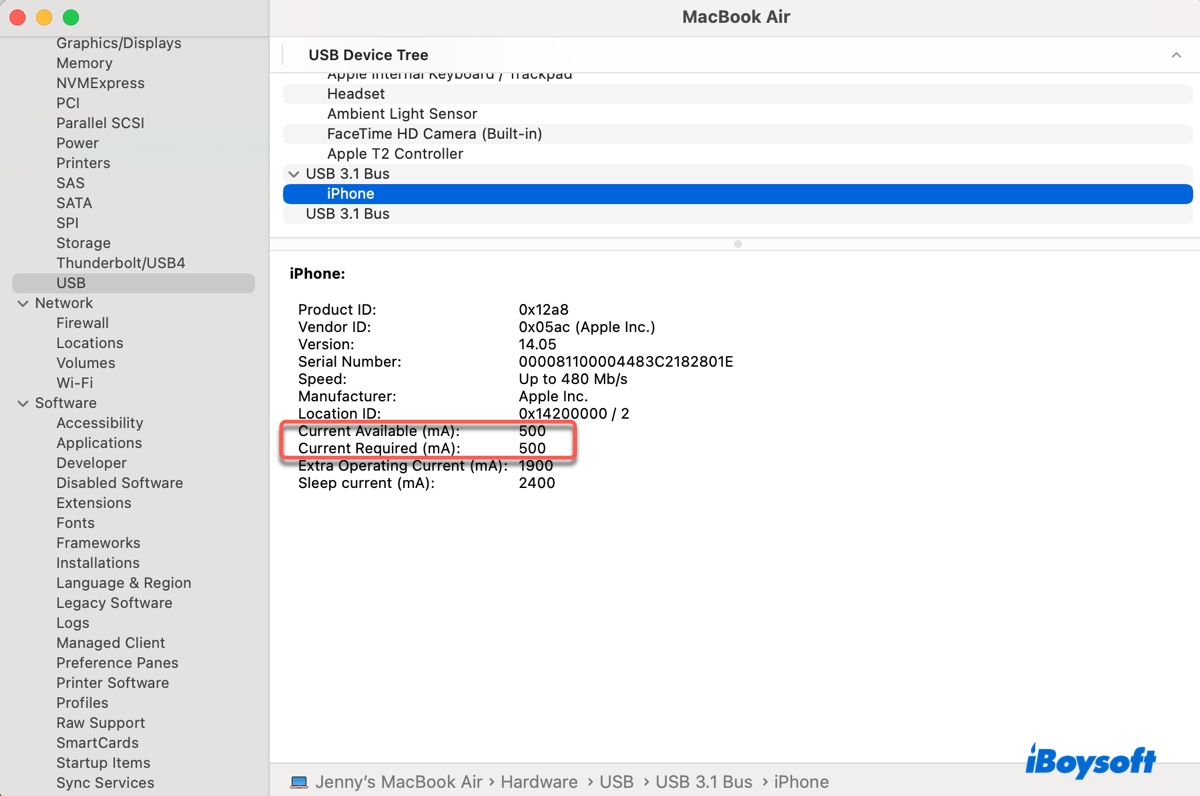
If it's not showing up in System Information or is not receiving enough power, try a different USB port.
Fix 3: Try it on a different computer
Suppose your G-Drive is still not showing up on Mac, then it's advisable to use it on a different computer, ideally, a Windows PC or another Mac. If it works on a Windows computer, repair it using Windows' functionality. If it works on another Mac, get your data off the drive and reformat it.
Fix 4: Contact G-Technology or SanDisk support
If nothing helps, consulting with the support may be helpful. I've heard users resolve the G-Drive not being recognized on Mac with the assistance of G-Technology support.
Real-World Notes From Testing G-Drives on Mac
Certain Desktop G-Drive Models Are Prone to Power Issues
Larger-capacity desktop drives (>10TB) sometimes fail to spin up when connected through unpowered USB hubs or underpowered ports. Portable G-Drives usually draw power directly from the port and are less prone to this, but they can still struggle on older or low-power Macs.
First Aid Failure Rate
First Aid in Disk Utility tends to fail more often on very large drives on Apple Silicon Macs. It also can't repair drives formatted on Windows NTFS, including BitLocker-encrypted volumes.
Even when First Aid fails, it doesn't necessarily mean the disk is dead — often the issue is software-level incompatibility, not hardware.
BitLocker G-Drives on Apple Silicon Macs
The physical disk is usually detected, but macOS cannot mount or access the volume without third-party software. This is a normal behavior and does not indicate disk damage, even if the volume appears "invisible."
Should You Keep Using This G-Drive?
It's safe to continue using the G-Drive if the disk is mounted and stable in Disk Utility, doesn't have unusual noises, blinking lights, or intermittent connections.
Use with caution if the volumes sometimes mount but occasionally fail to appear in Finder, or have minor corruption that was successfully repaired with First Aid.
However, you should replace the disk if it never appears in Disk Utility, shows hardware failure signs (e.g., clicking or intermittent detection), or has repeated mount or read/write failures.
FAQs
- QWhy is my G-DRIVE not showing up on my Mac?
-
A
It depends where macOS detects the drive:
Finder only: Usually a display issue; data is safe.
Disk Utility shows physical disk but volume grayed out: Could be APFS encryption, NTFS/BitLocker, or improper ejection; data is generally recoverable.
Disk never appears in Disk Utility: Likely hardware, power, or enclosure failure; software fixes won’t help.
- QHow to use G-DRIVE external hard drive on Mac?
-
A
Connect the drive properly, check Disk Utility to mount the volume, and unlock any encryption if needed. Windows-formatted (NTFS/BitLocker) drives require compatible drivers or third-party tools. Always eject safely to avoid file system corruption.