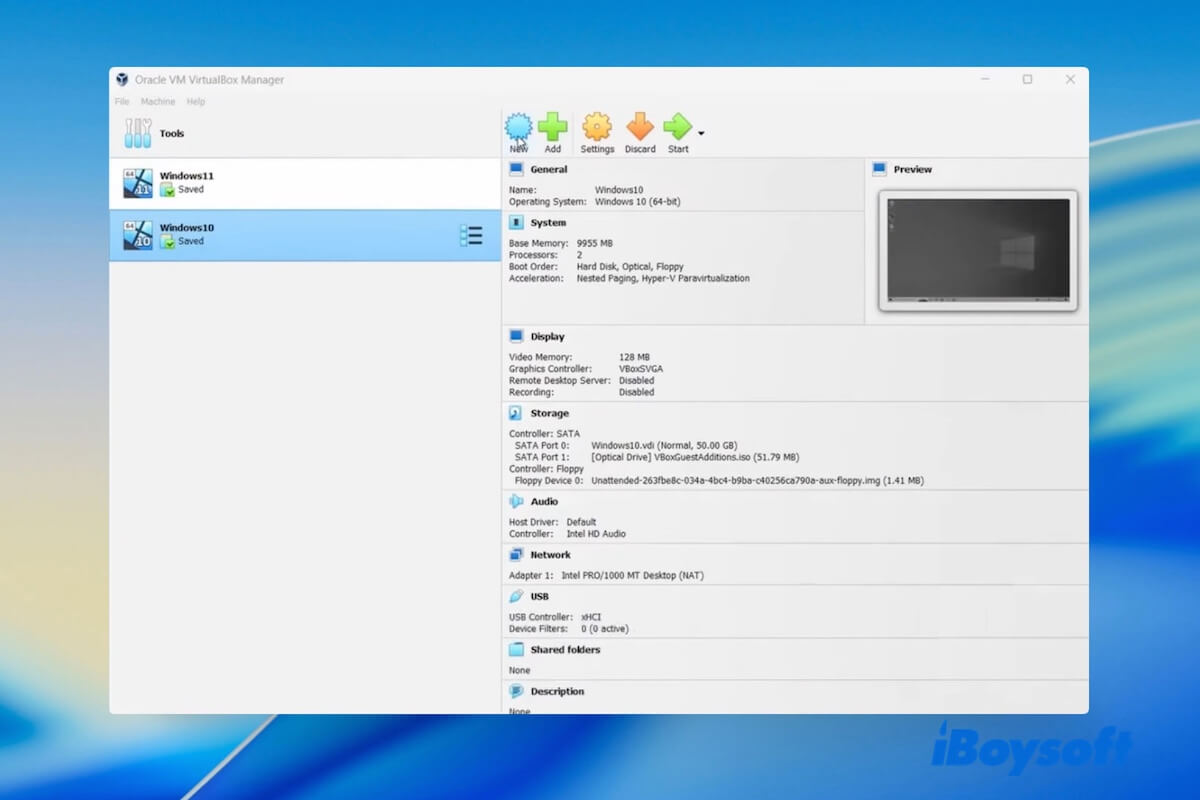
You come into contact with VirtualBox when you need to run another OS on a computer, for example, run Windows on a Mac (or vice versa) without replacing the current system.
So, what is VirtualBox? Is it safe to use VirtualBox? How to use VirtualBox? I believe those questions occupy your mind, and here, I'll answer these questions and give a comprehensive introduction to VirtualBox.
What is VirtualBox
What is VirtualBox software? VirtualBox, also known as VM VirtualBox or Oracle VM VirtualBox, is a free and open-source virtualization tool that allows you to run multiple operating systems on a single computer simultaneously.
It works by creating virtual machines (VMs) - isolated environments that function like separate computers inside your main system. With VirtualBox, you can try different operating systems for testing software or run apps that your primary OS doesn't support. For instance, you can run:
- Windows 11, 10, 8.1, 8, 7, or older versions on a Mac
- macOS versions such as Sequoia, Sonoma, Ventura, and others on a PC (note: macOS VMs on non-Apple hardware are not officially supported by Apple)
- Older Windows versions on a modern Windows 11/10 computer
- Certain macOS versions on an unsupported Mac
- Linux on a Mac or Windows PC
Here are the key features of VirtualBox:
- Completely free to use (open-source)
- Snapshot support (save and restore VM states)
- Shared folders between the host and VM
- USB device passthrough
- Multiple networking configurations (NAT, Bridged, Host-only, etc.)
- Cross-platform compatibility: macOS, Windows, Linux, and Solaris
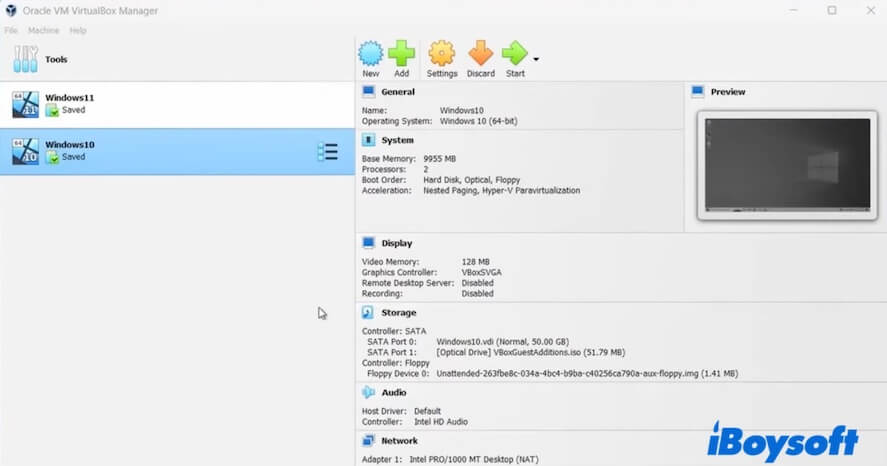
If the above introduction clearly elaborates "what is VM VirtualBox?", let more people know.
VirtualBox vs. VMware Workstation
Besides VirtualBox, there are also many other virtualization tools like VMware Workstation. VMware Workstation is a popular desktop virtualization software developed by VMware. It allows you to create and run multiple virtual machines (VMs) on a single physical computer running Windows or Linux.
Here, I give you a table of VirtualBox vs. VMware Workstation, helping you get a clear learning of them.
| Feature | VirtualBox | VMware Workstation |
| Host OS Support | Windows, macOS, Linux, Solaris | Windows, Linux |
| Guest OS Support | Wide (Windows, Linux, macOS, BSD, etc.) | Wide (Windows, Linux, macOS with workarounds, BSD) |
| Snapshots | Yes | Yes, with advanced management in Pro version |
| USB Support | Yes (needs Extension Pack for USB 2.0/3.0) | Full support for USB 2.0/3.0/3.1 |
| 3D Graphics Support | Basic | Better DirectX/OpenGL support, smoother graphics |
| Networking Options | NAT, Bridged, Host-only, Internal | NAT, Bridged, Host-only, Custom, VLAN support |
| Open Source | Yes | No (proprietary software) |
| Ease of Use | Beginner-friendly, simple UI | Professional interface, slightly more complex |
How to install VirtualBox
If you are going to use VirtualBox, you should install it on your device first. Here's the clear guide to installing VirtualBox.
Install VirtualBox on a Mac:
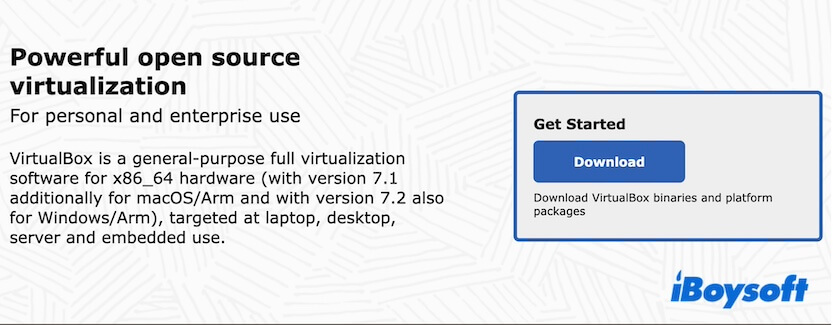
- Visit the official VirtualBox website.
- Click the Download button.
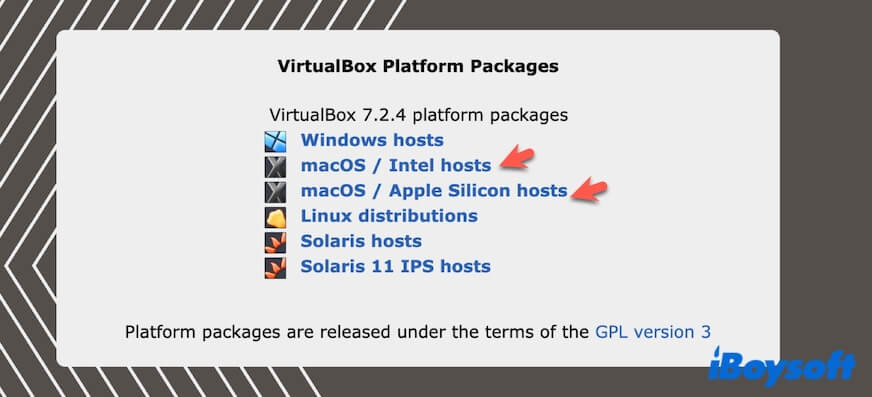
- Click the target macOS platform package to get the VirtualBox installer.
- Click "Accept and download" to download the VirtualBox Extension Pack.
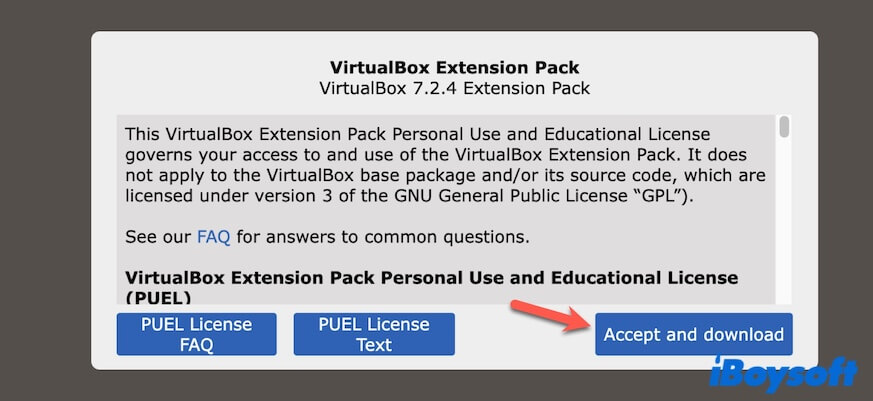
- Open the .dmg installer, double-click the VirtualBox.pkg file to start installation.
- Click "Continue," select an installation location, and click "Install."
- Enter your admin password and click Install Software.
- If VirtualBox shows you the"System Extension Blocked" message, go to System Settings > Privacy & Security > General and click "Allow for Oracle."
- Open the VirtualBox Extension Pack with VirtualBox to enable extra features like USB 2.0/3.0 support.
Install VirtualBox on a Windows PC:
- Visit the official VirtualBox website.
- Click the Download button.
- Click "Windows hosts" in the VirtualBox Platform Packages section to get the VirtualBox installer.
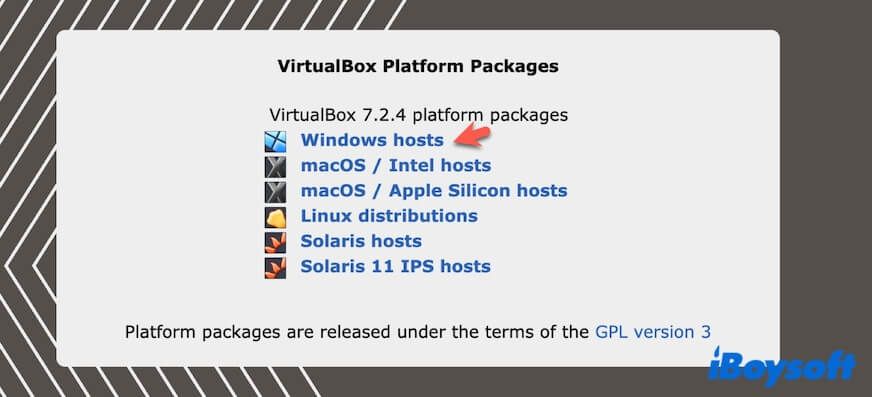
- Click "Accept and download" to download the VirtualBox Extension Pack.
- Double-click the downloaded .exe file.
- If it prompts "User Account Control (UAC)," click "Yes" to allow the installer to run.
- Click "Next."
- Choose an installation option, click "Next."
- Select an installation destination and click "Next."
- Click "Yes" on the warning and click "Install" to start installing.
How to use VirtualBox
Using VirtualBox involves a lot of steps. You should create a VM, allocate hardware, create a virtual hard disk, configure the VM, install an OS on it, and finally, you can use VirtualBox to run the VM.
The following steps are suitable for creating a Windows and macOS VM on VirtualBox.
Tips: To use VirtualBox to create a Windows or macOS VM, you should download the Windows or macOS installer first. Here are the quick download sources:
macOS Download (Installers of all versions are included)
Windows 11 ISO Download
Windows 10 ISO Download
Windows 8.1 ISO Download
Windows 8 ISO Download
Windows 7 ISO Download
Windows Vista Download
Windows XP Download
Windows Server 2025 Download
Windows Server 2022 Download
Windows Server 2016 Download
Step 1: Open VirtualBox
On a Mac, open it from your Applications folder in Finder. On a PC, use the Start Menu to locate and open it.
Step 2: Create a Virtual Machine (VM)
- Click "New" in the VirtualBox main window.
- Enter a name for your VM in the name field.
- Select the type (Windows, macOS, etc.) and version.
- Click "Next."
Step 3: Allocate Hardware
Configure the basic memory and CPUs required for running the target OS.
Step 4: Create a Virtual Hard Disk
- Select "Create a virtual hard disk now" and click "Create."
- Customize the disk size and others.
- Click "Create."
Step 5: Configure the Virtual Machine
- Select your VM and click "Settings."
- Adjust the "System," "Display," "Storage," "USB," and "Network" settings according to your needs.
Step 6: Install an Operating System
- Select the VM and click "Start" in the main interface of VirtualBox.
- Follow the on-screen guides to start the installation.
- Wait for the installation process to end.
Once the OS is installed, you can run the VM anytime by selecting it and clicking "Start."
If you think that this post answers the question " What is VirtualBox?", share it with more people.
FAQs about VirtualBox
- QWhat are the downsides of VirtualBox?
-
A
VirtualBox has some disadvantages in performance, guest OS, USB, and Peripheral support, and stability.
Slightly slower than VMware or Parallels, especially for graphics-intensive tasks.
3D graphics support is limited.
Newer operating systems may require workarounds or tweaks to run properly.
Certain peripherals (like webcams or specialized hardware) may not work perfectly inside a VM.
VirtualBox updates can break existing VMs.
- QIs VirtualBox an emulator or VM?
-
A
VirtualBox is a virtualization platform that creates virtual machines (VMs), not a traditional emulator.
- QIs VirtualBox Safe?
-
A
Yes, VirtualBox is safe to use. VirtualBox itself is safe and widely used by developers, IT professionals, and casual users. The main risks come from the guest OS or files inside the VM, not VirtualBox itself.