Deleting files manually is not enough before selling a computer. Personal documents, saved passwords, browser history, and other sensitive information may still remain recoverable after a normal delete or quick format.
The safest approach is to use the built-in Windows reset tools to remove personal files, reinstall the operating system, and prepare the PC for the next owner.
This guide explains how to securely wipe a Windows 11 or Windows 10 computer before selling, along with a few important settings that many users overlook.
Preparations Before You Wipe Your Computer
Before erasing the computer, make sure important files and accounts are properly handled. Once the reset process starts, some data may no longer be recoverable.
- Clone important files to an external hard drive, cloud storage, or another computer. This may include documents, photos, videos, browser bookmarks, password manager exports, and software license keys.
- Sign out of important accounts and services, such as Microsoft Account, Google Account, Adobe Creative Cloud, and other licensed software.
- Disconnect the PC from services linked to the device, including OneDrive syncing and browser profile syncing.
- Understand the difference between a factory reset and a secure erase. A factory reset is usually sufficient for personal devices, while computers containing sensitive business or financial data may require stronger erase methods.
How to Wipe a Windows 11 or Windows 10 PC
Windows includes a built-in reset feature that can securely remove personal files and reinstall the operating system. The steps are similar in Windows 11 and Windows 10.
Reset This PC and Remove Everything
The Reset feature removes personal data, installed apps, and user settings before reinstalling Windows. When preparing a PC for sale, choose Remove everything instead of Keep my files.
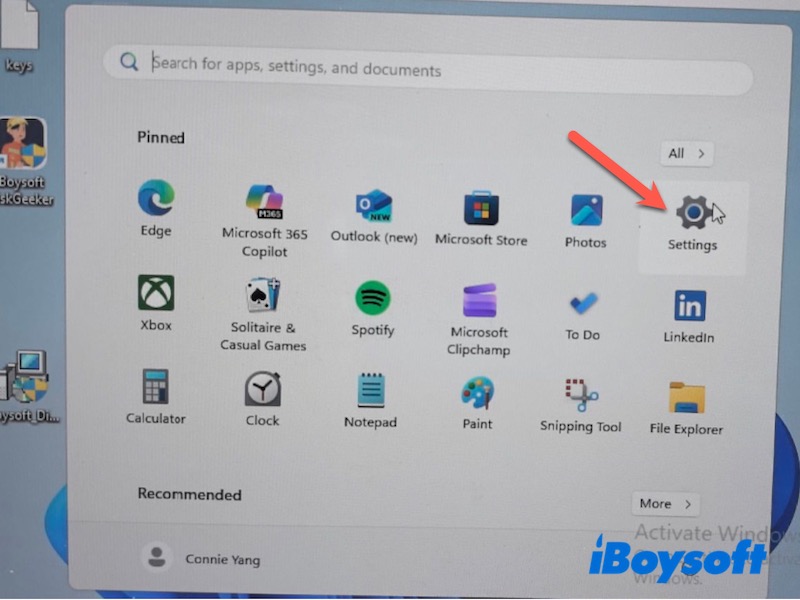
- Open Settings.
- Go to:
Windows 11: System > Recovery
Windows 10: Update & Security > Recovery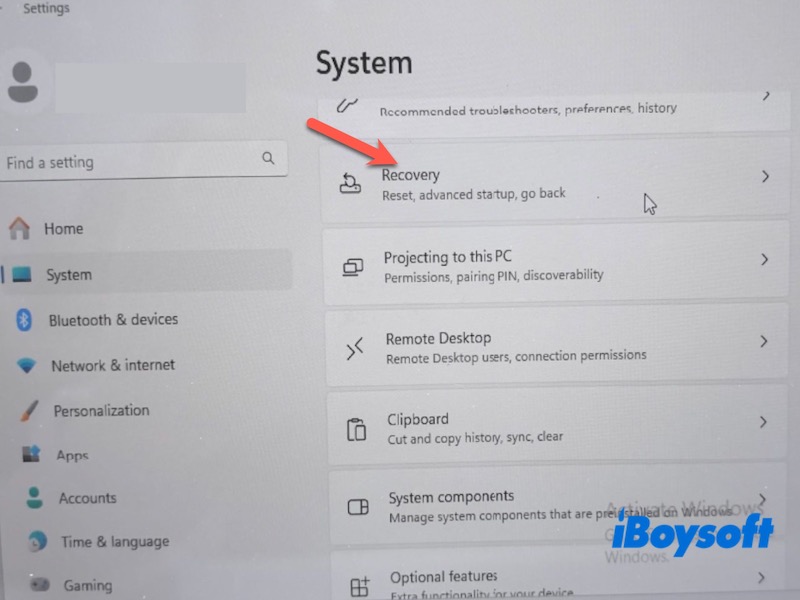
- Under Reset this PC, click Get started.
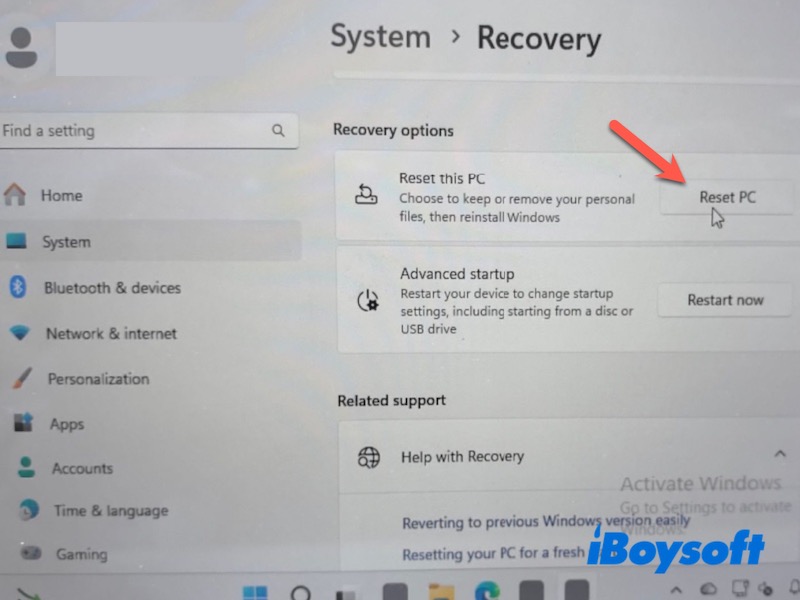
- Select Remove everything.
Clean the Drive Option
After selecting Remove everything, Windows provides additional erase settings. Enabling Clean data helps reduce the chance of deleted files being recovered later.
If the computer contains multiple drives, Windows may also ask whether to erase only the system drive or all connected drives.
- Choose either: Cloud download/Local reinstall.
- Click Change settings.
- Turn on Clean data.
Reinstall Windows
After the reset settings are confirmed, Windows will erase the device and reinstall the operating system automatically.
- Click Next, then select Reset.
- Wait for Windows to erase the device and reinstall the operating system.
- When the Windows setup screen appears, stop there if the PC is being sold.
Use a Secure Erase Tool for Sensitive Data
A standard factory reset is usually sufficient before selling or donating a PC, but additional erase methods may be worth considering for devices containing sensitive business, financial, or client information.
- Deleted files may still remain recoverable until new data overwrites the storage space.
- HDDs and SSDs erase data differently, and SSDs often rely on built-in features such as TRIM or Secure Erase.
- Additional erase methods may be useful for business computers, work-issued devices, and systems storing confidential records.
If you want a more thorough erase before selling the PC, iBoysoft DiskGeeker for Windows can securely wipe HDDs and SSDs to help prevent deleted files from being recovered. It also includes disk management features such as partition management, BitLocker support, disk cloning, and drive health monitoring.
Basic steps to wipe a drive with iBoysoft DiskGeeker for Windows:
- Download, install, and open iBoysoft DiskGeeker for Windows.
- Click Toolbox to go to wipe data.
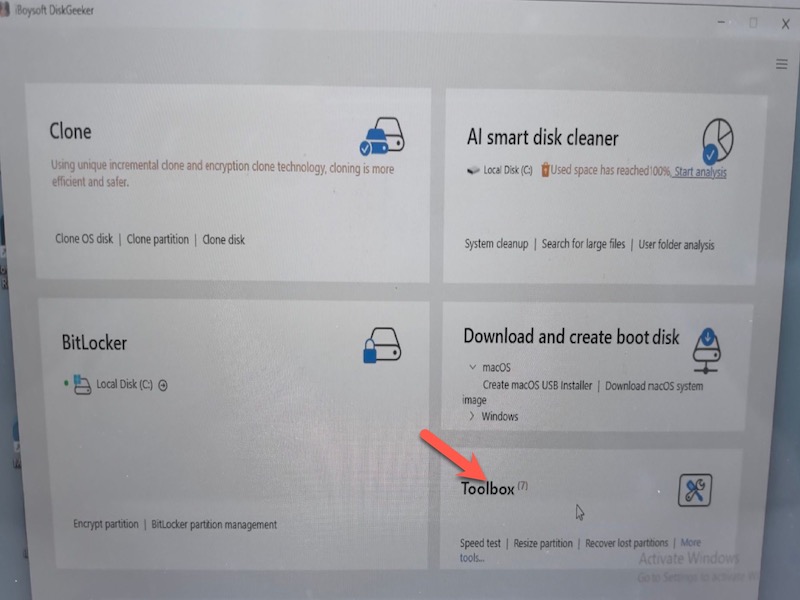
- Choose Wipe disk.
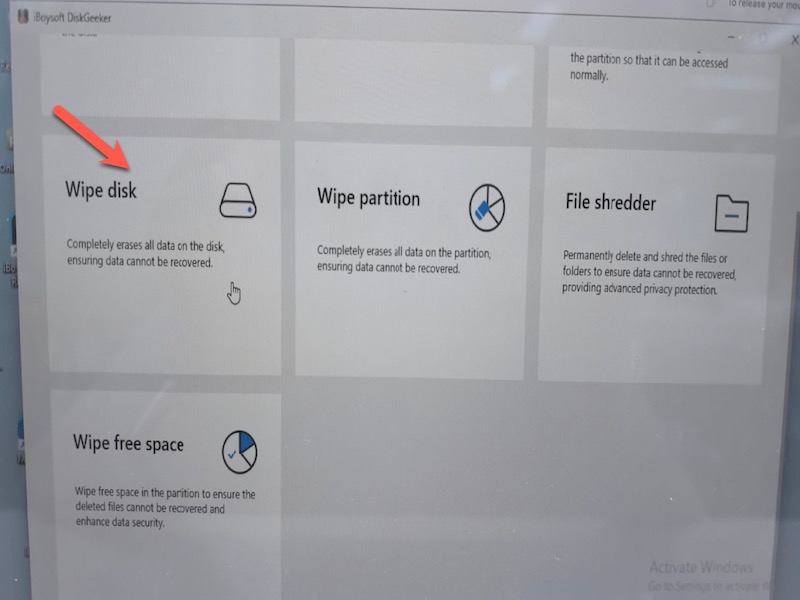
- Select the disk that you need to wipe and follow the guide at the top.
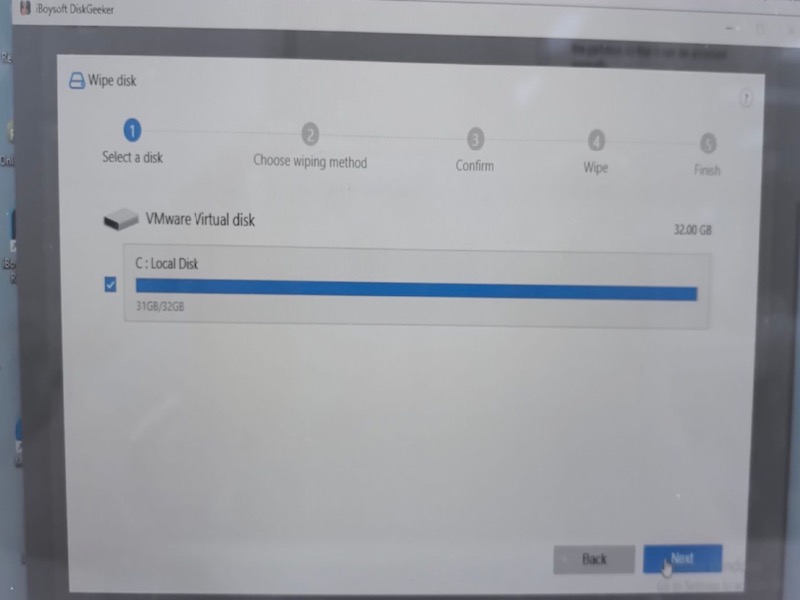
Wait for the wipe process to complete before selling or recycling the PC.
Conclusion
Properly wiping a Windows PC before selling it helps protect personal information and prevents the next owner from accessing leftover data.
Using Reset this PC with Remove everything and Clean data enabled is usually enough for preparing a computer for resale. Before handing over the device, always remove linked accounts and leave Windows ready for setup by the next owner.
FAQs
- Q1.Can someone recover files after a factory reset?
-
A
In some cases, yes. A standard factory reset may leave traces of deleted data that specialized recovery tools can detect. Enabling drive cleaning or secure erase features helps reduce recovery risks.
- Q2.How do I completely wipe a laptop before selling it?
-
A
Back up important files, sign out of your accounts, and use Reset this PC with Remove everything and Clean data enabled.
- Q3.Should I remove my Apple ID or Microsoft account first?
-
A
Yes. Before selling the PC, sign out of your Microsoft account and other linked services, including OneDrive and browser syncing accounts.