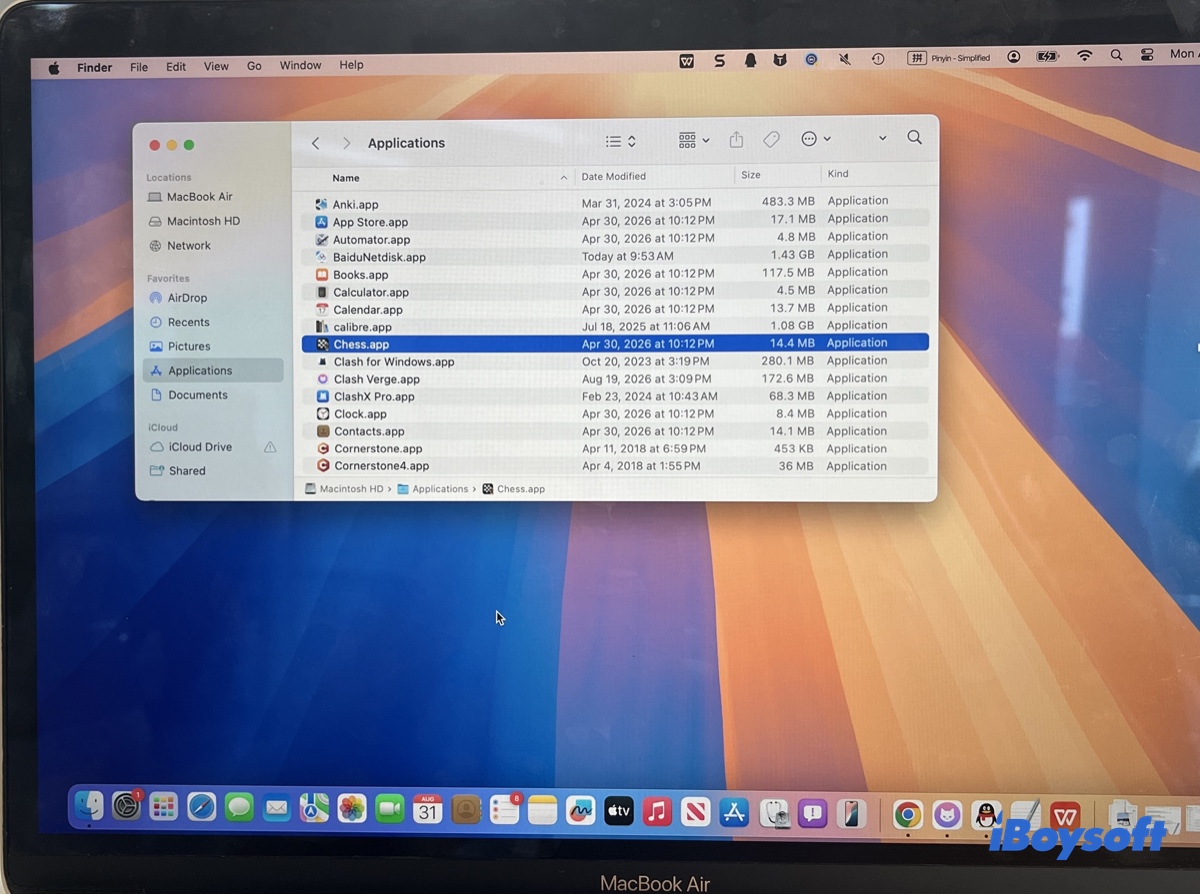
You may have opened your Applications folder, found Chess sitting there, and assumed you could remove it like any other app. Then macOS refused to let you delete it.
That can be surprising, especially when you're used to uninstalling Mac apps by dragging them to the Trash. The reason is that Apple's Chess app isn't an ordinary application installed by the user. It's included with macOS and subject to protections that don't apply to most third-party apps.
So before trying more Terminal commands or changing your Mac's security settings, it's worth understanding what Chess actually is, why macOS won't let you remove it, and what you can do if you don't want it on your Mac.
Why Can't You Uninstall Chess on Mac?
Trying to uninstall Chess can be confusing because macOS displays it alongside your other applications, making it look like an ordinary app. You may expect to drag it to the Trash just as you would with Chrome, Spotify, or another app you installed yourself.
But Apple's Chess app is part of the operating system. On modern macOS, it is stored in the protected system location: /System/Applications/Chess.app.
That changes what you can do with it. macOS uses System Integrity Protection (SIP) and other system-volume protections to prevent unauthorized changes to protected system files.
That's why the usual app uninstallation methods don't work and why some Terminal commands you may find online return "Operation not permitted."
Why does Chess appear in Applications if it's a system app?
Finder can show system applications alongside applications stored in locations that you can modify. Seeing Chess in the Applications list therefore doesn't mean it has the same deletion permissions as a third-party app.
Since macOS Catalina, Apple has separated system content from user data. Later versions of macOS also introduced the Signed System Volume, which protects the integrity of system files.
So although you can open Chess like any other application, macOS does not treat its .app bundle like an ordinary file in your user-writable Applications folder.
Method 1: Leave Chess installed
If you don't use Chess, the simplest solution is to leave it alone.
There is no practical need to remove a protected system application just because you don't use it. Leaving Chess installed also means you don't have to disable security protections or make changes that could be affected by future macOS updates.
If your concern is that Chess appears among your applications, you can instead organize the applications you actually use and ignore the built-in apps you don't need.
This doesn't technically uninstall Chess, but for most users it solves the underlying problem without modifying macOS.
Method 2: Don't force-delete Chess with Terminal
You may find older tutorials suggesting commands such as:
sudo rm -rf /System/Applications/Chess.app
or:
sudo chflags hidden /System/Applications/Chess.app
These commands should not be treated as normal Chess-uninstallation methods.
The problem with sudo is that it is easy to misunderstand what it does. sudo gives a command elevated privileges, but it does not disable System Integrity Protection.
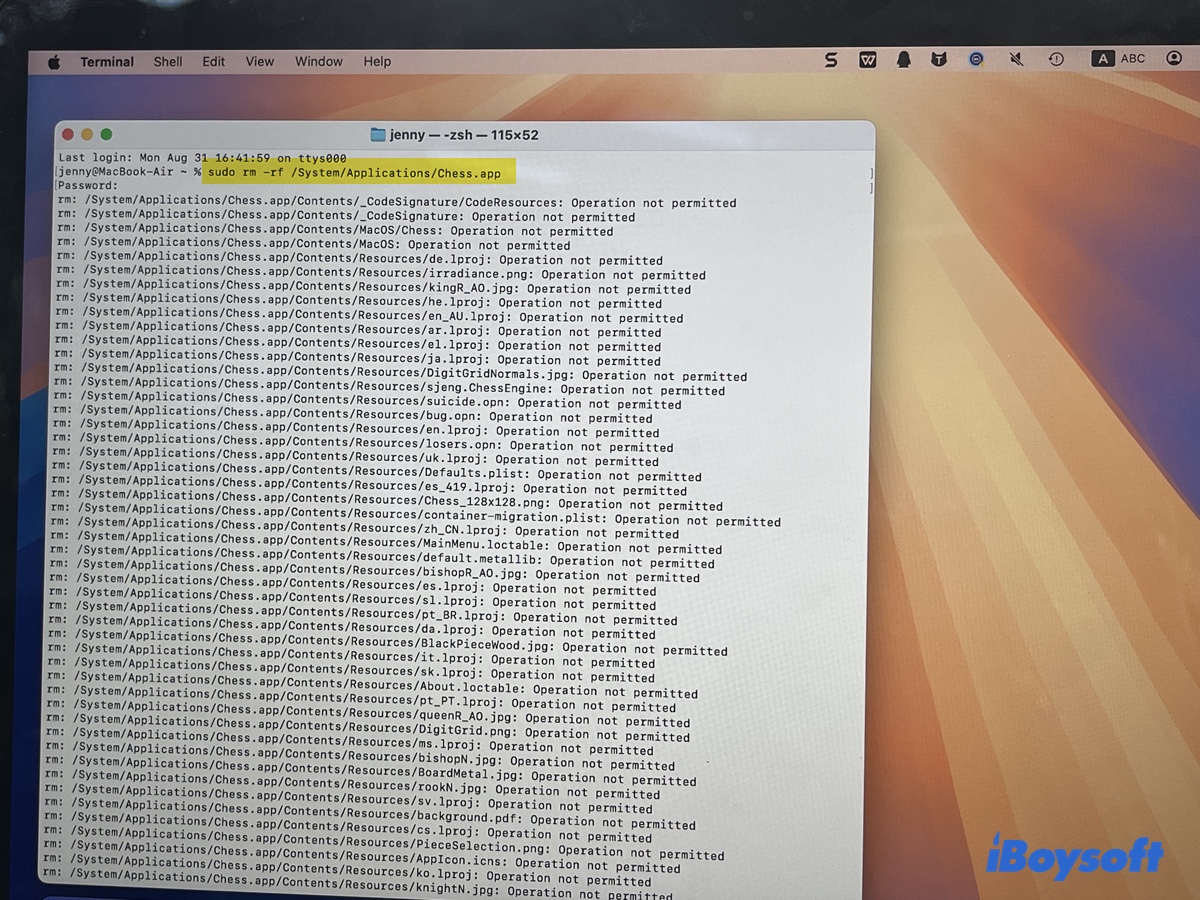
That's why you may see an error such as: Operation not permitted when trying to modify Chess.

Why does chflags say "Operation not permitted"?
chflags is a macOS command for changing file flags, including the hidden flag.
For an ordinary file, a command such as: chflags hidden /path/to/file may work.
Chess is different because /System/Applications is a protected system location. macOS can refuse the modification even when the command is run with sudo.
So if you see:
chflags: /System/Applications/Chess.app: Operation not permitted
the error does not necessarily mean that you entered the command incorrectly. macOS is preventing the requested modification.
Should you disable SIP to uninstall Chess?
No, you shouldn't disable SIP to uninstall Chess.
You may come across instructions that tell you to disable System Integrity Protection, modify the system volume, and then delete Chess.
Although techniques for modifying protected system applications have appeared in Mac community discussions and older tutorials, disabling SIP just to remove Chess is not a sensible normal uninstall procedure, nor does it work.
SIP is a security feature designed to prevent unauthorized modification of critical parts of macOS. Turning it off changes the security protections on your Mac.
Besides, turning off SIP doesn't help you delete Chess on Mac.
I ran the experiment myself with my 2020 MacBook Air running macOS Sequoia.
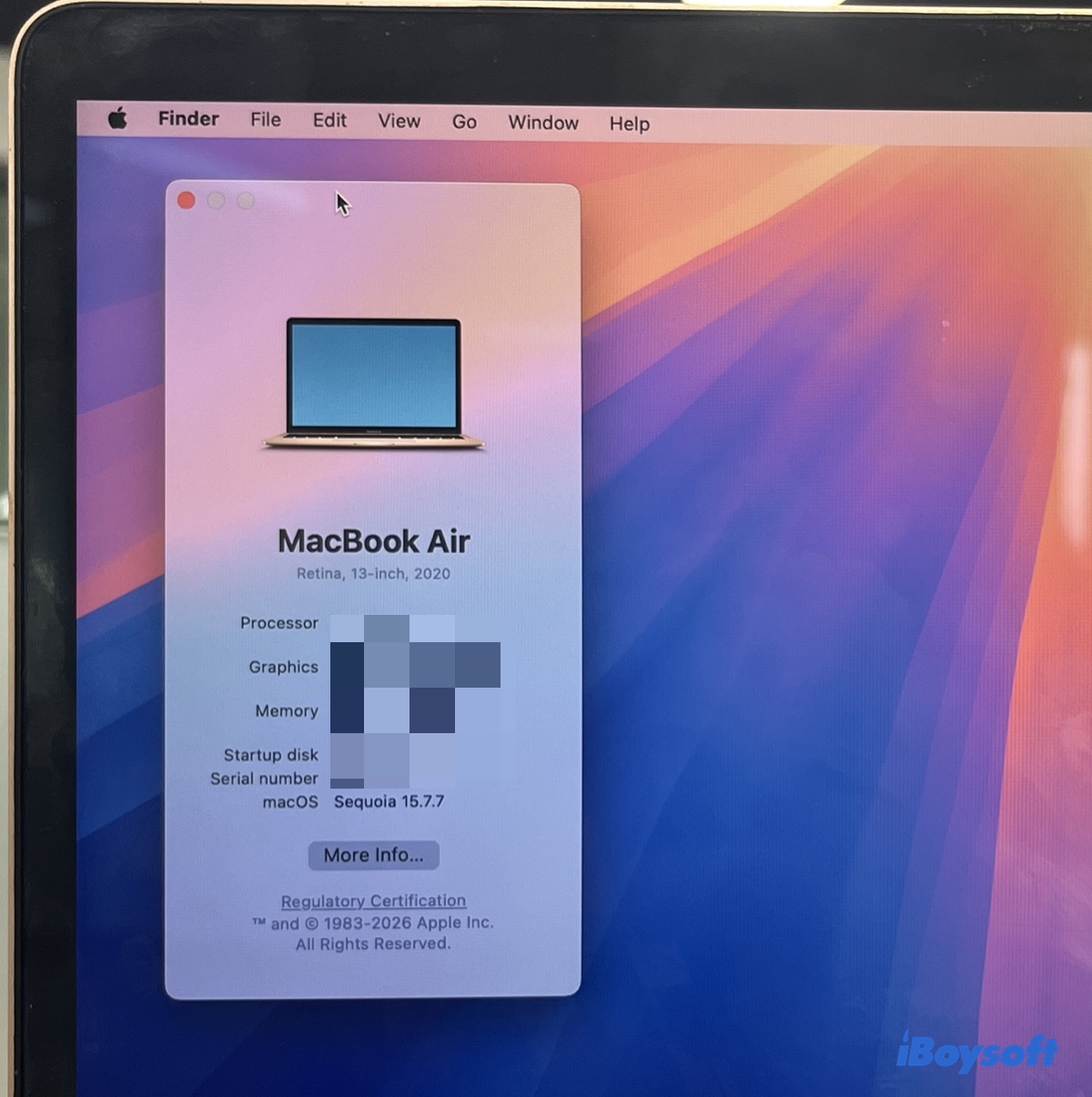
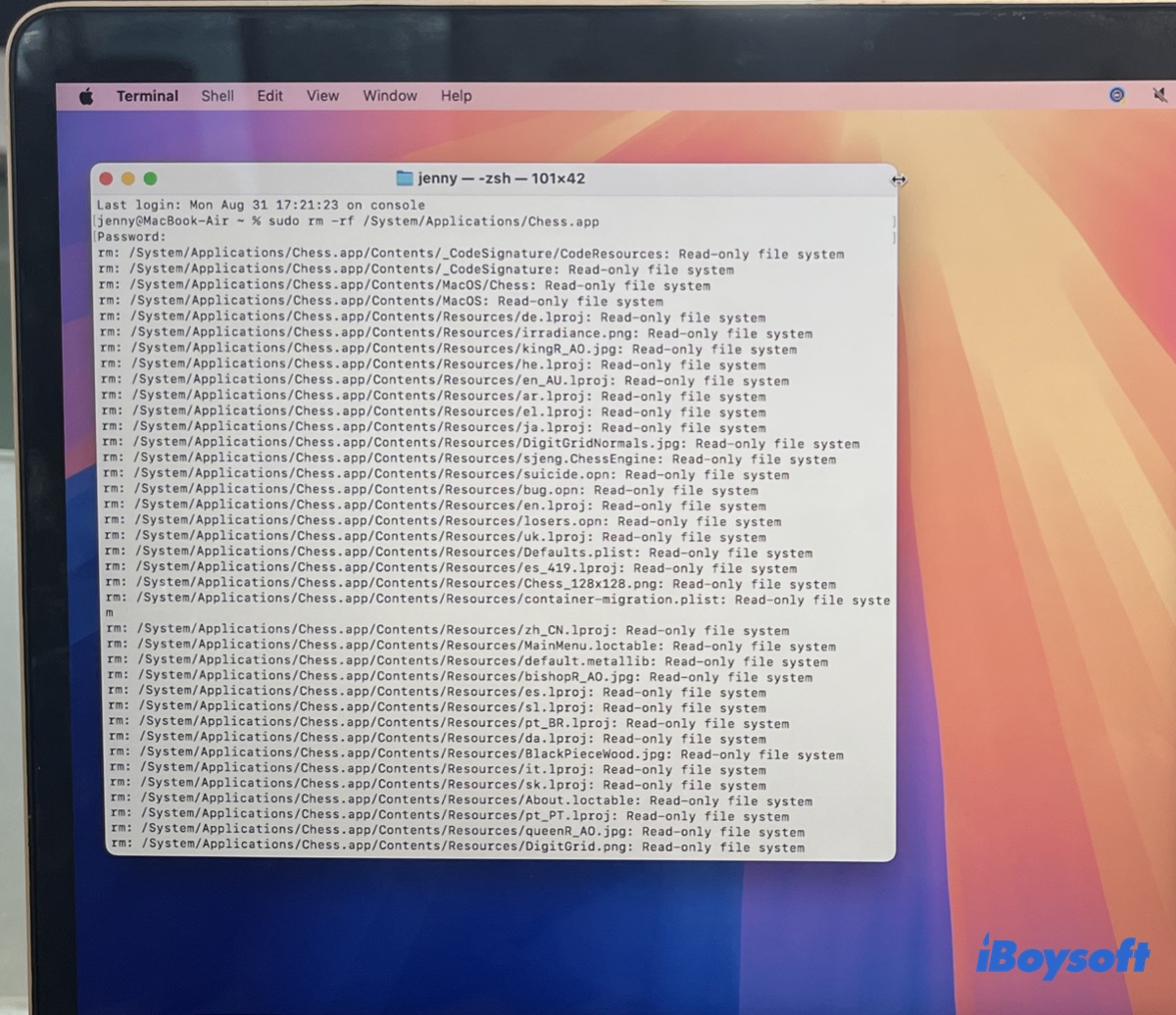
With SIP enabled, and I went straight to Terminal to delete Chess. It failed with the permission error.
Then I booted into macOS Recovery to disable SIP.
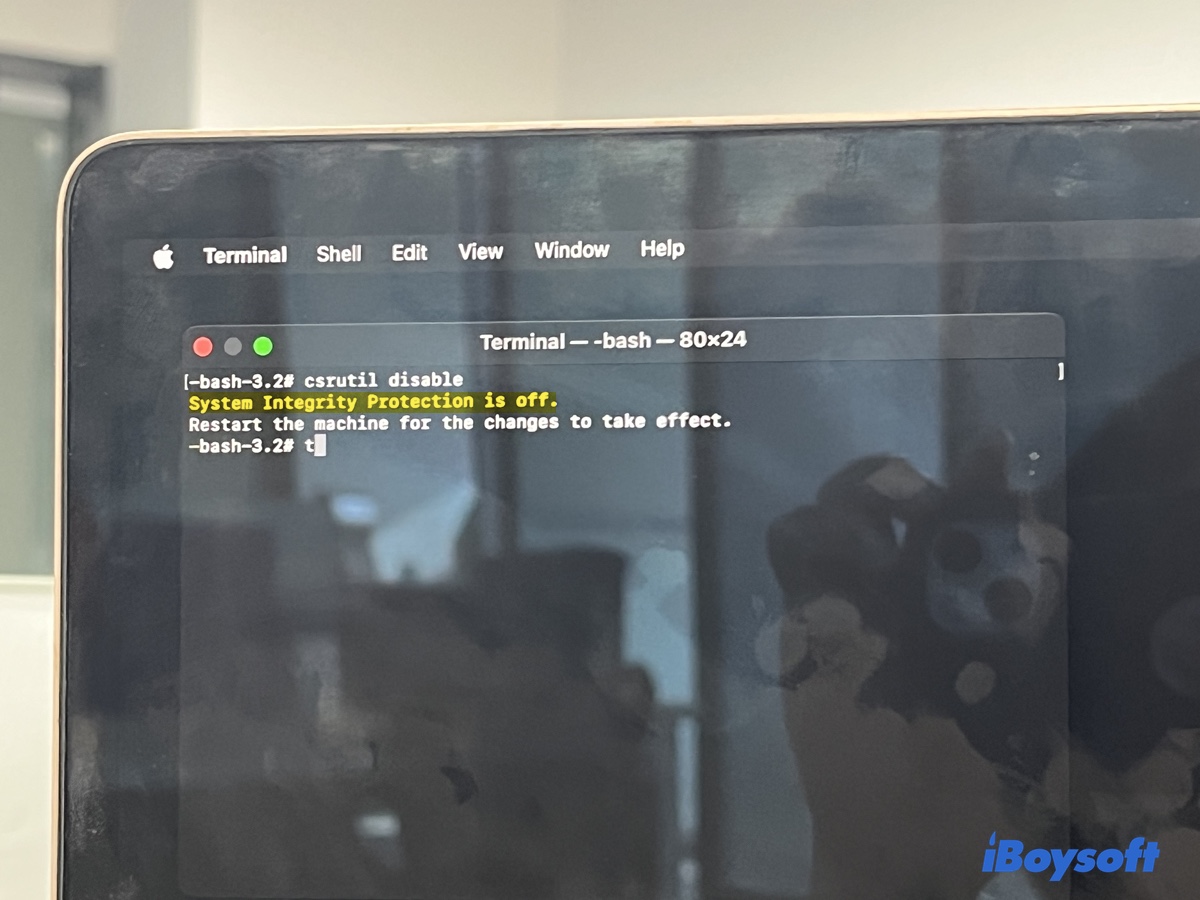
After SIP is disabled, I rebooted and tried to remove the Chess app in Terminal again. It failed again, though with a different error: Read-only file system.
Deleting the Chess app also has very little to gain. It's a small application, so deleting it is unlikely to recover enough storage to justify changing macOS's security configuration.
Will Chess come back after a macOS update?
Potentially, system updates can replace or restore system components as part of updating macOS.
This is another reason not to think of Chess as an ordinary application. Deleting a third-party app from /Applications is a user-level change. Modifying an Apple system application is a change to the operating system itself.
If a macOS update installs a new system volume, any manual modification you made to the previous system installation may no longer matter.
Are you trying to uninstall a third-party chess app?
If you downloaded the chess app yourself, you're dealing with a different situation. Third-party chess apps can be uninstalled normally.
Note that moving the app to the Trash and emptying the Trash doesn't remove files related to it. If you also want to remove associated files that may remain after deleting the app, an app uninstaller such as iBoysoft Cleaner can find and remove the app and its related files.
Remove a third-party chess app with iBoysoft Cleaner
If the chess application is a third-party app, iBoysoft Cleaner's App Uninstaller can save you from manually looking through your Library folders for files associated with the application.
The basic process is:
- Launch iBoysoft Cleaner.
- Select App Uninstaller.
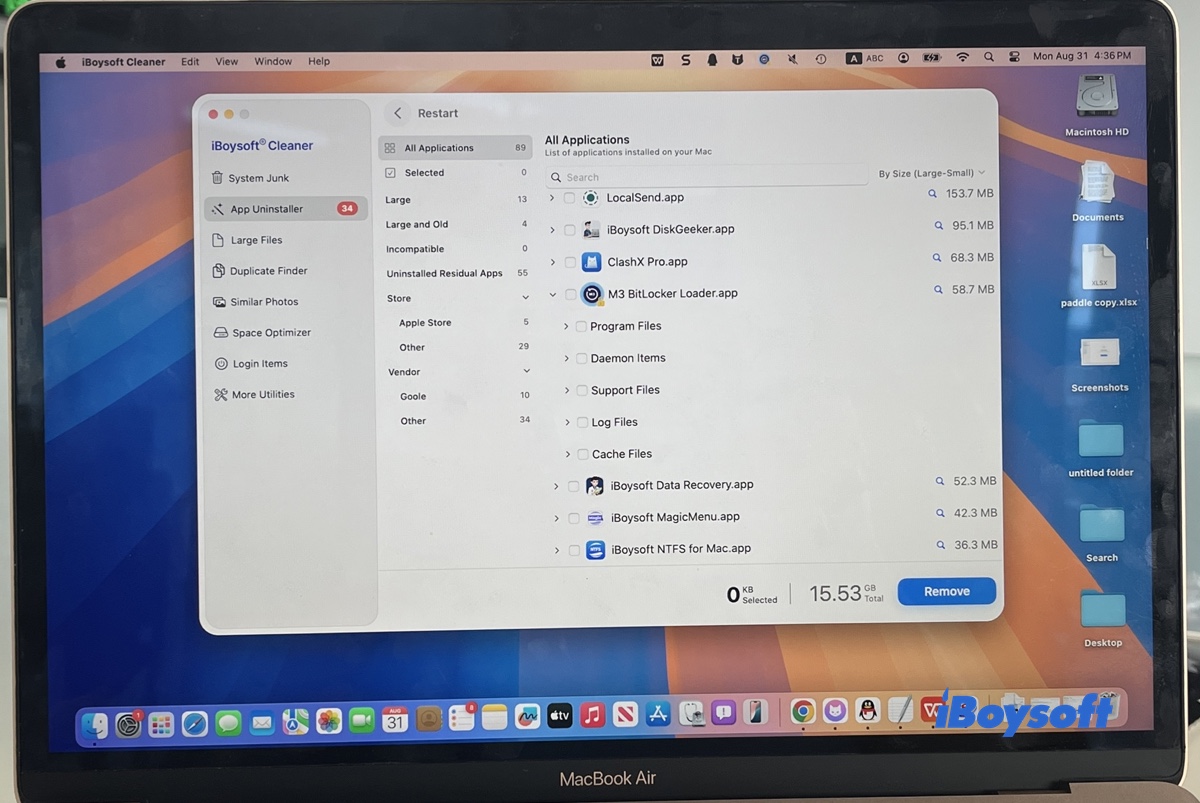
- Scan for installed applications.
- Find the chess application.
- Select it and review the associated files.
- Confirm the removal.
This is useful when your goal is to remove a third-party application and its associated files rather than manually hunting for them.
Should you remove Chess to free up storage?
Probably not.
If storage is the reason you're looking for how to uninstall Chess on Mac, Chess is not a particularly useful target.
Instead, look for things that are likely to occupy substantially more space, such as:
- Large files in Downloads
- Videos and other media
- Old iPhone or iPad backups
- Applications you no longer use
- Old macOS installers
- Other unnecessary files
Removing a small built-in application won't normally reclaim a lot of storage.
If your Mac is almost full, macOS's System Settings > General > Storage page can help you identify where the space is actually being used.
What should you do?
The right solution depends on which Chess app you have and what you're trying to accomplish.
| Situation | What to do |
|---|---|
| You don't use Apple's Chess | Leave it installed |
| Finder won't delete Apple's Chess | Don't force-delete it |
| Terminal says Operation not permitted | macOS is blocking modification of the protected system location |
| You want to free up storage | Find larger files or unused third-party apps |
| You want to remove a third-party chess app and associated files | Use an app uninstaller such as iBoysoft Cleaner |
FAQs About Uninstalling Chess on Mac
- QWhy does Terminal say "Operation not permitted" when I use chflags on Chess?
-
A
Because Chess is located in a protected system area. sudo gives you elevated privileges, but it does not override macOS's System Integrity Protection.
- QCan I delete Chess with sudo rm -rf?
-
A
Not through the normal macOS security configuration. More importantly, using sudo rm -rf to remove protected system files is not a recommended way to uninstall a built-in macOS application.
- QDoes dragging an app to Trash completely uninstall it?
-
A
No. For a normal third-party application, moving the app to Trash removes the application itself, but some associated files may remain. If the developer provides an uninstaller, Apple recommends using it.
- QIs Chess taking up a lot of space on my Mac?
-
A
No. Chess is a relatively small system application. If you're trying to recover meaningful storage, look for large files, media, backups, and unused third-party applications instead.