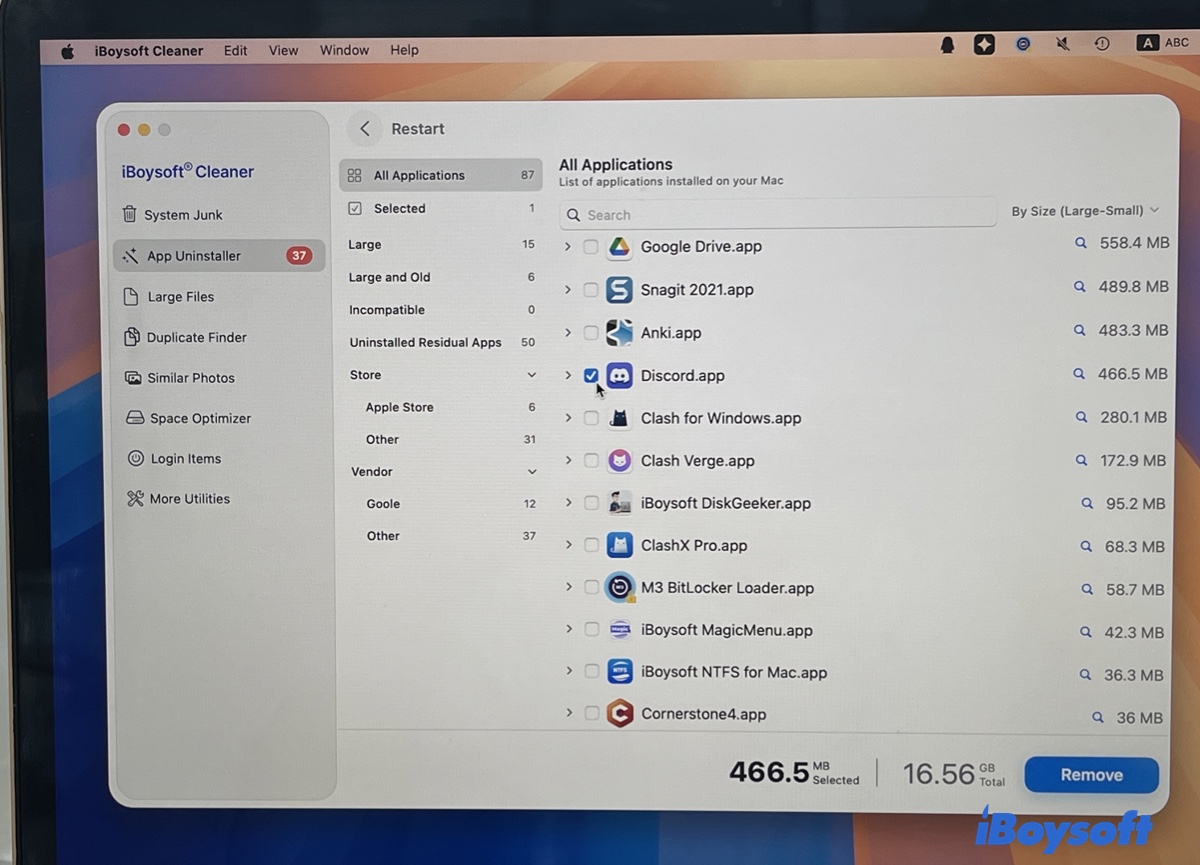
If you no longer use Discord, experience app problems, or want to reinstall it from scratch, you may want to remove it from your Mac completely.
The easiest way is to drag Discord to Trash from the Applications folder. However, macOS may leave behind Discord-related files, such as caches, preferences, and support files. These leftovers usually do not harm your Mac, but they can take up storage space or keep old settings when you reinstall Discord.
If you want to reclaim wasted space, this guide shows you two ways to uninstall Discord on Mac.
Method 1: Uninstall Discord on Mac Manually
To completely remove Discord from your Mac, you need to delete both the main application and its leftover files. The manual uninstall process includes two parts:
- Delete the Discord application.
- Find and remove Discord-related files stored in hidden Library folders.
Step 1: Quit Discord completely and delete the program
Before uninstalling Discord, make sure it is not running. Then move the program file to the Trash.
- Right-click the Discord icon in the Dock.
- Select Quit Discord.
- Open Finder > Applications.
- Find the Discord.app.
- Right-click Discord and select Move to Trash.
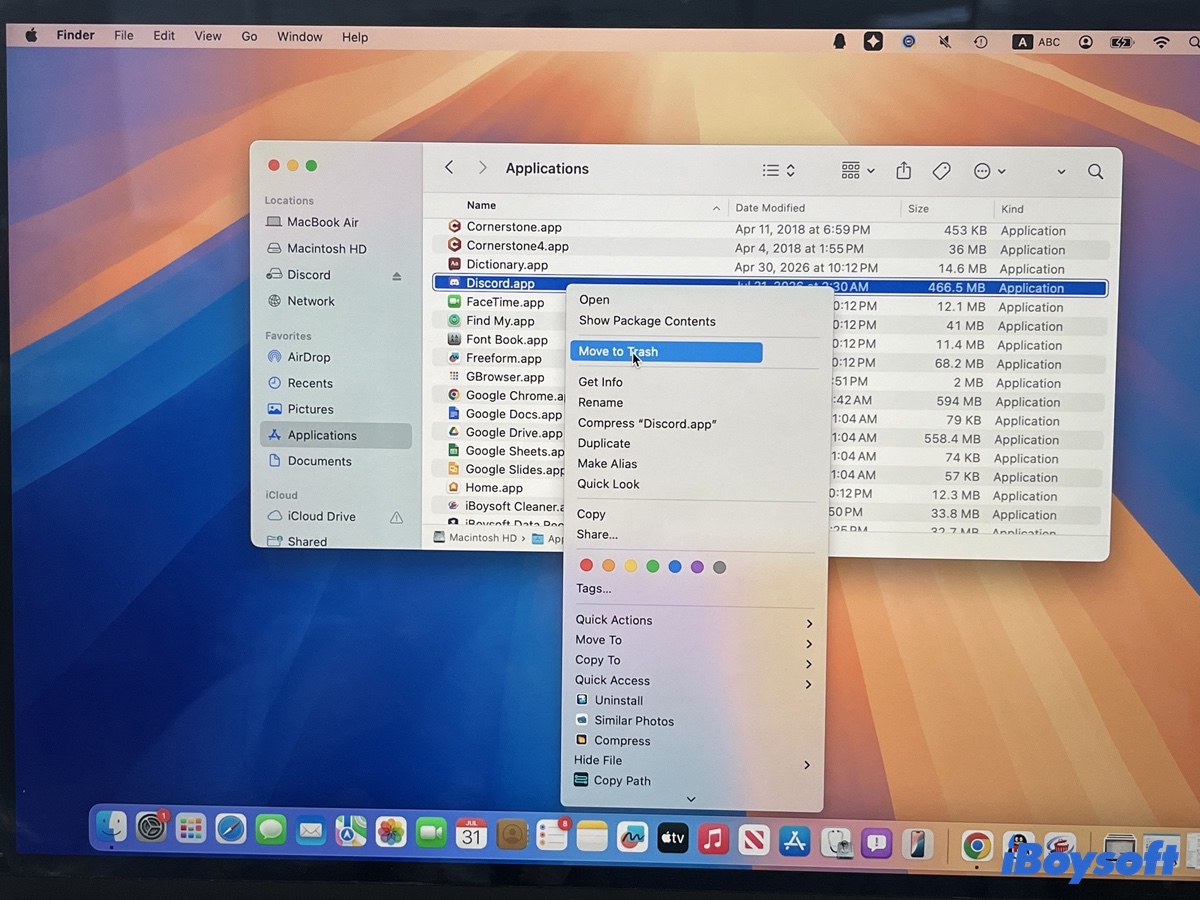
At this point, the main Discord application has been removed, but some related files may remain.
Step 2: Remove Discord leftover files
macOS stores application data in the hidden Library folder.
To find Discord leftovers:
- Open Finder.
- Click Go > Go to Folder.
- Enter these locations one by one:
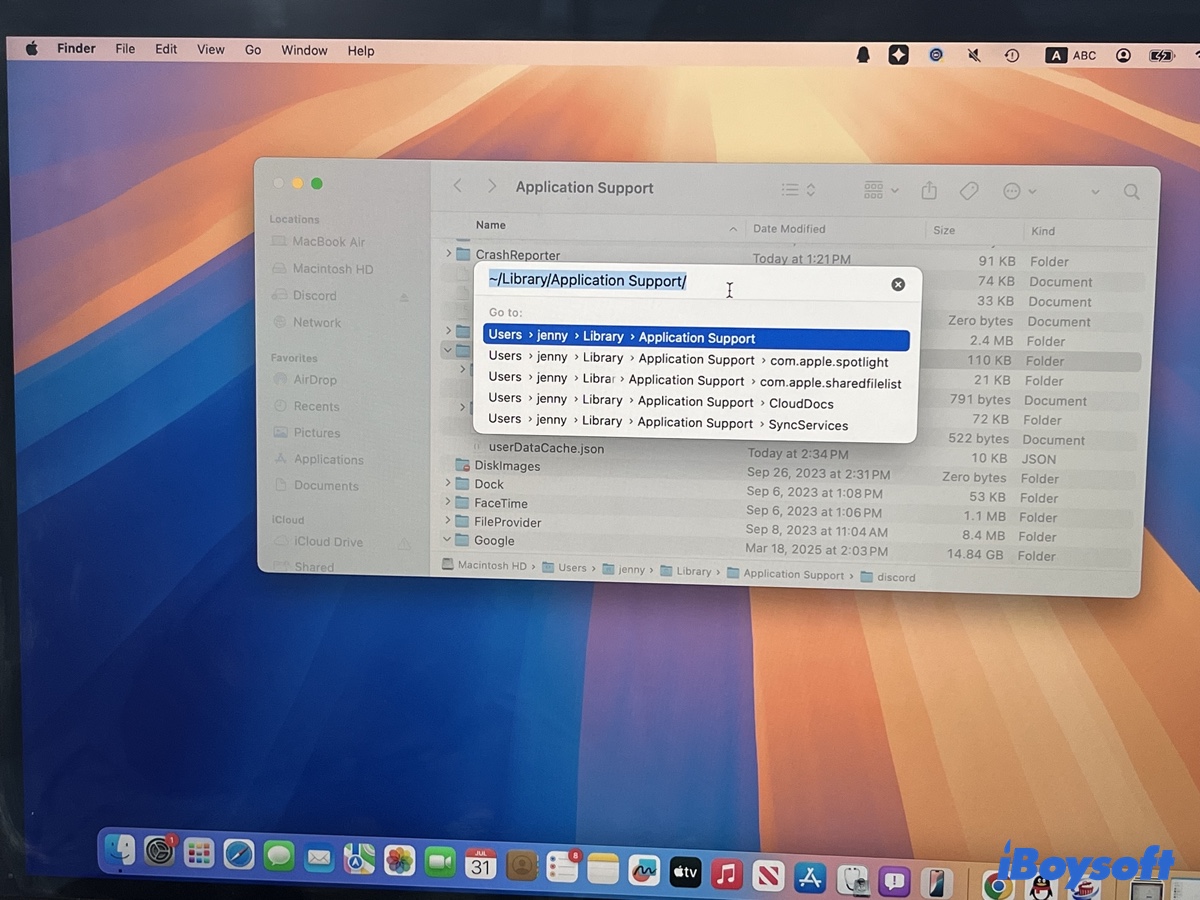
- ~/Library/Application Support/
- ~/Library/Caches/
- ~/Library/Preferences/
- ~/Library/Logs/
4. Look for files or folders containing:
- Discord
- com.hnc.Discord
5. Move related items to Trash.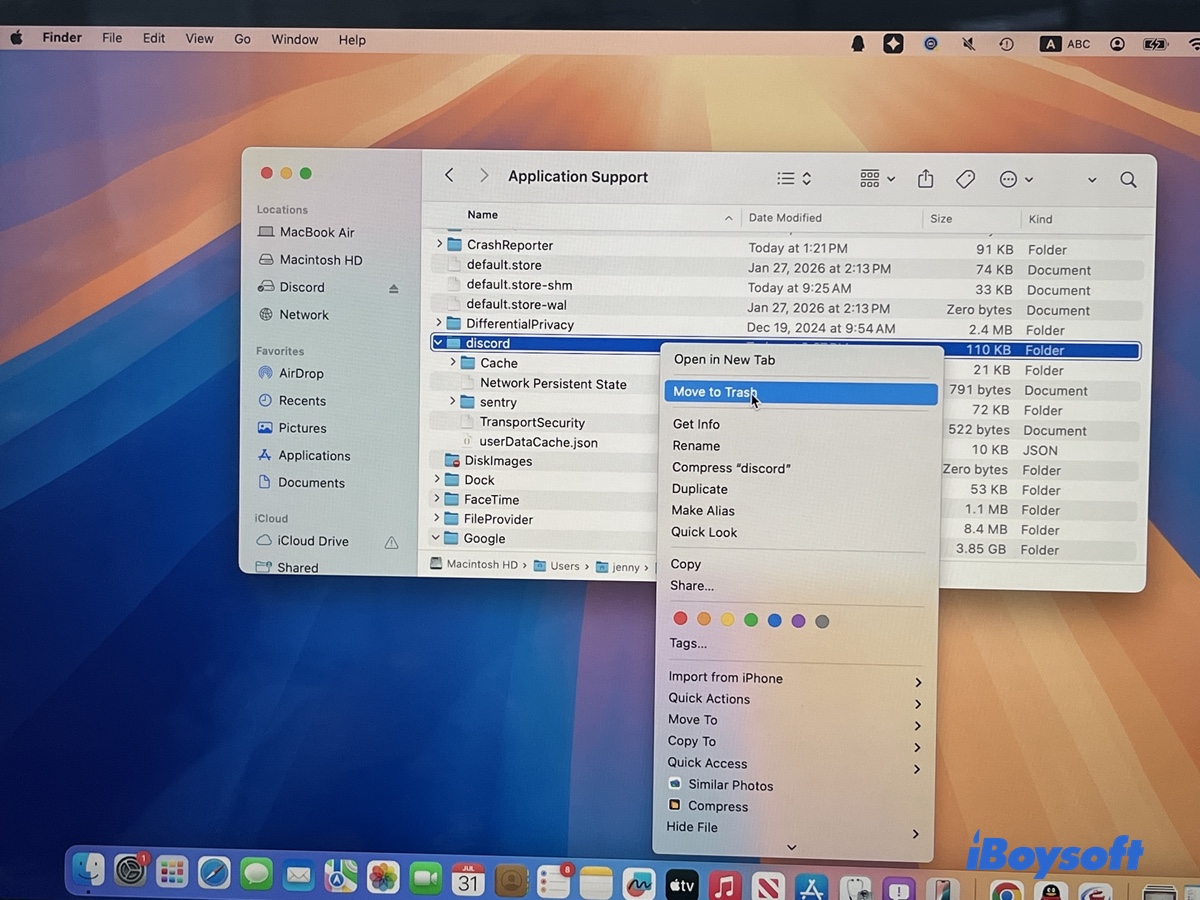
Common Discord-related files may include:
- Discord application support files
- Cache files
- Preference files
- Log files
After removing Discord and its related files:
- Right-click Trash.
- Select Empty Trash.
Restart your Mac if you plan to reinstall Discord.
Method 2: Automatically Uninstall Discord on Mac (Recommended)
If you do not want to manually search through hidden folders, an app uninstaller can remove Discord and its associated files automatically.
iBoysoft Cleaner scans installed applications and helps remove apps together with related files, saving you from manually checking multiple Library locations. In addition, it can find the leftovers of uninstalled apps, large and old apps, and incomptaible apps on your Mac.
How to fully uninstall Discord with iBoysoft Cleaner:
- Download and open iBoysoft Cleaner.
- Choose the App Uninstaller feature.
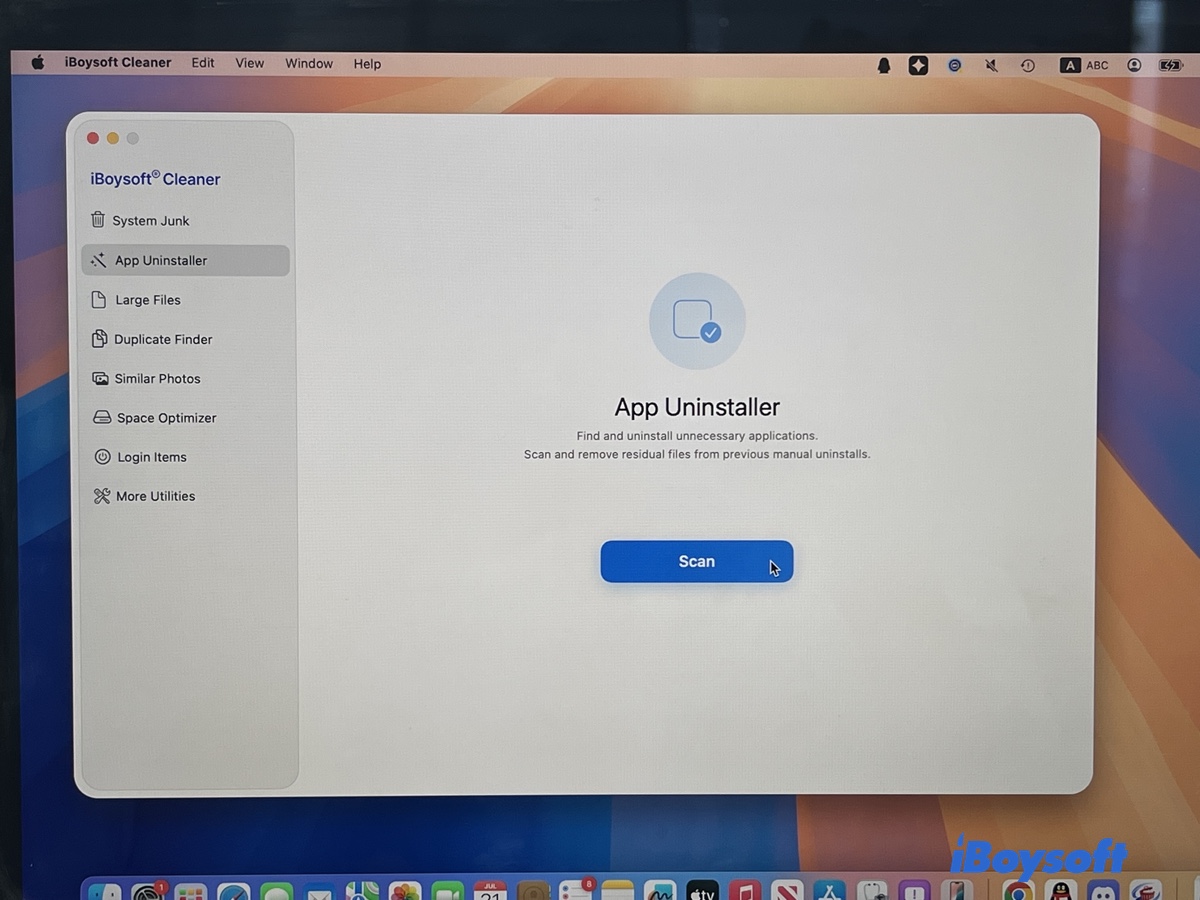
- Click Scan.
- Find Discord in the application list.
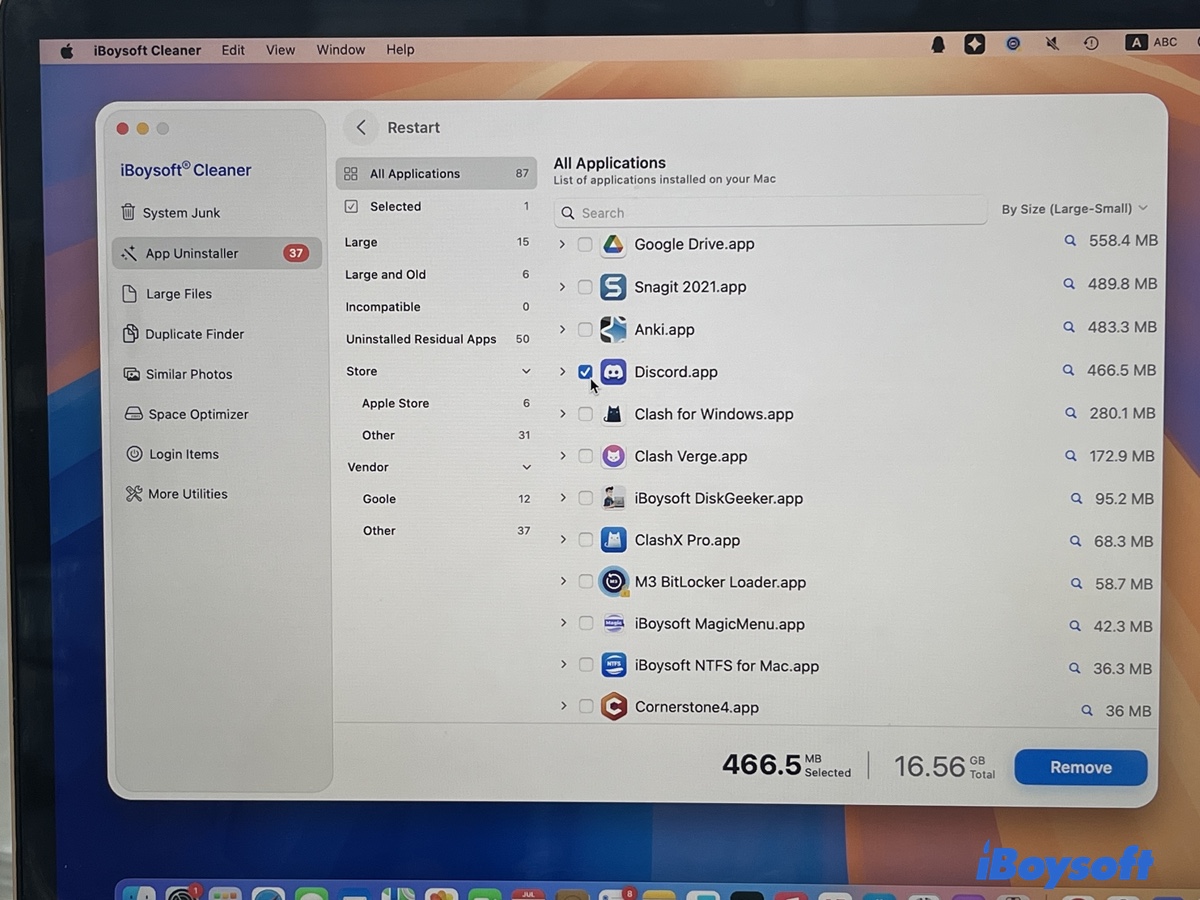
- Select Discord and click the arrow to view the related files.
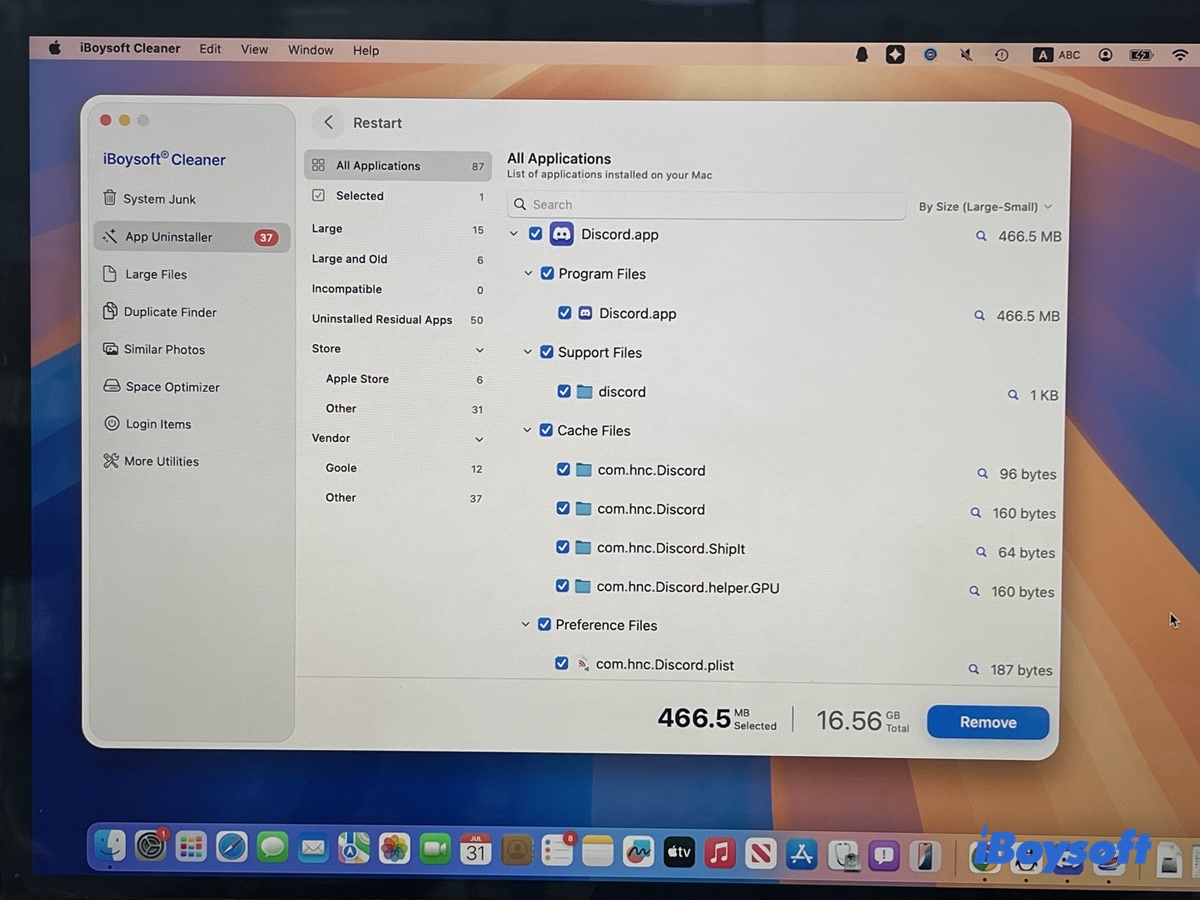
- Click Remove > Confirm to confirm the deletion of Discord and files relevant to it.
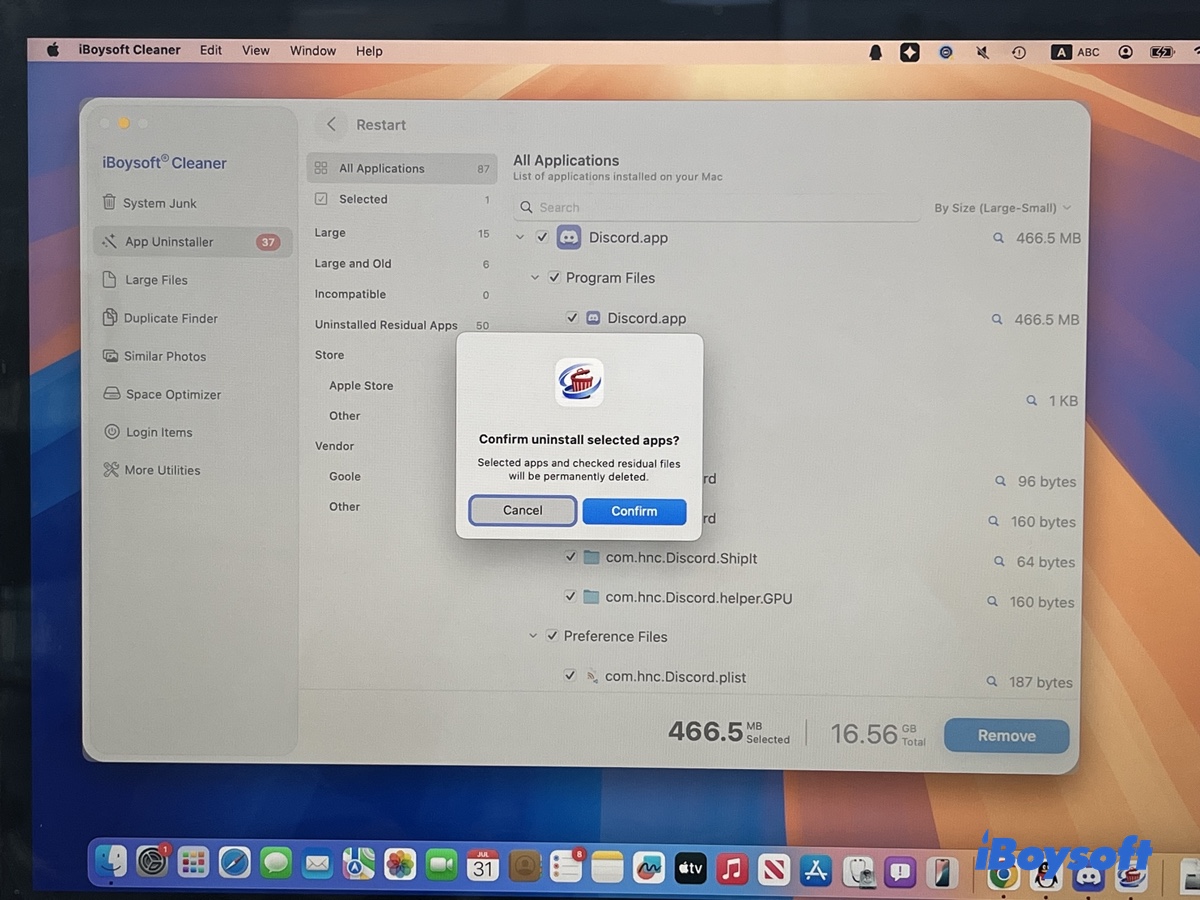
The advantage of using an automatic uninstaller is that it can locate associated files without requiring you to know where macOS stores application data.
Share this tool if you find it useful!
How to Remove Discord Cache Without Uninstalling It
If Discord is slow, freezing, or using too much storage, you may not need to uninstall it completely. You can clear Discord cache instead.
Follow the steps below to clear Discord cache manually:
- Quit Discord.
- Open Finder.
- Click Go > Go to Folders.
- Go to: ~/Library/Application Support/discord/
- Delete cache-related folders.
- After restarting Discord, macOS will create fresh cache files.
How to Uninstall Discord Canary or BetterDiscord on Mac
Besides the standard Discord app, some users install Discord Canary (testing version) or BetterDiscord (Discord modification). These versions store their own files, so deleting regular Discord may not remove them.
The general removal process is the same:
- Quit the app.
- Delete the application.
- Remove related files from Library folders.
- Empty Trash.
An automatic uninstaller can make this easier because you only need to select the correct app from the list.
Discord Won't Uninstall on Mac? Common Causes and Fixes
If Discord refuses to move to Trash or keeps appearing after removal, the problem is usually related to a running process, insufficient permissions, or leftover files. Try the fixes below based on what you are experiencing.
Cause 1: Discord is still running in the background
Even if you close the Discord window, the app may continue running in the background. macOS may prevent you from deleting an application while its processes are active.
What to do:
Right-click the Discord icon in the Dock and select Quit Discord. If Discord still cannot be removed, open Activity Monitor:
- Go to Finder > Applications > Utilities > Activity Monitor.
- Search for Discord.
- Select any Discord-related processes and click the Stop (×) button.
- Try moving Discord to Trash again.
Cause 2: Discord files are still left behind
Dragging Discord to Trash removes the main application, but macOS may keep related files in the Library folder. These leftover files can make it seem like Discord was not fully removed, especially if you reinstall the app and old settings return.
What to do:
Remove Discord-related files from these locations:
~/Library/Application Support/
~/Library/Caches/
~/Library/Preferences/
Search for folders or files containing "Discord" and move them to Trash.
Cause 3: You don't have permission to delete Discord
If Discord was installed by another user account or your Mac has restricted permissions, macOS may block deletion.
What to do:
- Right-click Discord in the Applications folder.
- Select Get Info.
- Check the Sharing & Permissions section.
- Make sure your account has permission to read and write.
- Try deleting Discord again.
Cause 4: Discord reappears after uninstalling
If Discord comes back after restarting your Mac or reinstalling it, some related files may still exist, or Discord may be set to launch automatically.
What to do:
- Check System Settings > General > Login Items.
- Remove Discord if it is listed.
- Delete remaining Discord support files from the Library folder.
- Restart your Mac.
FAQs
- QDoes dragging Discord to Trash uninstall it completely?
-
A
No. Dragging Discord to Trash removes the main application, but macOS likely still keep supporting files such as caches and preferences. These files are usually harmless but can remain on your Mac.
- QWill uninstalling Discord delete my account?
-
A
No. Removing the Discord app only deletes local files from your Mac. Your Discord account, servers, messages, and friends are stored online.
- QCan I reinstall Discord after uninstalling it?
-
A
Yes. After removing Discord, download the latest version from Discord's official website and install it again.
- QWhat is the easiest way to completely remove Discord from Mac?
-
A
Using an automatic uninstaller is usually the easiest option because it avoids manually searching through hidden system folders. Tools like iBoysoft Cleaner can help locate and remove Discord-related files automatically.