Creating a bootable macOS installer on a Mac is straightforward: Apple provides a single, built-in command (createinstallmedia) that does all the heavy lifting in Terminal. However, if your Mac won't boot, or if you only have a Windows PC available, creating that recovery drive becomes a massive hurdle.
Many online guides still suggest legacy command-line workarounds, claiming you can simply extract system files from a macOS installer using 7-Zip or TransMac on Windows and burn them to a flash drive.
In reality, attempting this manual route on modern versions of macOS, such as macOS Golden Gate, leads to a frustrating maze of errors, dead ends, and wasted hours. Here is a breakdown of why the old manual methods fail and how modern Windows software provides a seamless, one-click alternative.
Why do old methods fail on modern macOS?
Recently, I needed to create a bootable USB for macOS Golden Gate entirely from a Windows machine. Naturally, I tried the free, open-source route (gibMacOS + MakeInstall) first. What followed was a frustrating rabbit hole of troubleshooting:
Download Failures: The popular gibMacOS script failed to download the full installer, forcing me to hunt down and manually download the raw InstallAssistant.pkg directly from Apple's CDN.
Drive Detection Issues: When I ran MakeInstall to burn the USB, my drive wouldn't even show up. I had to drop into Command Prompt, launch diskpart, and manually clean and format the drive just to make it recognizable.
Extraction Roadblocks: Modern macOS packages like Golden Gate store system files differently. The automated 1-line 7-Zip commands threw "No files to process" errors, and manually digging through nested Payload~ folders left me staring at missing .dmg files.
After hours of wrestling with terminal commands, drive partitioning errors, and hidden archive structures, I realized that while the manual method (extracting BaseSystem.dmg and burning it via MakeInstall or TransMac) used to work on older releases like macOS Catalina, it is fundamentally broken for modern macOS versions.
Tips: To learn how to create a macOS bootable USB on Windows manually with TransMac, read: How to Create a macOS Bootable USB from Windows 10/11? [Full Guide]
Share this article if the information is helpful!
Create macOS Golden Gate bootable USB with iBoysoft DiskGeeker
Rather than wasting hours trying to force obsolete scripts to parse modern Apple payload structures, using a dedicated tool designed specifically for Windows solves the problem in minutes.
Tools like iBoysoft DiskGeeker for Windows handle the heavy lifting automatically, bypassing manual extraction nightmares, configuring partition tables correctly, downloading the official installer from Apple, and writing the boot headers automatically.
If you want to create a macOS 27 bootable USB efficiently without failure or wasting time, follow the steps below:
Prerequisite: Prepare an external storage device, such as a USB flash drive, with 20 GB or more of free space. If it has important data, back it up before proceeding.
Step 1: Download, install, and open iBoysoft DiskGeeker for Windows.
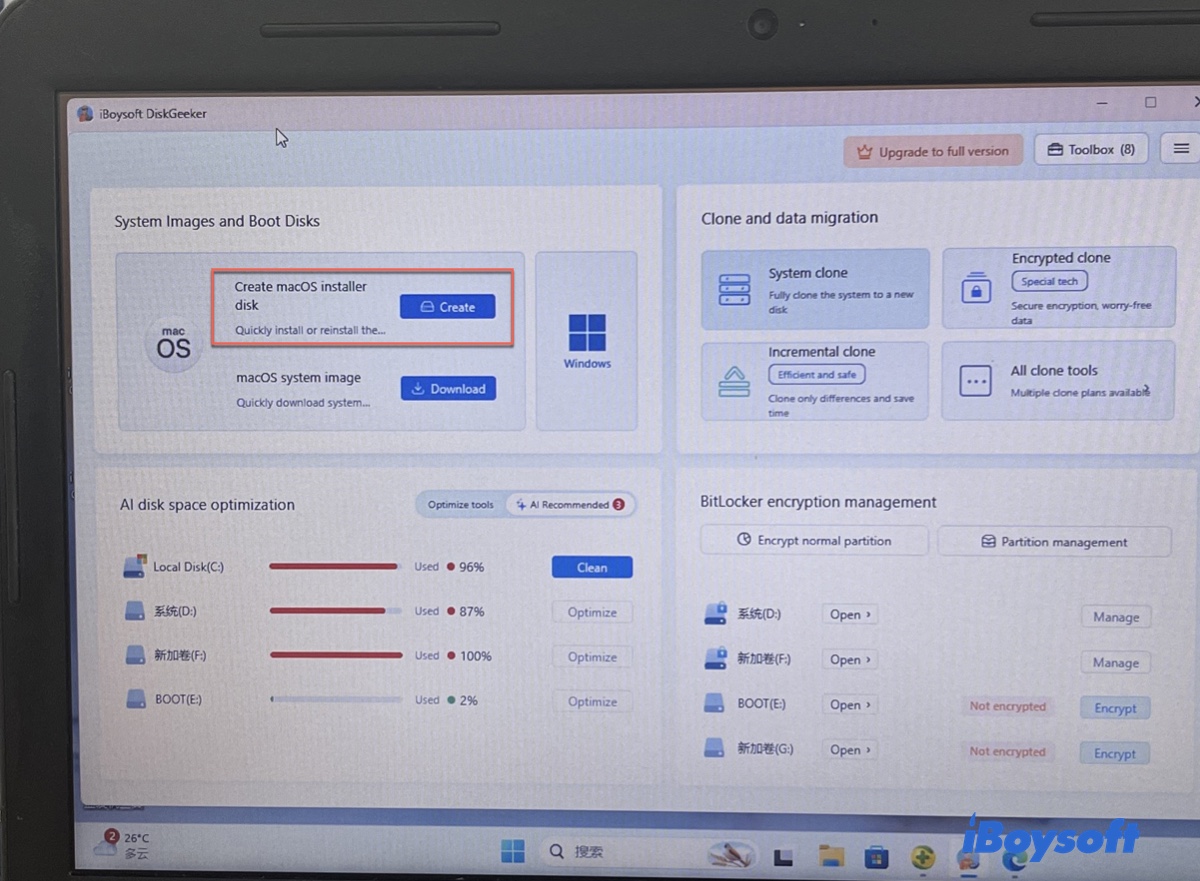
Step 2: Tap Create next to Create macOS installer disk.
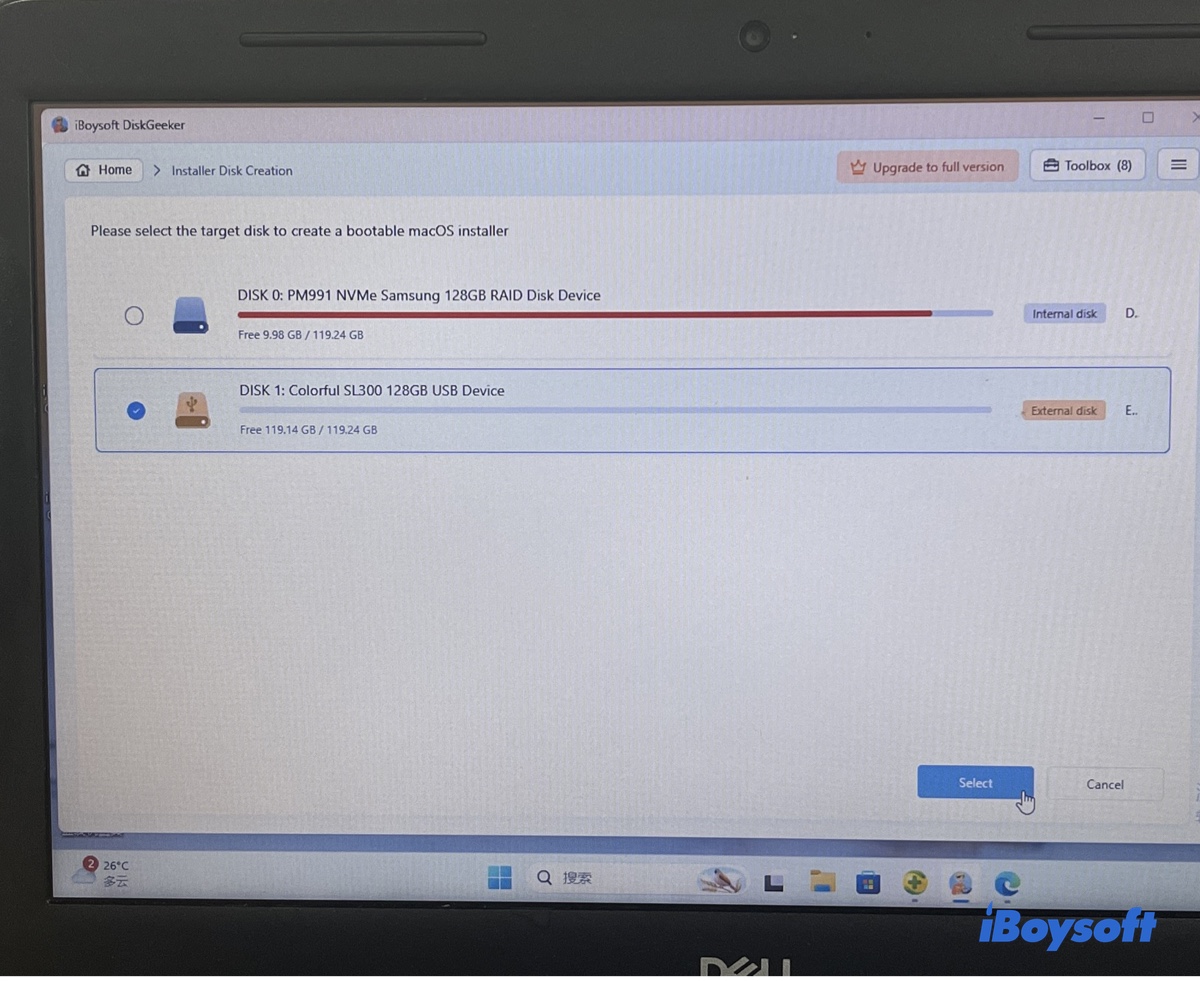
Step 3: Ensure the external drive is connected. Select it and click Select.
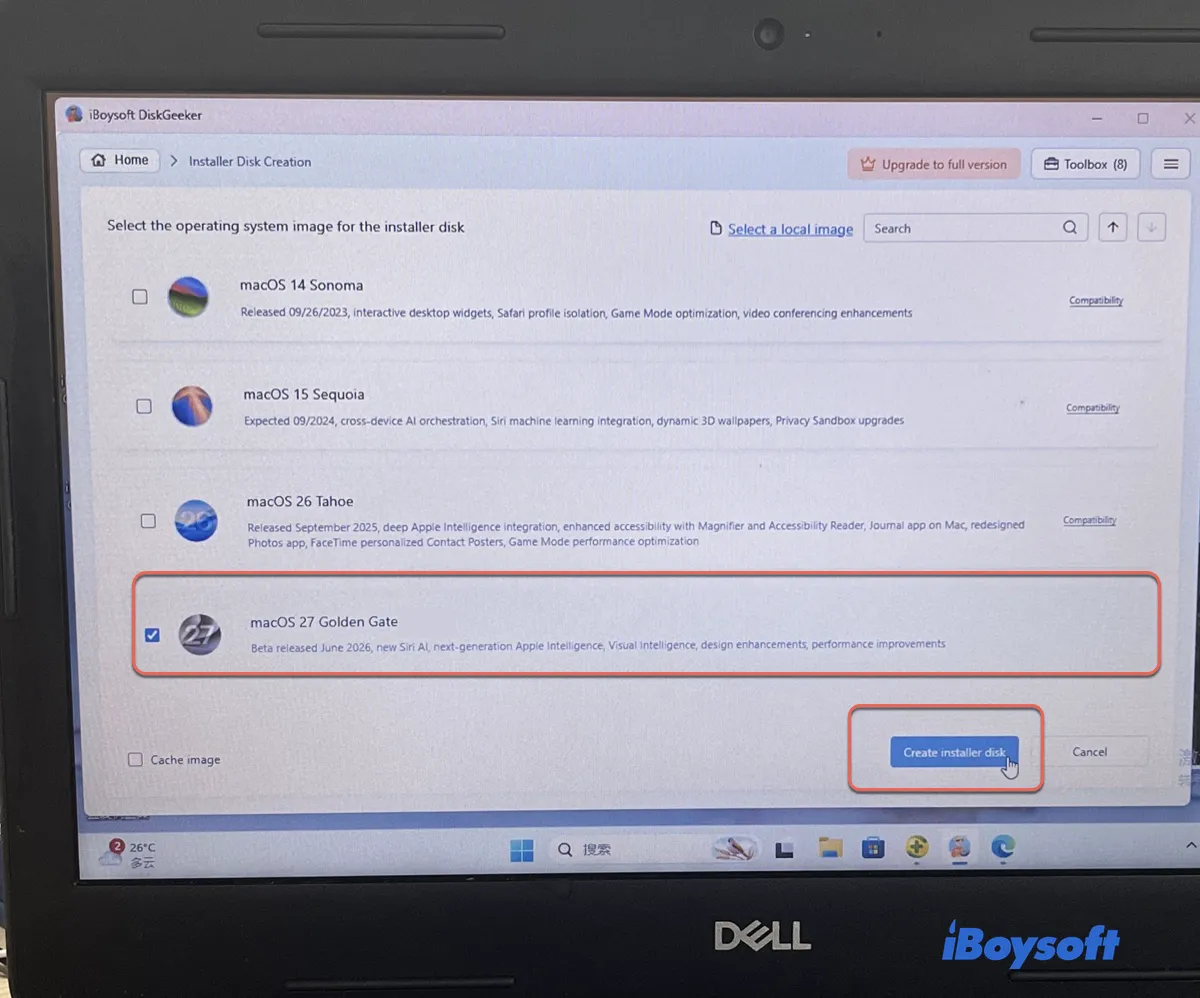
Step 4: Choose macOS 27 Golden Gate and click Create installer disk.
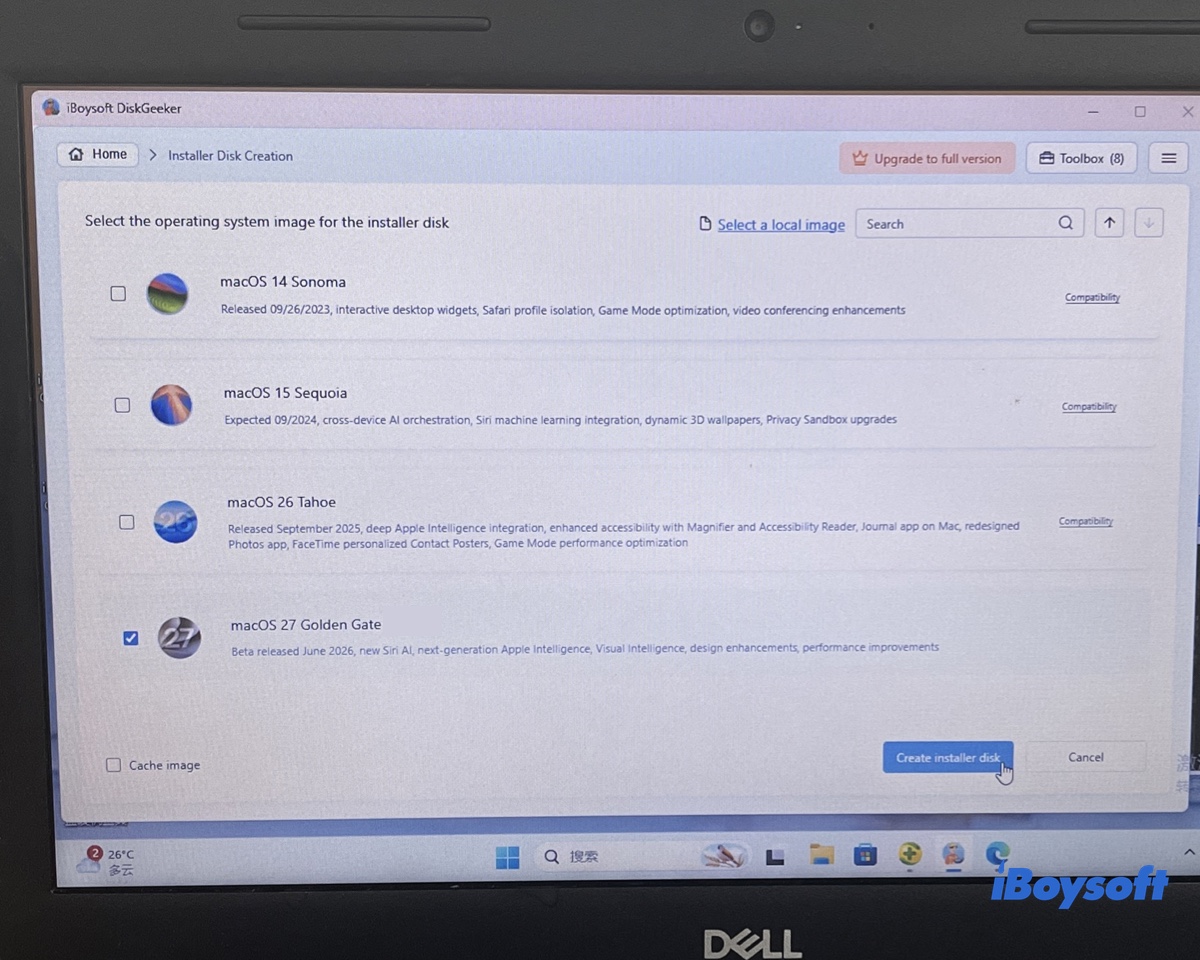
Step 5: The tool will start downloading macOS Golden Gate. Once downloaded, it will automatically start creating the bootable drive.
Also interested:
How to install macOS 27 Golden Gate on Windows
Share this tool if you find it useful!
FAQs
- QWhy didn't gibMacOS or MakeInstall work for macOS Golden Gate?
-
A
gibMacOS and MakeInstall were created when Apple used standalone BaseSystem.dmg files inside installer packages. Modern macOS versions split payload files into compressed chunks that Windows cannot recombine without Mac-specific code. The author of gibMacOS explicitly notes that MakeInstall.bat cannot assemble USB installers on Windows for modern macOS releases.
- QCan I use TransMac to burn macOS Golden Gate to a USB?
-
A
TransMac can write raw .dmg images to USB drives, but it cannot parse modern multi-part .pkg files or construct the modern APFS/boot headers required by newer macOS installers. Using TransMac for modern macOS versions usually results in an unbootable drive.
- QWill creating a bootable macOS USB on Windows work on Apple Silicon Macs?
-
A
Yes. As long as the USB is formatted with a GPT partition layout and contains an official macOS installer package, both Intel and Apple Silicon Macs can recognize and boot from the USB via their respective startup menus.