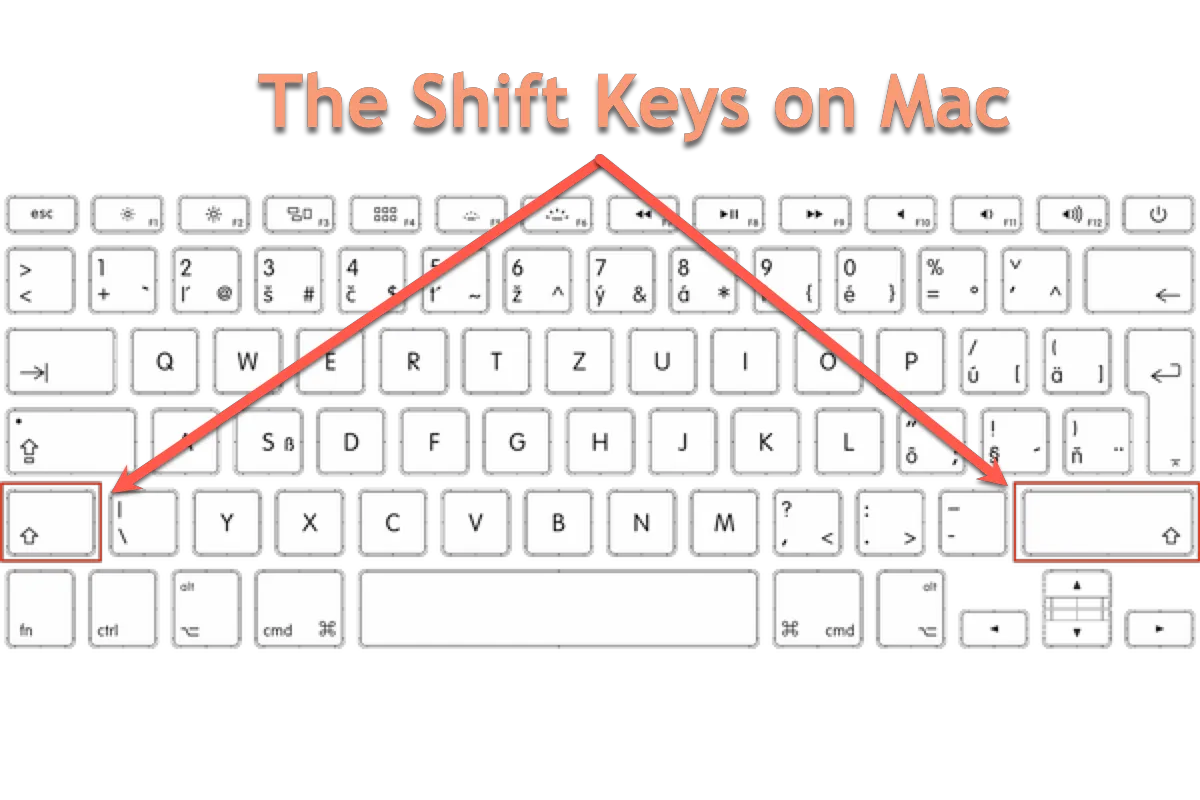
No matter whether it is an external keyboard or a soldered keyboard, it has a series of modifier keys with Mac, such as the Tab key, the Command key, the Control key, and the fn key. These modifier keys play a significant role in various key shortcut combinations to complete different easy tasks like copying, pasting, editing, screenshotting, screen recording, and so on.
This post will guide you through learning one of these modifier keys: the Shift key. After reading this post, you will know where it is and how to use it in numerous shortcut combinations! Let's get started!
Where is the Shift Key on a Mac Keyboard?
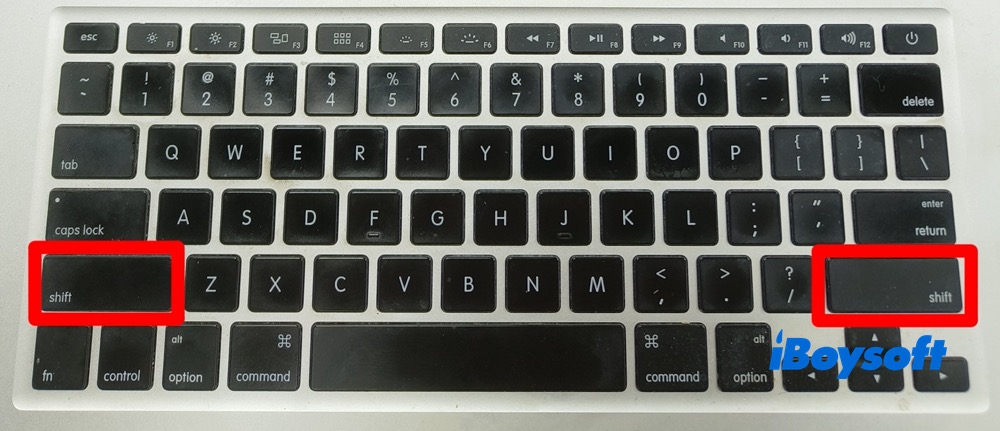
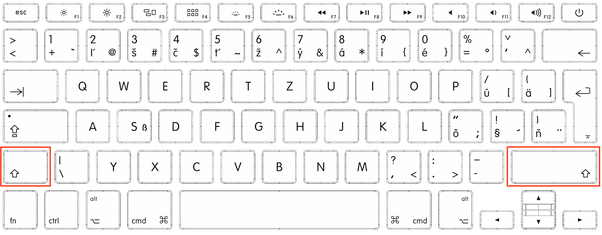
Look at the following picture - the left Shift key is under the “Caps Lock” key and the right Shift key is under the “Return (or Enter)" key.
What does the ⇧ Symbol Mean?
In Apple menus and shortcut documentation, ⇧ represents Shift.
What is the Shift Key on a Mac?
The Shift key on a Mac is a modifier key that looks like an up arrow (⇧). It's used to type capital letters and other uppercase characters. There are two Shift keys on a Mac keyboard: one is on the left side, below the Caps Lock key; and the other is on the right side, above the arrow keys.
The Shift key's name originated from the typewriter, where one had to press and hold the button to shift up the case stamp to change to capital letters; the Shift key was first used in the Remington No. 2 Type-Writer of 1878; the No. 1 model was capital-only. On the US layout and similar keyboard layouts, characters that typically require the use of the Shift key include the parentheses, the question mark, the exclamation point, and the colon.
When the Caps Lock key is engaged, the Shift key may be used to type lowercase letters on many operating systems, though not on macOS or on Microsoft Windows keyboard layouts that have the SGCAPS feature.
The Shift key works not only when you press the shortcut combinations but also when you use the mouse or trackpad.
Please share this post with more people!
Common Shift Key Uses on Mac
Since we have figured out the basic questions about the Shift key, like where is the Shift key, what the ⇧ symbol mean, and what is the Shift key on a Mac, now it's time to dive deep into the common Shift key uses on Mac to boost your Mac experience.
Shift key
- Press and hold the Shift key to change to capital letters.
- To select a continuous range of files, folders, or text on a Mac, click the first item, hold down the Shift key, then click the last item. Everything between the two will be selected.
Shift key system shortcuts
- Shift-Command-5: In macOS Mojave or later, capture a screenshot or make a Mac screen recording. Or use Shift-Command-3 or Shift-Command-4 for screenshots.
- Control–Shift–Power button: this will make your displays sleep.
- Shift-Command-Q: Log out of your macOS user account. A confirmation prompt will appear. To log out immediately without confirmation, press Option-Shift-Command-Q.
- Shift-Command-Delete: Empty the Trash.
- Option-Shift-Command-Delete: Empty the Trash without confirmation dialog.
- Option–Shift–Volume Up or Option–Shift–Volume Down: Adjust the sound volume in smaller steps.
Shift key text-editing shorcuts
- Shift-Command-Colon (:): Show the Spelling and Grammar window.
- Shift–Command–Up Arrow: Select the text between the insertion point and the beginning of the document.
- Shift–Command–Down Arrow: Select the text between the insertion point and the end of the document.
- Shift–Command–Left Arrow: Select the text between the insertion point and the beginning of the current line.
- Shift–Command–Right Arrow: Select the text between the insertion point and the end of the current line.
- Shift–Up Arrow: Extend text selection to the nearest character at the same horizontal location on the line above.
- Shift–Down Arrow: Extend text selection to the nearest character at the same horizontal location on the line below.
- Shift–Left Arrow: Extend text selection one character to the left.
- Shift–Right Arrow: Extend text selection one character to the right.
Useful Shift Shortcuts in Finder
This part concludes a long list of useful Shift shortcuts for Finder and you can bookmark this page or add this table to Favorites for quick access anytime:
- Shift-Command-C: Open the Computer window.
- Shift-Command-D: Open the desktop folder.
- Shift-Command-F: Launch the Recents window: all of the files you viewed or changed recently will show up.
- Shift-Command-G: Go to Folder window will open.
- Shift-Command-H: Run the Home folder of the current macOS user account.
- Shift-Command-I: Activate iCloud Drive.
- Shift-Command-K: Open the Network window.
- Shift-Command-N: 1 second to create a new folder in Finder.
- Shift-Command-O: Quick access to the Documents folder.
- Shift-Command-P: Show or hide the Preview pane in Finder windows.
- Shift-Command-R: AirDrop window will pop up.
- Shift-Command-T: Show or hide the tab bar in the Finder windows.
- Control-Shift-Command-T: Add selected Finder item to the Dock (OS X Mavericks or later).
- Control-Shift: Press and hold while accessing the Dock to use or stop using Dock magnification.
- Shift-Command-U: Instantly access to the Utilities folder.
- Command or Shift while selecting an item: Select multiple items in the Finder.
What If the Shift Key Stuck or Not Working on Mac?
The issue of Shift key stuck on Mac or stops working is common to see. If unluckily you encounter this problem, don't be gloomy. Follow the workarounds below to get this issue resolved.
1. Check whether macOS thinks Shift is being held
- Open Keyboard Viewer: click the Input menu in the menu bar → Show Keyboard Viewer.
- If you don't see the Input menu, go to System Settings → Keyboard → Text Input → Edit → Show Input menu in menu bar. If either Shift key stays highlighted when you are not touching it, macOS is detecting it as stuck
2. Turn off accessibility keyboard features
- Go to System Settings → Accessibility → Keyboard and turn off: Sticky Keys and Slow Keys. Sticky Keys can make modifier keys like Shift behave as if they are held, and Slow Keys can make keys seem unresponsive.
- Also check System Settings → Accessibility → Pointer Control and turn Mouse Keys off.
3. Check keyboard layout
Go to System Settings → Keyboard → Text Input → Edit and make sure the correct input source/keyboard layout is selected. A wrong layout can make keys appear to behave incorrectly.
4. Restart and disconnect accessories
Restart the Mac. If you use an external keyboard, disconnect it and test the built-in keyboard. If you use a Magic Keyboard, turn it off and back on using the switch.
5. Update macOS
Go to System Settings → General → Software Update and install available updates, after backing up important data. Apple notes Software Update installs compatible Apple software updates and upgrades for your Mac.
When Right-click Workflows are Easier?
The large number of Shift key shortcuts makes them difficult to remember. If the complex Shift key shortcuts are not your cup of tea, take iBoysoft MagicMenu into consideration.
This Mac right-click menu enhancer customizes your Finder context menu with over 40 new and improved functionalities, including new file creation, file copying/moving, quick access to websites or directories, complete app uninstallation, duplicate file/similar photos detection, screen capture, cutting & pasting, file path copying, and file airdropping, etc.
Wanna make Finder right-click workflows easier? Give iBoysoft MagicMenu a try!
FAQs about Mac Shift Key
- Q1. My MacBook shift key always pressed, how to fix this?
-
A
Turn the computer off, remove the Shift key, then restart the MacBook. If it boots normally, reinstall the key properly. It’s likely that the scissor mechanism or the metal stabilizer under the key isn’t seated correctly.
- Q2. How to replace macbook air shift key?
-
A
For a MacBook Air Shift key replacement, the right fix depends on what broke:
. Keycap only popped off
. Keycap or hinge clip is broken
. Rubber dome or keyboard base is damaged
Solution: Apple or an Apple Authorized Service Provider can inspect it and quote the repair; Apple says certified repairs use genuine Apple parts, and AppleCare/warranty coverage only applies through Apple or an AASP.