If your external monitor is not detected on macOS Tahoe, you're definitely not the only one. After the Tahoe upgrade, many Mac users began noticing that displays that worked perfectly before suddenly:
- don't appear in System Settings → Displays
- connect but stay black
- disappear after sleep or reboot
- work through HDMI but not USB‑C or Thunderbolt
- detect only one monitor in a dual‑display setup
What's important is this: most of these cases are not random hardware failures. When you read through real user discussions, clear patterns start to appear. This guide brings those patterns together and explains them in a calm, practical way.
Why are external monitors not detected on macOS Tahoe?
If your external display suddenly stops working after upgrading to macOS Tahoe, the issue is usually caused by one of three areas:
- Connection problems: incompatible USB-C/Thunderbolt cable, dock firmware, or loose port
- System detection errors: macOS fails to recognize the display after sleep, reboot, or update
- Software conflicts: outdated DisplayLink drivers or macOS bugs introduced in recent builds
Understanding the root cause is more helpful than trying random fixes.
External monitors not detected on macOS Tahoe (Verified Fix)
1. Reboot with the monitor/dock connected
Several users fixed the detection simply by shutting down the Mac, connecting the monitor/dock, and then powering on. This ensures the display handshake occurs at boot, which Tahoe sometimes misses otherwise.
2. Replace your cable
Many reports show displays that worked before Tahoe stopped working with the same USB-C/Thunderbolt cable and worked again immediately after switching to a Thunderbolt 4/5-rated cable, such as a new Anker Thunderbolt 4 cable or an Apple Thunderbolt 5 cable.
3. Try detecting displays with the Option key
Go to System Settings → Displays, hold down the Option key, then click Detect Displays. This forces macOS to re-handshake with connected monitors. This is often the first step that "brings a display back to life" for users reporting weak or intermittent detection.
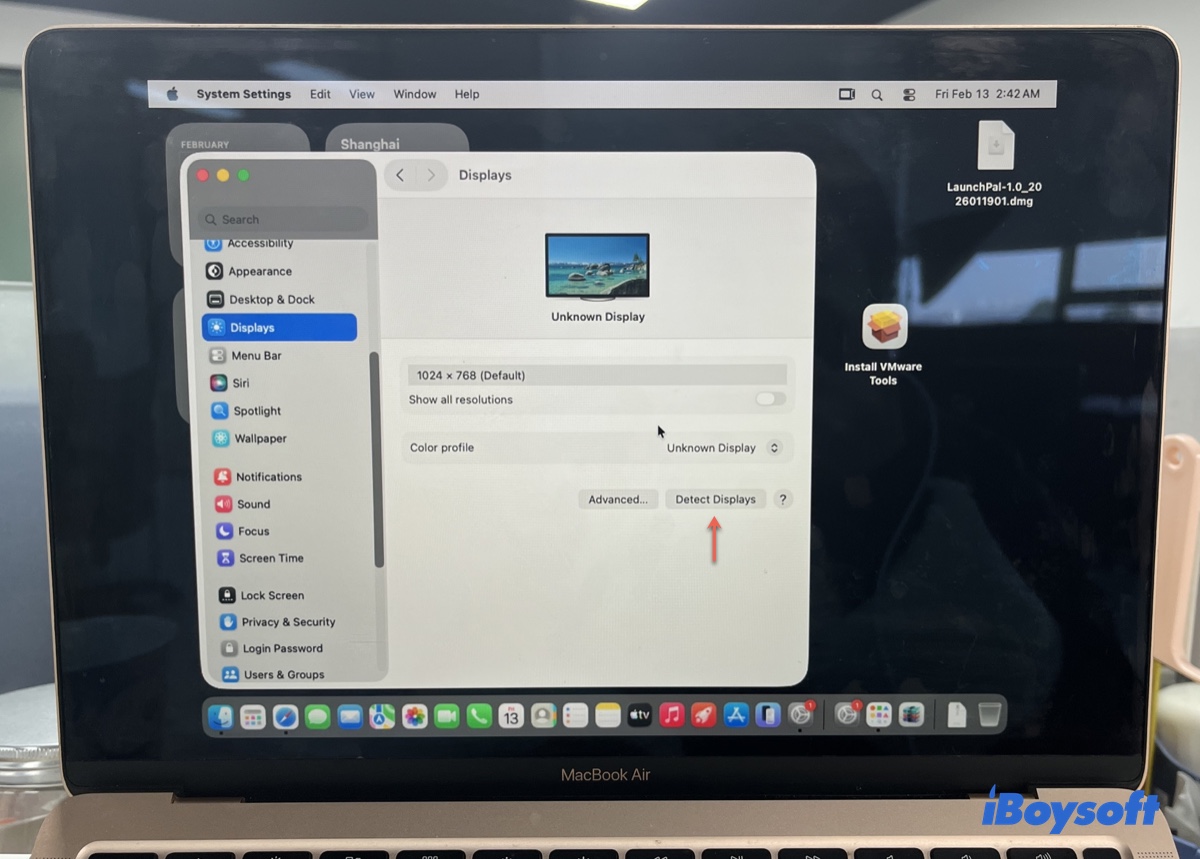
If the monitor appears here, the issue is likely software detection, not hardware failure.
4. Reset Display Preferences
Some users found success by removing WindowServer preference files linked to displays, then restarting.
- Press Command-Space, type in "Terminal," then launch Terminal.
- Copy the following command one by one into Terminal and hit Enter to execute it.sudo rm -f /Library/Preferences/com.apple.windowserver*.plist
rm -f ~/Library/Preferences/ByHost/com.apple.windowserver.displays*.plist
sudo killall -HUP WindowServer - Type in your administrator password and hit Enter to grant admin access.
- After all commands are executed, restart your Mac.
This can clear corrupted display settings that prevent detection.
⚠️ Back up before removing system files.
5. Power cycle devices & hubs
One user reported that rebooting the dock/hub as well as the Mac restored detection, especially for USB-C/Thunderbolt docks.
6. Adjust Monitor DisplayPort Version
A Reddit contributor noted success by toggling DisplayPort versions on the monitor's OSD menu (DP1.1 → DP1.2/1.4). This forces a new link training (handshake) that cleared Tahoe detection issues for them.
7. Test a different port, cable direction, or connection method
You can also try the following simple hardware variations:
- flip the USB-C cable ends
- switch to another Thunderbolt port
- try HDMI instead of USB-C temporarily
If HDMI works but USB-C doesn't, the problem is usually cable or dock compatibility.
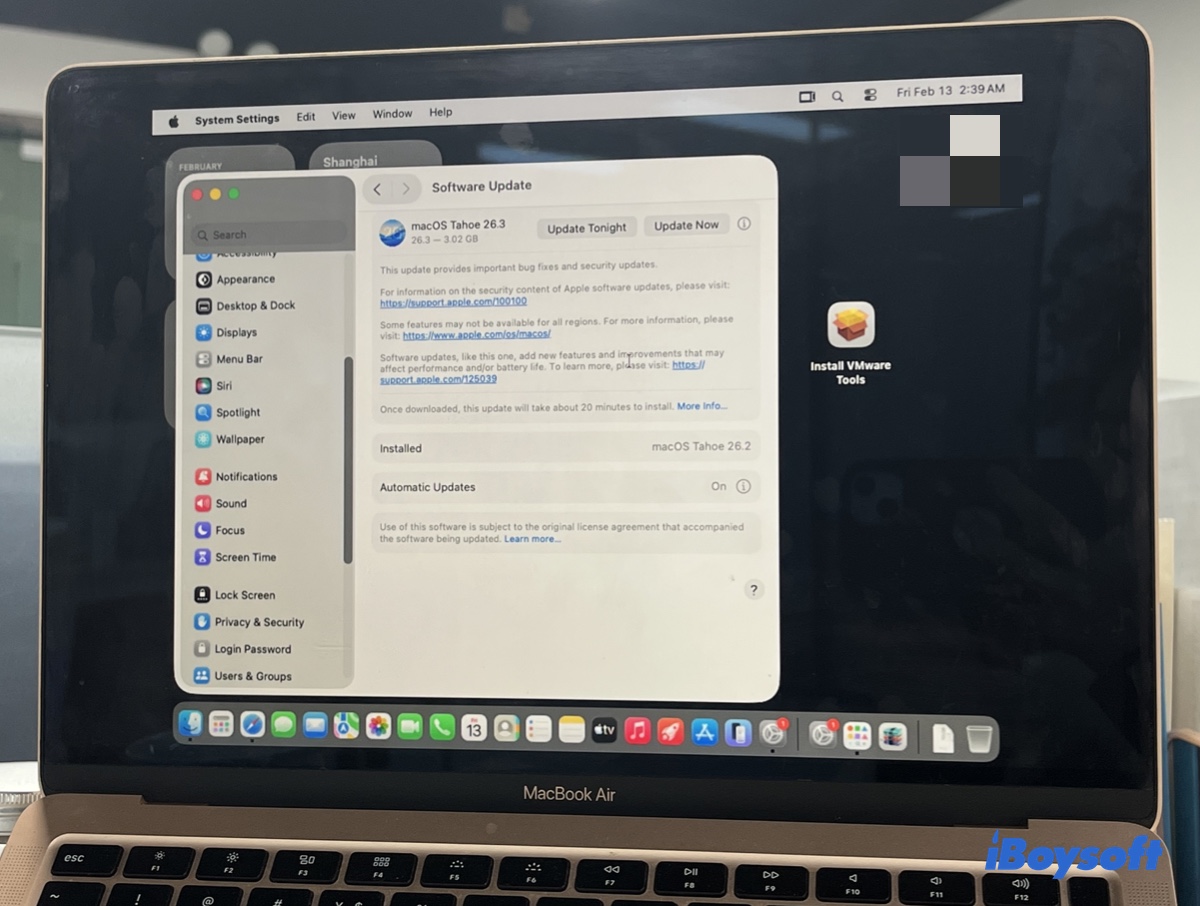
8. Update macOS Tahoe
When multiple users report the same problem after a new macOS release, the root cause is often a system bug, not your setup. Keeping macOS updated is sometimes the only permanent fix.
Open System Settings > General > Software Update to check and install available macOS Tahoe updates.
💡 Real cases (What people are actually reporting)
Case 1: Dual Monitors, Only One Works
A MacBook Pro shows two monitors, but only one is detected after Tahoe. System Information doesn't list the second monitor, indicating no handshake.
Community Fixes Suggested:
- cable/port swap,
- deleting display preference files,
- high-quality cable short enough for stable signaling.
Case 2: HDMI Monitor Not Detected
An external HDMI display stopped working on M2 Pro after Tahoe. Connecting an iPad as external display temporarily “unlocks” the HDMI display, suggesting Tahoe's display pipeline can be triggered only after certain layers are active.
Repeated guidance: high-quality HDMI cables (Premium/Ultra) also help.
Case 3: Monitor Works on Linux or HDMI, But Not USB-C
Multiple users reported the same monitor and cable working on non-Mac devices or Linux, but failing on macOS Tahoe until a more robust cable was used.
FAQs
- QDoes the type of cable or dock affect display detection on macOS Tahoe?
-
A
Yes. Many users report that charging-only or low-quality USB-C cables fail to trigger the handshake needed for detection. Certified Thunderbolt or full-feature USB-C cables, short and direct connections, and reliable docks significantly improve the chances of successful display detection.
- QWhy does macOS Tahoe detect only one of my dual monitors?
-
A
Tahoe sometimes fails to recognize multiple displays due to handshake timing issues, especially when using docks or USB-C hubs. Solutions that worked for real users include switching to certified cables, manually detecting displays (Option → Detect Displays), or resetting display preferences.