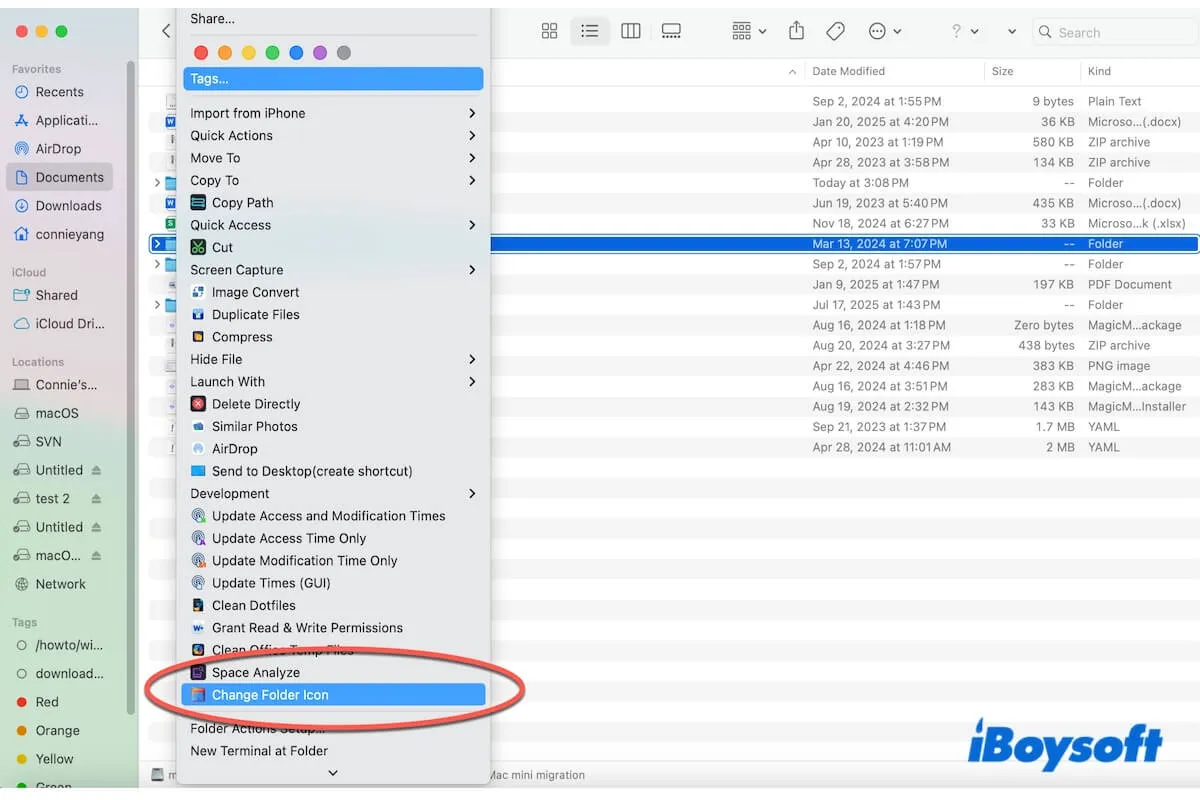
The default blue-colored and invariable folder icon makes it hard to find your often-used ones on your Mac.
The Change Folder Icon extension in iBoysoft MagicMenu (a multi-functional right-click enhancer for Mac) allows you to right-click to change the icon and color of a folder, enabling you to distinguish accumulated folders on your desktop and Finder quickly.
With this iBoysoft Change Folder Icon extension, you can add SF symbols, emoji, text, and any desired image onto a folder icon. With it, you won't need to change a folder icon and color via the complicated setup and a lot of time spent.
This feature also supports you in restoring to the default icon at any time with a right-click.
How to enable the iBoysoft Change Folder Icon extension in your right-click menu
Using the built-in Preview application to change the folder color on a Mac involves cumbersome steps, while changing the folder icon requires editing in another utility - Get Info.
So, download and install iBoysoft Change Folder Icon onto your right-click menu for quick operation.
Here's how:
Step 1: Free download, install, and open iBoysoft MagicMenu on your Mac.
The Change Folder Icon is a feature of iBoysoft MagicMenu. So, to use it, you need to rely on iBoysoft MagicMenu.
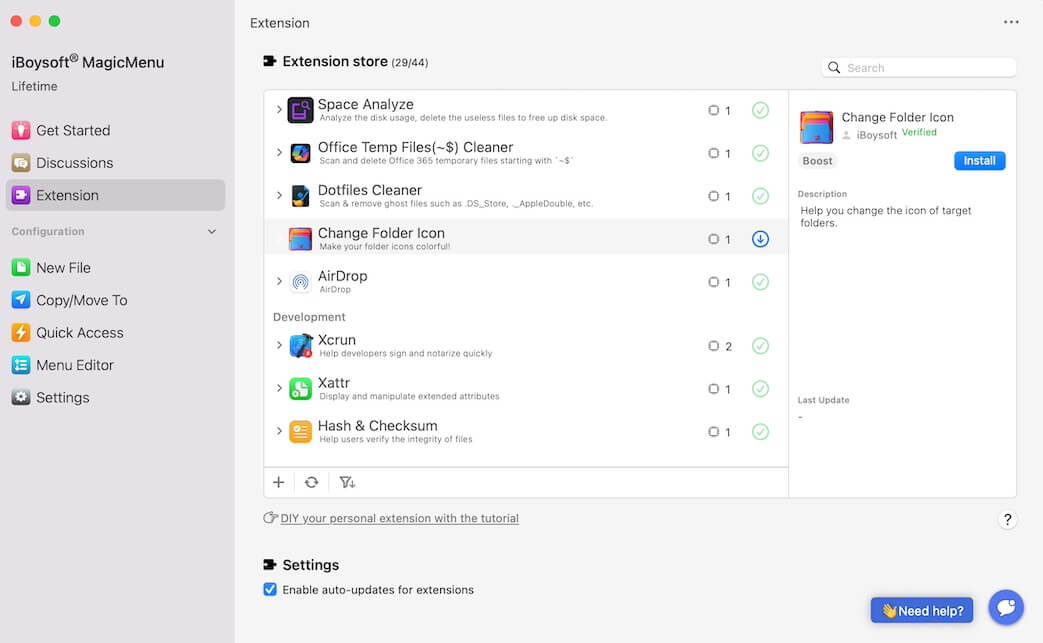
Step 2: Click Extension on the sidebar of the application's main interface.
In the Extension store, you'll see all the extensions that you can add to your right-click menu.
Step 3: Find the Change Folder Icon and click the download button next to it.
This is to install the Change Folder Icon feature in your right-click menu.
Tell others how to enable the Change Folder Icon extension in the right-click menu.
How to change folder icon and color on a Mac with the iBoysoft MagicMenu extension
Once you've enabled iBoysoft Change Folder Icon in your right-click menu, you can right-click any folder in Finder or on your desktop to change its icon and color quickly.
Here are the steps:
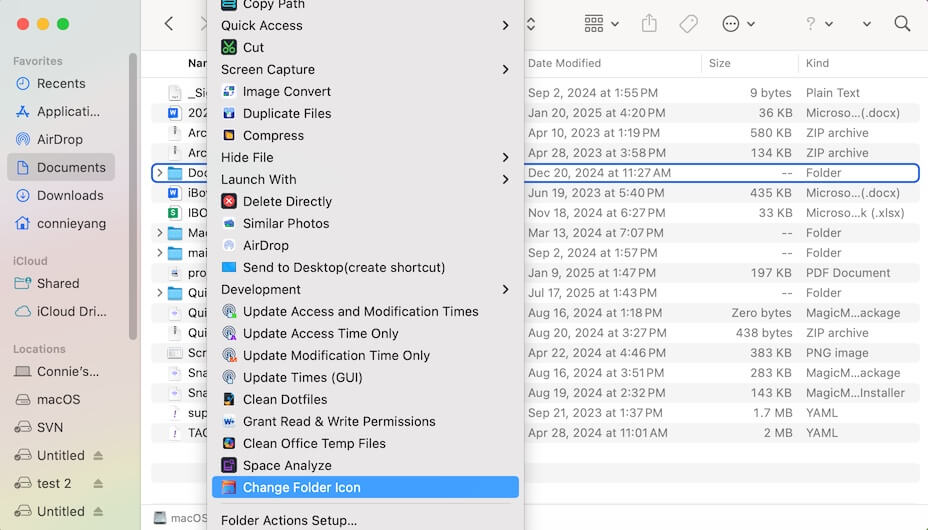
- Right-click a folder on your Mac.
- Select "Change Folder Icon" on the right-click menu.
- On the prompt, click the color palette in the Color section and choose your desired color.
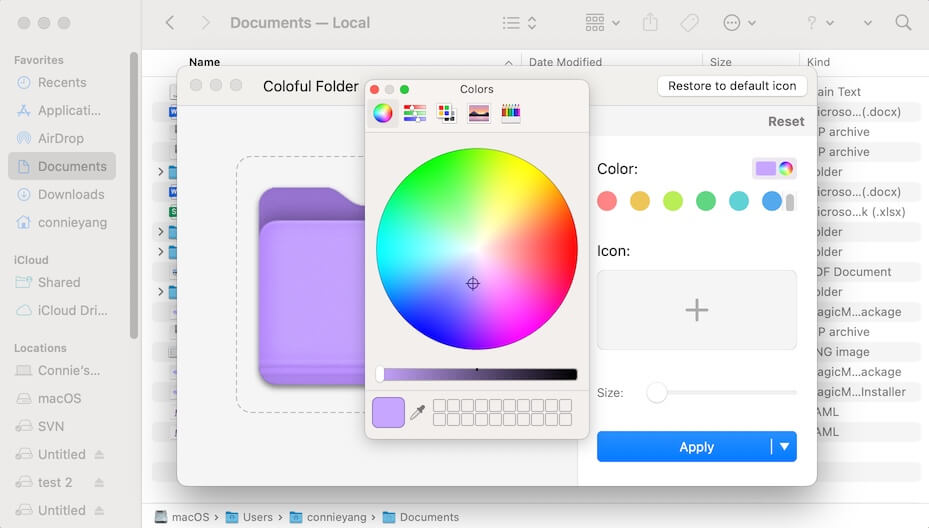
- In the Icon section, click the + (add) icon and select a form of icon.
SF Symbols: a set of vector-based icons (over 5,000) designed by Apple that are mainly used in the Apple ecosystem.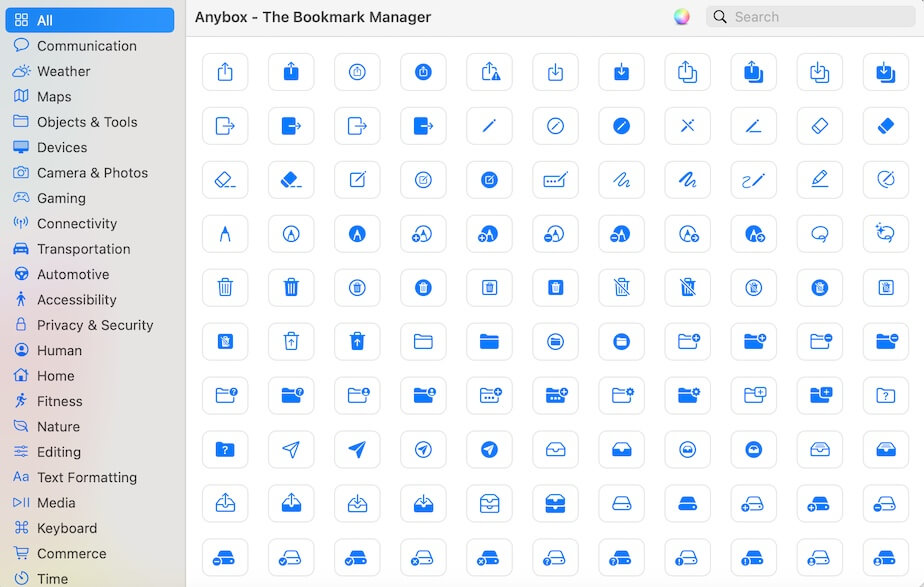
Emoji: the built-in Character Viewer offers emoji, symbols, and characters in different categories.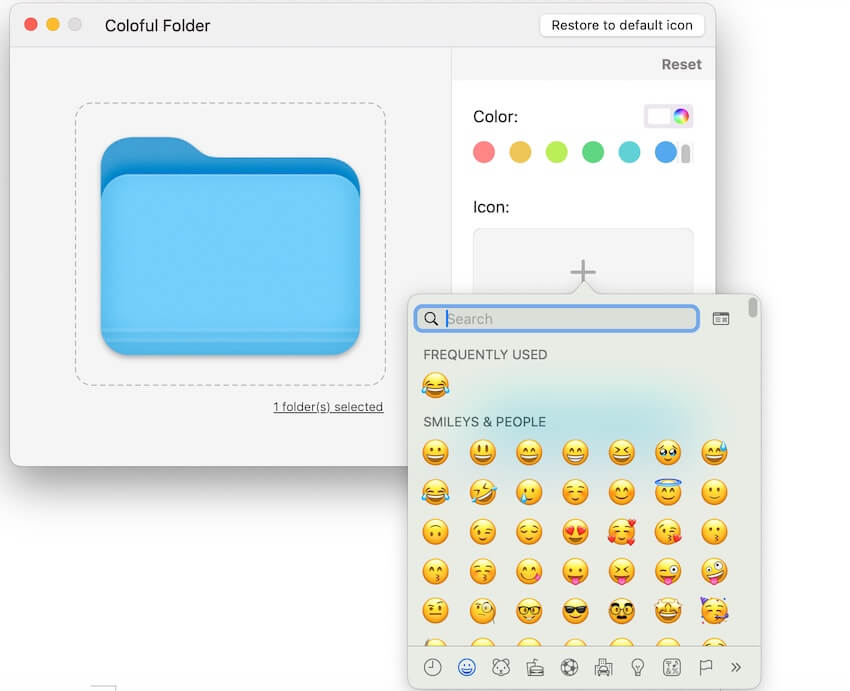
Text: enter the text you want to display on the folder icon.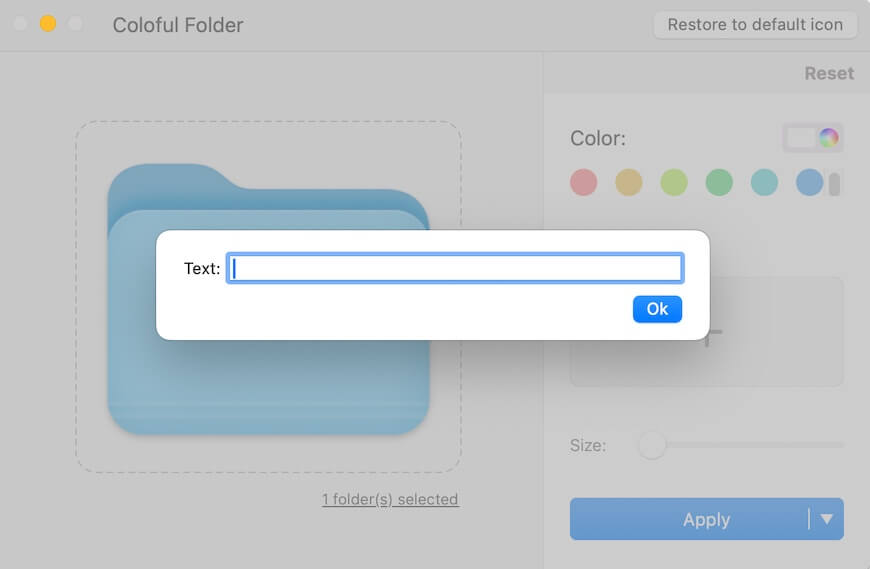
Select image: upload and add any image you want.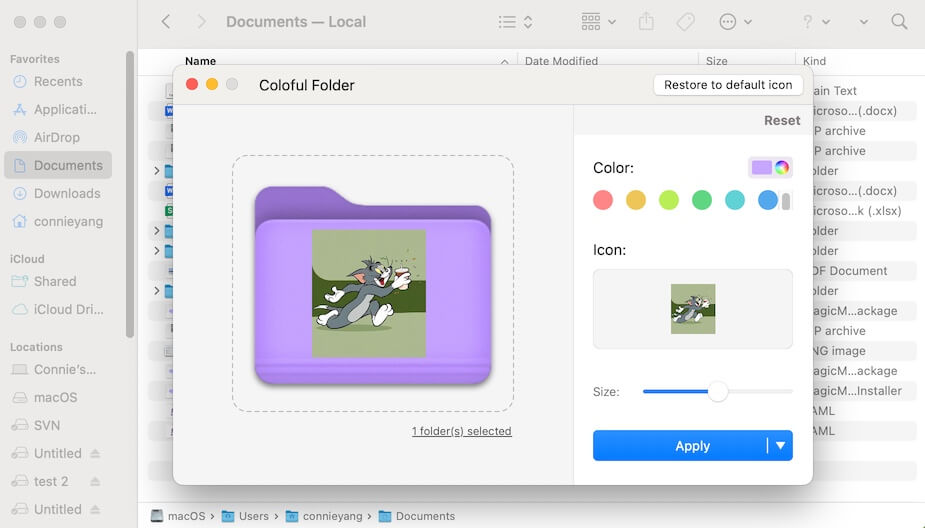
- Move the size slider to adjust the size of the icon you've added.
- Click "Apply."
If you want to apply the changed folder icon and color also to all the subfolders in the target folder, click the expand arrow next to "Apply" and select "Apply to Subfolders."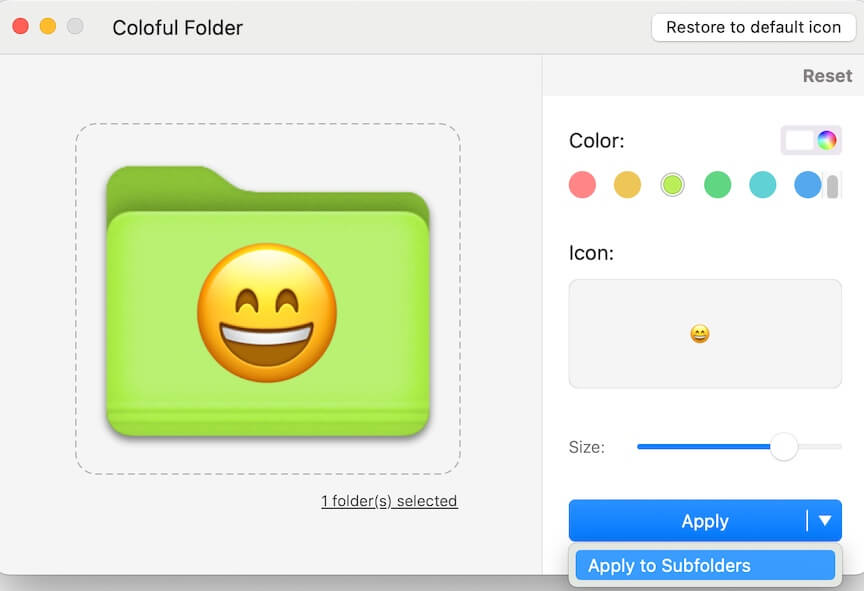
Share the quickest way to change folder color and icon on a Mac with your friends.
How to restore a folder icon to the default on a Mac with the iBoysoft MagicMenu extension
If you don't like the changed folder icon and color and want to restore the folder to the default, iBoysoft's Change Folder Icon extension can also help you with one click.
- Right-click the target folder and select "Change Folder Icon."
- Click the Restore to default icon in the upper-right corner of the prompt.
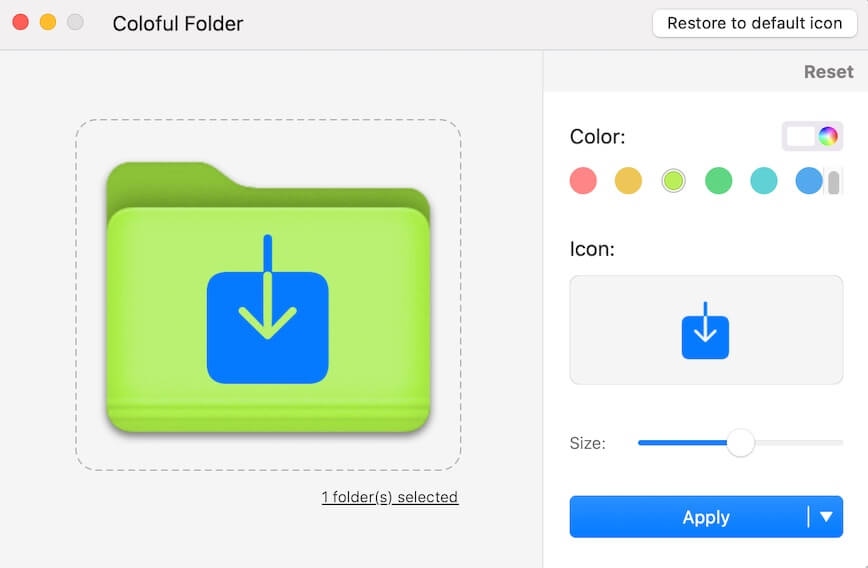
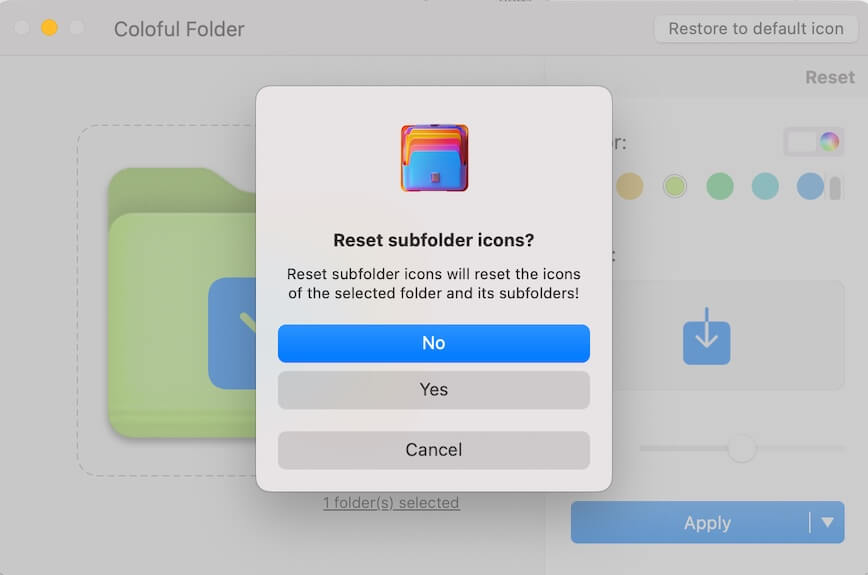
- Click "No" if you've only changed the folder without its subfolder icons and colors.
- Click "Yes" if you've applied the changes to the folder and all its subfolders.
If you think this post introduces the iBoysoft Change Folder Icon extension for Mac clearly, share it with others.
FAQs about the iBoysoft Change Folder Icon extension
- QHow to change folder icon on Mac with transparent background?
-
A
You need to make your desired image a PNG one first, in other words, make it with a transparent background.
Then, install iBoysoft MagicMenu on your Mac, go to Extension on the app's main UI, and click the download button next to Change Folder Icon to add it to your right-click menu.
After that, right-click the folder and click Change Folder Icon, click the + (add) button in the Icon section, choose Select image, and upload your PNG image to add it.
- QCan you change folder icons on a Mac?
-
A
Yes, you can use the Change Folder Icon extension of iBoysoft MagicMenu to change the folder icon and color on your Mac.
Simply download, install, and open iBoysoft MagicMenu on your Mac. Click Extension > the download button next to Change Folder Icon, right-click the folder, and click Change Folder Icon to change folder icons and colors.