If you want to run macOS on a Windows PC or an unsupported Mac, you usually need to install it on a virtual machine, such as VMware or VirtualBox. However, the process of configuring a macOS virtual machine is often complex and time-consuming. Fortunately, you can download the macOS VMDK file to install macOS on your computer easily.
Note: Although a macOS VMDK is convenient, it's not customized for each computer. If you want to maximize the macOS installation, download the macOS ISO file via iBoysoft DiskGeeker and configure the virtual machine manually. Here's how to get the bootable macOS ISO file:
Step 1: Free download, install, and open iBoysoft DiskGeeker.
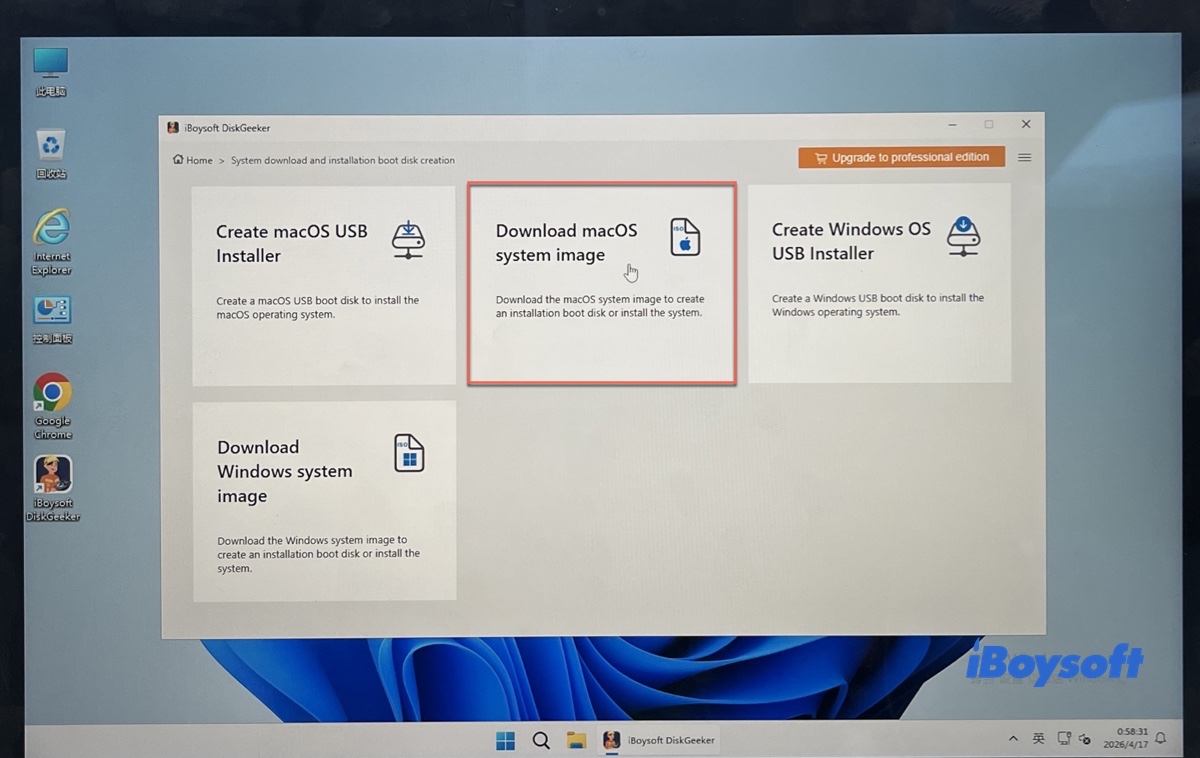
Step 2: Open Download and create boot disk > Download macOS system image.
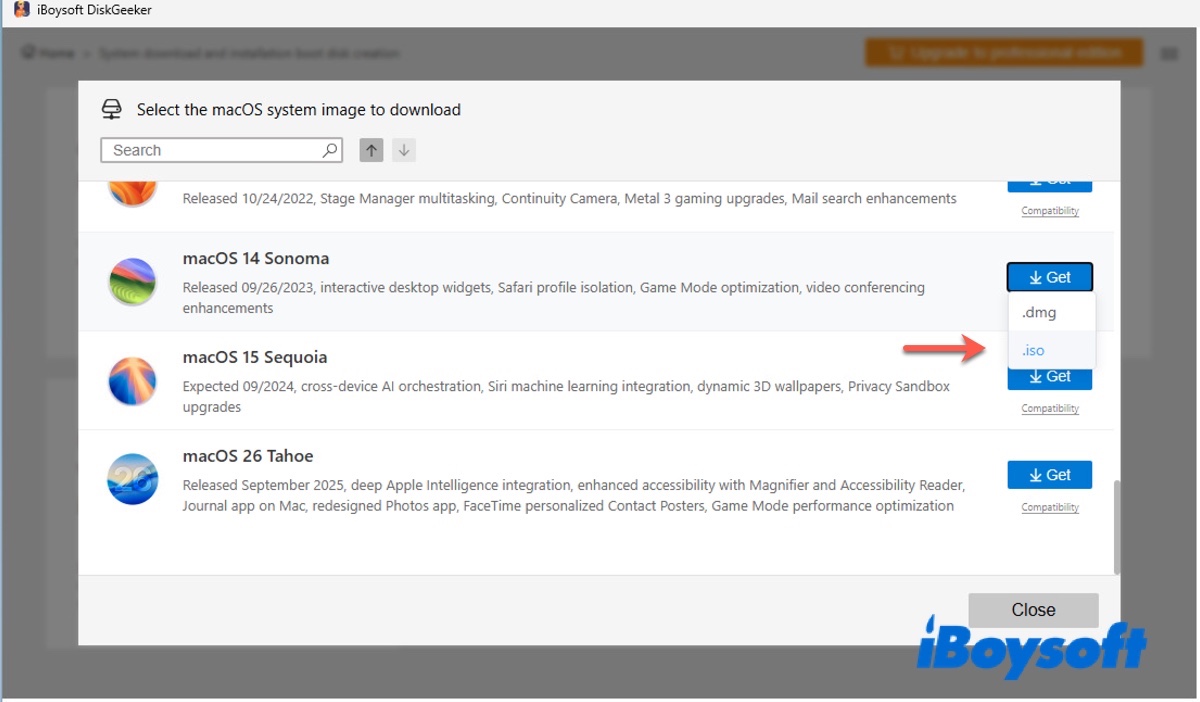
Step 3: Click the macOS version you need, click Get, and choose the .iso format.
Step 4: Choose where to save the macOS ISO file.
Step 5: Wait until the download is complete.
Then follow these guides to install macOS on VMware or VirtualBox:
What's a macOS VMDK file?
A macOS VMDK file is a virtual machine disk image designed to store the Mac operating system for use in a virtual machine. It serves as a virtual hard drive that's preconfigured with the macOS operating system, applications, settings, and necessary drivers to facilitate the installation.
VMDK was originally developed by VMware for its virtual products. In 2021, it became an open format that's available for all VMware virtualization products, including VMware Workstation, VMware Workstation Player, VMware Fusion, VMware Server, and third-party software.
Here is other software that supports VMDK:
- VirtualBox
- Parallels Desktop for Mac
- QEMU
- Paragon Hard Disk Manager
- DiskInternal VMFS Recovery
Share macOS VMDK with others!
How to download macOS VMDK files?
This section provides direct downloads to macOS VMDK files. You can choose the version most suitable for your computer.
macOS Tahoe VMDK download for VMware/VirtualBox
macOS Sequoia VMDK download (15.5)
macOS Sequoia VMDK download (Google Drive)
macOS Sonoma VMDK download (Google Drive)
macOS Ventura VMDK download (Google Drive)
macOS Monterey VMDK download (MediaFire)
macOS Big Sur VMDK download (Mega.nz)
macOS Big Sur VMDK download (MediaFire)
macOS Catalina VMDK download (MediaFire)
macOS Catalina VMDK download (Mega.nz)
macOS Mojave VMDK download (MediaFire)
macOS High Sierra VMDK download (MediaFire)
macOS High Sierra VMDK download (Mega.nz)
macOS Sierra VMDK download (MediaFire)
OS X El Capitan VMDK download (MediaFire)
Tips: To get more details on running macOS Tahoe on a Windows PC, check out the following resources:
Share these links to help others download macOS VMware VMDK disk image files!
How to open a macOS VMDK file?
With the macOS VMDK file, you can easily create a virtual macOS installation with the following steps: (we use VirtualBox as an example.)
- Open VirtualBox and click New to create a new virtual machine.
- Name the new virtual machine, then specify the type, version, and RAM.
- Click "Use an existing virtual hard disk file."
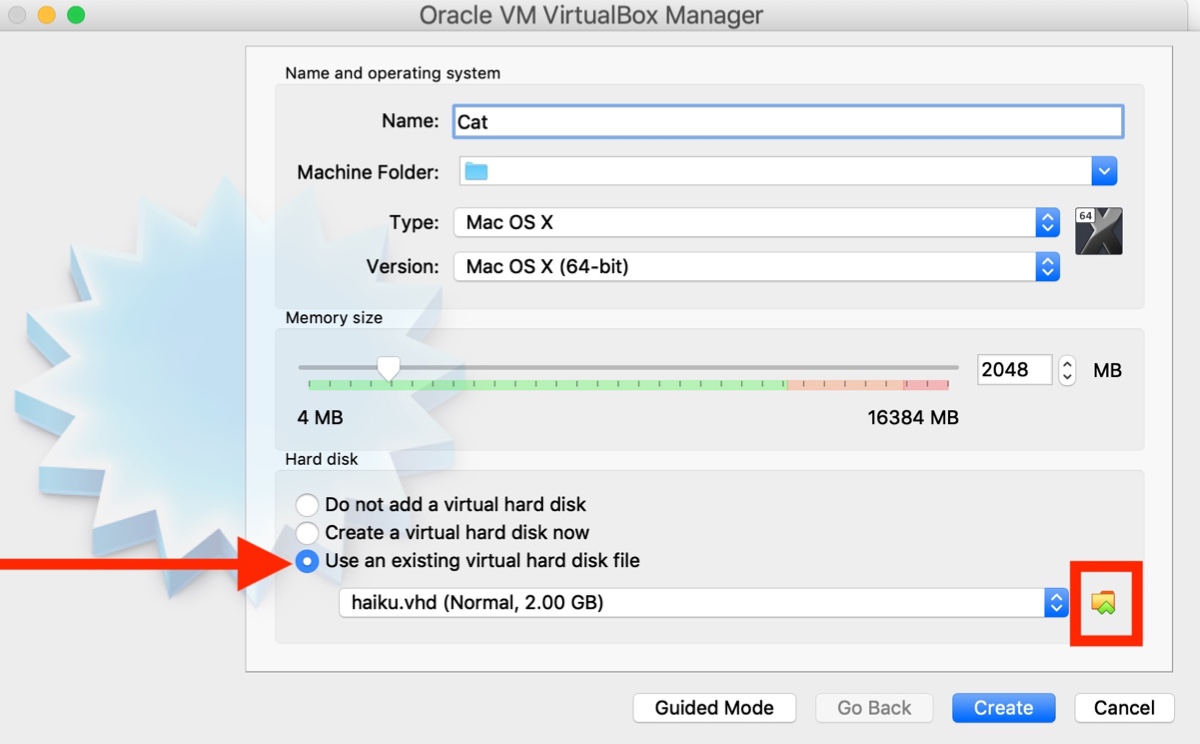
- Click Add and navigate to the VMDK file.
- Select the macOS VMDK file and click Open > Choose.
- Tap Create to create the new virtual machine with the VMDK file.
- Click Start to boot up the VMDK virtual machine.
Share these steps if they are helpful!
FAQs
- QCan I use a macOS .vmdk file on Windows or Linux?
-
A
Yes, but with significant caveats. A .vmdk (Virtual Machine Disk) file is a container format developed by VMware. While the file itself is cross-platform, macOS is designed by Apple to run exclusively on Apple hardware.
To successfully boot a macOS VMDK on a Windows or Linux host, you typically need:
Virtualization Software: VMware Workstation or Player.
An Unlocker Tool: A third-party patch that bypasses the restriction preventing macOS from appearing as an option in the 'New Virtual Machine' wizard.
Hardware Compatibility: Your CPU must support virtualization (VT-x/AMD-V).
- QHow do I convert a macOS .vmdk to an .iso or .dmg?
-
A
You generally cannot 'convert' a virtual disk directly into a bootable installer file like an .iso or .dmg because a VMDK is a full disk image (containing the OS, file system, and data), whereas an .iso is typically a read-only installation media.