- 💡How to Download & Install Windows 7 in 5 Steps:
- 1️⃣ Identify Your Version: Match your PC hardware to the correct edition (Home, Pro, or Ultimate) and architecture (64-bit or 32-bit).
- 2️⃣ Verify Requirements: Ensure your machine meets the 1GHz processor and 2GB RAM minimums for a smooth experience.
- 3️⃣ Download Windows 7 installers: Download the .iso disk images from free archives (Download Now) or third-party downloaders (Try Now).
- 4️⃣ Create Bootable Media: Use Windows 7 USB/DVD Download Tool to create a bootable USB for a PC in BIOS, or a professional tool to safely burn the official ISO to a USB drive for both BIOS and UEFI support.
- 5️⃣ Install Windows 7 from USB: Boot from the Windows 7 installation media to perform a clean install or upgrade.
If you need to download Windows 7 in 2026, finding a safe and official source can be a challenge since Microsoft ended its direct support.
Whether you are setting up a virtual machine, reviving legacy hardware, or running specialized software, this guide provides the most reliable methods to obtain a genuine installer and steps to install Windows 7.
Below, we'll walk you through choosing the correct version—64-bit or 32-bit, a suitable edition, and show you how to create a bootable USB for Windows 7 that ensures compatibility with modern UEFI systems and older BIOS. Follow our step-by-step process to get your system up and running securely.
We'll also discuss an alternative method: cloning the Windows 7 C drive to run it from an external USB.
| Windows 7 at a Glance (2026 Update) |
| Release Date: October 22, 2009 |
| Current Status: End of Life (January 14, 2020) |
| Latest Version: Service Pack 1 (SP1) with Convenience Rollup |
Check your architecture: 32-bit vs. 64-bit
Before choosing the Windows 7 download, you should know which architecture your Windows PC supports. Follow the steps below to check if your PC is 32-bit or 64-bit:
- Right-click on Computer or This PC.
- Select Properties.
- Under the System section, look for System type.
If you see 64-bit Operating System, your hardware is capable of running the 64-bit version, even if you are currently using 32-bit.
If you see 32-bit Operating System, your computer can only run the 32-bit version of Windows 7.
Once you know your system type, use the following table to understand the differences between 32-bit and 64-bit Windows 7. This should help you determine which architecture to choose.
| Feature | 32-bit (x86) | 64-bit (x64) |
| Max RAM Support | 4 GB | Up to 192 GB (Pro/Ultimate) |
| Processor Requirement | 1 GHz or faster | 1 GHz or faster (x64 capable) |
| Software Support | 32-bit apps only | 32-bit and 64-bit apps |
| Best For | Older PCs, Netbooks | Modern PCs, Gaming, VMs |
| Disk Space Requirement | 16 GB | 20 GB |
Windows 7 minimum hardware requirements
To ensure a smooth installation, your PC must meet or exceed these basic hardware specifications. Note that 64-bit versions require slightly more resources than 32-bit versions.
| Component | 32-bit (x86) Requirement | 64-bit (x64) Requirement |
| Processor (CPU) | 1 GHz or faster | 1 GHz or faster |
| Memory (RAM) | 1 GB | 2 GB |
| Hard Drive Space | 16 GB available | 20 GB available |
| Graphics Card | DirectX 9 with WDDM 1.0 | DirectX 9 with WDDM 1.0 |
Note: While these are the minimums, we recommend at least 4 GB of RAM for a modern web browsing experience on Windows 7.
Windows 7 editions: Which version should you choose?
Before downloading Windows 7, it's essential to determine which edition of Windows 7 best suits your needs. There are six Windows7 editions, as explained in the table below:
| Windows 7 Edition | Best For | Architecture | Key Features |
|---|---|---|---|
| Windows 7 Starter | Old Netbooks & low-power PCs | 32-bit Only | Basic web browsing; No Aero Glass theme; Pre-installed only. |
| Windows 7 Home Basic | Entry-level PCs in emerging markets | 32-bit & 64-bit | Multiple programs support; Basic mobility center; No full Aero. |
| Windows 7 Home Premium | Families, casual gamers, average users | 32-bit & 64-bit | Aero Glass interface; Windows Media Center; DVD authoring. |
| Windows 7 Professional | Power users & small businesses | 32-bit & 64-bit | Windows XP Mode; Domain Join; Advanced Backup. |
| Windows 7 Enterprise | Large organizations (Volume License) | 32-bit & 64-bit | BitLocker; AppLocker; DirectAccess; Multi-language packs. |
| Windows 7 Ultimate | Enthusiasts who want everything | 32-bit & 64-bit | All Enterprise features available for retail users; BitLocker. |
Explore more about the following editions:
Is Windows 7 still supported? (Download & Legality in 2026)
Windows 7 is no longer supported in 2026, but you can still download a genuine installer.
Previously, you could download a Windows 7 ISO image directly from the official Microsoft Windows 7 download page, provided that you had a valid Windows 7 product key. However, Microsoft has officially retired these links and no longer supports direct downloads, even with a valid product key.
Nowadays, to obtain a genuine Windows 7 full installer, you can use one of these remaining legal methods:
- Original Installation Media: Use the Windows 7 installation DVD if available.
- Manufacturer Recovery Tools: Ask the manufacturer whether they have recovery media tools for Windows 7 if your product key is an OEM key.
- MSDN/Visual Studio Subscriptions: Developers with MSDN/Visual Studio subscriptions can download Windows 7 through the Microsoft Developer Portal.
- Verified Third-Party Tools: Download Windows 7 from a reliable third-party Windows 7 ISO downloader.
- Legacy Archives: Access "untouched" ISO files hosted on community-driven archives like Archive.org
- System Partition Cloning: Make a bootable Windows 7 USB installer by cloning the Windows 7 startup partition.
Windows 7 Operating System Download Links (64-bit & 32-bit)
If you wish to download the Windows 7 operating system 64-bit and 32-bit from free archives, here are some untouched, original Windows 7 download links uploaded by enthusiasts from archive.org.
The following links are Windows 7 full installers with the latest SP1 update. If you need Windows 7 without updates, download older Windows 7 versions.
Tips: How to verify your Windows 7 download is genuine?
After downloading the Windows 7 operating system ISO file, you can verify the integrity of the download with the following steps:
1. Open the Start Menu, type cmd and press Enter.
2. Replace the C:\path\to\windows\7\iso\file.iso with the actual file path and run the proper command:
SHA256:certutil -hashfile "C:\path\to\windows\7\iso\file.iso" SHA256MD5:certutil -hashfile "C:\path\to\windows\7\iso\file.iso" MD5
3. Compare the generated hash string with the provided one.
Windows 7 download 64-bit free archive
If you need Windows 7 with Media Center, try the Windows 7 SP1 free download links below:
Note: While these Windows 7 files are hosted on public archives for legacy support, always ensure you have a valid product key for legal activation. For the safest installation, we recommend creating your bootable media using the iBoysoft DiskGeeker tool mentioned above.
⬇️ Windows 7 Professional download 64-bit:
Download Windows 7 Professional ISO Image 64-bit (3.1 G)
Checksums (SHA256): 3DAE1A531B90FA72E59B4A86B20216188D398C8C070DA4A5C5A44FE08B1B6E55
Download Windows 7 Pro DVD ISO 64-bit (3 G)
Download Windows 7 Pro ISO Image 64-bit HP OEM (4.3 G)
Download Windows 7 Pro ISO Image 64-bit Dell OEM (5.2 G)
⬇️ Windows 7 Home download 64-bit:
Download Windows 7 Home Basic ISO Image 64-bit (3.1 G)
Checksums (SHA256): E2764CF9C06FC51E4F556BB6675A840D0E8E6BD507C938CAAC4EBCCDF0AD771B
Download Windows 7 Home Premium ISO Image 64-bit (3.1 G)
Checksums (SHA256): C10A9DA74A34E3AB57446CDDD7A0F825D526DA78D9796D442DB5022C33E3CB7F
⬇️ Windows 7 Ultimate download 64-bit:
Download Windows 7 Ultimate ISO Image 64-bit (3.1 G)
⬇️ Windows 7 Enterprise download 64-bit:
Download Windows 7 Enterprise ISO Image 64-bit (3 G)
Download Windows 7 Enterprise DVD ISO 64-bit (2.96 G)
Checksums (MD5): 6467c3875955df4514395f0afcaaa62a
Share the resources for the Windows 7 operating system download 64-bit with others!
Windows 7 download 32-bit free archive
The following are the 32-bit ISO files for Windows 7. If you want to install the 32-bit version of the Windows 7 operating system, download the desired edition from below.
⬇️ Windows 7 Professional download 32-bit:
Download Windows 7 Professional ISO Image 32-bit (2.4 G)
Checksums (SHA256): FD4CDF56E0087AC4A76D6858046F3EE50977D47917CA96366322E271DDD4838E
Download Windows 7 Pro DVD ISO 32-bit (2.3 G)
Download Windows 7 Pro ISO Image 32-bit HP OEM (3.8 G)
Download Windows 7 Pro ISO Image 32-bit Dell OEM (4.2 G)
⬇️ Windows 7 Home download 32-bit:
Download Windows 7 Home Basic ISO Image 32-bit (2.4 G)
Checksums (SHA256): E63637B39CAF187EE3F7DD68C51CC0509157D58C498002933735992760FA4DFB
Download Windows 7 Home Premium ISO Image 32-bit (2.4 G)
Checksums (SHA256): FE504356AC617BAA572826A6FBF9ECBA07CC498B3B79FCC6294A487F81FDD8E7
⬇️ Windows 7 Ultimate download 32-bit:
Download Windows 7 Ultimate ISO Image 32-bit (2.4 G)
⬇️ Windows 7 Enterprise download 32-bit:
Download Windows 7 Enterprise ISO Image 32-bit (3.1 G)
Download Windows 7 Enterprise DVD ISO 32-bit (2.27 G)
Checksums (MD5): d6044be7093fb2737db63d340a1b2a03
⬇️ Windows 7 Starter download 32-bit:
Download Windows 7 Starter ISO Image 32-bit (2.4 G)
To download Windows 7 ISO all in one file, refer to: Windows 7 ISO File Download 32/64-bit All in One.
To download older Windows versions, check out:
Windows 98 Download
Windows 2000 Download
Share the Windows 7 ISO file download 32-bit links!
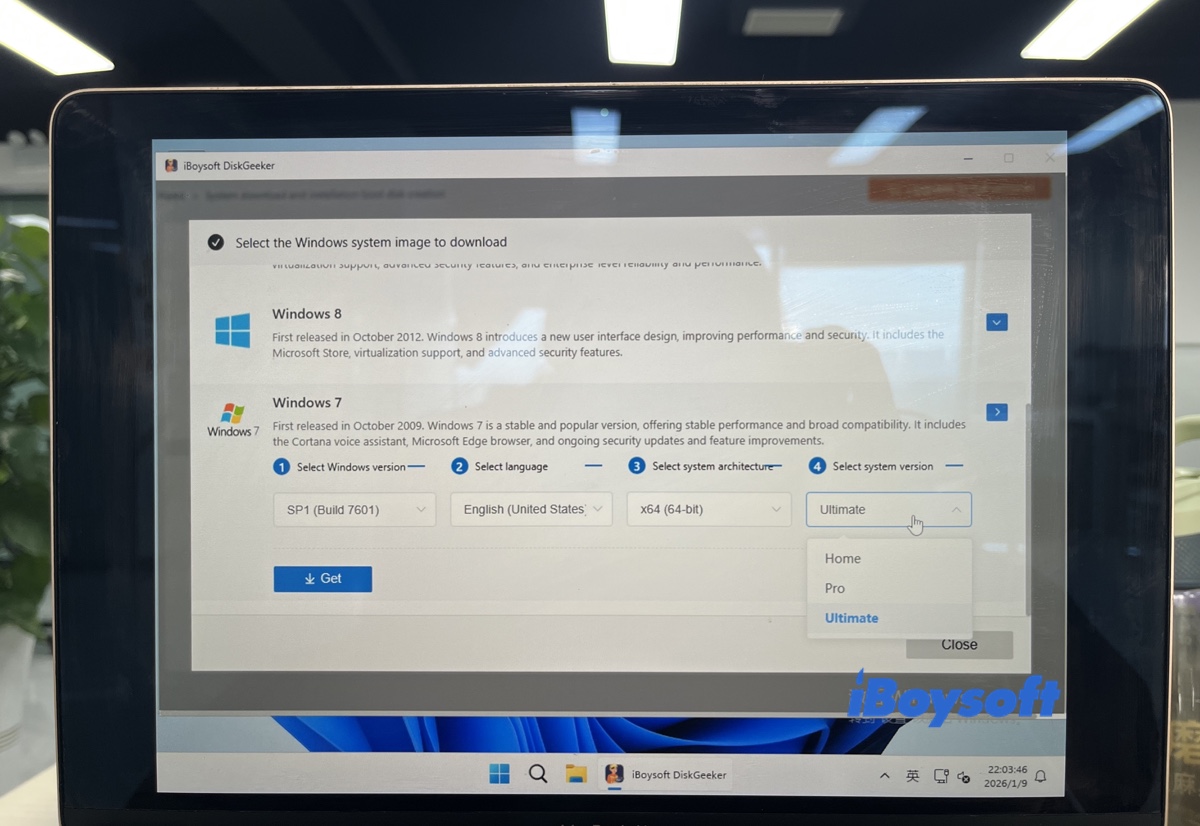
How to get official Windows 7 64-bit via iBoysoft DiskGeeker?
Since Microsoft's public download portals are no longer accessible, iBoysoft DiskGeeker for Windows provides a secure bridge to fetch the original, untouched Windows 7 64-bit ISO files directly from Microsoft's legacy servers. This ensures you are getting a genuine installer without the risks associated with unverified third-party mirrors.
With this Windows 7 ISO downloader, you can download Windows 7 Professional, Windows 7 Home, and Windows 7 Ultimate ISO files without worrying about malware or download failures.
Additionally, it lets you create a Windows 7 installation media quickly.
Follow the steps below for Windows 7 ISO image downloads 64-bit:
Step 1: Free download, install, and launch iBoysoft DiskGeeker for Windows.
Step 2: Open Download and create boot disk > Download Windows system image.
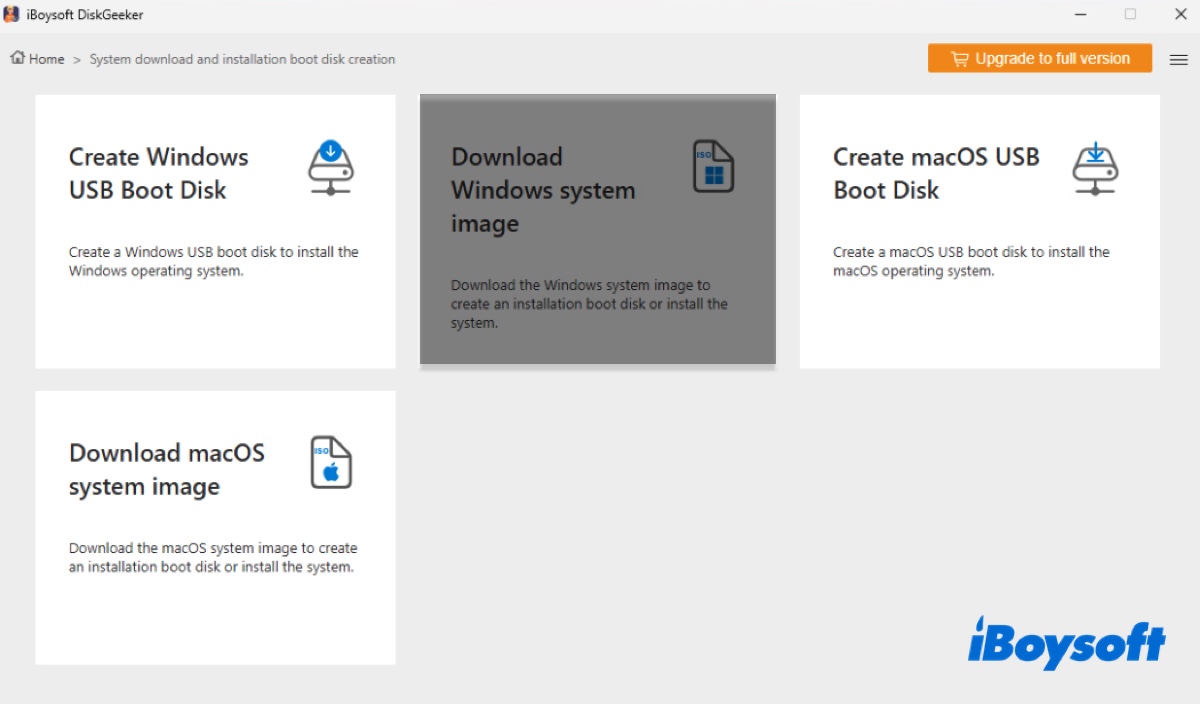
Step 3: Click on Windows 7.
Step 4: Choose SP1 (Build 7601) to download Windows 7 SP1.
Step 5: Select your preferred language.
Step 6: Click x64 (64-bit) for Windows 7 download 64-bit ISO.
Step 7: Select a Windows 7 edition (Home, Pro, Ultimate).
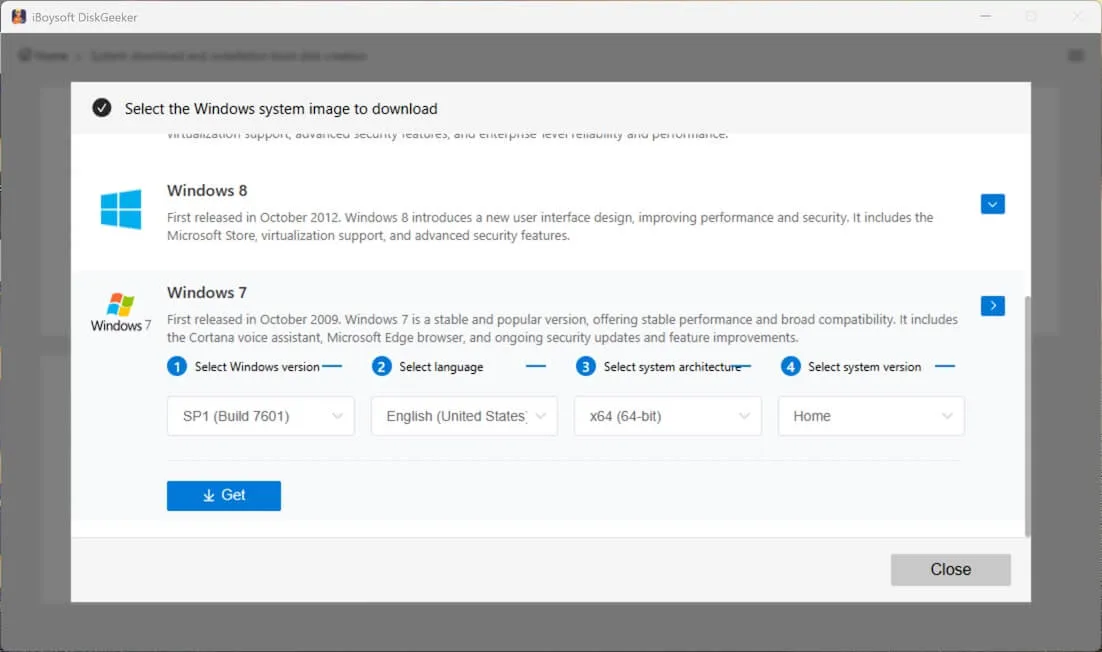
Step 8: Click Get.
Step 9: Choose a location to save the Windows 7 SP1 download.
Create a bootable USB & install Windows 7
To upgrade or clean install Windows 7 on a modern PC, you can make a Windows 7 bootable USB installer and then install Windows 7 from it. This process contains two phases: preparing the Windows 7 installation media and running the installation.
This method is recommended if you want to:
- ✅ Set up the Windows 7 operating system from scratch
- ✅ Fresh install Windows 7 on any compatible PC
- ✅ Reinstall Windows 7
Phase 1: Create the bootable installer
In the past, the Windows 7 USB/DVD Download Tool was the standard choice for making a Windows 7 bootable USB. However, that legacy tool has significant flaws: it only supports older BIOS (Legacy) systems and often fails to recognize newer ISO files or USB 3.0 drives.
Note: This guide (Create Windows 7 Bootable USB Drive) compares Windows 7 USB/DVD Download Tool, Rufus, and iBoysoft DiskGeeker for Windows for creating Windows 7 installation media.
If you're installing the 32-bit version of Windows 7 on a 32-bit PC, you can simply download the Windows 7 32-bit disk image and use the free Windows 7 USB/DVD Download Tool to create the bootable USB.
For a successful installation in 2026—especially on newer computers that use UEFI—we recommend using iBoysoft DiskGeeker for Windows. It is fully compatible with both BIOS and UEFI architectures and handles the complex "burning" process automatically.
Here are the pros and cons of this tool:
- Pros:
- In-library Windows 7 64-bit disk images (.iso)
- Work for both UEFI & BIOS systems
- Create 64-bit Windows 7 bootable USB
- Create 32-bit Windows 7 bootable USB with the ISO image provided
- Cons:
- No Windows 7 32-bit disk images (.iso)
Here's how to create a bootable USB installer for Windows 7:
Preparation: Insert a USB flash drive or any other external storage device with at least 4GB capacity for 32-bit Windows 7 or 8 GB for the 64-bit version. Make sure it's backed up, as the process will erase all data.
Step 1: Free download and open iBoysoft DiskGeeker for Windows.
Step 2: Click on Download and create boot disk > Create Windows USB Boot Disk.
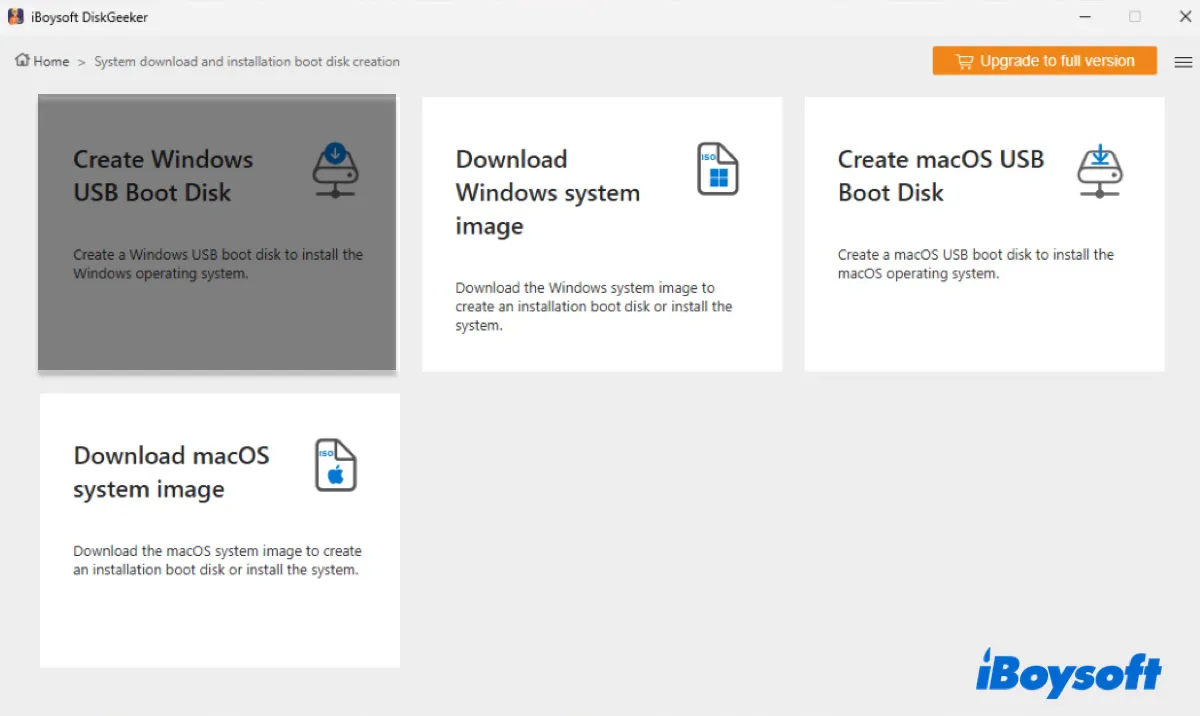
Step 3: Choose the external USB and click Select.
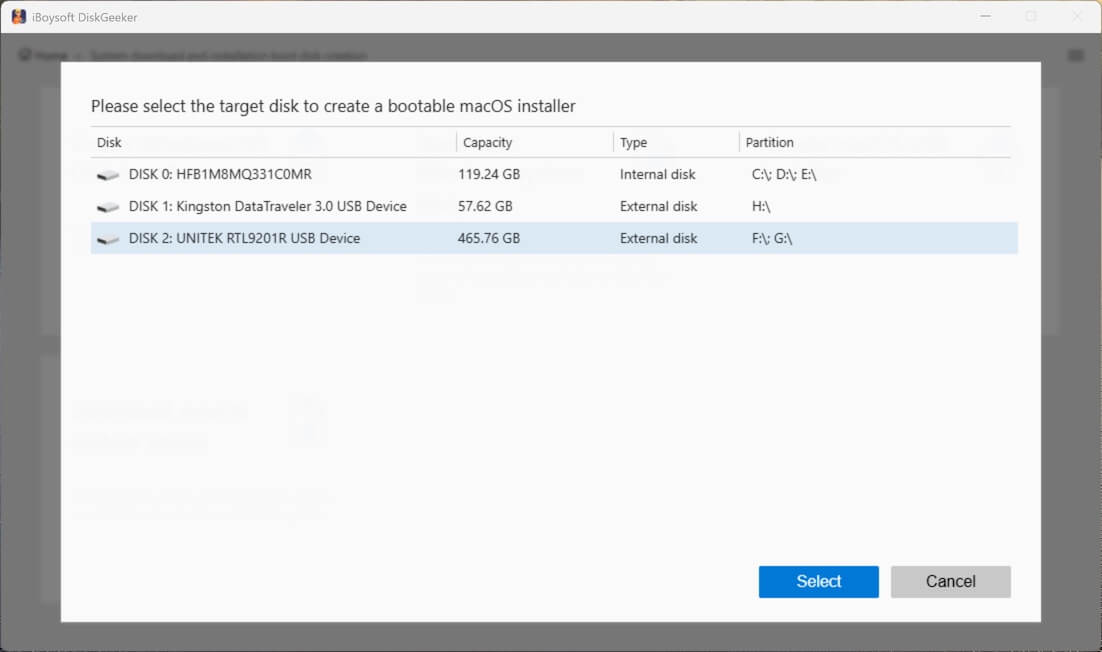
Step 4: Select Windows 7, then choose SP1, language, x64 (64-bit), and the Windows 7 edition you need. (If you're trying to create a Windows 7 32-bit bootable USB or you've downloaded the Windows 7 ISO image, click Cache Image to upload it.)
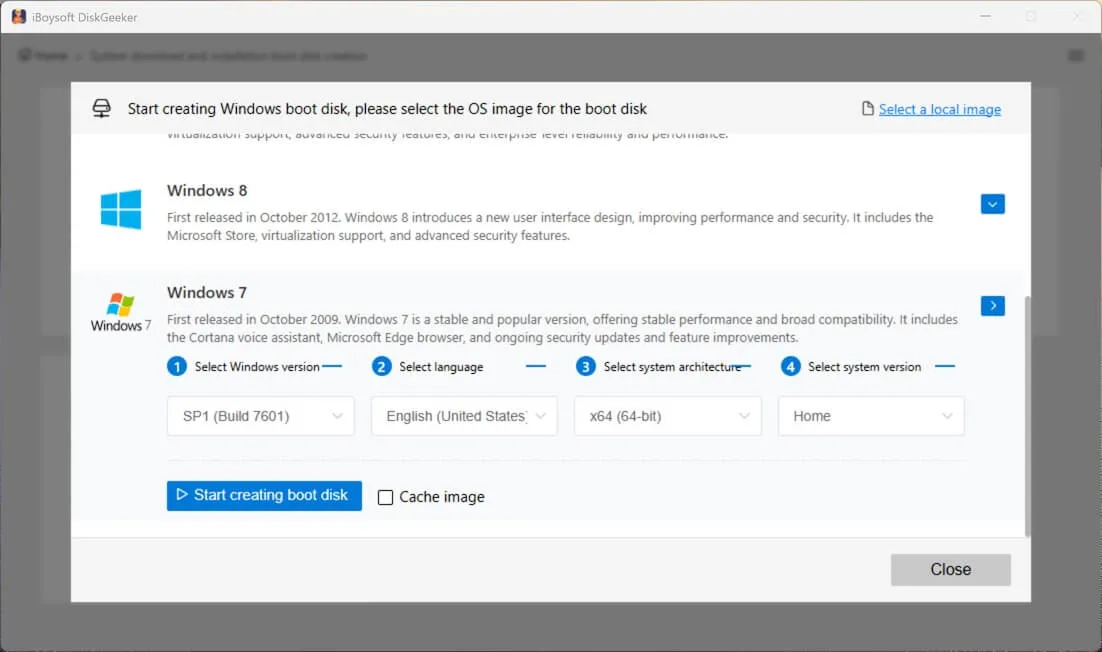
Step 5: Click on Start creating boot disk.
Phase 2: Boot from Windows 7 bootable USB to install Windows 7
With the bootable USB drive, you can install Windows 7 from the bootable USB:
Here are the common Boot Menu Keys by manufacturer, which you'll need to boot from the Windows 7 installation media.
| PC Brand | Boot Menu Key |
| Dell | F12 |
| HP | F9 or Esc |
| Lenovo | F12 or Novo Button |
| ASUS | F8 or Esc |
| Acer | F12 or Esc |
| Toshiba | F12 |
| Samsung | F12 or Esc |
- Plug the Windows 7 bootable USB into the target PC.
- Start up the PC and immediately tap the Boot Menu key. (If F12 or your specific Boot Menu Key doesn't work, try holding the key immediately after pressing the power button before the Windows logo appears.)
- Choose the USB installation media.
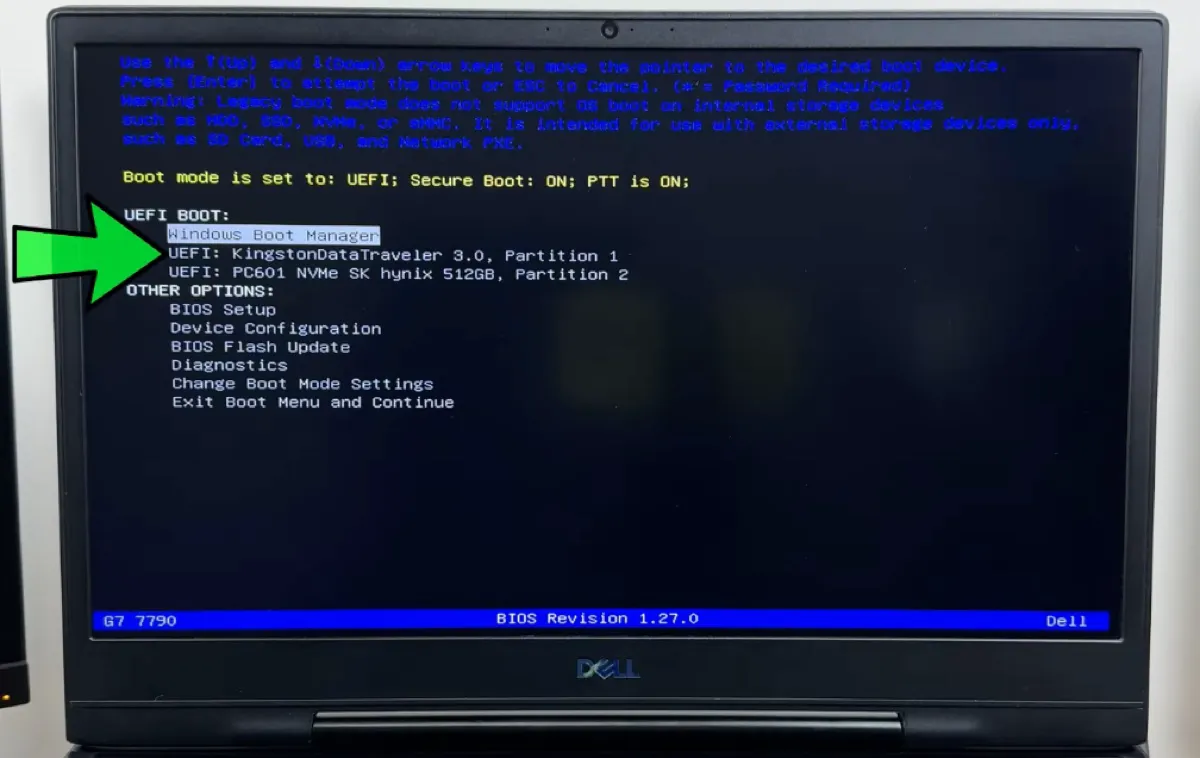
- Wait for Windows 7 to load up.
- Follow the onscreen instructions to configure Windows 7.
- Choose Upgrade if you're updating Windows 7; Select Custom (advanced) if you want a clean install.
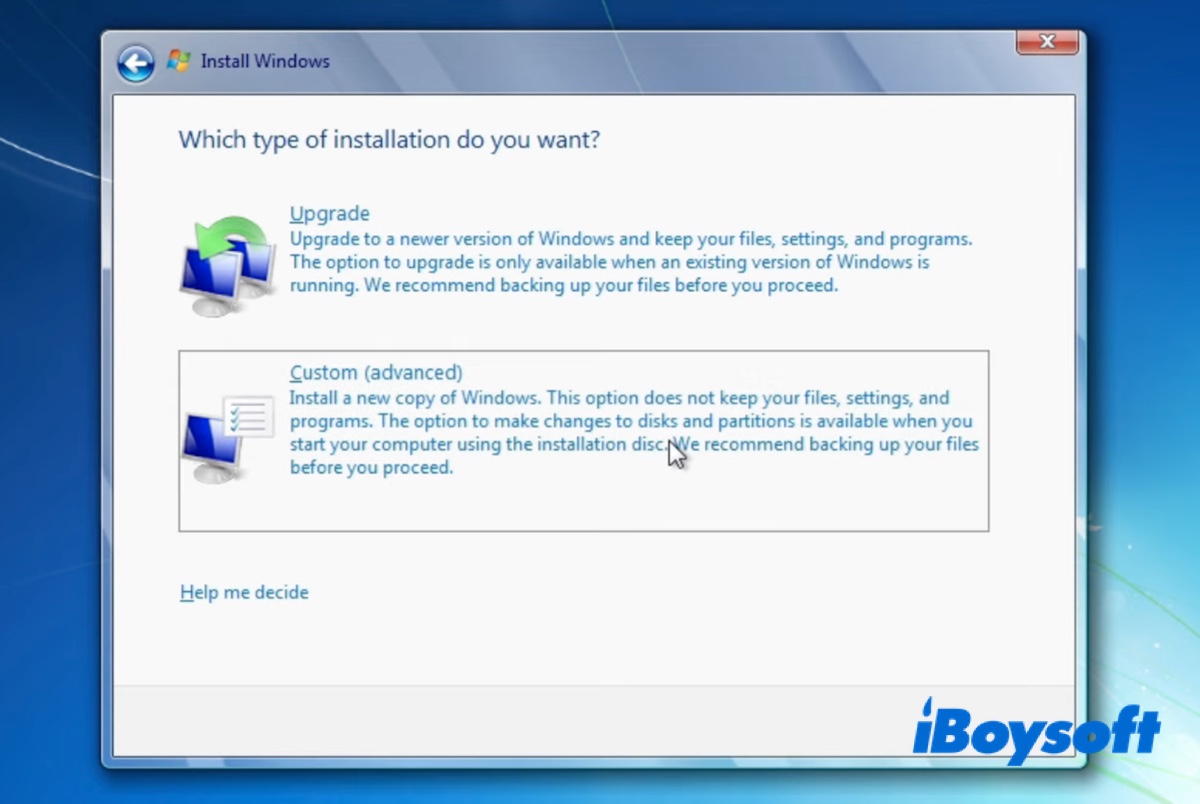
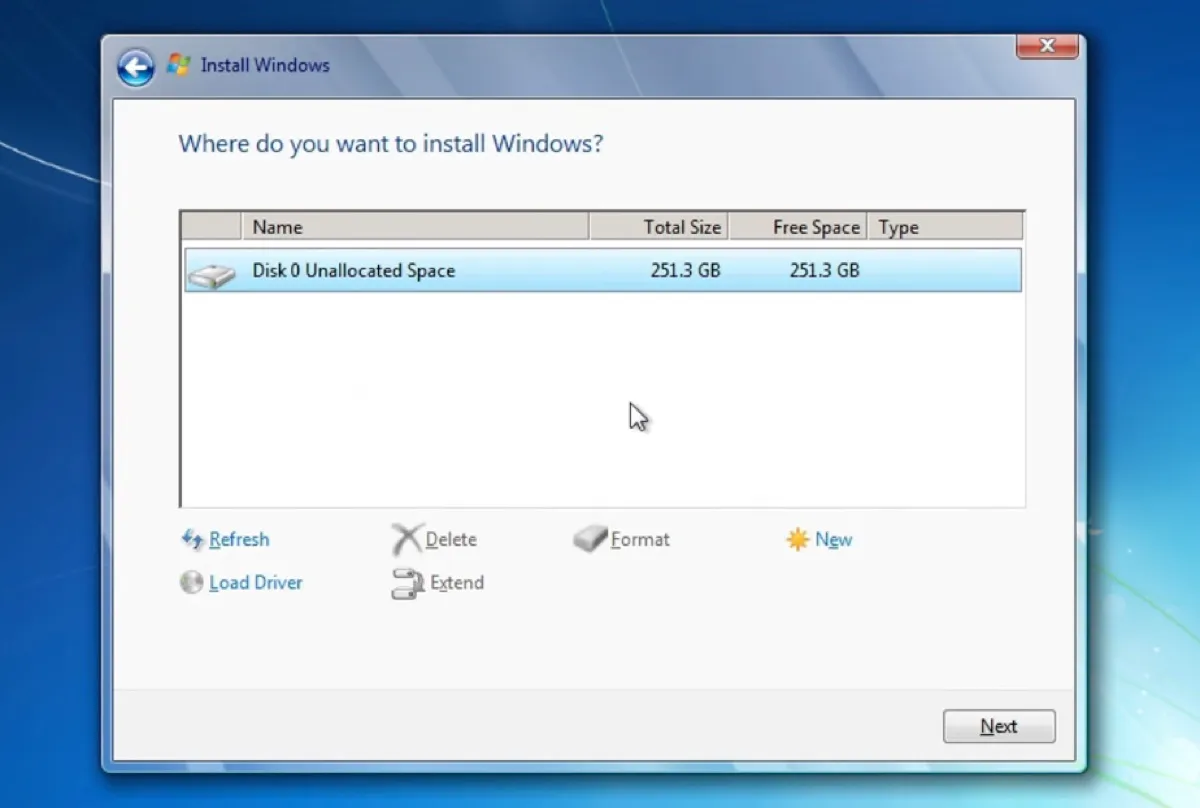
- If you're doing a clean install, delete all existing partitions until only one Unallocated Space is left. Select it and click Next to install Windows 7. (This will erase everything on this PC!)
The easiest way: Clone Windows 7 to a new drive
This method is recommended if you need to:
- ✅ Run Windows 7 from a USB without reconfiguration
- ✅ Boot an unbootable Windows PC to access its files
You could also clone the system partition (C drive) of a Windows PC to run Windows 7. iBoysoft DiskGeeker for Windows can make an exact bootable clone of the system partition, including the C drive and the EFI partition if separated, and the Win 7 OS, user preferences, system files, installed apps, etc.
Prepare a USB drive with more capacity than the system partition and back it up. Then take the steps below:
Step 1: Open iBoysoft DiskGeeker for Windows.
Step 2: Open Clone > Clone OS disk.
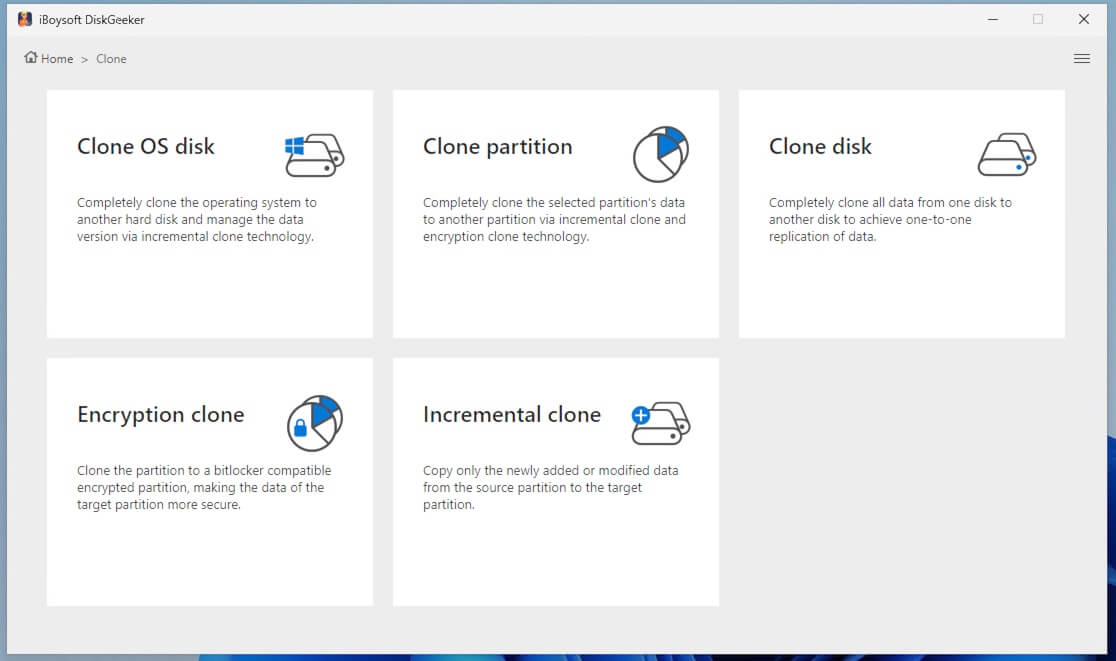
Step 3: Make sure the correct system partition is chosen.
Step 4: Tap Select a destination disk and choose the USB drive.
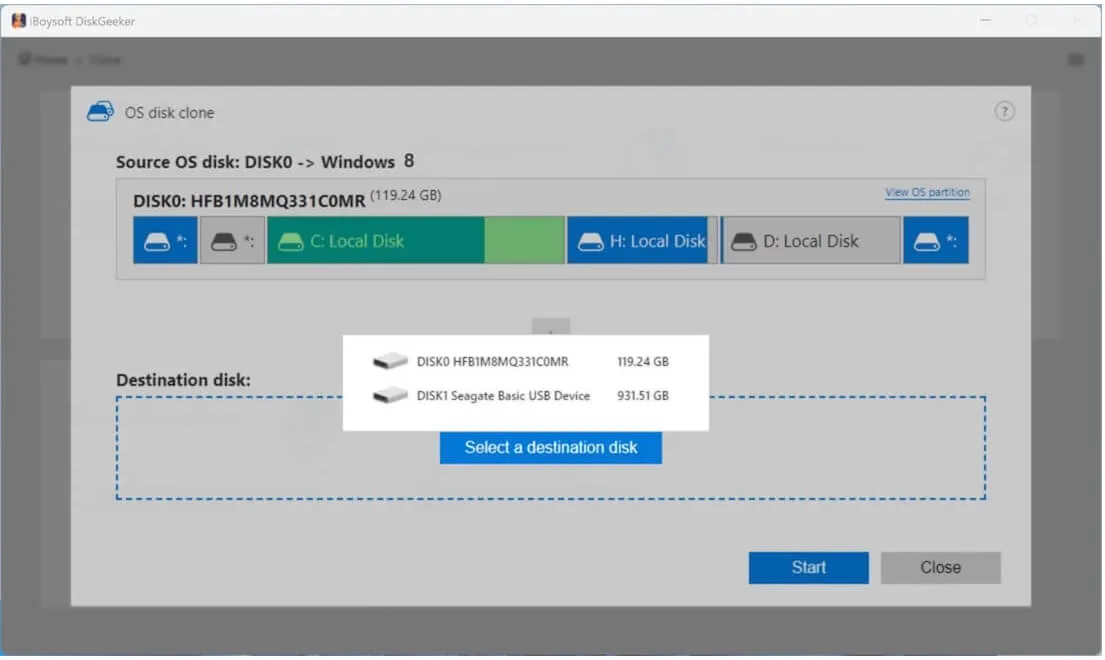
Step 5: Click Start > Confirm.
With the Windows 7 bootable clone, you can now run Windows 7 from the USB drive.
How to activate Windows 7 after installation?
To use Windows 7 legally and remove the 'Activate Windows' watermark, you must activate the operating system using a 25-character product key.
Where to Find Your Windows 7 Product Key:
COA Sticker: Look for a Certificate of Authenticity (COA) sticker on the bottom of your laptop or the side of your PC tower.
Email Confirmation: If you bought a digital copy, check your inbox for the original purchase receipt.
BIOS/UEFI: Some later Windows 7 laptops have the key "injected" into the motherboard.
How to enter your product key:
- Right-click Computer or This PC, and select Properties.
- Scroll to the Windows activation section.
- Click Change product key.
- Enter your 25-character key and click Next to activate via the internet.
Fix common Windows 7 installation errors
Installing a legacy operating system like Windows 7 on modern hardware often causes issues. Most of them happens because Windows 7 lacks built-in drivers for modern storage and USB standards.
Here's how to fix most common Windows 7 installation problems:
Issue 1: A required CD/DVD drive device driver is missing
This error message occurs when the Windows 7 installer can't "see" USB 3.0 ports or your NVMe SSD. To fix it, you can:
- Change to a USB 2.0 port if available.
- Download the necessary driver from your motherboard's webpage.
- Enable the Legacy Boot option from BIOS settings.
Issue 2: Windows cannot be installed to this disk. The selected disk is of the GPT partition style
This happens when you try to install Windows 7 on a modern computer using UEFI mode, but the installer was configured for older "Legacy BIOS" (MBR).
Fix: When creating your bootable USB, ensure the "Partition Scheme" is set to GPT.
Issue 3: Setup was unable to create a new system partition
This error often occurs when the installer gets confused by multiple drives (HDDs, SSDs, or even the USB itself) plugged into the PC.
Fix: 1. Unplug unnecessary external drives. 2. In the "Where do you want to install Windows?" screen, delete all existing partitions on the target drive until it shows as "Unallocated Space." 3. Select that space and click Next.
Issue 4: Windows 7 installation stuck at "Starting Windows"
On a PC with only UEFI mode, the standard Windows 7 installation usually freezes at the "Starting Windows" logo. This happens because Windows 7 is an older OS that expects a "VGA BIOS" (Int10h) to be present, which pure UEFI systems do not have.
Fix: 1. Disable Secure Boot. 2. Ensure your USB is GPT partitioned. 3. Enable Legacy boot / CSM in your BIOS settings.
Issue 5: No internet connection
There's no internet after installation because Windows 7 does not have native drivers for modern Wi-Fi 6 or 2.5Gbps Ethernet cards.
Fix: Download and install the network drives from the motherboard/laptop manufacturer's website.
FAQs
- QCan Windows 7 be downloaded for free?
-
A
While the Windows 7 ISO file itself can often be found on community archives for free, Windows 7 is not 'freeware.' To use it legally, you still need a valid product key. If you are reinstalling on a machine that originally came with Windows 7, your existing OEM key (often found on a sticker on the laptop) will usually work.
- QWhat is the best Windows 7 version to download?
-
A
The best Windows 7 version depends on your needs.
If you use the PC for web browsing, watching shows, or other regular tasks, Windows 7 Home Premium is likely the best choice.
If you're a general office worker, an industrial and business operator, or need the Windows XP mode, Windows 7 Professional is a better fit.
If you want every Windows 7 feature and BitLocker Drive Encryption, download Windows 7 Ultimate.
- QIs it still possible to download Windows 7?
-
A
It's totally possible to download Windows 7. You can download the Windows 7 operating system from a free archive or iBoysoft DiskGeeker for Windows.
- QIs it legal to download a Windows 7 ISO?
-
A
Technically speaking, any download outside of Microsoft is illegal. But Microsoft officially ended all Windows 7 downloads in 2020, the only option is to download from a third-party. As long as you get it from a trustworthy source and use a genuine key, it should be considered a fair use.
- QHow to reinstall Windows 7 without CD or USB?
-
A
The most reliable way to reinstall without external media is by cloning. If your current system is still bootable, you can use iBoysoft DiskGeeker to clone your existing Windows 7 partition to a separate drive or partition. This allows you to restore or "reinstall" the OS directly from your hard drive.