If you no longer need GlobalProtect, are switching VPN clients, or need to reinstall it to fix a connection problem, you can remove it from your Mac in several ways. The recommended method is to use the GlobalProtect Installer or its built-in uninstall script, because GlobalProtect can install system extensions and other components that aren't necessarily removed by simply dragging the app to Trash. Palo Alto Networks also notes that uninstalling GlobalProtect removes your VPN access to your organization's network.
If you don't have the installer or prefer not to work with Terminal commands, iBoysoft Cleaner provides a simpler graphical way to uninstall third-party apps and remove their associated files.
Before You Uninstall GlobalProtect
GlobalProtect isn't just an ordinary Mac application. It is a VPN/security client that can use macOS system extensions, depending on how your organization configured it. Removing it means you will no longer be able to use GlobalProtect to connect to your organization's network, and some organizations may enforce GlobalProtect through device-management policies.
So, before you start, make sure you actually want to remove the corporate VPN from this Mac. If GlobalProtect was installed by your employer or school, check with your IT administrator first.
Method 1: Uninstall GlobalProtect with Its Installer
Best for: Users who still have the GlobalProtect installation package and want to use Palo Alto Networks' supported graphical uninstall process.
The GlobalProtect Installer includes an Uninstall GlobalProtect option. This is preferable to dragging GlobalProtect.app to the Trash because the installer can also handle GlobalProtect system extensions when they were installed on the Mac.
Step 1. Get the GlobalProtect installer
If you still have the original .pkg installer, locate it in your Downloads folder and open it.
If you no longer have it, download the appropriate GlobalProtect package from your organization's GlobalProtect portal. Organizations typically provide the Mac installer through their own GlobalProtect portal rather than through a general public download link.
Step 2. Select the uninstall option
After opening the installer:
- Click Continue.
- On the Destination Select screen, click Continue.
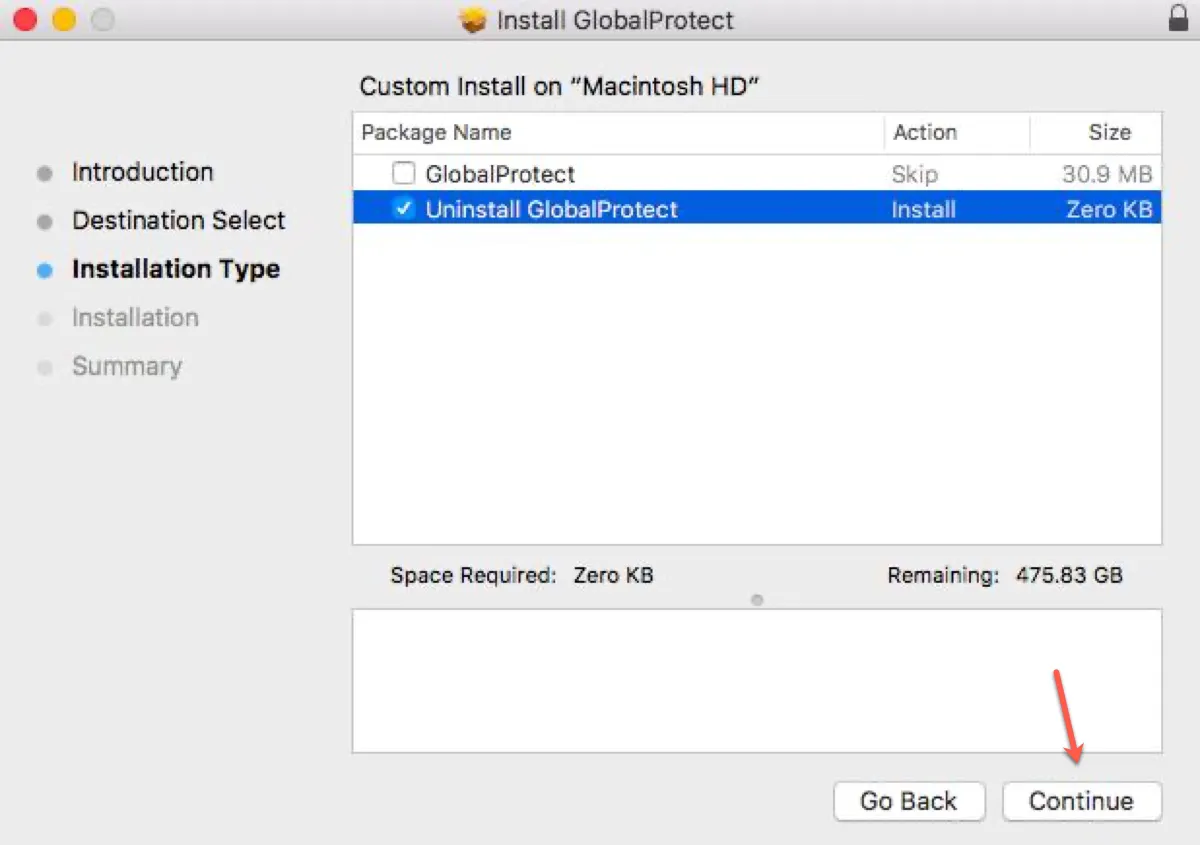
- On the Installation Type screen, select Uninstall GlobalProtect.
- Click Continue.
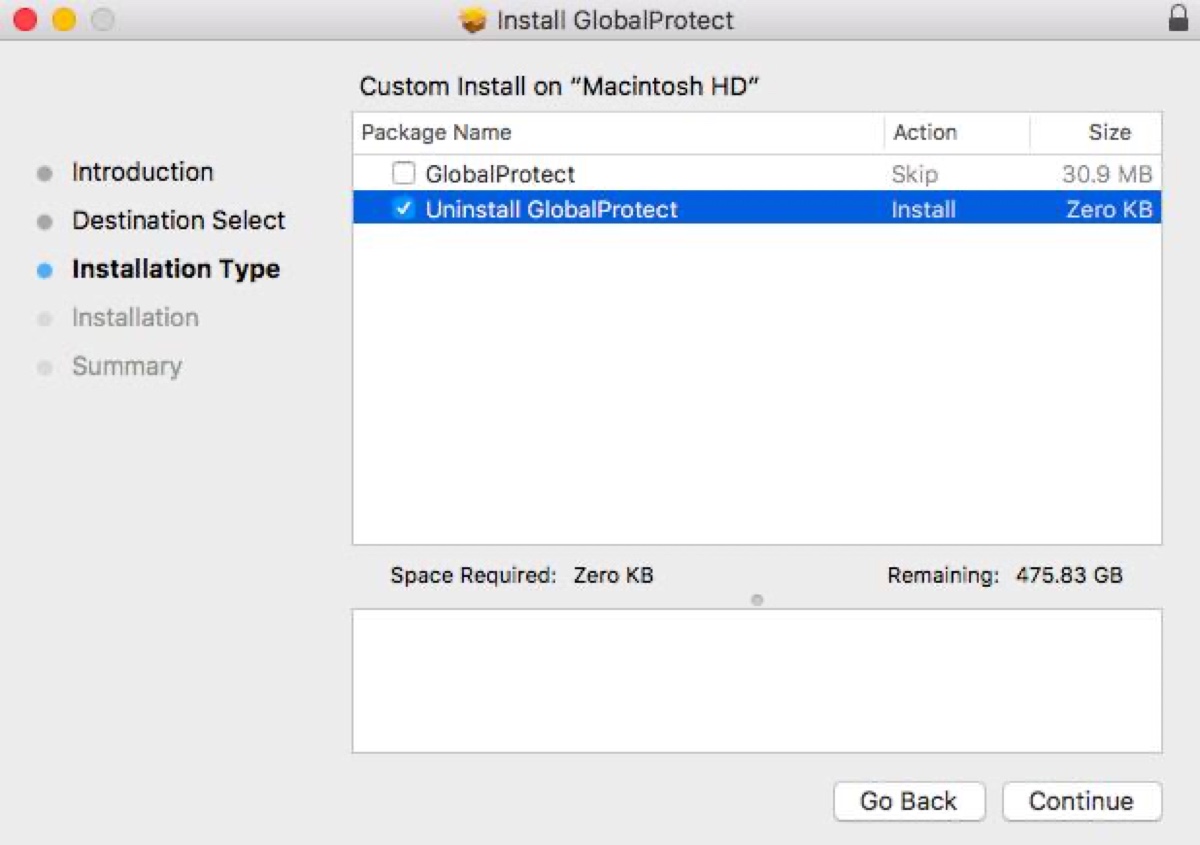
- Click Install to confirm the removal.
- Enter your Mac administrator username and password when prompted.
If system extensions were enabled for your GlobalProtect installation, macOS may also ask you to authenticate before removing them.
Step 3. Confirm that GlobalProtect is removed
The installer should display a confirmation when the uninstall package has completed successfully.
You can then check your Mac's Applications folder and menu bar to make sure GlobalProtect is no longer running.
Method 2: Uninstall GlobalProtect on Mac Using Terminal
Best for: Users who want to uninstall GlobalProtect on Mac without the installer. Users who no longer have the installer but still have GlobalProtect.app installed.
You don't necessarily need to download the installer again. On macOS, Palo Alto packages both the installation script and the uninstallation script into the single installation package (GlobalProtect.pkg). When you run the installer file, it gives you a choice on the Installation Type screen to select "Uninstall GlobalProtect" instead of installing it.
How to uninstall GlobalProtect on Mac without installer:
- Launch Terminal from Finder > Applications > Utilities > Terminal.
- Copy and paste this command into Terminal:sudo /Applications/GlobalProtect.app/Contents/Resources/uninstall_gp.sh
- Press Return.
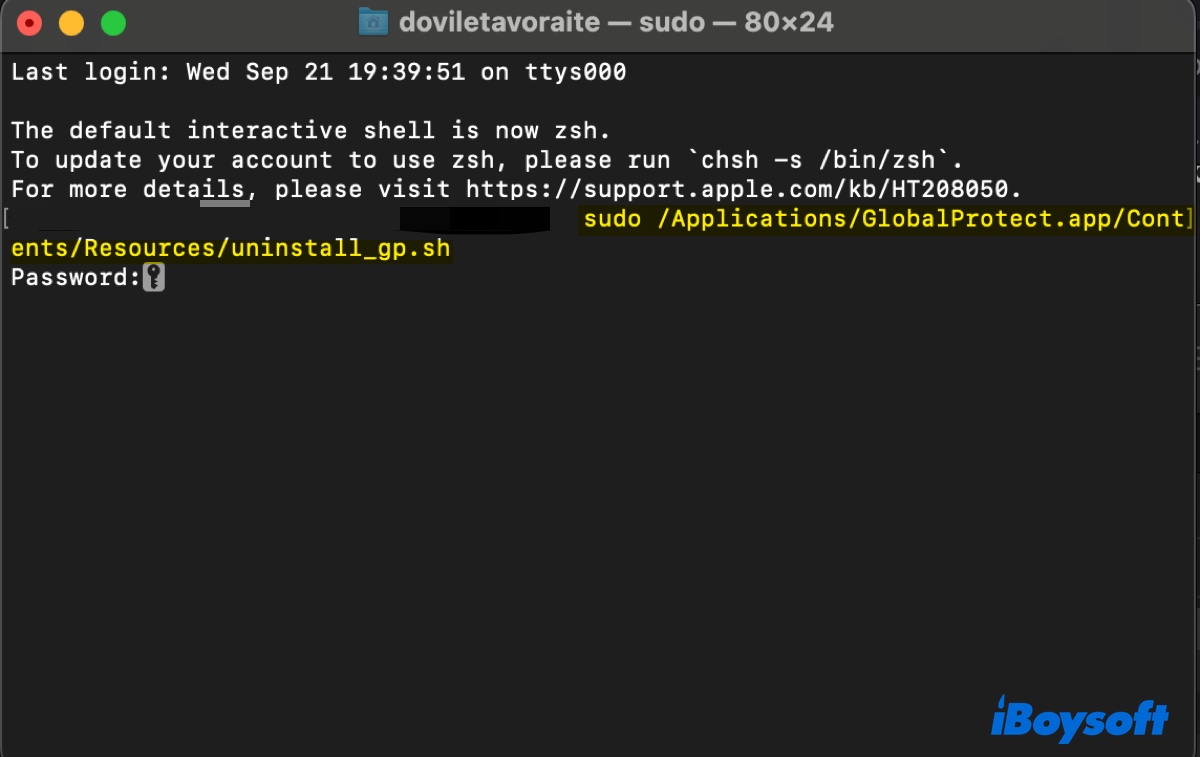
- Because the command uses sudo, macOS will ask for your administrator password. Your password won't appear on the screen while you type it. This is normal for Terminal.
- Wait for the uninstall to finish.
The uninstall script removes the GlobalProtect application. If your particular installation includes components that require additional removal or your Mac is managed by an organization, you may need to follow additional instructions from your IT administrator.
Method 3: Automatically Uninstall GlobalProtect with iBoysoft Cleaner
Best for: Users who prefer a graphical interface and don't want to deal with installers, Terminal commands, or manually locating application files.
GlobalProtect is more complicated than a typical Mac app because it can involve system extensions and organization-managed components. For a normal third-party app, an automatic uninstaller can make the removal process much easier by locating the app and its associated user-level files for you.
iBoysoft Cleaner includes an App Uninstaller that scans third-party applications and their associated files. It can also identify leftover files from applications that were previously removed.
Here's how to get rid of GlobalProtect from your Mac:
Step 1: Launch iBoysoft Cleaner on your Mac.
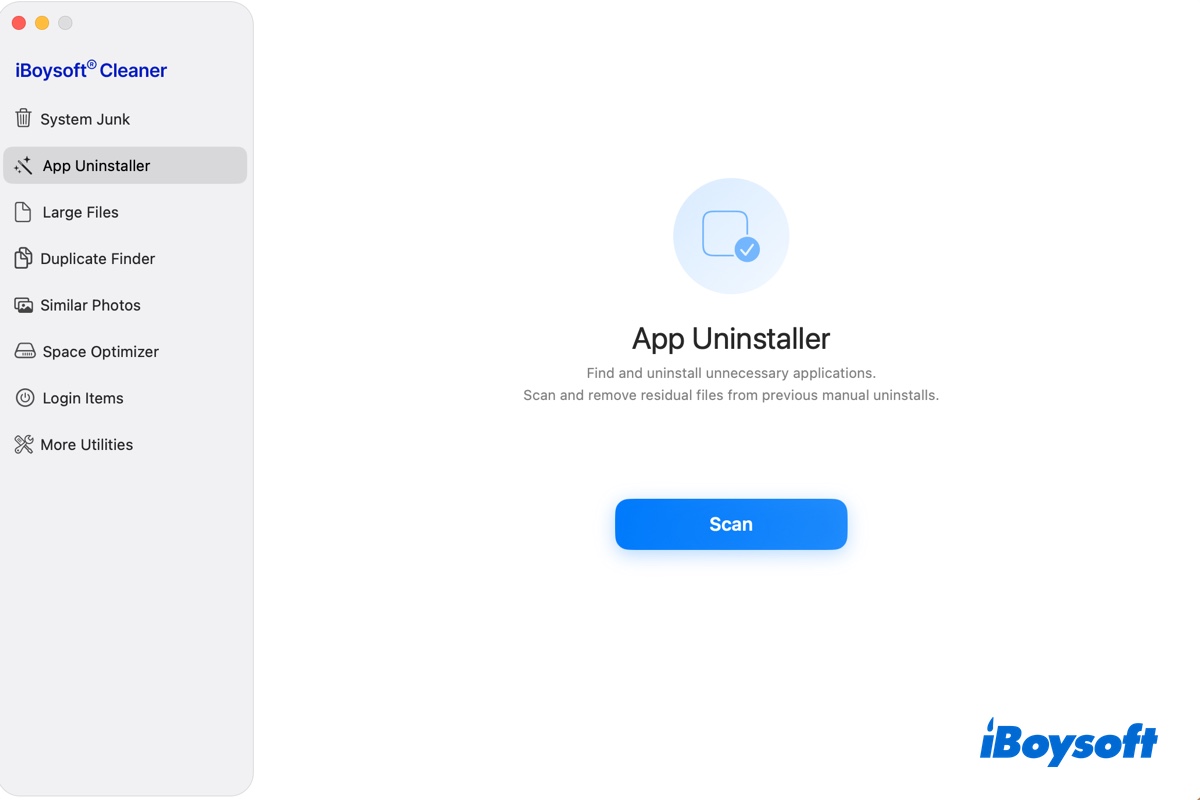
Step 2: Select App Uninstaller and click Scan to scan your installed apps.
Step 3: Locate GlobalProtect in the scan results.
Step 4: Expand the app entry if you want to review the associated files before removing it.
Step 5: Select GlobalProtect and click Remove.
This approach saves you from manually navigating through multiple Library locations to look for application-related files.
Note: An app cleaner should not be treated as a replacement for an organization's VPN-management policy. If GlobalProtect was installed or enforced by your employer or school, you may need administrator or IT approval to remove it.
Why Can't I Uninstall GlobalProtect on My Mac?
If GlobalProtect refuses to uninstall, don't immediately start deleting files from system folders. The cause is often related to administrator permissions, the way GlobalProtect was installed, or device management.
Cause 1: You don't have administrator privileges
GlobalProtect requires administrator privileges to uninstall on macOS. If you're using a standard user account, the uninstall process may ask for credentials you don't have or fail to complete.
Fix: Log in with an administrator account or ask the Mac's administrator to perform the uninstall.
If this is a company- or school-managed Mac, contact your IT department rather than trying to bypass its management settings.
Cause 2: You no longer have the GlobalProtect installer
This is a common reason users end up searching for Terminal commands. The normal installer-based method requires the GlobalProtect package, but Palo Alto Networks provides an alternative when the installer is no longer available:
sudo /Applications/GlobalProtect.app/Contents/Resources/uninstall_gp.sh
Cause 3: GlobalProtect was installed with system extensions
Some GlobalProtect configurations use macOS system extensions. These are different from ordinary files stored in your user Library, so manually deleting GlobalProtect.app is not necessarily the right way to remove the software.
Fix: Use the official GlobalProtect uninstall package or uninstall script rather than manually deleting system components.
Cause 4: Your Mac is managed by your organization
If GlobalProtect was installed by your employer or school, you may not have full control over its installation.
Fix: Contact your organization's IT administrator. They may need to remove GlobalProtect or its management profile for you.
What Happens After You Uninstall GlobalProtect?
Once GlobalProtect is removed, you will no longer be able to use that installation to connect to your organization's VPN. Uuninstalling the app removes VPN access to the corporate network and means the endpoint is no longer protected by the organization's GlobalProtect security policies.
If you're uninstalling GlobalProtect because the VPN is malfunctioning and you plan to reinstall it, make sure you have access to your organization's GlobalProtect portal and installation package before removing it.
FAQs
- QShould you just drag GlobalProtect to the Trash?
-
A
No, not as your first choice.
Dragging an ordinary Mac application to the Trash can be sufficient for some apps, but GlobalProtect is a VPN/security client that may install system extensions or other components. Palo Alto Networks provides a dedicated uninstall process for this reason.
If you simply drag GlobalProtect.app to the Trash, you may remove the visible application without following the vendor's intended uninstall procedure.
For GlobalProtect, use the GlobalProtect Installer or its uninstall script first. Use a third-party cleaner for convenience with application-related files, but don't use it to bypass organization-imposed management or security controls.
- QCan I uninstall GlobalProtect without the installer?
-
A
Yes. If GlobalProtect.app is still installed, you can run: sudo /Applications/GlobalProtect.app/Contents/Resources/uninstall_gp.sh
- QWhy does GlobalProtect keep coming back after I uninstall it?
-
A
If GlobalProtect is installed or managed by your organization, it may be redeployed by device-management software. In that situation, deleting the application locally may not be enough. Contact your IT administrator.
- QDoes uninstalling GlobalProtect remove my VPN account?
-
A
No. Uninstalling the Mac application removes the software from that Mac. It does not delete your organization's VPN account or change your organization's GlobalProtect configuration.
- QCan I reinstall GlobalProtect after uninstalling it?
-
A
Yes. If you still need the VPN, you can obtain the appropriate installer from your organization's GlobalProtect portal and install it again. Palo Alto Networks notes that the correct app package is normally provided through the organization's portal.