Duplicate files often accumulate on a Mac after repeated downloads, photo imports, file transfers, or cloud syncing. These extra copies can take up storage space and clutter folders like Downloads, Documents, and Photos.
macOS includes several ways to locate duplicate files, including Finder, Smart Folders, Terminal commands, and duplicate file finder software. This guide explains the easiest methods to find duplicate files on Mac.
Why Duplicate Files Accumulate on Mac
Duplicate files can appear during everyday use of your Mac. Common causes include:
- Downloading the same file more than once
- Importing duplicate photos or videos
- Copying files between external drives and cloud storage
- Creating backup copies of documents
- Saving edited versions of the same file repeatedly
Apps, installers, ZIP archives, and media libraries are especially likely to create duplicate files over time. Even iCloud Drive syncing can sometimes lead to duplicate copies if files are downloaded or merged incorrectly.
How to Find Duplicate Files on Mac
macOS includes several built-in tools that can help you search for duplicate files manually. For faster and more accurate results, you can also use dedicated duplicate file finder software.
Use Finder to Search for Duplicate Files
Finder can help you locate files that may be duplicates by sorting them by name, size, or type.
- Open Finder.
- Select the folder you want to search, such as Desktop or Documents.
- Click the Search bar in the upper-right corner.
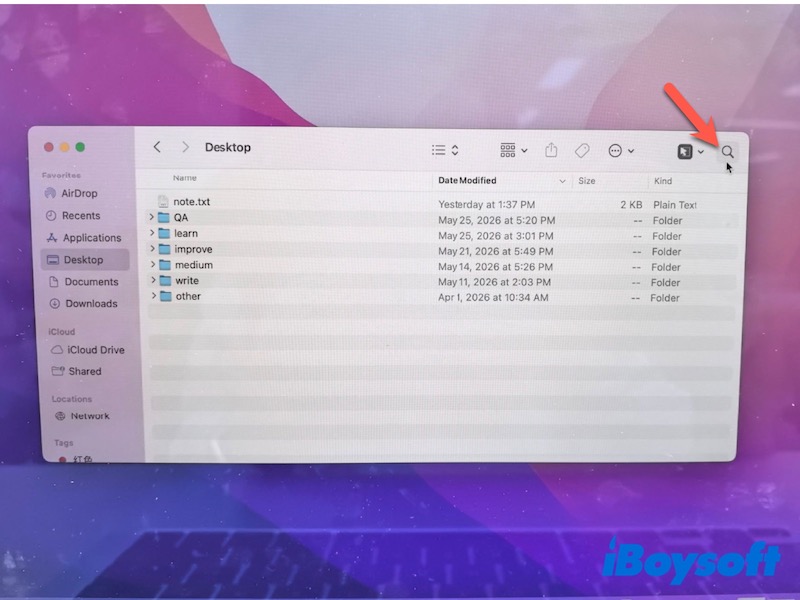
- Choose filters like Name/Kind /File Size/Date Created.
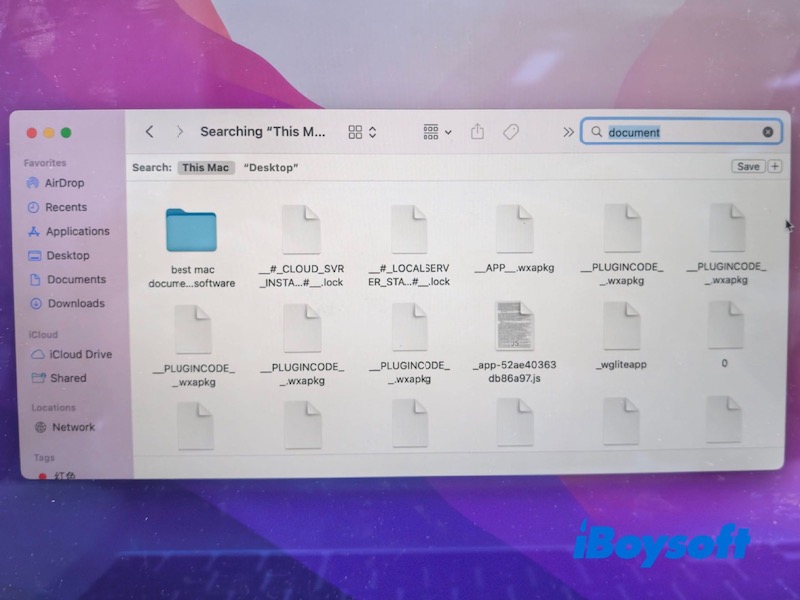
- Sort files by name or size to identify possible duplicates.
This method works well for basic searches, especially when duplicate files have identical names. However, Finder cannot compare actual file content, so some duplicates may be missed.
Use Smart Folders to Locate Similar Files
Smart Folders automatically group files based on selected conditions, making it easier to spot duplicate items.
- Open Finder.
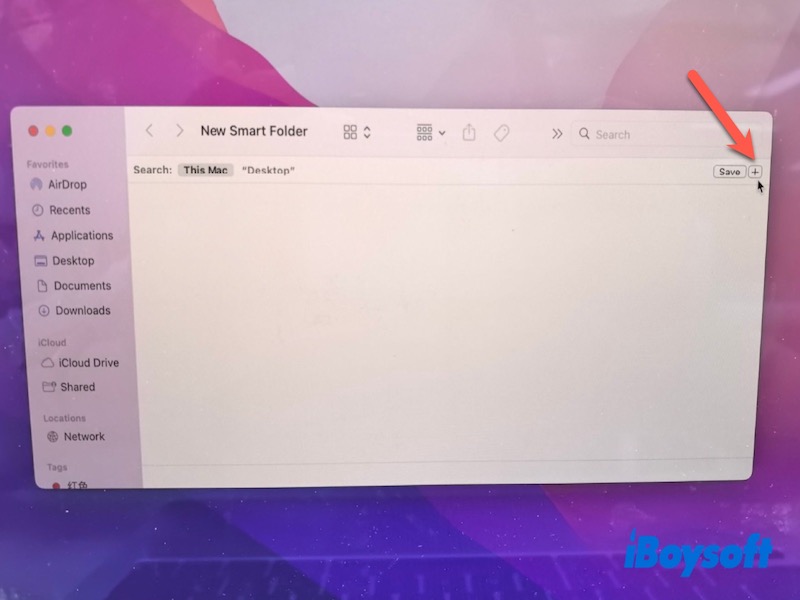
- Click File > New Smart Folder.
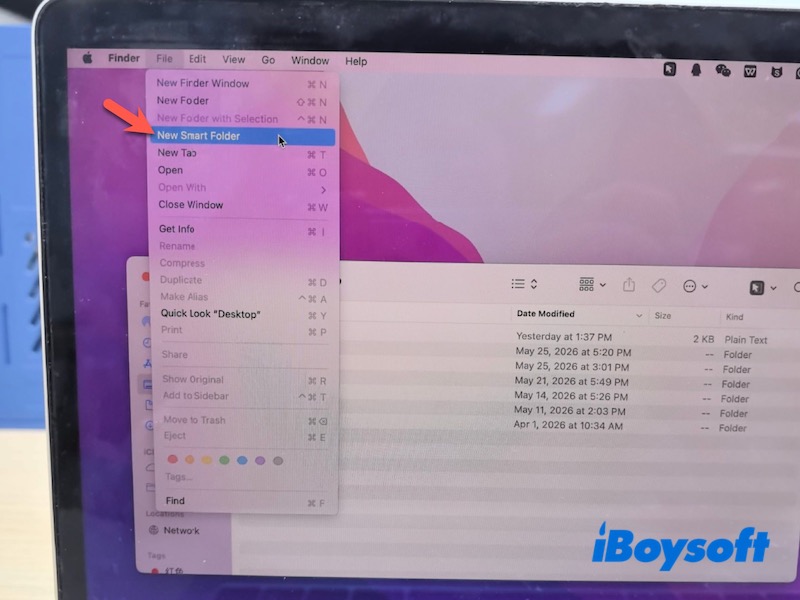
- Select the location you want to scan.
- Click the + button to add filters.
- Filter files by File type/Name/Size/Date modified
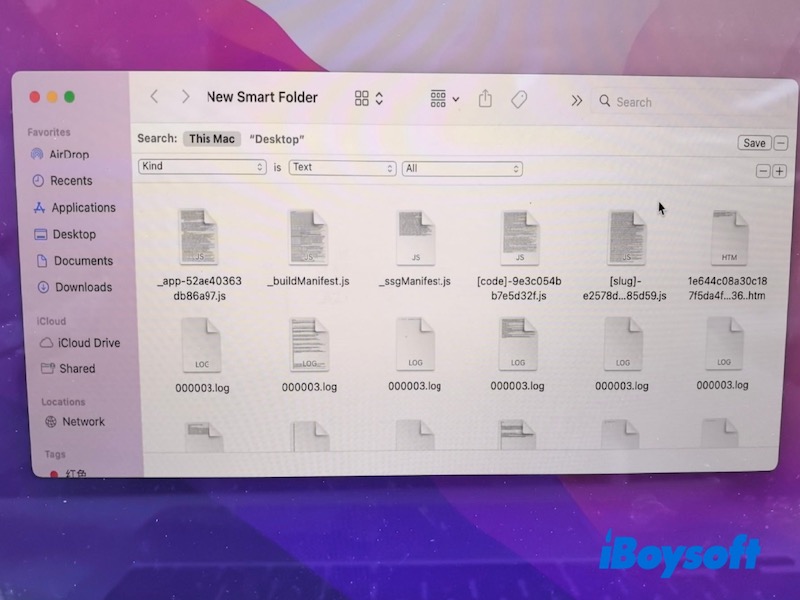
- Save the Smart Folder for future use.
Smart Folders are useful for locating repeated downloads, screenshots, videos, or large files stored across different folders.
Using Terminal Commands to Find Duplicate Files
Terminal provides a more advanced way to detect duplicate files by comparing file hashes.
- Open Terminal from Applications > Utilities.
- Navigate to the target folder using:
cd folder-path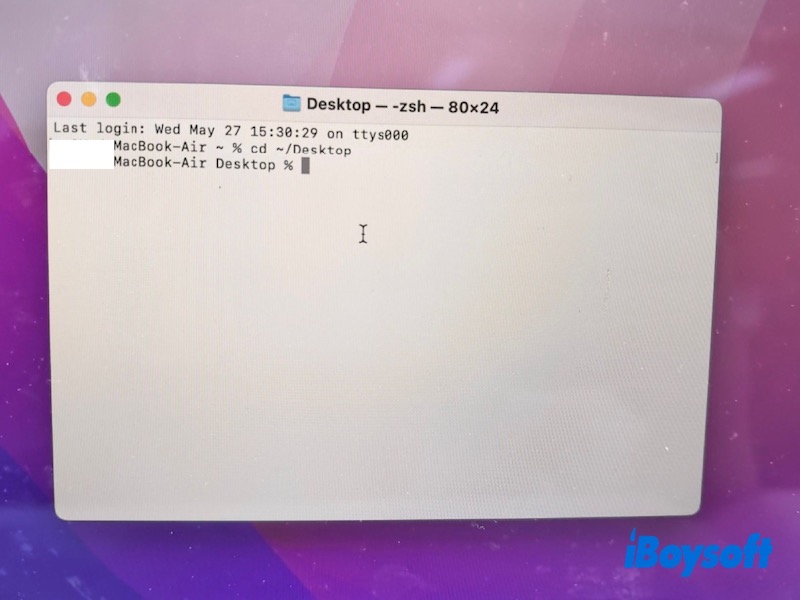
- Run the following command:
find . -type f -exec md5 {} \;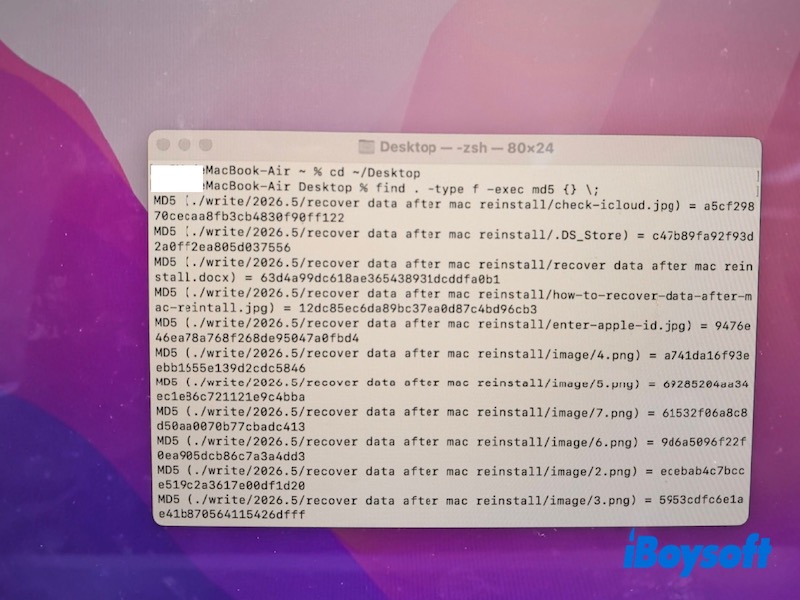
- Compare files with matching MD5 values.
You can also use:
shasumto generate SHA hashes for more accurate comparisons.
This method is more precise than Finder because it compares file content instead of filenames, but it is better suited for advanced users.
Photos in the Photos App to Find Duplicates
If your duplicate files are mainly photos or videos, the Photos app includes a built-in duplicate detection feature.
- Open the Photos app.
- Select Duplicates under the Utilities section.
- Review detected duplicate photos or videos.
- Merge duplicates if needed.
The Photos app automatically analyzes similar images and helps combine duplicate copies while keeping the best version and metadata.
This feature is available in newer macOS versions, including Ventura and later.
Use Duplicate File Cleaner Software on Mac
If your Mac contains a large number of duplicate files, manually searching through Finder can take a long time. Dedicated duplicate file finder software can scan your Mac automatically and identify duplicate files more accurately.
One useful option is iBoysoft Cleaner for Mac. It can quickly scan duplicate files across folders, external drives, and media libraries while comparing actual file content instead of only filenames.
- Download, install, and open iBoysoft Cleaner for Mac.
- Select the Duplicate Finder and choose the folders you want to scan.
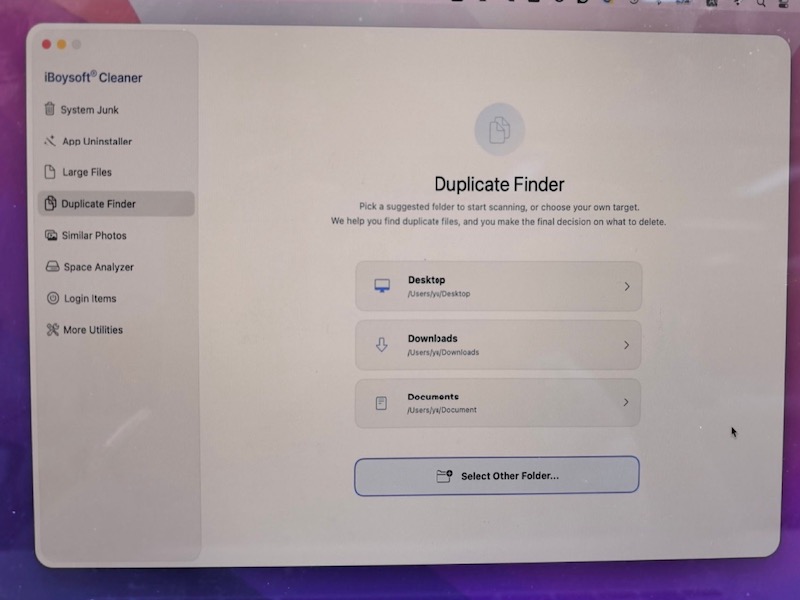
- Start scanning your Mac.
- Review the detected duplicate files.
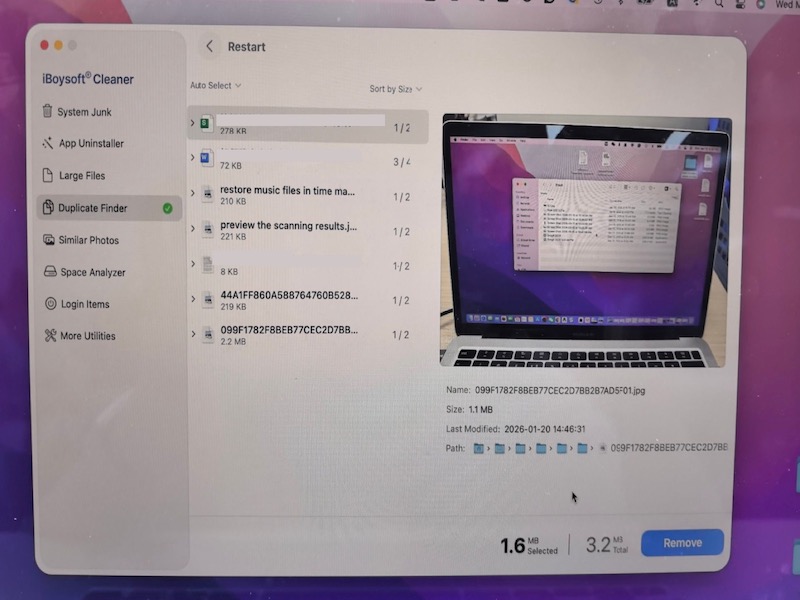
- Select unnecessary copies for removal if needed.
This method is usually the fastest option for users with large storage drives or heavily cluttered Macs.
Tips to Prevent Duplicate Files on Mac
After cleaning duplicate files, a few habits can help prevent them from accumulating again:
- Regularly organize the Downloads folder
- Avoid importing the same photos multiple times
- Remove old DMG installers and ZIP archives
- Rename important files clearly
- Use cloud syncing carefully across devices
- Periodically scan your Mac for duplicate files
Keeping files organized can make future duplicate cleanup much easier.
Conclusion
Duplicate files can gradually consume valuable storage space on your Mac and make file management more difficult. Fortunately, there are several effective ways to locate them.
Finder and Smart Folders work well for simple manual searches, while Terminal offers more precise duplicate detection for advanced users. The Photos app can also help identify duplicate images and videos automatically.
For faster and more accurate scanning across your entire Mac, duplicate file cleaner software like iBoysoft Cleaner for Mac can simplify the process and help locate duplicate files more efficiently.
FAQs
- Q1. How to find duplicate files on Mac free?
-
A
You can find duplicate files on Mac for free using Finder, Smart Folders, Terminal commands, and the built-in Duplicates feature in the Photos app.
- Q2. Is there a way to search for duplicate files?
-
A
Yes. macOS provides several built-in methods to search for duplicate files manually, and third-party duplicate file finder tools can automate the process for faster and more accurate results.