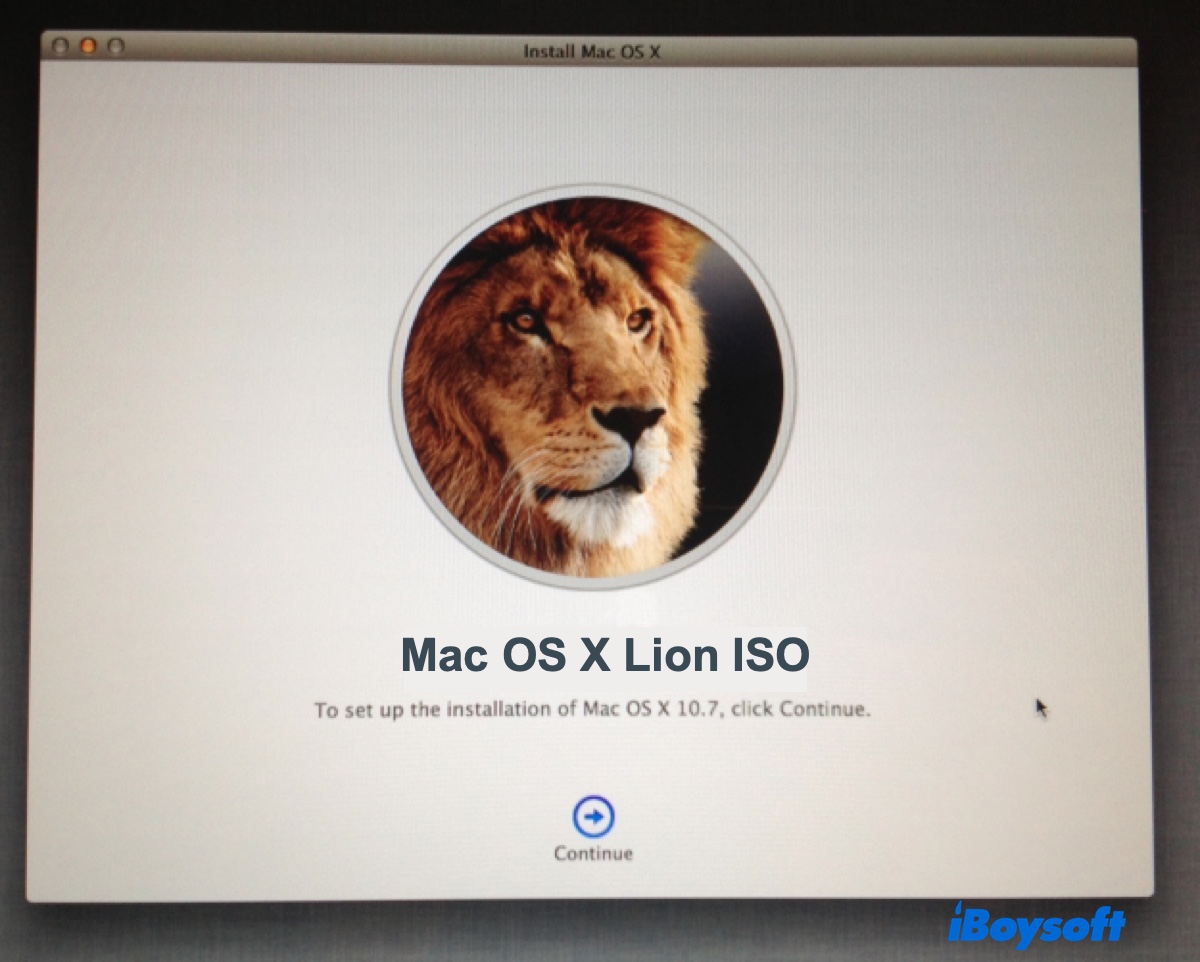
Finding an old Mac OS X installer can feel surprisingly difficult. If you're looking for the Mac OS X Lion ISO image, you may quickly run into outdated links, unbootable installers, or download sites that don't clearly explain the file source.
Although Mac OS X Lion is no longer a current macOS release, you may still need it to create a virtual machine, revive an older Mac, or run legacy software. The tricky part is not simply finding the ISO file. It's making sure you get the right installer and using the method that works for your hardware.
This guide explains available ways to download the Mac OS X Lion ISO file and how to create a bootable ISO image manually.
Download Mac OS X Lion ISO full version safely
If you want a safe, working OS X Lion ISO file or a bootable OS X Lion USB installer without going through the complicated creation process, I highly recommend you use iBoysoft DiskGeeker.
It has a built-in library for macOS disk images, including bootable ISO & DMG files, available for both Mac and Windows computers. In addition, it facilitates the creating of macOS bootable USB installers, making it fast and simple.
Here's how to download Mac OS X Lion ISO 10.7.5:
Step 1: Download and install iBoysoft DiskGeeker.
Step 2: Launch the tool and click Download Image from the left.
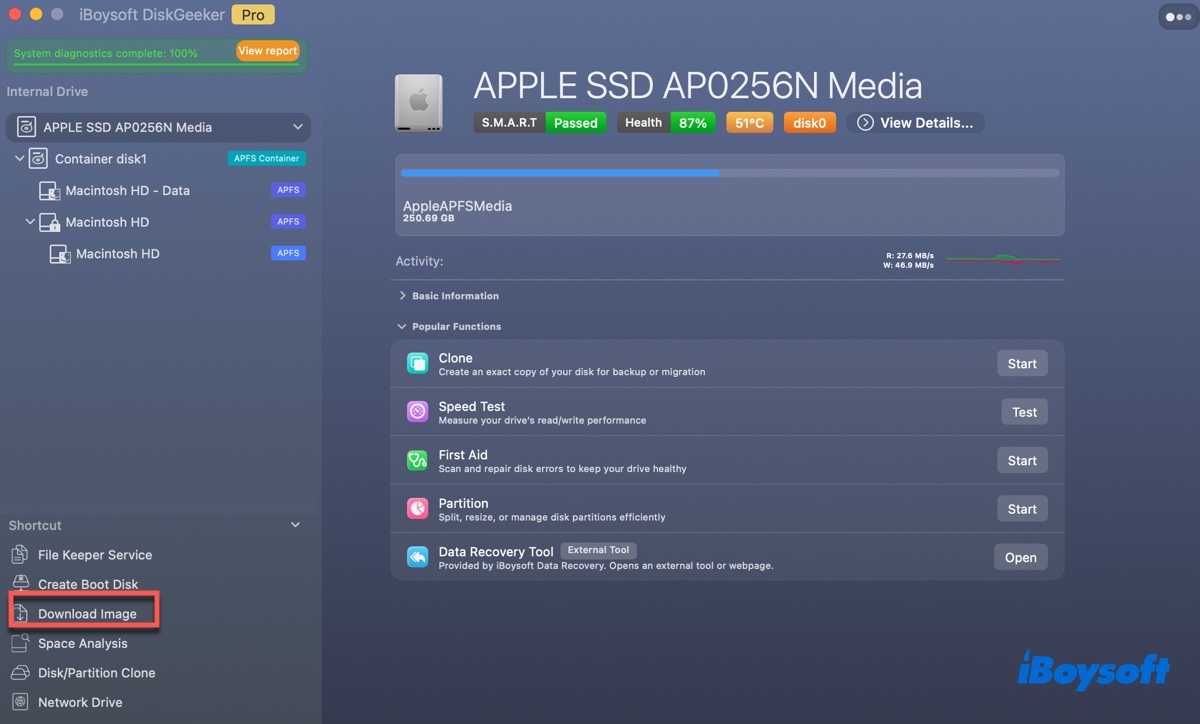
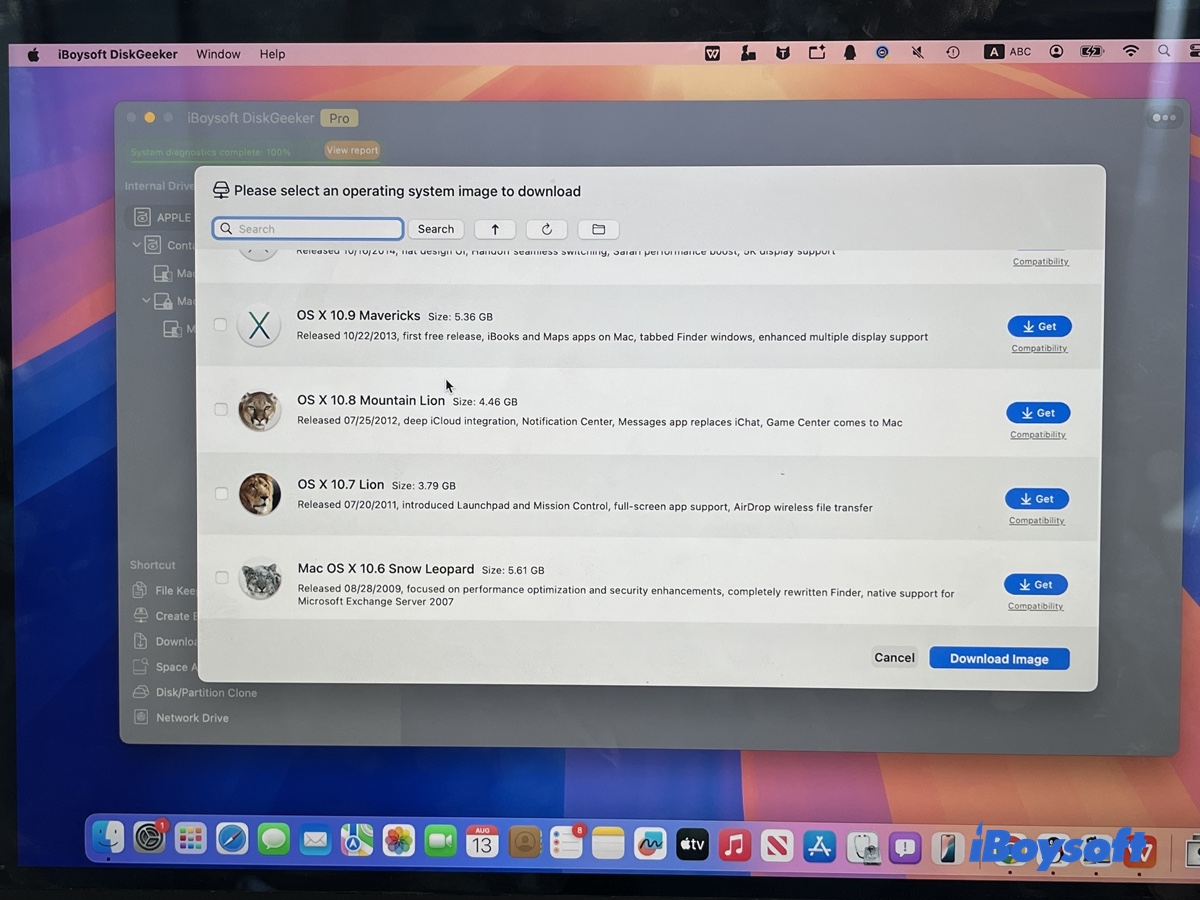
Step 3: Choose OS X 10.7 Lion and click Get.
Step 4: Decide the download method and click Start.
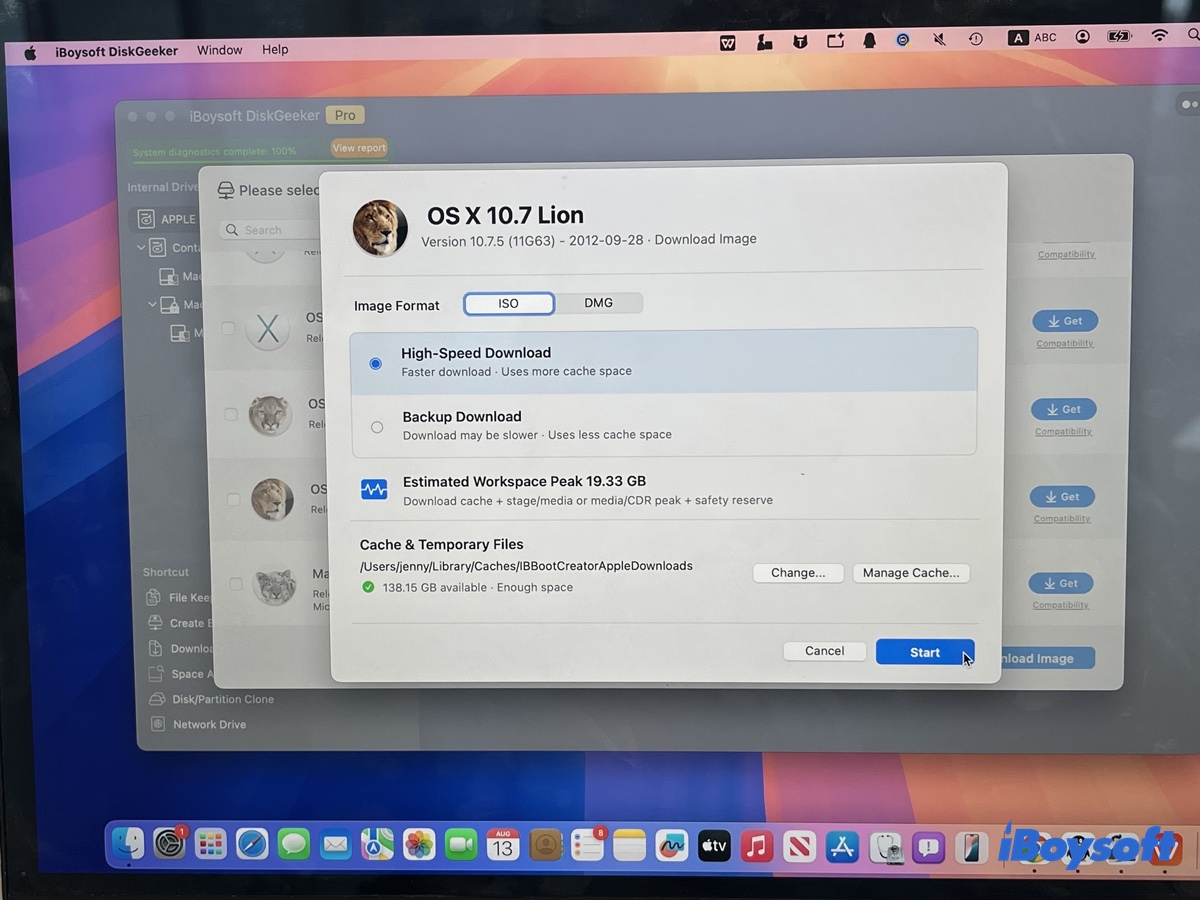
Step 5: Select a location to save the image.
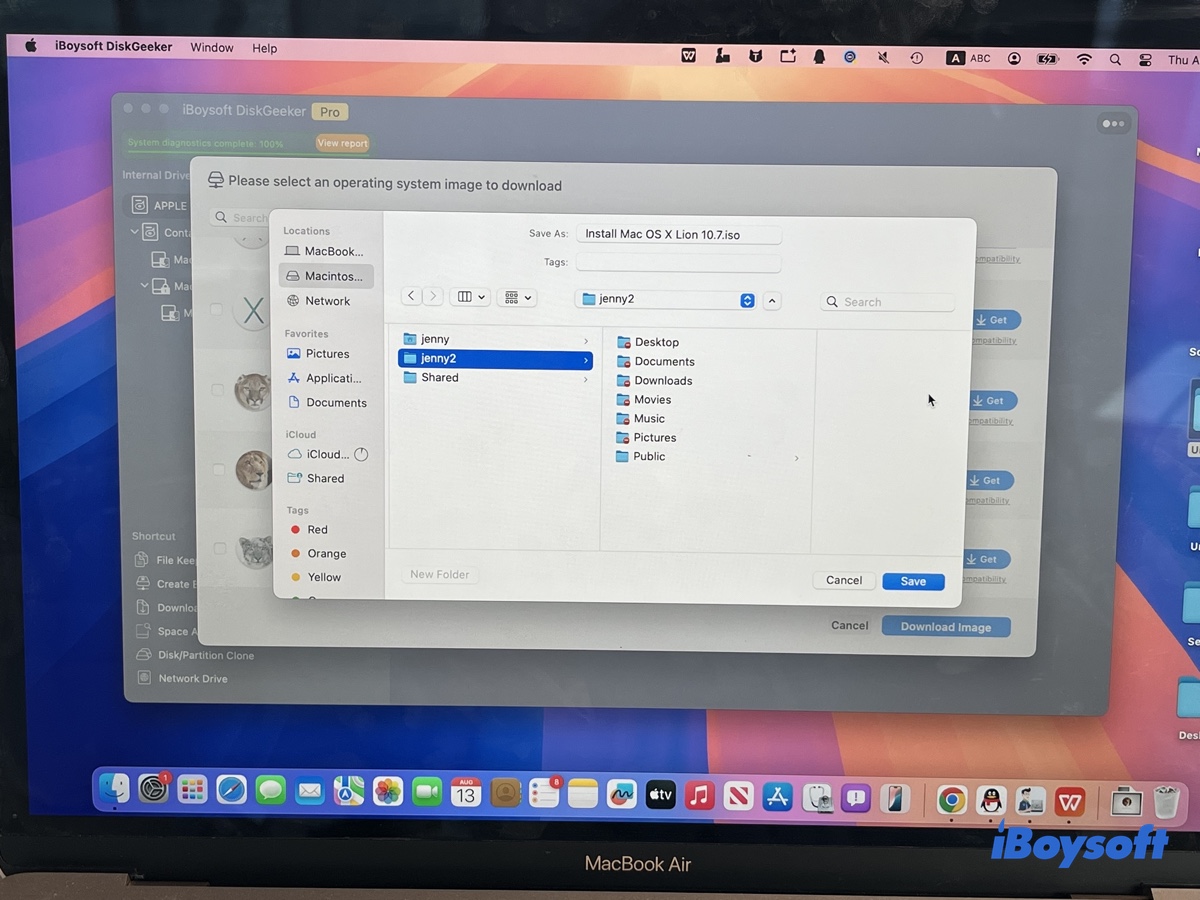
Step 6: Wait for the file to be downloaded.
If you just need the bootable USB media, you can click Create boot disk in Step 2 instead.
Free download Mac OS X Lion ISO directly
If you want a direct download through a browser, try the third-party links below. But bear in mind that these files are from unknown sources and may not be complete or safe.
Mac OS X Lion ISO download full version (4.8G, archive.org)
Mac OS X Lion ISO download for VirtualBox/VMware (5.5G, archive.org)
Mac OS X Lion 10.7.5 ISO torrent download (MD5 Hash: 595f220e6a9aaeb7bc4ed99df0d6064f)
Create bootable Mac OS X Lion 10.7.5 ISO on Mac
If you have a Mac that's compatible with OS X Lion, creating the ISO image manually is also a good option. It takes more time, but the creation process is under your control and the final image is sure to be safe.
Here's how to create a Mac OS X Lion 10.7.5 bootable ISO file:
Step 1: Download the Mac OS X Lion installer and extract InstallESD.dmg
Apple provides Mac OS X Lion as a disk image named InstallMacOSX.dmg. However, this DMG is not the bootable Lion installer.
When opened on a Mac compatible with Lion, it contains InstallMacOSX.pkg, which installs Install Mac OS X Lion.app in the Applications folder. Apple recommends creating the bootable installer from this application rather than directly from the original DMG or PKG file.
Download the Mac OS X Lion DMG
- Click the link above to download the Mac OS X Lion installer from Apple.
- After the download finishes, locate InstallMacOSX.dmg in your Downloads folder or the location where you saved it.
- Double-click InstallMacOSX.dmg to mount it. Then open the mounted disk image and double-click InstallMacOSX.pkg.
- Follow the onscreen instructions. The package installs Install Mac OS X Lion.app in your Applications folder.
- Open Finder > Applications, then you should see: Install Mac OS X Lion.app.
- Next, right-click Install Mac OS X Lion.app and select Show Package Contents.
- Go to: Contents > SharedSupport.
- Inside this folder, locate: InstallESD.dmg. (*This is the important file. InstallESD.dmg is the bootable Lion installation image used to create a bootable installer.)
- Copy InstallESD.dmg to your Desktop so that it is easier to work with in the following steps.
Tips: Important: Do not confuse InstallMacOSX.dmg with InstallESD.dmg. The former is Apple's original download package; the latter is the bootable installation image contained within the Lion installer.
Step 2: Create a bootable Mac OS X Lion ISO file
Unlike newer macOS versions, Mac OS X Lion does not provide the createinstallmedia utility. Therefore, you cannot use the createinstallmedia command to create a Lion installer.
Instead, you need to build the bootable image from InstallESD.dmg. The Lion installer contains a BaseSystem.dmg inside InstallESD.dmg. To create a bootable ISO suitable for virtualization, you can use this base system, add the Lion installation packages, and then convert the resulting disk image to ISO format.
1. Mount InstallESD.dmg
Open Terminal from Finder > Applications > Utilities > Terminal. Then enter:
hdiutil attach ~/Desktop/InstallESD.dmg -noverify -nobrowse -mountpoint /Volumes/LionESD
If your InstallESD.dmg is stored somewhere else, replace the path with its actual location. You can also drag the file from Finder into Terminal to insert its path automatically.
After mounting, the Lion installation files will be available at /Volumes/LionESD.
2. Convert BaseSystem.dmg to a writable image
Run:
hdiutil convert /Volumes/LionESD/BaseSystem.dmg -format UDSP -o ~/Desktop/Lion
This creates a sparse image named ~/Desktop/Lion.sparseimage.
The base system image is initially too small to contain the complete Lion installation packages, so increase its capacity:hdiutil resize -size 8g ~/Desktop/Lion.sparseimage
3. Mount the writable Lion image
Create a mount point and attach the image:
hdiutil attach ~/Desktop/Lion.sparseimage -noverify -nobrowse -mountpoint /Volumes/LionBuild
The modified Lion installation system is now mounted at /Volumes/LionBuild.
4. Replace the Packages alias
The restored BaseSystem contains a Packages alias that points to the installation packages on the original installation media. For a self-contained ISO, replace this alias with the actual Packages folder from InstallESD.dmg.
First, remove the existing alias:
rm /Volumes/LionBuild/System/Installation/Packages
Then copy the actual packages into its place:
cp -Rp /Volumes/LionESD/Packages /Volumes/LionBuild/System/Installation/
The Packages folder is several gigabytes, so this step may take some time. This is an important difference from simply converting InstallESD.dmg from DMG to CDR/ISO: the resulting image needs to contain the installation packages required by the bootable base system.
5. Unmount the images
After the copying process finishes, detach both mounted volumes:
hdiutil detach /Volumes/LionBuild
Then:
hdiutil detach /Volumes/LionESD
6. Resize and convert the image to ISO
First, reduce the sparse image to the smallest size that contains its data:
hdiutil resize -size `hdiutil resize -limits ~/Desktop/Lion.sparseimage | tail -n 1 | awk '{ print $1 }'`b ~/Desktop/Lion.sparseimage
Then convert the image to the UDTO format:
hdiutil convert ~/Desktop/Lion.sparseimage -format UDTO -o ~/Desktop/Mac\ OS\ X\ Lion
The command creates a file named Mac OS X Lion.cdr.
Finally, rename the CDR file to ISO:
mv ~/Desktop/Mac\ OS\ X\ Lion.cdr ~/Desktop/Mac\ OS\ X\ Lion.iso
You should now have Mac OS X Lion.iso on your Desktop.
Step 3: Use the Mac OS X Lion 10.7 ISO file
The Mac OS X Lion.iso file created above is intended to be a bootable installation image, rather than simply a renamed copy of Apple's original InstallMacOSX.dmg.
You can use the ISO to install Mac OS X Lion in a compatible virtual machine or, where supported, use it as installation media for an older Mac.
Before attempting installation, make sure the target Mac or virtual machine is compatible with Mac OS X Lion 10.7. Lion was designed for older Intel-based Macs, and modern Macs cannot natively boot it.
FAQs
- QCan the Mac OS X Lion be upgraded?
-
A
Yes. Mac OS X Lion 10.7 can be upgraded to a later version of OS X, provided that the Mac's hardware supports the newer version. For example, Apple provides OS X Mountain Lion as an upgrade path for Macs running OS X Lion, and some Macs that can run Lion can subsequently be upgraded further to newer versions.
- QHow to make bootable USB Mac OS X Lion?
-
A
You can create a bootable Mac OS X Lion USB installer using the InstallESD.dmg file inside the Lion installer. You need a USB flash drive or other external volume with at least 8 GB of storage, formatted as Mac OS Extended.
1. Download InstallMacOSX.dmg from Apple and open it.
2. Open InstallMacOSX.pkg to install Install Mac OS X Lion.app in your Applications folder.
3. Connect the USB drive and open Terminal.
4. Run this command: sudo asr restore --source /Applications/Install\ Mac\ OS\ X\ Lion.app/Contents/SharedSupport/InstallESD.dmg --target /Volumes/MyVolume --erase --noverify
5. Enter your administrator password when prompted and confirm that you want to erase the USB drive.
Alternatively, you can use a tool like iBoysoft DiskGeeker to create the bootable USB installer quickly.