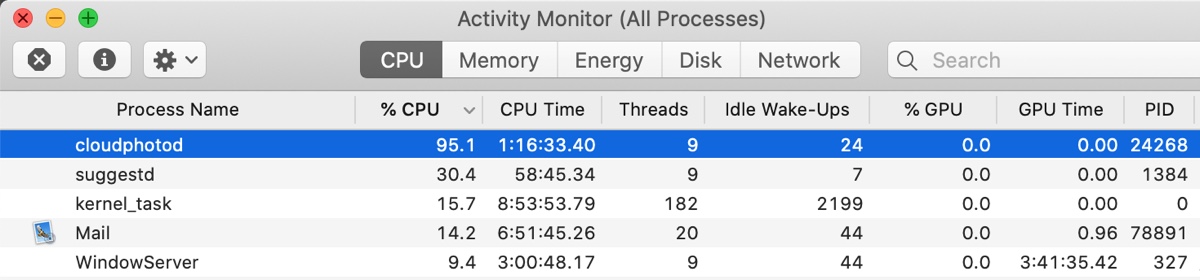
Are you experiencing a continual high CPU usage due to the process cloudphotod? It may cause your Mac to heat up frequently, make loud fan noises, or drain the battery faster than usual. Wondering what this process is? This article gives you the answer.
What is cloudphotod on a Mac?
cloudphotod is a system daemon (a background process) responsible for synchronizing your iCloud Photos library between your Mac and Apple's iCloud servers.
The "d" at the end stands for "daemon," which is the Unix term for a background service that runs continuously without direct user interaction.
Here's what cloudphotod does on a Mac:
- Uploading Photos and Videos.
- Downloading Photos and Videos.
- Syncing Metadata and Changes.
- Maintaining Consistency.
Share what cloudphotod on Mac is with others!
How to fix cloudphotod high CPU usage on Mac?
The cloudphotod process usually won't consume high CPU usage on Mac. However, it will use significant percentage of your CPU, memory, and network activity after a fresh macOS install or restore, when you first enable iCloud Photos on a Mac with a large existing library, or after importing a large batch of new photos or videos. But the excessive resource use should only be temporary.
If the cloudphotod process keeps utilizing significant CPU resources, you should try the following solutions:
Fix 1: Force Quit cloudphotod
When cloudphotod acts up, you can force quit it in Activity Monitor. This should allow it to restart the task and clear any corruption. Simply select it and click the x icon, then choose Force Quit.
Note that the process may re-emerge after some time. If it does and continues to hog the CPU, keep trying the following fix.
Fix 2: Uncheck Photos in iCloud
Some users have reported success in stopping cloudphotod from eating up CPU resources by disabling iCloud Photos. To do this, open System Preferences > Internet Accounts > iCloud, then uncheck Photos.
Share the methods to benefit others!
FAQs about cloudphotod process on Mac
- QWhat happens if I turn off iCloud Photos on my Mac?
-
A
Turning off iCloud Photos on your Mac has specific, important effects on where your photos are stored. You'll be given the choices to delete photos stored in iCloud or download them locally.
- QWhy is my Mac taking so long to sync photos to iCloud?
-
A
If your Mac takes a long time to sync photos to iCloud, it's usually due to your internet connection, the size of the sync queue, or software glitches.