Need a macOS Golden Gate DMG to reinstall macOS, perform a clean installation, or create a bootable USB installer? Unlike downloading a regular macOS update, obtaining a full installer image gives you an offline copy that you can store, transfer, and reuse.
However, not every macOS download is a DMG file, and not every DMG can be used as bootable installation media. You can download a ready-made image, create one yourself using Apple's full installer, or use a dedicated utility to download a bootable copy and prepare a bootable USB.
This guide explains the differences and walks you through each method so you can choose the right macOS Golden Gate download for your needs.
Should You Use a macOS Golden Gate DMG File?
A macOS Golden Gate DMG file is useful when you need a portable copy of the full macOS installer. However, it isn't always necessary to download one. Sometimes, the app installer is enough.
Whether you need a DMG or the regular installer application depends on what you're trying to accomplish.
When you need a macOS Golden Gate DMG:
- Offline installation: You want to keep a local copy of the macOS 27 installation files instead of downloading them again whenever you need to reinstall macOS.
- Creating a bootable USB: You need a macOS installation image to prepare external installation media, including through a supported Windows utility.
- Transferring the installer: You want to move the macOS Golden Gate installer between computers using an external SSD or another storage device.
- Keeping a specific macOS version: You want to archive a particular macOS Golden Gate build rather than relying on Apple's currently available installer.
- Preparing installation media on Windows: You don't have access to a compatible Mac but need to prepare a macOS bootable USB using a Windows PC and a suitable utility.
A DMG also provides a convenient way to keep the installer in one file. Instead of transferring a large installer application and its associated files separately, you can store the disk image as a single package.
When the macOS installer app is more appropriate:
You may not need a separate DMG but a macOS installer app if:
- You already have a compatible Mac and only want to upgrade or reinstall macOS.
- You plan to create a bootable USB using Apple's createinstallmedia command.
- You don't need to transfer or archive the installer as a separate disk image.
Method 1. Download macOS Golden Gate DMG with iBoysoft DiskGeeker
If you don't have a compatible Mac or don't want to spend time downloading the macOS 27 full installer and creating a DMG manually, iBoysoft DiskGeeker offers a more direct solution.
It provides the bootable macOS DMG & ISO files for macOS 27 Golden Gate and earlier versions. It is also useful if your ultimate goal is to create a bootable macOS USB. Instead of downloading an image from another website and then finding a separate tool to prepare the installation media, you can use DiskGeeker's built-in workflow.
The software has separate Mac and Windows editions, allowing you to download macOS DMGs and prepare installation media from either platform.
Download macOS Golden Gate DMG on Mac
If you're using a Mac, follow these steps:
Step 1: Download and install iBoysoft DiskGeeker for Mac.
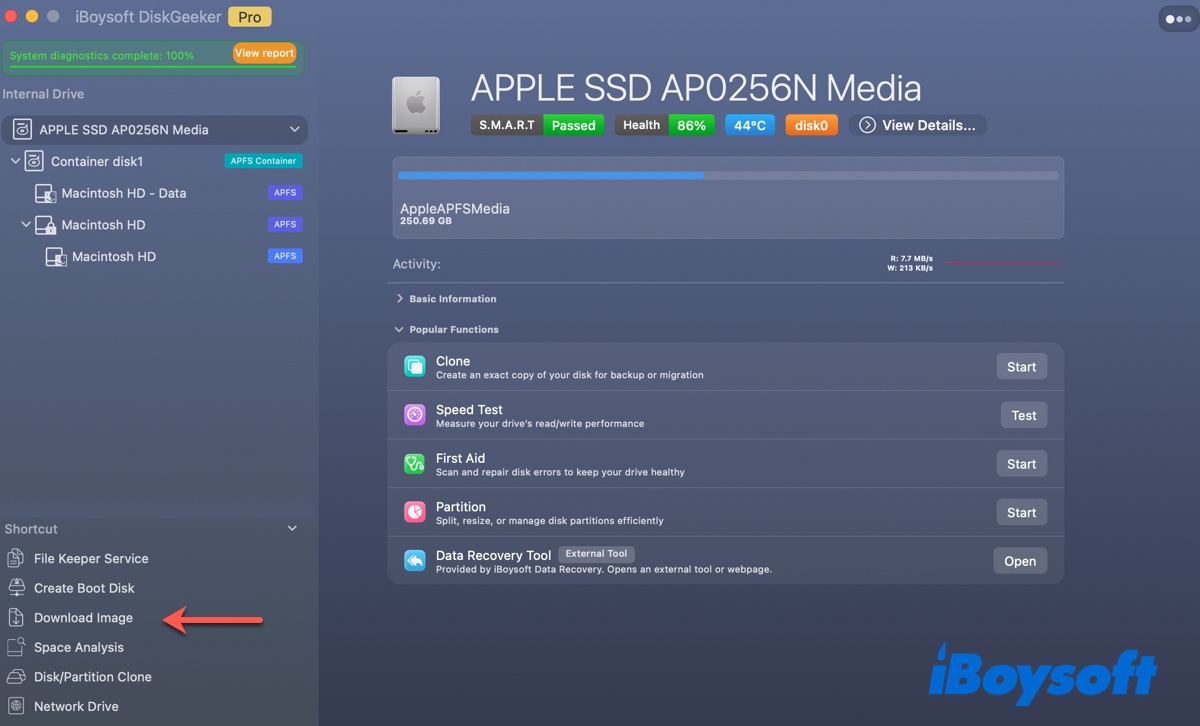
Step 2: Open the software and click Download Image in the left sidebar.
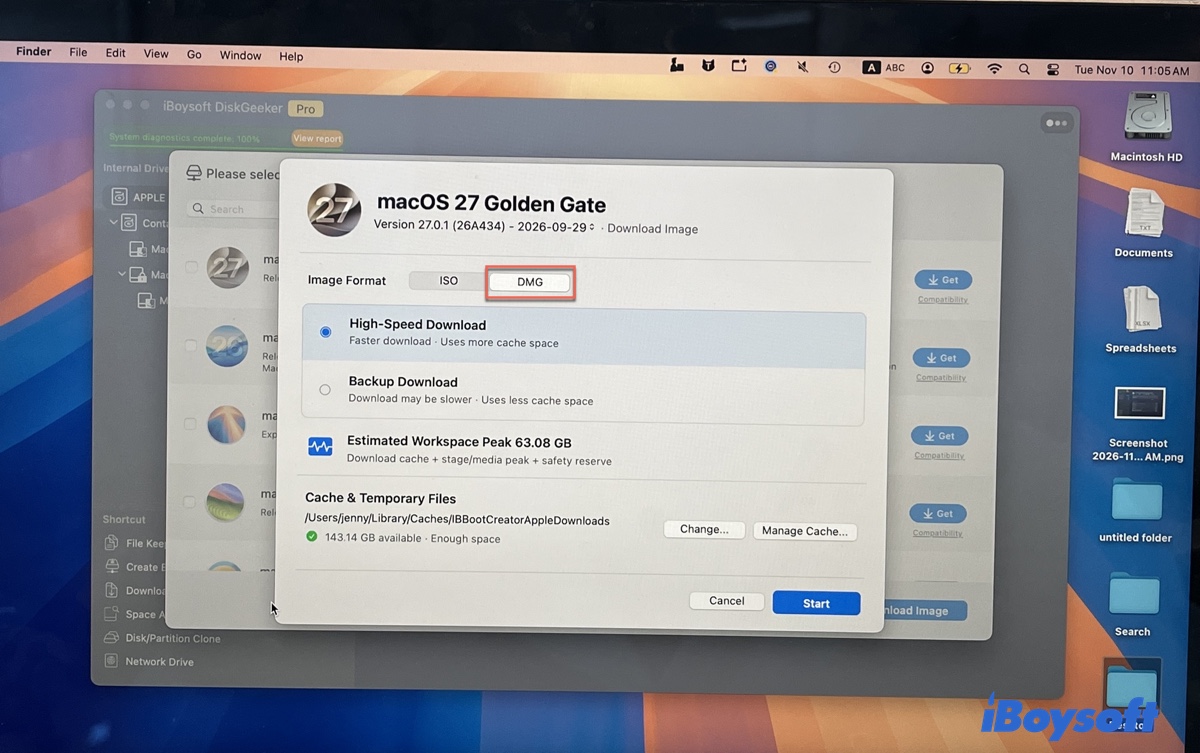
Step 3: Find macOS 27 Golden Gate in the available macOS versions and click Get.
Step 4: Choose DMG and click Start.
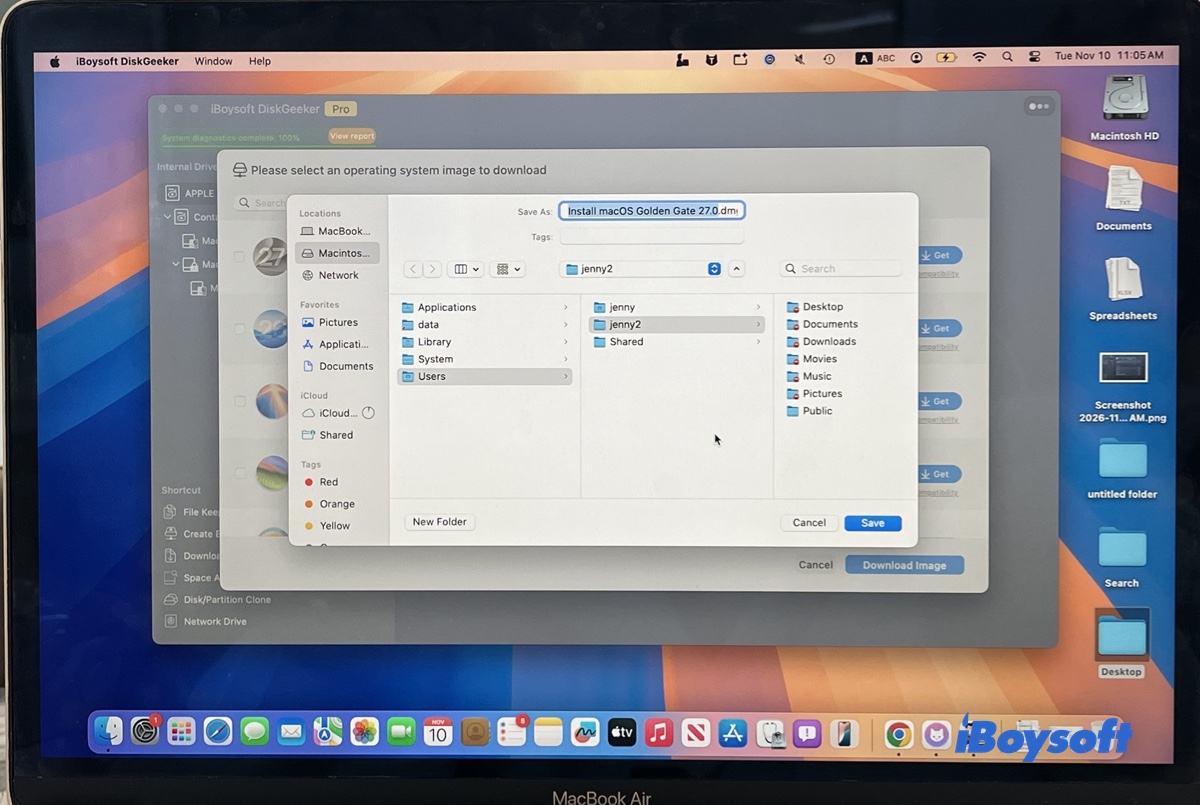
Step 5: Select a location to save the image and wait for the download to complete.
Download macOS Golden Gate DMG on Windows
If you don't have access to a compatible Mac, you can also download the macOS Golden Gate DMG on a Windows PC using iBoysoft DiskGeeker for Windows.
Step 1: Download and install iBoysoft DiskGeeker for Windows.
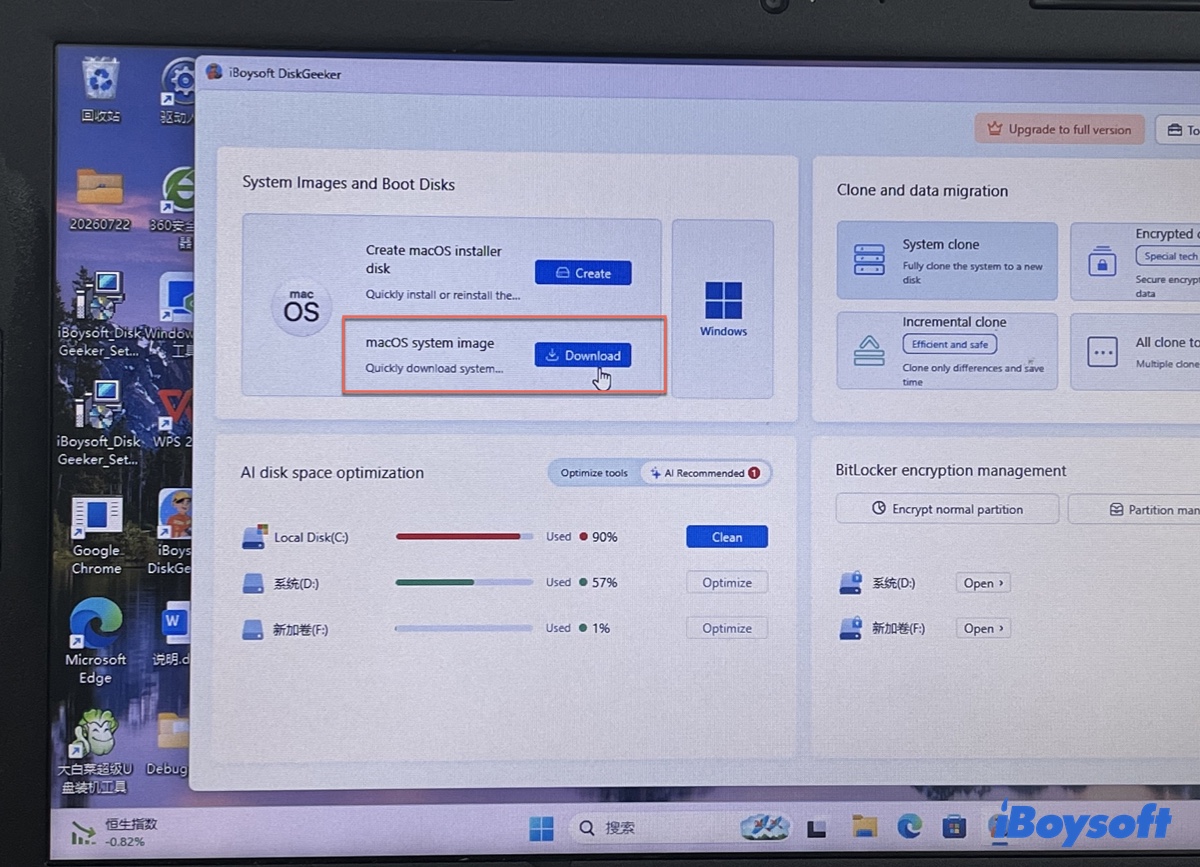
Step 2: Launch the program and click Download next to macOS system image.
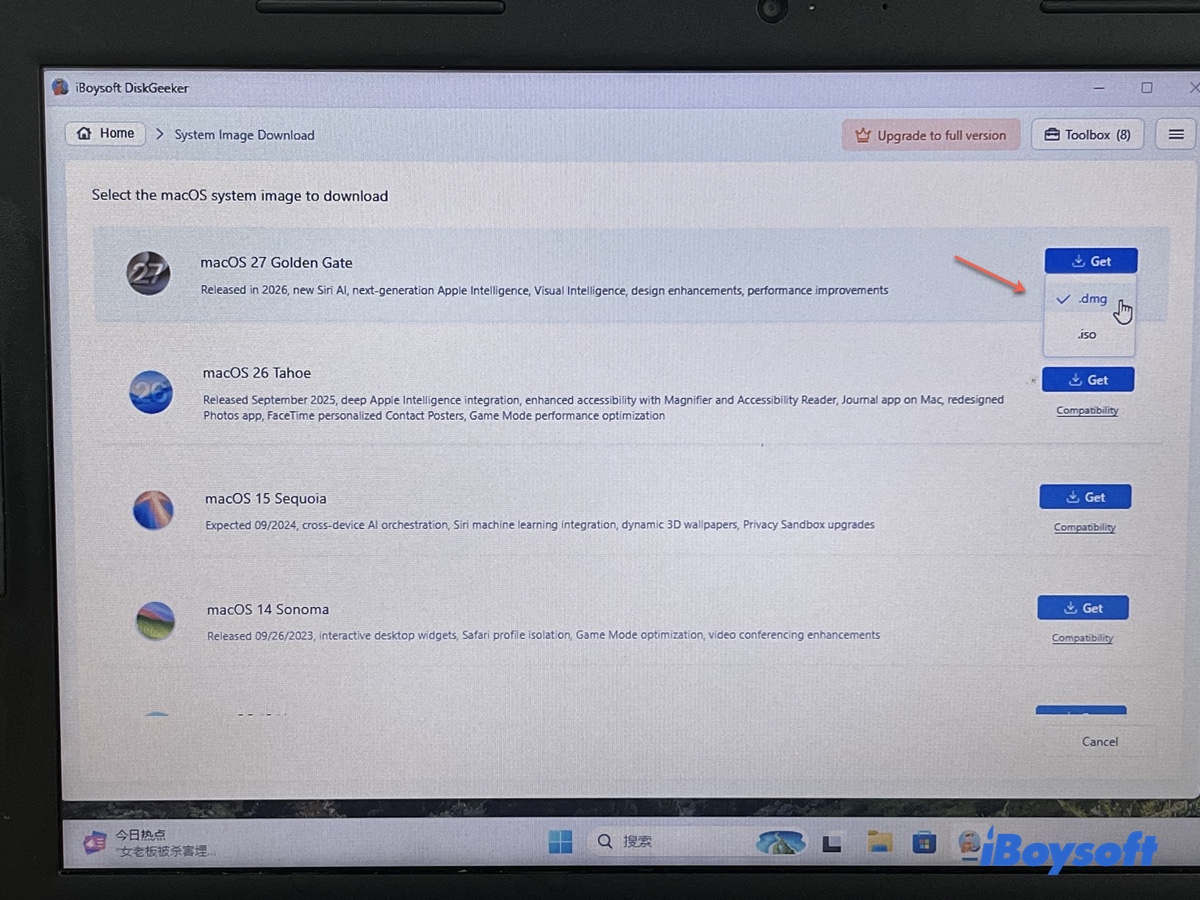
Step 3: Move the cursor to the Get button next to macOS 27 Golden Gate.
Step 4: Choose .dmg and click Get.
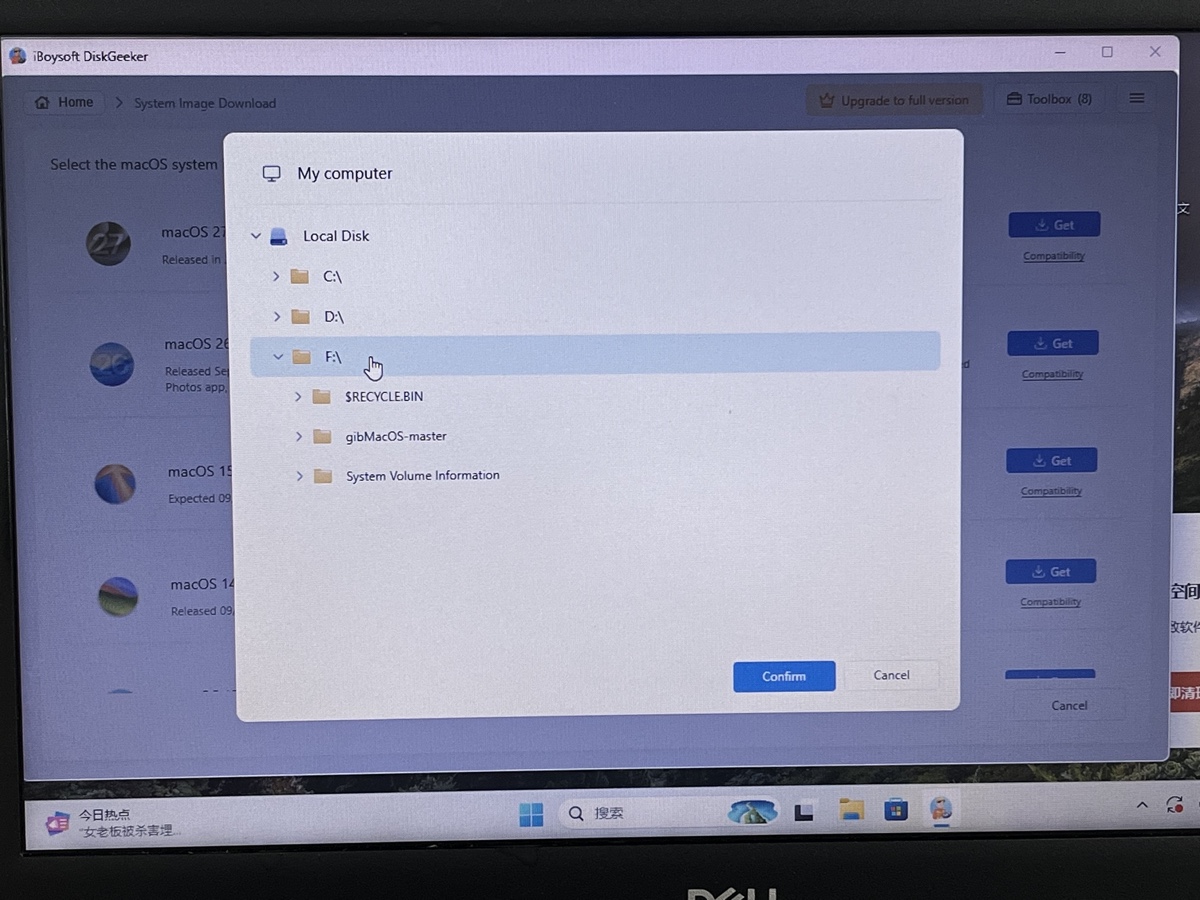
Step 5: Select where to save the macOS 27 DMG file.
Step 6: Wait for the download to finish.
Once the download finishes, you'll have the macOS Golden Gate DMG saved on your Windows computer.
Tips: If your actual goal is to create a bootable USB rather than keep a standalone DMG, you can select the macOS USB installer creation workflow directly in DiskGeeker. This avoids downloading the image separately and then manually preparing the USB.
Method 2. macOS Golden Gate DMG Download Free
If you prefer not to use third-party software to download the image or create one manually, you can look for an existing macOS Golden Gate DMG on an online archive.
Some websites and file-sharing services host ready-made macOS installation images. This can save time, particularly if you don't have access to a compatible Mac.
However, there is an important trade-off.
Unlike Apple's full installer packages, which can be downloaded from Apple's software distribution servers, third-party DMG files may not have a clearly verifiable source. A file may have been modified, incompletely uploaded, or damaged during transfer. Some download pages may also provide outdated beta builds instead of the version you expect.
Free macOS Golden Gate DMG download links:
Download macOS Golden Gate DMG – archive.org
Download macOS Golden Gate DMG – TeraBox
If you cannot verify the origin or integrity of an archived DMG, downloading the full installer from Apple and creating your own image is the more dependable option.
Method 3. How to Create a macOS Golden Gate DMG Manually
If you have a compatible Mac, you can create your own macOS Golden Gate DMG without relying on a pre-made image from another website.
There are two common ways to create a DMG on a Mac:
- Disk Utility: Creates a basic disk image containing the installer application. This is suitable for storing, transferring, and archiving the installer.
- Terminal: Uses Apple's "createinstallmedia" utility to prepare a bootable installer volume inside a disk image. This requires more steps but produces a fundamentally different DMG that can be used as bootable installation media in supported workflows.
Choose the method according to how you intend to use the final file.
Preparation: Download the full macOS Golden Gate installer
The process starts with Apple's full installer package, usually named InstallAssistant.pkg. You can obtain it directly from our macOS installer download center. After installing that package, you'll have the complete macOS installer application in your Applications folder.
Method 3.1. Create a macOS Golden Gate DMG using Disk Utility
Disk Utility is the easier option if you only need a DMG containing the macOS installer application.
It works by taking a folder containing the installer app and packaging that folder into a disk image. You don't need to run Terminal commands or manually configure a disk partition.
However, keep in mind that this method creates a regular installer archive, not a bootable macOS installation volume.
- Create a new folder and copy the Install macOS 27 Golden Gate.app to it.
- Open Disk Utility.
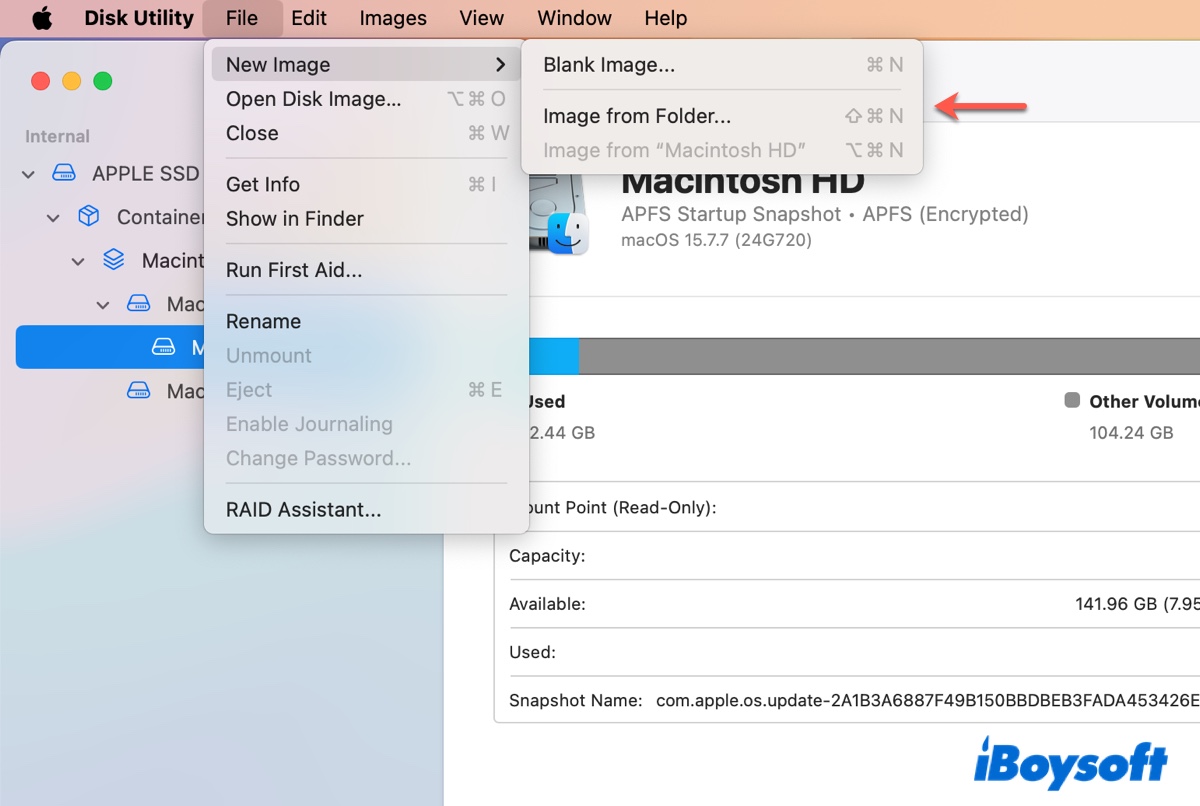
- Click File > New Image > Image from Folder.
- Select the new folder and click Choose.
- Enter a name for the disk image, such as macOS_Golden_Gate.dmg.
- Choose a destination where you have enough free space.
- Select an appropriate image format. (A compressed read-only image is generally suitable.)
- Click Save and wait for Disk Utility to finish creating the image.
Method 3.2. Create a bootable macOS Golden Gate DMG using Terminal
If you need more than a compressed folder containing the installer app, you can use Terminal and Apple's built-in createinstallmedia utility.
This method creates a blank disk image, mounts it as a volume, and then uses `createinstallmedia` to prepare that volume as a bootable macOS installer. Finally, you convert the completed image into a compressed DMG file.
The resulting image is fundamentally different from the one created through Disk Utility's Image from Folder feature.
Read this article for comprehensive guidance: macOS 27 Golden Gate Beta Download
To learn more about macOS Golden Gate, read about macOS Golden Gate issues.
FAQs About macOS Golden Gate DMG Download
- QIs macOS Golden Gate DMG download free?
-
A
Apple doesn't provide the macOS Golden Gate installer in DMG format. You can download the DMG file users shared online for free from free archives like archive.org if you can bear the risk.
- QWhat is the difference between a macOS Golden Gate DMG and PKG?
-
A
A PKG is an installer package that installs the full macOS installer application into your Applications folder. A DMG is a disk image that can contain the installer application or a prepared installation volume.
- QCan I create a macOS Golden Gate DMG on Windows?
-
A
You cannot use macOS Disk Utility or Apple's createinstallmedia utility natively on Windows. However, you can use iBoysoft DiskGeeker for Windows to download macOS system images and prepare a macOS bootable USB installer.
- QCan I install macOS Golden Gate directly from a DMG?
-
A
Yes, you can mount the DMG file and run the installer application inside to install macOS Golden Gate on a compatible Mac.
- QCan I use a macOS Golden Gate DMG to upgrade my existing Mac?
-
A
You can use a DMG containing the full installer application to upgrade your Mac. However, if your only goal is to upgrade macOS, downloading and running Apple's full installer application directly is usually more straightforward.